
Virtual Machine - Troubleshoot Performance Issues
1.) Your Disks are Fragmented
The first reason is most likely due to fragmentation of your Hard disk or the virtual disk itself:
(This applies to vmware player and workstation as well as others)
Defragmenting Virtual Disks:
Like physical disk drives, virtual disks can become fragmented. Defragmenting disks rearranges files, programs, and unused space on the virtual disk so that programs run faster and files open more quickly. Defragmenting does not reclaim unused space on a virtual disk; to reclaim unused space, shrink the disk.
For best disk performance, follow these steps:
 rb: Click Computer. Right Click Local Disk C. Choose properties. Under tools-Click Defragment now.
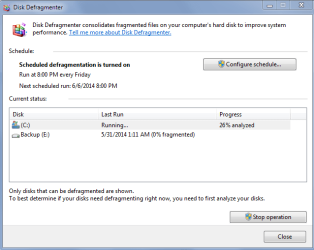
Note: The defragmentation process requires free working space on the host computer's disk. If your virtual disk is contained in a single file, for example, you need free space equal to the size of the virtual disk file. Other virtual disk configurations require less free space.
2.) Realtime on access scanners- Anti-virus/Anti-malware Utilities are scanning your Virtual Machines Folders while they are in use
When you are using your VM, you might run into slowness due to your antivirus or a program like malwarebytes scanning your virtual machine files on the host machine as you are using them, slowing down your VM. So what we want to do is add the folders where your Virtual Machine files are stored so that the on access protection software you have installed is not scanning the Virtual Machines folders and not slowing you down.
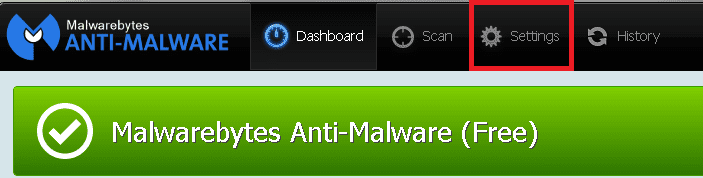
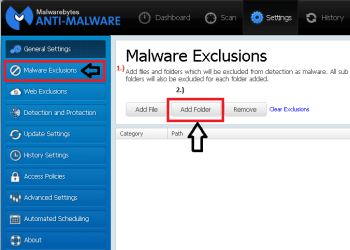
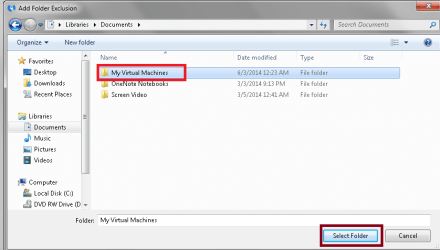
Text instruction: Open Malwarebytes. Click Settings. Click Malware Exclusions. Click Add folder. Choose the folder where all of your Virtual machine files are stored. Click Select Folder. You are done! Close out.
Visual instructions:
3.) Your System Specs are holding you back
I recommend at least a Intel I3 or AMD A8 (quad core) for the best performance, and at least 8GB ram for good performance across the board. Sure you can run virtual machines with less than that, but Ideally you want a decent system so you can be in your Virtual Machine and have multiple things open on your host without slowing you down.
Make sure the host has more physical memory than the total amount of memory that will be used by all of the
following:
-The host operating system
-Any applications that will be running natively on the host
-The sum of the memory that will be used by the guest operating systems and the applications on all the
virtual machines that will be running at any one time.
4.) You did not dedicate enough Ram to the Virtual Machine
This List shows my recommended system ram for platforms for Virtual Machines:
Windows:
Windows 98- 64mb ram minimum. Recommended: 128mb ram
Windows me/2000 256mb ram minimum. Recommended: 512mb ram
Windows XP: 1GB ram minimum. Recommended: 2GB ram
Windows Vista: 2GB ram minimum. Recommended: 4GB ram
Windows 7: 2GB ram minimum. Recommended: 4GB ram
Windows 8.1: 2GB ram minimum. Recommended: 4GB ram
Linux distros:
1GB ram minimum. Recommended: 2GB ram
You can find these settings in your Ram settings of the appropriate virtual program. Here is where you can find it in VMWare player:
Follow step 1 above in images, but choose memory on the settings screen. Adjust Ram preferences there.
5.) Your Virtual Client program is not up to date
Make sure you keep VMWare player up to date, or virtual box or whatever program you are using.
6.) You are running Virtual Machines from a External Hard Disk
Doing this is not recommend and will be unbearingly slow. (Unless it is a external SSD drive on USB 3.0.)
7.) Your hard drive is slow
If you have a Hard Drive that is 5400 RPM, consider upgrading to a faster 7200RPM or 10000RPM Hard Disk.
Even better and faster option: Consider buying a ssd/hdd hybrid drive OR an SSD. These will dramatically increase performance by storing the virtual machine files there.
8.) You are using Virtual Machines without the Virtual Machines software installed into it.
If you have VMWare player, you want to make sure you have installed vmware tools as this significantly affects performance.
9.) Your Graphics drivers are out of date
You want to always make sure you have the latest graphics drivers for your system. Update them here:
If you have an Nvidia card go here: NVIDIA Driver Downloads - Automatically Detect NVIDIA Products
If you have an Amd card go here: AMD Driver Autodetect
10. The Operating system is not up to date
Make sure you have the latest updates for your HOST Operating system as well as the guest or VM Operating system. Use (if possible) windows update.
For Linux use system update.
11.) You are low on free disk space on your virtual disks.
In the Virtual Machine, Try going to disk management or my computer and determine how much disk space you have left. If you have low Disk Space on your virtual disks, make sure to increase them to have at least 20% free on your storage volume.
To do this, Do the following from this article here:
Prerequisites
■Power off the virtual machine.
■Verify that the virtual disk is not mapped or mounted. You cannot expand a virtual disk while it is mapped or mounted.
■Verify that the virtual machine has no snapshots.
■Verify that the virtual machine is not a linked clone or the parent of a linked clone.
Procedure:
1.) Select the virtual machine and select VM > Settings.
2.) On the Hardware tab, select the virtual hard disk to expand.
3.) Select Utilities > Expand.
4.) Set the new maximum size for the virtual disk.
You can set a size between 0.001GB and 2TB for a virtual disk.
5.) Select Expand.
6.) Click OK after the disk expansion process is complete.
12.) The Operating System is not optimized
See this tutorial:
http://www.sevenforums.com/tutorials/11728-optimize-windows-7-a.html
Some of those linked in the above tutorial apply to other Operating systems of Windows, not just windows 7.
13.) You do not have AMD-v OR Intel VT enabled in your bios.
You want to make sure this is turned on in your bios, as it adds a lot of benefits in performance wise when using Virtual Machines. See your computer's documentation or Google your pc model for instructions on how to do this.
14.) You have AMD-V OR Intel VT enabled in bios, but do not have it turned on in Vmware Player.
If you have hardware supported virtualization, make sure your Virtual Machine program such as vmware player, virtual box etc is told to use it.
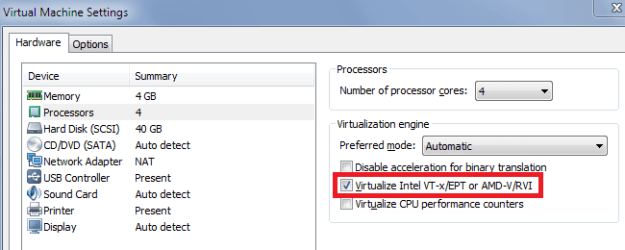
In vmware player, go to edit virtual machine settings as shown in step 1 above, and under the processor tab, choose virtualize intel vt-x/ept or amd-v/rvi and make sure it is checked.
See screenshot:
15.) If after doing all the above, and you still have problems with slowness, adjust the priority of the VM's process:
In task manager on your host with the VM running, setting the virtual machine process priority to High should help, making the vm run more smoothly. Right click the processes for the VM, and choose priority-High.
Note however; that doing this can cause your main host to be slow at doing other things while the VM is running, as you are telling your PC the VM is the highest priority.
(credit-Kari for this one)
How to Troubleshoot Slow Performance of a Virtual Machine
Information
This tutorial will be assuming you are using VMWare Player for this tutorial, although these tips hold true in other virtual platforms-such as Windows Virtual PC and VirtualBox.
This tutorial also assumes your virtual machines files are stored on your local disk C drive.
When the guide mentions the word VM, it is referring to the Virtual Machine.
This tutorial also assumes your virtual machines files are stored on your local disk C drive.
When the guide mentions the word VM, it is referring to the Virtual Machine.
1.) Your Disks are Fragmented
The first reason is most likely due to fragmentation of your Hard disk or the virtual disk itself:
(This applies to vmware player and workstation as well as others)
Tip
Linux Distros (ubuntu, zorin, etc.) do not need to be defragged due to the file system it uses.
Windows 8 and 10 names defragging as "optimization"
Windows 8 and 10 names defragging as "optimization"
Warning
Keep in mind, if you have a SSD (Solid State Drive) and the virtual machine or host has the files on a SSD Ignore the following below. Do not defrag an SSD ever.
Defragmenting Virtual Disks:
Like physical disk drives, virtual disks can become fragmented. Defragmenting disks rearranges files, programs, and unused space on the virtual disk so that programs run faster and files open more quickly. Defragmenting does not reclaim unused space on a virtual disk; to reclaim unused space, shrink the disk.
For best disk performance, follow these steps:
- Run a disk defragmentation utility inside the virtual machine.
Click Start,rb: Click Computer. Right Click Local Disk C. Choose properties. Under tools-Click Defragment now.
- Power off the virtual machine once defrag is complete in the VM, then defragment its virtual disks from the virtual machine settings editor (VM > Settings). Select the virtual disk you want to defragment, then click Defragment.
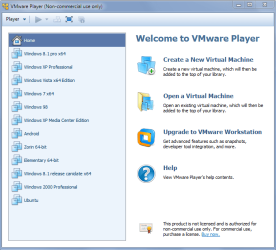
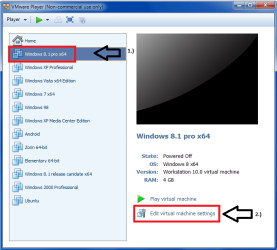
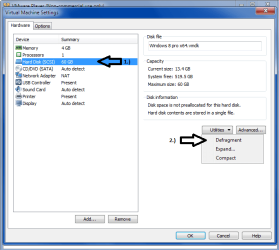
TipNote: This capability works only with virtual disks, not physical or plain disks.
- Run a disk defragmentation utility on the host (your physical) computer.
rb: Click Computer. Right Click Local Disk C. Choose properties. Under tools-Click Defragment now.
Tip
Defragmenting disks may take considerable time.
Note: The defragmentation process requires free working space on the host computer's disk. If your virtual disk is contained in a single file, for example, you need free space equal to the size of the virtual disk file. Other virtual disk configurations require less free space.
2.) Realtime on access scanners- Anti-virus/Anti-malware Utilities are scanning your Virtual Machines Folders while they are in use
When you are using your VM, you might run into slowness due to your antivirus or a program like malwarebytes scanning your virtual machine files on the host machine as you are using them, slowing down your VM. So what we want to do is add the folders where your Virtual Machine files are stored so that the on access protection software you have installed is not scanning the Virtual Machines folders and not slowing you down.
Warning
If you do this, This means your anti-virus/anti-malware solution will not find infected files in these folders. Due to this, I recommend scanning the virtual machine folders every now and then by right clicking on the folder and choosing to scan with your protection software. You also may need to undo the exclusion before you are able to scan the folder.
Tip
The following will be demonstrated with Malwarebytes pro as an example. You must read the documentation on your Antivirus product and any other real time scanners so you can find the Exclusions setting. It can be typically found in the settings panel for the program however.
Text instruction: Open Malwarebytes. Click Settings. Click Malware Exclusions. Click Add folder. Choose the folder where all of your Virtual machine files are stored. Click Select Folder. You are done! Close out.
Visual instructions:
3.) Your System Specs are holding you back
I recommend at least a Intel I3 or AMD A8 (quad core) for the best performance, and at least 8GB ram for good performance across the board. Sure you can run virtual machines with less than that, but Ideally you want a decent system so you can be in your Virtual Machine and have multiple things open on your host without slowing you down.
Make sure the host has more physical memory than the total amount of memory that will be used by all of the
following:
-The host operating system
-Any applications that will be running natively on the host
-The sum of the memory that will be used by the guest operating systems and the applications on all the
virtual machines that will be running at any one time.
4.) You did not dedicate enough Ram to the Virtual Machine
This List shows my recommended system ram for platforms for Virtual Machines:
Tip
Clicking the name of the OS will take you to the Microsoft Support Page for system requirements at the time of release
Windows:
Windows 98- 64mb ram minimum. Recommended: 128mb ram
Windows me/2000 256mb ram minimum. Recommended: 512mb ram
Windows XP: 1GB ram minimum. Recommended: 2GB ram
Windows Vista: 2GB ram minimum. Recommended: 4GB ram
Windows 7: 2GB ram minimum. Recommended: 4GB ram
Windows 8.1: 2GB ram minimum. Recommended: 4GB ram
Linux distros:
1GB ram minimum. Recommended: 2GB ram
Warning
It is possible to give to much ram to a OS. Keep in mind about older Operating systems such as windows 98. If you give it to much ram, it may crash and be unstable.
You can find these settings in your Ram settings of the appropriate virtual program. Here is where you can find it in VMWare player:
Follow step 1 above in images, but choose memory on the settings screen. Adjust Ram preferences there.
5.) Your Virtual Client program is not up to date
Make sure you keep VMWare player up to date, or virtual box or whatever program you are using.
6.) You are running Virtual Machines from a External Hard Disk
Doing this is not recommend and will be unbearingly slow. (Unless it is a external SSD drive on USB 3.0.)
7.) Your hard drive is slow
If you have a Hard Drive that is 5400 RPM, consider upgrading to a faster 7200RPM or 10000RPM Hard Disk.
Even better and faster option: Consider buying a ssd/hdd hybrid drive OR an SSD. These will dramatically increase performance by storing the virtual machine files there.
8.) You are using Virtual Machines without the Virtual Machines software installed into it.
If you have VMWare player, you want to make sure you have installed vmware tools as this significantly affects performance.
9.) Your Graphics drivers are out of date
You want to always make sure you have the latest graphics drivers for your system. Update them here:
If you have an Nvidia card go here: NVIDIA Driver Downloads - Automatically Detect NVIDIA Products
If you have an Amd card go here: AMD Driver Autodetect
10. The Operating system is not up to date
Make sure you have the latest updates for your HOST Operating system as well as the guest or VM Operating system. Use (if possible) windows update.
For Linux use system update.
11.) You are low on free disk space on your virtual disks.
Tip
This only really matters when you have a more modern Operating system. Older Operating systems like windows 98 have a limit as to how much disk space they can see due to the file system type used. So giving them 10GB would be more than plenty of storage. You may need to research the operating system to see what the maximum file size and hard disk size is supported. Sometimes it is limited by the Operating system itself, others is due to the fat or fat32 file system.
In the Virtual Machine, Try going to disk management or my computer and determine how much disk space you have left. If you have low Disk Space on your virtual disks, make sure to increase them to have at least 20% free on your storage volume.
To do this, Do the following from this article here:
Prerequisites
■Power off the virtual machine.
■Verify that the virtual disk is not mapped or mounted. You cannot expand a virtual disk while it is mapped or mounted.
■Verify that the virtual machine has no snapshots.
■Verify that the virtual machine is not a linked clone or the parent of a linked clone.
Procedure:
1.) Select the virtual machine and select VM > Settings.
2.) On the Hardware tab, select the virtual hard disk to expand.
3.) Select Utilities > Expand.
4.) Set the new maximum size for the virtual disk.
You can set a size between 0.001GB and 2TB for a virtual disk.
5.) Select Expand.
6.) Click OK after the disk expansion process is complete.
12.) The Operating System is not optimized
See this tutorial:
http://www.sevenforums.com/tutorials/11728-optimize-windows-7-a.html
Some of those linked in the above tutorial apply to other Operating systems of Windows, not just windows 7.
13.) You do not have AMD-v OR Intel VT enabled in your bios.
You want to make sure this is turned on in your bios, as it adds a lot of benefits in performance wise when using Virtual Machines. See your computer's documentation or Google your pc model for instructions on how to do this.
14.) You have AMD-V OR Intel VT enabled in bios, but do not have it turned on in Vmware Player.
If you have hardware supported virtualization, make sure your Virtual Machine program such as vmware player, virtual box etc is told to use it.
In vmware player, go to edit virtual machine settings as shown in step 1 above, and under the processor tab, choose virtualize intel vt-x/ept or amd-v/rvi and make sure it is checked.
See screenshot:
15.) If after doing all the above, and you still have problems with slowness, adjust the priority of the VM's process:
In task manager on your host with the VM running, setting the virtual machine process priority to High should help, making the vm run more smoothly. Right click the processes for the VM, and choose priority-High.
Note however; that doing this can cause your main host to be slow at doing other things while the VM is running, as you are telling your PC the VM is the highest priority.
(credit-Kari for this one)
Related Tutorials
- How to Speed Up the Performance of Windows 7
- How to Optimize the Performance of Windows 8 and 8.1
- How to Create a Virtual Machine with Windows 8 Hyper-V
- How to Create a Virtual Machine in Windows Virtual PC
- How to Install and Setup Windows XP Mode in Windows 7
- How to Install Windows 8 on VirtualBox
- How to Install Windows 8 on VMware Player
- How to Expand a Virtual Hard Disk of a Virtual Machine in VMware Player
Last edited:


