Virtual XP Machine - Copy

How to Copy a Virtual XP Machine in Windows 7

   Note
Notice please:

This tutorial was written when we were still using first beta versions of Virtual PC and XP mode. This method to copy a VPC virtual machine was the most practical at that time. It still is a fully working and secure way to copy a virtual machine.

Today, with the current version of VPC and XP Mode, copying a virtual machine is much easier. Basically, all you have to do is to copy a vhd-file to another location on same computer and create a new virtual machine using an existing vhd as told here.

Kari
November 2010


   Information
This tutorial will show how to make a working copy of a Virtual XP Machine. Same priciple can also be used to make a copy of any Virtual PC virtual hard disk.

By default, XP Mode virtual machine consists of five files when installed and run first time, plus two additional files if XP Mode is hibernated or the Undo Disk feature is enabled. The file names, extensions and default locations are:

  • Windows XP Mode base.vhd
    • XP Mode base disk, contains the core elements of operating system (XP), no user data is saved on this virtual disk
    • default location C:\Program Files\Windows XP Mode
  • Windows XP Mode.vhd
    • Virtual Machine virtual hard drive image, all user data and content is saved on this virtual disk
    • default location C:\Users\Your_Username\AppData\Local\Microsoft\Windows Virtual PC\Virtual Machines
  • Windows XP Mode.vmcx
    • Virtual Machine description and registration settings
    • default location C:\Users\Your_Username\Virtual Machines
  • Windows XP Mode.vmc
    • Virtual Machine settings file
    • default location C:\Users\Your_Username\AppData\Local\Microsoft\Windows Virtual PC\Virtual Machines
  • Windows XP Mode.vmc.vpcbackup
    • Virtual Machine settings backup
    • default location C:\Users\Your_Username\AppData\Local\Microsoft\Windows Virtual PC\Virtual Machines
    Additional files, only exist when certain criteria is met:
  • Windows XP Mode.vsv
    • Virtual Machine saved state file (hibernation data)
    • default location C:\Users\Your_Username\AppData\Local\Microsoft\Windows Virtual PC\Virtual Machines
    • This file exists only when XP Mode is hibernated or is running. It is deleted automatically every time XP Mode is shut down
  • VirtualPCUndo_Windows XP Mode_X_Y_ZZZZZZZZZZZZZZ.vud
    • Virtual machine Undo-disk (X, Y & Z in the file name are replaced with digits)
    • default location C:\Users\Your_Username\AppData\Local\Microsoft\Windows Virtual PC\Virtual Machines
    • This file exists only if so called Undo Disk is enabled in XP Mode settings

Copying Virtual XP or any other virtual hard disk created with Virtual PC is very easy and fast. Here's what you have to do:


  1. Turn off your Virtual XP, do not hibernate it
  2. Open Folder Options, choose Show hidden files, folders and drives. Uncheck Hide extensions for known file types
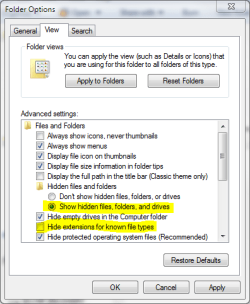
    Hide_Extension.PNG
  3. Goto C:\Users\Your_Username\AppData\Local\Microsoft\Windows Virtual PC\Virtual Machines
  4. Copy Windows XP Mode.vhd and Windows XP Mode.vmc files
  5. Paste files to the same folder. Windows adds word Copy to both filenames, so now you have two new files: Windows XP Mode - Copy.vhd and Windows XP Mode - Copy.vmc
  6. Open Windows XP Mode - Copy.vmc with Notepad. It is a xml-file, so you can edit it normally with Notepad
  7. Find the following string containing virtual drives name: <drive_type type="integer">1</drive_type>

    Name_of_vhd.PNG
  8. Under the <drive_type...> change the vhd-file name to Windows XP Mode - Copy.vhd both in <absolute type="string"> and <relative type="string">
  9. Find the following place under <virtual_network> containing MAC-adress for Virtual XP's ethernet adapter: <id type="bytes">
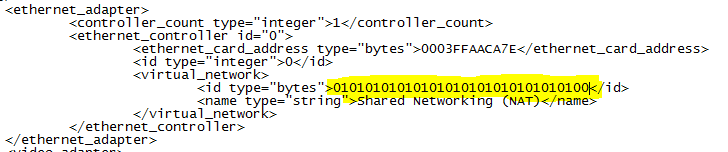
    Ethernet.PNG
  10. To allow two copies of Virtual XP to connect to network simultaneously , we have to change the MAC-adress of the ethernet adapter to avoid MAC-adress conflict. Adress is given in hex, 0-9 and A-E. It is enough to change one bit. In this example we have changed the last bit from 1 to 0
  11. Save and close the file
  12. Go to C:\Users\Your_Username\Virtual Machines , copy Windows XP Mode.vmcx and paste it to same folder
  13. Open the file Windows XP Mode - Copy.vmcx with Notepad
  14. Change the file names to Windows XP Mode - Copy.vhd in <primary_disk1 type="string"> and to Windows XP Mode - Copy.vmc in <vmc_path type="string">

    name_vmcx.PNG
  15. Save and close the file
  16. Open Folder Options and choose Don't show hidden files, folders or drives. Check Hide extensions for known file types and click OK.
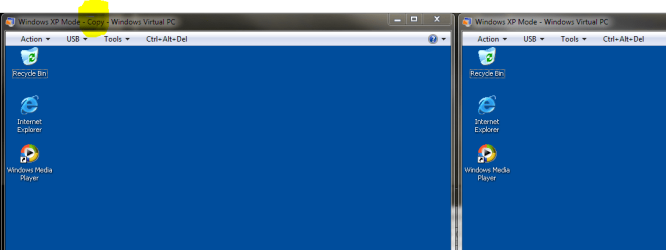
That's it. Now you can run two Virtual XP's simultaneously.
VirtualXP_copy.PNG
Have fun,

Kari

EDIT: Thanks to Brink for visual appearance.


Last edited:
I suggest you change the computernames

After creating a copy of the Virtual XP machine, I suggest you change the computername! Only changing the mac-address is not good enough.
 

My Computer

OS
Windows 7 Professional 64-bit English
Hello Tjerk, welcome to the Seven Forums.

An important point, though I have never had any problems with similar computer names.

Kari
 

My Computer

Computer type
Laptop
Computer Manufacturer/Model Number
HP ENVY 17-1150eg
OS
Windows 10 Pro x64 EN-GB
CPU
1.6 GHz Intel Core i7-720QM Processor
Memory
6 GB
Graphics Card(s)
ATI Mobility Radeon HD 5850 Graphics
Sound Card
Beats sound system with integrated subwoofer
Monitor(s) Displays
17" laptop display, 22" LED and 32" Full HD TV through HDMI
Screen Resolution
1600*900 (1), 1920*1080 (2&3)
Hard Drives
Internal: 2 x 500 GB SATA Hard Disk Drive 7200 rpm
External: 2TB for backups, 3TB USB3 network drive for media
Cooling
As Envy runs a bit warm, I have it on a Cooler Master pad
Keyboard
Logitech diNovo Media Desktop Laser (bluetooth)
Mouse
Logitech Performance Mouse MX
Internet Speed
50/10 Mbps VDSL
Antivirus
Windows Defender 4.3.9431.0
Browser
Maxthon 3.5.2., IE11
Disappearing .vmcx

I've been through the steps a few times with care, and I see the same strange behavior JackStockton mentioned where the .vmcx disappears as soon as I click on it. I will post a solution if I figure it out, but I just wanted to reinforce that JackStockton is not imagining things, and as near as I can tell, not failing to follow the directions with care.

For those of you who have experienced this problem, I did find a simple solution:
  1. Copy the .vhd file (this is the virtual disk image), which is found in C:\Users\yourusername\AppData\Local\Microsoft\Windows Virtual PC\Virtual Machines. Let's say my source VM is old.vhd, and I copy it to new.vhd.
  2. Create a new VM that references that .vhd file. Go to the Virtual Machine folder at C:\Users\yourusername\Virtual Machines and click Create Virtual Machine. Set up your desired settings on the first two pages of the wizard, and on the third page, click the "use an existing virtual hard disk" option, and browse to c:\Users\yourusername\AppData\Local\Microsoft\Windows Virtual PC\Virtual Machines\new.vhd. Finish the wizard, and it creates a new VM based on the hard disk image.
For my needs, just copying the virtual disk file and making a new VM that references it is very simple and satisfactory. One possible caveat: I don't know what will happen if you don't specify the same settings for the VM (e.g. RAM and networking) as you used when the original VM was created. My guess is it won't matter, but I haven't tried it.

Good luck to all,
-Roy
 

My Computer

OS
W7 Pro
I've been recently having major problems with multiple VM's but I found out a little trick to getting around it. it's simple but it seems to work very well. this is what I did

once XP mode is installed, copy it into a safe folder. this will serve as a backup set of files.
run regular logon on xp machine
change account name
shut down the VM
change VHD image name
redirect settings to new VHD
change configuration file name to match (makes it easier to differentiate between them if you have a lot
log back on

the VM should then log on as "XPMuser" but the title bar, start menu name, and all files should be completely different. Whenever you want to make more VM's, just copy the files from your backup to the main folder, and repeat the steps. The parent disk stays the same so you don't have to deal with that headache, but you get all the benefits of having multiple VM's
 

My Computer

OS
Win 7
Parent hard disk missing

Hi Kari,

Thanks for your great tutorial.

In my case however, I don't want multiple English copies, but copies in different languages (Japanese, Chinese, and Korean).

When I tried to install the Japanese version of Windows XP Mode, I received an error stating that Windows XP Mode was already installed. So I did the following:

1. Created a copy of XP Mode, named "Windows XP Mode - English", and modified VHD, VMC, and VMCX files accordingly.
2. Unistalled Windows XP Mode via Control Panel > Remove Programs.
3. Installed Japanese version of Windows XP Mode.

Now I can run the newly installed Japanese version, but when I try to run the copied English version I get the error: "One of the parent hard disks of 'Windows XP Mode - English' is missing."

What have I done wrong?
 

My Computer

OS
Windows 7
Hi Kari,

Thank you.

I appreciate you taking the time to share your experience. I have not seen this information anywhere else. XP mode had been a curious tool and now becomes a very useful sandbox that I know I can restore, should I blow it up.

Mark
 

My Computer

OS
Win 7 Pro
CPU
Intel Core 2 Duo E8400
Motherboard
Intel
Memory
4GB
Graphics Card(s)
ATI 5870
Sound Card
motherboard
Monitor(s) Displays
3x 1600x1200
Hard Drives
80 GB SATA
2x 250 GB SATA
Dingeling, welcome to the Seven Forums. I'm sorry it took almost a week before I noticed your question. I had accidentally deleted my subscription of this thread and did not receive a notification about new post.

Xp Mode consists of two virtual hard disk files, the base and the actual XP Mode. You get that error message because the base vhd and XP vhd must have the same language.

Your issue is quite easily solved using merged, single file XP Mode instead of differencing two vhd system. You should first merge your Japanese differencing disks, mount the merged vhd to a new virtual machine renaming it, then install the English XP Mode.

Some links for you to read, both to explain the terms used and to show how to merge differencing disks:

Come back if you have more questions, I renewed my subscription so it's not going to take another week to get answers ;)

Kari
 

My Computer

Computer type
Laptop
Computer Manufacturer/Model Number
HP ENVY 17-1150eg
OS
Windows 10 Pro x64 EN-GB
CPU
1.6 GHz Intel Core i7-720QM Processor
Memory
6 GB
Graphics Card(s)
ATI Mobility Radeon HD 5850 Graphics
Sound Card
Beats sound system with integrated subwoofer
Monitor(s) Displays
17" laptop display, 22" LED and 32" Full HD TV through HDMI
Screen Resolution
1600*900 (1), 1920*1080 (2&3)
Hard Drives
Internal: 2 x 500 GB SATA Hard Disk Drive 7200 rpm
External: 2TB for backups, 3TB USB3 network drive for media
Cooling
As Envy runs a bit warm, I have it on a Cooler Master pad
Keyboard
Logitech diNovo Media Desktop Laser (bluetooth)
Mouse
Logitech Performance Mouse MX
Internet Speed
50/10 Mbps VDSL
Antivirus
Windows Defender 4.3.9431.0
Browser
Maxthon 3.5.2., IE11
Hi Kari,

Thank you.

I appreciate you taking the time to share your experience. I have not seen this information anywhere else. XP mode had been a curious tool and now becomes a very useful sandbox that I know I can restore, should I blow it up.

Mark

You are welcome, Mark. Come back if you have any more questions, don't forget to check our Virtualization section for tips and tricks :)

Kari
 

My Computer

Computer type
Laptop
Computer Manufacturer/Model Number
HP ENVY 17-1150eg
OS
Windows 10 Pro x64 EN-GB
CPU
1.6 GHz Intel Core i7-720QM Processor
Memory
6 GB
Graphics Card(s)
ATI Mobility Radeon HD 5850 Graphics
Sound Card
Beats sound system with integrated subwoofer
Monitor(s) Displays
17" laptop display, 22" LED and 32" Full HD TV through HDMI
Screen Resolution
1600*900 (1), 1920*1080 (2&3)
Hard Drives
Internal: 2 x 500 GB SATA Hard Disk Drive 7200 rpm
External: 2TB for backups, 3TB USB3 network drive for media
Cooling
As Envy runs a bit warm, I have it on a Cooler Master pad
Keyboard
Logitech diNovo Media Desktop Laser (bluetooth)
Mouse
Logitech Performance Mouse MX
Internet Speed
50/10 Mbps VDSL
Antivirus
Windows Defender 4.3.9431.0
Browser
Maxthon 3.5.2., IE11
the Solution that worked for me

I followed these instructions carefully several times and it was not working for me (although I have no doubt it worked for others).

Here is what did work:
1) follow instructions 1-5
2) Go to manage your virtual machines and choose Create Virtual Machine
3) Give it a name and click next
4) set your ram and networking options and click next
5) Check "use existing virtual hard disk" and then browse to and choose Windows XP Mode - Copy.vhd
6) click "Create" and you are good to go

I now have 3 running side by side (to run IE6, IE7, and IE8 for web testing purposes).

It is also worth noting that I can change the resolution in these copies but not in the original "Windows XP Mode" virtual machine although I have no idea why.
 

My Computer

OS
Windows 7
Hi Jaegerj, welcome to the Seven Forums.

The tutorial was written when we were still using and testing Virtual PC and XP Mode beta's. Copying XP Mode was then only possible using the method described. You are right, with todays final product, it is much easier. I'm happy to hear you found the easy way and it works.

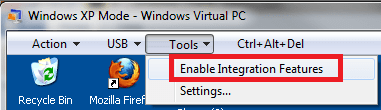
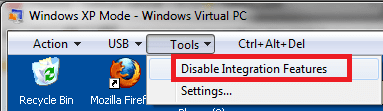
I might know why you can change the resolution in copies but not in original. The thing is integration features; when integration is enabled, you change the resolution in every Virtual PC machine, including XP Mode, simply by resizing the XP Mode window. Just drag from a corner and you'll see the resolution is changed. You can not change the resolution from display settings when integration features are enabled.

Only when integration features are disabled, you are able to change the resolution from display settings.

Conclusion: to me it sounds like if you had integration features enabled in original, and disabled in copies (?).

Kari
 

My Computer

Computer type
Laptop
Computer Manufacturer/Model Number
HP ENVY 17-1150eg
OS
Windows 10 Pro x64 EN-GB
CPU
1.6 GHz Intel Core i7-720QM Processor
Memory
6 GB
Graphics Card(s)
ATI Mobility Radeon HD 5850 Graphics
Sound Card
Beats sound system with integrated subwoofer
Monitor(s) Displays
17" laptop display, 22" LED and 32" Full HD TV through HDMI
Screen Resolution
1600*900 (1), 1920*1080 (2&3)
Hard Drives
Internal: 2 x 500 GB SATA Hard Disk Drive 7200 rpm
External: 2TB for backups, 3TB USB3 network drive for media
Cooling
As Envy runs a bit warm, I have it on a Cooler Master pad
Keyboard
Logitech diNovo Media Desktop Laser (bluetooth)
Mouse
Logitech Performance Mouse MX
Internet Speed
50/10 Mbps VDSL
Antivirus
Windows Defender 4.3.9431.0
Browser
Maxthon 3.5.2., IE11
Thanks for the reply Kari. I did not change the integration features settings although they are different in that the drives are not checked in the copies.
 

My Computer

OS
Windows 7
When you run your virtual machines, original or copies, did you also check if integration really is enabled? I mean, I am 100% sure you can not change the resolution from display settings if integration is enabled.

Kari

VPC_Enable_IF.png

VPC_Disable_IF.png
 

My Computer

Computer type
Laptop
Computer Manufacturer/Model Number
HP ENVY 17-1150eg
OS
Windows 10 Pro x64 EN-GB
CPU
1.6 GHz Intel Core i7-720QM Processor
Memory
6 GB
Graphics Card(s)
ATI Mobility Radeon HD 5850 Graphics
Sound Card
Beats sound system with integrated subwoofer
Monitor(s) Displays
17" laptop display, 22" LED and 32" Full HD TV through HDMI
Screen Resolution
1600*900 (1), 1920*1080 (2&3)
Hard Drives
Internal: 2 x 500 GB SATA Hard Disk Drive 7200 rpm
External: 2TB for backups, 3TB USB3 network drive for media
Cooling
As Envy runs a bit warm, I have it on a Cooler Master pad
Keyboard
Logitech diNovo Media Desktop Laser (bluetooth)
Mouse
Logitech Performance Mouse MX
Internet Speed
50/10 Mbps VDSL
Antivirus
Windows Defender 4.3.9431.0
Browser
Maxthon 3.5.2., IE11
This worked flawlessly. The name of the VM is totally flexible too, in case anybody cares to rename the copy. Also, the disk location for these VMs can be anywhere rational.

Copying saves the entire OS installation process, so this is a huge help.:D

Kittoksia, Kari.
 

My Computer

Computer Manufacturer/Model Number
Dell Studio 1747
OS
Windows 7 Ultimate x64
CPU
Core i7 CPU Q 820 @ 1.73GHz
Motherboard
Dell
Memory
8 GB
Graphics Card(s)
ATI Mobility Radeon HD 4650
Sound Card
IDT High Definition Audio
Monitor(s) Displays
Laptop 17" HD Flat Panel Dell ST2310 via HDMI
Hard Drives
1 TB
Hi Salvelinus, welcome to the Seven Forums.

Nice it worked for you.

Kari
 

My Computer

Computer type
Laptop
Computer Manufacturer/Model Number
HP ENVY 17-1150eg
OS
Windows 10 Pro x64 EN-GB
CPU
1.6 GHz Intel Core i7-720QM Processor
Memory
6 GB
Graphics Card(s)
ATI Mobility Radeon HD 5850 Graphics
Sound Card
Beats sound system with integrated subwoofer
Monitor(s) Displays
17" laptop display, 22" LED and 32" Full HD TV through HDMI
Screen Resolution
1600*900 (1), 1920*1080 (2&3)
Hard Drives
Internal: 2 x 500 GB SATA Hard Disk Drive 7200 rpm
External: 2TB for backups, 3TB USB3 network drive for media
Cooling
As Envy runs a bit warm, I have it on a Cooler Master pad
Keyboard
Logitech diNovo Media Desktop Laser (bluetooth)
Mouse
Logitech Performance Mouse MX
Internet Speed
50/10 Mbps VDSL
Antivirus
Windows Defender 4.3.9431.0
Browser
Maxthon 3.5.2., IE11
Worked fine for me

I tried not to think too much and followed the instructions. I am wondering if some folks do not have the right flavor of Windows 7????:cry: Mine is Ultimate 64, no patches or whatever.

Anyway, worked for me as advertised.
 

My Computer

Computer Manufacturer/Model Number
Dell Studio 1747
OS
Windows 7 Ultimate x64
CPU
Core i7 CPU Q 820 @ 1.73GHz
Motherboard
Dell
Memory
8 GB
Graphics Card(s)
ATI Mobility Radeon HD 4650
Sound Card
IDT High Definition Audio
Monitor(s) Displays
Laptop 17" HD Flat Panel Dell ST2310 via HDMI
Hard Drives
1 TB
Hello all,
Very nice tutorial.
I'm setting up a brand new 7 Pro machine, and made a mistake installing virtual XP machine in a test account. And wasting a security suite license if I recreate under the good account.:(
So, I'm trying to move this machine from the test account.

Stopped the machine, copied the "Virtual Machines" folder itself to a backup unit. But only .vhd, .vmc and .vmc.vpcbackup are visible, no vmcx file, although it said "4 files copied" ?
So I opened Start Menu "Windows Virtual PC", and copied .vmcx by right click > copy.

Logged to the good account, copied and renamed the 4 files to "Virtual Machines" folder, and did the updates to .vmx and .vmcx.
Opening Start Menu "Windows Virtual PC" didn't show the machine ?
So, created a new one, browsing to the copied .vhd file to use it.

Well, it works, :D although copy / paste was not active at 1st boot. I now have a true clone of the VM.
- Virtual applications start successfully
- Antivirus software successfully updates.
(I can resize window)

But :
- this machine does'nt appear in Windows Virtual PC menu, although the virtual applications are there. How can I add it ? (Seems to be just a shortcut to add, but ...)
- why can't I see any .vmcx file in explorer, only in Virtual PC window ?
- have I missed something that could cause problems later ?

Many thanks
 

My Computer

Computer Manufacturer/Model Number
Samsung G530
OS
Windows 7 Home 64 Windows Pro 32
CPU
i3 M330
Motherboard
Samsung
Memory
4Gb
Graphics Card(s)
?
Sound Card
?
Monitor(s) Displays
1366x768
Hard Drives
Samsung HM321HI 320Gb
PSU
?
Case
notepad
Cooling
good, I hope
virtual xp machine for public use

Is there a way to install vm in public folder so everyone can access it? currently we have setting with novell logging where user profile get deleted once they log off. so every time user log in they need to install windows xp mode from the start. any suggestion how to save xp mode in public folder?

Thanks
 

My Computer

OS
windows 7 32bit
Can I use the same virtual on 2 or more host PCs? on a domain environment?
I need to use the same virtual that is joined to a domain, on multiple PCs.
I can change the name and then rejoin the domain however what about SIDs?
Is that even possible or am I stuck to creating a virtual from scratch on each physical PC?
Thanks
 

My Computer

Computer Manufacturer/Model Number
Custom Built
OS
Windows 7 Home Premium 64-Bit
CPU
Intel® Core™2 Quad Q6600 G0
Motherboard
Asus P5K
Memory
4GB OCZ DDR2 800
Graphics Card(s)
EVGA GeForce GTX 460 1024MB
Sound Card
Mobo Built-in
Monitor(s) Displays
Benq V2400W
Screen Resolution
1920x1200
Hard Drives
1TB
PSU
Corsair HX620
Case
Coolermaster Cosmos 1000
Cooling
Air
Keyboard
Logitech G15 Gaming Keyboard
Mouse
Logitech Gaming Mouse G500
Internet Speed
Roger's Extreme
Other Info
Logitech Z-5500 THX® Certified 5.1
Thank you to Kari for starting this thread. It has been very useful in helping me resolve my Virtual Machine woes.

I was having the same problem as 'JackStockton' in that whenever I tried to copy, rename or otherwise alter a .vmcx file, it would throw up an error message and disappear.

I was able to create new VMs pointing at old .vhd files (as described by 'rfeague'), but I noticed that there are some differences between the VM that is automatically created when a user first installs XP Mode and subsquent user-created new VMs (even if they are pointed at the same .vmc and .vhd files.), such the lack of a 'Shut Down' button on the Start Menu of the VM.

In the end I have found a good solution that works for me. I simply associated the .vmc file type with 'VMWindow.exe' in the System32 folder. This now means that I don't need to deal with the troublesome .vmcx files and can replicate and copy machines at will using Kari's instructions. The only difference is that to start a VM I have to double-click on a .vmc rather than a .vmcx file.

For those who don't know how to change file type associations, an easy way is to right-click on a .vmc file, go to 'Open with' on the menu and select 'Choose default program...' In the dialogue box that appears, make sure the 'Always use the selected program to open this kind of file' is checked and then click the 'browse' button. Navigate to C:\Windows\System32\ then scroll down the list, select 'VMWindow.exe' and click the 'Open' button. The Windows Virtual PC Shell is now associated with .vmc files on your profile.

Now follow Kari's instructions to replicate machine, but to run a machine double click on the .vmc file, rather than a .vmcx file in the Virtual Machines folder.
 

My Computer

OS
Windows 7 64-bit Ultimate
CPU
Intel i7 @ 4.2GHz
Motherboard
Asus P6X58D Premium
Memory
6GB DDR3 1600MHz 7-7-7-20 Corsair Dominator
Case
Thermaltake Tai-Chi (modified)
Cooling
Corsair H70
I have several vhd's that I have setup on Virtual PC. I keep them all on my D drive in a virtualdrive directory.
I copied my .vhd's from the old vpc from xp and that is the only file I copied.
When I copy them to a new computer. I install the VPC and then create a new vpc and say that I am
importing an existing vhd. I have windows98, dos 6.22 w windows 3.11 along with ubuntu.
You do not have to keep them in the users\virtualharddisks directory.

As someone has noted, you just can't copy all the files to a new position as the full access path is imbeded
in the vmcx file so you end up pointing to the original vhd.

YMMV
Rich
 

My Computer

Computer type
Laptop
Computer Manufacturer/Model Number
Toshiba Laptop Qosimo X870
OS
Windows 7 Pro x64 SP1
CPU
Intel Core I7
Motherboard
Toshiba Qosmio
Memory
16 Gigs
Graphics Card(s)
NVIDIA GeForce GTX 670M
Monitor(s) Displays
17.7" laptop
Screen Resolution
1600 x 900
Hard Drives
256 Gig SanDisk SSD for C
256 Gig Intel SSD for D
Internet Speed
50/25 FIOS
Antivirus
Vipre (all you can eat for 10 machines)
Browser
IE and FF
Other Info
I have dos 6.22, wfwg 3.11, win98, 2000 and xp VHD's available for testing. MS's Virtual PC works great.
Back
Top