VM but not XP mode

DeVoiD

New member
Hello eveybody,

Im new here, and came across this site while looking for help with an issue I have with Windows 7 and running VM.

I just got a new laptop for work which is Windows 7 OS. My old laptop is XP with SP3 on it.

So here was my idea:

I could grab a VHD "image" of my old laptop, using the Disk2vhd utility from Microsoft (link to utility: Disk2vhd), and then in Windows 7, i could just run my old machine right there. So no need to reinstall all my applications, copy all my data, etc (im a network administrator).

here is whats going on:

I sucessfully grabbed the VHD of my old computer, and transfered it to my new laptop (which by the way, has hardware virtulization, and has run Windows XP Mode without issue).

When I browse (i just put it in a temp folder off the C: drive) to the VHD file, and select the file, i only get the following options: Organize, Open With, Burn and New Folder.

So, im at a loss as to why I can run this VHD of my old XP laptop.

Someone said I could use VMware to convert my old XP laptop, and then use another free VMware product to run it, but I really dont want to have to load some 3rd party software, when this should be able to work.

So, anyone out there that can help me with this issue? I would really appreciate any help.

Jason, "DeVoiD"
 
Last edited:

My Computer

Computer Manufacturer/Model Number
HP EliteBook - 8530w
OS
Windows 7
CPU
Intel Duo T9600 @ 2.89GHz
Motherboard
Dont Know
Memory
4GB
Graphics Card(s)
Nvidia Quadro 512Mb
Sound Card
dont care
Monitor(s) Displays
Laptop Display 15.5 Inch
Hard Drives
1 x 300Gb Sata 2 - 3 GBits/sec
PSU
External
Case
laptop
Cooling
a fan - duh
Hello DeVoiD, welcome to the Seven Forums.

Put the vhd in C:\Users\Your_Username\AppData\Local\Microsoft\Windows Virtual PC\Virtual Machines

Go to C:\Users\Your_Username\Virtual Machines, click Create virtual machine.

VM1.png

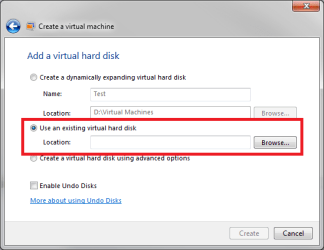
In next dialog you can first name your new VM and allocate certain amount of RAM to it. After these two steps you are asked if you want to create a new virtual hard disk or use an existing one.

Select Use an existing virtual hard disk and browse to the vhd file you want to use.

VM2.png


Kari
 

My Computer

Computer type
Laptop
Computer Manufacturer/Model Number
HP ENVY 17-1150eg
OS
Windows 10 Pro x64 EN-GB
CPU
1.6 GHz Intel Core i7-720QM Processor
Memory
6 GB
Graphics Card(s)
ATI Mobility Radeon HD 5850 Graphics
Sound Card
Beats sound system with integrated subwoofer
Monitor(s) Displays
17" laptop display, 22" LED and 32" Full HD TV through HDMI
Screen Resolution
1600*900 (1), 1920*1080 (2&3)
Hard Drives
Internal: 2 x 500 GB SATA Hard Disk Drive 7200 rpm
External: 2TB for backups, 3TB USB3 network drive for media
Cooling
As Envy runs a bit warm, I have it on a Cooler Master pad
Keyboard
Logitech diNovo Media Desktop Laser (bluetooth)
Mouse
Logitech Performance Mouse MX
Internet Speed
50/10 Mbps VDSL
Antivirus
Windows Defender 4.3.9431.0
Browser
Maxthon 3.5.2., IE11
Thanks much

Thanks Brady, and thanks Kari.

The one thing i was able to do, was go into computer management, click on disk management, and mount the VHD file, so it was just like another hard drive, that was pretty cool.

anyway, i think looking at your posts, that im going to be more likely to get sucess with Kari's instructions, so ill give it a try and post back the results.

isnt it weird, that just like your Documents folder, you have a Virtual Machine folder, BUT what I see looking at the instructions, is that you have that hidden folder AppData where the VM's are! wow.

k. ill let you all know what happens, and thanks again for taking the time to help me, it is appreciated.

Jason, "DeVoiD"
 

My Computer

Computer Manufacturer/Model Number
HP EliteBook - 8530w
OS
Windows 7
CPU
Intel Duo T9600 @ 2.89GHz
Motherboard
Dont Know
Memory
4GB
Graphics Card(s)
Nvidia Quadro 512Mb
Sound Card
dont care
Monitor(s) Displays
Laptop Display 15.5 Inch
Hard Drives
1 x 300Gb Sata 2 - 3 GBits/sec
PSU
External
Case
laptop
Cooling
a fan - duh

My Computer

Computer type
Laptop
Computer Manufacturer/Model Number
HP ENVY 17-1150eg
OS
Windows 10 Pro x64 EN-GB
CPU
1.6 GHz Intel Core i7-720QM Processor
Memory
6 GB
Graphics Card(s)
ATI Mobility Radeon HD 5850 Graphics
Sound Card
Beats sound system with integrated subwoofer
Monitor(s) Displays
17" laptop display, 22" LED and 32" Full HD TV through HDMI
Screen Resolution
1600*900 (1), 1920*1080 (2&3)
Hard Drives
Internal: 2 x 500 GB SATA Hard Disk Drive 7200 rpm
External: 2TB for backups, 3TB USB3 network drive for media
Cooling
As Envy runs a bit warm, I have it on a Cooler Master pad
Keyboard
Logitech diNovo Media Desktop Laser (bluetooth)
Mouse
Logitech Performance Mouse MX
Internet Speed
50/10 Mbps VDSL
Antivirus
Windows Defender 4.3.9431.0
Browser
Maxthon 3.5.2., IE11
It Didnt Work

Well, i did what you (Kari) said and it didnt work.

I get all the way to the last step of pointing to my VHD file, and once I click on Create, I get the following error:

"Cannot Attach the virtual hard disk to the virtual mmachine. Check the values provided and try again."

I have tried to point to the VHD file that you had me move to the directory in appdata, and have also tried the VHD file that i kept in my temp directory, but i get the same message.

I know that VHD file is okay, as I can get ionto Computer management, click Disk management, and mount the VHD file.

any more ideas? i woudl really appreciate it.

Jason, "DeVoiD".
 

My Computer

Computer Manufacturer/Model Number
HP EliteBook - 8530w
OS
Windows 7
CPU
Intel Duo T9600 @ 2.89GHz
Motherboard
Dont Know
Memory
4GB
Graphics Card(s)
Nvidia Quadro 512Mb
Sound Card
dont care
Monitor(s) Displays
Laptop Display 15.5 Inch
Hard Drives
1 x 300Gb Sata 2 - 3 GBits/sec
PSU
External
Case
laptop
Cooling
a fan - duh
You already managed to mount it in Disk Management. Maybe this would be the best solution for you? To create a dual boot system, to boot directly to your XP vhd from boot menu?

You could also try Sun VirtualBox, free download here, and try if you could use your vhd in a new VirtualBox machine.

Kari
 

My Computer

Computer type
Laptop
Computer Manufacturer/Model Number
HP ENVY 17-1150eg
OS
Windows 10 Pro x64 EN-GB
CPU
1.6 GHz Intel Core i7-720QM Processor
Memory
6 GB
Graphics Card(s)
ATI Mobility Radeon HD 5850 Graphics
Sound Card
Beats sound system with integrated subwoofer
Monitor(s) Displays
17" laptop display, 22" LED and 32" Full HD TV through HDMI
Screen Resolution
1600*900 (1), 1920*1080 (2&3)
Hard Drives
Internal: 2 x 500 GB SATA Hard Disk Drive 7200 rpm
External: 2TB for backups, 3TB USB3 network drive for media
Cooling
As Envy runs a bit warm, I have it on a Cooler Master pad
Keyboard
Logitech diNovo Media Desktop Laser (bluetooth)
Mouse
Logitech Performance Mouse MX
Internet Speed
50/10 Mbps VDSL
Antivirus
Windows Defender 4.3.9431.0
Browser
Maxthon 3.5.2., IE11
I would really preffer to run it in VM from within Windows 7, and not dual boot it. if I were to go that route, i would have to get the driver, and all the rest of the headaches that comes with a dual booting system

Aso like to stay away from any 3rd party software, such as Virtualbox, VMware, etc and keep this new laptop as clean as possible.

I dont understand the last part of the fail dialog box, stating, "check the values provided and try again", as I dont know what values it is talking about, unless it means the name and amount of RAM i gave the Virtual Machine.

If this laptop can run XP mode, there really isnt a reason why it wont run the VHD of my old laptop, i just dont understand why it wont work.

so, any other ideas that doesnt include running any 3rd party software, or dual booting?

thanks again for any assistance,

PS: I noticed on the dual boot link you gave it stated: While all Windows 7 editions can create and attach a VHD, only the Windows 7 Ultimate and Enterprise editions support booting from a VHD."

My Windows 7 is Professional and not Ultimate or Enterprise.
j.
 

My Computer

Computer Manufacturer/Model Number
HP EliteBook - 8530w
OS
Windows 7
CPU
Intel Duo T9600 @ 2.89GHz
Motherboard
Dont Know
Memory
4GB
Graphics Card(s)
Nvidia Quadro 512Mb
Sound Card
dont care
Monitor(s) Displays
Laptop Display 15.5 Inch
Hard Drives
1 x 300Gb Sata 2 - 3 GBits/sec
PSU
External
Case
laptop
Cooling
a fan - duh
I was thinking the same: the only value it asks is the amount of RAM.

I'll try to find a working XP computer to virtualize with Disk2vhd and do some heavy testing. I'll be back if I find something.

This issue is of great interest to me. Please keep posting if you find something out.

Kari
 

My Computer

Computer type
Laptop
Computer Manufacturer/Model Number
HP ENVY 17-1150eg
OS
Windows 10 Pro x64 EN-GB
CPU
1.6 GHz Intel Core i7-720QM Processor
Memory
6 GB
Graphics Card(s)
ATI Mobility Radeon HD 5850 Graphics
Sound Card
Beats sound system with integrated subwoofer
Monitor(s) Displays
17" laptop display, 22" LED and 32" Full HD TV through HDMI
Screen Resolution
1600*900 (1), 1920*1080 (2&3)
Hard Drives
Internal: 2 x 500 GB SATA Hard Disk Drive 7200 rpm
External: 2TB for backups, 3TB USB3 network drive for media
Cooling
As Envy runs a bit warm, I have it on a Cooler Master pad
Keyboard
Logitech diNovo Media Desktop Laser (bluetooth)
Mouse
Logitech Performance Mouse MX
Internet Speed
50/10 Mbps VDSL
Antivirus
Windows Defender 4.3.9431.0
Browser
Maxthon 3.5.2., IE11
Ill keep you posted. Thanks again. Hopefully we will find a solution to this, as Im running out of time to get my new laptop configured, and I would really not want to install XP on this new laptop, it would be a waste. (we are an XP shop here). I hope that I can keep Windows 7, and have my old laptop VHD work inside it.
 
Last edited:

My Computer

Computer Manufacturer/Model Number
HP EliteBook - 8530w
OS
Windows 7
CPU
Intel Duo T9600 @ 2.89GHz
Motherboard
Dont Know
Memory
4GB
Graphics Card(s)
Nvidia Quadro 512Mb
Sound Card
dont care
Monitor(s) Displays
Laptop Display 15.5 Inch
Hard Drives
1 x 300Gb Sata 2 - 3 GBits/sec
PSU
External
Case
laptop
Cooling
a fan - duh
I had an idea, when looking at XP mode, it has two other files, which are .VMCX and .VMC both of which are configuration files and have the same filename as the .VHD file.

So, i basically copied those files in their current location, and gave it the filename of my old laptop file name (the filename of the .VHD).

Then I edited those files, and replaced the filename of the XP Mode, with the filename of my .VHD file.

Unfortunately it didnt work, although I get a different error now, the error I get it:

"Computer Name encountered an error when attempting to use one of its virtual hard disks"

any ideas about this new error, or we can think of a way around it? within those two config files, there are references to Primary and Secondary disks, but it is above my head.

thoughts?
 

My Computer

Computer Manufacturer/Model Number
HP EliteBook - 8530w
OS
Windows 7
CPU
Intel Duo T9600 @ 2.89GHz
Motherboard
Dont Know
Memory
4GB
Graphics Card(s)
Nvidia Quadro 512Mb
Sound Card
dont care
Monitor(s) Displays
Laptop Display 15.5 Inch
Hard Drives
1 x 300Gb Sata 2 - 3 GBits/sec
PSU
External
Case
laptop
Cooling
a fan - duh
XP Mode (original Windows Virtual PC XP mode) uses a base vhd, located in C:\Program Files\Windows XP Mode. You can make copies of the XP Mode virtual machine, but they all use this base virtual disk. If you copy and modify the XP Mode vmc and vmcx files to be used with other virtual machines, you also need to delete all references to this base disk.

Copying existing XP Mode or any other virtual machine, you need to modify both vmcx and vmc files. This extract is from my tutorial http://www.sevenforums.com/tutorials/21904-virtual-xp-machine-copy.html:

Every virtual hard drive (vhd) created with Virtual PC consists of three files if it is turned off, or of four files if it is hibernated or running. The file extensions for these files are:
  • .vhd = Virtual Machine virtual hard drive image
  • .vmc = Virtual Machine settings file
  • .vsv = Virtual Machine saved state file
  • .vmcx = Virtual Machine description and registration settings

The tutorial also shows what you have to change in these files when copying virtual machines.

Anyway: I have no XP computer home. To test Disk2vhd, I made a new vhd from my existing XP Mode. I then created a new virtual machine using this vhd, and I had absolutely no problems.

One thing to consider is the difference in hardware setup; maybe it lies behind this issue. Virtual machines use emulated hardware so all the drivers are different. For example, all Virtual PC machines emulate the simpliest of all GPU's, old S3 card.

I have not forgotten what you said earlier, but if you tested your vhd on VirtualBox, and if it worked, at least we could confirm there's nothing wrong with the vhd.

Still searching...

Kari
 

My Computer

Computer type
Laptop
Computer Manufacturer/Model Number
HP ENVY 17-1150eg
OS
Windows 10 Pro x64 EN-GB
CPU
1.6 GHz Intel Core i7-720QM Processor
Memory
6 GB
Graphics Card(s)
ATI Mobility Radeon HD 5850 Graphics
Sound Card
Beats sound system with integrated subwoofer
Monitor(s) Displays
17" laptop display, 22" LED and 32" Full HD TV through HDMI
Screen Resolution
1600*900 (1), 1920*1080 (2&3)
Hard Drives
Internal: 2 x 500 GB SATA Hard Disk Drive 7200 rpm
External: 2TB for backups, 3TB USB3 network drive for media
Cooling
As Envy runs a bit warm, I have it on a Cooler Master pad
Keyboard
Logitech diNovo Media Desktop Laser (bluetooth)
Mouse
Logitech Performance Mouse MX
Internet Speed
50/10 Mbps VDSL
Antivirus
Windows Defender 4.3.9431.0
Browser
Maxthon 3.5.2., IE11
ill give Virtualbox a try when I get back to work tomorrow. Thanks so much for helping, it is appreciated. Ill let you know tomorrow what happens with that app.

j.
 

My Computer

Computer Manufacturer/Model Number
HP EliteBook - 8530w
OS
Windows 7
CPU
Intel Duo T9600 @ 2.89GHz
Motherboard
Dont Know
Memory
4GB
Graphics Card(s)
Nvidia Quadro 512Mb
Sound Card
dont care
Monitor(s) Displays
Laptop Display 15.5 Inch
Hard Drives
1 x 300Gb Sata 2 - 3 GBits/sec
PSU
External
Case
laptop
Cooling
a fan - duh
I found this on http://technet.microsoft.com/en-us/sysinternals/ee656415.aspx:
To use VHDs produced by Disk2vhd, create a VM with the desired characteristics and add the VHDs to the VM’s configuration as IDE disks. On first boot, a VM booting a captured copy of Windows will detect the VM’s hardware and automatically install drivers, if present in the image. If the required drivers are not present, install them via the Virtual PC or Hyper-V integration components. You can also attach to VHDs using the Windows 7 or Windows Server 2008 R2 Disk Management or Diskpart utilities.

I guess it means I am completely wrong thinking your issue could be because of hardware difference.

Still searching... I'll try to find an XP machine tomorrow, to virtualize with Disk2vhd.

Kari
 

My Computer

Computer type
Laptop
Computer Manufacturer/Model Number
HP ENVY 17-1150eg
OS
Windows 10 Pro x64 EN-GB
CPU
1.6 GHz Intel Core i7-720QM Processor
Memory
6 GB
Graphics Card(s)
ATI Mobility Radeon HD 5850 Graphics
Sound Card
Beats sound system with integrated subwoofer
Monitor(s) Displays
17" laptop display, 22" LED and 32" Full HD TV through HDMI
Screen Resolution
1600*900 (1), 1920*1080 (2&3)
Hard Drives
Internal: 2 x 500 GB SATA Hard Disk Drive 7200 rpm
External: 2TB for backups, 3TB USB3 network drive for media
Cooling
As Envy runs a bit warm, I have it on a Cooler Master pad
Keyboard
Logitech diNovo Media Desktop Laser (bluetooth)
Mouse
Logitech Performance Mouse MX
Internet Speed
50/10 Mbps VDSL
Antivirus
Windows Defender 4.3.9431.0
Browser
Maxthon 3.5.2., IE11
I just remembered something very important, two restrictions when mounting a vhd to Virtual PC:

First, you can only mount an IDE vhd. Second, and maybe more important: the maximum size of a Virtual PC virtual hard disk is 127 gigs. It's not the actual size of your vhd that matters, it is the original size of partition you virtualized with Disk2vhd.

So, if you had let's say 25 gigs of apps and files on that XP but if the partition was over 127 gigs, let's say 150 gigs, your image should be around 25 gigs but Virtual PC looks the maximum size of that disk (image), which equals with the size of the partition, in this example 150 gigs which is too big to mount to Virtual PC.

A friend of mine told me about this article just minutes ago when we were chatting: Fix Virtual Windows XP Mode VHD Cannot Install or Attach in Windows 7 Error My Digital Life

Kari
 

My Computer

Computer type
Laptop
Computer Manufacturer/Model Number
HP ENVY 17-1150eg
OS
Windows 10 Pro x64 EN-GB
CPU
1.6 GHz Intel Core i7-720QM Processor
Memory
6 GB
Graphics Card(s)
ATI Mobility Radeon HD 5850 Graphics
Sound Card
Beats sound system with integrated subwoofer
Monitor(s) Displays
17" laptop display, 22" LED and 32" Full HD TV through HDMI
Screen Resolution
1600*900 (1), 1920*1080 (2&3)
Hard Drives
Internal: 2 x 500 GB SATA Hard Disk Drive 7200 rpm
External: 2TB for backups, 3TB USB3 network drive for media
Cooling
As Envy runs a bit warm, I have it on a Cooler Master pad
Keyboard
Logitech diNovo Media Desktop Laser (bluetooth)
Mouse
Logitech Performance Mouse MX
Internet Speed
50/10 Mbps VDSL
Antivirus
Windows Defender 4.3.9431.0
Browser
Maxthon 3.5.2., IE11
I think you are on to something

I tried VirtualBox, and it worked, it booted to Windows, and after I logged in, it tried to install a few drivers, of which im not sure what they are.

Anyway, it worked.

I think you are on to something when you talk about the size, when i look at the volume in Virtualbox, it shows the size of the captured VHD file, which is about 55gb, BUT it also shows the full size of the volume, wich is 148gb.

So i think it is that latter part that is causing issues with Microsoft Virtual Machine.

It is odd that VirtualBox will work though, but then again Microsoft tends to have lower specs for their software, so it can be picky.

So, with that said, is there anyway to "shrink" the overall size? or have it report the size as smaller? or maybe another utility that grabs VDH's from hard drives, but can change the overall size? while I am happy that Virtualbox works, it isnt the nicest package to use, and Microsofts just "feels" better,. it is more like a remote desktop session.

thanks for all your hard work helping me, appreciated.
j.
 

My Computer

Computer Manufacturer/Model Number
HP EliteBook - 8530w
OS
Windows 7
CPU
Intel Duo T9600 @ 2.89GHz
Motherboard
Dont Know
Memory
4GB
Graphics Card(s)
Nvidia Quadro 512Mb
Sound Card
dont care
Monitor(s) Displays
Laptop Display 15.5 Inch
Hard Drives
1 x 300Gb Sata 2 - 3 GBits/sec
PSU
External
Case
laptop
Cooling
a fan - duh
OK, now we are getting somewhere. I attach a vhd resizer application, unzip and install. The app is quite straight forward to use.

Don't forget to make a copy of the vhd before trying to resize it! I would use the fixed size option.

Kari

EDIT: Tested something, I thing using Disk Management in Win7 is a better alternative:
 

Attachments

Last edited:

My Computer

Computer type
Laptop
Computer Manufacturer/Model Number
HP ENVY 17-1150eg
OS
Windows 10 Pro x64 EN-GB
CPU
1.6 GHz Intel Core i7-720QM Processor
Memory
6 GB
Graphics Card(s)
ATI Mobility Radeon HD 5850 Graphics
Sound Card
Beats sound system with integrated subwoofer
Monitor(s) Displays
17" laptop display, 22" LED and 32" Full HD TV through HDMI
Screen Resolution
1600*900 (1), 1920*1080 (2&3)
Hard Drives
Internal: 2 x 500 GB SATA Hard Disk Drive 7200 rpm
External: 2TB for backups, 3TB USB3 network drive for media
Cooling
As Envy runs a bit warm, I have it on a Cooler Master pad
Keyboard
Logitech diNovo Media Desktop Laser (bluetooth)
Mouse
Logitech Performance Mouse MX
Internet Speed
50/10 Mbps VDSL
Antivirus
Windows Defender 4.3.9431.0
Browser
Maxthon 3.5.2., IE11
its really funny, that you edited your post and put try the Windows 7 shrink in Computer manager, as I remembered that I could attach my VHD file, and in the past I saw a shrink option (i looked that that waaaay before I started playing with the VHD file), and remembered it.

So, at this moment, i mounted the VHD file, and am using Windows 7 shrink option, and let it set itself to the max allowable shrink. it looks like it will take some time.

I will let you know what happens.

Thanks for hanging on with me, to get this resolved. Hopefully this will be the answer. I am going to download the tool you linked here, just in case there is an issue.

thanks again, and I will let you know what happens.

__
Addendum
__
It is shrinking now, but whats odd, is that it doesnt show a progress bar, just the default Windows Busy rotating circle... but the hard drive light is sold, so i know it is working. I image this process if going to take quite a long time.
 
Last edited:

My Computer

Computer Manufacturer/Model Number
HP EliteBook - 8530w
OS
Windows 7
CPU
Intel Duo T9600 @ 2.89GHz
Motherboard
Dont Know
Memory
4GB
Graphics Card(s)
Nvidia Quadro 512Mb
Sound Card
dont care
Monitor(s) Displays
Laptop Display 15.5 Inch
Hard Drives
1 x 300Gb Sata 2 - 3 GBits/sec
PSU
External
Case
laptop
Cooling
a fan - duh
It can take hours :eek:

This is very interesting to me, I'm quite interested in virtual computing. It's always nice to learn something new.

Let's hope you get it under the magical 127 gig mark!

Kari
 

My Computer

Computer type
Laptop
Computer Manufacturer/Model Number
HP ENVY 17-1150eg
OS
Windows 10 Pro x64 EN-GB
CPU
1.6 GHz Intel Core i7-720QM Processor
Memory
6 GB
Graphics Card(s)
ATI Mobility Radeon HD 5850 Graphics
Sound Card
Beats sound system with integrated subwoofer
Monitor(s) Displays
17" laptop display, 22" LED and 32" Full HD TV through HDMI
Screen Resolution
1600*900 (1), 1920*1080 (2&3)
Hard Drives
Internal: 2 x 500 GB SATA Hard Disk Drive 7200 rpm
External: 2TB for backups, 3TB USB3 network drive for media
Cooling
As Envy runs a bit warm, I have it on a Cooler Master pad
Keyboard
Logitech diNovo Media Desktop Laser (bluetooth)
Mouse
Logitech Performance Mouse MX
Internet Speed
50/10 Mbps VDSL
Antivirus
Windows Defender 4.3.9431.0
Browser
Maxthon 3.5.2., IE11
I don't know if anyone has mentioned this or not, but I believe the virtual machine has a disk limit size of 127/128GB. I ran into this problem and found that it had to obviously do with the partition size.

My solution to the problem was to boot the VHD using the free program VirtualBox, which does not have the same limitation, then booted from an ISO of another free program Gparted (for editing partitions) and shrank the partition size down below the limit. You can download an ISO to just mount as a virtual CDrom in the software and boot it up that way. After I shrank it, I tried it again in Microsoft's VM, and it worked. Look in the documentation and help files, but I'm pretty sure it's 127GB disk size max.

Hope that can help. I don't have time to read the previous replies, so if anyone already mentioned this, sorry....

[edit: yep, looks like this is the current discussion.... I think you're headed down the right path with the shrink]
 

My Computer

Computer Manufacturer/Model Number
Custom build
OS
Windows 7 Ultimate (x64)
CPU
Intel Core i7-860 (2.8Ghz, up to 3.47Ghz in Turbo Mode)
Motherboard
Intel DP55KG Extreme Series
Memory
8GB G-Skill RipJawz O/C'd to 1600mHz
Graphics Card(s)
Nvidia GeForce 9600 GSO
Sound Card
Realtek ALC889 HDA (max 24-bit, 192kHz SR, 7.1 + 2 DACs)
Monitor(s) Displays
Dell 2209W (22" Widescreen), HDMI output to 32" LCD for HTPC
Screen Resolution
1920x1080 (HD native)
Hard Drives
Three 1TB WD Black's in RAID-5 config. Fourth drive is set to hot spare.
PSU
CoolerMaster SilentPro M-700
Case
CoolerMaster CM-690
Cooling
Coolermaster Hyper TX-3
Keyboard
Logitech Cordless MediaBoard Pro w/ TrackPad (Bluetooth)
Mouse
Wireless Notebook Optical Mouse 4000 (I hate TrackPads!)
Internet Speed
20Mbps downstream, 384Kbps upstream
Other Info
ASUS USB-BT211 Bluetooth Adapter
Back
Top