Weird disk partitions and low space

Jcb3030

New member
Local time
6:46 PM
Messages
2
Hi, I got an old laptop and am going to give it to my son for Christmas.

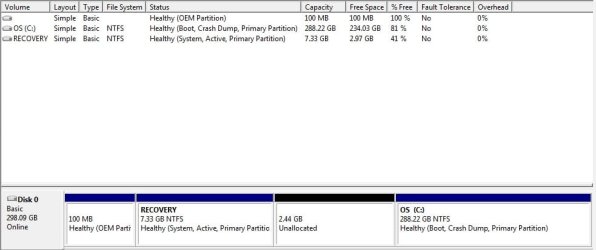
When I booted it up I noticed the disk partitions were strange - there were many of them and almost no space in the OS (C:) partition. What should I do to get them in a more "normal" state?

I get nervous about messing with partitions so I wanted to ask here before doing anything.

Many Thanks!
 

Attachments
  • partitions.jpg
    partitions.jpg
    81 KB · Views: 8

My Computer My Computer

At a glance

Windows 7 Home Premium 64-bit
Computer type
Laptop
OS
Windows 7 Home Premium 64-bit
Someone put the page file on that 5.59 GB Extended partition, useless.

Delete it and the page file will go back on C and it will become un allocated space.

You can then add all of the un allocated space to C

You can do this right there through Disk Management.

A Partition Wizard Boot CD is also a very safe and reliable tool to work with partitions, I highly recommend it ;)

Bootable Partition Manger | MiniTool Partition Wizard Bootable Edition
 

My Computer My Computer

At a glance

Windows 10 Pro x64Intel Core i7 6700KGSkill TridentZ RGB 16GB 3600 16-16-16-36EVGA GTX 980 Ti SC x2
Computer type
PC/Desktop
Computer Manufacturer/Model Number
Skylake Special #666
OS
Windows 10 Pro x64
CPU
Intel Core i7 6700K
Motherboard
Asus Sabertooth Z170 Mark 1
Memory
GSkill TridentZ RGB 16GB 3600 16-16-16-36
Graphics Card(s)
EVGA GTX 980 Ti SC x2
Sound Card
Realtek High Definition
Monitor(s) Displays
AOC G2460PG
Screen Resolution
1920 x 1080 144Hz
Hard Drives
Samsung 860 Pro 256GB, Seagate Barracuda 4TB x2
PSU
EVGA 1000 P2, EVGA White Custom Braided Cables
Case
Corsair Vengeance C70 Gunmetal Black
Cooling
Corsair H100i v2, Corsair ML120 x2, Thermal Grizzly Kryonaut
Keyboard
Logitech G910 Orion Spectrum
Mouse
Logitech G700s
Internet Speed
Verizon Fios Quantum Gateway 75/75
Antivirus
Windows Defender, Malwarebytes Free 3.8.3
Browser
Chrome
Other Info
Corsair SP120 x4, LG Blu-ray Drive, Durabrand HT-395 100 Watt Dolby Digital Amp, Corsair H2100 Wireless 7.1 Headset
You may need to turn off the paging file long enough to delete D in order to Extend C. Change Virtual Memory Paging File

Note that since it's a Logical partition you'll need to delete it twice in Disk Mgmt, once for the volume and once for the partition. Partition or Volume - Delete

Then you'll just click through all the defaults provided to extend C across, unless you want to save some space for a storage or data drive: Partition or Volume - Extend

If you want to extend only part way over in order to have a data or storage partition, then once you do that you can create the partition as shown here: Partition or Volume - Create New
 
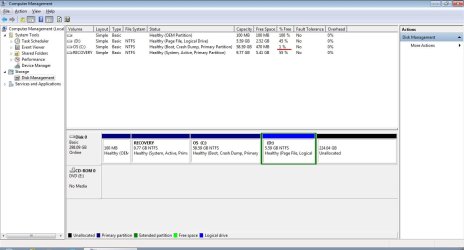
Thanks! I was able to get more space on the C: drive. But I can't extend C: to use the huge amount of unallocated space I have. The option to extend C: is greyed out. Any ideas?
 

Attachments

  • partition 2.jpg
    partition 2.jpg
    34.6 KB · Views: 2

My Computer My Computer

At a glance

Windows 7 Home Premium 64-bit
Computer type
Laptop
OS
Windows 7 Home Premium 64-bit
Thanks! I was able to get more space on the C: drive. But I can't extend C: to use the huge amount of unallocated space I have. The option to extend C: is greyed out. Any ideas?

I use Partition Wizard as noted in "Post #2" in this thread.
 

My Computer My Computer

At a glance

Windows 7 Professional x64Intel i5 quad processor16 GBRadeon HD 5770
Computer type
PC/Desktop
Computer Manufacturer/Model Number
Custom Built
OS
Windows 7 Professional x64
CPU
Intel i5 quad processor
Motherboard
DP67BG
Memory
16 GB
Graphics Card(s)
Radeon HD 5770
Sound Card
Realtek High Definition Audio
Monitor(s) Displays
Samsung SyncMaster
Screen Resolution
1920X1080
Hard Drives
WD 2TB (SATA Internal)
WD 1TB (USB External)
PSU
Corsair GS800
Case
Tower (Generic)
Cooling
3 Internal Fans
Keyboard
MS Wireless
Mouse
MS Optical Wired
Internet Speed
54 mbps
Antivirus
Emsisoft
Browser
IE-Version 9, Palemoon-Version 24.2.0
Thanks! I was able to get more space on the C: drive. But I can't extend C: to use the huge amount of unallocated space I have. The option to extend C: is greyed out. Any ideas?

I use Partition Wizard as noted in "Post #2" in this thread.

Yep; use PW.

Windows Disk Management cannot extend to the left at all.
 

My Computer My Computer

At a glance

Windows 7 Home Premium SP1, 64-bitIntel Skylake i5-6600K, not overclocked8 GB HyperX DDR4-2666 (2 x 4 GB)none; graphics are integrated on CPU
Computer type
PC/Desktop
Computer Manufacturer/Model Number
Ignatz Special; 4 speed manual gearbox; factory air conditioning; one of one
OS
Windows 7 Home Premium SP1, 64-bit
CPU
Intel Skylake i5-6600K, not overclocked
Motherboard
AsRock Z170M Extreme 4, micro ATX
Memory
8 GB HyperX DDR4-2666 (2 x 4 GB)
Graphics Card(s)
none; graphics are integrated on CPU
Sound Card
onboard: Realtek ALC1150; external: USB Behringer UF0-202
Monitor(s) Displays
Dell S2340M 23 inch IPS
Screen Resolution
1600 x 900
Hard Drives
System: Crucial MX100 series SSD, 128 GB;
Data: Samsung Spinpoint 103SJ, 1 TB;
Backup: WD Caviar Green WD30EZRX-00D8PB0, 3 TB
PSU
Rosewill SilentNight 500 watt fanless, semi-modular
Case
Antec Solo II
Cooling
Noctua NH-U12S; Noctua F12 intake, Noctua S12A exhaust
Keyboard
Microsoft 200 6JH-00001 USB
Mouse
Dell or Microsoft optical wired; USB
Antivirus
Microsoft Security Essentials and Malwarebytes Premium
Browser
Pale Moon
Other Info
All fans PWM; speeds at idle: CPU circa 500 rpm; intake circa 600 rpm; exhaust circa 600 rpm; CPU temps 27 idle and 47 C load in a warm room (27 C/81 F) when running Intel Extreme Tuning Utility stress test.
Why did you shrink the Recovery partition? Nothing was said about doing that. It must have all the available space originally issued on it to boot and run Recovery if you'd ever want to do that.

But running Recovery restores to Factory Condition which is a grossly inferior install. If you still have the Factory install you should strongly consider finally enjoying native Win7 performance by doing a Clean Reinstall Windows 7, deleting all partitions during the process to get it cleanest.

If you want to keep the Recovery partition then rightclick on it in Disk Mgmt to Extend it back to its correct size.

If you want to delete the Recovery partition then first you'll need to move the Bootmgr - Move to C:\ with EasyBCD - Windows 7 Forums until Win7 starts with the System Active flags on C. You can then delete Recovery using Partition Wizard bootable CD and resize C to the left as shown in this video for Partition Wizard Resize Partition - Video Help.


Back
Top