What is Ghost Imaging Backup, in details

ladyss

New member
Local time
3:04 PM
Messages
8
Hello peeps!

I'm a newbie here. Sorry if the title is so lame, but I do have to do some research :D

Ghost Imaging Backup --> I'm confused with this.
What is the detail meaning of Ghost Imaging Backup? What I understand is the purpose is to do backup, but then, is it used to backup system image, or backup files/data, or both?

I did few research from the net, videos from youtube, and I found so many different method, and I'm not sure what is the most efficient way to do backup.

So here's my questions:

1. Does system image is only to backup OS?
2. If so, do I have to backup data & OS separately?

P/s: I'm using windows 7 starter, which has the backup & restore function, so I guess I don't need to install any ghost software.

Thanks in advance! :D
 

My Computer My Computer

At a glance

Windows 7 starter
OS
Windows 7 starter
Imaging captures an exact copy of a partition (if you choose) or an entire disk drive of your system. Therefore, it captures everything that is installed or sitting on the drive when the image is taken. Thus, it contains the OS, Programs and Data (as long as all of that stuff is on the partition or the drive being imaged.

Ghost is an imaging type program. It captures the entire partition or drive.

Take my computer for example. I have an 80GB SSD for my OS and that is my C drive. I install the OS and the apps on this drive. I then have a D drive...which is all of my data, internet downloads, music, audio/video files. I regularly take images of my C drive...so in the event of a disaster, I can restore my C drive and be right back to where I was when the image was taken (my OS and my programs will have reverted back). However, because I keep data on D and choose to NOT image that drive....that drive will stay intact. So, any new data will be on that drive.

For me, I take regular USB backups of my actual data from D to another location on a regular basis...so that I don't lose this data in the event of a disaster. And less frequently I take a new image of C (once a month, before some big updates or before I update drivers). Used in combination, this backup routine works great for me.
 

My Computer My Computer

At a glance

Windows 7 Ultimate x64Intel Q9550 2.83Ghz OC'd to 3.40Ghz8GB G.Skill PI DDR2-800, 4-4-4-12 timingsEVGA 1280MB Nvidia GeForce GTX570
Computer Manufacturer/Model Number
Self-Built in July 2009
OS
Windows 7 Ultimate x64
CPU
Intel Q9550 2.83Ghz OC'd to 3.40Ghz
Motherboard
Gigabyte GA-EP45-UD3R rev. 1.1, F12 BIOS
Memory
8GB G.Skill PI DDR2-800, 4-4-4-12 timings
Graphics Card(s)
EVGA 1280MB Nvidia GeForce GTX570
Sound Card
Realtek ALC899A 8 channel onboard audio
Monitor(s) Displays
23" Acer x233H
Screen Resolution
1920x1080
Hard Drives
Intel X25-M 80GB Gen 2 SSD
Western Digital 1TB Caviar Black, 32MB cache. WD1001FALS
PSU
Corsair 620HX modular
Case
Antec P182
Cooling
stock
Keyboard
ABS M1 Mechanical
Mouse
Logitech G9 Laser Mouse
Internet Speed
15/2 cable modem
Other Info
Windows and Linux enthusiast. Logitech G35 Headset.
Thanks pparks1 for the speedy reply!

Well I understand your explanation but still puzzling a bit.

When you say "Therefore, it captures everything that is installed or sitting on the drive when the image is taken. Thus, it contains the OS, Programs and Data (as long as all of that stuff is on the partition or the drive being imaged.", so I guess I have to locate all the files in one partition, am I correct?

Another question, if i just wanna backup the data & files, will the backup set in an image, or maintain as what they are, i.e folder 1, folder 2 etc?

Can u suggest me the perfect way to backup files? I mean in terms of schedule, location or any other terms related. Thanks
 

My Computer My Computer

At a glance

Windows 7 starter
OS
Windows 7 starter
You can put everything on one partition, or you can put everything on 1 physical hard drive and image the entire drive. So, if you have a 200GB hard drive, and it's an 80GB C drive and a 120GB D drive and you image the entire hard drive, when you lay the image back down you can pick the entire drive, or select which partition you want to restore. The choice is up to you.

Ghost isn't used to backup just files and folders. Ghost really is just an "imaging" style app. Other backup software, like Windows backup, or Acronis, or EaseUsToDo Backup can backup just files and folders. Many of these other applications can also create an image if that is what you want.

I cannot suggest the "best" way to backup files. Everybody has different needs. You will really have to find what works best for you.

I backup all of my data, using robocopy at the command line. I backup regularly to 2 different external USB hard drives that I keep offsite. This way if my house burns to the ground or I am robbed, I don't lose my data. I take images about once a month, so in the event my OS crashes, I can get back to where I was at most about 1 month ago.
 

My Computer My Computer

At a glance

Windows 7 Ultimate x64Intel Q9550 2.83Ghz OC'd to 3.40Ghz8GB G.Skill PI DDR2-800, 4-4-4-12 timingsEVGA 1280MB Nvidia GeForce GTX570
Computer Manufacturer/Model Number
Self-Built in July 2009
OS
Windows 7 Ultimate x64
CPU
Intel Q9550 2.83Ghz OC'd to 3.40Ghz
Motherboard
Gigabyte GA-EP45-UD3R rev. 1.1, F12 BIOS
Memory
8GB G.Skill PI DDR2-800, 4-4-4-12 timings
Graphics Card(s)
EVGA 1280MB Nvidia GeForce GTX570
Sound Card
Realtek ALC899A 8 channel onboard audio
Monitor(s) Displays
23" Acer x233H
Screen Resolution
1920x1080
Hard Drives
Intel X25-M 80GB Gen 2 SSD
Western Digital 1TB Caviar Black, 32MB cache. WD1001FALS
PSU
Corsair 620HX modular
Case
Antec P182
Cooling
stock
Keyboard
ABS M1 Mechanical
Mouse
Logitech G9 Laser Mouse
Internet Speed
15/2 cable modem
Other Info
Windows and Linux enthusiast. Logitech G35 Headset.
I guess I have to locate all the files in one partition, am I correct?

Another question, if i just wanna backup the data & files, will the backup set in an image, or maintain as what they are, i.e folder 1, folder 2 etc?

Can u suggest me the perfect way to backup files? I mean in terms of schedule, location or any other terms related. Thanks

You can have as many partitions as you like. Fewer partitions generally simplifies things and makes backing up less complicated.

Your C drive (the "system") is normally backed up with an image of that partition. You could include other partitions in the same image, but I'd recommend you make separate images of each partition if you have more than one partition--if you decide to make an image of anything other than C.

If your data is on C, it would be included in any image of C.

I'd recommend you put your data on a separate partition, let's call it D.

Then back up C with an image and backup D (your data) with a file-by-file program, without using an image. Some people do back up their data with an image, but that makes me nervous because images don't always restore successfully.

Normally, you would place your backups on an external drive.
 

My Computer My Computer

At a glance

Windows 7 Home Premium SP1, 64-bitIntel Skylake i5-6600K, not overclocked8 GB HyperX DDR4-2666 (2 x 4 GB)none; graphics are integrated on CPU
Computer type
PC/Desktop
Computer Manufacturer/Model Number
Ignatz Special; 4 speed manual gearbox; factory air conditioning; one of one
OS
Windows 7 Home Premium SP1, 64-bit
CPU
Intel Skylake i5-6600K, not overclocked
Motherboard
AsRock Z170M Extreme 4, micro ATX
Memory
8 GB HyperX DDR4-2666 (2 x 4 GB)
Graphics Card(s)
none; graphics are integrated on CPU
Sound Card
onboard: Realtek ALC1150; external: USB Behringer UF0-202
Monitor(s) Displays
Dell S2340M 23 inch IPS
Screen Resolution
1600 x 900
Hard Drives
System: Crucial MX100 series SSD, 128 GB;
Data: Samsung Spinpoint 103SJ, 1 TB;
Backup: WD Caviar Green WD30EZRX-00D8PB0, 3 TB
PSU
Rosewill SilentNight 500 watt fanless, semi-modular
Case
Antec Solo II
Cooling
Noctua NH-U12S; Noctua F12 intake, Noctua S12A exhaust
Keyboard
Microsoft 200 6JH-00001 USB
Mouse
Dell or Microsoft optical wired; USB
Antivirus
Microsoft Security Essentials and Malwarebytes Premium
Browser
Pale Moon
Other Info
All fans PWM; speeds at idle: CPU circa 500 rpm; intake circa 600 rpm; exhaust circa 600 rpm; CPU temps 27 idle and 47 C load in a warm room (27 C/81 F) when running Intel Extreme Tuning Utility stress test.
Thanks pparks1.

I'll try my best! :D
 

My Computer My Computer

At a glance

Windows 7 starter
OS
Windows 7 starter
Thanks a lot ignatzatsonic!

Your explanations are exactly like what I thought. Now I feel more confident. Thank you!
 

My Computer My Computer

At a glance

Windows 7 starter
OS
Windows 7 starter
Anybody ever used Easeus Todo Backup before?

It seems easy to use, but I'm not sure the restore process will be easy too.
 

My Computer My Computer

At a glance

Windows 7 starter
OS
Windows 7 starter
I have made images with both EaseUS Todo and Macruim. Both are about as easy as possible--just a few mouse clicks.

However, as you suspect, the restore process is more involved. You have to make a "recovery disk" and boot from it to restore the image file. The recovery disk is Linux-based and may not boot, so you have to test it to make sure it is bootable and will show all of your partitions and the necessary image files you have previously saved. Make the recovery disk and boot from it and go several steps into the recovery process to confirm to your own satisfaction what you will need to do in a real-life recovery.

Then hope it works as expected when the time comes.
 

My Computer My Computer

At a glance

Windows 7 Home Premium SP1, 64-bitIntel Skylake i5-6600K, not overclocked8 GB HyperX DDR4-2666 (2 x 4 GB)none; graphics are integrated on CPU
Computer type
PC/Desktop
Computer Manufacturer/Model Number
Ignatz Special; 4 speed manual gearbox; factory air conditioning; one of one
OS
Windows 7 Home Premium SP1, 64-bit
CPU
Intel Skylake i5-6600K, not overclocked
Motherboard
AsRock Z170M Extreme 4, micro ATX
Memory
8 GB HyperX DDR4-2666 (2 x 4 GB)
Graphics Card(s)
none; graphics are integrated on CPU
Sound Card
onboard: Realtek ALC1150; external: USB Behringer UF0-202
Monitor(s) Displays
Dell S2340M 23 inch IPS
Screen Resolution
1600 x 900
Hard Drives
System: Crucial MX100 series SSD, 128 GB;
Data: Samsung Spinpoint 103SJ, 1 TB;
Backup: WD Caviar Green WD30EZRX-00D8PB0, 3 TB
PSU
Rosewill SilentNight 500 watt fanless, semi-modular
Case
Antec Solo II
Cooling
Noctua NH-U12S; Noctua F12 intake, Noctua S12A exhaust
Keyboard
Microsoft 200 6JH-00001 USB
Mouse
Dell or Microsoft optical wired; USB
Antivirus
Microsoft Security Essentials and Malwarebytes Premium
Browser
Pale Moon
Other Info
All fans PWM; speeds at idle: CPU circa 500 rpm; intake circa 600 rpm; exhaust circa 600 rpm; CPU temps 27 idle and 47 C load in a warm room (27 C/81 F) when running Intel Extreme Tuning Utility stress test.
Even with the free Macrium you can make a PE recovery disk but it involves a download of the WAIK (1.7GB). If you have the bandwidth to do that download it is worth it as the PE disk is more reliable.
 

My Computer My Computer

At a glance

Microsoft Windows 7 Home Premium 64-bit Servi...Intel(R) Core(TM) i3 CPU M 330 @ 2.13GHz8 GB DDR3Intel(R) HD Graphics
Computer type
Laptop
Computer Manufacturer/Model Number
Hewlett-Packard/G62-107SA Notebook
OS
Microsoft Windows 7 Home Premium 64-bit Service Pack 1
CPU
Intel(R) Core(TM) i3 CPU M 330 @ 2.13GHz
Motherboard
Hewlett-Packard 1425
Memory
8 GB DDR3
Graphics Card(s)
Intel(R) HD Graphics
Sound Card
Realtek High Definition Audio
Monitor(s) Displays
Builtin
Screen Resolution
1366 x 768 x 32 bits (4294967296 colors) @ 60 Hz
Hard Drives
250 GB SATA Hard Disk Drive 7200 rpm
2TB Seagate GoFlex USB 2 Drive
1TB Iomega Prestige USB 2 Drive
1.5TB Iomega Prestige USB 2 Drive (Samsung)
2TB WD MyBook Live NAS.
Mouse
Logitech Anywhere MX
Internet Speed
152 Mbs download 10 Mbs upload
Antivirus
Norton 360
Browser
Chrome
Hi All,
I'm the sort of person who doesn't need to know how a car works to be able to drive it to get me where I want to go. Getting where I want to go is all I am interested in, not the 'Geeky' stuff under the bonnet! However, I do recognise that the car is merely an 'interface' that has been programmed to perform the act of fulfilling my desire of getting me from A to B, and can sometimes go wrong. Which is why, when my computer goes wrong, I need the help of 'Geeks' (God bless 'em!) to suggest a fix. The scenario is this:-
1) My working 'C' drive (old mechanical) 285GB HD has 60 GB of data, boot files, system files etc. in 3 partitions on it.
2) I want to do away with the mechanical HD and transfer everything to a new SSD of 111 GB capacity, and have that as the bootable drive, without having all the hassle of re-installing programs etc. etc. i.e. just make a copy of the old HD onto the SSD drive and throw away the old HD (or keep it for backup).

I would be most grateful if anyone could please tell me the best/easiest way to achieve this, in words of not more that two syllables, as computer-speak tends to go in one ear and out the other!

Many thanks,


Mike
PS Am running W7 Professional
 

My Computer My Computer

At a glance

windows 7 professional 64 bit
OS
windows 7 professional 64 bit
1) My working 'C' drive (old mechanical) 285GB HD has 60 GB of data, boot files, system files etc. in 3 partitions on it.
2) I want to do away with the mechanical HD and transfer everything to a new SSD of 111 GB capacity, and have that as the bootable drive, without having all the hassle of re-installing programs etc. etc. i.e. just make a copy of the old HD onto the SSD drive and throw away the old HD (or keep it for backup).

Have you purchased the SSD yet? Retail package versions may come with software designed to do such a transfer.

It's doable, even without software provided with the SSD.

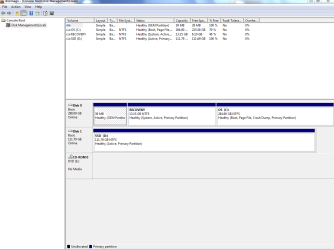
Post a screen capture of the partition layout as shown in Disk Management of your current setup if possible.

We need to know the size of each partition on your current drive, what partitions have data, etc.

Do you plan to keep personal data on the SSD, or will it be used only for Windows and programs?

Do you necessarily want to have more than one partition on the SSD?

You say you have 3 partitions, which combined have 60 GB occupied. Is that one partition for Windows, another for programs, and another for data?

Most people here use an SSD just for Windows and applications, in a single partition---with data on a separate mechanical hard drive. But there are exceptions.
 

My Computer My Computer

At a glance

Windows 7 Home Premium SP1, 64-bitIntel Skylake i5-6600K, not overclocked8 GB HyperX DDR4-2666 (2 x 4 GB)none; graphics are integrated on CPU
Computer type
PC/Desktop
Computer Manufacturer/Model Number
Ignatz Special; 4 speed manual gearbox; factory air conditioning; one of one
OS
Windows 7 Home Premium SP1, 64-bit
CPU
Intel Skylake i5-6600K, not overclocked
Motherboard
AsRock Z170M Extreme 4, micro ATX
Memory
8 GB HyperX DDR4-2666 (2 x 4 GB)
Graphics Card(s)
none; graphics are integrated on CPU
Sound Card
onboard: Realtek ALC1150; external: USB Behringer UF0-202
Monitor(s) Displays
Dell S2340M 23 inch IPS
Screen Resolution
1600 x 900
Hard Drives
System: Crucial MX100 series SSD, 128 GB;
Data: Samsung Spinpoint 103SJ, 1 TB;
Backup: WD Caviar Green WD30EZRX-00D8PB0, 3 TB
PSU
Rosewill SilentNight 500 watt fanless, semi-modular
Case
Antec Solo II
Cooling
Noctua NH-U12S; Noctua F12 intake, Noctua S12A exhaust
Keyboard
Microsoft 200 6JH-00001 USB
Mouse
Dell or Microsoft optical wired; USB
Antivirus
Microsoft Security Essentials and Malwarebytes Premium
Browser
Pale Moon
Other Info
All fans PWM; speeds at idle: CPU circa 500 rpm; intake circa 600 rpm; exhaust circa 600 rpm; CPU temps 27 idle and 47 C load in a warm room (27 C/81 F) when running Intel Extreme Tuning Utility stress test.
1) My working 'C' drive (old mechanical) 285GB HD has 60 GB of data, boot files, system files etc. in 3 partitions on it.
2) I want to do away with the mechanical HD and transfer everything to a new SSD of 111 GB capacity, and have that as the bootable drive, without having all the hassle of re-installing programs etc. etc. i.e. just make a copy of the old HD onto the SSD drive and throw away the old HD (or keep it for backup).

Have you purchased the SSD yet? Retail package versions may come with software designed to do such a transfer.

It's doable, even without software provided with the SSD.

Post a screen capture of the partition layout as shown in Disk Management of your current setup if possible.

We need to know the size of each partition on your current drive, what partitions have data, etc.

Do you plan to keep personal data on the SSD, or will it be used only for Windows and programs?

Do you necessarily want to have more than one partition on the SSD?

You say you have 3 partitions, which combined have 60 GB occupied. Is that one partition for Windows, another for programs, and another for data?

Most people here use an SSD just for Windows and applications, in a single partition---with data on a separate mechanical hard drive. But there are exceptions.

Hi IG,
All I want to do is to transfer everything from my HD onto my SSD, and use the SSD instead of the HD. Simples!

Yes, I've bought the SSD, it's a OCZ Agility 3, 120 GB. No, no transfer s/w with it. I did a Windows image transfer earlier from the HD to the SSD, and made the SSD bootable from BIOS settings, but it didn't boot up when restarted, so looks like kboot files not transferred.

I downloaded free Driveimage XML and tried to copy disk-to-disk, but it told me the target medium had to have a capacity to match the origin HD. Currently the target SSD has smaller capacity than the source HD, but more than enough to hold what's used on the HD.

Hope the attached screen shot helps.

Regards,


Mike
 

Attachments

  • Diskmamagement.PNG
    Diskmamagement.PNG
    23.2 KB · Views: 4

My Computer My Computer

At a glance

windows 7 professional 64 bit
OS
windows 7 professional 64 bit
I did a Windows image transfer earlier from the HD to the SSD, and made the SSD bootable from BIOS settings, but it didn't boot up when restarted, so looks like boot files not transferred.

I downloaded free Driveimage XML and tried to copy disk-to-disk, but it told me the target medium had to have a capacity to match the origin HD. Currently the target SSD has smaller capacity than the source HD, but more than enough to hold what's used on the HD.

Mike:

There is probably more than one way to do this. Here is what I would try.

I'd let others comment on this too, to get other opinions.

1: backup your data from the current C to some other safe location.

2: shrink your current C drive from its current 285 to maybe 70 or 80. You may be able to do this in Disk Management, or you may have to use a program such as Partition Wizard. Disk Managment may not allow you to shrink down to 70 or 80.

After that shrink, the total occupied space on all partitions should be smaller than the 111 available on the SSD.

3: Make an image of all 3 of your partitions, save that image file to another drive (not the SSD), and then restore that new image to the SSD.

That might work. It may be preferable to make a separate image of each of your 3 partitions and then restore them individually---rather than all 3 partitions in a single image. I'm not sure.

I'd use Macrium to make and restore the images, but other programs should work as well.

Get more opinions and be sure to back up your data before beginning.
 

My Computer My Computer

At a glance

Windows 7 Home Premium SP1, 64-bitIntel Skylake i5-6600K, not overclocked8 GB HyperX DDR4-2666 (2 x 4 GB)none; graphics are integrated on CPU
Computer type
PC/Desktop
Computer Manufacturer/Model Number
Ignatz Special; 4 speed manual gearbox; factory air conditioning; one of one
OS
Windows 7 Home Premium SP1, 64-bit
CPU
Intel Skylake i5-6600K, not overclocked
Motherboard
AsRock Z170M Extreme 4, micro ATX
Memory
8 GB HyperX DDR4-2666 (2 x 4 GB)
Graphics Card(s)
none; graphics are integrated on CPU
Sound Card
onboard: Realtek ALC1150; external: USB Behringer UF0-202
Monitor(s) Displays
Dell S2340M 23 inch IPS
Screen Resolution
1600 x 900
Hard Drives
System: Crucial MX100 series SSD, 128 GB;
Data: Samsung Spinpoint 103SJ, 1 TB;
Backup: WD Caviar Green WD30EZRX-00D8PB0, 3 TB
PSU
Rosewill SilentNight 500 watt fanless, semi-modular
Case
Antec Solo II
Cooling
Noctua NH-U12S; Noctua F12 intake, Noctua S12A exhaust
Keyboard
Microsoft 200 6JH-00001 USB
Mouse
Dell or Microsoft optical wired; USB
Antivirus
Microsoft Security Essentials and Malwarebytes Premium
Browser
Pale Moon
Other Info
All fans PWM; speeds at idle: CPU circa 500 rpm; intake circa 600 rpm; exhaust circa 600 rpm; CPU temps 27 idle and 47 C load in a warm room (27 C/81 F) when running Intel Extreme Tuning Utility stress test.

My Computer My Computer

At a glance

Microsoft Windows 7 Home Premium 64-bit Servi...Intel(R) Core(TM) i3 CPU M 330 @ 2.13GHz8 GB DDR3Intel(R) HD Graphics
Computer type
Laptop
Computer Manufacturer/Model Number
Hewlett-Packard/G62-107SA Notebook
OS
Microsoft Windows 7 Home Premium 64-bit Service Pack 1
CPU
Intel(R) Core(TM) i3 CPU M 330 @ 2.13GHz
Motherboard
Hewlett-Packard 1425
Memory
8 GB DDR3
Graphics Card(s)
Intel(R) HD Graphics
Sound Card
Realtek High Definition Audio
Monitor(s) Displays
Builtin
Screen Resolution
1366 x 768 x 32 bits (4294967296 colors) @ 60 Hz
Hard Drives
250 GB SATA Hard Disk Drive 7200 rpm
2TB Seagate GoFlex USB 2 Drive
1TB Iomega Prestige USB 2 Drive
1.5TB Iomega Prestige USB 2 Drive (Samsung)
2TB WD MyBook Live NAS.
Mouse
Logitech Anywhere MX
Internet Speed
152 Mbs download 10 Mbs upload
Antivirus
Norton 360
Browser
Chrome
I did a Windows image transfer earlier from the HD to the SSD, and made the SSD bootable from BIOS settings, but it didn't boot up when restarted, so looks like boot files not transferred.

I downloaded free Driveimage XML and tried to copy disk-to-disk, but it told me the target medium had to have a capacity to match the origin HD. Currently the target SSD has smaller capacity than the source HD, but more than enough to hold what's used on the HD.

Mike:

There is probably more than one way to do this. Here is what I would try.

I'd let others comment on this too, to get other opinions.

1: backup your data from the current C to some other safe location.

2: shrink your current C drive from its current 285 to maybe 70 or 80. You may be able to do this in Disk Management, or you may have to use a program such as Partition Wizard. Disk Managment may not allow you to shrink down to 70 or 80.

After that shrink, the total occupied space on all partitions should be smaller than the 111 available on the SSD.

3: Make an image of all 3 of your partitions, save that image file to another drive (not the SSD), and then restore that new image to the SSD.

That might work. It may be preferable to make a separate image of each of your 3 partitions and then restore them individually---rather than all 3 partitions in a single image. I'm not sure.

I'd use Macrium to make and restore the images, but other programs should work as well.

Get more opinions and be sure to back up your data before beginning.
Hi IG,
Many thanks for taking the trouble to help. It seems there's no 'easy' way!

I tried XXClone and made the target (SSD) self-bootable by installing 3 files (Write MBR, Write Boot Sector & Write BOOT.INI). Two messages popped up saying 'NTLDR file not found in source volume' & 'NTDETECT.COM file not found'. I continued to click 'ok' and some files were written onto the SSD. Should I ignore the messages or is it serious? Are those missing files important?

Regards,


Mike
 

My Computer My Computer

At a glance

windows 7 professional 64 bit
OS
windows 7 professional 64 bit
I tried XXClone and made the target (SSD) self-bootable by installing 3 files (Write MBR, Write Boot Sector & Write BOOT.INI). Two messages popped up saying 'NTLDR file not found in source volume' & 'NTDETECT.COM file not found'. I continued to click 'ok' and some files were written onto the SSD. Should I ignore the messages or is it serious? Are those missing files important?

I can't comment on XXClone. Never even heard of it. Macrium, Acronis, EaseUS, or Windows built-in capabilities are what most on this forum use.

Cloning is different than imaging. Cloning is much less common. Is there a reason you don't attempt imaging?

Your boot files are probably on your smallest partition, not on C. That may be why XXClone can't fnd those files.

Look at the tutorial Kado linked you to.
 

My Computer My Computer

At a glance

Windows 7 Home Premium SP1, 64-bitIntel Skylake i5-6600K, not overclocked8 GB HyperX DDR4-2666 (2 x 4 GB)none; graphics are integrated on CPU
Computer type
PC/Desktop
Computer Manufacturer/Model Number
Ignatz Special; 4 speed manual gearbox; factory air conditioning; one of one
OS
Windows 7 Home Premium SP1, 64-bit
CPU
Intel Skylake i5-6600K, not overclocked
Motherboard
AsRock Z170M Extreme 4, micro ATX
Memory
8 GB HyperX DDR4-2666 (2 x 4 GB)
Graphics Card(s)
none; graphics are integrated on CPU
Sound Card
onboard: Realtek ALC1150; external: USB Behringer UF0-202
Monitor(s) Displays
Dell S2340M 23 inch IPS
Screen Resolution
1600 x 900
Hard Drives
System: Crucial MX100 series SSD, 128 GB;
Data: Samsung Spinpoint 103SJ, 1 TB;
Backup: WD Caviar Green WD30EZRX-00D8PB0, 3 TB
PSU
Rosewill SilentNight 500 watt fanless, semi-modular
Case
Antec Solo II
Cooling
Noctua NH-U12S; Noctua F12 intake, Noctua S12A exhaust
Keyboard
Microsoft 200 6JH-00001 USB
Mouse
Dell or Microsoft optical wired; USB
Antivirus
Microsoft Security Essentials and Malwarebytes Premium
Browser
Pale Moon
Other Info
All fans PWM; speeds at idle: CPU circa 500 rpm; intake circa 600 rpm; exhaust circa 600 rpm; CPU temps 27 idle and 47 C load in a warm room (27 C/81 F) when running Intel Extreme Tuning Utility stress test.
I tried XXClone and made the target (SSD) self-bootable by installing 3 files (Write MBR, Write Boot Sector & Write BOOT.INI). Two messages popped up saying 'NTLDR file not found in source volume' & 'NTDETECT.COM file not found'. I continued to click 'ok' and some files were written onto the SSD. Should I ignore the messages or is it serious? Are those missing files important?

I can't comment on XXClone. Never even heard of it. Macrium, Acronis, EaseUS, or Windows built-in capabilities are what most on this forum use.

Cloning is different than imaging. Cloning is much less common. Is there a reason you don't attempt imaging?

Your boot files are probably on your smallest partition, not on C. That may be why XXClone can't fnd those files.

Look at the tutorial Kado linked you to.
Hi IG,
I have no idea of the difference between imaging and cloning. Is there a quick answer?:)

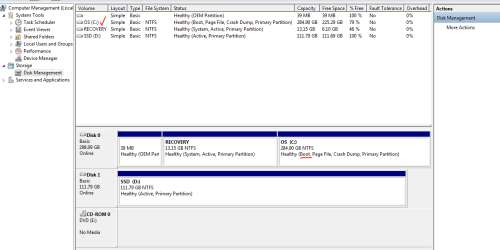
The boot files are on the 'C' partition, according to Computer Management (see attached).

So, what sort of things are in the OEM partion?

Does it matter that the SSD has lower capacity than my old HD?

Regards,


Mike
 

Attachments

  • Diskmamagement2.PNG
    Diskmamagement2.PNG
    19.7 KB · Views: 1

My Computer My Computer

At a glance

windows 7 professional 64 bit
OS
windows 7 professional 64 bit
I tried XXClone and made the target (SSD) self-bootable by installing 3 files (Write MBR, Write Boot Sector & Write BOOT.INI). Two messages popped up saying 'NTLDR file not found in source volume' & 'NTDETECT.COM file not found'. I continued to click 'ok' and some files were written onto the SSD. Should I ignore the messages or is it serious? Are those missing files important?

I can't comment on XXClone. Never even heard of it. Macrium, Acronis, EaseUS, or Windows built-in capabilities are what most on this forum use.

Cloning is different than imaging. Cloning is much less common. Is there a reason you don't attempt imaging?

Your boot files are probably on your smallest partition, not on C. That may be why XXClone can't fnd those files.

Look at the tutorial Kado linked you to.
Hi IG,
I have no idea of the difference between imaging and cloning. Is there a quick answer?:)

The boot files are on the 'C' partition, according to Computer Management (see attached).

So, what sort of things are in the OEM partion?

Does it matter that the SSD has lower capacity than my old HD?

Regards,


Mike

Quite simply cloning is creating an identical partition or partitions on another disk. Imaging is creating a file containing the contents of one or more partitions in a format that can be restored.
 

My Computer My Computer

At a glance

Microsoft Windows 7 Home Premium 64-bit Servi...Intel(R) Core(TM) i3 CPU M 330 @ 2.13GHz8 GB DDR3Intel(R) HD Graphics
Computer type
Laptop
Computer Manufacturer/Model Number
Hewlett-Packard/G62-107SA Notebook
OS
Microsoft Windows 7 Home Premium 64-bit Service Pack 1
CPU
Intel(R) Core(TM) i3 CPU M 330 @ 2.13GHz
Motherboard
Hewlett-Packard 1425
Memory
8 GB DDR3
Graphics Card(s)
Intel(R) HD Graphics
Sound Card
Realtek High Definition Audio
Monitor(s) Displays
Builtin
Screen Resolution
1366 x 768 x 32 bits (4294967296 colors) @ 60 Hz
Hard Drives
250 GB SATA Hard Disk Drive 7200 rpm
2TB Seagate GoFlex USB 2 Drive
1TB Iomega Prestige USB 2 Drive
1.5TB Iomega Prestige USB 2 Drive (Samsung)
2TB WD MyBook Live NAS.
Mouse
Logitech Anywhere MX
Internet Speed
152 Mbs download 10 Mbs upload
Antivirus
Norton 360
Browser
Chrome
Back
Top