
Which partition can I safely delete?

jdukes

New member
Local time
8:57 PM
Messages
10
I recently purchased a Lenovo Y470 laptop with Windows 7 Pro 64. I want to set it up to dual boot Windows XP in order to run Pro-Tools Audio Editing software (an earlier version).

I began following the tutorial here, shrinking my main partition and deleting Lenovo's Disk Image logical drive. However, when I try to convert the free space into a new partition, it creates a new logical drive. Apparently, I can only have 3 primary partitions (and one logical drive). I also tried it using the command line method, and it failed to respond to the "create primary partition" command.

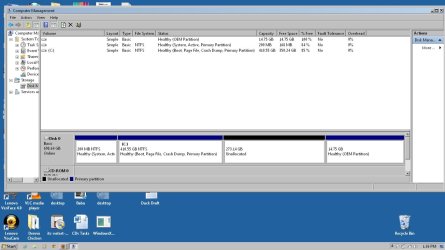
I'm attaching a screenshot here. It looks like I have a main partition, a 200 mb "system" partition with no recognizable data, and a 14.75 GB OEM partition.

I used a method described here to look at the OEM partition using a repair disk. The volume is labled X: Boot and it appears to contain some kind of backup disk image. I copied the contents to C, but when I tried to copy the "Windows" folder, it refused, telling me some of the contents were in use. That gave me pause.

My question: Is it safe to delete the OEM partition (I've made system restore disks)? What about the 200mb system partition? My understanding is I can't effectively run XP from a logical disk, only a primary partition. Does that sound right?

Thanks for any insight.
 

Attachments
  • JD_Dsk_2.jpg
    JD_Dsk_2.jpg
    83.7 KB · Views: 185

My Computer

OS
Windows 7 Professional 64
The System Reserved partition needs to stay as it contains the boot files for Win7. If you have backed up a set of Recovery disks and don't want the Recovery partition then you can delete the OEM partition.

However you are allowed to have a fourth Primary partition and that's likely what XP will create when you boot it's CD and full format an NTFS partition in the Unallocated space. Otherwise free Partition Wizard CD can do it for you .

One important question is if XP CD (use one with SP3) will see the partitions when you boot into it. If not you'll need to insert the SATA controller driver: SATA Drivers - Load in Windows XP Setup on Dual Boot
SATA Drivers - Slipstream into Windows XP CD
 
Thanks very much. I think my Windows XP disk is SP 2, from a now defunct computer. If it's essential, I can by SP 3 disks on ebay.
 

My Computer

OS
Windows 7 Professional 64
Try it first. If it doesn't see the HD partitions then it likely needs SATA driver slipstreamed if you don't have floppy (who does?). If it sees the partiitons including the intended Unallocated Space then full format an NTFS partition there and try install.

If you use a torrent to get an XP SP3 CD for your licensed version (must be OEM- or retail-specific, remember) then be sure to read the comments to make sure it isn't cracktivated or has anything added.
 
Installation with that CD worked. The guide is super helpful--especially slipstreaming the SATA drivers. I made a new partition with partition wizard, and I had to switch the BIOS mode to "Compatibility". I'm hoping I can switch back to SATA when it runs 7.

1 step left. I still need to run the repair with Easy BCD. The program wants to talk to the internet and I haven't got that working on XP yet. I'm trying to install a WPA 2 patch now to see if that will work. Easy BCD tells me I can manually install the .net framework, which I did, but it doesn't recognize this. If I can't get the internet to work, is there a manual way to perform that process?
 

My Computer

OS
Windows 7 Professional 64
Easiest is to start up Win7 so you can install EasyBCD to add XP from 7 which works better.

To do this, mark System Reserved partition Active: Partition - Mark as Active

Then boot into System Recovery Options on Win7 DVD or System Repair Disk to run Startup Repair - Run 3 Separate Times until Win7 starts on its own and System Reserved correctly holds the System Active flags.

YOu can then install EasyBCD 2.02 to Win7 to Add XP, accept offered boot files, autocompletes, Save, Reboot to Dual Boot menu.
 
OK, I may try. I got the internet working on XP and succesfully ran Easy BCD in XP. Now I'm running startup repair in 7. It's chugging along.
 

My Computer

OS
Windows 7 Professional 64
If Easy ran successfully in XP to create the Dual Boot menu, then you don't need to start Win7.

Start Win7 by marking Active and running Startup Repair x3 to install EasyBCD only if necessary to add XP.
 
I used command line to make the Windows 7 partition active. Booted again and got "BOOTMGR is missing".

I'm rooting around for my Windows 7 repair disk.
 

My Computer

OS
Windows 7 Professional 64
OK, I set the system disk as active and ran startup repair about 8 times. It's not working. Neither XP or Windows 7 boots now. The diagnostic log has this clue:

Root cause found:

Unspecified changes to system configuration might have caused the problem.

Repair action: System files integrity check and repair
Result: Failed. Error code 0x490


I can run system restore, or restore from the backup disk image, but I'd rather find a work around if possible.
 

My Computer

OS
Windows 7 Professional 64
Did you mark the 200mb System Reserved partition Active as instructed, then run 3 separate Startup Repairs with reboots in between?

To do this, mark System Reserved partition Active: Partition - Mark as Active

Then boot into System Recovery Options on Win7 DVD or System Repair Disk to run Startup Repair - Run 3 Separate Times until Win7 starts on its own and System Reserved correctly holds the System Active flags.

YOu can then install EasyBCD 2.02 to Win7 to Add XP, accept offered boot files, autocompletes, Save, Reboot to Dual Boot menu.
 
Yes, I followed that process. There appears to be some kind of corruption on that partition. It's possible that XP did something to it. I noticed that XP mapped that partition as C: and everytime I installed a driver, it wrote to that partition. I transferred the files out of there manually, but maybe something got messed up along the way.
 

My Computer

OS
Windows 7 Professional 64
In that case mark the Win7 partition itself Active and try the Repairs again.
 
Ok, trying that now.
 

My Computer

OS
Windows 7 Professional 64
I made the Windows 7 partition active, ran repair three times. It's still not booting.

I think I'll have to restore from the backup image, unless there's anything else to try.
 

My Computer

OS
Windows 7 Professional 64
What imaging app are you using?

Almost any but Win7 Backup will allow you to reimage just the C and SysReserved partitions, then it should startup into Win7 although you may have to run a few repairs after making sure it is marked Active.

Acronis True Image will allow you to convert a Win7 image to .tib then you can use Acronis for partitioning flexibility

Be sure if given the option that you choose to include MBR and Track 1.
 
OK, I will look into Acronis. Thanks for the coaching. I have to take a break from this to focus on other things, but I'll post when I get back into the recovery.
 

My Computer

OS
Windows 7 Professional 64
Back
Top