Solved Win 7 Install Has Made A Mess

Pherank

New member
Local time
9:36 AM
Messages
18
I've had to re-install Windows 7. And it naturally did something completely screwy -


  1. Disk 0 used to be Disk 1, and vice versa.
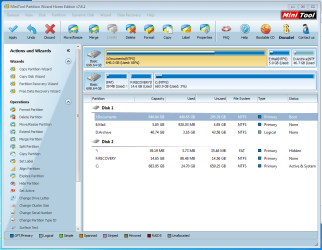
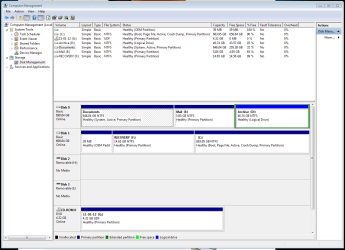
  2. Rearranged my Disk labels, and drive letters in a nonsensical way, but far worse, it has labeled my Documents drive as "System, Active" (in MiniTools Partition Wizard it is labeled as "Boot" status). And no, I didn't ask Windows 7 Install to do anything to Disk 1, I very much wanted it to be left alone.
I want the J: Documents drive to be E: or F: and not bootable (it's only for storing data). And I would like the letters on a particular disk to follow in sequence (makes sense, right?)

And the other "cool" thing is that the J: Documents drive doesn't even appear in File Manager - I assume because it is marked as a boot disk, and I'm not actually booting from that drive. So, can't reach my documents. How can I fix things without losing all my data? Thanks for the help!
 

My Computer

Computer Manufacturer/Model Number
Dell XPS 435T/9000
OS
Windows 7 Home Premium SP 1, 64-bit
CPU
Intel(R) Core(TM) i7 CPU [email protected], Clock Speed 3.1GHz
Memory
9GB
Graphics Card(s)
NVIDIA GeForce GTS 240
Sound Card
Realtek High Definition Audio
Monitor(s) Displays
Dell 2408WFP(Digital) - Dell Inc.
Screen Resolution
1920 x 1200
Hard Drives
2 Western Digital Caviar Black HD
Keyboard
Apple
Mouse
Dell optical
Internet Speed
cable
Sorry, I thought my images had uploaded too...
 

Attachments

  • HD_mess.PNG
    HD_mess.PNG
    59.9 KB · Views: 12
  • HD_mess_2.PNG
    HD_mess_2.PNG
    34.3 KB · Views: 19

My Computer

Computer Manufacturer/Model Number
Dell XPS 435T/9000
OS
Windows 7 Home Premium SP 1, 64-bit
CPU
Intel(R) Core(TM) i7 CPU [email protected], Clock Speed 3.1GHz
Memory
9GB
Graphics Card(s)
NVIDIA GeForce GTS 240
Sound Card
Realtek High Definition Audio
Monitor(s) Displays
Dell 2408WFP(Digital) - Dell Inc.
Screen Resolution
1920 x 1200
Hard Drives
2 Western Digital Caviar Black HD
Keyboard
Apple
Mouse
Dell optical
Internet Speed
cable
You should have unplugged it during the install. Mark it inactive and run a system repair disk up to 3 times.

Make the disc 1st. Does it boot with the data drive unplugged ? Give that a try b4 doing anything.

Make sure it boots by itself b4 you make any changes.
 
Last edited:

My Computer

Computer type
PC/Desktop
Computer Manufacturer/Model Number
Skylake Special #666
OS
Windows 10 Pro x64
CPU
Intel Core i7 6700K
Motherboard
Asus Sabertooth Z170 Mark 1
Memory
GSkill TridentZ RGB 16GB 3600 16-16-16-36
Graphics Card(s)
EVGA GTX 980 Ti SC x2
Sound Card
Realtek High Definition
Monitor(s) Displays
AOC G2460PG
Screen Resolution
1920 x 1080 144Hz
Hard Drives
Samsung 860 Pro 256GB, Seagate Barracuda 4TB x2
PSU
EVGA 1000 P2, EVGA White Custom Braided Cables
Case
Corsair Vengeance C70 Gunmetal Black
Cooling
Corsair H100i v2, Corsair ML120 x2, Thermal Grizzly Kryonaut
Keyboard
Logitech G910 Orion Spectrum
Mouse
Logitech G700s
Internet Speed
Verizon Fios Quantum Gateway 75/75
Antivirus
Windows Defender, Malwarebytes Free 3.8.3
Browser
Chrome
Other Info
Corsair SP120 x4, LG Blu-ray Drive, Durabrand HT-395 100 Watt Dolby Digital Amp, Corsair H2100 Wireless 7.1 Headset
The installer writes the System boot files to the first Active partition or in some cases if no others are marked Active the first partition in order. So either Documents was marked Active or none were.

Unplug the Documents HD and swap its data cable to WIn7 HD, making sure it remains set first to boot in BIOS setup. Then boot into Win7 DVD System Recovery Options or System Repair Disk to run Startup Repair up to 3 separate times with reboots until Win7 partition is labeled System Active.

You can now plug back in the Documents HD to Disk1 cable to Mark as Inactive. If you want you can unhide System files in Control Panel>Folder options>View to delete the boot files from Documents although you will have to give it a drive letter to access it first: Drive Letter - Add, Change, or Remove in Windows 7 - Windows 7 Forums
 
Thanks, Greg. I appreciate the detailed steps. What I ended up doing was set the data/documents drive to "inactive" with MiniTool Partition Wizard, then shutting down, disconnecting the data drive, and then booting to the Windows Installer DVD and formatting the c: drive, again, and re-installing Windows 7 a second time. Running off of two drives was causing system freezes, so I wasn't going to continue on until I got a system installation that was stable. So far so good: my data/documents drive was unharmed when I reconnected it to the PC.
 

My Computer

Computer Manufacturer/Model Number
Dell XPS 435T/9000
OS
Windows 7 Home Premium SP 1, 64-bit
CPU
Intel(R) Core(TM) i7 CPU [email protected], Clock Speed 3.1GHz
Memory
9GB
Graphics Card(s)
NVIDIA GeForce GTS 240
Sound Card
Realtek High Definition Audio
Monitor(s) Displays
Dell 2408WFP(Digital) - Dell Inc.
Screen Resolution
1920 x 1200
Hard Drives
2 Western Digital Caviar Black HD
Keyboard
Apple
Mouse
Dell optical
Internet Speed
cable
Post back another Disk Mgmt screenshot so we can check it over for you.

I wish you would have reported back your plan because I could have told you before reinstalling that Dell Recovery will no longer run after reinstall so you can delete it's partition too to recreate C.

If you have a reason (eventual resale, etc) you want Recovery to stay occupying prime real estate on the HD then you can try Dell Recovery Partition - restoring F8 link

Otherwise you can delete Recov and resize C into it space using the boot CD for Partition Wizard Resize Partition - Video Help.

Dell's OEM bootable Diagnostics partition may still boot via F12 - you can try that now.
 
Post back another Disk Mgmt screenshot so we can check it over for you.

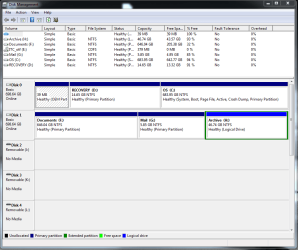
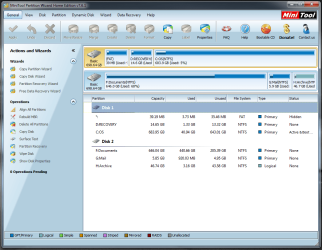
I'm attaching images of the current partition state. Win 7 seems to think that the RECOVERY partition is too small to work with (I just wanted to put the most basic Win7 system image on there, but I received a message that it wouldn't fit (even thought the actual size of the files on C: would have fit the partition).

I'll have to join D: into C:, or use it to save just my User folder data.

Anyway, I have an external drive that I am putting system backup images on for the future...
 

Attachments

  • DM_Latest_Partitions_11-05-12.PNG
    DM_Latest_Partitions_11-05-12.PNG
    31.4 KB · Views: 4
  • Latest_Partitions_11-05-12.PNG
    Latest_Partitions_11-05-12.PNG
    65.7 KB · Views: 1

My Computer

Computer Manufacturer/Model Number
Dell XPS 435T/9000
OS
Windows 7 Home Premium SP 1, 64-bit
CPU
Intel(R) Core(TM) i7 CPU [email protected], Clock Speed 3.1GHz
Memory
9GB
Graphics Card(s)
NVIDIA GeForce GTS 240
Sound Card
Realtek High Definition Audio
Monitor(s) Displays
Dell 2408WFP(Digital) - Dell Inc.
Screen Resolution
1920 x 1200
Hard Drives
2 Western Digital Caviar Black HD
Keyboard
Apple
Mouse
Dell optical
Internet Speed
cable
Test if Dell Diagnostics will run by tapping the F12 key at boot and choosing Diagnostics: Dell Diagnostics Utility - How to Run the

If not you can boot PW CD to delete both OEM and Recovery partition, then rightclick C to Resize, slide left border all the way to left, click OK, Apply all steps. I gave you a video demonstrating this earlier so I don't know why you're referring now to "joining" D+C.

Have the WIn7 DVD ready as resizing on the boot sector can require repair afterward in rare cases.

You are correct to store System Image on another HD since it defeats the purpose of a backup if the same HD with both OS and image fails. Besides you want the prime HD lower address (where disk reader parks so it reads faster) for your OS.
 
Thanks Greg - I wanted to go ahead and keep the D: RECOVERY and store a basic system image on that drive, but it appears that Win7 doesn't really want to work with a partition of that size. So now I'm thinking of doing away with it.

RE: the OEM drive (FAT partition). I've been wondering if that isn't something to hang on to - does it help to identify my system regarding any OEM software I'm using? Or is it only used to run Dell Diagnostics?
 

My Computer

Computer Manufacturer/Model Number
Dell XPS 435T/9000
OS
Windows 7 Home Premium SP 1, 64-bit
CPU
Intel(R) Core(TM) i7 CPU [email protected], Clock Speed 3.1GHz
Memory
9GB
Graphics Card(s)
NVIDIA GeForce GTS 240
Sound Card
Realtek High Definition Audio
Monitor(s) Displays
Dell 2408WFP(Digital) - Dell Inc.
Screen Resolution
1920 x 1200
Hard Drives
2 Western Digital Caviar Black HD
Keyboard
Apple
Mouse
Dell optical
Internet Speed
cable
The only purpose of Dell's OEM tools partition I've found is to house and run Diagnostics from boot. They are good enough I would keep it if they still run, otherwise I would be rid of it along with Recovery.
 
The tools still seem to run, so I'll guess I'll leave that partition alone. Thanks again.
 

My Computer

Computer Manufacturer/Model Number
Dell XPS 435T/9000
OS
Windows 7 Home Premium SP 1, 64-bit
CPU
Intel(R) Core(TM) i7 CPU [email protected], Clock Speed 3.1GHz
Memory
9GB
Graphics Card(s)
NVIDIA GeForce GTS 240
Sound Card
Realtek High Definition Audio
Monitor(s) Displays
Dell 2408WFP(Digital) - Dell Inc.
Screen Resolution
1920 x 1200
Hard Drives
2 Western Digital Caviar Black HD
Keyboard
Apple
Mouse
Dell optical
Internet Speed
cable
Back
Top