
Windows 2000 in VM Under Win 7??

What the heck is "decndis.sys"???

Edit: I see entries about "OpenVMS" at google while I search for "decndis.sys"...

zzz2496
 

My Computer

Computer Manufacturer/Model Number
Self Built
OS
Windows7 Ultimate 64bit
CPU
Intel Core 2 Quad Q6600
Motherboard
Abit IN9-32X-MMAX
Memory
DDR2 Adata 4GB
Graphics Card(s)
Nvidia GeForce GTX 285 1024 and Nvidia GeForce 8800GT 512
Sound Card
Asus Xonar HDAV 1.3
Monitor(s) Displays
Dell 2407WFP and BenQ 2400v and Philips 150v3
Screen Resolution
3840x1200 and 1024x768
Hard Drives
2 WDC 1TB
1 WDC 1.5TB
1 WDC 640GB
1 WDC 320GB
1 Seagate 200GB
PSU
Corsair TX 850W
Case
Cooler Master HAF932
Cooling
Arctic Cooling Freezer Extreme and plenty of fans...
Keyboard
MicrosoftNaturalKeyboard 4000/Apple Alu keyboard/Dinovo mini
Mouse
Logitech G5/MarbleMouseTrackball/PerformanceMX/SpacePilotPRO
Internet Speed
1.5Mbps down/384Kbps up
Other Info
APC SURT 1000XL
Logitech Z-560
Wiimote
Mikrotik Router
Linksys (now Cisco) SD2008 8 port Gigabit switch
Linksys WRT54G (acting as AP)
Apple wireless Aluminium keyboard
Apple Magic Mouse
Xbox360 wired controller
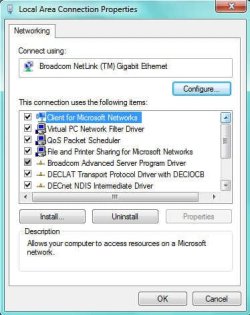
decndis is part of the DEC (Digital Equipment Corp) LAT protocol that we use to access the VAX. You can see the DEC stuff here on my network properties.

Now, I can disable these (or uninstall them) and try the VirtualBox install again. The IT guy said I could try installing the DEC LAT stuff after the VM workstation software installed (assuming it does) and perhaps that might work. Without the LAT stuff, I can't access the VAX, but that's not that big a deal as I access it very very infrequently. I also have a second machine in my work area (an XP machine) that can access the VAX should I need to.

This is a common denominator between the two machines that won't install any VM software (other than the Microsoft Virtual PC that came with W7).
 

Attachments

  • network1.jpg
    network1.jpg
    31.1 KB · Views: 1
  • network2.jpg
    network2.jpg
    32.3 KB · Views: 1

My Computer

Computer Manufacturer/Model Number
DYI
OS
Win 7 x64 Professional
CPU
Intel Core i5-750 2.67Ghz
Motherboard
Gigabyte P55M-UD4
Memory
4gb
Graphics Card(s)
Nvidia GeForce 9500GT 512mb
Sound Card
On MB
Monitor(s) Displays
Lg Flatron
Screen Resolution
1280 x 1024
Hard Drives
C: 200mb Maxtor SATA 3
D: 500gb WD SATA 3
Aahhhh !!!

Can you try that please? Uninstall it, restart, install VirtualBox see if it works.
If it does work, I suggest you access the VAX from Win2K if that's reasonable, assuming you want to run your 2K as your "main workstation".

zzz2496
 

My Computer

Computer Manufacturer/Model Number
Self Built
OS
Windows7 Ultimate 64bit
CPU
Intel Core 2 Quad Q6600
Motherboard
Abit IN9-32X-MMAX
Memory
DDR2 Adata 4GB
Graphics Card(s)
Nvidia GeForce GTX 285 1024 and Nvidia GeForce 8800GT 512
Sound Card
Asus Xonar HDAV 1.3
Monitor(s) Displays
Dell 2407WFP and BenQ 2400v and Philips 150v3
Screen Resolution
3840x1200 and 1024x768
Hard Drives
2 WDC 1TB
1 WDC 1.5TB
1 WDC 640GB
1 WDC 320GB
1 Seagate 200GB
PSU
Corsair TX 850W
Case
Cooler Master HAF932
Cooling
Arctic Cooling Freezer Extreme and plenty of fans...
Keyboard
MicrosoftNaturalKeyboard 4000/Apple Alu keyboard/Dinovo mini
Mouse
Logitech G5/MarbleMouseTrackball/PerformanceMX/SpacePilotPRO
Internet Speed
1.5Mbps down/384Kbps up
Other Info
APC SURT 1000XL
Logitech Z-560
Wiimote
Mikrotik Router
Linksys (now Cisco) SD2008 8 port Gigabit switch
Linksys WRT54G (acting as AP)
Apple wireless Aluminium keyboard
Apple Magic Mouse
Xbox360 wired controller
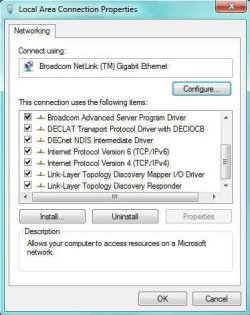
OK. Success. I removed the DEC driver and VirtualBox installed OK this time.

I have to look back in the thread to see what the next step was for importing my VHD.
 

My Computer

Computer Manufacturer/Model Number
DYI
OS
Win 7 x64 Professional
CPU
Intel Core i5-750 2.67Ghz
Motherboard
Gigabyte P55M-UD4
Memory
4gb
Graphics Card(s)
Nvidia GeForce 9500GT 512mb
Sound Card
On MB
Monitor(s) Displays
Lg Flatron
Screen Resolution
1280 x 1024
Hard Drives
C: 200mb Maxtor SATA 3
D: 500gb WD SATA 3
Alright !!!
Good for you, report back as soon as you got the VM running :thumbsup:
zzz2496
 

My Computer

Computer Manufacturer/Model Number
Self Built
OS
Windows7 Ultimate 64bit
CPU
Intel Core 2 Quad Q6600
Motherboard
Abit IN9-32X-MMAX
Memory
DDR2 Adata 4GB
Graphics Card(s)
Nvidia GeForce GTX 285 1024 and Nvidia GeForce 8800GT 512
Sound Card
Asus Xonar HDAV 1.3
Monitor(s) Displays
Dell 2407WFP and BenQ 2400v and Philips 150v3
Screen Resolution
3840x1200 and 1024x768
Hard Drives
2 WDC 1TB
1 WDC 1.5TB
1 WDC 640GB
1 WDC 320GB
1 Seagate 200GB
PSU
Corsair TX 850W
Case
Cooler Master HAF932
Cooling
Arctic Cooling Freezer Extreme and plenty of fans...
Keyboard
MicrosoftNaturalKeyboard 4000/Apple Alu keyboard/Dinovo mini
Mouse
Logitech G5/MarbleMouseTrackball/PerformanceMX/SpacePilotPRO
Internet Speed
1.5Mbps down/384Kbps up
Other Info
APC SURT 1000XL
Logitech Z-560
Wiimote
Mikrotik Router
Linksys (now Cisco) SD2008 8 port Gigabit switch
Linksys WRT54G (acting as AP)
Apple wireless Aluminium keyboard
Apple Magic Mouse
Xbox360 wired controller
I was able to create the VM using the existing VHD, and start it. Now the Windows 2K VM blue screens! The BSOD is inside the VM window, not the W7 machine.

I will have screen captures for you after lunch.

Well, it's some progress anyway...
 

My Computer

Computer Manufacturer/Model Number
DYI
OS
Win 7 x64 Professional
CPU
Intel Core i5-750 2.67Ghz
Motherboard
Gigabyte P55M-UD4
Memory
4gb
Graphics Card(s)
Nvidia GeForce 9500GT 512mb
Sound Card
On MB
Monitor(s) Displays
Lg Flatron
Screen Resolution
1280 x 1024
Hard Drives
C: 200mb Maxtor SATA 3
D: 500gb WD SATA 3
I forgot, the VM you created... I assume it's from a physical machine, right? If so, it has plenty of device drivers for that particular physical machine. Either you repair install the Windows 2000 installation, or sysprep it (meaning you need to have access to the original machine, sysprep it, then re-image), or you can use 3rd party program to "modify" the image, so that when it's restored, it will accept the "new virtualized computer".

I personally recommend Macrium's Reflect to create the image. Here's what I did when I move my physical XP installation to Windows Virtual PC (this will also work with VirtualBox/VMware/etc).


  1. I image my partition XP partition.
  2. I create a new virtual harddisk inside "Disk Management", mount it and assign it some drive letter.
  3. I restore the image to the virtual disk. While you're restoring, there's a section on the restore process that provides you with an option to change the MBR, since this is a Windows 2000, I don't know if this will work or not, but you can always try. In that stage, select restore a "Replace with the standard XP Master Boot Record".
  4. Restore the image.
  5. Once done, detach this virtual hdd from "Disk Management", attach it to the Windows 2000 VM, see if it boots up.
zzz2496
 

My Computer

Computer Manufacturer/Model Number
Self Built
OS
Windows7 Ultimate 64bit
CPU
Intel Core 2 Quad Q6600
Motherboard
Abit IN9-32X-MMAX
Memory
DDR2 Adata 4GB
Graphics Card(s)
Nvidia GeForce GTX 285 1024 and Nvidia GeForce 8800GT 512
Sound Card
Asus Xonar HDAV 1.3
Monitor(s) Displays
Dell 2407WFP and BenQ 2400v and Philips 150v3
Screen Resolution
3840x1200 and 1024x768
Hard Drives
2 WDC 1TB
1 WDC 1.5TB
1 WDC 640GB
1 WDC 320GB
1 Seagate 200GB
PSU
Corsair TX 850W
Case
Cooler Master HAF932
Cooling
Arctic Cooling Freezer Extreme and plenty of fans...
Keyboard
MicrosoftNaturalKeyboard 4000/Apple Alu keyboard/Dinovo mini
Mouse
Logitech G5/MarbleMouseTrackball/PerformanceMX/SpacePilotPRO
Internet Speed
1.5Mbps down/384Kbps up
Other Info
APC SURT 1000XL
Logitech Z-560
Wiimote
Mikrotik Router
Linksys (now Cisco) SD2008 8 port Gigabit switch
Linksys WRT54G (acting as AP)
Apple wireless Aluminium keyboard
Apple Magic Mouse
Xbox360 wired controller
Out of curiosity, try the Windows Virtual PC once again. Check the "Settings" => "Network" part again, see if you can find the missing option after uninstalling the DEC protocol thingie...

zzz2496
 

My Computer

Computer Manufacturer/Model Number
Self Built
OS
Windows7 Ultimate 64bit
CPU
Intel Core 2 Quad Q6600
Motherboard
Abit IN9-32X-MMAX
Memory
DDR2 Adata 4GB
Graphics Card(s)
Nvidia GeForce GTX 285 1024 and Nvidia GeForce 8800GT 512
Sound Card
Asus Xonar HDAV 1.3
Monitor(s) Displays
Dell 2407WFP and BenQ 2400v and Philips 150v3
Screen Resolution
3840x1200 and 1024x768
Hard Drives
2 WDC 1TB
1 WDC 1.5TB
1 WDC 640GB
1 WDC 320GB
1 Seagate 200GB
PSU
Corsair TX 850W
Case
Cooler Master HAF932
Cooling
Arctic Cooling Freezer Extreme and plenty of fans...
Keyboard
MicrosoftNaturalKeyboard 4000/Apple Alu keyboard/Dinovo mini
Mouse
Logitech G5/MarbleMouseTrackball/PerformanceMX/SpacePilotPRO
Internet Speed
1.5Mbps down/384Kbps up
Other Info
APC SURT 1000XL
Logitech Z-560
Wiimote
Mikrotik Router
Linksys (now Cisco) SD2008 8 port Gigabit switch
Linksys WRT54G (acting as AP)
Apple wireless Aluminium keyboard
Apple Magic Mouse
Xbox360 wired controller
if you use the VMDK created from MyOldPCs, it should boot in VirtualBox. MyOldPCs changes registry settings.
 

My Computer

OS
windows 7
Using the VMDK file from MyOldPCs, I am able to boot without the blue screen.

The first time through, when I was prompted for my login password, it took it, and I got to the desktop, which was 16 color 640x480 (this must be increased!). I was prompted for a video driver (which I didn't do),then the machine said it needed to reboot. When it rebooted, it would no longer accept my login password and I can't get past that point.

Ideas?

Question 2: Any way to prevent the mouse from being "captured"? I have a non-standard keyboard, and the uncapture key doesn't work, so I'm trapped. The only way out is a shutdown.

Is there a way to make it so when the mouse pointer is inside the confines of the VM window, those clicks go to the VM, allowing me to freely move the pointer outside the window and back to the host?

What do I want networking set to? It's set to NAT. There are other choices available.
 

My Computer

Computer Manufacturer/Model Number
DYI
OS
Win 7 x64 Professional
CPU
Intel Core i5-750 2.67Ghz
Motherboard
Gigabyte P55M-UD4
Memory
4gb
Graphics Card(s)
Nvidia GeForce 9500GT 512mb
Sound Card
On MB
Monitor(s) Displays
Lg Flatron
Screen Resolution
1280 x 1024
Hard Drives
C: 200mb Maxtor SATA 3
D: 500gb WD SATA 3
These you can try:

1. Try safe mode, if you remember your "Administrator" account and its password, use it, then when inside, check your user profile, reset the password if need be.
2. Once you can get into your working Windows 2000 installation, install VirtualBox Additions (it's the supplement package every VMM have, drivers, etc).
3. In the "Settings" => "Network", choose "Bridged Adapter", this way your VM will be connected directly to your LAN, bypassing your Windows 7's network stack.
4. For the "Host Key", you can change it in File->Preferences->Input. Highlight the "Host Key" box, press your desired key (use rarely used keys, like right shift, or F12, etc)

When you installed the VirtualBox Additions, your mouse will be captured and released automatically, as if the VM is an application window.

zzz2496

Edit: This is done INSIDE the VM, OK? :)
 

My Computer

Computer Manufacturer/Model Number
Self Built
OS
Windows7 Ultimate 64bit
CPU
Intel Core 2 Quad Q6600
Motherboard
Abit IN9-32X-MMAX
Memory
DDR2 Adata 4GB
Graphics Card(s)
Nvidia GeForce GTX 285 1024 and Nvidia GeForce 8800GT 512
Sound Card
Asus Xonar HDAV 1.3
Monitor(s) Displays
Dell 2407WFP and BenQ 2400v and Philips 150v3
Screen Resolution
3840x1200 and 1024x768
Hard Drives
2 WDC 1TB
1 WDC 1.5TB
1 WDC 640GB
1 WDC 320GB
1 Seagate 200GB
PSU
Corsair TX 850W
Case
Cooler Master HAF932
Cooling
Arctic Cooling Freezer Extreme and plenty of fans...
Keyboard
MicrosoftNaturalKeyboard 4000/Apple Alu keyboard/Dinovo mini
Mouse
Logitech G5/MarbleMouseTrackball/PerformanceMX/SpacePilotPRO
Internet Speed
1.5Mbps down/384Kbps up
Other Info
APC SURT 1000XL
Logitech Z-560
Wiimote
Mikrotik Router
Linksys (now Cisco) SD2008 8 port Gigabit switch
Linksys WRT54G (acting as AP)
Apple wireless Aluminium keyboard
Apple Magic Mouse
Xbox360 wired controller
I've changed the release capture key to F12, and that works. That solves that issue.

I changed the networking to Bridged. I can log in, but have no network resources connected. The little network adapter icon on the status lines constantly flashes.

When I tried opening Firefox to see if I had network connectivity to the gateway/internet, it starts, and immediately crashes and terminates.

Correct me if I'm mistaken, how do I access the drive C: on the host OS? Shouldn't I automatically have a "network" drive representing that? That's how the XP mode worked.

It appears then, I still have no network access, although maybe I'm closer than before. I still can't stuff into or out of the VM.

I should try the other VHD under the Windows Virtual PC to see if it functions any differently now that the DEC stuff is gone.
 

My Computer

Computer Manufacturer/Model Number
DYI
OS
Win 7 x64 Professional
CPU
Intel Core i5-750 2.67Ghz
Motherboard
Gigabyte P55M-UD4
Memory
4gb
Graphics Card(s)
Nvidia GeForce 9500GT 512mb
Sound Card
On MB
Monitor(s) Displays
Lg Flatron
Screen Resolution
1280 x 1024
Hard Drives
C: 200mb Maxtor SATA 3
D: 500gb WD SATA 3
did you add a network adapter? shut down the vm, go to VirtualBox right panel, click Network node, and add PCNet-Fast III adapter.
 

My Computer

OS
windows 7
Yes, that network adapter was added by default when I created the machine.
 

My Computer

Computer Manufacturer/Model Number
DYI
OS
Win 7 x64 Professional
CPU
Intel Core i5-750 2.67Ghz
Motherboard
Gigabyte P55M-UD4
Memory
4gb
Graphics Card(s)
Nvidia GeForce 9500GT 512mb
Sound Card
On MB
Monitor(s) Displays
Lg Flatron
Screen Resolution
1280 x 1024
Hard Drives
C: 200mb Maxtor SATA 3
D: 500gb WD SATA 3
Jeffs,

Get back to "Settings"->"Network", click the little "Advanced" arrow, change the adapter type to Intel PRO/1000 MT Server for a start. Once done, start the VM, check Device Manager, see if the new NIC pops up. If not, shutdown, go back to "Settings"->"Network"->"Advanced", change to PCnet-FAST III. Every change on Network adapter type, always check your device manager. Once it's detected, adjust the settings as if it's a stand alone computer connected directly to your LAN.

Oh, VirtualBox doesn't automatically create "C: on host" kind of shortcut, you can register a "Shared Folder" (it's it "Settings"). Personally, I don't use shared folders, I use the VM as if it's a real computer, and I access SMB shares over "virtual network". It's safer that way.

zzz2496

Edit: I type too slowly... :cry:
 

My Computer

Computer Manufacturer/Model Number
Self Built
OS
Windows7 Ultimate 64bit
CPU
Intel Core 2 Quad Q6600
Motherboard
Abit IN9-32X-MMAX
Memory
DDR2 Adata 4GB
Graphics Card(s)
Nvidia GeForce GTX 285 1024 and Nvidia GeForce 8800GT 512
Sound Card
Asus Xonar HDAV 1.3
Monitor(s) Displays
Dell 2407WFP and BenQ 2400v and Philips 150v3
Screen Resolution
3840x1200 and 1024x768
Hard Drives
2 WDC 1TB
1 WDC 1.5TB
1 WDC 640GB
1 WDC 320GB
1 Seagate 200GB
PSU
Corsair TX 850W
Case
Cooler Master HAF932
Cooling
Arctic Cooling Freezer Extreme and plenty of fans...
Keyboard
MicrosoftNaturalKeyboard 4000/Apple Alu keyboard/Dinovo mini
Mouse
Logitech G5/MarbleMouseTrackball/PerformanceMX/SpacePilotPRO
Internet Speed
1.5Mbps down/384Kbps up
Other Info
APC SURT 1000XL
Logitech Z-560
Wiimote
Mikrotik Router
Linksys (now Cisco) SD2008 8 port Gigabit switch
Linksys WRT54G (acting as AP)
Apple wireless Aluminium keyboard
Apple Magic Mouse
Xbox360 wired controller
The PCI-FAST III seems to "work", in that it shows that it's OK in the device manager, but there is still no network connectivity. if I go to ping and try to ping the gateway, I get device unreachable. Firefox still immediately crashes when it opens.

It's also odd that when I enter my login password, it's being accepted immediately, as if the network is working and the domain is letting me in (even though all the devices aren't connected)

I see the shared folders options.

You know, if I had NO network connectivity, it wouldn't matter. I just need to be able to get data out of this VM onto the host. Call this sort of a "live backup" where I have my old machine "on my new one". I'm not really going to use the Windows 2000 VM for anything. The only time I'm going to start it is if I realize I left something "on the old machine". Shared folders, if they don't rely on networking, might be just fine if they allow me to move data off the VM to the host C: drive. Although, I would like the networking to work... and still want to pursue this... It doesn't change what I need the VM for.
 

My Computer

Computer Manufacturer/Model Number
DYI
OS
Win 7 x64 Professional
CPU
Intel Core i5-750 2.67Ghz
Motherboard
Gigabyte P55M-UD4
Memory
4gb
Graphics Card(s)
Nvidia GeForce 9500GT 512mb
Sound Card
On MB
Monitor(s) Displays
Lg Flatron
Screen Resolution
1280 x 1024
Hard Drives
C: 200mb Maxtor SATA 3
D: 500gb WD SATA 3
Jeffs,

Can you make screenshots of network connection folder? By the way, if I understand correctly, this Windows 2000 machine is connected to a Active Directory Domain? If so, next I need you to try to login locally (login to this computer on the domain selection drop down box). Once you're logged in in local computer, then make the screenshot. Don't forget to take "ipconfig /all" data too, it'll help a lot.

I feel that we are edging to the final solution, let's get this over with FAST :D. I'll monitor this thread every 2 minutes. I'll keep an eye on your posts.

zzz2496
 

My Computer

Computer Manufacturer/Model Number
Self Built
OS
Windows7 Ultimate 64bit
CPU
Intel Core 2 Quad Q6600
Motherboard
Abit IN9-32X-MMAX
Memory
DDR2 Adata 4GB
Graphics Card(s)
Nvidia GeForce GTX 285 1024 and Nvidia GeForce 8800GT 512
Sound Card
Asus Xonar HDAV 1.3
Monitor(s) Displays
Dell 2407WFP and BenQ 2400v and Philips 150v3
Screen Resolution
3840x1200 and 1024x768
Hard Drives
2 WDC 1TB
1 WDC 1.5TB
1 WDC 640GB
1 WDC 320GB
1 Seagate 200GB
PSU
Corsair TX 850W
Case
Cooler Master HAF932
Cooling
Arctic Cooling Freezer Extreme and plenty of fans...
Keyboard
MicrosoftNaturalKeyboard 4000/Apple Alu keyboard/Dinovo mini
Mouse
Logitech G5/MarbleMouseTrackball/PerformanceMX/SpacePilotPRO
Internet Speed
1.5Mbps down/384Kbps up
Other Info
APC SURT 1000XL
Logitech Z-560
Wiimote
Mikrotik Router
Linksys (now Cisco) SD2008 8 port Gigabit switch
Linksys WRT54G (acting as AP)
Apple wireless Aluminium keyboard
Apple Magic Mouse
Xbox360 wired controller
If I understand correctly, you want me to log into the machine as "(PC115) This Computer"?
 

My Computer

Computer Manufacturer/Model Number
DYI
OS
Win 7 x64 Professional
CPU
Intel Core i5-750 2.67Ghz
Motherboard
Gigabyte P55M-UD4
Memory
4gb
Graphics Card(s)
Nvidia GeForce 9500GT 512mb
Sound Card
On MB
Monitor(s) Displays
Lg Flatron
Screen Resolution
1280 x 1024
Hard Drives
C: 200mb Maxtor SATA 3
D: 500gb WD SATA 3
YES :D

zzz2496
 

My Computer

Computer Manufacturer/Model Number
Self Built
OS
Windows7 Ultimate 64bit
CPU
Intel Core 2 Quad Q6600
Motherboard
Abit IN9-32X-MMAX
Memory
DDR2 Adata 4GB
Graphics Card(s)
Nvidia GeForce GTX 285 1024 and Nvidia GeForce 8800GT 512
Sound Card
Asus Xonar HDAV 1.3
Monitor(s) Displays
Dell 2407WFP and BenQ 2400v and Philips 150v3
Screen Resolution
3840x1200 and 1024x768
Hard Drives
2 WDC 1TB
1 WDC 1.5TB
1 WDC 640GB
1 WDC 320GB
1 Seagate 200GB
PSU
Corsair TX 850W
Case
Cooler Master HAF932
Cooling
Arctic Cooling Freezer Extreme and plenty of fans...
Keyboard
MicrosoftNaturalKeyboard 4000/Apple Alu keyboard/Dinovo mini
Mouse
Logitech G5/MarbleMouseTrackball/PerformanceMX/SpacePilotPRO
Internet Speed
1.5Mbps down/384Kbps up
Other Info
APC SURT 1000XL
Logitech Z-560
Wiimote
Mikrotik Router
Linksys (now Cisco) SD2008 8 port Gigabit switch
Linksys WRT54G (acting as AP)
Apple wireless Aluminium keyboard
Apple Magic Mouse
Xbox360 wired controller
How does one capture a screen image of the VM window? PRINT-SCREEN doesn't work. It's as if that window isn't there.
 

My Computer

Computer Manufacturer/Model Number
DYI
OS
Win 7 x64 Professional
CPU
Intel Core i5-750 2.67Ghz
Motherboard
Gigabyte P55M-UD4
Memory
4gb
Graphics Card(s)
Nvidia GeForce 9500GT 512mb
Sound Card
On MB
Monitor(s) Displays
Lg Flatron
Screen Resolution
1280 x 1024
Hard Drives
C: 200mb Maxtor SATA 3
D: 500gb WD SATA 3
Back
Top