You receive the following error messages when you try to install Windows 7
Error message 1: "A required CD/DVD drive device driver is missing. If you have a driver floppy disk, CD, DVD, or USB flash drive, please insert it now."

Error message 2: "No device drivers were found. Make sure that the installation media contains the correct drivers, and then click OK."
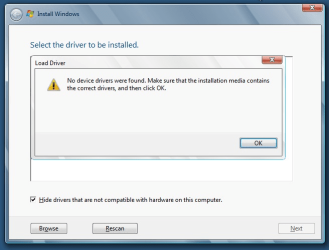
In prior generations, PC systems had both xHCI and EHCI controllers. Intel removed the EHCI controller from Braswell and Skylake platforms which made installation of Windows 7 more difficult on these platforms. Windows 8 and 10 currently do not have any issues for a fresh OS installation via xHCI controller, but
Windows 7 does not natively support xHCI controller and relies on manual installation of the Intel's xHCI driver.
Instructions to create a Windows 7 installation USB flash drive with Intel xHCI driver
Step 1:
Download Windows 7 SP1 ISO image:
Download Windows 7 Disc Images (ISO Files)
If your Windows 7 product key is not accepted, then use this tool to download Windows 7 SP1 ISO image:
Microsoft Windows and Office ISO Download Tool
Step 2:
How to Create a Bootable USB Flash Drive to Install Windows 10 (or Windows 7)
USB Flash Drive - Create to Install Windows 10 - Windows 10 Tutorials
Option Two: Use "Rufus" to create Bootable Window 10 (or Windows 7) USB for Legacy BIOS and UEFI.
5. Do step 6 (UEFI) or step 7 (Legacy BIOS) below depending on if you want to create a bootable USB with or without UEFI support.
6. To Create Bootable UEFI USB Flash Drive for Installing Windows 10 (or Windows 7) with UEFI.
7. To Create Bootable USB Flash Drive for Installing Windows 10 (or Windows 7) using Legacy BIOS (without UEFI).
Step 3:
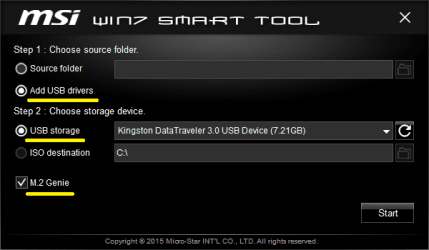
MSI Win 7 Smart tool [especially for Z1xx Series]
- Download the latest version of "MSI Win 7 Smart tool".
- Connect the Windows 7 USB flash drive.
- Run the Win7_Smart_Tool.exe file.
- Select the "
Add USB drivers" option.
- Select the "
USB storage" option, and then make sure that the correct USB flash drive is selected.
- Select the "
M.2 Genie" option.
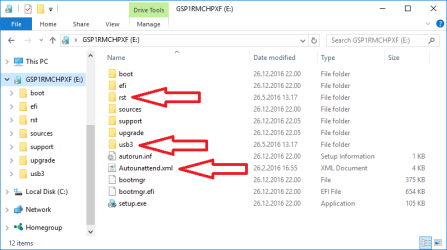
The folders and files that have been added to Windows 7 USB flash drive:
- rst
- usb3
- Autounattend.xml
- \efi\boot\bootx64.efi
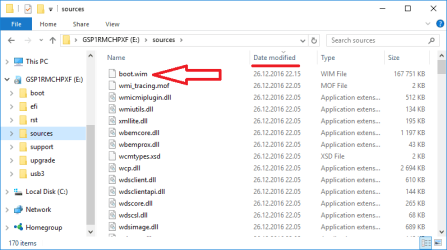
A file that has been modified:
- \sources\boot.wim

 https://www.msi.com/asset/global/picture/faq/10016371@2016-0422-1122-533739@FAQ_0000000001971_EN.pdf
The summary table for installing Windows 7 on notebooks with 6th Generation Intel Core CPU and PCH (Skylake).
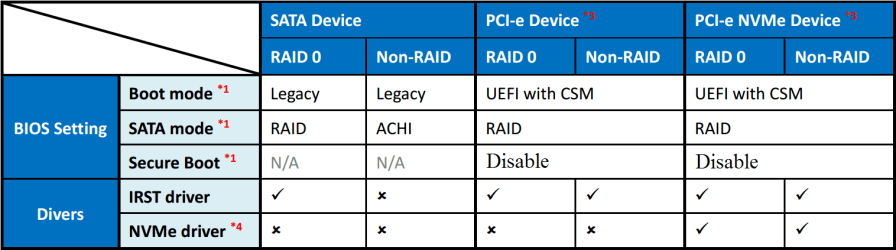 *3:
*3: 6th Generation Intel Core CPU and PCH (Skylake) doesn't support PCI-e storage device when BIOS settings is set to [AHCI] and [Legacy] mode.
*4: NVMe SSD needs additional NVMe driver in order to be supported with Windows 7. If your NVMe SSD vender doesn't provide the NVMe driver, you may try to apply Microsoft Hotfix (
Link). However, Microsoft Hotfix has not only limited support of NVMe SSD with Windows 7 but also no guarantee that all kinds of NVMe SSD can work without a problem.
How to load the latest "pure" Samsung NVMe driver at the beginning of the Windows 7 installation
Recommended AHCI/RAID and NVMe Drivers
- Note: Get the pure Samsung NVMe driver files, not the installer set.
- Open your Windows 7 USB flash drive and create a folder named "nvme" in the root of the drive.
- Copy all of the NVMe driver files you just downloaded to this folder.
1. Boot the computer from your Windows 7 USB flash drive.
2. Select the "Custom (Advanced)" installation option.
3. You'll now see a list of drives and partitions on your computer. If you have a non-NVMe secondary drive, it will be listed here - but since Windows 7 does not yet have drivers installed for NVMe, it won't recognize any NVMe SSDs. Let's fix that.
4. Click "Load Driver" below the list of drives.
5. Select "Browse", and then expand the USB flash drive (likely labeled "Removable Disk").
6. Select the "nvme" folder, and press OK.
7. You should now see a "Samsung NVMe Controller". Select this driver and press "Next". The driver will be installed.
8. Once complete, and you'll return to the disk selection screen and should see the NVMe SSD (you may have to click refresh).
Windows Update is taking an unusually long time to scan and install updates
https://support.microsoft.com/en-us/kb/3200747



