
Windows 7 and XBox 360

Studulike

P.h.D.
Member
VIP
Local time
9:23 PM
Messages
214
Location
Hertfordshire, UK
Hello,

Has anyone had problems with Win 7 and Xbox 360 when trying to connect through Media Centre or say connecting directly to view Movies etc?
I can't seem to get Media Centre to connect even though windows says it is setup ok. XBox just won't connect, eventually stops with an error.
Second problem when I try and view shared directories on PC from XBox to view DivX movies etc.
I have only just noticed this problem as not been bothered to stream to Xbox in a while and had to but a new XBox so thought I would setup from scratch on Windows 7.

Any Help would be good.

Regards,

Stud.
 

My Computer

Computer Manufacturer/Model Number
Home Built / Acer Aspire 7720G Laptop
OS
Windows 7 Build 7600 Laptop and desktop. Also OSX 10.5.7 and 10.6 Snow on Laptop
CPU
AMD Athlon64 Dual core 4200+ / Laptop T5750
Motherboard
Gigabyte / Acer Aspire
Memory
2 x 1Gb = 2 Gb / acer 3GB
Graphics Card(s)
Geforce 8600GT / Geforce 9300M G 256Mb
Sound Card
Terratec DMX 6fire for Music production and X-Fi Xtreme
Monitor(s) Displays
2 x 17" (Dell and Compaq) / 17" WXGA Laptop Screen
Screen Resolution
1280x1024 / 1440x900 (Full HD when conneced to 32" LCD)
Hard Drives
2x Sata 160GB 2x USB 300Gb 1x 160Gb IDE 1x USB 1TB / 250Gb Sata Laptop with Blu-ray drive
PSU
400W + Not 100% sure
Keyboard
Logitech Cordless Keyboard
Mouse
Logitech Mx 700
Internet Speed
20 Meg Down / 1 Meg up Cable
Other Info
Konica Minolta Colour Laser printer, Epson Stylus R360 (Mostly used for printing on CD's/DVD's), Cannon Scanner, Mercury surround system, about 6 external hard drives all 200Gb plus along with the normall home entertainment stuff attached.... DBox 2, XBox 360, etc. etc.
Its ok sorted the problem. Didn't realise so many network features were turned off by default in windows 7. All good now though
 

My Computer

Computer Manufacturer/Model Number
Home Built / Acer Aspire 7720G Laptop
OS
Windows 7 Build 7600 Laptop and desktop. Also OSX 10.5.7 and 10.6 Snow on Laptop
CPU
AMD Athlon64 Dual core 4200+ / Laptop T5750
Motherboard
Gigabyte / Acer Aspire
Memory
2 x 1Gb = 2 Gb / acer 3GB
Graphics Card(s)
Geforce 8600GT / Geforce 9300M G 256Mb
Sound Card
Terratec DMX 6fire for Music production and X-Fi Xtreme
Monitor(s) Displays
2 x 17" (Dell and Compaq) / 17" WXGA Laptop Screen
Screen Resolution
1280x1024 / 1440x900 (Full HD when conneced to 32" LCD)
Hard Drives
2x Sata 160GB 2x USB 300Gb 1x 160Gb IDE 1x USB 1TB / 250Gb Sata Laptop with Blu-ray drive
PSU
400W + Not 100% sure
Keyboard
Logitech Cordless Keyboard
Mouse
Logitech Mx 700
Internet Speed
20 Meg Down / 1 Meg up Cable
Other Info
Konica Minolta Colour Laser printer, Epson Stylus R360 (Mostly used for printing on CD's/DVD's), Cannon Scanner, Mercury surround system, about 6 external hard drives all 200Gb plus along with the normall home entertainment stuff attached.... DBox 2, XBox 360, etc. etc.
weird, worked with mine right out of the box all i had to do was the put the key in.
 

My Computer

Computer Manufacturer/Model Number
TripOG - Kwamathon
OS
windows 7 X64
CPU
amd phenom II x4 940
Motherboard
GIGABYTE GA-MA790GP-UD4H
Memory
8GB
Graphics Card(s)
integrated radeon hd3300
Sound Card
Realtek ALC889A
Monitor(s) Displays
ASUS VH222H
Screen Resolution
1920 x 1080
Hard Drives
PQI DK9320GD3R000A03
Internet Speed
30Mbps down / 2Mbps up
worked fine for me on 6801 x64...
 

My Computer

OS
Windows 7 x64 Enterprise
CPU
Phenom II 965 Black Edition 125watt @ 3.6GHZ 1.4v
Motherboard
ASROCK 890GX Extreme3 AM3 DDR3
Memory
PNY 4GB DDR3 2000Mhz @ 1600mhz 8.8.8.24 1T
Graphics Card(s)
XFX RADEON HD5770
Sound Card
Auzen X-Meridian 7.1
Monitor(s) Displays
Dell S2309W 23
Screen Resolution
1080P 1920 x 1080
Hard Drives
Samsung SpinPoint F3 HD103SJ 1TB
Case
Antec Nine Hundred Ultimate Gamer Case
Cooling
Case Fans
Its ok sorted the problem. Didn't realise so many network features were turned off by default in windows 7. All good now though
Hey, I have this problem too. Could you tell me what features you had to enable. I just can't seem to get this fixed. Thanks.
 

My Computer

OS
Windows 7
Hey, I have this problem too. Could you tell me what features you had to enable. I just can't seem to get this fixed. Thanks.

Type services in the start search' bar on program menu scroll down to windows media player network sharing service. Right click on it in properties make sure that it is has been started and is working and the startup type is set to automatic. Hope this helps you out :)
 

My Computer

OS
Windows 7 x64 Enterprise
CPU
Phenom II 965 Black Edition 125watt @ 3.6GHZ 1.4v
Motherboard
ASROCK 890GX Extreme3 AM3 DDR3
Memory
PNY 4GB DDR3 2000Mhz @ 1600mhz 8.8.8.24 1T
Graphics Card(s)
XFX RADEON HD5770
Sound Card
Auzen X-Meridian 7.1
Monitor(s) Displays
Dell S2309W 23
Screen Resolution
1080P 1920 x 1080
Hard Drives
Samsung SpinPoint F3 HD103SJ 1TB
Case
Antec Nine Hundred Ultimate Gamer Case
Cooling
Case Fans
Windows 7 and Xbox 360 Streaming FIX

I had the same issue as everyone else. My Windows 7 would not find my Xbox 360. This problem occurred on both Tversity and Media Center.

I tried many things to resolve this but the only thing that actually fixed my problem was in my router configuration. I have a Linksys router and I logged into my router config page via web browser. I then clicked "Security" I then set the "Filter Multicast" option to "ENABLED" I now had instant access to my media via my xbox.

Hope this helps some of you!:)

Also this is the guide that I found that has more details on troubleshooting


:DCause 1: Xbox 360 is not found on the network. If the Xbox 360 is not found on the network due to network setup or configuration, setup will fail. To determine if the network or network router is causing the issue, temporarily connect the Xbox 360 directly to the Media Center PC using an Ethernet cable. This cable does not have to be a cross over cable as the Xbox 360 is able to switch network modes and connect to the PC. If you are able to complete setup in with the Xbox and PC directly connected then review your network setup and router configuration.
Remember, the Xbox 360 console and Windows Media Center Based-PC must be on the same network. For additional network recommendations, tips and guidelines watch this video about connecting your Xbox 360 to your home network .

Cause 2: Secondary MAC address is configured on the Xbox 360. Media Center Extender setup will fail if a secondary MAC address is configured on the Xbox 360. When you have a secondary MAC address configured and attempt setup, you will end up with two devices listed in the Media Center Extender UI. This single device will have separate setup keys. Resolution is to remove secondary MAC addresses from the Xbox 360. Note* There may be a reason that you have configured a secondary MAC address on your Xbox 360. Before removing this address review KB article for a possible reason you have this configured. http://support.microsoft.com/kb/817631
Remove the secondary MAC address in the System section of the Xbox 360 dashboard

  1. Select Network Settings
  2. Select Edit Settings
  3. Select the Advanced Settings Tab
  4. Select the Advanced Settings
  5. Select Alternate MAC Address
  6. Clear the MAC Address using the on-screen keyboard, then select Done.
  7. Select Done to exit out of the Advanced Settings. If prompted, test the Xbox live connection.
  8. Exit back to the system section of the dashboard.
  9. Select computers, select Media Center, select disconnect
Return to the Vista PC and add the extender.

Cause 3: Multicast is blocked at router. Multicast is used by the PC and Xbox 360 to find each other over the home network. If multicast is not permitted on the network then setup will fail. If using a Linksys router, multicast behavior is set using the "Filter Multicast " option in your router’s configuration interface (the router’s setup web page). In order for the Xbox 360 to connect to the PC this option must be Enabled to disable multicast support. (I know this sounds backwords but it is needed) After enabling this option, turn off the router, Xbox 360 and PC for a few minutes. Power up the router first. Then power on the PC and Xbox 360.

Cause 4: Problems with the Xbox 360 hard drive. We have found a few cases where the Media Center software cannot be launched from the Xbox 360 hard drive due to hard drive issues. Troubleshoot this issue by temporarily disconnect the hard drive on the Xbox 360 and re-attempt setup. If you disconnect the hard drive and are able to complete setup, complete the following to delete the Windows Media Center entry from the hard drive.

    1. Select "Memory", select "Hard Drive", select "Games"
    2. Scroll down to "Xbox 360 Dashboard" and select it.
    3. Select "Windows Media Center", select "Delete"
    4. When prompted, select "Yes" to delete the item
    On the Xbox 360, Go to the System section of the dashboard
The software will be automatically downloaded from the PC the next time you start the Media Center Extender.

Cause 5: Driver is not found. During setup the Media Center Extender driver should automatically be installed. We have seen a few cases where the infcache.1 file that is used to install this driver has been modified and is now preventing the driver from being located. If you see a dialog that asks for a driver when adding the Extender then you are hitting this issue. In most cases, you will probably not see the dialog asking for a driver because Media Center is set for full screen. KB article 937187 will resolve the infcache.1 corruption and allow you to Add the Extender. http://support.microsoft.com/kb/937187/en-us

Cause 6: Group Policy . Some domain policies prevent the Xbox 360 from connecting to the Media Center PC. To determine if this is the cause of your error, temporarily remove the Media Center PC from the domain, restart the PC and then try to add the Extender again. If the extender connects when the PC is removed from the domain, review your policies and try to determine what policy is preventing the connection."
I realize this is not eactly aimed at the error codes you mention, but thought it might give you some areas to look into that might help in your situation. :D
In case you'd like to try it, my network is set up by just connecting a Linksys 5-port Gigabit workgroup switch directly to Qwest's Actiontec M1000 modem. The xbox 360 is then connected by Cat 5 Ethernet cable to the switch. Win7 RC automatically recognized the set up and I was able to add the Xbox360 as an extender with no input other than the 8 digit Xbox360 code. There is no router firewall set up; I count on the individual PC's to stop malware etc.
 

My Computer

OS
Windows 7 Ultimate
So i have been having the same trouble and when i try and brighe connections i get a screen that pops up and it says

"To creat a Network Bridge, you must select at least two LAN or hHigh-Speed Internet connections that are not being used by Internet Connection Sharing"

idk wut im doing wrong?
 

My Computer

OS
richard
XBOX Extender "Connection Failure"

Hello! I'm using Windows 7 on my desktop and normally have no problem getting to the start screen of Media Center, but as soon as I try to watch something I've recorded, I get a "Connection Failure: The Xbox 360 was disconnected from the Windows Media Center PC...." message. It never fails. I'm working on a wireless network with a Linksys Router. I've enabled the Filter Multicast option as was recommended in another post. Nothing seems to work. Any help is greatly appreciated.

Thanks!
 

My Computer

OS
Windows 7 32bit
hi, ive recently upgraded to a new PC with W7, i have been trying solidly for 2 days to get my pc to see my xbox, and vice versa, but no joy, i never had any problems atall with vista, you name it ive tried it, disabled firewalls, changed settings in router, plugged xbox direclty into pc via router and ethernet.
My PC can access the net wirelessley, and my xbox can get onto xbox live no problems, but the 2 just wont see each other, if anybody can solve this problem i wil be your best friend for life !!!!!!!
 

My Computer

OS
windows 7
I have a similar problem as Environav. My xbox and WMC PC are directly connected via cable, but when the xbox starts up in media center mode, I get the "Connection failure" error.

The solution for this is to turn on media streming.
- Go to network and sharing center
- click on advanced sharing settings
- and turn on media streaming

The problem I found is that when either the PC or xbox reboot, the network location is set to "Public" (for which streaming is always off). Once streaming for the Public profile is turned on, Win7 suddenly changes the network location to "Work".

This is extremely annoying, since I don't leave either my xbox or my PC on overnight. And therefore every time I have to turn on media streaming on my PC.

Does anyone have a solution for this problem?
 

My Computer

OS
Windows 7
CPU
Intel E6420 duo core
Memory
1GB
Graphics Card(s)
NVidia 7600 GS
Okay... I've gotten to where I can usually (still have to reboot CPU occasionally) connect my Xbox to my Media Center PC, but I still can't watch any recorded TV. I keep getting the following error: "Video Error: Files needed to display video are not installed or are not working correctly. Restart Windows Media Center or restart the computer." I've done this multiple times with no luck. I think (hope) this is the last obstacle before this thing is finally working like it should. Thanks in advance for any help provided!
 

My Computer

OS
Windows 7 32bit
Hi... I have had a similar problem... Except sometimes I can connect, and sometimes I cannot. I just upgraded to win 7, but it was the same problem when I had Vista. When on the Xbox 360, I would go to Network Settings, and test connection to PC... it goes and says it is connected to the network, then it will come up to the "PC not Listed" Page. Sometimes JOHN-PC will pop up, sometimes it will not. But if I let it sit on that page for a while, eventually it WILL pop up, but if I do not Click on it immediately, It will not connect... but if I do click on it immediatel... it does connect. I go through this every time I try to connect... I know this shouldn't be... but I have not found a solution.... I only have Windows Firewall. And I have Linksys Wireless-G Broadband Router with SpeedBooster WRT54GS2Can someone pease help me
 

My Computer

OS
Windows 7 Home Premium
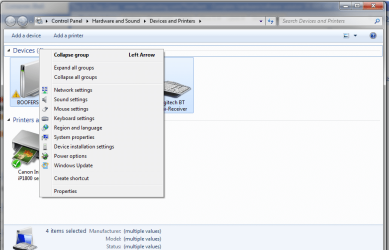
Hi guys, felt like registering to show others this. Not sure if this applies to everybody, but make sure Windows 7 knows that you specifically want to stream to your Xbox like so (Ensure your Xbox is turned on and connected to the internet; navigating to My Xbox -> Music Library may speed up location time):

1. Navigate to Start -> Devices and Printers.
2. Right-Click on the Devices drop down bar (refer to attachment 1) and select Network Settings
3. Once the Network and Sharing center opens, on the left pane click the link to "Change advanced sharing settings".
4. Scroll down to the section: Media streaming, and click on "Choose media streaming options..."
5. Your Xbox should either already be listed or will appear after a few seconds (As long as it's already on and connected to the network).
6. Click the drop-down box to the right of your Xbox and select Allowed.

Now you should have no problem streaming directly from your computer to your "Libraries" on the Xbox. When you select a library, one of the devices should be the name that you gave your computer during Windows 7 setup.

Good luck!
 

Attachments

  • Attch1.png
    Attch1.png
    71.5 KB · Views: 2,356
Last edited:

My Computer

Computer Manufacturer/Model Number
Me
OS
Windows 7 Home Premium
CPU
Core i3-530 2.93GHz 4M LGA1156
Motherboard
GA-H55M-S2H
Memory
4GB
Hard Drives
Hitachi 1TB 7200
PSU
Ultra LS400
Case
Thermaltake V3
so, I went into network and sharing and it says that the 360 is allowed... and I still have that problem
 

My Computer

OS
Windows 7 Home Premium
Hey, I have this problem too. Could you tell me what features you had to enable. I just can't seem to get this fixed. Thanks.

Type services in the start search' bar on program menu scroll down to windows media player network sharing service. Right click on it in properties make sure that it is has been started and is working and the startup type is set to automatic. Hope this helps you out :)


Cheers mate :D took me a while to find it.. (had to go through loads of "windows media player network sharing service's" before I found the one needed)
 

My Computer

Computer Manufacturer/Model Number
Acer Aspire 5732Z
OS
Windows 7
so, I went into network and sharing and it says that the 360 is allowed... and I still have that problem

I have the same problem as you, i have set it all up before on all 4 of my laptops (3 being vista or xp and this one being W7)

I have turned my firewall(s) off and still it says "unable to connect to computer. A firewall is blocking this device/connection."
 

My Computer

Computer Manufacturer/Model Number
Acer Aspire 5732Z
OS
Windows 7
I am having a very similar problem. A few nights ago, I was able to play music from my laptop while playing a game on my 360 (without using Media Center Extender), and now I try to do the same thing (without having changed any setting or even turning the laptop off) and I get either an error message saying no files were found, or a message saying that the connection to the PC was lost (even though the 360 has an XBOX Live connection, and can use Media Center just fine). Here's my setup:

Wireless network, modem/router hooked to main PC
Laptop connected wirelessly, with wireless/LAN connections bridged
Xbox 360 connected to laptop via Ethernet cable

I have network streaming turned on, Windows Media Sharing Service turned on, whole network allowed on the network file sharing, only Windows Firewall (meaning it automatically added the exception for the 360), network streaming is an exception on my antivirus program.

Basically I'm doing everything right, why is my network not doing anything right?

EDIT: As a side note, while fiddling around trying to search for the 360 as a standalone device, I got a BSOD.
 

My Computer

Computer Manufacturer/Model Number
Acer Aspire 5534
OS
Windows 7 home Premium
Memory
4 GB
Graphics Card(s)
ATI Radeon HD3200
Hard Drives
250 GB Internal
1 TB External
Hi guys, felt like registering to show others this. Not sure if this applies to everybody, but make sure Windows 7 knows that you specifically want to stream to your Xbox like so (Ensure your Xbox is turned on and connected to the internet; navigating to My Xbox -> Music Library may speed up location time):

1. Navigate to Start -> Devices and Printers.
2. Right-Click on the Devices drop down bar (refer to attachment 1) and select Network Settings
3. Once the Network and Sharing center opens, on the left pane click the link to "Change advanced sharing settings".
4. Scroll down to the section: Media streaming, and click on "Choose media streaming options..."
5. Your Xbox should either already be listed or will appear after a few seconds (As long as it's already on and connected to the network).
6. Click the drop-down box to the right of your Xbox and select Allowed.

Now you should have no problem streaming directly from your computer to your "Libraries" on the Xbox. When you select a library, one of the devices should be the name that you gave your computer during Windows 7 setup.

Good luck!

Thanks, but now another problem occurred. It now see's the computer on the xbox; but it cannot find any of my music, pictures, and videos. Any ideas?
 

My Computer

Computer Manufacturer/Model Number
Gateway/SX2801
OS
Windows 7 Home Premium 64-bit
CPU
Pentium(R) Dual-Core CPU, E5500 @ 2.80GHz
Motherboard
N/A
Memory
Ram = 6.00GB, Memory = 1TB
Graphics Card(s)
Intel® Graphics Media Accelerator X4500HD
Sound Card
N/A
Monitor(s) Displays
G185H
Screen Resolution
1366 x 768
Hard Drives
N/A
PSU
N/A
Case
N/A
Cooling
N/A
Keyboard
Wired Multimedia Keyboard (stock)
Mouse
Wired Optical Mouse (stock)
Internet Speed
2.87MB Down, 0.59MB Up
Other Info
N/A
Ok here is what I found,

I had previously had my XBOX360 Windows Media Center connected to a PC running Windows XP.

I then upgraded to Windows 7 on a new PC.

It wouldn't let me connect at first, although I made sure to do all the things found in this thread.

What worked, was that I had to remove the PC from the XBOX's memory (network settings), and then try to re-add the PC.

I'm guessing that since the XBOX was expecting to connect to my old PC with Windows XP, it couldn't find it and wasn't trying to find the new PC running Windows 7.
 

My Computer

OS
Windows 7 home premium 64 bit
Back
Top