Solved Windows 7 Downgrade Installation Hangs on "Starting Windows"

polian

New member
Local time
7:54 PM
Messages
7
Hello,
I have been trying to install windows 7 Professional on a laptop I received that came with Windows 8.
The laptop is an Acer Aspire V3-572G.

I tried following this guide:
Downgrade Windows 8 to Windows 7

I get to step 5 where you boot from the UEFI drive (a USB created with Rufus in my case) and it loads the windows files, then displays the "starting windows" screen and then hangs.

I have also tried installing with another USB created with the Microsoft utility for making a bootable USB. For this one I set legacy mode in the BIOS and then tried to boot from the USB. When I do this it says that there is no bootable device.

Since neither of these approaches worked I am feeling pretty stuck and was hoping people had some possible solutions to the problems I have encountered.

Thanks!
 

My Computer My Computer

At a glance

Windows 7 Professional x64
Computer type
PC/Desktop
OS
Windows 7 Professional x64
If you're sure you followed exactly the steps in Option One of UEFI Bootable USB Flash Drive - Create in Windows
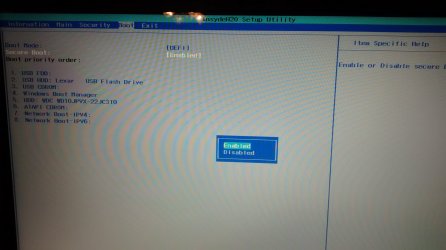
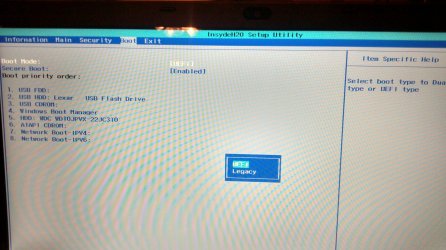
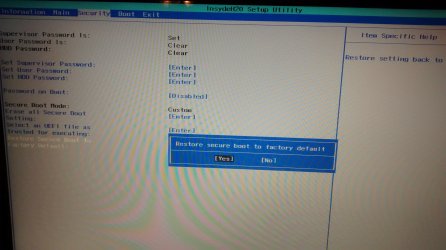
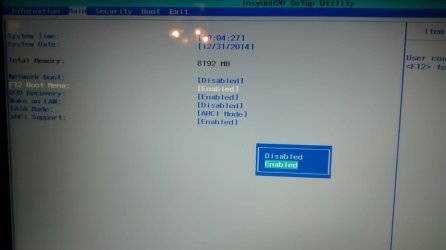
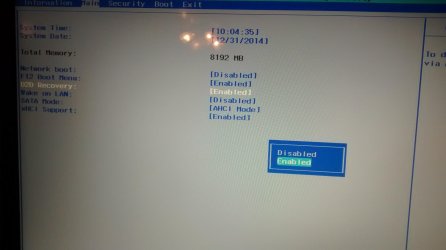
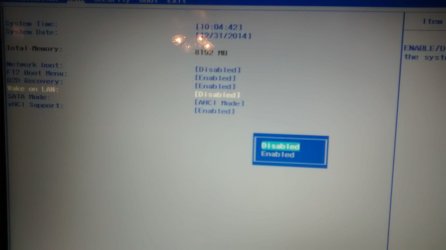
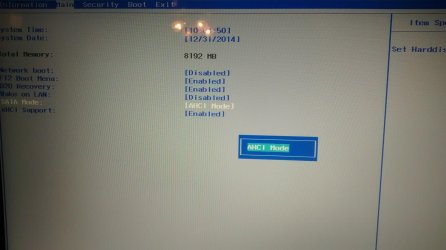
then it might come down to the BIOS settings. Besides disabling Secure Boot, it often requires some level of CSM or Legacy BIOS. We can usually spot these settings if you will take camera snaps of any settings on Advanced, Security and Boot tabs of BIOS setup that pertain to UEFI, Legacy BIOS, CSM and BIOS Boot Priority order. Expand each related setting so we can see the choices. Screenshots and Files - Upload and Post in Seven Forums - Windows 7 Forums
 
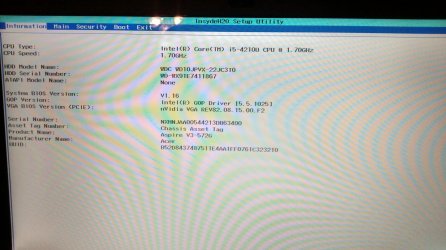
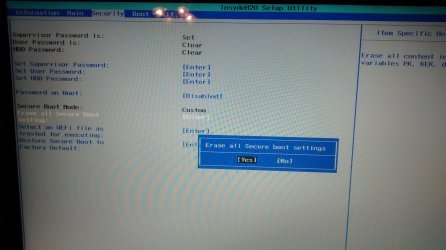
Here are the pictures of the BIOS and all the options therein.
Let me know if you need any other pictures/details.

IMG_20141230_185547904_HDR.jpg
IMG_20141230_185608538_HDR.jpg
IMG_20141230_185625108_HDR.jpg
IMG_20141230_185644102.jpg
IMG_20141230_185710120.jpg
IMG_20141230_185719333_HDR.jpg
IMG_20141230_185737901.jpg
IMG_20141230_185755660.jpg
IMG_20141230_185819968.jpg
IMG_20141230_185827585.jpg
IMG_20141230_185835183.jpg
IMG_20141230_185843638.jpg
IMG_20141230_185852172.jpg
 

My Computer My Computer

At a glance

Windows 7 Professional x64
Computer type
PC/Desktop
OS
Windows 7 Professional x64
Again, Disable Secure Boot or Win7 will never install.

Then If you correctly wrote the flash stick following Option One in UEFI Bootable USB Flash Drive - Create in Windows the stick should show up as an EFI device to choose from the f12 boot menu. It will not install in UEFI mode unless you boot the installation stick or DVD as a UEFI device, period.

Set Windows Boot Manager first to boot in BIOS setup..
 
I tried installing with all those set, then run the windows boot manager. It still freezes on the "starting windows" screen and after 30 seconds or so it reboots, then hangs, then reboots, etc.

I will try to re-download the ISO I am using and try creating the thumb drive again to make sure its set up correctly.
 

My Computer My Computer

At a glance

Windows 7 Professional x64
Computer type
PC/Desktop
OS
Windows 7 Professional x64
Is the stick showing up in the BIOS Boot men as a UEFI device and are you choosing only that? If not then reformat the stick as it is not formatted correctly.

I would also try a DVD burned with Windows 7 USB-DVD Download Tool but that cannot burn a Win7 UEFI flash stick installer.

The Windows Boot Manager only comes into the picture after Win7 is installed, using it to boot the hard drive instead of the hard drive listing in Boot Priority order. So you wouldn't run it, just make sure that it is listed first since it is already showing up.
 
After re-downloading and remaking the USB, the problem remains. :(
 

My Computer My Computer

At a glance

Windows 7 Professional x64
Computer type
PC/Desktop
OS
Windows 7 Professional x64
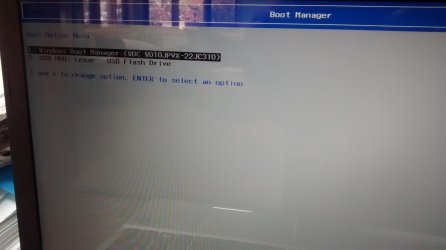
This is what the boot menu looks like:
IMG_20141231_111158264.jpg

When I select the USB it gets to the "starting windows" screen and freezes.

I am unable to install from DVD since this laptop has no DVD drive.
 

My Computer My Computer

At a glance

Windows 7 Professional x64
Computer type
PC/Desktop
OS
Windows 7 Professional x64
The picture answers my question: The stick is not showing up as a UEFI device so it will never install Win7 to UEFI. Try another ISO download for your licensed version here: Win7 Professional x64 English Official ISO Download. Did you use the exact settings pictured in Option One of UEFI Bootable USB Flash Drive - Create in Windows to install UEFI to GPT formatted drive?

Check again that you have UEFI enabled and Secure Boot disabled here:

344766d1419991812t-windows-7-downgrade-installation-hangs-starting-windows-img_20141230_185719333_hdr.jpg


Then check what the choices are besides Custom on this Secure Boot setting:

344768d1419991812t-windows-7-downgrade-installation-hangs-starting-windows-img_20141230_185755660.jpg


If a properly formatted stick for UEFI will not show up as a UEFI device, then change the formatting to Legacy MBR stick or use Windows 7 USB-DVD Download Tool and set the BIOS to Legacy mode instead of UEFI.
 
Okay, I created a new USB with Rufus for the MBR partition scheme. I then changed the bios to boot in legacy mode. This appears to have worked. Now I am wondering what I need to do in the partition stage. Do I follow the same steps for the UEFI installation, or should I do it differently?

Thanks!
 

My Computer My Computer

At a glance

Windows 7 Professional x64
Computer type
PC/Desktop
OS
Windows 7 Professional x64
Since it may have had a UEFI install before with the disk formatted GPT, I would delete all partitions during the booted install so that the installer will now create and format MBR partitions.

It discusses partition schemes as well as everything else to consider to get and keep a perfect install in Clean Reinstall Factory OEM.
 
Cool, after setting up the partitions the installation went smoothly.

Thank you for the help!
 

My Computer My Computer

At a glance

Windows 7 Professional x64
Computer type
PC/Desktop
OS
Windows 7 Professional x64
Back
Top