Solved Windows 7 Installation Issues (PLEASE HELP)

Kesha

New member
Member
Local time
5:39 PM
Messages
43
Hello. I need some help. Please forgive me if i sound stupid. I am trying to install Windows 7 64 bit on my PC. :cry:

I can give you some background info, I have a Dell Inspirion that came with Windows 7 64 & 32 installed. Last year I ended up getting viruses on my PC, I had it cleaned and fixed. The person that repaired my PC wiped everything (Dell backup, factory reset etc) (at the time I didn't like that the Dell backup option was gone, but nothing could be done). Now about a few months ago, I ended up getting another virus, Windows Essential and Offender could not remove the virus. :mad: I was able to get the PC without any issues, but I did not want to pay bills online, sign into accounts etc.

I ended up downloding and installing Windows 8 Evaulations from Microsoft. After the PC restarted I ended up getting a signature error message. I tried the system restore option that did not work. I even backed up my boyfriend's PC (that is a Dell Inspirion) to try to restore, factory reset and etc. That did not work.

I purchased Windows 7 repair/reinstall disk that did not work. Whenever I try to reisntall Windows 7, the system complete the reinstallation process, the PC restarts and go back to Installation Screen (Language, Time & Currency, & Keyboard input). Did it a few times, same outcome.

Now I purchase an official Windows 7 64 and 32 bit discs. I have the product key for the Windows 7 that came with my PC when I first purchased. And the same with my boyfriend's PC. When I tried to install Windows 7 64 bit, the PC restarts and back to the Installation Screen.

I've tried to format the partition then install Windows 7 64 bit, nothing happens. Once the PC restarts it goes back to Installation Screen. I've looked online, and forums trying to get the PC to install Windows 7. Nothing works.

Please help, I can provide any information on my PC, if you can give me the steps or how to get the needed info.
(I'm using a laptop to post this on the forums.) Sorry if I posted in the wrong thread, and/or did something stupid.

Please help!


Thanks.
 

My Computer

OS
Windows 7 64 bit
On the first Installation reboot, remove the Windows 7 DVD from the DVD drive.
 

My Computer

OS
ME/XP/Vista/Win7
Thank you for replying back. After the system said it will restart, and went back to Installation Screen, I took the disc out of the drive and click next. I got a message about there is not a media in the drive, please use a floppy disk, USB or disc.

In the same prompt box it said if the Windows Installation disk is in the drive, it can be safely removed. The option I has was Browse, Rescan, or OK. I choose Ok, then get an error message to put the disk in.

No device drivers were found. Make sure that the installation media contains the correct drivers and then click OK.
 
Last edited:

My Computer

OS
Windows 7 64 bit

My Computer

Computer type
PC/Desktop
Computer Manufacturer/Model Number
My Own Build
OS
Windows 10 64 bit
CPU
Intel i7 6700K
Motherboard
ASUS ROG Maximus VIII Hero
Memory
16GB Corsair Dominator
Graphics Card(s)
Intel CPU Graphics
Sound Card
RealTek
Monitor(s) Displays
27" Dell S2719dgf
Screen Resolution
2560X1440
Hard Drives
1 TB Samsung 850 EVO SSD for Win 10 Pro
500GB Samsung 850 EVO SSD for Win 10 Insider
2 TB drive for backup
PSU
EVGA Supernova 750G2
Case
BeQuiet Silent Base 600
Cooling
Deepcool Captain 120EX
Keyboard
Microsoft Wireless 2000
Mouse
Microsoft wireless
Internet Speed
100 MB/sec (Cable)
Antivirus
Microsoft Defender and Malwarebytes
Browser
Edge/Firefox
Other Info
Cakewalk (Sonar) by BandLab and Studio One 4.1 Pro recording studio software. MOTU 896Mk3 Hybrid recording interface, Frontier Tranzport wireless control unit, Behringer X-Touch Control Surface.
Five USB connected optical drives for CD Audio production using Nero BurningROM
Thank you for the Dell manual. I took a look at the section on how to "Reinstall the operating system from the OS Setup Disk."

I've done this step again, to make sure I'm doing it right. After the system install Windows 7, restarts then it come back to the Install Screen again.
 

My Computer

OS
Windows 7 64 bit
You don't need to buy another copy of Win7. You own the one which came preinstalled on the OS for life to reinstall however you want as often as you please using the Product Key on the COA sticker. Everything needed to get a perfect install including the latest installer and tool to burn to DVD or write to flash stick is in Clean Reinstall - Factory OEM Windows 7.

You said that the tech wiped your HD before, correct? Maybe he only deleted some partitions and you still have the bootable Diagnostics. Try tapping the F12 menu at boot to see if you can run them now to check over your hardware first: Dell Diagnostics Utility - How to Run the. If it wont' run and the following steps don't work then we'll return to hardware diagnostics.

Next follow these extra steps which overcome 90% of install failures such as you describe:

Unplug all other HD's and peripherals,

Boot into BIOS setup, reset to defaults, save changes. If an EFI BIOS, enable Legacy BIOS or Compatibility Support Module, set DVD drive first to boot, HD second. Then set SATA controller to AHCI. Save changes and Exit.

Then boot into installer DVD or flash stick burned or written using tool and latest ISO for your licensed OS version here. How to Boot A Computer from CD or DVD - YouTube

At first installer screen Press Shift + F10 to open a Command Box, type:

DISKPART
LIST DISK
SELECT DISK 0 (after confirming Windows 7 target HD #)
CLEAN
CREATE PARTITION PRIMARY SIZE=102400 (for 100gb partition, adjust as desired)
FORMAT FS=NTFS LABEL="WINDOWS 7"
ACTIVE
EXIT
EXIT

Next click Install Now, then Custom install to Clean Install Windows 7 to the partition you created. If it fails then report back at which step and the verbatim error message.

In addition read over these steps to understand the tools and methods which work best to get and maintain a perfect Clean Reinstall - Factory OEM Windows 7. The steps are the same for retail.

After install you can adjust partition size or Create new partitions for data, etc. in Disk Mgmt.You are creating the partition here for the purpose of marking it Active which overcomes certain install failures.
 
The computer should never boot from the dvd drive with the disc in it, unless you hit the keyboard when it says "Press any key to boot from dvd" you are only hitting the keyboard 1 time aren`t you ?

If that indeed is the problem, then.....

In the bios, set the boot order to

(1st) Hard Drive
(2nd) DVD Drive

then use the 1 time boot key ( shown on the bios screen ) to boot from the dvd the 1st time. Then it should boot to the hard drive like normal on the 2nd boot.
 

My Computer

Computer type
PC/Desktop
Computer Manufacturer/Model Number
Skylake Special #666
OS
Windows 10 Pro x64
CPU
Intel Core i7 6700K
Motherboard
Asus Sabertooth Z170 Mark 1
Memory
GSkill TridentZ RGB 16GB 3600 16-16-16-36
Graphics Card(s)
EVGA GTX 980 Ti SC x2
Sound Card
Realtek High Definition
Monitor(s) Displays
AOC G2460PG
Screen Resolution
1920 x 1080 144Hz
Hard Drives
Samsung 860 Pro 256GB, Seagate Barracuda 4TB x2
PSU
EVGA 1000 P2, EVGA White Custom Braided Cables
Case
Corsair Vengeance C70 Gunmetal Black
Cooling
Corsair H100i v2, Corsair ML120 x2, Thermal Grizzly Kryonaut
Keyboard
Logitech G910 Orion Spectrum
Mouse
Logitech G700s
Internet Speed
Verizon Fios Quantum Gateway 75/75
Antivirus
Windows Defender, Malwarebytes Free 3.8.3
Browser
Chrome
Other Info
Corsair SP120 x4, LG Blu-ray Drive, Durabrand HT-395 100 Watt Dolby Digital Amp, Corsair H2100 Wireless 7.1 Headset
You don't need to buy another copy of Win7. You own the one which came preinstalled on the OS for life to reinstall however you want as often as you please using the Product Key on the COA sticker. Everything needed to get a perfect install including the latest installer and tool to burn to DVD or write to flash stick is in Clean Reinstall - Factory OEM Windows 7.

You said that the tech wiped your HD before, correct? Maybe he only deleted some partitions and you still have the bootable Diagnostics. Try tapping the F12 menu at boot to see if you can run them now to check over your hardware first: Dell Diagnostics Utility - How to Run the. If it wont' run and the following steps don't work then we'll return to hardware diagnostics.

Next follow these extra steps which overcome 90% of install failures such as you describe:

Unplug all other HD's and peripherals,

Boot into BIOS setup, reset to defaults, save changes. If an EFI BIOS, enable Legacy BIOS or Compatibility Support Module, set DVD drive first to boot, HD second. Then set SATA controller to AHCI. Save changes and Exit.

Then boot into installer DVD or flash stick burned or written using tool and latest ISO for your licensed OS version here. How to Boot A Computer from CD or DVD - YouTube

At first installer screen Press Shift + F10 to open a Command Box, type:

DISKPART
LIST DISK
SELECT DISK 0 (after confirming Windows 7 target HD #)
CLEAN
CREATE PARTITION PRIMARY SIZE=102400 (for 100gb partition, adjust as desired)
FORMAT FS=NTFS LABEL="WINDOWS 7"
ACTIVE
EXIT
EXIT

Next click Install Now, then Custom install to Clean Install Windows 7 to the partition you created. If it fails then report back at which step and the verbatim error message.

In addition read over these steps to understand the tools and methods which work best to get and maintain a perfect Clean Reinstall - Factory OEM Windows 7. The steps are the same for retail.

After install you can adjust partition size or Create new partitions for data, etc. in Disk Mgmt.You are creating the partition here for the purpose of marking it Active which overcomes certain install failures.


Thanks for replying. When I press F12 Boot Option, ran Dell Diagnostic Utility. Did not find any errors, said something about doing another test that was recommended. Did that, came back to the PC soon after getting your reply last night, seen a message saying (this AM), said "No diagnostic partition identified."

I restart my PC and set it to boot from the DVD, when the Installation Screen (Language, Time & Currency....) I press Shift then F10, nothing happens. I press Shift + F10 nothing happens.

The only thing I have connected to my PC is a VGA Switch (b/c I use a deployed PC for work, and my PC) to use 1 monitor for both PCs. I have ethernet cable connected to router, keyboard and mouse.
 
Last edited:

My Computer

OS
Windows 7 64 bit
The computer should never boot from the dvd drive with the disc in it, unless you hit the keyboard when it says "Press any key to boot from dvd" you are only hitting the keyboard 1 time aren`t you ?

If that indeed is the problem, then.....

In the bios, set the boot order to

(1st) Hard Drive
(2nd) DVD Drive

then use the 1 time boot key ( shown on the bios screen ) to boot from the dvd the 1st time. Then it should boot to the hard drive like normal on the 2nd boot.

Thanks for replying. Oh ok, I see. But I did the order you said. I went into F2, (CMOS Setup Utility), go to Boot Device Configuration changed it to:

1st Boot Device: [P1-TSSTcorp DVD=/-]
2nd Boot Device: [PO-ST332048AS]
3rd Boot Device: [USB]
4th Boot Device: [Removable Dev.]
5th Boot Device: [Network]

Save and exit, pc starts and start loading.... I don't have an option to press any key.
 

My Computer

OS
Windows 7 64 bit
If the diagnostic partition cannot be found then you can delete all partitions using the Clean command. Later the Dell diagnostics are available online from http://www.dell.com/support/Diagnostics/us/en/04

Another way to access the Command Line is choose Repair My Computer on the second screen when you boot into DVD: http://www.sevenforums.com/tutorials/668-system-recovery-options.html

If you cannot get the prompt to Press Any Key to boot Disk at reboot, try tapping the f12 BIOS Boot Menu key at boot, choose the DVD drive. Any prompt now? If not then burn another DVD from the link provided. If that fails try writing to flash stick, booting under USB, Removable or HD's. If that fails, unplug the DVD drive and try again.
 
If the diagnostic partition cannot be found then you can delete all partitions using the Clean command. Later the Dell diagnostics are available online from Dell PC Diagnostics | Dell US

Another way to access the Command Line is choose Repair My Computer on the second screen when you boot into DVD: http://www.sevenforums.com/tutorials/668-system-recovery-options.html

If you cannot get the prompt to Press Any Key to boot Disk at reboot, try tapping the f12 BIOS Boot Menu key at boot, choose the DVD drive. Any prompt now? If not then burn another DVD from the link provided. If that fails try writing to flash stick, booting under USB, Removable or HD's. If that fails, unplug the DVD drive and try again.

Thanks for replying. Ok, I'll try the Clean Command. That worked (restarted the PC got a prompt to press any key), now I'm reinstall Windows 7 I have:

Disk 0 Partition: WINDOWS 7 Total size: 100.0 GB Free Space: 99.99 GB Type: System
Disk 0 Unallocated Space Total size: 198.1 GB Free Space: 198.1 GB Type: (Blank)

My question is I would like the whole HDD for Windows 7, b/c I plan to play PC games (The Sims 3). Should I do the the Clean Command again to change the size of it? If so, can you tell me the specific size it should be, please? I remember looking at it (before doing the Clean Command, that there was a partition for System reserve and another partition (I'm assuming it's was for Windows 7).

Sorry for the stupid question(s)! I appreciate you helping me so far!
 
Last edited:

My Computer

OS
Windows 7 64 bit
If you want a full disk partition for Win7 then after the Clean Command reports it completed, type Exit, close the box, then click Install Now,

at drive selection screen click Drive Options shown in Steps 6/7 of http://www.sevenforums.com/tutorials/1649-clean-install-windows-7-a.html, create New partition with the full size given, Format it and click Next to begin install.

Ignore the 100mb Boot partition created at front of drive.

While it is installing please read over the steps to get a perfect http://www.sevenforums.com/tutorials/219487-clean-reinstall-factory-oem-windows-7-a.html#post1839164 again. The extent to which you use the tools and methods given will determine if you get and how long you keep a perfect install.
 
If you want a full disk partition for Win7 then after the Clean Command reports it completed, type Exit, close the box, then click Install Now,

at drive selection screen click Drive Options shown in Steps 6/7 of http://www.sevenforums.com/tutorials/1649-clean-install-windows-7-a.html, create New partition with the full size given, Format it and click Next to begin install.

Ignore the 100mb Boot partition created at front of drive.

While it is installing please read over the steps to get a perfect http://www.sevenforums.com/tutorials/219487-clean-reinstall-factory-oem-windows-7-a.html#post1839164 again. The extent to which you use the tools and methods given will determine if you get and how long you keep a perfect install.

Thanks for the help! I got it to work (I'm using my PC that I wanted to fix). I appreciate your help so much!

I have one thing that I would like to fix and I promise you I'll leave you alone! :)

I activate Windows on my PC, and I would like to know is there any way to get 100 gb that I used labeled as WINDOWS 7.
The Unallocated partition, I followed the link for Clean Windows Tutorial, then I was able to install Windows, without any issue. (THANK YOU SO MUCH!!)
But now I would like to get use my whole HDD I see that I only have the 198 gb. How can I change it to 298 gb?

After this I'll leave you alone!
 

My Computer

OS
Windows 7 64 bit

My Computer

Computer type
PC/Desktop
Computer Manufacturer/Model Number
Skylake Special #666
OS
Windows 10 Pro x64
CPU
Intel Core i7 6700K
Motherboard
Asus Sabertooth Z170 Mark 1
Memory
GSkill TridentZ RGB 16GB 3600 16-16-16-36
Graphics Card(s)
EVGA GTX 980 Ti SC x2
Sound Card
Realtek High Definition
Monitor(s) Displays
AOC G2460PG
Screen Resolution
1920 x 1080 144Hz
Hard Drives
Samsung 860 Pro 256GB, Seagate Barracuda 4TB x2
PSU
EVGA 1000 P2, EVGA White Custom Braided Cables
Case
Corsair Vengeance C70 Gunmetal Black
Cooling
Corsair H100i v2, Corsair ML120 x2, Thermal Grizzly Kryonaut
Keyboard
Logitech G910 Orion Spectrum
Mouse
Logitech G700s
Internet Speed
Verizon Fios Quantum Gateway 75/75
Antivirus
Windows Defender, Malwarebytes Free 3.8.3
Browser
Chrome
Other Info
Corsair SP120 x4, LG Blu-ray Drive, Durabrand HT-395 100 Watt Dolby Digital Amp, Corsair H2100 Wireless 7.1 Headset
Thank you guys, Gregrocker & AddRAM!

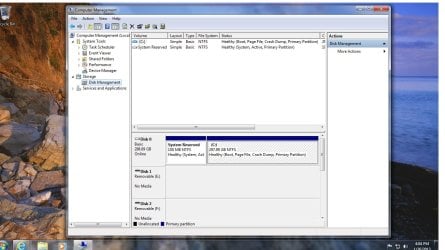
Yes, was able to fix it! I did the reinstall over and finally got all my HDD! I truly appreciate!!!

Sure, I'll be glad to (post a pic).
Seven.jpg
 

My Computer

OS
Windows 7 64 bit

My Computer

OS
Windows 7 64 bit
Excellent Job ;););):party::party:
 

My Computer

Computer type
PC/Desktop
Computer Manufacturer/Model Number
Skylake Special #666
OS
Windows 10 Pro x64
CPU
Intel Core i7 6700K
Motherboard
Asus Sabertooth Z170 Mark 1
Memory
GSkill TridentZ RGB 16GB 3600 16-16-16-36
Graphics Card(s)
EVGA GTX 980 Ti SC x2
Sound Card
Realtek High Definition
Monitor(s) Displays
AOC G2460PG
Screen Resolution
1920 x 1080 144Hz
Hard Drives
Samsung 860 Pro 256GB, Seagate Barracuda 4TB x2
PSU
EVGA 1000 P2, EVGA White Custom Braided Cables
Case
Corsair Vengeance C70 Gunmetal Black
Cooling
Corsair H100i v2, Corsair ML120 x2, Thermal Grizzly Kryonaut
Keyboard
Logitech G910 Orion Spectrum
Mouse
Logitech G700s
Internet Speed
Verizon Fios Quantum Gateway 75/75
Antivirus
Windows Defender, Malwarebytes Free 3.8.3
Browser
Chrome
Other Info
Corsair SP120 x4, LG Blu-ray Drive, Durabrand HT-395 100 Watt Dolby Digital Amp, Corsair H2100 Wireless 7.1 Headset
Back
Top