Solved Windows 7 Management Issue

Gregocule

Banned
Local time
12:47 AM
Messages
9
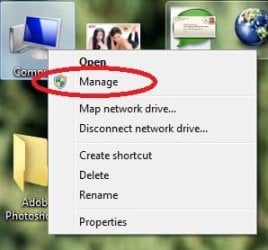
I am unable to access the computer management console by right clicking the "My Computer" icon and then clicking the "manage" option.
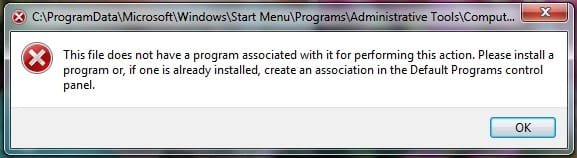
As it can be seen from the image I get a message box and I am not even able to fix the problem by following the directions given in the message box.
Please somebody help me out!
 

Attachments
  • 1.jpg
    1.jpg
    14.6 KB · Views: 470
  • 2.jpg
    2.jpg
    18 KB · Views: 29

My Computer

Computer Manufacturer/Model Number
Dell/Studio 1569 A04
OS
Windows 7 Home Premium x64
CPU
2.27 gigahertz Intel Core i5 M 430
Motherboard
Dell Inc. A04
Monitor(s) Displays
Generic PnP Monitor
See if the compmgmt.msc file exists in C:\Windows\system32, and check in C:\Windows\system32\en-US as well (the first one is a link to the second one). If they are there, right-click, open with Microsoft Management Console, and tick "Always use...". Maybe that will re-establish the file association. Or try Control Panel > Default Programs > Associate a file type... and go down to .msc and set it to Microsoft Management Console and click on "change program" button (do it even if it already is set correctly) then select MMC again and OK.

If this doesn't work you may need a systemfiles check ( see: http://www.sevenforums.com/tutorials/1538-sfc-scannow-command-system-file-checker.html ) to fix corrupted or missing files.
 

My Computer

OS
Windows 7
Thanks debugged...! But the solution you just gave have no effect on my problem i.e.my problem still persists. This problem had been there ever since I purchased my laptop and I have not yet formatted it (or re-installed Windows 7). Let me also admit that I don't want to perform "Repair Install".
Hoping to receive replies from you...thanks for your concern anyways:D
 

My Computer

Computer Manufacturer/Model Number
Dell/Studio 1569 A04
OS
Windows 7 Home Premium x64
CPU
2.27 gigahertz Intel Core i5 M 430
Motherboard
Dell Inc. A04
Monitor(s) Displays
Generic PnP Monitor

My Computer

Computer Manufacturer/Model Number
Custom
OS
Windows 7 Ultimate x64 SP1
CPU
Intel Core i7-3960X
Motherboard
Intel DX79SI
Memory
16 GB GSkill DDR3-2133 CL9
Graphics Card(s)
EVGA SC GTX 680
Sound Card
Onboard Realtek
Monitor(s) Displays
Dell 2005FPW
Screen Resolution
1680x1050
Hard Drives
Intel 520 SSD 240 GB,
2x Seagate 7200.12 1 TB
PSU
Corsair 850W HX
Case
Corsair 500R
Cooling
Corsair H100
Keyboard
Microsoft Natural 4000
You might also want to consider an anti-virus scan in Safe Mode.

Malwarebytes is a good choice.
 

My Computer

Computer Manufacturer/Model Number
HP Pavilion Elite 495UK
OS
Windows 7 Ultimate SP1 64-Bit
CPU
Intel Core i7 870 @ 2.93GHz
Motherboard
MSI 2A9C (CPU1)
Memory
8Gb Dual-Channel DDR3 @ 664MHz
Graphics Card(s)
nVidia GeForce GTX 460 1024MB dedicated RAM
Sound Card
Realtek HD Audio
Monitor(s) Displays
HP2310i
Screen Resolution
1920 x 1080
Hard Drives
1x1954GB Hitachi HDS22020ALA 330 (RAID), 1x1954GB Hitachi External for backup and storage
PSU
460W
Case
HP Elite
Cooling
Air cooled
Keyboard
Logitech K750 solar-powered keyboard
Mouse
Logitech Wireless M180 mouse
Internet Speed
2Mb
Other Info
Pure Avanti Flow Internet Radio with iPod Dock, 64Gb iPod, HP USB Speakers, Sony MDR-V500 Headphones, Sony Vaio F-Series Laptop
Good one, Seeliewight, especially in that thread is Brink's tutorial: http://www.sevenforums.com/tutorials/78815-manage-fix-file-does-not-have-program-associated.html

Gregocule - just to get an idea where you are: when you double-click on the system32\compmgmt.msc file do you get the same error, or does it open ok? Also try double-clicking on CompMgmtLauncher.exe, which is next to compmgmt.msc - does that open Computer Management? If compmgmt.msc works, then this, from above thread, would be easiest: fanaudi's workaround. If it doesn't work then try Brink's tutorial.

Also, you don't have to do a Repair install to do a sfc/scannow check.
 

My Computer

OS
Windows 7
Good one, Seeliewight, especially in that thread is Brink's tutorial: http://www.sevenforums.com/tutorials/78815-manage-fix-file-does-not-have-program-associated.html

Gregocule - just to get an idea where you are: when you double-click on the system32\compmgmt.msc file do you get the same error, or does it open ok? Also try double-clicking on CompMgmtLauncher.exe, which is next to compmgmt.msc - does that open Computer Management? If compmgmt.msc works, then this, from above thread, would be easiest: fanaudi's workaround. If it doesn't work then try Brink's tutorial.

Also, you don't have to do a Repair install to do a sfc/scannow check.

Thanks a lot Debugged! Your first link has eventually solved my problem. I didn't do it manually though; I just downloaded the registry file and integrated to the registry...hope that won't harm my system, although I checked its contents to see for any kind potentially harmful items but you see I'm not an expert:DBut thanks again...!
 

My Computer

Computer Manufacturer/Model Number
Dell/Studio 1569 A04
OS
Windows 7 Home Premium x64
CPU
2.27 gigahertz Intel Core i5 M 430
Motherboard
Dell Inc. A04
Monitor(s) Displays
Generic PnP Monitor
Back
Top