windows 7 restore question

BigMack,

First: NEVER backup to a drive you want to backup.
2nd: Backup to a separate drive. I recommend external since then any computer disaster does not influence your ability to access the backup.
3rd: 100 GB is more than you can ever use for a system partition, even in your wildest imagination, including all program files from all of your programs.

Show us the output of disk management at this time and we will have a better idea of solutions for you.

HOW TO POST A SNAPSHOT OF DISK MANAGEMENT DISPLAY

Run disk management:
WIN | type DISKMGMT.MSC | ENTER
WIN is the key with the wavy flag.

Maximize the output of Disk Management:
ALT Spacebar key combo | X key
Drag the field separators (such as between Status and Capacity) to show entire field.

Make a snapshot:
WIN | type SNIPPING | ENTER
Click the New button.
Drag the cursor around the area you want to snip.
File | Save as | select save location and name | Save button

Post the snapshot:
Screenshot - How to post
 

My Computer

Computer Manufacturer/Model Number
Toshiba Satellite S875D-S7239 laptop
OS
MS Windows 7 Ultimate SP1 64-bit
CPU
AMD A10-4600M
Motherboard
AMD Pumori (Socket FT1)
Memory
6.00 GB Dual-Channel DDR3 @ 798MHz (11-11-12-28)
Graphics Card(s)
AMD Radeon HD 7660G
Sound Card
High Definition Audio Device
Monitor(s) Displays
Generic PnP Monitor (1600x900@60Hz)
Screen Resolution
1600x900@60Hz
Hard Drives
SSD 119GB Corsair CSSD-V128GB2 ATA Device
Keyboard
Standard PS/2 Keyboard
Mouse
HP Wireless Optical Mobile Mouse Model FHA-3410
Internet Speed
What the local pub, local coffee shop offers.
Other Info
Optical Drive:MATSHITA BD-CMB UJ160B ATA Device


Also have an Asus ha1002xp netbook with Win 7 Ultimate installed.
My HD is only 160 GB. It is getting full and I have been considering getting a bigger one for my data files and put my OS on the 160 GB. Say I got a 500 GB with two partitions, one for data and one for Image, how big should I make the Image partition? == One other question. Since my OS and data files are on the same partition, is it possible to move only the data files to my new HD without doing a Clean Install? Thanks,
1. For the size of the imaging partition figure that an image is about 50% of the data that you are imaging. Now it depends how many images you want to keep as backups. 4 or 5 is probably a reasonable number.

2. You can create a data partition and move your data without reinstalling. Here is how: http://www.sevenforums.com/tutorials/72427-data-partition.html In the tutorial it starts with shrinking the C partition, but you can, of course, use space from any other partition or physical volume.
 

My Computer

Computer Manufacturer/Model Number
HP, Dell, Gateway, Toshiba - 4 laptops and 2 desktops
OS
Vista, Windows7, Mint Mate, Zorin, Windows 8
CPU
from 1.6GHz Duo to i7
Monitor(s) Displays
2x HP w2207
Hard Drives
5x HDD, 7x SSD, 12x Externals
Keyboard
with trackball - no mices
Mouse
Trackball mice
Internet Speed
DSL 6000
BigMack,

First: NEVER backup to a drive you want to backup.
2nd: Backup to a separate drive. I recommend external since then any computer disaster does not influence your ability to access the backup.
3rd: 100 GB is more than you can ever use for a system partition, even in your wildest imagination, including all program files from all of your programs.

Show us the output of disk management at this time and we will have a better idea of solutions for you.

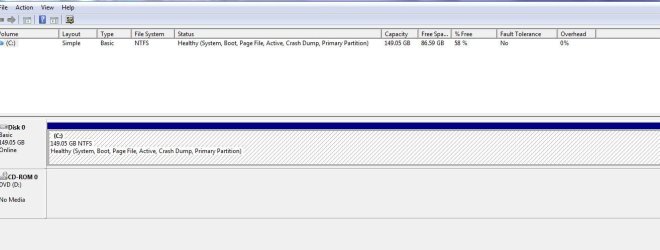
Here it is. Something tells me this is not what you ask for though.
 

Attachments

  • Disk Management 10-13-10.JPG
    Disk Management 10-13-10.JPG
    64.4 KB · Views: 7

My Computer

Computer type
PC/Desktop
Computer Manufacturer/Model Number
Custom Build
OS
Windows 7 Home Premium 32-Bit - Build 7600 SP1
CPU
Intel Core i3-2120 3.30Ghz
Motherboard
Asus P8Z68-V LX Intel Z68 Socket H2 ATX
Memory
Kingston 4 GB DDR3 1333 mhz
Graphics Card(s)
AMD Radeon HD6670
Sound Card
Sound Blaster Audigy SE 24-Bit
Monitor(s) Displays
Asus VE228
Screen Resolution
1440 X 900
Hard Drives
OCZ Vertex 3 120 GB Sata 3 SSD ==
Kingston SH103/S3 120 G Hyper X 120 GB SSD ==
Western Digital 500 GB Caviar Green 7200 RPM ==
PSU
Corsair CX600M == 600 Watt
Case
NZXT Apollo - Silver with Clear Side Panel
Cooling
Three 120 mm Fans
Keyboard
Microsoft Natural 4000
Mouse
Microsoft Custom Optical 3000
Internet Speed
AT&T Fiber Optic Wireless Network
Antivirus
Microsoft Security Essentials
Browser
Chrome
Other Info
120 mm Blue LED Fan -- Three Blue LED Lazer Light Sticks
My HD is only 160 GB. It is getting full and I have been considering getting a bigger one for my data files and put my OS on the 160 GB. Say I got a 500 GB with two partitions, one for data and one for Image, how big should I make the Image partition? == One other question. Since my OS and data files are on the same partition, is it possible to move only the data files to my new HD without doing a Clean Install? Thanks,
1. For the size of the imaging partition figure that an image is about 50% of the data that you are imaging. Now it depends how many images you want to keep as backups. 4 or 5 is probably a reasonable number.

2. You can create a data partition and move your data without reinstalling. Here is how: http://www.sevenforums.com/tutorials/72427-data-partition.html In the tutorial it starts with shrinking the C partition, but you can, of course, use space from any other partition or physical volume.

I was thinking of putting the data on a separate HD. Can this be done also?
 

My Computer

Computer type
PC/Desktop
Computer Manufacturer/Model Number
Custom Build
OS
Windows 7 Home Premium 32-Bit - Build 7600 SP1
CPU
Intel Core i3-2120 3.30Ghz
Motherboard
Asus P8Z68-V LX Intel Z68 Socket H2 ATX
Memory
Kingston 4 GB DDR3 1333 mhz
Graphics Card(s)
AMD Radeon HD6670
Sound Card
Sound Blaster Audigy SE 24-Bit
Monitor(s) Displays
Asus VE228
Screen Resolution
1440 X 900
Hard Drives
OCZ Vertex 3 120 GB Sata 3 SSD ==
Kingston SH103/S3 120 G Hyper X 120 GB SSD ==
Western Digital 500 GB Caviar Green 7200 RPM ==
PSU
Corsair CX600M == 600 Watt
Case
NZXT Apollo - Silver with Clear Side Panel
Cooling
Three 120 mm Fans
Keyboard
Microsoft Natural 4000
Mouse
Microsoft Custom Optical 3000
Internet Speed
AT&T Fiber Optic Wireless Network
Antivirus
Microsoft Security Essentials
Browser
Chrome
Other Info
120 mm Blue LED Fan -- Three Blue LED Lazer Light Sticks
Sure, if you have a seperate HD, no problem. But in your Disk Management picture there is none yet. You could shrink your C partition as explained in my linked tutorial and put the data there. If Disk Management cannot shrink it enough, use this program: BEST FREE Partition Manager Software for Windows supports all 32-bit & 64 bit Windows No-server OS.

You can even put your data on an external HDD. I did that with some of my bulk data. But that is a little special. Also. in Windows7 you can include any folder on an internal and external HDD (not USB stick) into the library. That is the easiest for the non-standard folders because it does not require to move anything.
 

My Computer

Computer Manufacturer/Model Number
HP, Dell, Gateway, Toshiba - 4 laptops and 2 desktops
OS
Vista, Windows7, Mint Mate, Zorin, Windows 8
CPU
from 1.6GHz Duo to i7
Monitor(s) Displays
2x HP w2207
Hard Drives
5x HDD, 7x SSD, 12x Externals
Keyboard
with trackball - no mices
Mouse
Trackball mice
Internet Speed
DSL 6000
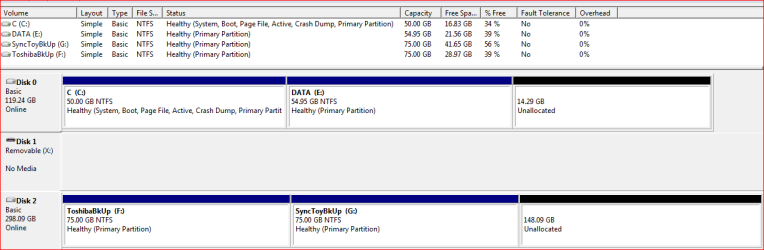
Here are some actual facts from my toshiba laptop:

Win 7 Backup and Restore
WindowsSystemImage...........................24 GB
Data (libraries,folders backup).................16.1 GB

SyncToyBackup (used to backup my Data parttion-E)
all folders on my E drive.........................33.3 GB
My system image only includes the C volume, since E is backed up twice--once using Win 7 Backup's data backup and once using SyncToy.

From DiskManagement
C total size........................................50 GB
C in use.............................................33.17 GB (50-16.83)

E total size........................................54.95 GB
E in use.............................................33.39 GB (54.95 - 21.56)

What conclusions can we draw?
A system image takes up less space than than the "in use" size since no recycle bin, no temp files, no hibernate file, no page file, etc.
In my case about 9 GB less!

A data backup, and mine contains the original set plus six incremental backups, still is about half of the size used on the E. This is due to files being zipped.

The SyncToy backup, which does not use compression, and simply is a current copy of the files and folders on my E is the same size as the "in use" size ( or close enough for government work). This is to be expected since there is no compression.

Following is a snip of the output of DiskManagement
MyDiskMgmtOutput.PNG

I definitely recommend putting your libraries and other data folders onto a separate partition, as I have done.
To do this, boot from a partition wizard CD and shrink your C down to 50 GB and create a new partition in the free space.

The way that I put my libraries on to the other partition is:
1: create a folder on the data partition for each library, eg. I have Docs, Pics, Videos,...
2. Move all the stuff from the present locations over to the new locations.
3. Edit the library properties to include the new folders.
4. In the library properties, move the new folders ahead of the old ones.
 

My Computer

Computer Manufacturer/Model Number
Toshiba Satellite S875D-S7239 laptop
OS
MS Windows 7 Ultimate SP1 64-bit
CPU
AMD A10-4600M
Motherboard
AMD Pumori (Socket FT1)
Memory
6.00 GB Dual-Channel DDR3 @ 798MHz (11-11-12-28)
Graphics Card(s)
AMD Radeon HD 7660G
Sound Card
High Definition Audio Device
Monitor(s) Displays
Generic PnP Monitor (1600x900@60Hz)
Screen Resolution
1600x900@60Hz
Hard Drives
SSD 119GB Corsair CSSD-V128GB2 ATA Device
Keyboard
Standard PS/2 Keyboard
Mouse
HP Wireless Optical Mobile Mouse Model FHA-3410
Internet Speed
What the local pub, local coffee shop offers.
Other Info
Optical Drive:MATSHITA BD-CMB UJ160B ATA Device


Also have an Asus ha1002xp netbook with Win 7 Ultimate installed.
Back
Top