Windows backup sees two "System" drives

itsdonny

New member
Local time
8:40 AM
Messages
4
My computer has 4 internal drives. I have 1 hd with a C: and D: partition and then 3 other drives with 1 partition each, drives E: F: and G:.

I just set up windows back up to back up the C: drive to the E: drive, however Windows is also viewing the F: drive as a System drive and insists that I also back it up as well. How do a let my computer know that the F: drive is not a System drive so it doesn't make me back it up when making a system image.

Thanks!

Don
 

My Computer

Computer Manufacturer/Model Number
Home Built
OS
Ultimate 64
CPU
i7 920 OC on air to 3.6ghz
Motherboard
Abit GA-X58A-UD5
Memory
12GB OCZ triple channel gold DDR3
Graphics Card(s)
Nvidia 9800GT
Sound Card
built in
Monitor(s) Displays
19" Samsung 930B x 2
Screen Resolution
1280x1024
Hard Drives
4 Seagates 1.5TB
PSU
Can't remember off hand but it's really good &puts out 750w
Case
Cosmos
Cooling
Air
Keyboard
Logitech G-15
Mouse
Logitech
Internet Speed
DSL 6Mb
Can you post a screen shot of you disk management for us?
 

My Computer

Computer type
Laptop
Computer Manufacturer/Model Number
Toshiba P775-S7100
OS
Windows 7 Professional SP1 64-bit
CPU
Intel Core i5-2450M @2.5 GHz
Memory
6 GB DDR3 1333MHz
Graphics Card(s)
Intel HD 3000
Monitor(s) Displays
Built-in 17.3" LED; 22" Insignia NS-L22Q-10A
Screen Resolution
1600x900; 1360x768
Hard Drives
750 GB Hitachi
1TB Seagate FreeAgent External
Internet Speed
Verizon DSL Speed(Down/Up): 3360 Kbps / 800 Kbps
Antivirus
MSE and MBAM Pro
Browser
IE10
It's Donny,

Welcome to SevenForums.

A good question. To answer your question correctly we are going to need a snapshot of the maximize output of Disk Managmernt.

We aill also benefit from you completing your system specs.

Here are some links and additional info.

________________________________________

HOW TO FILL OUT YOUR SYSTEM SPECS

In the line at the top of www.SevenForums.com you will see UserCP.
That is an abbreviation for User Control Panel.
Click on UserCP.
In the left-hand column, under Your Profile you will see Edit System Spec.
Click on Edit System Spec
You can copy and paste from the output of Speccy, Speccy - System Information - Free Download to fill out much of the info. Be sure to use the Other Info section of your System Specs for such info as your optical drive, your wireless adapter, your speakers, etc.

________________________________________
The Snipping Tool:
WIN | type SNIP | ENTER

Disk Management:
WIN | type DISKMGMT.MSC | ENTER

Remember to maximize the display before making a snapshot with the Snipping Tool.

http://www.sevenforums.com/tutorials/9733-how-post-screenshot-seven-forums.html

WIN indicates the key with the wavy flag on the key.
 
Last edited:

My Computer

Computer Manufacturer/Model Number
Toshiba Satellite S875D-S7239 laptop
OS
MS Windows 7 Ultimate SP1 64-bit
CPU
AMD A10-4600M
Motherboard
AMD Pumori (Socket FT1)
Memory
6.00 GB Dual-Channel DDR3 @ 798MHz (11-11-12-28)
Graphics Card(s)
AMD Radeon HD 7660G
Sound Card
High Definition Audio Device
Monitor(s) Displays
Generic PnP Monitor (1600x900@60Hz)
Screen Resolution
1600x900@60Hz
Hard Drives
SSD 119GB Corsair CSSD-V128GB2 ATA Device
Keyboard
Standard PS/2 Keyboard
Mouse
HP Wireless Optical Mobile Mouse Model FHA-3410
Internet Speed
What the local pub, local coffee shop offers.
Other Info
Optical Drive:MATSHITA BD-CMB UJ160B ATA Device


Also have an Asus ha1002xp netbook with Win 7 Ultimate installed.
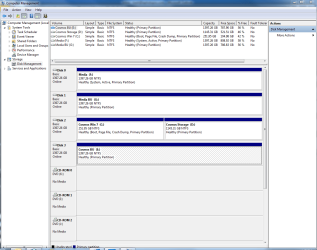
Okay, thanks guys. I've updated my comp specs and let's see if I can post the snapshot of disc management.
 

Attachments

  • Capture.PNG
    Capture.PNG
    45.6 KB · Views: 227

My Computer

Computer Manufacturer/Model Number
Home Built
OS
Ultimate 64
CPU
i7 920 OC on air to 3.6ghz
Motherboard
Abit GA-X58A-UD5
Memory
12GB OCZ triple channel gold DDR3
Graphics Card(s)
Nvidia 9800GT
Sound Card
built in
Monitor(s) Displays
19" Samsung 930B x 2
Screen Resolution
1280x1024
Hard Drives
4 Seagates 1.5TB
PSU
Can't remember off hand but it's really good &puts out 750w
Case
Cosmos
Cooling
Air
Keyboard
Logitech G-15
Mouse
Logitech
Internet Speed
DSL 6Mb
Just as I thought, the F: drive has been marked as active. I think it might mean that the Master Boot record has been installed on the wrong drive. To test this, unplug all drives except for the one with Windows 7 on it and try to boot into Windows. Please write back with the results.
 

My Computer

Computer type
Laptop
Computer Manufacturer/Model Number
Toshiba P775-S7100
OS
Windows 7 Professional SP1 64-bit
CPU
Intel Core i5-2450M @2.5 GHz
Memory
6 GB DDR3 1333MHz
Graphics Card(s)
Intel HD 3000
Monitor(s) Displays
Built-in 17.3" LED; 22" Insignia NS-L22Q-10A
Screen Resolution
1600x900; 1360x768
Hard Drives
750 GB Hitachi
1TB Seagate FreeAgent External
Internet Speed
Verizon DSL Speed(Down/Up): 3360 Kbps / 800 Kbps
Antivirus
MSE and MBAM Pro
Browser
IE10
Petey,
As I understood him, he wants to boot from the C: and does boot from the C:

I don't remember whether with Disk Management he can mark F: as inactive.

If not, he can always use DiskPart's Inactive command which is what I've always used.
 

My Computer

Computer Manufacturer/Model Number
Toshiba Satellite S875D-S7239 laptop
OS
MS Windows 7 Ultimate SP1 64-bit
CPU
AMD A10-4600M
Motherboard
AMD Pumori (Socket FT1)
Memory
6.00 GB Dual-Channel DDR3 @ 798MHz (11-11-12-28)
Graphics Card(s)
AMD Radeon HD 7660G
Sound Card
High Definition Audio Device
Monitor(s) Displays
Generic PnP Monitor (1600x900@60Hz)
Screen Resolution
1600x900@60Hz
Hard Drives
SSD 119GB Corsair CSSD-V128GB2 ATA Device
Keyboard
Standard PS/2 Keyboard
Mouse
HP Wireless Optical Mobile Mouse Model FHA-3410
Internet Speed
What the local pub, local coffee shop offers.
Other Info
Optical Drive:MATSHITA BD-CMB UJ160B ATA Device


Also have an Asus ha1002xp netbook with Win 7 Ultimate installed.
No, he can boot into C:. He just doesn't understand why Windows Backup wants to back up both C: and F: to the backup image. He doesn't have an actually problem with booting at the moment. I believe that the MBR was installed on F:, while the OS was installed on C:. This is common when the OS is installed while multiple hard drives are connected. I know how to mark the drive as inactive through commend prompt, but I want to make sure that he doesn't need it to be active first.
 

My Computer

Computer type
Laptop
Computer Manufacturer/Model Number
Toshiba P775-S7100
OS
Windows 7 Professional SP1 64-bit
CPU
Intel Core i5-2450M @2.5 GHz
Memory
6 GB DDR3 1333MHz
Graphics Card(s)
Intel HD 3000
Monitor(s) Displays
Built-in 17.3" LED; 22" Insignia NS-L22Q-10A
Screen Resolution
1600x900; 1360x768
Hard Drives
750 GB Hitachi
1TB Seagate FreeAgent External
Internet Speed
Verizon DSL Speed(Down/Up): 3360 Kbps / 800 Kbps
Antivirus
MSE and MBAM Pro
Browser
IE10
Hi guys, sorry for the late reply. Okay so I took out all the drives except my C: drive and my computer would not boot. So I'm guessing you're right that my MBR was installed on my F: drive. Can you tell me how I can go about getting the MBR on my C: drive and how I can then let my backup software know that the F: drive is no longer a system drive?

Thanks!

don
 

My Computer

Computer Manufacturer/Model Number
Home Built
OS
Ultimate 64
CPU
i7 920 OC on air to 3.6ghz
Motherboard
Abit GA-X58A-UD5
Memory
12GB OCZ triple channel gold DDR3
Graphics Card(s)
Nvidia 9800GT
Sound Card
built in
Monitor(s) Displays
19" Samsung 930B x 2
Screen Resolution
1280x1024
Hard Drives
4 Seagates 1.5TB
PSU
Can't remember off hand but it's really good &puts out 750w
Case
Cosmos
Cooling
Air
Keyboard
Logitech G-15
Mouse
Logitech
Internet Speed
DSL 6Mb
Its been awhile since I've helped someone with this particular problem, so I'm going to ask someone who is more or less an expert on this kind of thing to help you through it.
 

My Computer

Computer type
Laptop
Computer Manufacturer/Model Number
Toshiba P775-S7100
OS
Windows 7 Professional SP1 64-bit
CPU
Intel Core i5-2450M @2.5 GHz
Memory
6 GB DDR3 1333MHz
Graphics Card(s)
Intel HD 3000
Monitor(s) Displays
Built-in 17.3" LED; 22" Insignia NS-L22Q-10A
Screen Resolution
1600x900; 1360x768
Hard Drives
750 GB Hitachi
1TB Seagate FreeAgent External
Internet Speed
Verizon DSL Speed(Down/Up): 3360 Kbps / 800 Kbps
Antivirus
MSE and MBAM Pro
Browser
IE10
Hi guys, sorry for the late reply. Okay so I took out all the drives except my C: drive and my computer would not boot. So I'm guessing you're right that my MBR was installed on my F: drive. Can you tell me how I can go about getting the MBR on my C: drive and how I can then let my backup software know that the F: drive is no longer a system drive?

Thanks!

don

With all drives plugged, boot into Win7 DVD or Repair CD, press Shift F10 to open a Command Line (or boot into the Repair console to open Command Prompt), then follow the steps in this tutorial using Diskpart to Mark Win7 partition Active, then mark F drive Inactive: http://www.sevenforums.com/tutorials/71432-partition-mark-active.html

Once you have done this, power down to unplug the F drive so that it doesn't interfere as you boot the Win7 DVD Repair console to run Startup Repair up to 3 separate times with reboots to write the System MBR to Win7 partition. http://www.sevenforums.com/tutorials/105541-startup-repair-run-3-separate-times.html

After Win7 starts, you can again power down to plug back in the F drive, make sure it is not marked Active or mark it Inactive again using the earlier Diskpart steps.

If you want a graphical interface to do the marking Active and Inactive, use free Partition Wizard bootable CD. Free Download Magic Partition Manager Software - Partition Wizard Online
 
The gregrocker advice will solve your problem.
The reason why Windows imaging requires both C: & F: is because you are booting your OS on C: through F:. In addition to the MBR F: contains all the boot information normally on the 100MB system reserved partition. Windows always images this (now on F: along with the OS (your C: partition).
 

My Computer

Computer type
PC/Desktop
Computer Manufacturer/Model Number
Own build
OS
Windows 7x64 Home Premium SP1
CPU
Intel i7 2600k
Motherboard
ASUS P8Z68 Deluxe
Memory
G.Skill Ripjaws (DDR3-1600) 2x4GB
Graphics Card(s)
Nvidia GeForce GTS 450; Intel HD Graphics 3000(GT2+)
Monitor(s) Displays
Dell Ultrasharp IPS panel U2311H, Samsung SyncMaster P2350
Screen Resolution
1920x1080
Hard Drives
Samsung 850 Pro SSD 256GB, Samsung SSD 840 120GB, Seagates 1TB Barracuda ST31000528AS x2
PSU
Seasonic M12II 520W
Case
Lian Li Lancool PC-K60
Cooling
Case: 1x120mm, 3x140mm CPU: Hyper 212+
Keyboard
Logitech MK520 (wireless)
Mouse
Logitech MK520
Internet Speed
6-7 Mbps
Antivirus
Norton Security Premium, Malwarebytes on 2 (MSE on 3rd PC)
Browser
FireFox
Other Info
Audio: Logitech Z523 2.1
Thanks gregrocker! That was much easier than I thought! I sincerely appreciate the help. Good karma on the way...
 

My Computer

Computer Manufacturer/Model Number
Home Built
OS
Ultimate 64
CPU
i7 920 OC on air to 3.6ghz
Motherboard
Abit GA-X58A-UD5
Memory
12GB OCZ triple channel gold DDR3
Graphics Card(s)
Nvidia 9800GT
Sound Card
built in
Monitor(s) Displays
19" Samsung 930B x 2
Screen Resolution
1280x1024
Hard Drives
4 Seagates 1.5TB
PSU
Can't remember off hand but it's really good &puts out 750w
Case
Cosmos
Cooling
Air
Keyboard
Logitech G-15
Mouse
Logitech
Internet Speed
DSL 6Mb
I've been trying to resolve this problem for years, where C: and E: both want to be included in System Image. Tried so many things with diskpart.

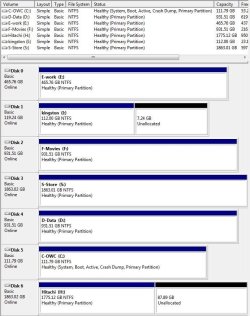
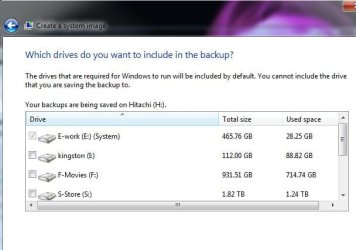
I followed the exact steps that gregrocker said but that has not solved my problem. Windows's System Image still wants to include C: and E: when I do a System Image. Before I did the steps that gregrocker descrived, I successfully got E: to not show as System in Disk Management (see first pic).

How can I make E: think it not a System partition? Disk Management does not show it but System Image says it is. See second pic.

EDIT: SOLVED IT!

With PC in above situation
1. Deleted E: partition
2. Ran Windows Backup including System Image. It obviously only did system image of C:
3. Created and formatted E: partition
4. Nowhere is it being reported that E: is a System drive AND Windows Backup does not try to take image of it when doing a System Image.

So it needed one successful backup when only C: was available.
 

Attachments

  • disk mgmt.JPG
    disk mgmt.JPG
    89.7 KB · Views: 33
  • e system.JPG
    e system.JPG
    34.8 KB · Views: 19
Last edited:

My Computer

OS
Windows 7 Ultimate x64 SP-1
CPU
Intel i7-920 2.66
Motherboard
MSI X58A-GD65 (SATA 3). AMI BIOS 2.31
Memory
Corsair DDR3 6GB 1600MHz
Graphics Card(s)
PNY NVidia GeForce GTX 550 Ti 1024Kb
Sound Card
Realtek
Monitor(s) Displays
2 x ASUS 23"
Screen Resolution
1920x1200 (times 2)
Hard Drives
2 x Western Digital 1GB + Western Digital 250MB + Samsung 500MB
PSU
Themaltake ToughPower 750W
Case
CoolerMaster Sniper
Keyboard
Dell
Mouse
Logitech MX 5500 Laser
Internet Speed
12MB (DSL)
Back
Top