Windows Backup, Used Space, & Partition Questions

blue skies

New member
Member
VIP
Local time
9:06 AM
Messages
117
I am very new to Windows Backup and have a few questions. Actually, my first question is not really specific to Windows Backup, but I notice it whenever I go to Disk Management to view my backups, so I hope it's okay if I ask it here.

Partition Question:

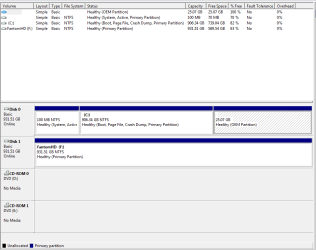
I have the following partitions on Disk 0:
100MB - 70% free
C:906.34GB - which has 82% or 739.03GB free
25.07GB OEM partition which is listed as 100% free

Isn't that 25GB OEM partition the Recovery partition? If so, why is it listed as 100% free? And what is the 100MB NTFS partition for?

--------------

Now for my Windows Backup questions:

I ran Windows Backup for the first time Thursday night morning. I chose the "Let Windows choose, recommended" option - "Windows will automatically select user files... A system image will be created including system files, drivers, registry settings, Windows and all of your programs. These items will be backed up on a regular schedule".

It took 6 or 7 hours to complete. When it was done, my 1TB external hdd had 661.51 GB free space. I was surprised because my 1TB desktop hdd still had 742 GB free space. I didn't anticipate the backup to take up more space, and I'm hoping someone can explain to me why it does. Is it because it copies virtually the entire hard drive and then also makes a specific image of the operating system, registry and installed programs?

I have a lot of free space, so it's not an issue right now... but I could see how it might become an issue down the line. If I had realized the backups take up much more space, I probably would have bought a bigger external hdd for that purpose.

Today, the scheduler kicked in and the backup ran again. I was anticipating that it would be very quick and just make a few changes in my user files. It did seem to do that, but it took about 3 hours this time, and I think it also made another system image.

Desktop hdd currently has 739GB free and the external went from 661GB free after the first backup to 589GB free after the second backup.

So it looks like each time Windows Backup runs, it adds another system image - at about 72GB.

When I mount the VHS, I see this:
file: myname-pc 194 GB
folder: WindowsImageBackup 142 GB which contains the following two folders:
- myname-pc
- Backup 2010-07-12000011 -- which I can explore it and see all my folders and files.
So if the WindowsImageBackup contains the mountable image with my user files, what does the file "myname-pc" contain? Does that now have two system images? Or are the system images the mountable images that I have browsed from the "Backup 2010-07-12000011"?

If I can find the first system image, can I delete it and just keep the second one? They are probably nearly identical since it's been less than three days and I haven't really made any changes.

Or am I totally wrong in thinking that my user files are separate from the system image?

I'm sorry if this is presented in a confusing manner. I think I am getting more confused as I try to explain it and figure out what's what.

As you can probably guess, I don't have much of a tech background. :o

Thanks in advance for any clarification! :)
 

My Computer My Computer

Computer type
Laptop
Computer Manufacturer/Model Number
Toshiba Satellite U845W-S410
OS
Windows 7 Home Premium 64 bit
CPU
Intel ® Core™ i5-3317U Processor
Memory
6GB DDR3 1600MHz
Graphics Card(s)
Mobile Intel ® HD Graphics with 64MB-1696MB dynamically allo
Monitor(s) Displays
All-in-one -- Generic PnP Monitor
Screen Resolution
14.4” diagonal widescreen TruBrite ® TFT display at 1792 x 7
Hard Drives
500GB (5400 RPM, Serial ATA) with dedicated 32GB mSATA SSD disk
cache
Keyboard
Logitech
Mouse
Logitech
Were I you and I'm not, I would keep my personal data and Windows in separate partitions. Maybe 60 or 80 gigs for Windows and the other 880 or whatever for data.

Then image the operating system and data partitions separately, so you avoid this confusion.

You aren't anywhere near the first person to be confused by Windows imaging--that's why many have given up on it. There are free alternatives that are much more flexible and straightforward.

The 100 MB partition you refer to was put there by Windows and is used in certain recovery operations. With luck you won't ever need to use it. You can hide it from view I think. You can even avoid it during an installation. Most people just ignore it and possibly hide it.

I can't explain why your OEM partition is shown as empty. Offhand, I wouldn't necessarily believe it is empty. Hang on to it at least temporarily.
 

My Computer My Computer

Computer type
PC/Desktop
Computer Manufacturer/Model Number
Ignatz Special; 4 speed manual gearbox; factory air conditioning; one of one
OS
Windows 7 Home Premium SP1, 64-bit
CPU
Intel Skylake i5-6600K, not overclocked
Motherboard
AsRock Z170M Extreme 4, micro ATX
Memory
8 GB HyperX DDR4-2666 (2 x 4 GB)
Graphics Card(s)
none; graphics are integrated on CPU
Sound Card
onboard: Realtek ALC1150; external: USB Behringer UF0-202
Monitor(s) Displays
Dell S2340M 23 inch IPS
Screen Resolution
1600 x 900
Hard Drives
System: Crucial MX100 series SSD, 128 GB;
Data: Samsung Spinpoint 103SJ, 1 TB;
Backup: WD Caviar Green WD30EZRX-00D8PB0, 3 TB
PSU
Rosewill SilentNight 500 watt fanless, semi-modular
Case
Antec Solo II
Cooling
Noctua NH-U12S; Noctua F12 intake, Noctua S12A exhaust
Keyboard
Microsoft 200 6JH-00001 USB
Mouse
Dell or Microsoft optical wired; USB
Antivirus
Microsoft Security Essentials and Malwarebytes Premium
Browser
Pale Moon
Other Info
All fans PWM; speeds at idle: CPU circa 500 rpm; intake circa 600 rpm; exhaust circa 600 rpm; CPU temps 27 idle and 47 C load in a warm room (27 C/81 F) when running Intel Extreme Tuning Utility stress test.
The 25 gb OEM hidden recovery partition is off limits by the manufacturer's setup as well as the 100mb boot partition is a system reserved partition seen there. Both do contain files and one way to view them is by booting live with something like a live ubuntu cd in order to be able to look onto each of those to some extent.

As far as taking 6-7hrs. the manual option where you select the main drive including the 100mb boot and 25gb OEM partitions along with C and any second partitions would complete in roughly 30 minutes. The manual creation set the priority higher there rather then being a low key process running in the background but still allows you to run different programs as that moves along.

The default name for the manual image is "WindowsImageBackup" seeing a main sub folder with your admin account's user name on that. The scheduled backup being strictly Windows managed is likely adding the time and date information using slightly more drive space. Note that a full image of the main drive here with some 50-70gb of other files came upto about 131gb total for the 1tb host/OS main drive.

The image will include everything you have on the main drive including the user account and all sub folders being a compressed archive of a snapshot of the entire drive when all partitions present are included. If you make an image and repartition the drive for example the restoration will see that wiped again for restoration of the image seeing everything unpacked to drive as it had been.
 

My Computers My Computers

System One System Two

  • Computer type
    PC/Desktop
    Computer Manufacturer/Model Number
    Custom builds = 2
    OS
    W7 Ultimate x64/W10 Pro x64/W11 Pro Triple Boot - Main PC W7 Remote PC Micro ATX W7 Pro x64/W11 Pro
    CPU
    AMD Phenom II X4 975 Deneb 3.6ghz - 965 2nd remote pc
    Motherboard
    Gigabyte GA-790XTA-UD4-Gigabyte GA-880GM-D2H remote pc
    Memory
    Kingston Hyper X DDR3 1600 1.5v 16gb - Hyper X Fury 8gb 2nd
    Graphics Card(s)
    MSI HD Radeon 5750 1gb - MSI HD Radeon 6450 on mini tower
    Sound Card
    Creative Labs X-Fi Xtreme Audio P - Realtek onooard 2nd case
    Monitor(s) Displays
    ASUS VW199T-P 19" HP 2082a Main-HP 2082a 20" remote pc
    Screen Resolution
    Asus 1440x900 - HP 1600x900
    Hard Drives
    WD Black 1TB HD per OS W7, W10, and pending W11 presently on 500gb OS Drive - Pending Triple 1TB HDs for Spanned Storage/backup volume
    Single 2TB external USB enclosure, single 1TB System 7 Host/Boot drive, Pending 8TB external HD for system image b
    PSU
    Corsair 750TX - primary / Corsair CX600 - second
    Case
    Antec 900-2 - SSD compatible / NZXT Vulcan mini tower
    Cooling
    Zalman CNPS9900A
    Keyboard
    AZIO L70 Backlit Letters Gaming - ONN Cordless/USB
    Mouse
    MSI DS200 Programmable, Logitech Cordless
    Internet Speed
    30mbps upgrade - primary hard wired - mini tower usb WiFi
    Antivirus
    GFI VIPRE Internet Security 2014 on W7 2016 beta on W10,
    Browser
    Cyberfox, WaterFox 64bit FF variants, FireFox x64, Pale Moon
    Other Info
    Accomdata fan cooled usb 2.0 PIDE/Sata II, III external enclosure.
    Sambient usb/eSata PATA/Sata II, III external enclosure.
  • Computer type
    PC/Desktop
    System Manufacturer/Model Number
    CUSTOM ASSEMBLY
    OS
    W7 Pro x64/W11 Pro
    CPU
    AMD Deneb 3.6ghz - 965
    Motherboard
    Gigabyte GA-880GM-D2H remote pc
    Memory
    Kingston Hyper X Fury 8gb
    Graphics Card(s)
    MSI HD Radeon 6450 DVI Output
    Sound Card
    Realtek onooard Creative or Other separate PENDING
    Monitor(s) Displays
    VIZIO 32" LCD TV Separate LCD Pending
    Screen Resolution
    1600x1080
    Hard Drives
    WD 500GB OS Host/Boot WD Green 1TB Storage/Backup
    PSU
    Corsair 600W - THERMALTAKE 600W spare case
    Case
    NZXT Vulcan mini tower
    Cooling
    Twin 120mm Top Fans - 240mm Side Cover
    Keyboard
    ONN Cordless/USB Logitech Cordless
    Mouse
    ONN USB/Cordless - Logitech Cordless
    Internet Speed
    DSL 5G
    Browser
    MS Edge, FireFox, WaterFox x64, FireFox Nightly
    Other Info
    OS Testing-Remote Access to Main TeamViewer
Were I you and I'm not, I would keep my personal data and Windows in separate partitions. Maybe 60 or 80 gigs for Windows and the other 880 or whatever for data.

Then image the operating system and data partitions separately, so you avoid this confusion.

You aren't anywhere near the first person to be confused by Windows imaging--that's why many have given up on it. There are free alternatives that are much more flexible and straightforward.

The 100 MB partition you refer to was put there by Windows and is used in certain recovery operations.

Oh, I didn't realize the 100MB was there for Windows recovery. Thanks for clarifying that.

I didn't think to change the partitions when I got this new computer, I've never actually done that before, and now I already have a lot of data stored on it. So at this point, if I wanted to separate it, would I have to remove everything in My Documents, My Videos, My Pictures and My Music? Then after I make a data partition would I just move everything there? I am very unfamiliar with how this all works, and feel like I am missing some very basic knowledge here.

So the OS partition would automatically also contain all of my installed programs and setting, right?

The 25 gb OEM hidden recovery partition is off limits by the manufacturer's setup as well as the 100mb boot partition is a system reserved partition seen there. Both do contain files and one way to view them is by booting live with something like a live ubuntu cd in order to be able to look onto each of those to some extent.
Oh, okay. Thank you for that. I thought it was the recovery partition. I just thought it was so strange that it said it was 100% free like nothing was on it. I actually did use the recovery very soon after I got it, so it did work then at least.

As far as taking 6-7hrs. the manual option where you select the main drive including the 100mb boot and 25gb OEM partitions along with C and any second partitions would complete in roughly 30 minutes. The manual creation set the priority higher there rather then being a low key process running in the background but still allows you to run different programs as that moves along.
So, by "manual option", you mean not choosing the "Let Windows choose (recommended)" option right?

The default name for the manual image is "WindowsImageBackup" seeing a main sub folder with your admin account's user name on that. The scheduled backup being strictly Windows managed is likely adding the time and date information using slightly more drive space. Note that a full image of the main drive here with some 50-70gb of other files came up to about 131gb total for the 1tb host/OS main drive.
Okay, I got my calculator out and went through my user folders and the public folder and there is approximately 130 GB of data stored there - documents, music, videos, pictures and recorded TV. When you say the main drive with some 50-70gb of other files came up to 131, what do you mean?

Is it my 130gb of user data plus 50-70gb related to the OS and recovery, which is then compressed to make an image that's about 142gb?


The image will include everything you have on the main drive including the user account and all sub folders being a compressed archive of a snapshot of the entire drive when all partitions present are included. If you make an image and repartition the drive for example the restoration will see that wiped again for restoration of the image seeing everything unpacked to drive as it had been.


I'm sorry I'm being so obtuse. I guess my main questions are:

Why did the first backup take up 270gb, which is much more than the used space on the hdd I was backing up? Especially since it was supposed to be compressed?

Why did the second backup use up an additional 72gb, even though everything was basically the same? Is that the size of the OS only system image, minus my user data? If so, can I delete the previous one and just save the most current one, and how would I find it?

And if that's the case, is the 72gb an OS system image and the balance is a different type of backup to which Windows Backup does incremental backups of my user data - files and folders?

Sorry if my questions are still unclear. I need to rush off to work.

Thanks for the help!
 

My Computer My Computer

Computer type
Laptop
Computer Manufacturer/Model Number
Toshiba Satellite U845W-S410
OS
Windows 7 Home Premium 64 bit
CPU
Intel ® Core™ i5-3317U Processor
Memory
6GB DDR3 1600MHz
Graphics Card(s)
Mobile Intel ® HD Graphics with 64MB-1696MB dynamically allo
Monitor(s) Displays
All-in-one -- Generic PnP Monitor
Screen Resolution
14.4” diagonal widescreen TruBrite ® TFT display at 1792 x 7
Hard Drives
500GB (5400 RPM, Serial ATA) with dedicated 32GB mSATA SSD disk
cache
Keyboard
Logitech
Mouse
Logitech
I didn't think to change the partitions when I got this new computer, I've never actually done that before, and now I already have a lot of data stored on it. So at this point, if I wanted to separate it, would I have to remove everything in My Documents, My Videos, My Pictures and My Music? Then after I make a data partition would I just move everything there? I am very unfamiliar with how this all works, and feel like I am missing some very basic knowledge here.

So the OS partition would automatically also contain all of my installed programs and setting, right?

That's what it sounds like from your description.

We would have to see pictures of your drive layout from Windows Disk Management to be sure.

It sounds like you have only a single partition (C) on the internal drive and that it contains both your system files (Windows) and your personal data.

Your images must be on another partition on the external drive.

If you want to put your data on a separate partition, you would have to temporarily move it off of C and then shrink C to a reasonable size (maybe 60 gigs).

The shrinking would create "unallocated space" equal to the amount of the shrink.

You would then create a new data partition from the unallocated space and then move your data back to this new partition.

You could then make images of C alone, D alone, or C and D combined. You would likely want to make separate images.

I'd guess you could temporarily move your data to the same partition you are using to store your current images--the external drive.

It should be a pretty straightforward and quick job if you decide to do it.
 

My Computer My Computer

Computer type
PC/Desktop
Computer Manufacturer/Model Number
Ignatz Special; 4 speed manual gearbox; factory air conditioning; one of one
OS
Windows 7 Home Premium SP1, 64-bit
CPU
Intel Skylake i5-6600K, not overclocked
Motherboard
AsRock Z170M Extreme 4, micro ATX
Memory
8 GB HyperX DDR4-2666 (2 x 4 GB)
Graphics Card(s)
none; graphics are integrated on CPU
Sound Card
onboard: Realtek ALC1150; external: USB Behringer UF0-202
Monitor(s) Displays
Dell S2340M 23 inch IPS
Screen Resolution
1600 x 900
Hard Drives
System: Crucial MX100 series SSD, 128 GB;
Data: Samsung Spinpoint 103SJ, 1 TB;
Backup: WD Caviar Green WD30EZRX-00D8PB0, 3 TB
PSU
Rosewill SilentNight 500 watt fanless, semi-modular
Case
Antec Solo II
Cooling
Noctua NH-U12S; Noctua F12 intake, Noctua S12A exhaust
Keyboard
Microsoft 200 6JH-00001 USB
Mouse
Dell or Microsoft optical wired; USB
Antivirus
Microsoft Security Essentials and Malwarebytes Premium
Browser
Pale Moon
Other Info
All fans PWM; speeds at idle: CPU circa 500 rpm; intake circa 600 rpm; exhaust circa 600 rpm; CPU temps 27 idle and 47 C load in a warm room (27 C/81 F) when running Intel Extreme Tuning Utility stress test.
We would have to see pictures of your drive layout from Windows Disk Management to be sure.

It sounds like you have only a single partition (C) on the internal drive and that it contains both your system files (Windows) and your personal data.

Your images must be on another partition on the external drive.

If you want to put your data on a separate partition, you would have to temporarily move it off of C and then shrink C to a reasonable size (maybe 60 gigs).

The shrinking would create "unallocated space" equal to the amount of the shrink.

You would then create a new data partition from the unallocated space and then move your data back to this new partition.

You could then make images of C alone, D alone, or C and D combined. You would likely want to make separate images.

Thank you for your reply Ignatzatsonic!

Here is a screencap of my partitions:
disk management .PNG

So, how do you know what a reasonable size to shrink my C drive would be? Are there any additional considerations with that, or is 60gb definitely large enough?

And then, after copying (or just moving?) my documents, music, videos and pictures to an external drive... do I leave all those folders intact on the C drive under "Users", but just make new folders "My Documents" etc. on the new partition and save everything there when I move it back?

Hmm... it just occurred to me that Media Center records television in the Public/Recorded TV folder, and that uses a ton of space. So I would have to change where Media Center saves TV recordings. Hopefully there won't be an issue with moving that to the new partition.
 

My Computer My Computer

Computer type
Laptop
Computer Manufacturer/Model Number
Toshiba Satellite U845W-S410
OS
Windows 7 Home Premium 64 bit
CPU
Intel ® Core™ i5-3317U Processor
Memory
6GB DDR3 1600MHz
Graphics Card(s)
Mobile Intel ® HD Graphics with 64MB-1696MB dynamically allo
Monitor(s) Displays
All-in-one -- Generic PnP Monitor
Screen Resolution
14.4” diagonal widescreen TruBrite ® TFT display at 1792 x 7
Hard Drives
500GB (5400 RPM, Serial ATA) with dedicated 32GB mSATA SSD disk
cache
Keyboard
Logitech
Mouse
Logitech
First issue: your OEM partition is to the right of your C partition in the disk management screen shot. That is a complication, but can be worked around with programs like Partition Magic, etc. You can't do an ordinary shrink through disk management because that 25 gig OEM partition is to the right of C. You must use a third party application.

That is done all the time on this forum, but I am not the expert on it. Guys like Gregrocker and SIW2 can help you out with that.

You would use the third party app to move the OEM partition to the left of C.

You should probably move your data to the external before you begin using the partitioning application.

After you have the OEM to the left of C, then you shrink C to generate unallocated space. Then make a new partition from the freed up space. Then move your stuff back from the external. The new partition would be over 800 gigs and for data only.

A bare Windows 7 Home Premium installation is under 10 GB.

A typical installation, fully updated, with an average amount of applications included, might be 30 gigs or so.

My C partition is 60 gigs, of which only 22 is used.

The typical recommendation is anywhere from 40 to 80. I have heard of some guys who game a lot storing games on C and needing over 100, but I'd think that is quite rare.

If you have hundreds of applications installed, that might require more space, but that would be unusual. Most people wouldn't need more than 50 I'd guess.

If you are nervous about it, make it 80 or 100.


Copying stuff temporarily to the external drive to make room for the new partition WON"T work. You have to MOVE stuff. Otherwise, you wouldn't be freeing up any space.

After the new partition is made and you are satifisfied, you would move all your data back from the external drive to the new partition. It probably would be D.

I don't know how organized you are. Some people put all their data under C Users somewhere. If that is you, then you would just move the Users directory to the external drive temporarily.

Be sure to move your bookmarks and your email. They may not be in C Users.

Your C is 906, with 739 free. So the used portion is about 167, most of that being data. If you want C to end up at 80, you have to move enough stuff off of the current C so that the occupied space on current C is under 80.

I would move ALL of my data off C to the external, even if I didn't have to move it all off to drive the occupied space on C below 80. Why?? Because if you are going to start altering partition sizes, you should have a plan for the worst case scenario. The worst case scenario would be that something goes wrong in your resizing operation and you lose everything in the current C and have to reinstall Windows. That's quite unlikely, but you have to plan for it in case it happens.

If you aren't organized, then you may have portions of your personal data scattered all over C, rather than just in C Users. If that is the case, you obviously have to run all that stuff down and move it. It's entirely up to you to identify where all your stuff is and get it moved.
 

My Computer My Computer

Computer type
PC/Desktop
Computer Manufacturer/Model Number
Ignatz Special; 4 speed manual gearbox; factory air conditioning; one of one
OS
Windows 7 Home Premium SP1, 64-bit
CPU
Intel Skylake i5-6600K, not overclocked
Motherboard
AsRock Z170M Extreme 4, micro ATX
Memory
8 GB HyperX DDR4-2666 (2 x 4 GB)
Graphics Card(s)
none; graphics are integrated on CPU
Sound Card
onboard: Realtek ALC1150; external: USB Behringer UF0-202
Monitor(s) Displays
Dell S2340M 23 inch IPS
Screen Resolution
1600 x 900
Hard Drives
System: Crucial MX100 series SSD, 128 GB;
Data: Samsung Spinpoint 103SJ, 1 TB;
Backup: WD Caviar Green WD30EZRX-00D8PB0, 3 TB
PSU
Rosewill SilentNight 500 watt fanless, semi-modular
Case
Antec Solo II
Cooling
Noctua NH-U12S; Noctua F12 intake, Noctua S12A exhaust
Keyboard
Microsoft 200 6JH-00001 USB
Mouse
Dell or Microsoft optical wired; USB
Antivirus
Microsoft Security Essentials and Malwarebytes Premium
Browser
Pale Moon
Other Info
All fans PWM; speeds at idle: CPU circa 500 rpm; intake circa 600 rpm; exhaust circa 600 rpm; CPU temps 27 idle and 47 C load in a warm room (27 C/81 F) when running Intel Extreme Tuning Utility stress test.
Thank you very much for all that helpful information. Even though you explained everything very clearly, the basic concepts are still a bit over my head, and I could see how I might be able to significantly mess things up... so I think I will put the partition thing on hold right now. I can appreciate how it could be useful, but I'm no longer sure it is that important for me, since I think I finally have a handle on my backed up data and what is being stored where - which has been my main concern.

Since I last posted, I have been reading up a bit more on Windows Backup on the Microsoft site and others, and I think I'm starting to understand it now.

When I first ran the Windows Backup utility, I hadn't realized that by choosing the "Let Windows choose" option, I ended up basically getting two copies of my own data. A representative from Microsoft had this to say:
http://www.theregister.co.uk/2010/06/22/windows_7_backup/

In Windows7 we simplified the confusion around when users should take a file backup and when users should take a system image backup. Now both these can be scheduled as part of same backup configuration.

However... it has the side-effect of backing up data potentially twice (depending on what is selected for file backup).


System image backup includes all the critical volumes (boot volume, system volume, volume where any Windows service is installed). It would backup the entire volume (all the used space on the volume) as VHD files (one per volume).


File backup backups up the folders included in backup. It would backup the files inside them as ZIP files. The amount of duplication depends on whether the folders selected as part of file backup are present on any of the critical volumes.
So the System Image I made, which contains everything and can be used to access individual files by attaching the VHD, is about 143gb.

The File Backup, which I have never browsed because it is made up of zipped files and folders, is 194gb, and as I understand it, this is what is modified when the individual modified files are later backed up. Apparently that is what really slows everything down and takes so much time. And perhaps whatever allows it to be modified when files and folders are changed makes it larger than the entire drive even though it's less actual data and it's zipped.

So that pretty much answers my first Windows Backup question, which was the thing that was most frustrating to me:

I guess my main questions are:

Why did the first backup take up 270gb, which is much more than the used space on the hdd I was backing up? Especially since it was supposed to be compressed?

With regard to my second question about the additional 72gb... I guess maybe it's just some quirk of the "File Backup" system that uses so much extra space? The only changes I made to my computer between backups was adding a small video (less than 200mb) and moved around a few folders, maybe changed a couple text documents, nothing to really account for the 72gb of additional used backup space:
Why did the second backup use up an additional 72gb, even though everything was basically the same? Is that the size of the OS only system image, minus my user data? If so, can I delete the previous one and just save the most current one, and how would I find it?
As far as I can tell, the second System Image just over-wrote the first one so that settles that question too.

I think I will stick with only doing occasional System Image backups, since that contains everything and is browse-able. I may use something like Sync-Toy to keep updated with certain data files and folders on one of my smaller external HDDs.

Thanks again everyone for all your help, and please feel free to let me know if I am still misunderstanding any of these things.
 
Last edited:

My Computer My Computer

Computer type
Laptop
Computer Manufacturer/Model Number
Toshiba Satellite U845W-S410
OS
Windows 7 Home Premium 64 bit
CPU
Intel ® Core™ i5-3317U Processor
Memory
6GB DDR3 1600MHz
Graphics Card(s)
Mobile Intel ® HD Graphics with 64MB-1696MB dynamically allo
Monitor(s) Displays
All-in-one -- Generic PnP Monitor
Screen Resolution
14.4” diagonal widescreen TruBrite ® TFT display at 1792 x 7
Hard Drives
500GB (5400 RPM, Serial ATA) with dedicated 32GB mSATA SSD disk
cache
Keyboard
Logitech
Mouse
Logitech
I think you are starting to grasp how things work now. It can take a bit the first few times for sure.

I would have had a few screens if I was on my main system to show you on what is seen when manually going to create a new image with the builtin tool and the drive/partition selection process. The backup feature doesn' see as much compression for the files and folders included as you would see when creating a full image of the drive itself where there is a compression factor at work.

One example of a quick temp install of the 32bit 7 on an old boat anchor Socket A case is only having 512mb available for memory while the total fresh install with several programs and some additional files runs about 20gb. I suspect if a second drive or partition was to see an image that would be real small in comparison to what was seen with the main system's 1tb host drive with everything on plus local storage of various files being included with the Ultimate installation.

Maybe some 12-15gb of an image from the 80gb ide drive in this old clunker I am presently refurbishing. Interesting side note is all XP drivers chipset, old AGP vid card, and onboard audio are working fine for what they were back then.
 

My Computers My Computers

System One System Two

  • Computer type
    PC/Desktop
    Computer Manufacturer/Model Number
    Custom builds = 2
    OS
    W7 Ultimate x64/W10 Pro x64/W11 Pro Triple Boot - Main PC W7 Remote PC Micro ATX W7 Pro x64/W11 Pro
    CPU
    AMD Phenom II X4 975 Deneb 3.6ghz - 965 2nd remote pc
    Motherboard
    Gigabyte GA-790XTA-UD4-Gigabyte GA-880GM-D2H remote pc
    Memory
    Kingston Hyper X DDR3 1600 1.5v 16gb - Hyper X Fury 8gb 2nd
    Graphics Card(s)
    MSI HD Radeon 5750 1gb - MSI HD Radeon 6450 on mini tower
    Sound Card
    Creative Labs X-Fi Xtreme Audio P - Realtek onooard 2nd case
    Monitor(s) Displays
    ASUS VW199T-P 19" HP 2082a Main-HP 2082a 20" remote pc
    Screen Resolution
    Asus 1440x900 - HP 1600x900
    Hard Drives
    WD Black 1TB HD per OS W7, W10, and pending W11 presently on 500gb OS Drive - Pending Triple 1TB HDs for Spanned Storage/backup volume
    Single 2TB external USB enclosure, single 1TB System 7 Host/Boot drive, Pending 8TB external HD for system image b
    PSU
    Corsair 750TX - primary / Corsair CX600 - second
    Case
    Antec 900-2 - SSD compatible / NZXT Vulcan mini tower
    Cooling
    Zalman CNPS9900A
    Keyboard
    AZIO L70 Backlit Letters Gaming - ONN Cordless/USB
    Mouse
    MSI DS200 Programmable, Logitech Cordless
    Internet Speed
    30mbps upgrade - primary hard wired - mini tower usb WiFi
    Antivirus
    GFI VIPRE Internet Security 2014 on W7 2016 beta on W10,
    Browser
    Cyberfox, WaterFox 64bit FF variants, FireFox x64, Pale Moon
    Other Info
    Accomdata fan cooled usb 2.0 PIDE/Sata II, III external enclosure.
    Sambient usb/eSata PATA/Sata II, III external enclosure.
  • Computer type
    PC/Desktop
    System Manufacturer/Model Number
    CUSTOM ASSEMBLY
    OS
    W7 Pro x64/W11 Pro
    CPU
    AMD Deneb 3.6ghz - 965
    Motherboard
    Gigabyte GA-880GM-D2H remote pc
    Memory
    Kingston Hyper X Fury 8gb
    Graphics Card(s)
    MSI HD Radeon 6450 DVI Output
    Sound Card
    Realtek onooard Creative or Other separate PENDING
    Monitor(s) Displays
    VIZIO 32" LCD TV Separate LCD Pending
    Screen Resolution
    1600x1080
    Hard Drives
    WD 500GB OS Host/Boot WD Green 1TB Storage/Backup
    PSU
    Corsair 600W - THERMALTAKE 600W spare case
    Case
    NZXT Vulcan mini tower
    Cooling
    Twin 120mm Top Fans - 240mm Side Cover
    Keyboard
    ONN Cordless/USB Logitech Cordless
    Mouse
    ONN USB/Cordless - Logitech Cordless
    Internet Speed
    DSL 5G
    Browser
    MS Edge, FireFox, WaterFox x64, FireFox Nightly
    Other Info
    OS Testing-Remote Access to Main TeamViewer
guys, since we are already talking about some storage spaces consumed by the backup image created by Windows after and to avoid duplicating the same thread, i have to ask a question re: windows system backup.

now, if the next system backup runs again as scheduled, would it take another 80gb of my free space or will it overwrite the old backup image in the drive (which reports 0bytes but actually uses 80gb of my disk)?

i have run my first yesterday and windows chooses weekly sched for it, and it was scheduled tonight for another interval..

hope somebody could share some info here.

thanks!
 

My Computer My Computer

Computer Manufacturer/Model Number
Personal Build
OS
Windows 7 Ultimate 64bit
CPU
AMD Phenom II X6 1055T Thuban 2.8GHz 6x512KB L2 Cache Socket
Motherboard
ASUS M4A785TD-M EVO Socket AM3/ AMD 785G/ DDR3/ HDMI MATX
Memory
Mushkin DDR3 4096MB HP3-12800 996659AM Kit
Graphics Card(s)
Sapphire Radeon HD5870 1GB DDR5 DVI/HDMI/DisplayPort PCI-Exp
Sound Card
Creative Sound Blaster PCI Express X-Fi Titanium 7.1
Monitor(s) Displays
Samsung 32" LCD TV
Screen Resolution
1360 x 768
Hard Drives
2 x WD Caviar Black WD5001AALS 500GB 7200RPM 32MB Cache SATA
PSU
Cooler Master Silent Pro RS850-AMBAJ3-UK 850W SLI Ready
Case
Cooler Master HAF 932 RC-932-KKN1-GP Black Steel ATX Full To
Cooling
Cooler Master V8
Keyboard
Microsoft Digital Multimedia Pro
Mouse
HAMA Multimedia Wireless
Internet Speed
54kbps
Other Info
Edifier X3 2.1 Speakers (Music)
Edifier M3500 5.1 Speakers (Movies & Gaming)
AeroCool V12XT Digital/Touchscreen Fan Controller
LOGISYS 12" inch Dual Red Cold Cathode Light
A scheduled backup will ismply overwrite to update the previous image. For a selective file and folder backup scheduled only being a partial backup from the drive not a full image you may see dated backups.

With the latest image overwriting the previous on the same drive and location in order to preserve a previous image you would simply add a date or month onto the end of the WindowsImageBackup folder like "WindowImageBackup_August" so it will appear as different folder. Otherwise the next will simply replace the previous.

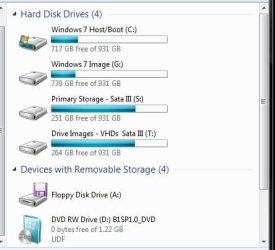
That will grab space however and why I have a separate drive for images while keepest the latest giong to another drive intended for storage. That can chew drive space fast however! :D
 

Attachments

  • Separate Drives Storage Images.jpg
    Separate Drives Storage Images.jpg
    31.1 KB · Views: 1

My Computers My Computers

System One System Two

  • Computer type
    PC/Desktop
    Computer Manufacturer/Model Number
    Custom builds = 2
    OS
    W7 Ultimate x64/W10 Pro x64/W11 Pro Triple Boot - Main PC W7 Remote PC Micro ATX W7 Pro x64/W11 Pro
    CPU
    AMD Phenom II X4 975 Deneb 3.6ghz - 965 2nd remote pc
    Motherboard
    Gigabyte GA-790XTA-UD4-Gigabyte GA-880GM-D2H remote pc
    Memory
    Kingston Hyper X DDR3 1600 1.5v 16gb - Hyper X Fury 8gb 2nd
    Graphics Card(s)
    MSI HD Radeon 5750 1gb - MSI HD Radeon 6450 on mini tower
    Sound Card
    Creative Labs X-Fi Xtreme Audio P - Realtek onooard 2nd case
    Monitor(s) Displays
    ASUS VW199T-P 19" HP 2082a Main-HP 2082a 20" remote pc
    Screen Resolution
    Asus 1440x900 - HP 1600x900
    Hard Drives
    WD Black 1TB HD per OS W7, W10, and pending W11 presently on 500gb OS Drive - Pending Triple 1TB HDs for Spanned Storage/backup volume
    Single 2TB external USB enclosure, single 1TB System 7 Host/Boot drive, Pending 8TB external HD for system image b
    PSU
    Corsair 750TX - primary / Corsair CX600 - second
    Case
    Antec 900-2 - SSD compatible / NZXT Vulcan mini tower
    Cooling
    Zalman CNPS9900A
    Keyboard
    AZIO L70 Backlit Letters Gaming - ONN Cordless/USB
    Mouse
    MSI DS200 Programmable, Logitech Cordless
    Internet Speed
    30mbps upgrade - primary hard wired - mini tower usb WiFi
    Antivirus
    GFI VIPRE Internet Security 2014 on W7 2016 beta on W10,
    Browser
    Cyberfox, WaterFox 64bit FF variants, FireFox x64, Pale Moon
    Other Info
    Accomdata fan cooled usb 2.0 PIDE/Sata II, III external enclosure.
    Sambient usb/eSata PATA/Sata II, III external enclosure.
  • Computer type
    PC/Desktop
    System Manufacturer/Model Number
    CUSTOM ASSEMBLY
    OS
    W7 Pro x64/W11 Pro
    CPU
    AMD Deneb 3.6ghz - 965
    Motherboard
    Gigabyte GA-880GM-D2H remote pc
    Memory
    Kingston Hyper X Fury 8gb
    Graphics Card(s)
    MSI HD Radeon 6450 DVI Output
    Sound Card
    Realtek onooard Creative or Other separate PENDING
    Monitor(s) Displays
    VIZIO 32" LCD TV Separate LCD Pending
    Screen Resolution
    1600x1080
    Hard Drives
    WD 500GB OS Host/Boot WD Green 1TB Storage/Backup
    PSU
    Corsair 600W - THERMALTAKE 600W spare case
    Case
    NZXT Vulcan mini tower
    Cooling
    Twin 120mm Top Fans - 240mm Side Cover
    Keyboard
    ONN Cordless/USB Logitech Cordless
    Mouse
    ONN USB/Cordless - Logitech Cordless
    Internet Speed
    DSL 5G
    Browser
    MS Edge, FireFox, WaterFox x64, FireFox Nightly
    Other Info
    OS Testing-Remote Access to Main TeamViewer
Your first backup was so large because it made a System Image of your entire Win7 drive with all of its files (the WindowsImageBackup file) and then backed up all of your User files separately.

By shrinking your OS partition down to just the OS and programs, it will make a smaller image and end the duplication of two backups of all of your files.

Here's a short video and tutorial on how to move your User files to another drive:
http://www.sevenforums.com/tutorials/72427-data-partition.html
http://www.sevenforums.com/tutorials/18629-user-folders-change-default-location.html
 
Here I can simply nuke all extras right off the drive as far as files and folders present on the main drive and not worry a bit. The system image is made to preserve the softwares invested in however while the entire drive can simply be wiped at any moment just by having one good image tucked away elsewhere.

For repeat regularly scheduled backups that do not overwrite previous ones that will simply continue to eat up drive space in a fast hurry. The links gregrocker posted can save that from being a worry especially when opting to relocate the folders under your user account to a new location as directed in the second guide.

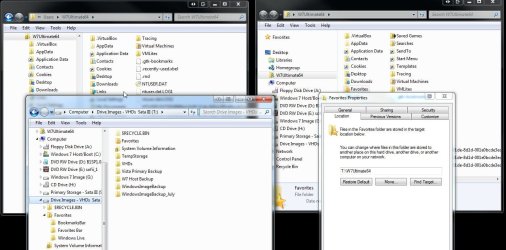
If you look at where the cursor is in the attached image(window at left) you can where the Favorites folder was a fast test of that when compared to the other two windows. The one on the right with the properties screen shows the original location while the 3rd(in front of other two) shows the move was made successfully assigning a new location for anything new as well as keeping it apart from the main drive.
 

Attachments

  • User Files Moved.jpg
    User Files Moved.jpg
    130.7 KB · Views: 6

My Computers My Computers

System One System Two

  • Computer type
    PC/Desktop
    Computer Manufacturer/Model Number
    Custom builds = 2
    OS
    W7 Ultimate x64/W10 Pro x64/W11 Pro Triple Boot - Main PC W7 Remote PC Micro ATX W7 Pro x64/W11 Pro
    CPU
    AMD Phenom II X4 975 Deneb 3.6ghz - 965 2nd remote pc
    Motherboard
    Gigabyte GA-790XTA-UD4-Gigabyte GA-880GM-D2H remote pc
    Memory
    Kingston Hyper X DDR3 1600 1.5v 16gb - Hyper X Fury 8gb 2nd
    Graphics Card(s)
    MSI HD Radeon 5750 1gb - MSI HD Radeon 6450 on mini tower
    Sound Card
    Creative Labs X-Fi Xtreme Audio P - Realtek onooard 2nd case
    Monitor(s) Displays
    ASUS VW199T-P 19" HP 2082a Main-HP 2082a 20" remote pc
    Screen Resolution
    Asus 1440x900 - HP 1600x900
    Hard Drives
    WD Black 1TB HD per OS W7, W10, and pending W11 presently on 500gb OS Drive - Pending Triple 1TB HDs for Spanned Storage/backup volume
    Single 2TB external USB enclosure, single 1TB System 7 Host/Boot drive, Pending 8TB external HD for system image b
    PSU
    Corsair 750TX - primary / Corsair CX600 - second
    Case
    Antec 900-2 - SSD compatible / NZXT Vulcan mini tower
    Cooling
    Zalman CNPS9900A
    Keyboard
    AZIO L70 Backlit Letters Gaming - ONN Cordless/USB
    Mouse
    MSI DS200 Programmable, Logitech Cordless
    Internet Speed
    30mbps upgrade - primary hard wired - mini tower usb WiFi
    Antivirus
    GFI VIPRE Internet Security 2014 on W7 2016 beta on W10,
    Browser
    Cyberfox, WaterFox 64bit FF variants, FireFox x64, Pale Moon
    Other Info
    Accomdata fan cooled usb 2.0 PIDE/Sata II, III external enclosure.
    Sambient usb/eSata PATA/Sata II, III external enclosure.
  • Computer type
    PC/Desktop
    System Manufacturer/Model Number
    CUSTOM ASSEMBLY
    OS
    W7 Pro x64/W11 Pro
    CPU
    AMD Deneb 3.6ghz - 965
    Motherboard
    Gigabyte GA-880GM-D2H remote pc
    Memory
    Kingston Hyper X Fury 8gb
    Graphics Card(s)
    MSI HD Radeon 6450 DVI Output
    Sound Card
    Realtek onooard Creative or Other separate PENDING
    Monitor(s) Displays
    VIZIO 32" LCD TV Separate LCD Pending
    Screen Resolution
    1600x1080
    Hard Drives
    WD 500GB OS Host/Boot WD Green 1TB Storage/Backup
    PSU
    Corsair 600W - THERMALTAKE 600W spare case
    Case
    NZXT Vulcan mini tower
    Cooling
    Twin 120mm Top Fans - 240mm Side Cover
    Keyboard
    ONN Cordless/USB Logitech Cordless
    Mouse
    ONN USB/Cordless - Logitech Cordless
    Internet Speed
    DSL 5G
    Browser
    MS Edge, FireFox, WaterFox x64, FireFox Nightly
    Other Info
    OS Testing-Remote Access to Main TeamViewer
I read the big long System Image tutorial thread a while back, and in it Brink mentioned that he made one after his clean install. I wished I had done that. I think I would prefer to move all of my data off my computer and make a system image either right after a clean install, or a clean install with my most basic and proven stable programs... and then just use Sync Toy to keep my user files backed up. I think that would work best for me. I don't expect to add a lot of programs down the line... I already have most of what I use and like already... although I suppose if I ever had to use my basic System Image to restore, I would still have to update a lot of the programs. And Windows too, of course.

If I had gotten a 1.5 or 2 GB external hdd to back up my 1 GB internal hdd, I guess it wouldn't matter so much... but as it is, I don't like that Windows File Backup uses so much extra space. The basic OS system image plus backing up my user files with Sync Toy should use an amount of space that is similar to the used space on my internal hdd. Unless I'm missing something.

I had a lot of BSOD driver issues since I received this Windows 7 computer, and I think I've gotten them all resolved now. But there were two occasions when I tried to do a system restore, after having a problem with a program, and the restore failed. That never happened in all the years I used XP, and it makes me a little nervous that there is still some underlying issue that hasn't been corrected... so that's another reason why going to the trouble of reinstalling the OS and then making a System Image seems somewhat appealing to me, even though it will be a lot of extra work.
 

My Computer My Computer

Computer type
Laptop
Computer Manufacturer/Model Number
Toshiba Satellite U845W-S410
OS
Windows 7 Home Premium 64 bit
CPU
Intel ® Core™ i5-3317U Processor
Memory
6GB DDR3 1600MHz
Graphics Card(s)
Mobile Intel ® HD Graphics with 64MB-1696MB dynamically allo
Monitor(s) Displays
All-in-one -- Generic PnP Monitor
Screen Resolution
14.4” diagonal widescreen TruBrite ® TFT display at 1792 x 7
Hard Drives
500GB (5400 RPM, Serial ATA) with dedicated 32GB mSATA SSD disk
cache
Keyboard
Logitech
Mouse
Logitech
Concur, SysRestore failure is rare enough in Win7 I would consider reinstalling.

Getting a baseline image after setup is also valuable even if you keep subsequent images. Creeping corruption has made me shrug off newer images several times to go back to baseline.
 
I keep one oldie as well as the latest. For a 1tb drive you wouldn't need a 1.5tb or 2tb drive to store a few images however since there is a degree of compression along with not seeing the main 1tb drive filled to the max when simply having 7 and your programs on.

While the next updated image will see new files it will also be a little lighter from old temp files being tossed. In fact I just restored the July image to redo a few things with that in mind. The average size for an image here runs presently at 131gb while the next should be closer to 100gb max.
 

My Computers My Computers

System One System Two

  • Computer type
    PC/Desktop
    Computer Manufacturer/Model Number
    Custom builds = 2
    OS
    W7 Ultimate x64/W10 Pro x64/W11 Pro Triple Boot - Main PC W7 Remote PC Micro ATX W7 Pro x64/W11 Pro
    CPU
    AMD Phenom II X4 975 Deneb 3.6ghz - 965 2nd remote pc
    Motherboard
    Gigabyte GA-790XTA-UD4-Gigabyte GA-880GM-D2H remote pc
    Memory
    Kingston Hyper X DDR3 1600 1.5v 16gb - Hyper X Fury 8gb 2nd
    Graphics Card(s)
    MSI HD Radeon 5750 1gb - MSI HD Radeon 6450 on mini tower
    Sound Card
    Creative Labs X-Fi Xtreme Audio P - Realtek onooard 2nd case
    Monitor(s) Displays
    ASUS VW199T-P 19" HP 2082a Main-HP 2082a 20" remote pc
    Screen Resolution
    Asus 1440x900 - HP 1600x900
    Hard Drives
    WD Black 1TB HD per OS W7, W10, and pending W11 presently on 500gb OS Drive - Pending Triple 1TB HDs for Spanned Storage/backup volume
    Single 2TB external USB enclosure, single 1TB System 7 Host/Boot drive, Pending 8TB external HD for system image b
    PSU
    Corsair 750TX - primary / Corsair CX600 - second
    Case
    Antec 900-2 - SSD compatible / NZXT Vulcan mini tower
    Cooling
    Zalman CNPS9900A
    Keyboard
    AZIO L70 Backlit Letters Gaming - ONN Cordless/USB
    Mouse
    MSI DS200 Programmable, Logitech Cordless
    Internet Speed
    30mbps upgrade - primary hard wired - mini tower usb WiFi
    Antivirus
    GFI VIPRE Internet Security 2014 on W7 2016 beta on W10,
    Browser
    Cyberfox, WaterFox 64bit FF variants, FireFox x64, Pale Moon
    Other Info
    Accomdata fan cooled usb 2.0 PIDE/Sata II, III external enclosure.
    Sambient usb/eSata PATA/Sata II, III external enclosure.
  • Computer type
    PC/Desktop
    System Manufacturer/Model Number
    CUSTOM ASSEMBLY
    OS
    W7 Pro x64/W11 Pro
    CPU
    AMD Deneb 3.6ghz - 965
    Motherboard
    Gigabyte GA-880GM-D2H remote pc
    Memory
    Kingston Hyper X Fury 8gb
    Graphics Card(s)
    MSI HD Radeon 6450 DVI Output
    Sound Card
    Realtek onooard Creative or Other separate PENDING
    Monitor(s) Displays
    VIZIO 32" LCD TV Separate LCD Pending
    Screen Resolution
    1600x1080
    Hard Drives
    WD 500GB OS Host/Boot WD Green 1TB Storage/Backup
    PSU
    Corsair 600W - THERMALTAKE 600W spare case
    Case
    NZXT Vulcan mini tower
    Cooling
    Twin 120mm Top Fans - 240mm Side Cover
    Keyboard
    ONN Cordless/USB Logitech Cordless
    Mouse
    ONN USB/Cordless - Logitech Cordless
    Internet Speed
    DSL 5G
    Browser
    MS Edge, FireFox, WaterFox x64, FireFox Nightly
    Other Info
    OS Testing-Remote Access to Main TeamViewer
With a backup produced by Win 7 Backup and Restore, you will always be able to restore your hard drive.

Therefore, I recommend:
Use PARTITON WIZARD to create another partition our of your unused space in your C:

Once that is done, then you can put your docs, pics, music etc into that new partition.

Then, as a safety measure, do another Win 7 Backup.

Run PARTITION WIZARD again and use it shrink your C down to about 80 gigs. Then move and expand your new data partition to fill out the rest of the space.

Now to elucidate a couple of points.

There are different schemes for moving data over to a newly created "data" partition. I will give an example of my procedure for moving the stuff in Documents to the new partition. I create a folder in the data partition called DOCS. I move everything from Documents to DOCS.
Next, vie Windows Explorer, Add your new DOCS folder to the Documents library. This way any reference to Documents will also look in your new DOCS folder. Do the same thing for the other libraries.

Partition Magic is NOT Partition Wizard.

The link you need is:Free Download Partition Wizard

Be forewarned, that some of the operations you will perform with partition wizard are going to take a painfully long time.
 

My Computer My Computer

Computer Manufacturer/Model Number
Toshiba Satellite S875D-S7239 laptop
OS
MS Windows 7 Ultimate SP1 64-bit
CPU
AMD A10-4600M
Motherboard
AMD Pumori (Socket FT1)
Memory
6.00 GB Dual-Channel DDR3 @ 798MHz (11-11-12-28)
Graphics Card(s)
AMD Radeon HD 7660G
Sound Card
High Definition Audio Device
Monitor(s) Displays
Generic PnP Monitor (1600x900@60Hz)
Screen Resolution
1600x900@60Hz
Hard Drives
SSD 119GB Corsair CSSD-V128GB2 ATA Device
Keyboard
Standard PS/2 Keyboard
Mouse
HP Wireless Optical Mobile Mouse Model FHA-3410
Internet Speed
What the local pub, local coffee shop offers.
Other Info
Optical Drive:MATSHITA BD-CMB UJ160B ATA Device


Also have an Asus ha1002xp netbook with Win 7 Ultimate installed.
Who mentioned abything about Partition Magic? I just prepped two drives on an entirely new with GParted for a 64bit 7 HP install there. I'm posting this reply while booted on that system while readying it as an upgrade for someone. Others point to Partition Wizard being simply another free partitioning program seen there.
 

My Computers My Computers

System One System Two

  • Computer type
    PC/Desktop
    Computer Manufacturer/Model Number
    Custom builds = 2
    OS
    W7 Ultimate x64/W10 Pro x64/W11 Pro Triple Boot - Main PC W7 Remote PC Micro ATX W7 Pro x64/W11 Pro
    CPU
    AMD Phenom II X4 975 Deneb 3.6ghz - 965 2nd remote pc
    Motherboard
    Gigabyte GA-790XTA-UD4-Gigabyte GA-880GM-D2H remote pc
    Memory
    Kingston Hyper X DDR3 1600 1.5v 16gb - Hyper X Fury 8gb 2nd
    Graphics Card(s)
    MSI HD Radeon 5750 1gb - MSI HD Radeon 6450 on mini tower
    Sound Card
    Creative Labs X-Fi Xtreme Audio P - Realtek onooard 2nd case
    Monitor(s) Displays
    ASUS VW199T-P 19" HP 2082a Main-HP 2082a 20" remote pc
    Screen Resolution
    Asus 1440x900 - HP 1600x900
    Hard Drives
    WD Black 1TB HD per OS W7, W10, and pending W11 presently on 500gb OS Drive - Pending Triple 1TB HDs for Spanned Storage/backup volume
    Single 2TB external USB enclosure, single 1TB System 7 Host/Boot drive, Pending 8TB external HD for system image b
    PSU
    Corsair 750TX - primary / Corsair CX600 - second
    Case
    Antec 900-2 - SSD compatible / NZXT Vulcan mini tower
    Cooling
    Zalman CNPS9900A
    Keyboard
    AZIO L70 Backlit Letters Gaming - ONN Cordless/USB
    Mouse
    MSI DS200 Programmable, Logitech Cordless
    Internet Speed
    30mbps upgrade - primary hard wired - mini tower usb WiFi
    Antivirus
    GFI VIPRE Internet Security 2014 on W7 2016 beta on W10,
    Browser
    Cyberfox, WaterFox 64bit FF variants, FireFox x64, Pale Moon
    Other Info
    Accomdata fan cooled usb 2.0 PIDE/Sata II, III external enclosure.
    Sambient usb/eSata PATA/Sata II, III external enclosure.
  • Computer type
    PC/Desktop
    System Manufacturer/Model Number
    CUSTOM ASSEMBLY
    OS
    W7 Pro x64/W11 Pro
    CPU
    AMD Deneb 3.6ghz - 965
    Motherboard
    Gigabyte GA-880GM-D2H remote pc
    Memory
    Kingston Hyper X Fury 8gb
    Graphics Card(s)
    MSI HD Radeon 6450 DVI Output
    Sound Card
    Realtek onooard Creative or Other separate PENDING
    Monitor(s) Displays
    VIZIO 32" LCD TV Separate LCD Pending
    Screen Resolution
    1600x1080
    Hard Drives
    WD 500GB OS Host/Boot WD Green 1TB Storage/Backup
    PSU
    Corsair 600W - THERMALTAKE 600W spare case
    Case
    NZXT Vulcan mini tower
    Cooling
    Twin 120mm Top Fans - 240mm Side Cover
    Keyboard
    ONN Cordless/USB Logitech Cordless
    Mouse
    ONN USB/Cordless - Logitech Cordless
    Internet Speed
    DSL 5G
    Browser
    MS Edge, FireFox, WaterFox x64, FireFox Nightly
    Other Info
    OS Testing-Remote Access to Main TeamViewer
Back
Top