
Windows Calendar - Import into Windows 7

How to Import Windows Calendar from Vista into Windows 7

   Information
This will show you how to import Windows Calendar from Vista into Windows 7, and to enable using Windows Calendar from the toolbar button in Windows Mail in Windows 7 if you also imported it.

There is no Windows Calendar feature included in Windows 7 by default.
   Note
Credit to Greg S for researching and creating the WinCalEdit.zip file which allows the button in the desktop WinMail.exe interface to open Windows Calendar.
   Warning
If running 64bit Windows 7 it is essential to import Windows Calendar from a 64bit Vista installation into the normal 64bit program files. And the same for 32 to 32bit.


Step 1
  • In Vista open: Program Files --> Windows Calendar.
  • Copy the entire Windows Calendar folder.
  • Paste this folder into Program files in Win7.
  • Still in program files, open the pasted Windows Calendar folder --> Right click: WinCal --> Send to desktop as shortcut.
  • If desired create a Windows Calendar shortcut in Start menu programs as follows:
  • Choose View options to show hidden folders.
  • Open: Computer --> C: Drive --> Program Data --> Microsoft --> Windows --> Start Menu --> Programs.
  • Paste copy of WinCal shortcut into Start Menu Programs & re-name to: Windows Calendar.
Step 2
  • In Vista open: Control Panel --> Administrative Tools --> Task Scheduler.
  • In left window pane expand tree for: Task Scheduler Library --> Microsoft --> Windows.
  • Scroll down Windows tree to: WindowsCalendar --> Click to highlight --> In right window pane click: Export.
  • It opens a file named "Reminders - 'Your User name'.XML"
  • Save this file to desk top or storage folder.
Step 3
  • Open saved "Reminders.XML" file with Notepad, but do not set Notepad as default opener.
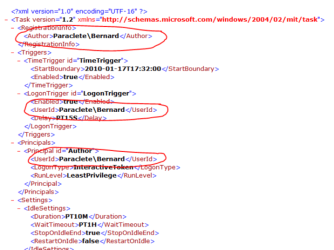
  • Wherever your user name and computer name appear, it must be changed to exactly match your user name and computer name in Windows 7. To find Computer name, right click: Computer --> Properties.
  • See following pic to find where changes need to be made. Note: This image shows "Reminder file" opened in normal view, but it must be opened with Notepad to make changes. Click image to enlarge.
RemindersXML.PNG


  • For example, "Paraclete/Bernard" becomes "Lizzi's Computer/Lizzi".​
  • Once changes are made click: Save. Changes will be saved as XML file.​
Step 4
  • In Windows 7 open: Control Panel --> Administrative Tools --> Task Scheduler.
  • In left window pane expand tree for: Task Scheduler Library --> Microsoft --> Windows.
  • Click: Windows to highlight --> Right click again & select: New Folder.
  • Name new folder exactly as follows: WindowsCalendar with no spaces.
  • Click: OK. The new WindowsCalendar folder is added to the Windows tree in the left pane.
Step 5
  • Click new folder: "WindowsCalendar" in the Windows tree to highlight --> Right click again to open menu.
  • Select: Import Task --> Browse to where you have saved the "Reminders - .XML" file.
  • Click: "Reminders - .XML" file to import it. If a message appears saying: "The format of the task is not valid" it means you have not changed the computer and user names correctly.
  • In bottom of new window that appears, open: Drop down menu --> Select: Windows 7 --> Click: OK.
Step 6
  • Open and run the regedit file WinCalEdit.zip attached here View attachment WinCalEdit.zip. This enables Windows Calendar to open in the desktop WinMail.exe interface.
Step 7
  • For help in using Windows Calendar go to the following web site here.
You're done. Cheers PB


Last edited by a moderator:
I'm so exciting !
Thank you sooooo much !

I'll wait, no problem !

Thanks again NoMatterWho :)
 

My Computer My Computer

At a glance

Windows 10 - 64 bit
Computer type
PC/Desktop
Computer Manufacturer/Model Number
ASUS
OS
Windows 10 - 64 bit

My Computer My Computer

At a glance

Windows 7 Professional
Computer type
Laptop
OS
Windows 7 Professional
Thanks for the tutorial. I managed to find a link to download/extract wincalc.exe update from MS's site (sorry, forgot URL) for x64.

A comment:

The WinCalcEdit registry file includes some non-related entries. All you need in the top section are the lines:
Code:
Windows Registry Editor Version 5.00

[HKEY_LOCAL_MACHINE\SOFTWARE\RegisteredApplications]
"Windows Calendar"="Software\\Clients\\Calendar\\Windows Calendar\\Capabilities"

If you open up the .reg file in Notepad, you can/should delete all these extra lines in the top section:
Code:
"Windows Address Book"="Software\\Clients\\Contacts\\Address Book\\Capabilities"
"Internet Explorer"="SOFTWARE\\Microsoft\\Internet Explorer\\Capabilities"
"Windows Mail (News)"="Software\\Clients\\News\\Windows Mail\\Capabilities"
"Windows Media Player"="Software\\Clients\\Media\\Windows Media Player\\Capabilities"
"Windows Photo Gallery Viewer"="Software\\Microsoft\\Windows Photo Gallery\\Capabilities"
"Windows Media Center"="Software\\Clients\\Media\\Windows Media Center\\Capabilities"
"Windows Mail"="Software\\Clients\\Mail\\Windows Mail\\Capabilities"
"Firefox"="Software\\Clients\\StartMenuInternet\\FIREFOX.EXE\\Capabilities"
"OpenOffice.org 2.3"="SOFTWARE\\OpenOffice.org\\OpenOffice.org\\2.3\\Capabilities"
"Windows Search"="Software\\Microsoft\\Windows Search\\Capabilities"
"Yahoo! Mail"="Software\\Clients\\Mail\\Yahoo! Mail\\Capabilities"
"QuickTime"="SOFTWARE\\Clients\\Media\\QuickTime\\Capabilities"
@=""
"iTunes"="Software\\Clients\\Media\\iTunes\\Capabilities"
"Google.PhotoViewer.3.0"="SOFTWARE\\Google\\Picasa\\Photo Viewer\\Capabilities"
 

My Computer My Computer

At a glance

Windows 7 Ultimate x64
Computer type
PC/Desktop
OS
Windows 7 Ultimate x64
Thanks for the tutorial. I managed to find a link to download/extract wincalc.exe update from MS's site (sorry, forgot URL) for x64.

(Sorry, can't edit my previous post ...)

Here is the Vista update pack to get wincalc.exe, both x86 and x64 versions:
https://support.microsoft.com/en-us/help/938194/

Once downloaded, you need to use command line to extract the files inside.
> expand -F:* 938194.msu C:\target_dir
(where 9381984.msu is the filename of what you just downloaded and C:\target_dir is whatever directory you want to extract the files to)
You will then end up with a .cab file.
> expand -F:* 938194.cab C:\target_dir

You'll end up with a whole bunch of directories, and inside a few of them are wincalc.exe. I have no idea what the difference between them are. I just grabbed the first one I saw, which was in the top AMDX64 directory.
 

My Computer My Computer

At a glance

Windows 7 Ultimate x64
Computer type
PC/Desktop
OS
Windows 7 Ultimate x64
Reminders XML

I have never had the vista version. I am starting fresh and I want to export from Outlook. Do what to I do? I am not sure about Step 3. Is it necessary? If I need to do something, please tell me how to create. Thank you!
 

My Computer My Computer

At a glance

Windows 7 Ultimate x64
Computer type
PC/Desktop
OS
Windows 7 Ultimate x64
WinCalEdit

I did everything correctly. But I cannot get the stupid button in win mail to work. I did run the downloaded zip file program. It did change the registry. I did reboot the computer? Any ideas?
 

My Computer My Computer

At a glance

Windows 7 Ultimate x64
Computer type
PC/Desktop
OS
Windows 7 Ultimate x64
I cannot get the button in win mail to work.
Any ideas?

@ krutzy
Hello krutzy,
I never had installed or used Calendar before, never had a reason or desire, but I saw no one was answering you except for two weeks ago in that other post, so I had a moment to help and so I quickly transferred the files (and like you I did not even take the time do step 3 yet either and so something else may not work right? (not sure) for that feature so remember that) ..but anyway within 2 minutes on Win7 x64 I opened WinMail and went to the top tab of Tools> Windows Calendar, clicked it, and it opened up immediately. Here's a Screenshot of that.
I also tried the same thing on Win10 x64 and that WinMail Calendar tab worked there as well too.
(fwiw, I used the file attachment from Post #35, and of course you would use the correct folder x86 or x64 to match your OS's bit)

So it's something you are not doing right.
I just tried a few different things and I can reproduce what you have in Win7 x64 too, and so my guess is maybe you put the Windows Calendar folder/files into the "Program Files x86" folder, but they don't go there, you need to put them in the (screenshot) "Program Files" folder for the WinMail calendar button to work.

@ wyhiwyg
fwiw, you thought you were giving the link to extract the updated wincalc.exe, however it's not an updated version at all and quite the opposite, what you link is an older version 6/26/2007 v6.0.6000.16513, and the files in post #35 are actually newer versions 1/20/2008 v6.0.6001.18000
 

My Computer My Computer

At a glance

Vista/Win7/8/10/11 (x86/x64)i7
Computer type
PC/Desktop
Computer Manufacturer/Model Number
..all towers built from scratch
OS
Vista/Win7/8/10/11 (x86/x64)
CPU
i7
Thank you! I had it in the "Program Files x(86)" folder, I swear I read that is where it was suppose to go, old age. So all I did was move the folder to the "Program Files" and it works perfectly. You made my day! :-)
 

My Computer My Computer

At a glance

Windows 7 Ultimate x64
Computer type
PC/Desktop
OS
Windows 7 Ultimate x64
@ wyhiwyg
fwiw, you thought you were giving the link to extract the updated wincalc.exe, however it's not an updated version at all and quite the opposite, what you link is an older version 6/26/2007 v6.0.6000.16513, and the files in post #35 are actually newer versions 1/20/2008 v6.0.6001.18000
Yes, you're right. Thanks.

It is an updated version, but not the latest/last version.
 

My Computer My Computer

At a glance

Windows 7 Ultimate x64
Computer type
PC/Desktop
OS
Windows 7 Ultimate x64
Back
Top