Windows Calendar - Import into Windows 7

How to Import Windows Calendar from Vista into Windows 7

   Information
This will show you how to import Windows Calendar from Vista into Windows 7, and to enable using Windows Calendar from the toolbar button in Windows Mail in Windows 7 if you also imported it.

There is no Windows Calendar feature included in Windows 7 by default.
   Note
Credit to Greg S for researching and creating the WinCalEdit.zip file which allows the button in the desktop WinMail.exe interface to open Windows Calendar.
   Warning
If running 64bit Windows 7 it is essential to import Windows Calendar from a 64bit Vista installation into the normal 64bit program files. And the same for 32 to 32bit.


Step 1
  • In Vista open: Program Files --> Windows Calendar.
  • Copy the entire Windows Calendar folder.
  • Paste this folder into Program files in Win7.
  • Still in program files, open the pasted Windows Calendar folder --> Right click: WinCal --> Send to desktop as shortcut.
  • If desired create a Windows Calendar shortcut in Start menu programs as follows:
  • Choose View options to show hidden folders.
  • Open: Computer --> C: Drive --> Program Data --> Microsoft --> Windows --> Start Menu --> Programs.
  • Paste copy of WinCal shortcut into Start Menu Programs & re-name to: Windows Calendar.
Step 2
  • In Vista open: Control Panel --> Administrative Tools --> Task Scheduler.
  • In left window pane expand tree for: Task Scheduler Library --> Microsoft --> Windows.
  • Scroll down Windows tree to: WindowsCalendar --> Click to highlight --> In right window pane click: Export.
  • It opens a file named "Reminders - 'Your User name'.XML"
  • Save this file to desk top or storage folder.
Step 3
  • Open saved "Reminders.XML" file with Notepad, but do not set Notepad as default opener.
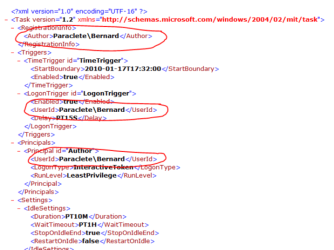
  • Wherever your user name and computer name appear, it must be changed to exactly match your user name and computer name in Windows 7. To find Computer name, right click: Computer --> Properties.
  • See following pic to find where changes need to be made. Note: This image shows "Reminder file" opened in normal view, but it must be opened with Notepad to make changes. Click image to enlarge.
RemindersXML.PNG


  • For example, "Paraclete/Bernard" becomes "Lizzi's Computer/Lizzi".​
  • Once changes are made click: Save. Changes will be saved as XML file.​
Step 4
  • In Windows 7 open: Control Panel --> Administrative Tools --> Task Scheduler.
  • In left window pane expand tree for: Task Scheduler Library --> Microsoft --> Windows.
  • Click: Windows to highlight --> Right click again & select: New Folder.
  • Name new folder exactly as follows: WindowsCalendar with no spaces.
  • Click: OK. The new WindowsCalendar folder is added to the Windows tree in the left pane.
Step 5
  • Click new folder: "WindowsCalendar" in the Windows tree to highlight --> Right click again to open menu.
  • Select: Import Task --> Browse to where you have saved the "Reminders - .XML" file.
  • Click: "Reminders - .XML" file to import it. If a message appears saying: "The format of the task is not valid" it means you have not changed the computer and user names correctly.
  • In bottom of new window that appears, open: Drop down menu --> Select: Windows 7 --> Click: OK.
Step 6
  • Open and run the regedit file WinCalEdit.zip attached here View attachment WinCalEdit.zip. This enables Windows Calendar to open in the desktop WinMail.exe interface.
Step 7
  • For help in using Windows Calendar go to the following web site here.
You're done. Cheers PB


Last edited by a moderator:
Yeppers... I been wearin out the Google and Bing search engines for months... It was very helpful for finding appointment and past events entered in the calendar... I had my Vista Calendar for almost 3 years and could find stuff all the way back to the first entries... Man I miss that..... But at least we have the calendar/reminders back... And we don't have to open Live Mail to get it...
 

My Computer My Computer

OS
XP Pro 32bit, Vista Ultimate 64bit, Windows7 Ultimate 64bit
@poppa bear
Is it possible to "integrate" Windows Calendar in Windows Live Mail 2011 (which has the most stupid reminder-by-online-autoemail-only system)? Or at least a shortcut from within WLM...
 

My Computer My Computer

Computer type
Laptop
Computer Manufacturer/Model Number
MSI GX660-262it
OS
Windows 7 Home Premium x64 SP1
CPU
Intel Core i7 840QM
Memory
8GB DDR3 1333MHz
Graphics Card(s)
ATI Mobility HD 7970M 2GB DDR5
Screen Resolution
1920x1080
Hard Drives
Intel SSDSA2CT040G3
Hybrid ST750LX0ST750LX003
Antivirus
360 Internet Security
Browser
IE10
@poppa bear
Is it possible to "integrate" Windows Calendar in Windows Live Mail 2011 (which has the most stupid reminder-by-online-autoemail-only system)? Or at least a shortcut from within WLM...
Sorry, but not that I know of. If I find a way I'll add it to this post.
 

My Computer My Computer

Computer Manufacturer/Model Number
Self-assembled
OS
Win7 Ultimate 64bit Retail
CPU
Intel i7 960 quad core
Motherboard
Intel DX58SO2 Extreme
Memory
12 GB Kingston DDR 3 1300
Graphics Card(s)
PCI Express Gigabyte GTX 550 Ti
Sound Card
Gigabyte GTX 550 Ti Graphics/5 Sound card
Monitor(s) Displays
Samsung WS Syncmaster S23A350H
Screen Resolution
1920 x 1080
Hard Drives
OS on 128 GB Corsair SSD SATA 3 + Storage on 1 TB Western Digital Black SATA 2
Case
Cooler Master CM690 II Advanced Mid Tower
Cooling
CPU, top, front and rear extractor fans
Keyboard
Microsoft Intellitype Wireless Multimedia
Mouse
Microsoft Intellipoint2 Wireless
Internet Speed
100 MB/sec Theoretical max. Actual average 0.5MB/sec
Other Info
Back-up PC with Vista Ultimate OEM 32bit. Intel i5 2400 Quad Core CPU, DH67CL mobo, 8 GB Kingston DDR3 1300 RAM,

My Computer My Computer

Computer type
PC/Desktop
Computer Manufacturer/Model Number
Home Built Desktop By DataTech
OS
Windows 7 Ultimate X64 SP1
CPU
Intel i5-2550K, Differing ~4.4-4.8GHz No built in GPU
Motherboard
ASUS P8Z68-V PRO/GEN3
Memory
16GB G.Skill Sniper 1866MHz @ 2133MHz 2x8GB
Graphics Card(s)
ASUS GTX650TIB-DC2OC-2GD5, (650TI Boost)
Sound Card
Onboard Realtek 5-1
Monitor(s) Displays
Samsung P2570HD
Screen Resolution
1920x1080
Hard Drives
Samsung 840 Pro 256GB SSD for OS, 500GB Seagate Constellation (Enterprise drive) for Data
PSU
Corsair HX650W
Case
Inwin Dragon Rider
Cooling
Hyper 212 EVO w/two Noctua fans, push-pull, @1300 RPM
Keyboard
E-Z Eyes, bright yellow keys with large characters
Mouse
steelseries SENSEI Laser Pro Gaming
Internet Speed
48-51Mbs Mbs down, 11 Mbs up Xfinity Cable
Antivirus
Norton Internet Security 2013
Browser
IE 10, Opera, Pale Moon if needed
Other Info
4 case fans, LG BluRay-RE, ASUS DVD-RW, Mr. Fusion power supply, 1.21 gigawatts.
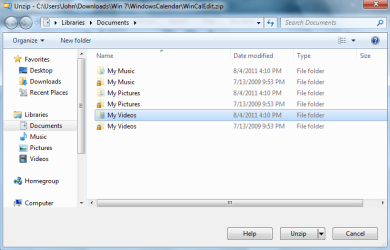
Thanks Poppa Bear, I have just spent most of my afternoon installing the Vista WinMail on my ThinkPad under Win7. So for it looks successful. My next project was to move the Vista Calendar using your great tutorial, but I have run up against, what I think is a problem. The download link for WinCalEdit.zip gives me a surprise when it extracts. see attached clip.
I think something is broken? Please advise.
Regards.
 

Attachments

  • WinCalZipCapture.PNG
    WinCalZipCapture.PNG
    29.6 KB · Views: 370

My Computer My Computer

Computer Manufacturer/Model Number
Lenovo ThinkPad
OS
Win 7 Pro 32
CPU
Centrino Duo
Motherboard
1952 AP2 L
Memory
1GB
Hard Drives
Hitachi 360GB
Thanks Poppa Bear, I have just spent most of my afternoon installing the Vista WinMail on my ThinkPad under Win7. So for it looks successful. My next project was to move the Vista Calendar using your great tutorial, but I have run up against, what I think is a problem. The download link for WinCalEdit.zip gives me a surprise when it extracts. see attached clip.
I think something is broken? Please advise.
Regards.
Unfortunately I don't know what's happening there. I've just used the link from Page 1, Step 6, of the tutorial to donwload WinCalEdit.zip, and it saved OK to my desktop as a Winzip file. Or I could have saved it to "My Documents" or some other folder.

Once the file is downloaded the registry edit file must be extracted from the Winzip file and saved to your desktop; and singled clicked to run it. Then click "yes" in response to the prompts.

Sorry I can't be more helpful. PB :(
 

My Computer My Computer

Computer Manufacturer/Model Number
Self-assembled
OS
Win7 Ultimate 64bit Retail
CPU
Intel i7 960 quad core
Motherboard
Intel DX58SO2 Extreme
Memory
12 GB Kingston DDR 3 1300
Graphics Card(s)
PCI Express Gigabyte GTX 550 Ti
Sound Card
Gigabyte GTX 550 Ti Graphics/5 Sound card
Monitor(s) Displays
Samsung WS Syncmaster S23A350H
Screen Resolution
1920 x 1080
Hard Drives
OS on 128 GB Corsair SSD SATA 3 + Storage on 1 TB Western Digital Black SATA 2
Case
Cooler Master CM690 II Advanced Mid Tower
Cooling
CPU, top, front and rear extractor fans
Keyboard
Microsoft Intellitype Wireless Multimedia
Mouse
Microsoft Intellipoint2 Wireless
Internet Speed
100 MB/sec Theoretical max. Actual average 0.5MB/sec
Other Info
Back-up PC with Vista Ultimate OEM 32bit. Intel i5 2400 Quad Core CPU, DH67CL mobo, 8 GB Kingston DDR3 1300 RAM,
Poppa Bear,
I did resolve my issue regarding unzipping WinCalEdit.zip that I had yesterday. I did not have the file folder defaults set to show file extensions, so got confused at what I was seeing. All is well now. I must thank you for your SUPURB skill at researching & writing all your tutorials, I only wish I had similar skills at READING them...lol. Win some, loose some I guess.
Now I need to find out why, when I delete the desktop icon for WinMail, I loose the same from the start menu list also....why? I likely missed something while reading and executing the steps. I will re read your initial Tutorial and see if I can figure that one out. Otherwise I am fat dumb & happy with what I have accomplished....thanks to you!
I really like my Win 7 a whole lot more with the Vista WinMail that I have gotten used to over the years. For me, it is way simpler than the win7 alternatives.
Cheers:)
 

My Computer My Computer

Computer Manufacturer/Model Number
Lenovo ThinkPad
OS
Win 7 Pro 32
CPU
Centrino Duo
Motherboard
1952 AP2 L
Memory
1GB
Hard Drives
Hitachi 360GB
Still looking for a solution to the missing search box in win cal after installing in Win 7.... Anyone got a clue?
 

My Computer My Computer

OS
XP Pro 32bit, Vista Ultimate 64bit, Windows7 Ultimate 64bit
I was able to install the calendar from my Vista into my new computer (Windows 7). However, there is no Search box included and there was one in Vista. Does anyone know how to get the Search box back into the calendar? Thanks!
 

My Computer My Computer

OS
Windows 7 64 bit
Using windows calendar in windows 7

Hi everybody,

I import my vista calendar into windows 7 and the procedure works very fine.

The only problem I have, it's that I do not receive a confirmation windows when I suppress an appointment. Is it possible to active this message like it was working on windows Vista?

Thank you very much to help me!
 

My Computer My Computer

Computer Manufacturer/Model Number
Toshiba
OS
Windows 7 64 bit
Going from a 32bit Vista to 64bit Win7:

My old laptop uses Vista Home Premium 32bit, new one uses Windows 7 Home Premium 64bit. what, if anything, can i do to get my calendar data from Vista Windows Calendar onto my new laptop?

Bottom line: I don't care what calendar application I end up with on my new laptop, I just want to transfer the data. Thanks!
 

My Computer My Computer

Computer Manufacturer/Model Number
HP Pavilion g7-2010nr Notebook PC
OS
Windows 7 Home Premium 64bit
CPU
Intel Core i3
Motherboard
don't know
Memory
6GB
Graphics Card(s)
not sure
Sound Card
not sure
Monitor(s) Displays
not sure
Hard Drives
640GB
Import Calendar from a Vista 32 bit to WIN7 64 bit PC

In your post I read the following:

If running 64bit Windows 7 it is essential to import Windows Calendar from a 64bit Vista installation into the normal 64bit program files. And the same for 32 to 32bit.

Is their no way to import the information I've entered in my Windows Vista Calendar (32 bit PC) into my "new" WIN 7 64 bit computer?
 

My Computer My Computer

OS
Windows 7 Pro x64
Search Box

Surely some of you whiz kids can figure out how to get the SEARCH BOX working.... ;)
 

My Computer My Computer

OS
XP Pro 32bit, Vista Ultimate 64bit, Windows7 Ultimate 64bit
Stone Man... If you have successfully installed the calender program in your 64 bit machine and you are just trying to transfer your 32 bit Vista Calender entries to your 64 bit windows, you can "export" your Vista machine calender to a .ICS file and import it into your 64 bit machine.. Click File:Export and save the .ics file to a geek stick...

Hope this helps
 

My Computer My Computer

OS
XP Pro 32bit, Vista Ultimate 64bit, Windows7 Ultimate 64bit
Quiet old topic, huh :)
So, does someone interesting for turn on notifications on constant basis, not only when calendar has active window?
 

My Computer My Computer

Computer type
Laptop
OS
Windows 7 Professional
For enabling Calendar in Windows Mail.
As people may no longer have a copy of their Vista machine files I attach the files needed, including a copy of the XML file which will of course need amending as above.
A special note for those using this for Windows 10 - follow the above tute in post 1 from the Task Scheduler part onwards. Windows 10 already has a WinCal folder ready and waiting.
I've tested this and it works fine in Windows Mail in 10.
 

Attachments

Last edited:

My Computer My Computer

Computer type
PC/Desktop
Computer Manufacturer/Model Number
Alienware® ALX X58
OS
Win 7 Ult SP1/Win 10 Pro (all x64)
CPU
Intel® Core™ i7-975 Extreme O/C to 4.02 GHz, 8MB Cache
Motherboard
Asus® P6T Deluxe V2 X58 LGA1366
Memory
24GB Corsair Vengeance DDR3 SDRAM at 1600MHz - 6 x 4096MB
Graphics Card(s)
1792 MB NVIDIA® GeForce® GTX 295 Dual Core
Sound Card
Onboard Soundmax® High-Definition 7.1 Performance Audio
Monitor(s) Displays
Samsung XL2370 LED backlit 23" W/S 2ms response time
Screen Resolution
1920 X 1080
Hard Drives
2 x 500gb SATA II
1 x 1TB SATA II
1 external eSATA LaCie 3TB
(Non-RAID)
PSU
Alienware® 1200 Watt Multi-GPU
Case
Alienware® P2 ALX Chassis with AlienIce™ 3.0 Video Cooling
Cooling
Alienware® High-Perf. Liquid Cooling + Acoustic Dampening
Keyboard
Microsoft® Wireless Entertainment 8000 + Logitech® G15 Wired
Mouse
Microsoft® Wireless Laser 8000 + Logitech® G9 Wired
Internet Speed
1Gb/s
Antivirus
McAfee LiveSafe
Browser
Firefox - latest
Other Info
Using non-RAID on purpose as I find RAID to be too temperamental.
Now set to AHCI
For enabling Calendar in Windows Mail.
As people may no longer have a copy of their Vista machine files I attach the files needed, including a copy of the XML file which will of course need amending as above.
A special note for those using this for Windows 10 - follow the above tute in post 1 from the Task Scheduler part onwards. Windows 10 already has a WinCal folder ready and waiting.
I've tested this and it works fine in Windows Mail in 10.

Dear Ex_Brit!

Install sequence You talk about is completely wrong, that's why notifications are broken. And You don't need any .xml files adding instead of native file. As I wrote, I found right way to install Calendar with notifications support, but it's a little bit tricky, so I'm in doubt, do anyone wants follow that sequence.
 

My Computer My Computer

Computer type
Laptop
OS
Windows 7 Professional
Who said notifications are broken?
 

My Computer My Computer

Computer type
PC/Desktop
Computer Manufacturer/Model Number
Alienware® ALX X58
OS
Win 7 Ult SP1/Win 10 Pro (all x64)
CPU
Intel® Core™ i7-975 Extreme O/C to 4.02 GHz, 8MB Cache
Motherboard
Asus® P6T Deluxe V2 X58 LGA1366
Memory
24GB Corsair Vengeance DDR3 SDRAM at 1600MHz - 6 x 4096MB
Graphics Card(s)
1792 MB NVIDIA® GeForce® GTX 295 Dual Core
Sound Card
Onboard Soundmax® High-Definition 7.1 Performance Audio
Monitor(s) Displays
Samsung XL2370 LED backlit 23" W/S 2ms response time
Screen Resolution
1920 X 1080
Hard Drives
2 x 500gb SATA II
1 x 1TB SATA II
1 external eSATA LaCie 3TB
(Non-RAID)
PSU
Alienware® 1200 Watt Multi-GPU
Case
Alienware® P2 ALX Chassis with AlienIce™ 3.0 Video Cooling
Cooling
Alienware® High-Perf. Liquid Cooling + Acoustic Dampening
Keyboard
Microsoft® Wireless Entertainment 8000 + Logitech® G15 Wired
Mouse
Microsoft® Wireless Laser 8000 + Logitech® G9 Wired
Internet Speed
1Gb/s
Antivirus
McAfee LiveSafe
Browser
Firefox - latest
Other Info
Using non-RAID on purpose as I find RAID to be too temperamental.
Now set to AHCI
Come on, :)

Popups work only when:

a) system (re)starts

- or -

b) calendar app started

Who needs calendar doesn't notificate for appointmets etc. in appropriate time?
 

My Computer My Computer

Computer type
Laptop
OS
Windows 7 Professional
Each to their own as the saying goes.
 

My Computer My Computer

Computer type
PC/Desktop
Computer Manufacturer/Model Number
Alienware® ALX X58
OS
Win 7 Ult SP1/Win 10 Pro (all x64)
CPU
Intel® Core™ i7-975 Extreme O/C to 4.02 GHz, 8MB Cache
Motherboard
Asus® P6T Deluxe V2 X58 LGA1366
Memory
24GB Corsair Vengeance DDR3 SDRAM at 1600MHz - 6 x 4096MB
Graphics Card(s)
1792 MB NVIDIA® GeForce® GTX 295 Dual Core
Sound Card
Onboard Soundmax® High-Definition 7.1 Performance Audio
Monitor(s) Displays
Samsung XL2370 LED backlit 23" W/S 2ms response time
Screen Resolution
1920 X 1080
Hard Drives
2 x 500gb SATA II
1 x 1TB SATA II
1 external eSATA LaCie 3TB
(Non-RAID)
PSU
Alienware® 1200 Watt Multi-GPU
Case
Alienware® P2 ALX Chassis with AlienIce™ 3.0 Video Cooling
Cooling
Alienware® High-Perf. Liquid Cooling + Acoustic Dampening
Keyboard
Microsoft® Wireless Entertainment 8000 + Logitech® G15 Wired
Mouse
Microsoft® Wireless Laser 8000 + Logitech® G9 Wired
Internet Speed
1Gb/s
Antivirus
McAfee LiveSafe
Browser
Firefox - latest
Other Info
Using non-RAID on purpose as I find RAID to be too temperamental.
Now set to AHCI
Back
Top