Solved Windows clock regularly changes itself to a random (?) date/time

Marsome

New member
Local time
8:46 PM
Messages
5
The problem:
The windows clock goes periodically out of sync.
I noticed this happening mostly when I restart the computer (though I have not been able to pin down the exact recurrence).
I tried a number of fixes, but what mostly strikes me as odd, and possibly indicative of the actual problem, is that if I manually change the clock to the real time, and I go for example to sites like time.is, the site tells me that my clock is out of sync.
If I use the internet sinchronization of windows the clock goes to a strange hour (for example now is 13:44, and internet sinchronization sets the clock at 22:47), but time.is tells me that my clock is right, even though it clearly isn't, and it gives an hour very different to that of the site.

Possible cause:
I admit I may have inadvertently caused this problem, as it appeared after a few days ago for a couple of reasons I messed around with registry keys related to the time.
In particular I changed the value of the registry key
Code:
HKEY_LOCAL_MACHINE\SOFTWARE\Microsoft\Windows NT\CurrentVersion\Time Zones\W. Europe Standard Time\Dynamic DST
for example adding a 2015 key that wasn't there and seemed to be required in the installation of Microsoft Office.
I think I reverted the changes I made, but I may have missed something.

Some fixes that do not work:
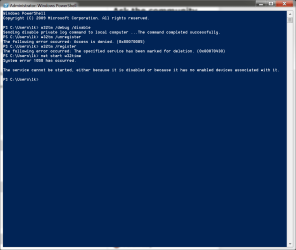
I tried following the suggestions on this sevenforums post.
Unfortunately it doesn't work, here is the terminal's output:
attachment.php
 

Attachments

  • powershell.png
    powershell.png
    23.4 KB · Views: 30

My Computer

Computer type
Laptop
Computer Manufacturer/Model Number
Dell Precision M3800
OS
Windows 7 Professional 64bit
If the cause is the registry, it cannot be fixed using normal methods. If it were me, I would uninstall and then install again. Also if it is the registry, system restore would correct the problem.
Good luck
 

My Computer

Computer type
PC/Desktop
Computer Manufacturer/Model Number
Dell XPS 420
OS
Windows 10, Home Clean Install
CPU
Intel Core2 processsor Q8200(2.33Ghz 1333FSB) Quad Core Tech
Motherboard
Dell
Memory
6 gb
Graphics Card(s)
ATI Radeon 256MB HD3650
Sound Card
Intergrated 7.1 Channel Audio
Monitor(s) Displays
Dell SP2009W 20"
Hard Drives
640 GB Serial ATA Hard drive
Cooling
Fan
Keyboard
Dell USB Keyboard
Mouse
Dell Premium Optical USB
Internet Speed
DSL 2.85
If the cause is the registry, it cannot be fixed using normal methods. If it were me, I would uninstall and then install again. Also if it is the registry, system restore would correct the problem.
Good luck

Isn't there a way to just restore the affected registry keys? I (more or less) know what I changed so the damage shouldn't be that broad. Isn't there some tool verifying/fixing corrupted registry keys, or even just a documentation for what such keys should do?
A reinstall seems an overkill in this situation...
 

My Computer

Computer type
Laptop
Computer Manufacturer/Model Number
Dell Precision M3800
OS
Windows 7 Professional 64bit
There may be a few here that know enough about registry to make the changes. The advice usually given when there is a registry problem is use system restore. The registry will be changed and your stuff will not be touched.
 

My Computer

Computer type
PC/Desktop
Computer Manufacturer/Model Number
Dell XPS 420
OS
Windows 10, Home Clean Install
CPU
Intel Core2 processsor Q8200(2.33Ghz 1333FSB) Quad Core Tech
Motherboard
Dell
Memory
6 gb
Graphics Card(s)
ATI Radeon 256MB HD3650
Sound Card
Intergrated 7.1 Channel Audio
Monitor(s) Displays
Dell SP2009W 20"
Hard Drives
640 GB Serial ATA Hard drive
Cooling
Fan
Keyboard
Dell USB Keyboard
Mouse
Dell Premium Optical USB
Internet Speed
DSL 2.85
There may be a few here that know enough about registry to make the changes. The advice usually given when there is a registry problem is use system restore. The registry will be changed and your stuff will not be touched.
My understanding is that system restore will revert recent installations though.
This means that to fix the issue I would have to go back to before I did the changes that (presumably) created the issue. But I did those changes because while installing Office 2013 the installation seemed to be stuck at some point. Trying to figure out what was going wrong I used process explorer and I tracked down the issue to the following: the installation was continuously trying to read the (previously not existing) registry key I mentioned above. Not finding any documentation on such a key and lacking better ideas I simply copy/pasted it from a similar one associated to another country that was already present in my registry. That worked and the installation succeded.

Now the conundrum is: either I leave the system as is, neglecting the clock problem and possibly finding some workaround, or I go back to before the clock problem and try to understand why was the installation of office trying to read non existing registry keys (and getting stuck without errors in the process).

By the way, may I say that It really strikes me as... let's say odd, that there isn't any documentation of what these keys should be/do? (anyway, thanks for the quick answers)
 

My Computer

Computer type
Laptop
Computer Manufacturer/Model Number
Dell Precision M3800
OS
Windows 7 Professional 64bit
Unfortunately you are correct. Any installations made would be changed by system restore. All that I or any other member can do is to give you the best advice that they know. The Forum has many very talented members, you might want to wait until a member with more knowledge about registry comes by. When you have the input of the others, just do what you are most comfortable with; I do wish you good luck.
 

My Computer

Computer type
PC/Desktop
Computer Manufacturer/Model Number
Dell XPS 420
OS
Windows 10, Home Clean Install
CPU
Intel Core2 processsor Q8200(2.33Ghz 1333FSB) Quad Core Tech
Motherboard
Dell
Memory
6 gb
Graphics Card(s)
ATI Radeon 256MB HD3650
Sound Card
Intergrated 7.1 Channel Audio
Monitor(s) Displays
Dell SP2009W 20"
Hard Drives
640 GB Serial ATA Hard drive
Cooling
Fan
Keyboard
Dell USB Keyboard
Mouse
Dell Premium Optical USB
Internet Speed
DSL 2.85
I asked about this issue on superuser.

With some help, I tracked down the issue to the following: Windows believes that the UTC+1 Amsterdam time zone is actually an UTC+10 time zone. See the screenshot and further informations on the above linked post.

I imagine that the problem somehow comes from the registry key
Code:
HKEY_LOCAL_MACHINE\SOFTWARE\Microsoft\Windows NT\CurrentVersion\Time Zones\W. Europe Standard Time
but I don't know which values determine the UTC corresponding to the time zone.

I'll also attach to this post the above registry key, in case someone here is able to understand what the problem is.
 

Attachments

My Computer

Computer type
Laptop
Computer Manufacturer/Model Number
Dell Precision M3800
OS
Windows 7 Professional 64bit
I solved the problem thanks to the help received on superuser.
The problem was the value of "TZI" in the registry key attached above.
Changing it to one working correctly (as given in the superuser post) solved the problem.
 

My Computer

Computer type
Laptop
Computer Manufacturer/Model Number
Dell Precision M3800
OS
Windows 7 Professional 64bit
Here is a solution:-First, make sure your clock is set to the correct time zone.

Right click the clock.
Select adjust date and time.
Next select change time zone.

If your time zone is correct you may have a bad CMOS battery but you can get around it by having the system sync more often with the internet time.
1. Go to start
2. Type task and hit enter
3. Click the arrow on the left next to task scheduler Library
4. Click the arrow next to Microsoft
5. Click the arrow next to windows
6. Click the folder Time Synchronize
7. At the top right click Synchronize
8. Click properties
9. Go down and check run with the highest privileges
10. Click the triggers tab at the top
11. Double click the trigger that is listed in the box
12. At the top Begin task at start up
13. Uncheck delay task
14. Check repeat task (change to 5 min)
15. On the right hand side change duration of indefinitely
16. Click OK twice
Exit Task Scheduler
This works,cheers,JD
 

My Computer

Computer type
PC/Desktop
Computer Manufacturer/Model Number
HP P
OS
W7 Ultimate 64 bit
Back
Top