Solved Windows Embedded 7 - Checking for New Updates forever

shinga77

New member
Local time
7:37 AM
Messages
9
Good Day,

I Have a problem with our Windows Embedded Standard 7 32bit image.

It loads fine no errors etc. However it doe not automatically check for updates, and when you manually check for updates it just keeps checking forever.

I have tried various options and fix me's from other forums and Microsoft, though nothing seems to make a difference.

I have also noticed that if I try and boto in safe mode to try there once login is passed the pc reboots.
 

My Computer

Computer type
PC/Desktop
OS
ALL
Hello!

Is your Windows 7 32bit (x86) updated to Service Pack 1?

Do you have this update installed? (WAT - KB971033)
______________________________________

Here are a couple of Methods that could work for you. Please let me know if your issue does -OR- doesn't get resolved.

Note: Try to make sure your Windows Update is/isn't working by letting it "Checking for updates" for at least 1 hour.

Method 1: Difficulty: Easy
  1. Download the following tools below.
  2. Download this tool: SURT:System Update Readiness Tool
  3. Once the download completes, run the tool and let it scan for Hotfixes and updates.
  4. If the tool never stops searching for updates, proceed to Method 2. If it does find updates Install them and reboot your PC. Check to see if Windows Updates work.

    If Method 1 doesn't work proceed to Method 2.

Method 2: Difficulty: Easy

  1. Download the following tool below.
  2. Download this tool: Microsoft Fixit Tool
  3. Run the file once it finishes downloading.
  4. Once the window appears on your screen, click the "Next" Button.
  5. Let the program scan for errors, DO NOT click "Cancel". (This process may take some time.)
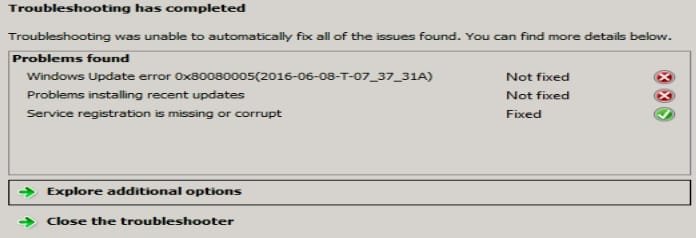
  6. Once the program finishes scanning, it will list the following errors that have been "Fixed" or "Not Fixed".
  7. If any errors were "Not Fixed", report them to me here. Left-Click the "Close the troubleshooter" Button.
  8. Restart your computer. Try to update your Windows.

    If Method 2 doesn't work proceed to Method 3.

Method 3: Difficulty: Moderate

  1. Press the Windows Key and the "R" Key simultaneously. [Win+R]
  2. A "Run" Box should appear. Type "services.msc" into the search box and press the "OK" button.
  3. The "Services" window should appear on your screen. Scroll down to "Windows Update" Service in the Services (Local) section.
  4. Right-Click on "Windows Update", then Left-Click "Stop" button. Please wait until the service completely stops. Do not close the Window.
  5. Press the Windows Key and the "R" Key simultaneously. [Win+R] again.
  6. Remove "services.msc" then type "C:\Windows\SoftwareDistribution\" into the search bar then Left-Click "OK". Windows Explorer should appear on your screen.
  7. Delete all contents within this folder. Left-Click + Hold + Drag until you completely highlight all the contents. Let go of Left-Click and press the "Delete" Button and Left-Click "Yes".
  8. Close Windows Explorer and return to the "Services" Window. Right-Click "Windows Update" then Left-Click "Start". Wait for the service to completely start then close the window.
  9. Restart your computer. Then try to update Windows.

Make sure to post any of the "Not Fixed" Errors from Method 2 if you had any.
 

My Computer

Computer type
PC/Desktop
Computer Manufacturer/Model Number
HP
OS
Windows 7 Ultimate x64 (v6.1)
CPU
Intel(R) Core(TM) i5-3570k CPU
Motherboard
ASUS
Memory
8GB x 2
Graphics Card(s)
Nvidia GTX 980
Hard Drives
SSD Samsung 850 EVO - 250 GB
HDD Western Digital - 1 TB
Antivirus
Microsoft Essentials
Browser
IE 11, Google Chrome
Thanks.

I have installed update (KB3138612) March 2016 and made sure the update agent is the latest version as well. Busy downloading the update from your Method 1, will try that. I have done these commands in sequence from another forum as well:

net stop wuauserv
net stop cryptSvc
net stop bits
net stop msiserver
ren C:\Windows\SoftwareDistribution SoftwareDistribution.old
ren C:\Windows\System32\catroot2 catroot2.old
net start wuauserv
net start cryptSvc
net start bits
net start msiserver

cmd.exe /c takeown /f "C:\System Volume Information\*" /R /D Y && icacls "C:\System Volume Information\*" /grant:R SYSTEM:F /T /C /L

I have also used these two fix it files as well:
MicrosoftFixit50123.msi
WindowsUpdateDiagnostic.diagcab

As for your first question, yes it is Windows Embedded Standard 7 with SP1
 

My Computer

Computer type
PC/Desktop
OS
ALL
Hello!

Thanks for the information. Also do Method 2 as well and report any "Not Fixed" Errors, this can be crucial to resolving your issue.

EDIT:
Also I'm referring to WAT - KB971033 not KB3138612.
 

My Computer

Computer type
PC/Desktop
Computer Manufacturer/Model Number
HP
OS
Windows 7 Ultimate x64 (v6.1)
CPU
Intel(R) Core(TM) i5-3570k CPU
Motherboard
ASUS
Memory
8GB x 2
Graphics Card(s)
Nvidia GTX 980
Hard Drives
SSD Samsung 850 EVO - 250 GB
HDD Western Digital - 1 TB
Antivirus
Microsoft Essentials
Browser
IE 11, Google Chrome
Method 2 fixed one registry error and gave no unfixed errors.
 

My Computer

Computer type
PC/Desktop
OS
ALL

My Computer

Computer type
PC/Desktop
Computer Manufacturer/Model Number
HP
OS
Windows 7 Ultimate x64 (v6.1)
CPU
Intel(R) Core(TM) i5-3570k CPU
Motherboard
ASUS
Memory
8GB x 2
Graphics Card(s)
Nvidia GTX 980
Hard Drives
SSD Samsung 850 EVO - 250 GB
HDD Western Digital - 1 TB
Antivirus
Microsoft Essentials
Browser
IE 11, Google Chrome
I have installed update KB947821-v34-x86. Trying to run an update now...

I ran the tool from method 2 again, and got the attached error.
 

Attachments

  • WES&-Update-Error.jpg
    WES&-Update-Error.jpg
    16 KB · Views: 26

My Computer

Computer type
PC/Desktop
OS
ALL
Here's Method 4, hope this helps!

Method 4: Difficulty: Somewhat Hard

  • Please download the following tools below.
  • Download: WSUS Offline Update
  • Go to your downloads file. (Usually C:\Users\"Profile Name"\Downloads) and Right-Click "Extract All..."
  • The Extract Window should appear on your screen. Click the "Browse" Button on the window. Navigate and Left-Click the "Desktop" icon then press the "OK" Button.
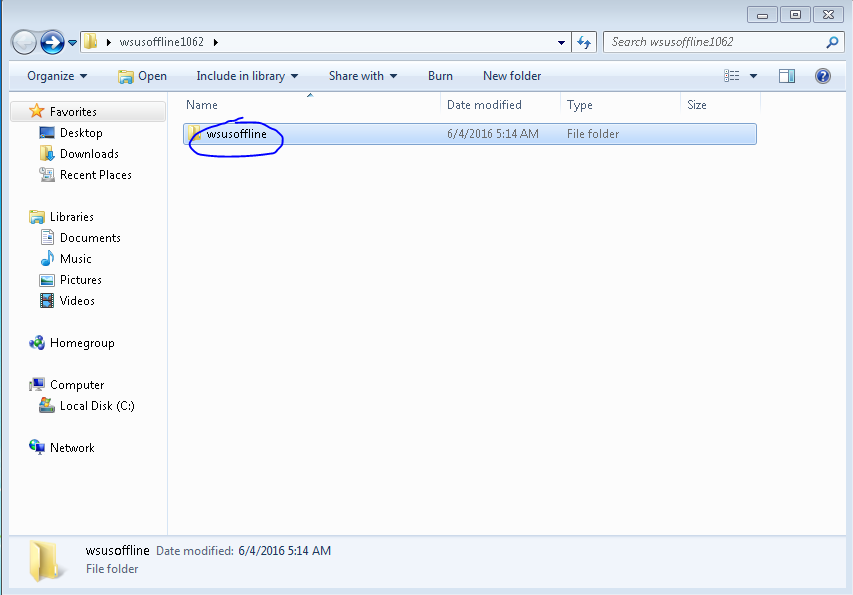
  • Open the new folder that appears on your Desktop.
  • Navigate to the following folder.
    MlYebty.png
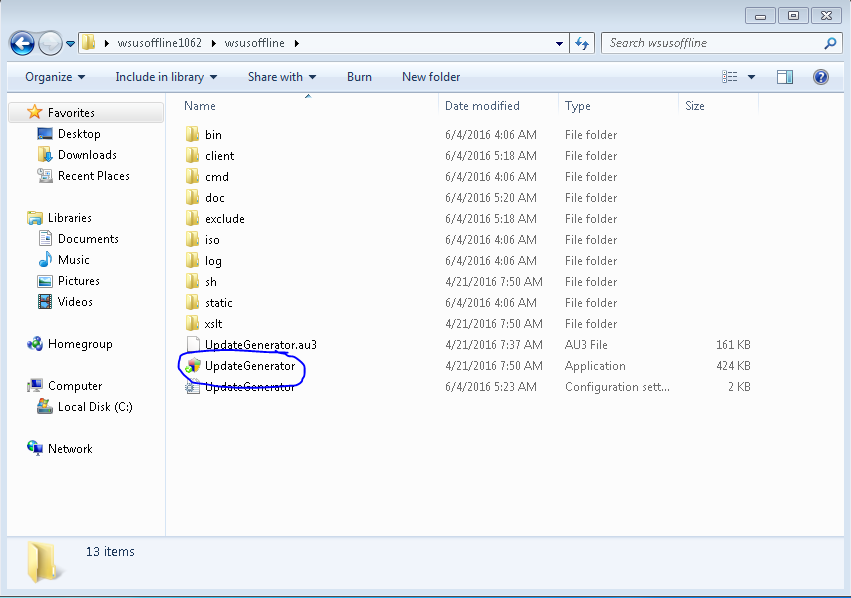
  • Navigate to the following folder.
    sx6B56U.png
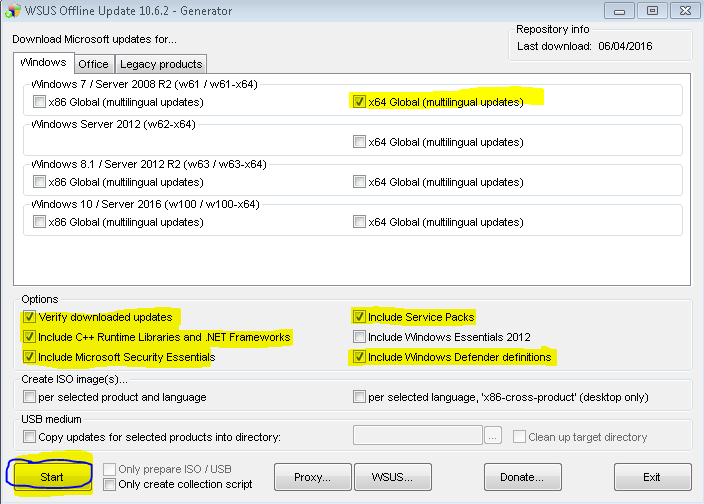
  • Checkmark these boxes and click "Start". If you have Service Pack 1, uncheck "Include Service Packs".
    8hSAMcC.png
  • This cmd will download all Windows Updates from Microsoft's Database. Please do not exit out of the cmd, it will take a while to complete.
    y6K1WI5.png
  • After the downloading is done. Close the program and navigate to the following images.
    tLoTbfc.png
  • Navigate to the following folder.
    OsVD1N8.png
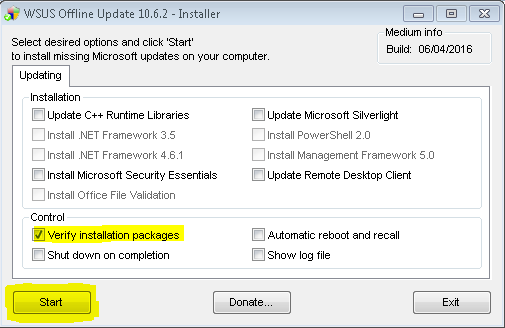
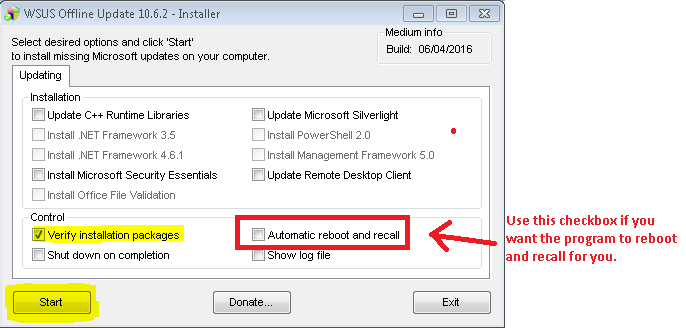
  • Checkmark the following boxes and click "Start". Checkmark the other boxes once you have SP1 installed. If you already have SP1, check them now.
    gRV6tml.png

    -OR-
    DlOR6NR.png
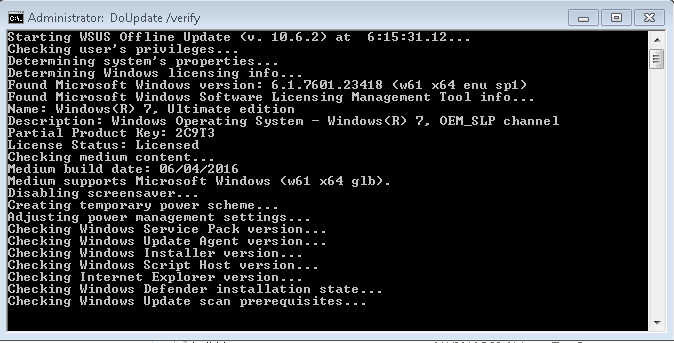
  • This cmd will install all downloaded updates. You might have to run this installer more than once due to the fact that SP1 has to be installed first. Then Microsoft Security Updates.
    hdNaI0S.png
  • You will have to restart every time the installer completes a certain section of updates.
  • Once most updates are installed, your Windows Updater should be working again.

More information regarding this tool:

The tool's original purpose is for having all your Windows Updates on a DVD or USB drive. The "UpdateGenerator.exe" downloads the updates from Microsoft's Database while "UpdateInstaller.exe" installs the downloaded updates from ...\client\w61-x64\glb (Where the downloaded files were stored). You can use this tool as a workaround for downloading and installing Windows Updates without using the Windows updater. Yes it's supposed to take a while to complete, its downloading all Microsoft's Updates from "UpdateGenerator.exe" then you install the files you need on "UpdateInstaller.exe". It searches for the updates you currently do not have on your PC then installs them.

Note: No you don't need a DVD or a USB Drive. That's just what people use to store the updates on.

Cheers!
 

My Computer

Computer type
PC/Desktop
Computer Manufacturer/Model Number
HP
OS
Windows 7 Ultimate x64 (v6.1)
CPU
Intel(R) Core(TM) i5-3570k CPU
Motherboard
ASUS
Memory
8GB x 2
Graphics Card(s)
Nvidia GTX 980
Hard Drives
SSD Samsung 850 EVO - 250 GB
HDD Western Digital - 1 TB
Antivirus
Microsoft Essentials
Browser
IE 11, Google Chrome
download this KB's, i have tried this and it works.

X64
- KB3083710 – October 2015 Fix
- KB3102810 – November 2015 Fix.
- KB3138612 – March 2016 Fix
- KB3145739 – April 2016 Fix

X86
- KB3083710 – October 2015 Fix
- KB3102810 – November 2015 Fix.
- KB3138612 – March 2016 Fix
- KB3145739 – April 2016 Fix

BTW, Each KB's needs a system restart.
 

My Computer

Computer type
PC/Desktop
OS
Win 10
I did the WSUS Offline update and it worked. Only finished this morning with it.

Will try the KB updates from the last post on a blank machine and test.

Thanks for all the help.
 

My Computer

Computer type
PC/Desktop
OS
ALL
Hello!

Glad it helped! @arevangelista: Thanks for telling my these KB Hotfixes, very useful.

Good day!
 

My Computer

Computer type
PC/Desktop
Computer Manufacturer/Model Number
HP
OS
Windows 7 Ultimate x64 (v6.1)
CPU
Intel(R) Core(TM) i5-3570k CPU
Motherboard
ASUS
Memory
8GB x 2
Graphics Card(s)
Nvidia GTX 980
Hard Drives
SSD Samsung 850 EVO - 250 GB
HDD Western Digital - 1 TB
Antivirus
Microsoft Essentials
Browser
IE 11, Google Chrome
Back
Top