Windows Explorer "Libraries" displaying wrong File Type names

Quisquose

New member
Local time
11:11 PM
Messages
12
Windows Explorer "Libraries" displaying wrong File Type names

I've been doing a lot of tidying up of my file types and associations, and one of the things that I have done is to ensure that all my most used file types have meaningful and accurate "friendly names". So, instead Explorer referring to .wv files as "WV File" it now says "WavPack Audio File". I've done this for numerous file types and it has all worked well and is correctly displayed in Explorer.

However, I also use Windows Libraries, and for some reason it is still using generic file descriptions, or older ones that I chose myself and subsequently updated.

I have done the usual things of clearing the icon cache and all other cache and temp storage. I've also completely rebuilt the index of the Library in question. I have even removed all folders from that library and deleted the top level library itself (then, after a reboot, recreated it by selecting 'Restore Default Libraries'), but as soon as I add my folder to the Library, the same old file names show up again.

I have done a thorough search of my Registry and some of the terms being displayed by the Library are nowhere to be found in the Registry (because I have updated every possible instance of the file type name) so it must be cached somewhere, unless its buried in some indecipherable format in the Registry that doesn't show up in search results.

If I click an incorrectly named 'file types' group in the Library, and then choose 'Open Folder Location' to look at the same files directly in Explorer rather than via the Library, then all the file type names display correctly, even though the library window that I've just come from, displays the name differently.

Can anyone advise me how I can force the Libraries to update and display the correct file type names as designated in the Registry?

Many thanks
 

My Computer

OS
Windows 7 Professional x64
This could have something to do with your user files. Are you the Administrator of this computer & do you only have one user account?.

Click on Computer & then click on your main OS drive which is normally C:\, then click Users, which should show your user name as one of the folders. Click on that & select your Documents files & see if the new names are listed there, if so you can create a New Library by clicking on Include in Library, from the menu at the top, & selecting Create New Library.

If all the Documents are correct as mentioned above you could copy all the Documents into the New library & then after checking everything is correct you can delete the old library.

If you have more that one user account, it's possible that all the changes are being made on one account & you are then trying to access them on another account, so you keep getting the old arrangement.
 
Last edited:

My Computer

Computer type
PC/Desktop
Computer Manufacturer/Model Number
Self built using existing case
OS
Windows 7 Home Premium 64 bit sp1
CPU
Intel i5 3570 3.4Ghz Ivy Bridge SKT 1155 quad core
Motherboard
Gigabyte Z77-HD3 SKT 1155 2xSata 3, 4x USB 3.0
Memory
G-Skill Rip Jaws 16Gb (8x2) DDR3 -1600 PC3 12800 CL 10 red
Graphics Card(s)
Gigabyte NVIDIA GT610 1Gb DDR3 810/1200 PCI-E 2.0 Silent
Sound Card
NVIDIA High Definition & Realtech High Definition Audio
Monitor(s) Displays
2 x Philips 226V4L 16:9 aspect ratio
Screen Resolution
1920 x 1080 HD
Hard Drives
Samsung 840 Pro 256gb SSD, SATA 3.
Hitachi Touro Portable 1tb, USB 3.0 HDD used for image b/ups.
PSU
Corsair VS450
Case
Codeng
Cooling
PSU fan & CPU fan
Keyboard
Logitech
Mouse
Logitech Wireless trackball M570
Internet Speed
Wireless 3G. 3mg down & 550kb up.
Antivirus
Bitdefender Internet Security 2020
Browser
Opera (Current Version) & Firefox
Other Info
MS Office 2013 Pro. Davis weather station software. MGE Nova 600 avr UPS.
Hi, thanks for your reply.

1. Yes, I am the Administrator of my computer.

2. I only have one user account.

3. The Users folder on the system (C:\) drive, shows only one folder (apart from a Public / Shared folder).

4. I've already created new Libraries and they all behave in the same broken way. It doesn't matter which folders I add to the Library, or whether I create entirely new "real" folders with content and then add those to a new Library. In every instance the same thing happens: if I sort the Library 'by folder', then all the correct file types are displayed (even within the Library itself without navigating to the 'real' Explorer folder that you see when you expand the Library tree).

However, if I sort by 'File type' (which is what I want to do, because if I group by folder then I may as well just use the real Explorer tree, because the arrangement would be no different) then exactly the same old incorrect labels appear.

The correct / incorrect labels will appear each time that I switch the Library from view 'by folder' to view 'by type'. It's always correct for view by folder, and always wrong for view by type (even though it's the exact same files that are being displayed).

This issue coincides with the problem of certain file groups being listed, but none of the constituent files visible if you click the file type within the Library (even though the file ARE actually there, because you can see them in the same Library as soon as you switch to folder view).

This is definitely an association issue, because Libraries are notorious for breaking (and failing to display certain file types) if there are messy Registry associations or if there are arcane associations imposed by certain programs that use persistent handlers (such as icon handlers etc.).

I made a point of ensuring that my associations and file type are clean and distinct, and this is reflected in any real Windows folder, regardless of where it is (it's 100% correct). It's only in a Library (any Library, new or, freshly created or not) when switched to view 'by type' view that this problem arises.

It really does seem like cacheing issue of some kind, because I recognize some of the old file types that have long since been corrected.

I should point out that while this is not a totally fresh install, it is fairly new ( a few months), with only carefully chosen minimal program installs. It's not as if it's years old with indiscriminately installed programs and masses of accumulated cruft that could mess things up.
 

My Computer

OS
Windows 7 Professional x64
You might be standing on Superman's cape. From what I gathered elsewhere, unless one is a superb programmer of Windows Prime, I think also through Windows Development Kit [to create EXEs, DLLs, SYSs, etc., your way], Windows Prime is mostly going to do what Microsoft Windows programmers have created and compiled same to do. If you do succeed, please post your success steps, because many would definitely be interested in how and what you did to tweak File Sort!
 

My Computer

Computer type
PC/Desktop
Computer Manufacturer/Model Number
Antec desktop; Acer Aspire laptops
OS
Windows 7 Professional 64-bit
CPU
Desktop i5; Acers i5 & i7
Memory
desktop 16GB; 1 Acer 8GB & 1 Acer 16GB
Hard Drives
1TB split into 2 equal partitions [OS and data] usable by RJS
Internet Speed
AT&T DSL
Browser
FF, GChrome, msIE
Other Info
Windows 7 Firewall, Emsisoft AM/AV, MSE [scan-only], SpywareBlaster, Ruiware/BillP combine
I may (possibly) be getting closer to what's causing the problem.

I made full system backups (both disk image and Registry Hive backups) so that I can attack the system in earnest.

There is an MUI cache key in the Registry HKEY_CURRENT_USER\Software\Classes\Local Settings\MuiCache that has a whole mass of entries (including some friendly names for certain file types). I nuked the entire key to see what happened.

The system rebooted fine, and low and behold many of the displayed file type names changed. They are still not the names that are being displayed in every other real Explorer window, but they are no longer the old names that were being shown previously,

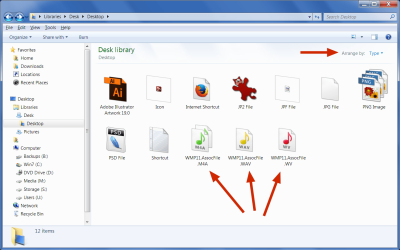
Additionally, the broken file types (e.g the Library incorrectly merging certain extensions to treat them as a single group, or failing to display a particular file type altogether) are now all fixed and working. Every single file type functions correctly in the Library despite several of them now displaying generic file type names that I presume are derived from the default initial associations (e.g. WMP11.AssocFile.WAV and WMP11.AssocFile.WV). See attached screenshot.

After about an hour of basic use, there seem to be no major adverse effects of having deleted that entire Registry key, although of course it's early days (so my backup is at the ready). Many standard entries in that key were re-created on reboot, but there are now far fewer entries than before.

I'll do a comparison with my old exported key and see if that provides any clues as to where the problem lies. I'll then decide whether to restore the old key and try to fix it from there, or continue with the new pared down key and add back what's needed.

I'd still appreciate input from anybody who knows more about these things than I do, because I'm just using trial and error at the moment.
 

Attachments

  • Libraries 2.png
    Libraries 2.png
    181.1 KB · Views: 3

My Computer

OS
Windows 7 Professional x64
Is there anything in these website that might help you.

How to sort by file extension in explorer? - Microsoft Community

http://www.sevenforums.com/tutorials/3952-file-folder-arrangement-group-sort-arrange.html

windows 7 - How to order files in explorer by file extension (not type) - Super User

This last one has reference to a software program called "Explorer++" which might be of interest &
worth having a look at. You will see Explorer++ in blue which you can click on to download it if you wish.

This reference as quoted from the text.
An alternative would be to use an Explorer replacement - Explorer++ is an open source piece of software that you can use instead of explorer (or as a standalone app, which may suit your needs). Explorer++ allows you to select File Extension as a column and then you can sort by extension.
 

My Computer

Computer type
PC/Desktop
Computer Manufacturer/Model Number
Self built using existing case
OS
Windows 7 Home Premium 64 bit sp1
CPU
Intel i5 3570 3.4Ghz Ivy Bridge SKT 1155 quad core
Motherboard
Gigabyte Z77-HD3 SKT 1155 2xSata 3, 4x USB 3.0
Memory
G-Skill Rip Jaws 16Gb (8x2) DDR3 -1600 PC3 12800 CL 10 red
Graphics Card(s)
Gigabyte NVIDIA GT610 1Gb DDR3 810/1200 PCI-E 2.0 Silent
Sound Card
NVIDIA High Definition & Realtech High Definition Audio
Monitor(s) Displays
2 x Philips 226V4L 16:9 aspect ratio
Screen Resolution
1920 x 1080 HD
Hard Drives
Samsung 840 Pro 256gb SSD, SATA 3.
Hitachi Touro Portable 1tb, USB 3.0 HDD used for image b/ups.
PSU
Corsair VS450
Case
Codeng
Cooling
PSU fan & CPU fan
Keyboard
Logitech
Mouse
Logitech Wireless trackball M570
Internet Speed
Wireless 3G. 3mg down & 550kb up.
Antivirus
Bitdefender Internet Security 2020
Browser
Opera (Current Version) & Firefox
Other Info
MS Office 2013 Pro. Davis weather station software. MGE Nova 600 avr UPS.
Thank you for your reply, but unfortunately none of those links have anything at all to do with Libraries. They're just talking about the simple sorting of a single standard Explorer folder. I'm talking about collections of disparate folders grouped into a Library.

If I were to go down the route of Explorer replacements, then my choice would be Directory Opus. It's incredibly flexible, but it's a huge undertaking to get it all configured (I've never seen a program with so many options) and I'm not sure that it will fare any better than Explorer given that its underpinnings will still rely on how Microsoft has implemented certain functions. It's catch22 because I would be prepared to spend the massive amount of time getting it set up if I knew that it would work for sure, but I won't actually know until I've already spent the time to do it.


Investigation Update:

My MUI cache investigation was a dead end. While there were some extensions listed in there, it only seemed to be the default Windows associations, so the incorrect naming of other extensions must be coming from somewhere else.

Interestingly (and annoyingly) after getting nowhere with the removal of the MUI cache branch key in the Registry, I did a complete restore of all Hives from prior to that key deletion, and weirdly the newly changed names (e.g. WMP11.AssocFile.m4a etc.) did not revert to their previous names. I even did a System Restore and that did not work either! It seems that once a Library gets hold of a file type name, then nothing any mere mortal can do will ever change it, short of nuking entire sections of the Registry (and even that only breaks the naming, rather than giving you any control over it or any ability to fix it).

Needless to say I ended up having to do a full disk image restore to get back to where I was, because those new broken file type Library names had become embedded somewhere that I could not find to get rid of them.

I'm really surprised that other people more experienced than me haven't noticed this issue previously.

It's a shame because this feature of the Library is incredibly useful, but when you can't trust the information that its giving you, then it pretty much renders it useless.
 

My Computer

OS
Windows 7 Professional x64
I wonder if the fact that you have Desktop as a Library located in Libraries is causing your problems. Desktop should be located under Favourites & it is not one of Windows default libraries. Having Desktop as a library may be causing your saving files problems, as they are being saved somewhere else & not in your Desktop Library

In my computer Desktop is located under Favourites & my Libraries conform to Windows default Libraries.

This MS website describes what are the default libraries amongst some other information.

https://technet.microsoft.com/en-us/library/ee449413(v=ws.10).aspx

What are Libraries in Windows 7

The second website may also have helpful info on libraries for you.
 

My Computer

Computer type
PC/Desktop
Computer Manufacturer/Model Number
Self built using existing case
OS
Windows 7 Home Premium 64 bit sp1
CPU
Intel i5 3570 3.4Ghz Ivy Bridge SKT 1155 quad core
Motherboard
Gigabyte Z77-HD3 SKT 1155 2xSata 3, 4x USB 3.0
Memory
G-Skill Rip Jaws 16Gb (8x2) DDR3 -1600 PC3 12800 CL 10 red
Graphics Card(s)
Gigabyte NVIDIA GT610 1Gb DDR3 810/1200 PCI-E 2.0 Silent
Sound Card
NVIDIA High Definition & Realtech High Definition Audio
Monitor(s) Displays
2 x Philips 226V4L 16:9 aspect ratio
Screen Resolution
1920 x 1080 HD
Hard Drives
Samsung 840 Pro 256gb SSD, SATA 3.
Hitachi Touro Portable 1tb, USB 3.0 HDD used for image b/ups.
PSU
Corsair VS450
Case
Codeng
Cooling
PSU fan & CPU fan
Keyboard
Logitech
Mouse
Logitech Wireless trackball M570
Internet Speed
Wireless 3G. 3mg down & 550kb up.
Antivirus
Bitdefender Internet Security 2020
Browser
Opera (Current Version) & Firefox
Other Info
MS Office 2013 Pro. Davis weather station software. MGE Nova 600 avr UPS.
Well spotted, but that's not the issue.

The screenshot that I provided was during my testing phase (long after I had deleted all my real Libraries in an attempt to force a 'refresh'). I had deleted all Libraries and removed all indexing and then used the 'Restore Default Libraries' menu to put clean new copies back. But none of that made any difference. I therefore decided to try creating entirely new Libraries of folders that I had never used before, to see if that would somehow force it to use new names (seeing as there couldn't be any past record of those folders because I'd never used them before).

I was concerned that if I kept adding the same folders, then it would be difficult for me to know whether Windows was using new or old settings. So I threw a bunch of files of different types on the Desktop and then added the Desktop as a Library, just to see how Windows would categorise the contents. The results were pretty poor, with some file types refusing to display at all.

Of course in reality there is little point is using a Library for just one folder (especially not a folder like the Desktop that is right there in front of you every time you boot up). The usefulness of Libraries comes into it's own when you have multiple folders scattered over various drives, but you can make them all appear as a single folder, so that you don't have to jump all over the place looking through the contents of each one individually.

I'll take a look at your new links and see if there's anything of use.

Thanks.
 

My Computer

OS
Windows 7 Professional x64
What happens if you Right Click on one of the delinquent file names in the Library & select Open File Location. Does this now take you to the correctly named file, if not where does it take you.
 

My Computer

Computer type
PC/Desktop
Computer Manufacturer/Model Number
Self built using existing case
OS
Windows 7 Home Premium 64 bit sp1
CPU
Intel i5 3570 3.4Ghz Ivy Bridge SKT 1155 quad core
Motherboard
Gigabyte Z77-HD3 SKT 1155 2xSata 3, 4x USB 3.0
Memory
G-Skill Rip Jaws 16Gb (8x2) DDR3 -1600 PC3 12800 CL 10 red
Graphics Card(s)
Gigabyte NVIDIA GT610 1Gb DDR3 810/1200 PCI-E 2.0 Silent
Sound Card
NVIDIA High Definition & Realtech High Definition Audio
Monitor(s) Displays
2 x Philips 226V4L 16:9 aspect ratio
Screen Resolution
1920 x 1080 HD
Hard Drives
Samsung 840 Pro 256gb SSD, SATA 3.
Hitachi Touro Portable 1tb, USB 3.0 HDD used for image b/ups.
PSU
Corsair VS450
Case
Codeng
Cooling
PSU fan & CPU fan
Keyboard
Logitech
Mouse
Logitech Wireless trackball M570
Internet Speed
Wireless 3G. 3mg down & 550kb up.
Antivirus
Bitdefender Internet Security 2020
Browser
Opera (Current Version) & Firefox
Other Info
MS Office 2013 Pro. Davis weather station software. MGE Nova 600 avr UPS.
It opens the folder containing the file, and because it's a real folder (not a Library folder) then all the files types are named correctly. The wrong name only shows in Libraries, not in folders or anywhere else in Windows.

It's a similar issue with icons. For some file types the Library will use the correct icon associated with that file type. Other file types will get ugly square outlines instead on an icon, and some just get a blank icon. Again, if you leave the Library and look in Explorer, all icons display correctly all the time.

The changes are not constant, the 'wrongness' remains quite static until there is a system change involving file associations (for example you install a program and you change a file type to be associated with that new program). This kind of change will result in one of the breakages described above. but even uninstalling or doing a a system restore will not get the Library back to how it was pre-install. That error becomes 'baked in' to the Library for good. Nothing you can do will clear it an cause the Library to be refreshed or recreated.

That's what happens for the extensions that do actually show up in the Library. For those that don't, you still see the 3 icons stacked in a layer (representing the fact that there are multiple files of that particular file type in the Library) but when you open that particular collection it's appears empty. However, if you then go to the corresponding 'real' folder location, you will see that it's not empty at all. The file types in question ARE there, and it's just the Library that's showing the group icon for them, but not actually listing any of the files themselves.

This 'empty folder syndrome', 'Wong / missing icon', and 'incorrect file type display name' can sometimes be fixed with drastic action taken on the OS, but it's completely hit and miss as to what will work, and the issue is compounded by the fact that once a folder has 'gone wrong in some way' (i.e. any of the 3 issues above) then there is nothing that you can do to force it to refresh, repair, or revert, because the current state gets cached in some invisible location with no registry references not anything to do with the search index (yes, I have nuked that entire folder and all subfolders, and nothing changed).

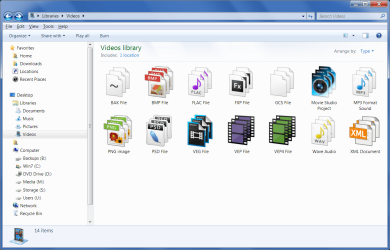
Here is an example of one of my real Libraries (instead of my Desktop test) from my video editing Projects folder. See screenshot. This was about the best that I have been able to get it.

One set of icons was missing (despite them displaying fine in Explorer), 5 file type categories showing empty Library folders when opened (BMP, PNG, FLAC, PSD and WAV) again, these all displayed fine when opening the destination Explorer folder, and 7 misnamed file type categories that do not reflect the name shown throughout the rest of Explorer.
 

Attachments

  • Video Library.png
    Video Library.png
    228.8 KB · Views: 1

My Computer

OS
Windows 7 Professional x64
Have you tried setting up a new Library, giving it some sort of meaningful name & then copy all the correct files into it.

If that works, back up this Library so you have a copy in case of a disaster & then delete the old Library.
 

My Computer

Computer type
PC/Desktop
Computer Manufacturer/Model Number
Self built using existing case
OS
Windows 7 Home Premium 64 bit sp1
CPU
Intel i5 3570 3.4Ghz Ivy Bridge SKT 1155 quad core
Motherboard
Gigabyte Z77-HD3 SKT 1155 2xSata 3, 4x USB 3.0
Memory
G-Skill Rip Jaws 16Gb (8x2) DDR3 -1600 PC3 12800 CL 10 red
Graphics Card(s)
Gigabyte NVIDIA GT610 1Gb DDR3 810/1200 PCI-E 2.0 Silent
Sound Card
NVIDIA High Definition & Realtech High Definition Audio
Monitor(s) Displays
2 x Philips 226V4L 16:9 aspect ratio
Screen Resolution
1920 x 1080 HD
Hard Drives
Samsung 840 Pro 256gb SSD, SATA 3.
Hitachi Touro Portable 1tb, USB 3.0 HDD used for image b/ups.
PSU
Corsair VS450
Case
Codeng
Cooling
PSU fan & CPU fan
Keyboard
Logitech
Mouse
Logitech Wireless trackball M570
Internet Speed
Wireless 3G. 3mg down & 550kb up.
Antivirus
Bitdefender Internet Security 2020
Browser
Opera (Current Version) & Firefox
Other Info
MS Office 2013 Pro. Davis weather station software. MGE Nova 600 avr UPS.

My Computer

Computer type
PC/Desktop
Computer Manufacturer/Model Number
medionl/Aspire 6930G/acer x55a
OS
W7 home premium 32bit/W7HP 64bit/w10 tp insider ring
CPU
E5300 dual core
Motherboard
medion MS7366
Memory
3gb
Graphics Card(s)
Nvidia Geforce 7100 Nforce 630i
Monitor(s) Displays
avixc
Internet Speed
n (isp resticted to 72)
Antivirus
mse/pands
Browser
palemoon
Other Info
Belkin Fd7050 n USB using Railink RT2870 drivers, more upto date
IM probobly wrong, i understood that the "library" links are only junctions and therefore can only be changed in a specific way.
Libraries are not Junctions (or Symbolic Links for that matter).

Junctions behave as ordinary folders. They cannot gather content from multiple locations and display them in one place.
 

My Computer

OS
Windows 7 Professional x64
Back
Top