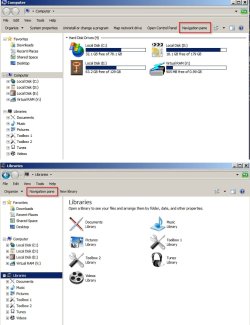
How to Add, Remove, or Rearrange Command Bar Buttons in Windows 7 Explorer
Information
This will show you how to customize the command bar (toolbar) in Windows Explorer to add, remove, or rearrange command bar buttons of your choice for all users in Windows 7.
You must be logged in as an administrator to be able to do this tutorial.
You must be logged in as an administrator to be able to do this tutorial.
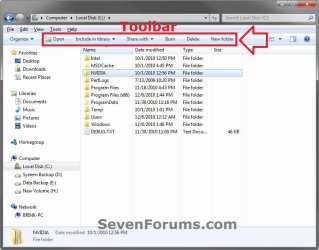
EXAMPLE: Windows Explorer Command Bar
OPTION ONE
To Add and Remove Command Bar Buttons using "Explorer Toolbar Editor" Program
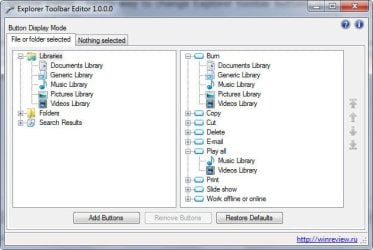
NOTE: Explorer Toolbar Editor helps you add or remove buttons from the Windows Explorer toolbar in Windows 7. Explorer Toolbar Editor supports multiple folder types and displays the current set of buttons for each one. Also, you can use it to reorder the toolbar buttons.
1. Download, install, and run Explorer Toolbar Editor.
NOTE: Detailes instructions for how to use the program are at the site's download link below.
Download
OPTION TWO
To Add and Remove Command Bar Buttons using "Custom Explorer Toolbar" Program
NOTE: This option doesn't have as many folder type options as doing OPTION TWO or OPTION THREE below, but does make it easier do for the folder types included in the program. Custom Explorer Toolbar is small utility for Windows 7 only, which allows you to easily customize the toolbar of Windows Explorer, and add buttons that were existed in previous versions of Windows, like Copy, Cut, Paste, Select All, and more. This utility also allows you to remove the toolbar buttons that you previously added.
1. Download and run CustomExplorerToolbar.exe.
Download

Note
System Requirements And Limitations
- This utility only works on Windows 7. It doesn't work on Windows Vista. Both 32-bit and x64 systems are supported.
- Some buttons might not be displayed on Explorer toolbar, even if you added them with CustomExplorerToolbar tool.
- Be aware that CustomExplorerToolbar cannot remove the default buttons provided by Windows operating system. It can only remove buttons that you previously added.
OPTION THREE
To Manually Remove Command Bar Buttons in All Windows in Windows Explorer
NOTE: If you want to add, remove, or rearrange command bar buttons in specific windows in Windows Explorer, then do the OPTION THREE section below instead.
Note
You will not be able to remove the default Burn, Print, E-mail, Play all, and Slide show command bar buttons provide by Windows 7 unless you had previously manually added them, or change the folder template to another one that doesn't have them by default.
If you really wanted to completely remove Burn from the command bar in all windows, then you could disable the built-in burning features in Windows 7.
If you really wanted to completely remove Burn from the command bar in all windows, then you could disable the built-in burning features in Windows 7.
1. Open the Start Menu, then type regedit in the search box and press enter.
2. If prompted by UAC, then click on Yes.
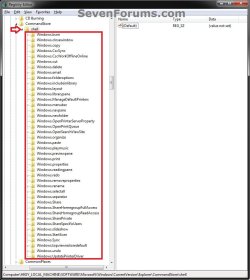
3. In regedit, navigate to the location below. (see screenshot below)
HKEY_LOCAL_MACHINE\SOFTWARE\Microsoft\Windows\CurrentVersion\Explorer\CommandStore\shell
4. To Backup the Command Bar Button before Deleting it
NOTE: See the table under step 8 in OPTION THREE below to know what each key below the Shell key is for which command bar button.
Warning
If you do not backup (export) the key for a command bar button before deleting it in step 5, you will not be able to restore the command bar button again.
A) Under the Shell key in the left pane of regedit, right click on the key (ex: Windows.includeinlibrary) for the command bar button (ex: Include in Library) that you want to remove, and click on Export.
B) Save this .reg file backup to your desktop, then move it to where you like to keep it backed up at.
5. Under the Shell key in the left pane of regedit, right click on the key (ex: Windows.includeinlibrary) for the command bar button (ex: Include in Library) that you want to remove, and click on Permissions.
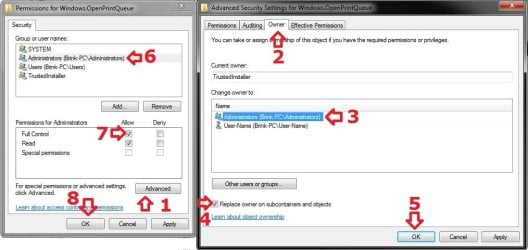
6. Take ownership of the registry key and set permissions of the key to "Allow" your user account "Full Control" of it. (see screenshot below)
7. Under the Shell key in the left pane of regedit, right click on the key (ex: Windows.includeinlibrary) for the command bar button (ex: Include in Library) that you want to remove, and click on Delete. (see screenshot below step 3)
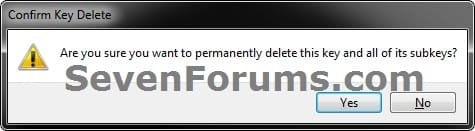
8. Click on Yes to confirm the deletion. (see screenshot below)
9. Repeat steps 4 to 8 for any other command bar buttons that you would like to remove from all Windows Explorer windows.
10. When finished, close regedit.
11. If open, close and reopen Windows Explorer to see the changes applied.
Note
To Restore a Command Bar Button Deleted in OPTION TWO
1. Double click on the backup .reg file from step 4.
2. If prompted, click on Run, Yes, Yes, and OK to approve merging the .reg file.
3. If open, close and reopen Windows Explorer to see the changes applied.
1. Double click on the backup .reg file from step 4.
2. If prompted, click on Run, Yes, Yes, and OK to approve merging the .reg file.
3. If open, close and reopen Windows Explorer to see the changes applied.
OPTION THREE
To Manually Add, Remove, or Rearrange Command Bar Buttons in Specific Windows
1. Open the Start Menu, then type regedit in the search box and press enter.
2. If prompted by UAC, then click on Yes.
3. In regedit, navigate to the location below of the Windows Explorer window that you would like to add, remove, or rearrange a command bar button(s) in.
Folder Templates
NOTE: To remove default command bar buttons for these type of windows, you will need to use the OPTION TWO section above instead.
General Items Folder Template Windows (see also step 4)
Code:
HKEY_LOCAL_MACHINE\SOFTWARE\Microsoft\Windows\CurrentVersion\Explorer\FolderTypes\[COLOR=red][B]{5c4f28b5-f869-4e84-8e60-f11db97c5cc7}[/B][/COLOR]
Code:
HKEY_LOCAL_MACHINE\SOFTWARE\Microsoft\Windows\CurrentVersion\Explorer\FolderTypes\[COLOR=red][B]{de2b70ec-9bf7-4a93-bd3d-243f7881d492}[/B][/COLOR]
Code:
HKEY_LOCAL_MACHINE\SOFTWARE\Microsoft\Windows\CurrentVersion\Explorer\FolderTypes\[COLOR=red][B]{7d49d726-3c21-4f05-99aa-fdc2c9474656}[/B][/COLOR]
Code:
HKEY_LOCAL_MACHINE\SOFTWARE\Microsoft\Windows\CurrentVersion\Explorer\FolderTypes\{94d6ddcc-4a68-4175-a374-bd584a510b78}
Code:
HKEY_LOCAL_MACHINE\SOFTWARE\Microsoft\Windows\CurrentVersion\Explorer\FolderTypes\[B][B][COLOR=red]{b3690e58-e961-423b-b687-386ebfd83239}[/COLOR][/B][/B]
Code:
HKEY_LOCAL_MACHINE\SOFTWARE\Microsoft\Windows\CurrentVersion\Explorer\FolderTypes\{5fa96407-7e77-483c-ac93-691d05850de8}Libraries
General (Generic) Library Folder Windows
Code:
HKEY_LOCAL_MACHINE\SOFTWARE\Microsoft\Windows\CurrentVersion\Explorer\FolderTypes\{5f4eab9a-6833-4f61-899d-31cf46979d49}
Code:
HKEY_LOCAL_MACHINE\SOFTWARE\Microsoft\Windows\CurrentVersion\Explorer\FolderTypes\{fbb3477e-c9e4-4b3b-a2ba-d3f5d3cd46f9}
Code:
HKEY_LOCAL_MACHINE\SOFTWARE\Microsoft\Windows\CurrentVersion\Explorer\FolderTypes\{3f2a72a7-99fa-4ddb-a5a8-c604edf61d6b}
Code:
HKEY_LOCAL_MACHINE\SOFTWARE\Microsoft\Windows\CurrentVersion\Explorer\FolderTypes\{0b2baaeb-0042-4dca-aa4d-3ee8648d03e5}
Code:
HKEY_LOCAL_MACHINE\SOFTWARE\Microsoft\Windows\CurrentVersion\Explorer\FolderTypes\{631958a6-ad0f-4035-a745-28ac066dc6ed}Search Results
General (Generic) Search Results Windows
Code:
HKEY_LOCAL_MACHINE\SOFTWARE\Microsoft\Windows\CurrentVersion\Explorer\FolderTypes\{7fde1a1e-8b31-49a5-93b8-6be14cfa4943}
Code:
HKEY_LOCAL_MACHINE\SOFTWARE\Microsoft\Windows\CurrentVersion\Explorer\FolderTypes\{20338b7b-531c-4aad-8011-f5b3db2123ec}
Code:
HKEY_LOCAL_MACHINE\SOFTWARE\Microsoft\Windows\CurrentVersion\Explorer\FolderTypes\{36011842-dccc-40fe-aa3d-6177ea401788}
Code:
HKEY_LOCAL_MACHINE\SOFTWARE\Microsoft\Windows\CurrentVersion\Explorer\FolderTypes\{8faf9629-1980-46ff-8023-9dceab9c3ee3}
Code:
HKEY_LOCAL_MACHINE\SOFTWARE\Microsoft\Windows\CurrentVersion\Explorer\FolderTypes\{71689ac1-cc88-45d0-8a22-2943c3e7dfb3}
Code:
HKEY_LOCAL_MACHINE\SOFTWARE\Microsoft\Windows\CurrentVersion\Explorer\FolderTypes\{4dcafe13-e6a7-4c28-be02-ca8c2126280d}
Code:
HKEY_LOCAL_MACHINE\SOFTWARE\Microsoft\Windows\CurrentVersion\Explorer\FolderTypes\{ea25fbd7-3bf7-409e-b97f-3352240903f4}NOTE: If not in red, then skip this step and go to step 5 or 6.
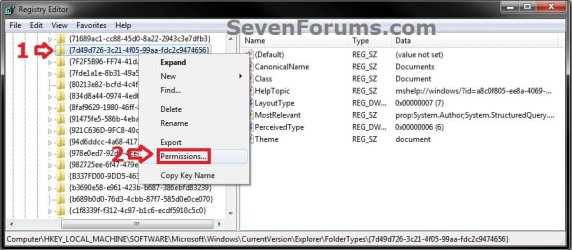
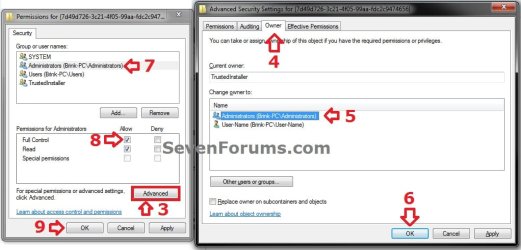
- In the left pane under FolderTypes, right click on the {long number} CLSIDkey below and click on Permissions. Take ownership (step 3 in Option Two of Method TWO at this link) of this key with your administrator account, and set permissions to Allow your administrator account Full Control of the key. (see screenshots below)
- Continue on to step 5 or 6 below.
NOTE: When you select an item (ex: file or folder), the buttons displayed on the Windows Explorer command bar locations below are defined in the TasksItemsSelected registry key.
A) In the left pane, click on the TasksItemsSelected key under the exanded {long CLSID number} key above. (see screenshot below)
NOTE: If there is not a TasksItemsSelected key, then right click on the {long CLSID number} CLSID key, click on New and Key, type TasksItemsSelected and press enter.

B) Go to step 7.
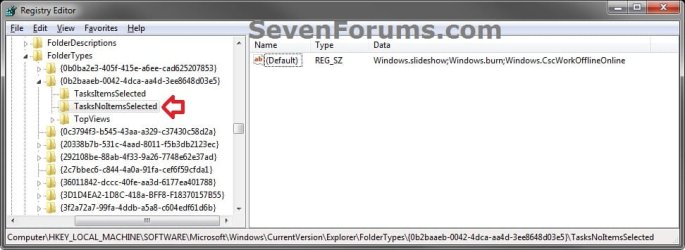
6. To Add or Remove Buttons to be Displayed when No Items are Selected
NOTE: When you open a folder without anything selected, the buttons displayed on the Windows Explorer command bar locations below are defined in the TasksNoItemsSelected registry key.
A) In the left pane, click on the TasksNoItemsSelected key under the exanded {long CLSID number} key location above. (see screenshot below)
NOTE: If there is not a TasksNoItemsSelected key, then right click on the {long CLSID number} key, click on New and Key, type TasksNoItemsSelected and press enter.
B) Continue on to step 7.
7. In the right pane of TasksItemsSelected or TasksNoItemsSelected, right click on (Default) and click on Modify. (see screenshots below steps 5A and 6A)
A) Do steps 8, 9,and/or 10 below for what you would like to do.
8. To Add a Command Bar Button
A) Type in the Value data (see table below) for the button that you want to add in the order you want it to be displayed within the other listed buttons. (see screenshot below step 11.
NOTE: Be sure to leave only one semicolon (;) inbetween each Value data entry to separate them.
FOR EXAMPLE: If I wanted to add the Cut and Paste buttons to the Pictures Library command bar after the default Burn button, I would add Windows.Cut and Windows.Paste in the Edit String (modify) window with the other default command bar button entries like this below.
Code:
Windows.slideshow;Windows.burn;[B][COLOR=red]Windows.Cut[/COLOR][/B];[B][COLOR=red]Windows.Paste[/COLOR][/B];Windows.CscWorkOfflineOnlineClose| Windows.closewindow |It allows you to close the active window
Copy | Windows.Copy |It allows you to copy the item selected in the clipboard
Cut| Windows.Cut |It allows you to move the item selected into the clipboard
Delete| Windows.Delete |It allows you to delete the item selected
Details pane| Windows.previewpane |It allows you to toggle the Details pane on or off
(Details view)| Windows.topviewrestoredefault |It allows you display the details view
E-mail | Windows.email |It allows you to send by email the item selected
Folder and search options| Windows.folderoptions |Opens Folder Options
Include in library| Windows.includeinlibrary |It allows you to include in any library the folder selected
Layout| Windows.layout |It allows you to turn on or off the navigation pane, the detail pane, the reading pane or the library pane
Library pane| Windows.librarypane |It allows you to turn on or off the library pane
Manage Default Printers| Windows.ManageDefaultPrinters |It allows you to manage the printer installed by default
Menu bar| Windows.menubar |It allows you to turn the menu bar on or off
Navigation pane| Windows.navpane |It allows you to turn the navigation pane on or off
New folder| Windows.newfolder | It allows you to create a new folder in the folder you have open or selected
Organize| Windows.organize |It allows you to turn on or off the options for the organization of items
Paste| Windows.Paste |It allows you to paste the content of the clipboard
Play all | Windows.playmusic |It allows you to play all the music files in a opened folder
Properties| Windows.properties |It allows you to display or hide all the properties of the item selected
Preview pane| Windows.readingpane |It allows you to turn the Preview pane on or off
Print | Windows.print |It allows you to print the document selected
Print server properties| Windows.OpenPrinterServerProperty |It allows you to display or hide the properties of your printer
| Windows.OpenSearchViewSite |
Redo| Windows.redo |It allows you to cancel the last modification made
Rename| Windows.rename | It allows you to rename the item selected
Remove Properties| Windows.removeproperties | It allows you to delete all the properties you want about the item selected
See what's printing| Windows.OpenPrintQueue |It allows you to display or hide all the files you're printing
Select all| Windows.selectall |It allows you to select all of the items in the opened folder
Separator| Windows.separator |It allows you to create an empty space between the tasks
Share with| Windows.Share | It allows you to share the item selected in private or with your homegroup
Share with| Windows.ShareHomegroupFullAcces |It allows you to share the item selected in private or with your homegroup
Share with| Windows.ShareHomegroupReadAccess |It allows you to share the item selected in private or with your homegroup
Share with| Windows.SharePrivate |It allows you to share the item selected in private or with your homegroup
Share with| Windows.ShareSpecificUsers |It allows you to share the item selected in private or with your homegroup
Slide show | Windows.slideshow |It allows you to see any images through a slideshow
Start scan| Windows.StartScan | It allows you to execute a quick scan of the selected item
Sync | Windows.CscSync |It allows you to synchronize your folders or files with your device
Undo| Windows.undo | It allows you to cancel the last modification made, or restore the folder or file deleted from the Recycle Bin
Work Offline or Work Online| Windows.CscWorkOfflineOnline | Offline Files to Work Offline or Online
| Windows.UpdatePrinterDriver |It allows you to update your printer's drivers
A) Remove the Value data (see table below step 8A) for the button that you want to remove. (see screenshot below step 11)
NOTE: Be sure to leave only one semicolon (;) inbetween each remaining Value data entry to separate them.
FOR EXAMPLE: If I wanted to remove the Cut and Paste buttons added to the Pictures Library command bar from step 8, I would edit out Windows.Cut and Windows.Paste in the Edit String (modify) window like this below.
BEFORE
Code:
Windows.slideshow;Windows.burn;[B][COLOR=red]Windows.Cut[/COLOR][/B];[B][COLOR=red]Windows.Paste[/COLOR][/B];Windows.CscWorkOfflineOnline
Code:
Windows.slideshow;Windows.burn;Windows.CscWorkOfflineOnlineA) Arrange the Value data (see table below step 8A) listed in the Edit String (modify) window in the order of how you would like them displayed on the command bar. (see screenshot below step 11)
NOTE: Be sure to leave only one semicolon (;) inbetween each Value data entry to separate them.
FOR EXAMPLE: If I wanted to rearange the Cut and Paste buttons added to the Pictures Library command bar from step 8, I would edit the Windows.Cut and Windows.Paste value data in the Edit String (modify) window like this below.
BEFORE
Code:
Windows.slideshow;Windows.burn;[B][COLOR=red]Windows.Cut[/COLOR][/B];[B][COLOR=red]Windows.Paste[/COLOR][/B];Windows.CscWorkOfflineOnline
Code:
Windows.slideshow;Windows.burn;[B][COLOR=red]Windows.Paste[/COLOR][/B];[B][COLOR=red]Windows.Cut[/COLOR][/B];Windows.CscWorkOfflineOnline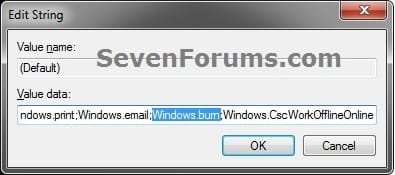
12. Repeat the steps above if you would like to add, remove, or rearrage command bar buttons for any other Windows Explorer location in step 3.
13. When finished, close regedit.
14. If open, close and reopen Windows Explorer to see the changes applied at the location you selected in step 3 (not the registry location).
Note
To Undo All Changes Made in OPTION THREE and Restore All Default Command Bar Buttons
1. Click on the Download button below to download the file below.
Restore_Default_Toolbar_Buttons_in_Windows_Explorer.reg
Download
2. Click on Save, and save the .reg file to the desktop.
3. Right click on the downloaded .reg file and click on Merge.
4. Click on Run, Yes, Yes, and OK when prompted.
5. When done, you can delete the downloaded .reg file if you like.
6. If open, close and reopen Windows Explorer to see the changes applied at the location you selected in step 3 (not the registry location).
1. Click on the Download button below to download the file below.
Restore_Default_Toolbar_Buttons_in_Windows_Explorer.reg
Download
2. Click on Save, and save the .reg file to the desktop.
3. Right click on the downloaded .reg file and click on Merge.
4. Click on Run, Yes, Yes, and OK when prompted.
5. When done, you can delete the downloaded .reg file if you like.
6. If open, close and reopen Windows Explorer to see the changes applied at the location you selected in step 3 (not the registry location).
That's it,
Shawn
Related Tutorials
- How to Remove Windows Explorer Toolbar in Windows 7
- How to Add a Delete Button to the Windows 7 Explorer Toolbar
- How to Enable or Disable Built-in CD and DVD Burning Features in Windows 7 and Windows 8
- How to Add or Remove "Include in library" in Windows 7 Context Menu
- How to Add or Remove "Map Network Drive" and "Disconnect Network Drive" Options
- Add Windows Photo Viewer "Slide show" to Context Menu in Windows 7 and Windows 8
Attachments
Last edited: