Solved Windows fails to use drivers for new SATA hard drives

Kaelies

New member
Local time
9:19 PM
Messages
6
Hello,

I seem to be having some difficulties with windows failing to recognize drivers for any new SATA hard drives which I add to my system, which is a win7 install on a z490 motherboard. Any hard drives I had previously still work fine, and I believe I had, at one point, been able to add a new hard drive without it being an issue. Neither diskpart nor disk management show the new drives.

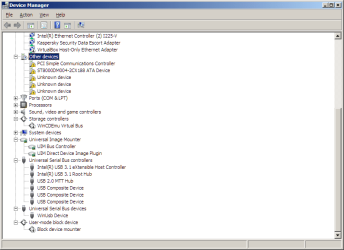
Device manager shows the new hard drivers with the "Driver not found" error, and attempting to "Search automatically" for drivers for them fails. (ST4000DM004... and Corsair Force GS ATA Device). This also happens to another hard drive I have, also a seagate hard drive (ST8000DM004).
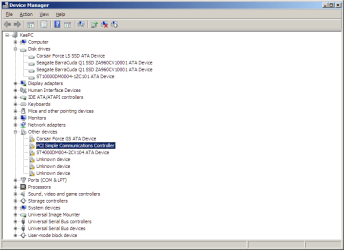
deviceManager.png

On a hunch, I tried to "Browse my computer for driver software"->"Let me pick from a list of device drivers on my computer"->Disk drivers->Standard disk drives->Disk drive, which then causes device manager to properly see it and allows Disk Management and third-party partition managers to see the drive itself, however attempting to mount it or assign a drive letter fails. Restarting after doing this change has not yet helped.

Overall, this seems to be a driver issue related to this specific install, as the hard drive(s) in question either worked with this PC prior to my last hardware upgrade, work fine in other OSes on this same machine, and/or work fine in another win7 PC.

Are there any suggestions on how to resolve this, especially if they avoid re-installing windows?
 

My Computer My Computer

At a glance

Windows 7 Ultimate x64Intel I7 10700k64 GB DDR4 CorsairNvidia RTX 3080 Ti
Computer type
PC/Desktop
Computer Manufacturer/Model Number
Custom Build
OS
Windows 7 Ultimate x64
CPU
Intel I7 10700k
Motherboard
ROG Strix Z490-F "Gaming"
Memory
64 GB DDR4 Corsair
Graphics Card(s)
Nvidia RTX 3080 Ti
Screen Resolution
3840x2160
Hard Drives
(Seagate BarraCuda Q1 SSD ZA960CV10001 960GB) x3
(Corsair Force LS SSD 240 GB)
(Seagate ST10000DM0004-1ZC101 10TB)
(Seagate ST8000DM004 8TB)
What is the make and model of the motherboard? Gigabyte something or other? ASUS something or other?, etc.

Are you using a PCI-e SATA controller card to add more HDDs by chance?

Are you trying a different SATA cable and/or power cable for the drives?

What does it say under Storage controllers and under where it says User mode block device?

You could try going under your ATA controllers, right clicking each one and remove. Then fully reboot or power off/on the computer and they should reinstall based on what's connected to them.

It's looking like you have a unique Windows install and I'd be apt to look into the third-party storage controller and block device as possible culprits.

If you've run out of SATA ports and are now trying to use a PCI-e card to increase the amount of SATA ports, there may be some caveats. One is that depending on what PCI-e slot you use, the motherboard may disable a SATA controller. You'd have to refer to your motherboard manual. Another is that the PCI-e card may not be plug and play and needs its own driver. Also, there may be a BIOS/UEFI option that has to be turned on or off in order to get that PCI-e card to work.
 

My Computer My Computer

At a glance

Windows 7 Ultimate x64
Computer type
PC/Desktop
OS
Windows 7 Ultimate x64
Oh, heh...I think I found a solution while I was trying to look up all the info to make a response. I noticed Device Manager started showing up two new "Unknown device"s with a hardware ID of "STORAGE\Volume" after I manually selected the Disk driver for the hard drive ATA device, and I tried investigating that a bit further. My windows was still unable to automatically find drivers for anything, but I found that doing a "Browser for driver software on your computer" with a location of "C:\Windows\System32\driverStore" managed to find drivers for these (I had previously been searching in just "C:\Windows\System32\drivers").
Installing the drivers like this for both new unknown devices seems to have fixed the issue, at least for now, and I can access the new hard drive normally through disk management.

In case anyone else stumbles upon a similar issue, the process I went through to make the drivers install properly:
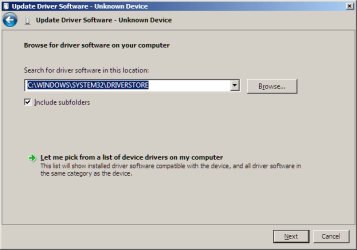
-Right click the device which wasn't working right->Update driver software
-Browse my computer for driver software
-Search for driver software in this location: "C:\Windows\System32\driverStore"

HDDriver7b.png

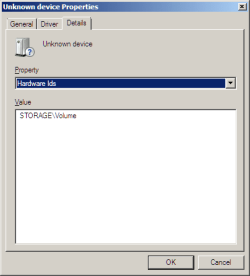
-Do this for both the hard drive ATA device and for any new "Unknown Devices" that show up associated with it, which should have a hardware ID of "STORAGE\Volume" (See screenshots at the end of the reply)

I guess that means this is resolved, though I'm still confused about why windows wasn't finding anything automatically when the new hard drive was installed or when "Search automatically for updated driver software" gets used.

My original response (for new info) below:
---------------------------
Oh, I forgot to update the system specs on my profile after I upgraded. I'm using a "ROG Strix Z490-F Gaming". I think the rest of my PC specs should be updated, at least anything I can imagine being relevant.

I'm using the regular 6 SATA ports which are directly on the motherboard; I'm actually replacing an older drive which is recognized just fine with the same wiring setup. There's no SATA extensions on the system, and all 6 ports show up as enabled in the BIOS.

I'm a little scared to try uninstalling the drivers on any of the currently-functioning hard drives in case they start exhibiting this same issue. Would the configuration that windows is using for these be stored anywhere that I could back-up and restore with another OS should it start failing to recognize *any* hard drives?

I've restarted a few times at the start of this, windows throws me errors of "the driver was not installed correctly" every time I do that or uninstall the specific HD in device manager and run a "Scan for hardware changes".

I might have some of the "Intel Storage AHCI" drivers installed as I thought they were necessary after starting to run into this issue, but I don't think I had them before this started happening.

Here's what the storage controller and block device drivers are, they're all virtual for mounting extra disks (WinCDEmu and Paragon, I think for Paragon's restoration software). Attempting to disable them then searching for drivers on the other hard drives again didn't work.
HDDriver4.png

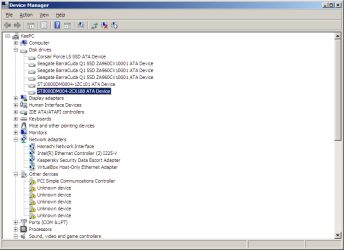
In case it helps, here's the view of the devices with the driver manually installed on one of the hard drives. I noticed there's an extra two "Unknown device"s that show up with hardware IDs of "STORAGE\Volume", but trying to pick out manual drivers as "Disk driver" doesn't work like it does with the base hard drive.

HDDriver5.png HDDriver6.png
 

My Computer My Computer

At a glance

Windows 7 Ultimate x64Intel I7 10700k64 GB DDR4 CorsairNvidia RTX 3080 Ti
Computer type
PC/Desktop
Computer Manufacturer/Model Number
Custom Build
OS
Windows 7 Ultimate x64
CPU
Intel I7 10700k
Motherboard
ROG Strix Z490-F "Gaming"
Memory
64 GB DDR4 Corsair
Graphics Card(s)
Nvidia RTX 3080 Ti
Screen Resolution
3840x2160
Hard Drives
(Seagate BarraCuda Q1 SSD ZA960CV10001 960GB) x3
(Corsair Force LS SSD 240 GB)
(Seagate ST10000DM0004-1ZC101 10TB)
(Seagate ST8000DM004 8TB)
Back
Top