Windows Image folder is empty !

Mike99

New member
Member
VIP
Local time
10:11 AM
Messages
258
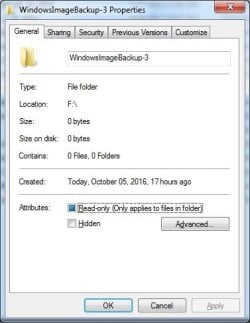
I just created an image of my new SSD using Windows 7 64 bit. I looked to see how large the file was compared to my older HDD images. But when I hover the cursor over the WindowsImageBackup folder name in Windows Explorer it says "Folder Empty". Right clicking & looking at Properties shows zero bytes.

What could I have done wrong?
 

My Computer

Computer type
PC/Desktop
Computer Manufacturer/Model Number
HP
OS
Windows 7 Ultimate x64
CPU
AMD Athlon x4
Motherboard
HP / Foxconn
Memory
8.00 GB
Graphics Card(s)
GTX 750Ti SC
Monitor(s) Displays
ACER
Hard Drives
1TB Seagate
PSU
380W
Cooling
Stock
Internet Speed
3 Mbps
This is normal for the Windows inbuilt system imaging. You can use disk management to explore within the folder and attach the largest vhd file. You can search its contents with Windows explorer. Right click on the left of the attached file (eg.k: or something) and disconnect when done.
Alternatively you can use Partition Wizard Mini Tool and explore the partition contents containing the image. This will only give you the size of the Windows system image folder components.

You will see that you have GBs of image data.

Ultimately you may want to also consider using the much more flexible (free) Macrium Reflect system imaging software.
 

My Computer

Computer type
PC/Desktop
Computer Manufacturer/Model Number
Own build
OS
Windows 7x64 Home Premium SP1
CPU
Intel i7 2600k
Motherboard
ASUS P8Z68 Deluxe
Memory
G.Skill Ripjaws (DDR3-1600) 2x4GB
Graphics Card(s)
Nvidia GeForce GTS 450; Intel HD Graphics 3000(GT2+)
Monitor(s) Displays
Dell Ultrasharp IPS panel U2311H, Samsung SyncMaster P2350
Screen Resolution
1920x1080
Hard Drives
Samsung 850 Pro SSD 256GB, Samsung SSD 840 120GB, Seagates 1TB Barracuda ST31000528AS x2
PSU
Seasonic M12II 520W
Case
Lian Li Lancool PC-K60
Cooling
Case: 1x120mm, 3x140mm CPU: Hyper 212+
Keyboard
Logitech MK520 (wireless)
Mouse
Logitech MK520
Internet Speed
6-7 Mbps
Antivirus
Norton Security Premium, Malwarebytes on 2 (MSE on 3rd PC)
Browser
FireFox
Other Info
Audio: Logitech Z523 2.1
The other images that were created with Windows have data.

I did search its contents with Windows explorer & there is nothing there.
 

My Computer

Computer type
PC/Desktop
Computer Manufacturer/Model Number
HP
OS
Windows 7 Ultimate x64
CPU
AMD Athlon x4
Motherboard
HP / Foxconn
Memory
8.00 GB
Graphics Card(s)
GTX 750Ti SC
Monitor(s) Displays
ACER
Hard Drives
1TB Seagate
PSU
380W
Cooling
Stock
Internet Speed
3 Mbps
Your WindowsImageBackup folder should be in another HDD as it cannot be in the C:\ drive as it is OS system.

Select that HDD and select the Properties.

It will show the actual files size use + free = total storage, say, 1TB HDD.

In normal case, this WindowsImageBackup folder may not be accessible and may indicate 0 size.

For folder with 000 size, it mean it is locked.

This is same as CD-R

After you copy 100 MB of files size and closed the CD-R.
If you try to check the CD-R free storage, it will be 0000 bytes size.

You required certain tools to see inside.

For CD-R there is a ISObuster.exe where it is able to see the actual filenames & folder-names.

For WindowsImageBackup folder with 000 bytes free, it is not suppose to fiddle with it.
Else it may affect if you want to do restore.
 

My Computer

Computer type
Laptop
Computer Manufacturer/Model Number
Toshiba L630 and L735
OS
Windows 7 x64
Hard Drives
240 GB SSD
The WindowsImageBackup folder is on an external HDD.

The first picture shows the properties of an older image folder which contains files & folders. I also have other images which also show files & folders.

The second picture shows the new image folder properties with no contents.

They're both on the same EHD. Why the difference?
 

Attachments

  • BU_IMG-1.jpg
    BU_IMG-1.jpg
    53.3 KB · Views: 32
  • BU_IMG-3.jpg
    BU_IMG-3.jpg
    49.6 KB · Views: 32

My Computer

Computer type
PC/Desktop
Computer Manufacturer/Model Number
HP
OS
Windows 7 Ultimate x64
CPU
AMD Athlon x4
Motherboard
HP / Foxconn
Memory
8.00 GB
Graphics Card(s)
GTX 750Ti SC
Monitor(s) Displays
ACER
Hard Drives
1TB Seagate
PSU
380W
Cooling
Stock
Internet Speed
3 Mbps
The WindowsImageBackup folder is on an external HDD.

The first picture shows the properties of an older image folder which contains files & folders. I also have other images which also show files & folders.

The second picture shows the new image folder properties with no contents.

They're both on the same EHD. Why the difference?
The 2nd screenshot is normal.
To get the first screenshot you must have forced permission access to the folder and subfolders. When you attempt to enter these folders Windows advises that you don't have permission but gives you the option to take permission. I'm unsure if this compromises your ability perform a system image restore in the future.
Windows system imaging can be touchy and I didn't force access when I used to use Windows inbuilt imaging.
As I've indicated you are safer using Macrium Reflect.
 

My Computer

Computer type
PC/Desktop
Computer Manufacturer/Model Number
Own build
OS
Windows 7x64 Home Premium SP1
CPU
Intel i7 2600k
Motherboard
ASUS P8Z68 Deluxe
Memory
G.Skill Ripjaws (DDR3-1600) 2x4GB
Graphics Card(s)
Nvidia GeForce GTS 450; Intel HD Graphics 3000(GT2+)
Monitor(s) Displays
Dell Ultrasharp IPS panel U2311H, Samsung SyncMaster P2350
Screen Resolution
1920x1080
Hard Drives
Samsung 850 Pro SSD 256GB, Samsung SSD 840 120GB, Seagates 1TB Barracuda ST31000528AS x2
PSU
Seasonic M12II 520W
Case
Lian Li Lancool PC-K60
Cooling
Case: 1x120mm, 3x140mm CPU: Hyper 212+
Keyboard
Logitech MK520 (wireless)
Mouse
Logitech MK520
Internet Speed
6-7 Mbps
Antivirus
Norton Security Premium, Malwarebytes on 2 (MSE on 3rd PC)
Browser
FireFox
Other Info
Audio: Logitech Z523 2.1
I never forced permission access to the folders, at least not intentionally. That being said I did use that first old one to install an image on a new HDD. I had to rename that old image to "WindowsImageBackup" in order to install it, however I don't recall if it mentioned anything about permissions.

I have another old image on the same EHD and it also shows it contains files & folders, yet I never made any attempt to use it.

I thought about using Macrium Reflect in addition to the Windows built in imaging tool. I'm trying to keep the new SSD installation as clean & lean as possible but it appears I have to install Macrium Reflect in order to use it. IOW it won't run off of a CD or DVD. Not a big deal I suppose, but I did want to make a Windows image first.

How do you verify that an image will work? Install it on another HDD?
 

My Computer

Computer type
PC/Desktop
Computer Manufacturer/Model Number
HP
OS
Windows 7 Ultimate x64
CPU
AMD Athlon x4
Motherboard
HP / Foxconn
Memory
8.00 GB
Graphics Card(s)
GTX 750Ti SC
Monitor(s) Displays
ACER
Hard Drives
1TB Seagate
PSU
380W
Cooling
Stock
Internet Speed
3 Mbps
I made an image with Windows inbuilt system imaging only to test my comments in post #6. I needed to "force" my way into all WindowsImageBackup & sub folders. Only then did properties show its size. Windows effectively warns you about poking around in there but never understood why it hid the underlying size of the contents.

I don't see a problem installing Macrium. I have it on all 4 of my PCs. I think members on this forum would vote it as one of the most popular and reliable system imaging programs out there.
Once you make the necessary image restore CD/DVD/USB pe you can image from the booted pe disk. There are some cases where you may want to do this but generally you would use the installed version.

As far as testing... A verify will determine the bit integrity of the image but not guarantee a successful restore. Mounting the image and exploring the contents with Windows explorer gives some level of confidence (look but don't change anything). You should be making multiple images staggered over time (eg. some months).
Ultimately restoring to your existing OS drive or a new replacement drive is the only way to give you full confidence. Get your hands on a spare SSD or HDD, disconnect all other drives, connect the new drive and check that the restored image boots.
 
Last edited:

My Computer

Computer type
PC/Desktop
Computer Manufacturer/Model Number
Own build
OS
Windows 7x64 Home Premium SP1
CPU
Intel i7 2600k
Motherboard
ASUS P8Z68 Deluxe
Memory
G.Skill Ripjaws (DDR3-1600) 2x4GB
Graphics Card(s)
Nvidia GeForce GTS 450; Intel HD Graphics 3000(GT2+)
Monitor(s) Displays
Dell Ultrasharp IPS panel U2311H, Samsung SyncMaster P2350
Screen Resolution
1920x1080
Hard Drives
Samsung 850 Pro SSD 256GB, Samsung SSD 840 120GB, Seagates 1TB Barracuda ST31000528AS x2
PSU
Seasonic M12II 520W
Case
Lian Li Lancool PC-K60
Cooling
Case: 1x120mm, 3x140mm CPU: Hyper 212+
Keyboard
Logitech MK520 (wireless)
Mouse
Logitech MK520
Internet Speed
6-7 Mbps
Antivirus
Norton Security Premium, Malwarebytes on 2 (MSE on 3rd PC)
Browser
FireFox
Other Info
Audio: Logitech Z523 2.1
I did a restore to a spare HDD and the image worked. I then used this HDD and used Windows Explorer to look at the Image properties on the EHD. Now they all show no files or folders. However when using the original HDD the older images do show data just like they previously did.

Anyway everything appears OK. I plan on using the spare HDD for data and might pickup another one to keep on hand just to verify that an image works.

I have not tried Macrium yet because I wanted to create some images of a "no frills" SSD. IOW without any utilities. But I'll install it on the SSD and make some images with it.

Reading through the forum it seems moving images from one drive to another is not recommended. But then there are other postings saying it's OK. What's the latest consensus? I ask because until I get another EHD for Macrum images they would have to go on the same one with the Windows images. And then moved later, unless that's really taboo.
 

My Computer

Computer type
PC/Desktop
Computer Manufacturer/Model Number
HP
OS
Windows 7 Ultimate x64
CPU
AMD Athlon x4
Motherboard
HP / Foxconn
Memory
8.00 GB
Graphics Card(s)
GTX 750Ti SC
Monitor(s) Displays
ACER
Hard Drives
1TB Seagate
PSU
380W
Cooling
Stock
Internet Speed
3 Mbps
I've never had any problem moving images to wherever I need to store them. My personal preference is to run a restore (when needed) from a secondary drive (i.e. not the target drive) hooked up to an internal SATA connection. It just goes faster and with less dependence on extra port drivers, cables, etc.

What you don't want is to have your restore image on the same physical drive as the OS. If the drive fails you lose the whole shebang. When I'm setting up a backup strategy I always allow for what-ifs such as "if this drive goes poof what do I do next?" When I reach the point where it would take a one-in-a-billion combination of bad luck to lose everything I feel like I can relax a little bit.
 

My Computer

Computer Manufacturer/Model Number
Self
OS
Main - Windows 7 Pro SP1 64-Bit; 2nd - Windows Server 2008 R2
CPU
Main - Core i7 2600K; 2nd - Core i7 920
Motherboard
Main - Asus P8Z68-V Pro/Gen3; 2nd - Gigabyte GA-EX58-UDR3
Memory
Main - 16GB Corsair Vengeance; 2nd - 12GB Corsair Vengeance
Graphics Card(s)
Main - XFX Radeon 6870 1GB; 2nd - XFX Radeon 4870 1GB
Sound Card
Both: Onboard Realtek Azalia
Monitor(s) Displays
Main - Hann 25" + I-INC 25" + Acer 23"; 2nd - Upgrading Soon
Screen Resolution
Main - 1920x1080 (All Three Monitors); 2nd - Upgrading Soon
Hard Drives
Main - (1) Crucial M4 128GB (Boot)
Main - (1) Seagate 2TB 64MB Cache (Data)
Main - (1) Seagate 2TB 64MB Cache (Data Backup)
2nd - (1) Intel X25-M SSD 80GB (Boot)
2nd - (3) Seagate 1TB 32MB Cache (Data Backup)
2nd - (1) Seagate 320GB (Because)
PSU
Main - OCZ 600W Modular; 2nd - OCZ 600W
Case
Main - Thermaltake Element G; 2nd - NZXT something or other
Cooling
Main - Corsair H80; 2nd - Prolimatech Megahalems
Keyboard
Main - Razer Reclusa; 2nd - Old MS Keyboard
Mouse
Main - Logitech MX Revolution; 2nd - Old MS Mouse
Internet Speed
20Mbps Time-Warner Cable
Reading through the forum it seems moving images from one drive to another is not recommended. But then there are other postings saying it's OK. What's the latest consensus? I ask because until I get another EHD for Macrum images they would have to go on the same one with the Windows images. And then moved later, unless that's really taboo.
Firstly moving an image across partition boundaries involves a physical movement of all the image data (50GB+ maybe). Moving images within a partition (eg. to a new folder) involves a simple file system (directory) entry change.
Secondly, I see no problem in have Windows images and Macrium images on the same drive - I used to do it all the time. Remember Windows image naming is clunky. If you want more than one you need to rename it to say WindowsImageBackup-No2. Whatever you want to reimage must be renamed back to WindowsImageBackup and placed in the root of a partition. See the tutorial by Brink.
 

My Computer

Computer type
PC/Desktop
Computer Manufacturer/Model Number
Own build
OS
Windows 7x64 Home Premium SP1
CPU
Intel i7 2600k
Motherboard
ASUS P8Z68 Deluxe
Memory
G.Skill Ripjaws (DDR3-1600) 2x4GB
Graphics Card(s)
Nvidia GeForce GTS 450; Intel HD Graphics 3000(GT2+)
Monitor(s) Displays
Dell Ultrasharp IPS panel U2311H, Samsung SyncMaster P2350
Screen Resolution
1920x1080
Hard Drives
Samsung 850 Pro SSD 256GB, Samsung SSD 840 120GB, Seagates 1TB Barracuda ST31000528AS x2
PSU
Seasonic M12II 520W
Case
Lian Li Lancool PC-K60
Cooling
Case: 1x120mm, 3x140mm CPU: Hyper 212+
Keyboard
Logitech MK520 (wireless)
Mouse
Logitech MK520
Internet Speed
6-7 Mbps
Antivirus
Norton Security Premium, Malwarebytes on 2 (MSE on 3rd PC)
Browser
FireFox
Other Info
Audio: Logitech Z523 2.1
Reading through the forum it seems moving images from one drive to another is not recommended. But then there are other postings saying it's OK. What's the latest consensus? I ask because until I get another EHD for Macrum images they would have to go on the same one with the Windows images. And then moved later, unless that's really taboo.
Firstly moving an image across partition boundaries involves a physical movement of all the image data (50GB+ maybe). Moving images within a partition (eg. to a new folder) involves a simple file system (directory) entry change.
Secondly, I see no problem in have Windows images and Macrium images on the same drive - I used to do it all the time. Remember Windows image naming is clunky. If you want more than one you need to rename it to say WindowsImageBackup-No2. Whatever you want to reimage must be renamed back to WindowsImageBackup and placed in the root of a partition. See the tutorial by Brink.

Does that mean you should not move an image across partition boundaries? Wouldn't that also pertain to moving an image to a different drive?

My thinking about putting the Macrium images on a different drive was that in case the drive with the Windows created image stopped working then I would still have a Macrium image on a hopefully working separate drive.
 

My Computer

Computer type
PC/Desktop
Computer Manufacturer/Model Number
HP
OS
Windows 7 Ultimate x64
CPU
AMD Athlon x4
Motherboard
HP / Foxconn
Memory
8.00 GB
Graphics Card(s)
GTX 750Ti SC
Monitor(s) Displays
ACER
Hard Drives
1TB Seagate
PSU
380W
Cooling
Stock
Internet Speed
3 Mbps
Does that mean you should not move an image across partition boundaries? Wouldn't that also pertain to moving an image to a different drive?
Moving an image to a different drive is still moving across a partition boundary. Partitions have different file systems. I have moved a Windows image across a boundary as a test and could restore it but I wouldn't want to bet my life on it. If it is a last resort then go for it but I wouldn't do it as a normal practice.

Using 2 different imaging programs both on 2 different drives is more robust than putting Windows imaging on one drive and Macrium on another. I used to do this then I eventually stopped making Windows inbuilt images on my 3 active PCs. But I definitely store Macrium images on more than one ext HDD.
My preference is sata drives in USB3 docking stations rather than say a WD MyBook essentials but I don't want to deviate from your main questions.

Ultimately you have to make the decision that you feel comfortable with.
 

My Computer

Computer type
PC/Desktop
Computer Manufacturer/Model Number
Own build
OS
Windows 7x64 Home Premium SP1
CPU
Intel i7 2600k
Motherboard
ASUS P8Z68 Deluxe
Memory
G.Skill Ripjaws (DDR3-1600) 2x4GB
Graphics Card(s)
Nvidia GeForce GTS 450; Intel HD Graphics 3000(GT2+)
Monitor(s) Displays
Dell Ultrasharp IPS panel U2311H, Samsung SyncMaster P2350
Screen Resolution
1920x1080
Hard Drives
Samsung 850 Pro SSD 256GB, Samsung SSD 840 120GB, Seagates 1TB Barracuda ST31000528AS x2
PSU
Seasonic M12II 520W
Case
Lian Li Lancool PC-K60
Cooling
Case: 1x120mm, 3x140mm CPU: Hyper 212+
Keyboard
Logitech MK520 (wireless)
Mouse
Logitech MK520
Internet Speed
6-7 Mbps
Antivirus
Norton Security Premium, Malwarebytes on 2 (MSE on 3rd PC)
Browser
FireFox
Other Info
Audio: Logitech Z523 2.1
Back
Top