
How to Export and Import Contacts in Windows Live Mail
Information
OPTION ONE
To Export (backup) Contacts from Windows Live Mail
1. Open Windows Live Mail, and open your Contacts. (see screenshot below)

2. Do either step 3 or 4 below to export your contacts as comma separated values (.csv) or business card (.vcf) file(s).
3. To Export Contacts as Business card (.vcf) Files
A) Click on the Export ribbon button, and click on the Business card (.VCF) option. (see screenshot below)
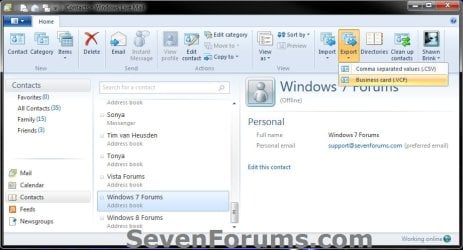
B) Navigate to and select where (ex: Desktop) you would like to export your contacts to, then click on the Make New Folder button. (see screenshot below)

C) Select the New folder, and click on OK. (see screenshot below)
NOTE: You can rename the New folder anything you like though. I'm just using New folder as the name as an example.
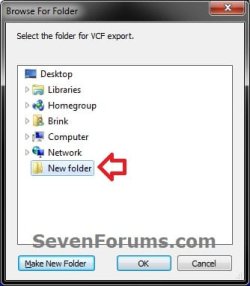
D) Your contacts have all been each exported as a .VCF file in the New folder. Go to step 5 below.
4. To Export Contacts as a Comma separated values (.csv) File
A) Click on the Export ribbon button, and click on the Comma separated values (.CSV) option. (see screenshot below)
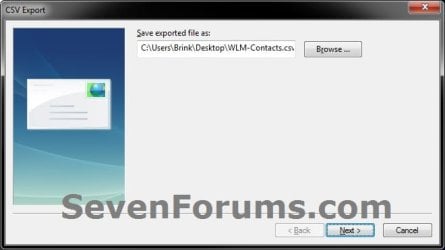
B) Click on Browse. (see screenshot below)
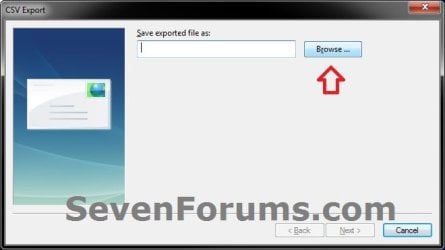
C) Navigate to where (ex: Desktop) you would like to export your contacts to, type in a name (ex: WLM-Contacts) you would like for the .csv file, and click on Save. (see screenshot below)
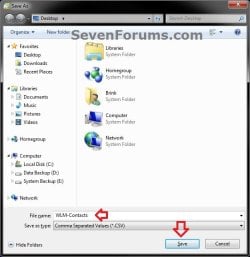
D) Click on Next. (see screenshot below)
E) If allowed, you can check and uncheck any of the fields you want or do not want to be included on the contacts exported, then click on Finish. (see screenshot below)
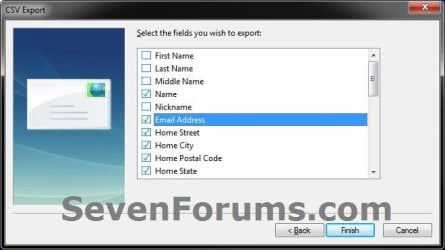
F) Your contacts have all been exported as a single .CSV file. Go to step 5 below.
5. Save the exported .csv file or "new folder" with .vcf files where you like to keep them stored at as your backup.
OPTION TWO
To Import (restore) Contacts to Windows Live Mail
NOTE: You would have needed to already exported your contacts using OPTION ONE above before you will be able to import them.
1. Open Windows Live Mail, and open your Contacts. (see screenshot below)
2. Do either step 3 or 4 below to import your contacts from an exported comma separated values (.csv) or business card (.vcf) file(s) from OPTION ONE above.
3. To Import Contact(s) from a Business card (.vcf) File(s)
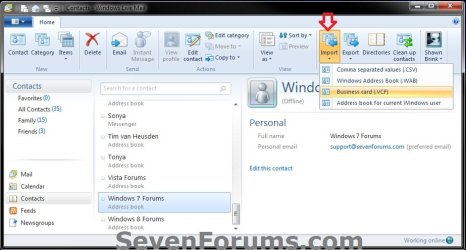
A) Click on the Import ribbon button, and click on the Business card (.VCF) option. (see screenshot below)
B) Navigate to where you saved the New folder with exported .vcf files from step 3 in OPTION ONE above, and select and open the New folder. (see screenshot below)
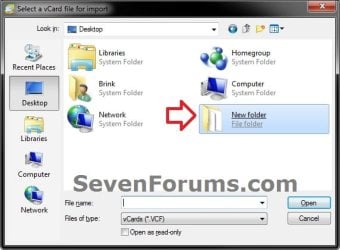
C) Select one, or more, or all of the contacts (.vcf files) that you would like to import, click on Open, and go to step 5 below. (see screenshot below)
Tip
To select one or more random .vcf files, you could press and hold the CTRL key and select (left click on) random .vcf files, then release the CTRL key when finished.
To select all .vcf files within two selected .vcf files included the two selected .vcf files, you would press and hold the Shift key, select the first .vcf file, select the second .vcf file, then release the Shift key.
To select all .vcf files within two selected .vcf files included the two selected .vcf files, you would press and hold the Shift key, select the first .vcf file, select the second .vcf file, then release the Shift key.

4. To Import Contacts from a Comma separated values (.csv) File
A) Click on the Import ribbon button, and click on the Comma separated values (.CSV) option. (see screenshot below)
B) Click on Browse. (see screenshot below)

C) Navigate to where you saved the exported .csv file from step 4 in OPTION ONE above, and click on Open. (see screenshot below)

D) Click on Next. (see screenshot below)
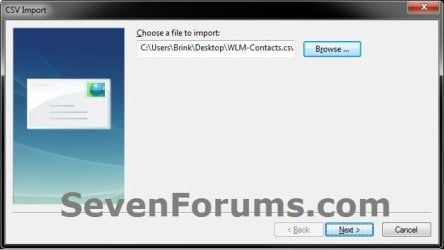
E) If you would like to add or remove any of the fields to be included when importing the contacts, then double click on any listed field and check (add) or uncheck (remove) the Import this field box, and click on OK. (see screenshots below)
NOTE: Repeat this step for any field you would like to add (check) or remove (uncheck).

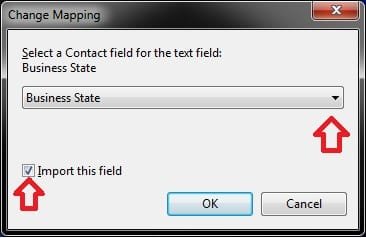
F) When finished, click on the Finish button, and go to step 5 below. (see left screenshot above)
5. Your contacts have been imported into Windows Live Mail.
That's it,
Shawn
Related Tutorials
- How to Setup and Use Windows Live Mail as Email Client for your Messages
- How to Import Vista and Windows 7 Contacts and Contact Groups into Windows Live Mail
- How to Import "Windows Mail" Messages into Windows Live Mail
- How to Export and Import Email Accounts in Windows Live Mail
- How to Export and Import Email Messages in Windows Live Mail
- How to Backup and Restore Signatures in Windows Live Mail
- How to Import Windows Contacts into Outlook 2010
Last edited:


