Windows Mail

How to Reinstate Windows Mail in Windows 7

   Warning
Microsoft no longer supports Windows Mail, aka WinMail. It's recommended you use another well known supported email client. This Tutorial is for Advanced users who importantly have the Technical Ability to make the changes, have backups of everything including your OS, and to be your own tech support for WinMail going forward. If you decide to complete this tutorial you accept the fact that you are using WinMail as-is. It might be necessary to uninstall other email clients to resolve any WinMail conflicts in some environments. Understand it's likely that new OS updates from Microsoft will break WinMail's operation, and to fix make it necessary to rerun the tutorial again to reinstate it. With those things in mind, this tutorial was written so that you can rerun it without affecting WinMail user data.
Please see this Errata (Bug List) post before you install, to be aware of the current information about known issues using WinMail within Windows 7, these issues are programmatic and in most cases cannot be resolved by this tutorial, and will never be fixed.

Having said all of that disclaimer, if you have the technical ability, and can put up with the annoying minor byproduct bugs, then like so many of us still enjoy using WinMail on Windows 7 ...ymmv!


   Tip
As of January, 2025, the instructions given here supersede all other instructions given in forthcoming older posts. Realize some of the posts that follow are over 16 years old, and many of the link pointers within have become mislinked over time, many of the files or information within them is outdated, incomplete, or superseded with more accurate information - and so be careful. However you can always be sure that the latest info from all research is incorporated into this tutorial post, and its downloads are the latest available. This post is continuously kept up-to-date, and so..
...Always refer to this Tutorial post for the very latest updated information

This is the 4th iteration of the Windows 7, WinMail tutorial.

The process of this tutorial Will Not work to reinstate WinMail on Windows 8/10 !
Windows 8/10 users please go Here


Start here
  1. Download tutorial package TutReWinMail.zip

    Download

  2. Extract the TutReWinMail.zip into your user Downloads folder
    • Note: Be sure once extracted this is the address of the ''TutReWinMail'' folder:
    • C:\Users\username\Downloads\TutReWinMail... ... (if it's not there please put it there)
  3. Navigate to your user Downloads\TutReWinMail folder to be sure the above is correct.
    • (..if you need more verbose install instructions to follow, download this WinMail Local Tutorial.zip)
    • Advanced Users can proceed below:
      (..log in for Full Access, being able to get support, remove ads, like, and even to post, etc..)
Advanced Users: ..use this easy excellent overview of the steps in the local tutorial:
  • Open an Administrator Command Prompt. (screenshot showing in Administrator mode)
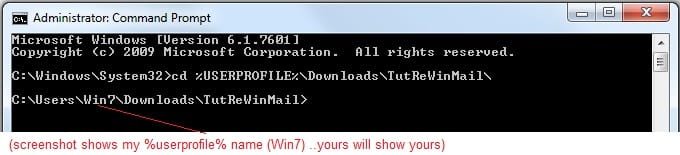
  • copy/paste this line into the command prompt: cd %USERPROFILE%\Downloads\TutReWinMail\
  • Your command prompt must now be showing you are at That Same Folder Address ..which contains the tutorial files that the batch file in the next step executes programs and copies files specifically from that folder address - if it's not there the batch file will fail since it cannot find what it needs!
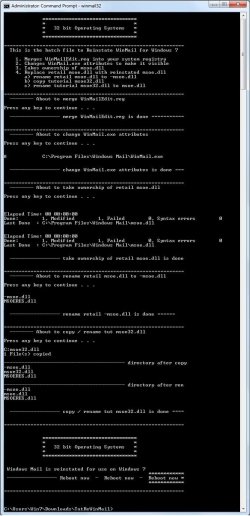
  • Next type in either winmail32 or win64mail <matching OS bit, to interactively process These Next Steps
  • If you've finished to the bottom as shown in last screenshot, restart your machine (sets registry)
  • Create a shortcut from WinMail.exe to your Desktop
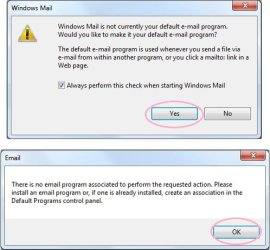
  • Open WinMail - it may prompt you one (or both) of These Two Notices ..click yes, and okay.
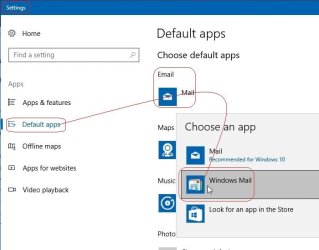
  • They now should be already set, but you can manually check/set at any time These Default Settings
  • That's pretty much all there is to it, and from here you setup the rest of the Windows Mail client (aka: WinMail) as normal within its various tab menus for Accounts, Options, Layout, etc, etc, to suit your individual needs.
  • Lastly, but should be the First thing you do, is to Create A WinMail Backup (new version) ..Go to this next link and when you get there scroll down to the heading: Backup/Restore Procedures for further instructions.
   Information
See How to open an elevated Administrator Command Prompt
Important: The exact text provided by the tutorial must be entered into the Administrator Command Prompt.
Hint: to avoid typos, copy/paste the entire line containing the command into the Command Prompt window.
Also see: How to Enable Copy to Clipboard from the Windows 7 Command Prompt

Every effort has been made to make this a step-by-step process, however, it is beyond the scope of a single tutorial to provide information on every command or concept. Search the Main Tutorial Section if you need greater detail on a concept or command presented in this tutorial.


Good luck, and long live WinMail :thumbsup:


   Note
Made possible by members:
Mark (aka Mr GRiM) - provided the original tutorial
Poppa Bear - continued Mark's work within the 2nd version
endeavor - provided continuous feedback, changes, invaluable testing instrumental to tutorial operations
EKManitis - propose the batch code that made operations easier
Slartybart - updated, tested, and consolidated all of the above into the 3rd version
endeavor - reviewed, updated, tested, and incorporated all of the above into this 4th version
...and also a special thanks to All the other members who presented discovery for this project


Attachments

  • TutReWinMail.zip
    TutReWinMail.zip
    1.8 MB · Views: 4,994
  • msoe_32.zip
    msoe_32.zip
    404 bytes · Views: 1,052
  • msoe_64.zip
    msoe_64.zip
    404 bytes · Views: 1,531
  • WinMailEdit.zip
    WinMailEdit.zip
    404 bytes · Views: 6
  • Win74umsZip.zip
    Win74umsZip.zip
    404 bytes · Views: 106
  • ACP.jpg
    ACP.jpg
    19.6 KB · Views: 1,083
  • DefaultClickYes-OkayAssociation.jpg
    DefaultClickYes-OkayAssociation.jpg
    52.8 KB · Views: 899
  • ProcessingBatch.jpg
    ProcessingBatch.jpg
    194.2 KB · Views: 1,147
  • PasteCDCommand.jpg
    PasteCDCommand.jpg
    33.1 KB · Views: 696
  • WinMail_Local_Tutorial.zip
    WinMail_Local_Tutorial.zip
    6.1 KB · Views: 1,202
  • FolderOptionsSet.jpg
    FolderOptionsSet.jpg
    61.5 KB · Views: 695
  • WinMailAdvanceOptionsBlank.jpg
    WinMailAdvanceOptionsBlank.jpg
    276.4 KB · Views: 93
  • Win7x64AdvancedTab+FileVersions.jpg
    Win7x64AdvancedTab+FileVersions.jpg
    298.9 KB · Views: 112
  • AdvancedTabBefore&After_fixed.jpg
    AdvancedTabBefore&After_fixed.jpg
    106.9 KB · Views: 50
  • CheckManually.jpg
    CheckManually.jpg
    209.5 KB · Views: 136
  • Win10_SetDefault.jpg
    Win10_SetDefault.jpg
    66.2 KB · Views: 33
Last edited by a moderator:
VERY happy reader sends THANKS!!

YES! Oh yes, yes, oh yes!! :party: :D You people have made this gal one very happy lady! It's a grand day when I learn how to keep the beloved and unsurpassed OE-gone-WinMail.

I just migrated to a new Win7 machine from Vista and did not like what I saw of WLM on another Win7 machine I set up for someone else... and I particularly did not like the option of migrating to another email client (I've tried... just can't do it).

Thank you one and all for the skill and knowledge you have put into a marvelous tutorial. :thumbsup: You make us intermediate users feel like pros for a few minutes!

Love it!
Anne


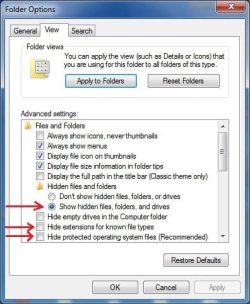
PS - I could not get the WinMail.exe file to show either. Showing hidden files, file extensions, and protected OS files in Folder Options worked for me.
 
Last edited:

My Computer

Computer Manufacturer/Model Number
eMachines ET1810
OS
Windows 7 Home Premium, 64-bit
Memory
3GB (2.75 usable)
Did it different

The way I did it was to boot Ubuntu Linux from a CD and then go to
the program files and delete everything in the Windows Mail directory. Then I copied the entire directory contents from my other computer running Vista to a thumb drive and used Linux to copy that back to the Win 7 machine. Seems like it's going to work.
 

My Computer

Computer Manufacturer/Model Number
Built it myself
OS
Windows 7 Home Premium X64
CPU
Intel Q6600 Quad-core
Motherboard
Gigabyte GA-P31-S3G
Memory
4 GB DDR2
Graphics Card(s)
Nvidia Geforce 7600 GS
Sound Card
Onboard
Monitor(s) Displays
Acer P244W
Screen Resolution
1920 X 1080
Hard Drives
Western Digital 500 GB
PSU
Enermax 650W
Case
Antec
Cooling
Coolermaster
Keyboard
Microsoft
Mouse
Logitech wireless
Internet Speed
6 MB
The way I did it was to boot Ubuntu Linux from a CD and then go to


the program files and delete everything in the Windows Mail directory. Then I copied the entire directory contents from my other computer running Vista to a thumb drive and used Linux to copy that back to the Win 7 machine. Seems like it's going to work.
If it works that's great. That was the method used in the original tutorial here. However, it was shown to have inherent problems. These included:
  • Conflicts between some of the Vista files and Windows 7.
  • When sysem file check was run in the Run command box with the code sfc /scannow the system became inoperable because some of the Vista files were modified or replaced.
  • When Microsoft updates were run it created similar conflicts which borked the system.
  • Email .eml type files could not be opened on the desktop or in storage fodlers
In addition the modified method:
  • Auto prompts to set Windows Mail as default on first start up of WinMail.exe
  • Removes the WinMail.exe splash screen on start up.
By only replacing the msoe.dll file, you only have to deal with conflicts between this file and Windows 7, which has all been done in the reg edits contained in the tutorial.

However, like I say, if it works for you, that's great. It didn't for me and many, many other users.

Cheers PB
 

My Computer

Computer Manufacturer/Model Number
Self-assembled
OS
Win7 Ultimate 64bit Retail
CPU
Intel i7 960 quad core
Motherboard
Intel DX58SO2 Extreme
Memory
12 GB Kingston DDR 3 1300
Graphics Card(s)
PCI Express Gigabyte GTX 550 Ti
Sound Card
Gigabyte GTX 550 Ti Graphics/5 Sound card
Monitor(s) Displays
Samsung WS Syncmaster S23A350H
Screen Resolution
1920 x 1080
Hard Drives
OS on 128 GB Corsair SSD SATA 3 + Storage on 1 TB Western Digital Black SATA 2
Case
Cooler Master CM690 II Advanced Mid Tower
Cooling
CPU, top, front and rear extractor fans
Keyboard
Microsoft Intellitype Wireless Multimedia
Mouse
Microsoft Intellipoint2 Wireless
Internet Speed
100 MB/sec Theoretical max. Actual average 0.5MB/sec
Other Info
Back-up PC with Vista Ultimate OEM 32bit. Intel i5 2400 Quad Core CPU, DH67CL mobo, 8 GB Kingston DDR3 1300 RAM,
hi poppa bear
Thank you very much for the help.
That worked just fine.
I now have winmail.
Again thank you
 

My Computer

OS
win 7
hi poppa bear
Thank you very much for the help.
That worked just fine.
I now have winmail.
Again thank you
You're most welcome. That's great it finally worked. I know how glad I was when I got WinMail back again. So it gives me satisfaction to help someone else get it back.

Cheers PB
 

My Computer

Computer Manufacturer/Model Number
Self-assembled
OS
Win7 Ultimate 64bit Retail
CPU
Intel i7 960 quad core
Motherboard
Intel DX58SO2 Extreme
Memory
12 GB Kingston DDR 3 1300
Graphics Card(s)
PCI Express Gigabyte GTX 550 Ti
Sound Card
Gigabyte GTX 550 Ti Graphics/5 Sound card
Monitor(s) Displays
Samsung WS Syncmaster S23A350H
Screen Resolution
1920 x 1080
Hard Drives
OS on 128 GB Corsair SSD SATA 3 + Storage on 1 TB Western Digital Black SATA 2
Case
Cooler Master CM690 II Advanced Mid Tower
Cooling
CPU, top, front and rear extractor fans
Keyboard
Microsoft Intellitype Wireless Multimedia
Mouse
Microsoft Intellipoint2 Wireless
Internet Speed
100 MB/sec Theoretical max. Actual average 0.5MB/sec
Other Info
Back-up PC with Vista Ultimate OEM 32bit. Intel i5 2400 Quad Core CPU, DH67CL mobo, 8 GB Kingston DDR3 1300 RAM,
I had Vista before and are now running Windows 7 64bit.
I have tried again and again to make the things work. I have looked through all the posts. Getting really frustrated.
What happens is that when trying to open the Winmail.exe, it just opens multiple instances in task manager.
I copied the 64bit dll file into the folder and did everything as descriped. Yet nothing happens else than in taskmanager opens multipele Winmail.exe *32 proccesses.
I have been searching and searching in order to find the solution, and can see others have had the same problem. But the answer how to resolve that seem to be missing.

Please help.!!!

Ok, seem I find the problem.?!?!!?
Before I had Vista 32 bit version. So copied the Windows Mail folder over to Windows 7 64bit.
So I am actually missing the Vista 64 bit version of Windows Mail.....Right...??
Where can I get those files....???

Still need help as Windows Live Mail sux, and I really got happy with the Windows Mail.
 
Last edited:

My Computer

Computer Manufacturer/Model Number
Acer TravelMate 5730
OS
Windows 7 x64
CPU
Intel Core 2 Duo P8400
Memory
4 GB
I had Vista before and are now running Windows 7 64bit.
I have tried again and again to make the things work. I have looked through all the posts. Getting really frustrated.
What happens is that when trying to open the Winmail.exe, it just opens multiple instances in task manager.
I copied the 64bit dll file into the folder and did everything as descriped. Yet nothing happens else than in taskmanager opens multipele Winmail.exe *32 proccesses.
I have been searching and searching in order to find the solution, and can see others have had the same problem. But the answer how to resolve that seem to be missing.

Please help.!!!

Ok, seem I find the problem.?!?!!?
Before I had Vista 32 bit version. So copied the Windows Mail folder over to Windows 7 64bit.
So I am actually missing the Vista 64 bit version of Windows Mail.....Right...??
Where can I get those files....???

Still need help as Windows Live Mail sux, and I really got happy with the Windows Mail.
There are two sets of program files in 64bit Windows 7. One is for 64bit Program files, and the other is for 32bit Program files. Each program files contains a Windows Mail folder, so there are two Windows Mail folders.

In Footnote 3 of the tutorial at the beginning of this thread it shows a diagram of where the two sets of program files are found.

The 64bit program files is labelled: Program Files
The 32bit program files is labelled: Program Files(x86)

I'm not sure exactly what you've done, but if I'm reading you right, you've imported the full 32bit Windows Mail folder from Vista and pasted it into the 64bit Windows Mail folder in Windows 7 in the normal 64bit program files.

If this is correct, you are now missing the original 64bit Windows Mail folder that was installed in Windows 7 from the installation disk.

Therefore, it will be necessary to restore the original Windows Mail folder in the 64bit Program files. Then proceed with the tutorial exactly as shown at the beginning of this thread.

Private message me if you're having problems with this, by left clicking my name at the left top of this post under the bear picture.

Cheers PB
 
Last edited:

My Computer

Computer Manufacturer/Model Number
Self-assembled
OS
Win7 Ultimate 64bit Retail
CPU
Intel i7 960 quad core
Motherboard
Intel DX58SO2 Extreme
Memory
12 GB Kingston DDR 3 1300
Graphics Card(s)
PCI Express Gigabyte GTX 550 Ti
Sound Card
Gigabyte GTX 550 Ti Graphics/5 Sound card
Monitor(s) Displays
Samsung WS Syncmaster S23A350H
Screen Resolution
1920 x 1080
Hard Drives
OS on 128 GB Corsair SSD SATA 3 + Storage on 1 TB Western Digital Black SATA 2
Case
Cooler Master CM690 II Advanced Mid Tower
Cooling
CPU, top, front and rear extractor fans
Keyboard
Microsoft Intellitype Wireless Multimedia
Mouse
Microsoft Intellipoint2 Wireless
Internet Speed
100 MB/sec Theoretical max. Actual average 0.5MB/sec
Other Info
Back-up PC with Vista Ultimate OEM 32bit. Intel i5 2400 Quad Core CPU, DH67CL mobo, 8 GB Kingston DDR3 1300 RAM,
I had Vista before and are now running Windows 7 64bit.
I have tried again and again to make the things work. I have looked through all the posts. Getting really frustrated.
What happens is that when trying to open the Winmail.exe, it just opens multiple instances in task manager.
I copied the 64bit dll file into the folder and did everything as descriped. Yet nothing happens else than in taskmanager opens multipele Winmail.exe *32 proccesses.
I have been searching and searching in order to find the solution, and can see others have had the same problem. But the answer how to resolve that seem to be missing.

Please help.!!!

Ok, seem I find the problem.?!?!!?
Before I had Vista 32 bit version. So copied the Windows Mail folder over to Windows 7 64bit.
So I am actually missing the Vista 64 bit version of Windows Mail.....Right...??
Where can I get those files....???

Still need help as Windows Live Mail sux, and I really got happy with the Windows Mail.
There are two sets of program files in 64bit Windows 7. One is for 64bit Program files, and the other is for 32bit Program files. Each program files contains a Windows Mail folder, so there are two Windows Mail folders.

In Footnote 3 of the tutorial at the beginning of this thread it shows a diagram of where the two sets of program files are found.

The 64bit program files is labelled: Program Files
The 32bit program files is labelled: Program Files(x86)

To be safe, it will be necessary to restore the original Windows Mail folders in each of the program files that came with the Windows 7 installation disk. Then proceed with the tutorial exactly as shown at the beginning of this thread.

Private message me if you're having problems with this, by left clicking my name at the left top of this post under the bear picture.

Cheers PB

It seem I would have to totally reinstall windows 7 x64 in order to restore those folders with Windows Mail, as I obviously have altered them without doing the backup, even I thought I did.
Tried to start from scratch and doing it all over again. Yet the same problem occur.
Have been looking through Microsofts website to find the files, but no luck at all.
I would choose not to reinstall the whole thing again. Way to much work for that.

Tried to PM you, but I simply don't have that option when I left click your name.
:confused:
 

My Computer

Computer Manufacturer/Model Number
Acer TravelMate 5730
OS
Windows 7 x64
CPU
Intel Core 2 Duo P8400
Memory
4 GB
It seem I would have to totally reinstall windows 7 x64 in order to restore those folders with Windows Mail, as I obviously have altered them without doing the backup, even I thought I did.
Tried to start from scratch and doing it all over again. Yet the same problem occur.
Have been looking through Microsofts website to find the files, but no luck at all.
I would choose not to reinstall the whole thing again. Way to much work for that.

Tried to PM you, but I simply don't have that option when I left click your name.
:confused:
Put your mouse pointer on your name and left click and go to "View public profile" and check visitor message.

As a workaround you could try installing just the mail component of Windows Live Mail, because WinLiveMail relies on having the original Windows Mail Folders intact in their original form in order for it to work. When loading it should auto detect if there are any corrupt files and replace them.

Also after loading WinLiveMail run system file check by opening: Start Orb/All Programs/Accessories/Run

In the Run command box type in: sfc /scannow
Then click: OK

Now try running the tutorial from the top.

Cheers PB
 
Last edited:

My Computer

Computer Manufacturer/Model Number
Self-assembled
OS
Win7 Ultimate 64bit Retail
CPU
Intel i7 960 quad core
Motherboard
Intel DX58SO2 Extreme
Memory
12 GB Kingston DDR 3 1300
Graphics Card(s)
PCI Express Gigabyte GTX 550 Ti
Sound Card
Gigabyte GTX 550 Ti Graphics/5 Sound card
Monitor(s) Displays
Samsung WS Syncmaster S23A350H
Screen Resolution
1920 x 1080
Hard Drives
OS on 128 GB Corsair SSD SATA 3 + Storage on 1 TB Western Digital Black SATA 2
Case
Cooler Master CM690 II Advanced Mid Tower
Cooling
CPU, top, front and rear extractor fans
Keyboard
Microsoft Intellitype Wireless Multimedia
Mouse
Microsoft Intellipoint2 Wireless
Internet Speed
100 MB/sec Theoretical max. Actual average 0.5MB/sec
Other Info
Back-up PC with Vista Ultimate OEM 32bit. Intel i5 2400 Quad Core CPU, DH67CL mobo, 8 GB Kingston DDR3 1300 RAM,
Put your mouse pointer on your name and left click and go to "View public profile" and check visitor message.

I am over-thrilled. :D
Everything working just perfectly now.

Thanks a lot for your help.!!!!!!!!!
 

My Computer

Computer Manufacturer/Model Number
Acer TravelMate 5730
OS
Windows 7 x64
CPU
Intel Core 2 Duo P8400
Memory
4 GB
Put your mouse pointer on your name and left click and go to "View public profile" and check visitor message.

I am over-thrilled. :D
Everything working just perfectly now.

Thanks a lot for your help.!!!!!!!!!
You're most welcome. It might pay to keep a back up copy of your Windows 7, Windows Mail folders, in case you ever need them again.

Cheers PB
 

My Computer

Computer Manufacturer/Model Number
Self-assembled
OS
Win7 Ultimate 64bit Retail
CPU
Intel i7 960 quad core
Motherboard
Intel DX58SO2 Extreme
Memory
12 GB Kingston DDR 3 1300
Graphics Card(s)
PCI Express Gigabyte GTX 550 Ti
Sound Card
Gigabyte GTX 550 Ti Graphics/5 Sound card
Monitor(s) Displays
Samsung WS Syncmaster S23A350H
Screen Resolution
1920 x 1080
Hard Drives
OS on 128 GB Corsair SSD SATA 3 + Storage on 1 TB Western Digital Black SATA 2
Case
Cooler Master CM690 II Advanced Mid Tower
Cooling
CPU, top, front and rear extractor fans
Keyboard
Microsoft Intellitype Wireless Multimedia
Mouse
Microsoft Intellipoint2 Wireless
Internet Speed
100 MB/sec Theoretical max. Actual average 0.5MB/sec
Other Info
Back-up PC with Vista Ultimate OEM 32bit. Intel i5 2400 Quad Core CPU, DH67CL mobo, 8 GB Kingston DDR3 1300 RAM,
Bless You, Mark!

:D Thank you so much. WLM as supplied with Win 7 was driving me potty. IMAP with Gmail was an absolute nightmare - messages not downloading, messages lost into the ether and fearful lag with every operation. Delighted to be back in a Windows Mail/POP3 environment. Phew! :D
 

My Computer

Computer Manufacturer/Model Number
Dell Inspiron 1545
OS
windows 7 64 bit
CPU
Pentium Dual Core T4400
Memory
3 Gb
Update: After seeing your post about the conflicts, I read the tutorial. Since I already had the whole thing copied over from Vista, I ran the registry update you posted and everything works.

If I have to reinstall Win7 in the future I will follow the instructions more closely. But for now, it works!! Thanks!! Now I can get rid of the buggy Outlook 2010 Beta.
 

My Computer

Computer Manufacturer/Model Number
Built it myself
OS
Windows 7 Home Premium X64
CPU
Intel Q6600 Quad-core
Motherboard
Gigabyte GA-P31-S3G
Memory
4 GB DDR2
Graphics Card(s)
Nvidia Geforce 7600 GS
Sound Card
Onboard
Monitor(s) Displays
Acer P244W
Screen Resolution
1920 X 1080
Hard Drives
Western Digital 500 GB
PSU
Enermax 650W
Case
Antec
Cooling
Coolermaster
Keyboard
Microsoft
Mouse
Logitech wireless
Internet Speed
6 MB
Update: After seeing your post about the conflicts, I read the tutorial. Since I already had the whole thing copied over from Vista, I ran the registry update you posted and everything works.

If I have to reinstall Win7 in the future I will follow the instructions more closely. But for now, it works!! Thanks!! Now I can get rid of the buggy Outlook 2010 Beta.
Hey that's fantastic! I'm stoked for you. Way to go!!!.... re dumping Outlook 2010 Beta! :D

Cheers PB
 

My Computer

Computer Manufacturer/Model Number
Self-assembled
OS
Win7 Ultimate 64bit Retail
CPU
Intel i7 960 quad core
Motherboard
Intel DX58SO2 Extreme
Memory
12 GB Kingston DDR 3 1300
Graphics Card(s)
PCI Express Gigabyte GTX 550 Ti
Sound Card
Gigabyte GTX 550 Ti Graphics/5 Sound card
Monitor(s) Displays
Samsung WS Syncmaster S23A350H
Screen Resolution
1920 x 1080
Hard Drives
OS on 128 GB Corsair SSD SATA 3 + Storage on 1 TB Western Digital Black SATA 2
Case
Cooler Master CM690 II Advanced Mid Tower
Cooling
CPU, top, front and rear extractor fans
Keyboard
Microsoft Intellitype Wireless Multimedia
Mouse
Microsoft Intellipoint2 Wireless
Internet Speed
100 MB/sec Theoretical max. Actual average 0.5MB/sec
Other Info
Back-up PC with Vista Ultimate OEM 32bit. Intel i5 2400 Quad Core CPU, DH67CL mobo, 8 GB Kingston DDR3 1300 RAM,
WinMail on Win7 re: Registry Key

First a thank you to Mr. Grim, the originator of this tutorial, and to the R&D skill sets of Ex_Brit and GregS (who also wrote some great code).

And a special thank you to Poppa Bear, who (even though this thread is over a year old) still continues to test and update this tutorial; & has proven to be an excellent shepherd guiding the sheep. As one who has read every post in this thread => To any one considering reinstating Windows Mail on Win7 => your in good hands.

I followed the tutorial and installed the 64bit Vista "msoe.dll" (including 28 custom made sub-folders) on a Win7Ux64 OS.

In short order, I was downloading hundreds of emails from 3 different accounts w/o any problems.

Out of curiosity, I checked to see if the following registry key (Footnote 2.) was installed:

HKEY_CURRENT_USER ==> Software ==> Classes ==> eml_auto_file ==> shell ==> open ==> command
[with a Value Data of]: "C:\Program Files\Windows Mail\winmail.exe" /eml:%1

That registry key was not installed as there is no folder named: eml_auto_file

However, I did find a similar registry key with the path:

HKEY_CURRENT_USER ==> Software ==> Classes ==> Applications ==> WinMail.exe ==> shell ==> open ==> command
: "C:\Program Files\Windows Mail\winmail.exe" %1

The folder named: ==> eml_auto_file ==>
is replaced by: ==> Applications ==> WinMail.exe ==>

& the Value Data is MISSING: ... /eml: ...

Now, for what may be a pointless question, does the key in this path, have the correct Value Data?

"C:\Program Files\Windows Mail\winmail.exe" %1

or should it be changed to the (Footnote 2.) Value Data?

"C:\Program Files\Windows Mail\winmail.exe" /eml:%1

Best regards,
 

My Computer

Computer Manufacturer/Model Number
Dell M6400 Mobile Workstation
OS
Win7 Ult-x64
Memory
8GB Ram
Graphics Card(s)
Nvidia Quadro Fx 3700M 1GB
Sound Card
Creative Sound Blaster X-Fi Xtreme Audio Notebook
Monitor(s) Displays
EIZO CE240W
Hard Drives
Seagate 250GB & 500GB 7200rpm Hard Drives w/Short Stroked Partitions for both: Swap Space (aka Page File) & 3ds Max Composite Media Cache (aka Scratch Disk).
First a thank you to Mr. Grim, the originator of this tutorial, and to the R&D skill sets of Ex_Brit and GregS (who also wrote some great code).

And a special thank you to Poppa Bear, who (even though this thread is over a year old) still continues to test and update this tutorial; & has proven to be an excellent shepherd guiding the sheep. As one who has read every post in this thread => To any one considering reinstating Windows Mail on Win7 => your in good hands.

I followed the tutorial and installed the 64bit Vista "msoe.dll" (including 28 custom made sub-folders) on a Win7Ux64 OS.

In short order, I was downloading hundreds of emails from 3 different accounts w/o any problems.

Out of curiosity, I checked to see if the following registry key (Footnote 2.) was installed:

HKEY_CURRENT_USER ==> Software ==> Classes ==> eml_auto_file ==> shell ==> open ==> command
[with a Value Data of]: "C:\Program Files\Windows Mail\winmail.exe" /eml:%1

That registry key was not installed as there is no folder named: eml_auto_file

However, I did find a similar registry key with the path:

HKEY_CURRENT_USER ==> Software ==> Classes ==> Applications ==> WinMail.exe ==> shell ==> open ==> command
: "C:\Program Files\Windows Mail\winmail.exe" %1

The folder named: ==> eml_auto_file ==>
is replaced by: ==> Applications ==> WinMail.exe ==>

& the Value Data is MISSING: ... /eml: ...

Now, for what may be a pointless question, does the key in this path, have the correct Value Data?

"C:\Program Files\Windows Mail\winmail.exe" %1

or should it be changed to the (Footnote 2.) Value Data?

"C:\Program Files\Windows Mail\winmail.exe" /eml:%1

Best regards,
Hi 2CR LZW.

Thanks for your input and kind remarks.

The original edit for this registry key came from Post No 6, by tagnentjohn in a Windows Vista forum in October 2009, which can be viewed via this link here.

He also referred to the two regedit files, Windows-Mail.reg & Windows-Mail2.reg needed to allow .eml files to open on desktop. Both these regedits are included in the download WinMailEdit.zip found in Step 1 of the current modified tutorial for enabling WinMail in Windows 7. Links to download these individual files can be found in posts from xsmile here and here.

Credits are also due to both tangentjohn and xsmile as these regedits are vital to the processs.

When I first used the original tutorial by Mr. Grim, the registry key you referred to, mentioned in Footnote 2 of the current modified tutorial, was present, and did need to be modified before it was possible to open .eml files on desktop. And that was after running the other two regedits Windows-Mail.reg and Windows-Mail2.reg. I suspect it had something to do with Windows Live Mail, because when I first did the import, I already had WinLiveMail installed.

Also, Microsoft informed me that the Windows Mail folder in program files in Windows 7 was put there solely for the purpose of enabling Windows Live Mail to operate. I don't think many people realise this, or the fact that this whole business came about because of problems with fair trading rules in the European market.

However, for reasons unknown, (maybe due to WinLiveMail being updated?), I have only been able to reproduce that key once; and that was after doing a bare bones installation of Windows 7, and deliberately installing WinLiveMail. I repeated this procedure at a later date, but the registry key was not there, so it's a bit of a mystery.

Consequently I can't really comment on your statement:
However, I did find a similar registry key with the path: HKEY_CURRENT_USER ==> Software ==> Classes ==> Applications ==> WinMail.exe ==> shell ==> open ==> command
: "C:\Program Files\Windows Mail\winmail.exe" %1

Does the key in this path, have the correct Value Data?

I guess the only way to find out would be to modify it and see if it makes any difference - after backing up the registry key of course. However, I can't really see the point if everything is already working. You know what I mean... if it ain't broke, don't fix it! Still, I must admit I'm curious! If my curiosity gets the better of me I'll try it and let you know.

I have since tried modifying this key, but it doesn't exist in my 32bit installation of Windows 7 Ultimate. I get as far as: HKEY_CURRENT_USER ==> Software ==> Classes, but there's no Applications sub-folder. And so the mystery deepens! I'm afraid it's beyond my technical capabilites to go further on this one.

The only other possibilites I can think of is that at one point there were two Windows-Mail.reg files. One was 32MB and the other 20MB. I can't locate the 20MB one anywhere, but I remember originally using it, then later replacing it with the 32MB file. Maybe that other regedit file caused the key to be installed?

The only other difference I can think of is that the original installation I did tests on was a beta version of Windows 7. Either which way, something has changed.

Cheers PB.
 
Last edited:

My Computer

Computer Manufacturer/Model Number
Self-assembled
OS
Win7 Ultimate 64bit Retail
CPU
Intel i7 960 quad core
Motherboard
Intel DX58SO2 Extreme
Memory
12 GB Kingston DDR 3 1300
Graphics Card(s)
PCI Express Gigabyte GTX 550 Ti
Sound Card
Gigabyte GTX 550 Ti Graphics/5 Sound card
Monitor(s) Displays
Samsung WS Syncmaster S23A350H
Screen Resolution
1920 x 1080
Hard Drives
OS on 128 GB Corsair SSD SATA 3 + Storage on 1 TB Western Digital Black SATA 2
Case
Cooler Master CM690 II Advanced Mid Tower
Cooling
CPU, top, front and rear extractor fans
Keyboard
Microsoft Intellitype Wireless Multimedia
Mouse
Microsoft Intellipoint2 Wireless
Internet Speed
100 MB/sec Theoretical max. Actual average 0.5MB/sec
Other Info
Back-up PC with Vista Ultimate OEM 32bit. Intel i5 2400 Quad Core CPU, DH67CL mobo, 8 GB Kingston DDR3 1300 RAM,
The original edit for this registry key came from Post No 6, by tagnentjohn in a Windows Vista forum in October 2009, which can be viewed via this link here.

He also referred to the two regedit files, Windows-Mail.reg & Windows-Mail2.reg needed to allow .eml files to open on desktop. Both these regedits are included in the download WinMailEdit.zip found in Step 1 of the current modified tutorial for enabling WinMail in Windows 7. Links to download these individual files can be found in posts from xsmile here and here.

Credits are also due to both tangentjohn and xsmile as these regedits are vital to the processs.

Hi PB.
Thank you for your more than timely response and also reminding me that I forgot to proofread my post. I wrote the text, but forgot to include two important names. The first sentence should have been:

"First a thank you to Mr. Grim, the originator of this tutorial, and to the R&D skill sets of Ex_Brit and Greg S; and to xsmile & Daniel Windows7, who also wrote some great code."

I have been following this thread for 4 months, and one can surely make a case to include more names (e.g. Brink, for publishing your updated post #317 as the default tutorial for this thread), I was mainly referring to the code in POST #292 [http://www.sevenforums.com/516625-post292.html] when I wrote the above. My intention was to highlight those who provided the original ingredients to the solution, and one would be remiss not to mention you as the humble master chef (w/ Greg S as mentor) who combined all of those ingredients into a cohesive whole.

I am unaware of the extent of tangentjohn's contribution, but as far as I can tell, he did not write any of the files used in WinMailEdit.zip. In the "Post No 6" []Solved Enabling Windows Mail in Windows 7 - Vista Forums that you reference, he doesn't name the author, yet makes clear it is not him, "Someone sent me this solution."

In this thread here [http://www.sevenforums.com/browsers-mail/31832-eml-attachments-wont-open-windows-mail-seven.html] (re: .eml attachment Now opens in WinMail In Windows 7) tangentjohn credits the sevenforums member: Daniel Windows7:

"Thank YOU, so VERY much! I don't have a clue how you guys figure out these Registry edit solutions. But however you do it I appreciate it. I've made many a fix thanks to someone else's genius."

in response to this post:

Daniel Windows7 Solution: eml windows mail
Hi, Ok my english is not really good but I had the same problem as you and I found a solution.
Click on Start and click on Run. Type regedit and click ok.
Go to:
HKEY_CURRENT_USER\Software\Classes\eml_auto_file\shell\open\command
Double click on Default in right pane and change Value Data for exactly that:
"C:\Program Files\Windows Mail\winmail.exe" /eml:%1
and click ok. That's it, enjoy !

English skills notwithstanding, that post is almost verbatim re: Footnote 2. in the Tutorial. In the same thread, Daniel Windows7 (seen as the threads "guru"), adds additional instructions to the above post; (and also provides this reg file: emlautofile.reg). As a result, I think Daniel Windows7, deserves to be included in the tutorial credits.

Re: Quote: "the two regedit files [...] needed to allow .eml files to open on desktop."
Both Windows-Mail.reg & Windows-Mail2.reg files, as far as I can tell, were worked out and coded by xsmile. Some snippets from the link you provided [http://www.sevenforums.com/software/2300-cant-make-windows-mail-default-4.html#post85815] makes that clear:

xsmile post #32 "I attached a registry file which assigns Windows Mail to 'mailto' links and besides imports all necessary registry keys used by Windows Mail."; xsmile #35 "I updated the registry file."; xsmile #41 "I will try to extend my registry file."; xsmile #43 "Try this registry file. It is an addition to the first one." [to which: Ex_Brit #44 responds, "... Thanks for all [your] help!!"; techs #53 responds, "You, sir, are a steely eyed computer guru!"]; xsmile #45 "At least one step close. I forgot to include one small registry key. Please download the first attachment again" [to which Ex_Brit #46 responds, "Eureka..!! It finally worked. Thanks very much xsmile!!"]; xsmile #47 "I'm glad it worked! One thing is still missing though."; & mutant #54 "Thanks xsmile for the registry files they helped eliminate my windows problems."

As a result, I think xsmile, deserves the credit for: Windows-Mail.reg & Windows-Mail2.reg. I'm not sure what % of WinMailEdit.zip is the work of xsmile, but I suspect it is substantial.
Note: For other files (including: xsmile.exe) worked out using the same MO and coded by xsmile go here []Disable PowerMizer **Tested** - Page 7 Re: his app: Powermizer Switch - get the most out of your video card.

Soon, I hope to post some information re: a similar registry key with the path: HKEY_CURRENT_USER ==> Software ==> Classes ==> Applications ==> WinMail.exe ==> shell ==> open ==> command: "C:\Program Files\Windows Mail\winmail.exe" %1

Thanks again for all of your work, it is greatly appreciated! 2CR LZW
 

My Computer

Computer Manufacturer/Model Number
Dell M6400 Mobile Workstation
OS
Win7 Ult-x64
Memory
8GB Ram
Graphics Card(s)
Nvidia Quadro Fx 3700M 1GB
Sound Card
Creative Sound Blaster X-Fi Xtreme Audio Notebook
Monitor(s) Displays
EIZO CE240W
Hard Drives
Seagate 250GB & 500GB 7200rpm Hard Drives w/Short Stroked Partitions for both: Swap Space (aka Page File) & 3ds Max Composite Media Cache (aka Scratch Disk).
Hi PB.
Thank you for your more than timely response and also reminding me that I forgot to proofread my post.

Thanks again for all of your work, it is greatly appreciated! 2CR LZW
Hi 2CR LZW.

I haven't reproduced your whole post as a quote as it is fairly long, and it is there for all to see.

All I can really say is : Wow, I'm blown away! :what:


Many thanks for all that input. You certainly have done your homework and correctly isolated the original file creators, and given due credit where deserved. Especially:
  • Mr. Grim the originator
  • Daniel Windows7 for the manual registry edit
  • Brink for publishing the updated post #317
You referred to Post #292, which you correctly stated is the code for WinMailEdit with credits to:
  • xsmile for the two WinMail.reg and WinMail2.reg regedits
  • Greg S for the regedit to remove an (x86) registry key
  • Ex_Brit for the regedit to remove the splash screen at start-up, which was posted as manual regedit & changed to an auto-exe regedit file by yours truly.
All in all it's been a true forum team effort. And it's hard to single out any one individual person as most outstanding. He'd probably disagree but I would have to say that certainly the single most important credit in the modified tutorial goes to:
  • Greg S for the the research done by him in isolating the msoe.dll file as the only necessary file to import from Vista; and also isolating and resolving any conflicts betwen this file and Windows 7.
This change alone removed so many conflicts from unnecessary Vista files; made the import so much simpler; and allowed persons who did not have Vista to enable WinMail.

He also isolated and developed the WinCal regeidt
I'll be interested to see the results of your research into the registry key you mentioned at the end of your post

Cheers PB :D
 
Last edited:

My Computer

Computer Manufacturer/Model Number
Self-assembled
OS
Win7 Ultimate 64bit Retail
CPU
Intel i7 960 quad core
Motherboard
Intel DX58SO2 Extreme
Memory
12 GB Kingston DDR 3 1300
Graphics Card(s)
PCI Express Gigabyte GTX 550 Ti
Sound Card
Gigabyte GTX 550 Ti Graphics/5 Sound card
Monitor(s) Displays
Samsung WS Syncmaster S23A350H
Screen Resolution
1920 x 1080
Hard Drives
OS on 128 GB Corsair SSD SATA 3 + Storage on 1 TB Western Digital Black SATA 2
Case
Cooler Master CM690 II Advanced Mid Tower
Cooling
CPU, top, front and rear extractor fans
Keyboard
Microsoft Intellitype Wireless Multimedia
Mouse
Microsoft Intellipoint2 Wireless
Internet Speed
100 MB/sec Theoretical max. Actual average 0.5MB/sec
Other Info
Back-up PC with Vista Ultimate OEM 32bit. Intel i5 2400 Quad Core CPU, DH67CL mobo, 8 GB Kingston DDR3 1300 RAM,
windows mail

:( I have installed windows mail for windows 7 as per your instructions but
> the icon will not open... when i go to do the registry manually the link
> after classes....eml_auto_file is not there?? Please let me know what i
> am doing wrong.. i went and did it 3 times with no outcome.... Thanks Rick
 

My Computer

OS
Windows 7
:( I have installed windows mail for windows 7 as per your instructions but
> the icon will not open... when i go to do the registry manually the link
> after classes....eml_auto_file is not there?? Please let me know what i
> am doing wrong.. i went and did it 3 times with no outcome.... Thanks Rick
It's hard to know why without having seen exactly step by step what you did.

If the registry key referred to in Footnote 2 is not present, you don't have to worry about it. That should not be the problem.

I presume the icon you're referring to is the WinMail.exe icon in the Windows Mail folder? This icon becomes visible after running Step 2 to remove WinMail.exe attributes. Re-open Windows Mail folder in Program files to make sure it's visible. In some installations it has been necessary to make this visible using the manual method as shown in Footnote 4.

The system procedure itself works and has been tried and tested on many installions so it's possible one of the steps has not been done properly? If for example, the WinMail.exe icon is clicked before all the steps are done, it will not open, but is seen to be running by Windows. By rebooting your PC this will normally resolve this problem, because it will be shut down in the re-boot.

In essence you should have:
1. Downloaded and run the file WinMailEdit before doing anything else.

2. Run the command: attrib -s -h "%ProgramFiles%\Windows Mail\WinMail.exe" in the Run command box.

3. Downloaded the Take Ownership file and run it.

4. Taken Ownership of the msoe.dll file in Windows Mail folder in Windows 7 program files.

5. Downloaded the appropriate Vista msoe.dll file.

6. Pasted the Vista msoe.dll file into Windows Mail in program files in Windows 7, replacing the original Windows 7 msoe.dll.

7. Sent WinMail.exe to desktop as a shortcut.
Having done that, clicking on the WinMail.exe icon on the desktop should open Windows Mail.


1. Are you getting any error messages?

2. Are you using a 64 or 32bit installation of Windows 7? If it's a 64bit then you only should have downloaded the 64bit Vista msoe.dll file. And it should have only been pasted into the normal Program files, NOT the Program files(x86) which should be left untouched.

3. If you kept a back-up of the original msoe.dll file from Windows Mail in Program files in Windows 7, I'd suggest reinstating this and running the tutorial from the top.

Let me know how you get on.

Cheers PB
 

My Computer

Computer Manufacturer/Model Number
Self-assembled
OS
Win7 Ultimate 64bit Retail
CPU
Intel i7 960 quad core
Motherboard
Intel DX58SO2 Extreme
Memory
12 GB Kingston DDR 3 1300
Graphics Card(s)
PCI Express Gigabyte GTX 550 Ti
Sound Card
Gigabyte GTX 550 Ti Graphics/5 Sound card
Monitor(s) Displays
Samsung WS Syncmaster S23A350H
Screen Resolution
1920 x 1080
Hard Drives
OS on 128 GB Corsair SSD SATA 3 + Storage on 1 TB Western Digital Black SATA 2
Case
Cooler Master CM690 II Advanced Mid Tower
Cooling
CPU, top, front and rear extractor fans
Keyboard
Microsoft Intellitype Wireless Multimedia
Mouse
Microsoft Intellipoint2 Wireless
Internet Speed
100 MB/sec Theoretical max. Actual average 0.5MB/sec
Other Info
Back-up PC with Vista Ultimate OEM 32bit. Intel i5 2400 Quad Core CPU, DH67CL mobo, 8 GB Kingston DDR3 1300 RAM,
Back
Top