Windows Mail

How to Reinstate Windows Mail in Windows 7

   Warning
Microsoft no longer supports Windows Mail, aka WinMail. It's recommended you use another well known supported email client. This Tutorial is for Advanced users who importantly have the Technical Ability to make the changes, have backups of everything including your OS, and to be your own tech support for WinMail going forward. If you decide to complete this tutorial you accept the fact that you are using WinMail as-is. It might be necessary to uninstall other email clients to resolve any WinMail conflicts in some environments. Understand it's likely that new OS updates from Microsoft will break WinMail's operation, and to fix make it necessary to rerun the tutorial again to reinstate it. With those things in mind, this tutorial was written so that you can rerun it without affecting WinMail user data.
Please see this Errata (Bug List) post before you install, to be aware of the current information about known issues using WinMail within Windows 7, these issues are programmatic and in most cases cannot be resolved by this tutorial, and will never be fixed.

Having said all of that disclaimer, if you have the technical ability, and can put up with the annoying minor byproduct bugs, then like so many of us still enjoy using WinMail on Windows 7 ...ymmv!


   Tip
As of January, 2025, the instructions given here supersede all other instructions given in forthcoming older posts. Realize some of the posts that follow are over 16 years old, and many of the link pointers within have become mislinked over time, many of the files or information within them is outdated, incomplete, or superseded with more accurate information - and so be careful. However you can always be sure that the latest info from all research is incorporated into this tutorial post, and its downloads are the latest available. This post is continuously kept up-to-date, and so..
...Always refer to this Tutorial post for the very latest updated information

This is the 4th iteration of the Windows 7, WinMail tutorial.

The process of this tutorial Will Not work to reinstate WinMail on Windows 8/10 !
Windows 8/10 users please go Here


Start here
  1. Download tutorial package TutReWinMail.zip

    Download

  2. Extract the TutReWinMail.zip into your user Downloads folder
    • Note: Be sure once extracted this is the address of the ''TutReWinMail'' folder:
    • C:\Users\username\Downloads\TutReWinMail... ... (if it's not there please put it there)
  3. Navigate to your user Downloads\TutReWinMail folder to be sure the above is correct.
    • (..if you need more verbose install instructions to follow, download this WinMail Local Tutorial.zip)
    • Advanced Users can proceed below:
      (..log in for Full Access, being able to get support, remove ads, like, and even to post, etc..)
Advanced Users: ..use this easy excellent overview of the steps in the local tutorial:
  • Open an Administrator Command Prompt. (screenshot showing in Administrator mode)
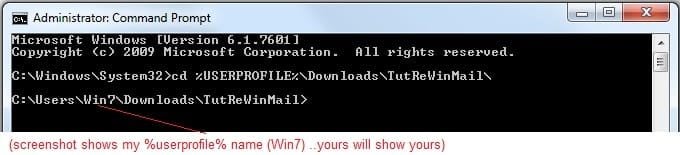
  • copy/paste this line into the command prompt: cd %USERPROFILE%\Downloads\TutReWinMail\
  • Your command prompt must now be showing you are at That Same Folder Address ..which contains the tutorial files that the batch file in the next step executes programs and copies files specifically from that folder address - if it's not there the batch file will fail since it cannot find what it needs!
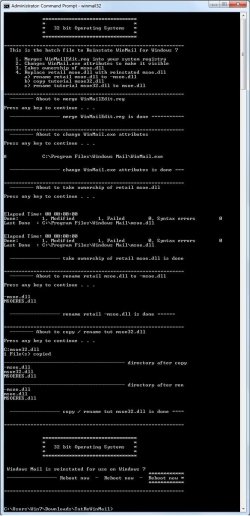
  • Next type in either winmail32 or win64mail <matching OS bit, to interactively process These Next Steps
  • If you've finished to the bottom as shown in last screenshot, restart your machine (sets registry)
  • Create a shortcut from WinMail.exe to your Desktop
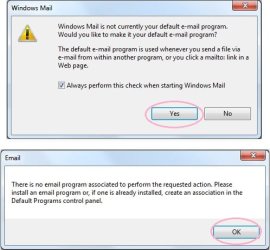
  • Open WinMail - it may prompt you one (or both) of These Two Notices ..click yes, and okay.
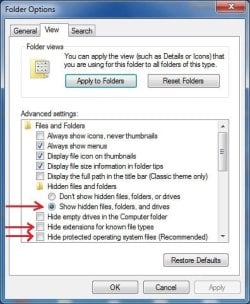
  • They now should be already set, but you can manually check/set at any time These Default Settings
  • That's pretty much all there is to it, and from here you setup the rest of the Windows Mail client (aka: WinMail) as normal within its various tab menus for Accounts, Options, Layout, etc, etc, to suit your individual needs.
  • Lastly, but should be the First thing you do, is to Create A WinMail Backup (new version) ..Go to this next link and when you get there scroll down to the heading: Backup/Restore Procedures for further instructions.
   Information
See How to open an elevated Administrator Command Prompt
Important: The exact text provided by the tutorial must be entered into the Administrator Command Prompt.
Hint: to avoid typos, copy/paste the entire line containing the command into the Command Prompt window.
Also see: How to Enable Copy to Clipboard from the Windows 7 Command Prompt

Every effort has been made to make this a step-by-step process, however, it is beyond the scope of a single tutorial to provide information on every command or concept. Search the Main Tutorial Section if you need greater detail on a concept or command presented in this tutorial.


Good luck, and long live WinMail :thumbsup:


   Note
Made possible by members:
Mark (aka Mr GRiM) - provided the original tutorial
Poppa Bear - continued Mark's work within the 2nd version
endeavor - provided continuous feedback, changes, invaluable testing instrumental to tutorial operations
EKManitis - propose the batch code that made operations easier
Slartybart - updated, tested, and consolidated all of the above into the 3rd version
endeavor - reviewed, updated, tested, and incorporated all of the above into this 4th version
...and also a special thanks to All the other members who presented discovery for this project


Attachments

  • TutReWinMail.zip
    TutReWinMail.zip
    1.8 MB · Views: 4,994
  • WinMailEdit.zip
    WinMailEdit.zip
    404 bytes · Views: 6
  • Win74umsZip.zip
    Win74umsZip.zip
    404 bytes · Views: 106
  • msoe_64.zip
    msoe_64.zip
    404 bytes · Views: 1,531
  • msoe_32.zip
    msoe_32.zip
    404 bytes · Views: 1,052
  • ACP.jpg
    ACP.jpg
    19.6 KB · Views: 1,083
  • DefaultClickYes-OkayAssociation.jpg
    DefaultClickYes-OkayAssociation.jpg
    52.8 KB · Views: 899
  • ProcessingBatch.jpg
    ProcessingBatch.jpg
    194.2 KB · Views: 1,147
  • PasteCDCommand.jpg
    PasteCDCommand.jpg
    33.1 KB · Views: 696
  • WinMail_Local_Tutorial.zip
    WinMail_Local_Tutorial.zip
    6.1 KB · Views: 1,202
  • FolderOptionsSet.jpg
    FolderOptionsSet.jpg
    61.5 KB · Views: 695
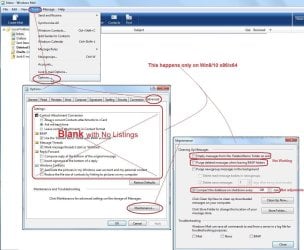
  • WinMailAdvanceOptionsBlank.jpg
    WinMailAdvanceOptionsBlank.jpg
    276.4 KB · Views: 93
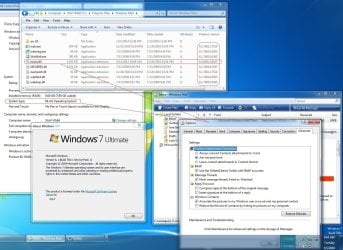
  • Win7x64AdvancedTab+FileVersions.jpg
    Win7x64AdvancedTab+FileVersions.jpg
    298.9 KB · Views: 112
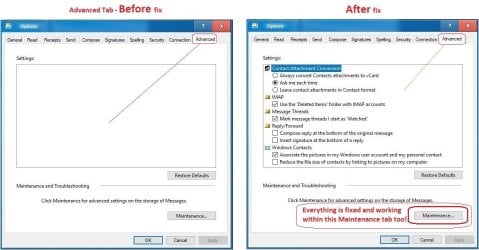
  • AdvancedTabBefore&After_fixed.jpg
    AdvancedTabBefore&After_fixed.jpg
    106.9 KB · Views: 50
  • CheckManually.jpg
    CheckManually.jpg
    209.5 KB · Views: 136
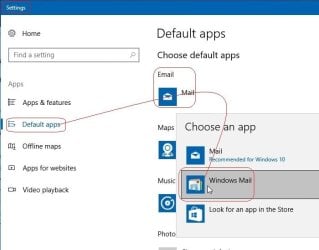
  • Win10_SetDefault.jpg
    Win10_SetDefault.jpg
    66.2 KB · Views: 33
Last edited by a moderator:
thanks again,

i installed it on other pc 4 years ago :)
but instructions were different and more comprhensive...

*Windows Mail Splash Screen
 

Attachments

  • Untitldded.png
    Untitldded.png
    254.3 KB · Views: 203
Last edited:

My Computer

Computer type
PC/Desktop
OS
98SE/XP/windows7 32bit/ win10
Nice, I see you have it working.

I know you have been around for a while and so you are very handy with software.
Yes it's true to disable splash screen is
HKEY_CURRENT_USER\Software\Microsoft\Windows Mail
"NoSplash"=dword:00000001
..and toggling the 1 back to 0 turns it back on.
I am a true WinMail advocate and so of course I WANT to see the splash screen when it starts, especially on Win8 and Win10 - it pleases me to see it! ymmv ..but after-all it's because we've put a lot of work into the project.

The Win7 tutorial was done this way with automation because we've found that it circumvents numerous problems/mistakes that people were making when doing it the manual way from the previous version(s), and so the new automation makes it easier and more foolproof; having said that though, yes you still can do it the manual way if you have the familiarity, but in all cases use the latest WinMailEdit.reg contained within the Win7 tutorial for Win7 - it has the latest advancements.

Over on our sister EightForums for WinMail we do it manually for the Win8/10 WinMail process, but of course it's a bit different in a number of ways; for instance you don't want to use the WinMailEdit.reg there for Win7 here since it will break your SFC usability, etc... and so one would want to keep those files separate; otherwise though the actual program files are the same, except of course on Win7 we only replace the msoe...dll's, but for Win8/10 the whole folder gets replaced (for a good reason) ..but I digress here sorry..

I am glad you have WinMail working, good job, and congratulations!
 

My Computer

Computer type
PC/Desktop
Computer Manufacturer/Model Number
..all towers built from scratch
OS
Vista/Win7/8/10/11 (x86/x64)
CPU
i7
I am glad you have WinMail working, good job, and congratulations!
thanks,
but as i wrote it's on other pc 4 years ago...
i did not installed win.mail on my 2nd win7 machine yet...
 

My Computer

Computer type
PC/Desktop
OS
98SE/XP/windows7 32bit/ win10
Hey Endeavor, I have been using WinMail for many years now on my Win7x64.
It is sometimes a little flaky but no probs as I will only tolerate mail on my own pc.
However just lately I have been typing long responses to email replies and WinMail has stopped working and I loose everything.
Is there a more up to date install for us or a way to install WinMail updates from M$ before Vista ends next year?
I actually do have a fully up to date Vista laptop here if that can help.

Wayne
 

My Computer

Computer type
PC/Desktop
Computer Manufacturer/Model Number
Owner Builder
OS
Windows 7 Ultimate x64 SP1 OEM
CPU
Intel i7 3930K
Motherboard
Asus X79 Deluxe
Memory
Kingston Genesis KHX2133C11D3K4/32G
Graphics Card(s)
Asus RTX 2070 Ti Turbo fan series
Sound Card
Creative Sound Blaster ZXR
Monitor(s) Displays
Samsung U32J39 UHD
Screen Resolution
3840 x 2160
Hard Drives
Samsung 860 Pro 256 GB
OCZ Vertex 4 512GB
Western Digital Black 4TB
PSU
Corsair AX850
Case
Gigabyte
Cooling
Push - Pull 120 mm Noctua PWM, Scythe Big Shuriken 2 Rev. B
Keyboard
Logitech K800 Backlit
Mouse
Logitech MX2 Master
Internet Speed
NBN 25 Mbps
Antivirus
Kaspersky Internet Security
Browser
Mozilla FireFox
Other Info
TP-Link Archer VR600v
Sennheiser TR220 WiFi Head Phones.
BUG?
after installing in the last steps:
"Control Panel ==> Default Programs ==> "Set program access and computer defaults"
Expand Custom, under the heading "Choose a default e-mail program
Click the Radio button for Windows Mail
Click the OK button.
"
Windows Mail crushes and WinMail.exe disappear ...
 

My Computer

Computer type
PC/Desktop
OS
98SE/XP/windows7 32bit/ win10
However just lately I have been typing long responses to email replies and WinMail has stopped working and I loose everything.
Is there a more up to date install for us or a way to install WinMail updates from M$ before Vista ends next year?
I actually do have a fully up to date Vista laptop here if that can help.

Wayne

Hello Wayne,

Just be sure you are not using "Spell Check" within Win7 WinMail in a way (a known 'highlight' bug) that Will Crash WinMail.
Also watch out for the Work Offine bug.
Both of these are explained fully in the Bug List which is linked at the very top of the tutorial on the first page 1 of this thread - at the top of the page there click the Errata link - I keep it continually up to date.

If you have WinMail crashing on you from reasons besides what's in the bug list, then it is something on your computer that is interfering.
I use WinMail every single day, and sometimes the emails are long and complicated, and have no problems if I use it wisley; again there Is the Spell Check & Work OffLine bug that Will Crash WinMail every-time, the work-around is given in the bug list.

Also it is wise to make sure you use the Save button while you are typing a long message. Even myself after a few times of losing hours worth of work, I quickly learned to Always hit the Save button before I check spelling, as well also just hit the Save button (File> Save) every few paragraphs in general while I'm working, that way if you forgot to do it right (I still do occasionally) and it crashed - no problem I won't lose it all, and just go to your drafts folder and pick it up from there.

The bugs from using WinMail on Windows 7/8/10 - yes, are a pain in the rear - but it's what it is.

As for Windows Updates for WinMail in Windows 7, is most-likely not ever going to happen.


...
 
Last edited:

My Computer

Computer type
PC/Desktop
Computer Manufacturer/Model Number
..all towers built from scratch
OS
Vista/Win7/8/10/11 (x86/x64)
CPU
i7
..after installing in the last steps:
Windows Mail crashes and WinMail.exe disappear ...

The WinMail.exe file in the program folder disappears? ...no way!
Do you mean the simple 'shortcut' on your desktop disappears ?

Anyway didn't you open WinMail even before you set it as the default email client?
Can you open WinMail and have it stay open?

If you did everything right, in the old Screenshot I gave in post #1171 you can see on #3 that normally when you start WinMail for the first time, you are prompted with that gui and it asks to set WinMail as the default client - did you see that?

Do you have any other email clients installed besides WinMail?
Did you use any other processes besides the page 1 tutorial to install WinMail?
 

My Computer

Computer type
PC/Desktop
Computer Manufacturer/Model Number
..all towers built from scratch
OS
Vista/Win7/8/10/11 (x86/x64)
CPU
i7
way!

The WinMail.exe file in the program folder disappears? ...no way!
Do you mean the simple 'shortcut' on your desktop disappears ?
Both .exe from prog. folder and shortcut disappeared .
i could not find them in recycle bin either.
Anyway didn't you open WinMail even before you set it as the default email client?
no i did not open as it is not written in the tutorial, should i open it before ? .
Any way i reinstalled again without the last step "Set program access and computer defaults" and it works fine
If you did everything right, in the old Screenshot I gave in post #1171 you can see on #3 that normally when you start WinMail for the first time, you are prompted with that gui and it asks to set WinMail as the default client - did you see that?
- no i didn't see it.
Do you have any other email clients installed besides WinMail?
-no. its a new installed win7 without office outlook even.
Did you use any other processes besides the page 1 tutorial to install WinMail?
-no
 

My Computer

Computer type
PC/Desktop
OS
98SE/XP/windows7 32bit/ win10
Both .exe from prog. folder and shortcut disappeared.
i could not find them in recycle bin either.

Interesting, okay then that I recall for Windows 7, that's the first I've heard of WinMail.exe programs file getting deleted by something from the OS. Did you say it deleted itself when you tried to set it as the Default Email Client manually?

no i did not open as it is not written in the tutorial, should i open it before ?

Yes you should of opened WM first, and it's written on #7 to do so.
I see what happened now.

fwiw, when WM is first opened in Win7 (8/10) it automatically sets a thousand important registry entries.
If you try and set WM 'Manually' via the Control Panel as a default client even before you first time open WM which automatically sets itself proper in so many ways, then I am not surprised that happened then. You tried to make a program default that was not setup yet, and so it was still foreign.

Any way i reinstalled again without the last step "Set program access and computer defaults" and it works fine

..but it's not the last step, you should of done #7 first which is to Restart your system and launch Windows Mail, and here is where you will see the automatic prompt given, as shown in my screenshot to make WinMail the default client. If you do it right the first time you won't have to do that alternate step to do it manually at all.
So you jumped ahead, and did something that was an 'only if' it was not default already.
fwiw, at any time afterwards you also can check that by going to WinMail's top header and click Tools> Options> General ..and at the bottom click the button that says 'Make Default Client' ...if it's already grayed out then it's already set (or it can be other issues.. like having other email clients installed)

- no i didn't see it.

You didn't see it only because you did not open WinMail first, and if you did you would of saw it and this would all be a non-issue. You tried to Manually set WinMail as the Default Email Client untimely when WinMail was ready yet.
You said you did a fresh install with WinMail as the first time, and so as my screenshot shows the order of what happens and when, and if you did it in order you would of seen it.

And so you did it a little backwards, no problem, but above importantly you said now you reinstalled it again and it works fine - and so that's good - congratulations.

Honestly, all these posts makes it sound complicated but it's not, and it really only takes 60 seconds to re-instate WinMail once you are use to it and have the sequence down, it's just a few clicks here and there then your are done, and ready to set up.

..have a good day
 

My Computer

Computer type
PC/Desktop
Computer Manufacturer/Model Number
..all towers built from scratch
OS
Vista/Win7/8/10/11 (x86/x64)
CPU
i7
Did you say it deleted itself when you tried to set it as the Default Email Client manually?
-yes
Yes you should of opened WM first, and it's written on #7 to do so.
-oops....right! my mistake
WinMail's top header and click Tools> Options> General ..and at the bottom click the button that says 'Make Default Client' ...if it's already grayed out
-just checked and it's already grayed out.

ant thanks again for detailed explanation :)
 

My Computer

Computer type
PC/Desktop
OS
98SE/XP/windows7 32bit/ win10
You are very welcome, and I am happy you have succeeded !

..I hope you have some great holidays
 

My Computer

Computer type
PC/Desktop
Computer Manufacturer/Model Number
..all towers built from scratch
OS
Vista/Win7/8/10/11 (x86/x64)
CPU
i7
irritating 3 bugs but even though i like windows mail :)
*search bar & views bar keep on showing back, even though i deselected V mark in layout menu.
they are not shown 3-5 times upon opening windows mail after deselected V mark in layout menu-and after that they showing back.
the same happens if do it via registry as well (=1) .
Any idea how to hide the bars for good?
thanks
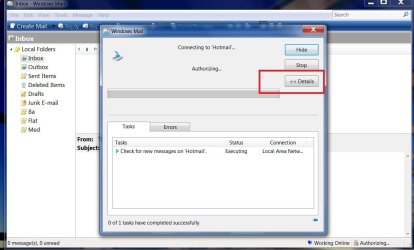
*a third bug as in the photo, is that details part (tasks\errors) is open all times ,when i manually press send/receive button. again -i press details to close(hide) it , but after 3-5 times upon opening windows mail-it shows up again.
i emphasis i have no errors so it shouldn't open at all.
how to fix that?
i did not find registry values for that.
thanks
p.s- i googled about the issue -but no clue...
 

Attachments

  • Untitled.jpg
    Untitled.jpg
    152.4 KB · Views: 212
Last edited:

My Computer

Computer type
PC/Desktop
OS
98SE/XP/windows7 32bit/ win10
Good Morning prukeyhi,

As far as the Search & Views bar settings, actually I personally like them on showing.

My Options Settings from day one of Vista's existence, on that GUI you are talking about,
notice All my settings choices, have Always been set like this:
(also notice I circled the ones I think you are talking about)

My_Everyday_Layout_Options.jpg


When I un-check those two settings, and I close and then open WinMail (25 times or more even after a reboot) Then those top right Search Box & Show All Messages displays are still not showing, as shown in this next screenshot:
Yours.jpg


I don't know what else to say. This is the first time in my life I've ever unchecked those boxes (however I'd personally rather them check-marked and showing) ...but they do stay unchecked for me, so far, after 25 starts.

______________

As for the Send/Receive Details box your screenshot shows, when I click the Detail box to close, it does close yes, but you are right the next time I do a Send/Receive - it's open again.
However I personally like and want that info showing! and imho, that is not a bug, but is an asset. ymmv
 

My Computer

Computer type
PC/Desktop
Computer Manufacturer/Model Number
..all towers built from scratch
OS
Vista/Win7/8/10/11 (x86/x64)
CPU
i7
thanks for your answer,
-unfortunately they do not stay unchecked for me ,i have no idea why ...
-
the Send/Receive Details box that is not a bug, but is an asset. ymmv
in win. XP it stay close and thats the way it should be.
do you have any idea how to "fix" it?
-the 3 issues appear on 2 different windows 7 pc's
 

My Computer

Computer type
PC/Desktop
OS
98SE/XP/windows7 32bit/ win10
thanks for your answer,
-unfortunately they do not stay unchecked for me ,i have no idea why ...

The layout settings stay put for me on Win7, and for fun interest I just now booted to Vista to check - it's the same way and it stays where ever I set it to stay.

..btw, the Send/Receive Details box on Vista also does not stay closed either.

There is no bug and so there is nothing to fix


in win. XP it stay close and thats the way it should be.
do you have any idea how to "fix" it?

XP is Outlook Express! You cannot compare that accurately.
There is noting to fix
Actually for fun and interest, I just booted to WinXP, and in OE the box stays open for me there too.

the 3 issues appear on 2 different windows 7 pc's

I've explained that already - imho, there is nothing to fix
I do not know what you may done in the past on your OS's to change that.

These are minor issues, and on a fresh OS install they will work as I have outlined.

Remember this thread is specifically for reinstating WinMail on Win7, for normal settings functions in WinMail visit the Vista group.

Also remember kindly, if you don't like WinMail and the way it functions, then it's absolutely more than okay and encouraged to move on up to a supported email client.
 

My Computer

Computer type
PC/Desktop
Computer Manufacturer/Model Number
..all towers built from scratch
OS
Vista/Win7/8/10/11 (x86/x64)
CPU
i7
ok thank you very much !
for normal settings functions in WinMail visit the Vista group.
is there specific tutorial you recommend ?
 

My Computer

Computer type
PC/Desktop
OS
98SE/XP/windows7 32bit/ win10
is there specific tutorial you recommend ?

I do not know of any specific tutorial since Vista is where WinMail comes from, but it's been so long I am out of the Vista loop. If you scroll down to the bottom of this page, on the left, you will see Vista Forums listed. Go there and click under Browsers & Mail, and you can just post your question in there.
Remember though as I said your Send/Receive Details box is normal, so what's the point!

The only thing I suppose is that those two settings for Layout should stick, it's such a minor issue though, and having that Search & Views box is very minor. I know one thing if you were to ever fresh install Windows 7 and right there re-instate Windows Mail, then the Layout Function Will Work! Everyones else's does. I don't know what things you may have installed or done to affect it since you first installed your OS.
 

My Computer

Computer type
PC/Desktop
Computer Manufacturer/Model Number
..all towers built from scratch
OS
Vista/Win7/8/10/11 (x86/x64)
CPU
i7
dear endeavor,
1- according to http://www.sevenforums.com/attachments/tutorials/212330d1337295502-windows-mail-process.jpg
in photo 1-the command ended and you have to reboot (see last line in DOS window photo= step 5 in the Win74umsZip.zip) -
A-do you have to close the DOS window and reboot manually or it does automatically?
(as far as i remember you have to do it manually)
B-only after the reboot you launch WM for the first time ?
C- according to step 5 in the Win74umsZip.zip - there is no mentioning to reboot the machine, further more there is step 6 create shortcut to WM...so what is the correct order?
step5>reboot>step6> launch WM>step7 (is needed? )Restart your system and launch Windows Mail ?
2-About the the Search & Views bar"bug" i reported earlier . so settings as un-check those two settings
Search Box & Show All Messages are not display, BUT they reappear back after i use "send to " menu.
e.g- i send photo/any other file from my desktop by right click on it>send to>mail recipient.
Now after message sent , when i open windows mail again the view and search bar reappear back.
can you check it please?
Thanks
 
Last edited:

My Computer

Computer type
PC/Desktop
OS
98SE/XP/windows7 32bit/ win10
dear prukeyhi

My my you are very persistent.. :)

..the answers are:

A = reboot manually

B = Yes

C = Step 5 of the "ReWinMail_tutorial.html" and what is listed to do, implies to also do what you are running in the Command Prompt window, which at the bottom you see it says to Reboot now, and so that's what you do, which is still in step 5.
After you reboot, just as it says you now create the shortcut to the desktop.

________________

2 = That's very interesting, okay, now you have finally explained your problem with ''good accurate details'' this time - and Yes, in Win7, I can, reproduce what you say happens now too.

..To double check this though, I just booted to Vista and went to Layout and unchecked the Search & Views bar, and they are gone and stay gone each time I open WinMail.
Next test, when I click on a jpg and 'Send To' ..and send the email.... ...LoL... ...and guess what, it does the same thing in Vista - the Search and Views bars now re-appear again!
And so after-all ..it's not a bug in the Win7 WinMail re-instate process, but it's a bug right from and within Vista itself !

Bottom line, it's a Vista bug then, and there is nothing I can fix; you are just going to have to live with it.

Those little Search & Views bars showing is so minor though my dear prukeyhi... you have better things to focus on in life.. ..but I do recognize and applaud your persistence; you remind me of me :p
 

My Computer

Computer type
PC/Desktop
Computer Manufacturer/Model Number
..all towers built from scratch
OS
Vista/Win7/8/10/11 (x86/x64)
CPU
i7
Back
Top