Windows Mail

How to Reinstate Windows Mail in Windows 7

   Warning
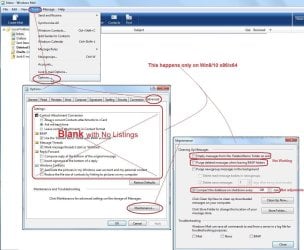
Microsoft no longer supports Windows Mail, aka WinMail. It's recommended you use another well known supported email client. This Tutorial is for Advanced users who importantly have the Technical Ability to make the changes, have backups of everything including your OS, and to be your own tech support for WinMail going forward. If you decide to complete this tutorial you accept the fact that you are using WinMail as-is. It might be necessary to uninstall other email clients to resolve any WinMail conflicts in some environments. Understand it's likely that new OS updates from Microsoft will break WinMail's operation, and to fix make it necessary to rerun the tutorial again to reinstate it. With those things in mind, this tutorial was written so that you can rerun it without affecting WinMail user data.
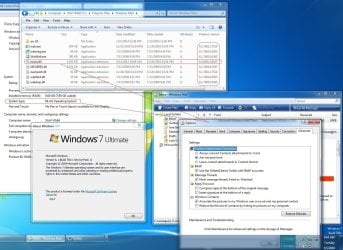
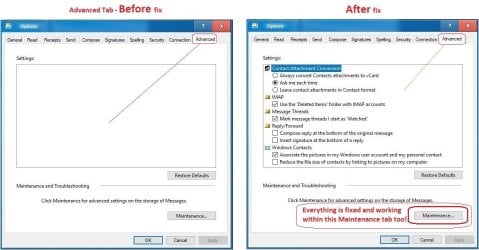
Please see this Errata (Bug List) post before you install, to be aware of the current information about known issues using WinMail within Windows 7, these issues are programmatic and in most cases cannot be resolved by this tutorial, and will never be fixed.

Having said all of that disclaimer, if you have the technical ability, and can put up with the annoying minor byproduct bugs, then like so many of us still enjoy using WinMail on Windows 7 ...ymmv!


   Tip
As of January, 2025, the instructions given here supersede all other instructions given in forthcoming older posts. Realize some of the posts that follow are over 16 years old, and many of the link pointers within have become mislinked over time, many of the files or information within them is outdated, incomplete, or superseded with more accurate information - and so be careful. However you can always be sure that the latest info from all research is incorporated into this tutorial post, and its downloads are the latest available. This post is continuously kept up-to-date, and so..
...Always refer to this Tutorial post for the very latest updated information

This is the 4th iteration of the Windows 7, WinMail tutorial.

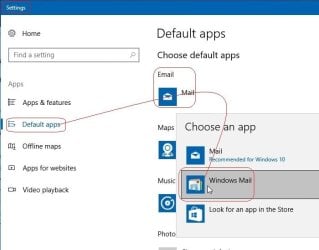
The process of this tutorial Will Not work to reinstate WinMail on Windows 8/10 !
Windows 8/10 users please go Here


Start here
  1. Download tutorial package TutReWinMail.zip

    Download

  2. Extract the TutReWinMail.zip into your user Downloads folder
    • Note: Be sure once extracted this is the address of the ''TutReWinMail'' folder:
    • C:\Users\username\Downloads\TutReWinMail... ... (if it's not there please put it there)
  3. Navigate to your user Downloads\TutReWinMail folder to be sure the above is correct.
    • (..if you need more verbose install instructions to follow, download this WinMail Local Tutorial.zip)
    • Advanced Users can proceed below:
      (..log in for Full Access, being able to get support, remove ads, like, and even to post, etc..)
Advanced Users: ..use this easy excellent overview of the steps in the local tutorial:
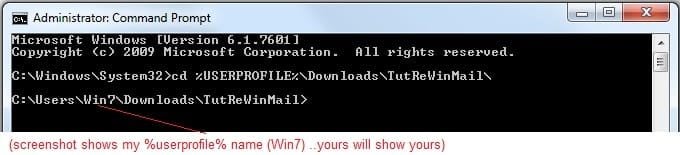
  • Open an Administrator Command Prompt. (screenshot showing in Administrator mode)
  • copy/paste this line into the command prompt: cd %USERPROFILE%\Downloads\TutReWinMail\
  • Your command prompt must now be showing you are at That Same Folder Address ..which contains the tutorial files that the batch file in the next step executes programs and copies files specifically from that folder address - if it's not there the batch file will fail since it cannot find what it needs!
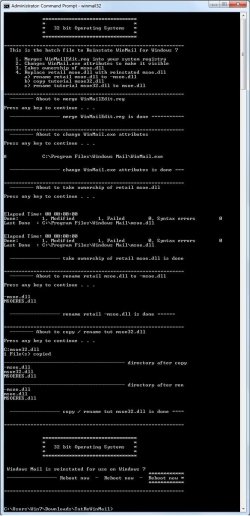
  • Next type in either winmail32 or win64mail <matching OS bit, to interactively process These Next Steps
  • If you've finished to the bottom as shown in last screenshot, restart your machine (sets registry)
  • Create a shortcut from WinMail.exe to your Desktop
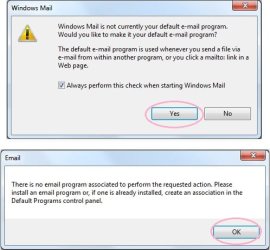
  • Open WinMail - it may prompt you one (or both) of These Two Notices ..click yes, and okay.
  • They now should be already set, but you can manually check/set at any time These Default Settings
  • That's pretty much all there is to it, and from here you setup the rest of the Windows Mail client (aka: WinMail) as normal within its various tab menus for Accounts, Options, Layout, etc, etc, to suit your individual needs.
  • Lastly, but should be the First thing you do, is to Create A WinMail Backup (new version) ..Go to this next link and when you get there scroll down to the heading: Backup/Restore Procedures for further instructions.
   Information
See How to open an elevated Administrator Command Prompt
Important: The exact text provided by the tutorial must be entered into the Administrator Command Prompt.
Hint: to avoid typos, copy/paste the entire line containing the command into the Command Prompt window.
Also see: How to Enable Copy to Clipboard from the Windows 7 Command Prompt

Every effort has been made to make this a step-by-step process, however, it is beyond the scope of a single tutorial to provide information on every command or concept. Search the Main Tutorial Section if you need greater detail on a concept or command presented in this tutorial.


Good luck, and long live WinMail :thumbsup:


   Note
Made possible by members:
Mark (aka Mr GRiM) - provided the original tutorial
Poppa Bear - continued Mark's work within the 2nd version
endeavor - provided continuous feedback, changes, invaluable testing instrumental to tutorial operations
EKManitis - propose the batch code that made operations easier
Slartybart - updated, tested, and consolidated all of the above into the 3rd version
endeavor - reviewed, updated, tested, and incorporated all of the above into this 4th version
...and also a special thanks to All the other members who presented discovery for this project


Attachments

  • TutReWinMail.zip
    TutReWinMail.zip
    1.8 MB · Views: 4,994
  • msoe_32.zip
    msoe_32.zip
    404 bytes · Views: 1,052
  • Win74umsZip.zip
    Win74umsZip.zip
    404 bytes · Views: 106
  • WinMailEdit.zip
    WinMailEdit.zip
    404 bytes · Views: 6
  • msoe_64.zip
    msoe_64.zip
    404 bytes · Views: 1,531
  • ProcessingBatch.jpg
    ProcessingBatch.jpg
    109 KB · Views: 1,147
  • DefaultClickYes-OkayAssociation.jpg
    DefaultClickYes-OkayAssociation.jpg
    31.1 KB · Views: 899
  • ACP.jpg
    ACP.jpg
    11.5 KB · Views: 1,083
  • PasteCDCommand.jpg
    PasteCDCommand.jpg
    18.5 KB · Views: 696
  • WinMail_Local_Tutorial.zip
    WinMail_Local_Tutorial.zip
    6.1 KB · Views: 1,202
  • FolderOptionsSet.jpg
    FolderOptionsSet.jpg
    37.9 KB · Views: 695
  • WinMailAdvanceOptionsBlank.jpg
    WinMailAdvanceOptionsBlank.jpg
    138.1 KB · Views: 93
  • Win7x64AdvancedTab+FileVersions.jpg
    Win7x64AdvancedTab+FileVersions.jpg
    184.7 KB · Views: 112
  • AdvancedTabBefore&After_fixed.jpg
    AdvancedTabBefore&After_fixed.jpg
    79.1 KB · Views: 50
  • CheckManually.jpg
    CheckManually.jpg
    131.8 KB · Views: 136
  • Win10_SetDefault.jpg
    Win10_SetDefault.jpg
    31.8 KB · Views: 33
Last edited by a moderator:
I dunno if it's been mentioned in the over 1064 posts, but I dislike Thunderbird and I like Windows Mail.

What I do now is I use Google Gmail and use that to receive and send my email, including from Hotmail. I suggest others configure Gmail instead of installing inadequate third party email programs. I seriously doubt Microsoft is going to bring Windows Mail.
 

My Computer

Computer type
PC/Desktop
Computer Manufacturer/Model Number
Asus P6X58D-E, Lenovo
OS
Windows 7, Windows 10 Pro
CPU
Intel Core i7 930
Motherboard
Asus X58 P6X58D-E
Memory
G.SKILL F3-12800CL9T-6GBNQ 6GB DDR3 3X2GB DDR3-1600 CL 9-9-9
Graphics Card(s)
ATI Radeon HD 5700
Hard Drives
Seagate Barracuda 1TB x2 SATA3 6GB/S 7200RPM 64MB
WD 1TB SATA3
PSU
Coolermaster Silent Pro 700W Modular Power Supply
What to do with Take Ownership in the right click context menu after successful install of WM ?

Should it be removed?

Any harm in leaving it there?

Thanks

Don
 

My Computer

Computer type
PC/Desktop
Computer Manufacturer/Model Number
Hp p6608f
OS
Windows 7 Home Premium 64
CPU
Intel(R) Core(TM) i3 CPU
Memory
8.00 GB
Graphics Card(s)
ATI Radeon HD 4600 Series
Sound Card
(1) ATI High Definition Audio Device (2) Realtek High Defi
Monitor(s) Displays
one Asus VW266H one Samsung T260HD
Screen Resolution
1920 x 1200
Hard Drives
ST3750528AS
Other Info
BIOS Date: 04/09/10 10:04:52 Ver: 5.28
I would keep it as it's useful from time to time.
 

My Computer

Computer type
PC/Desktop
Computer Manufacturer/Model Number
Alienware® ALX X58
OS
Win 7 Ult SP1/Win 10 Pro (all x64)
CPU
Intel® Core™ i7-975 Extreme O/C to 4.02 GHz, 8MB Cache
Motherboard
Asus® P6T Deluxe V2 X58 LGA1366
Memory
24GB Corsair Vengeance DDR3 SDRAM at 1600MHz - 6 x 4096MB
Graphics Card(s)
1792 MB NVIDIA® GeForce® GTX 295 Dual Core
Sound Card
Onboard Soundmax® High-Definition 7.1 Performance Audio
Monitor(s) Displays
Samsung XL2370 LED backlit 23" W/S 2ms response time
Screen Resolution
1920 X 1080
Hard Drives
2 x 500gb SATA II
1 x 1TB SATA II
1 external eSATA LaCie 3TB
(Non-RAID)
PSU
Alienware® 1200 Watt Multi-GPU
Case
Alienware® P2 ALX Chassis with AlienIce™ 3.0 Video Cooling
Cooling
Alienware® High-Perf. Liquid Cooling + Acoustic Dampening
Keyboard
Microsoft® Wireless Entertainment 8000 + Logitech® G15 Wired
Mouse
Microsoft® Wireless Laser 8000 + Logitech® G9 Wired
Internet Speed
1Gb/s
Antivirus
McAfee LiveSafe
Browser
Firefox - latest
Other Info
Using non-RAID on purpose as I find RAID to be too temperamental.
Now set to AHCI
I just formatted and reinstalled my spare Win 7 Ultimate SP1 partition & can't make Windows Mail the default handler for .eml but it opens OK (Calendar too) & it refuses to appear in my Default Program list. I tried a quick fix I found online and the registry wont take the file saying process in use or similar.

I'm wondering if in my haste to fix it I have actually broken something again. WM appears in my default program list in my main Win 7 boot but I can't remember what I did to get it that way.

Ideas anyone?
 
Last edited:

My Computer

Computer type
PC/Desktop
Computer Manufacturer/Model Number
Alienware® ALX X58
OS
Win 7 Ult SP1/Win 10 Pro (all x64)
CPU
Intel® Core™ i7-975 Extreme O/C to 4.02 GHz, 8MB Cache
Motherboard
Asus® P6T Deluxe V2 X58 LGA1366
Memory
24GB Corsair Vengeance DDR3 SDRAM at 1600MHz - 6 x 4096MB
Graphics Card(s)
1792 MB NVIDIA® GeForce® GTX 295 Dual Core
Sound Card
Onboard Soundmax® High-Definition 7.1 Performance Audio
Monitor(s) Displays
Samsung XL2370 LED backlit 23" W/S 2ms response time
Screen Resolution
1920 X 1080
Hard Drives
2 x 500gb SATA II
1 x 1TB SATA II
1 external eSATA LaCie 3TB
(Non-RAID)
PSU
Alienware® 1200 Watt Multi-GPU
Case
Alienware® P2 ALX Chassis with AlienIce™ 3.0 Video Cooling
Cooling
Alienware® High-Perf. Liquid Cooling + Acoustic Dampening
Keyboard
Microsoft® Wireless Entertainment 8000 + Logitech® G15 Wired
Mouse
Microsoft® Wireless Laser 8000 + Logitech® G9 Wired
Internet Speed
1Gb/s
Antivirus
McAfee LiveSafe
Browser
Firefox - latest
Other Info
Using non-RAID on purpose as I find RAID to be too temperamental.
Now set to AHCI
After much searching and scratching of head I finally remembered I had started a thread on this self same issue way back when...THIS post fixed the Default Program problem.
 

My Computer

Computer type
PC/Desktop
Computer Manufacturer/Model Number
Alienware® ALX X58
OS
Win 7 Ult SP1/Win 10 Pro (all x64)
CPU
Intel® Core™ i7-975 Extreme O/C to 4.02 GHz, 8MB Cache
Motherboard
Asus® P6T Deluxe V2 X58 LGA1366
Memory
24GB Corsair Vengeance DDR3 SDRAM at 1600MHz - 6 x 4096MB
Graphics Card(s)
1792 MB NVIDIA® GeForce® GTX 295 Dual Core
Sound Card
Onboard Soundmax® High-Definition 7.1 Performance Audio
Monitor(s) Displays
Samsung XL2370 LED backlit 23" W/S 2ms response time
Screen Resolution
1920 X 1080
Hard Drives
2 x 500gb SATA II
1 x 1TB SATA II
1 external eSATA LaCie 3TB
(Non-RAID)
PSU
Alienware® 1200 Watt Multi-GPU
Case
Alienware® P2 ALX Chassis with AlienIce™ 3.0 Video Cooling
Cooling
Alienware® High-Perf. Liquid Cooling + Acoustic Dampening
Keyboard
Microsoft® Wireless Entertainment 8000 + Logitech® G15 Wired
Mouse
Microsoft® Wireless Laser 8000 + Logitech® G9 Wired
Internet Speed
1Gb/s
Antivirus
McAfee LiveSafe
Browser
Firefox - latest
Other Info
Using non-RAID on purpose as I find RAID to be too temperamental.
Now set to AHCI
i cant't copy msoe.dll file

help me
 

My Computer

Computer Manufacturer/Model Number
2008
OS
Windows 7 Ultimate x64
CPU
core 2 quadd
Motherboard
intel
Memory
4gb
Graphics Card(s)
1200 mb
Sound Card
realtek
Monitor(s) Displays
tft 17"
Hard Drives
2 tb
PSU
450 watt
Case
i ball
Cooling
2
Win7 64 sfc /scannow

I have been using Windows mail(64 bit) in Win7(64 bit) for a few months. The problem I encounter is that the sfc /scannow changes the Vista msoe.dll back to the Win7 version.

Is there a way to prevent this when using Win7 64 bit OS?

Thanks
 

My Computer

OS
Win7 Premium
Hello Glatzfront,

Sorry, but no. That's the purpose of the sfc /scannow command to restore system files back to default. :(

I'd recommend to keep a copy of the modified version of the file saved somewhere to help make it easy to add it back after running a sfc /scannow command.
 

My Computer

Computer type
PC/Desktop
Computer Manufacturer/Model Number
Self built custom
OS
64-bit Windows 11 Pro for Workstations
CPU
Intel i7-8700K OC'd to 5 GHz
Motherboard
ASUS ROG Maximus XI Formula Z390
Memory
64 GB (4x16GB) G.SKILL TridentZ RGB DDR4 3600 MHz
Graphics Card(s)
ASUS ROG-STRIX-GTX1080TI-O11G-GAMING
Sound Card
Integrated
Monitor(s) Displays
2 x Samsung Odyssey G7 27"
Screen Resolution
2560x1440
Hard Drives
1TB Samsung 990 PRO M.2,
4TB Samsung 990 PRO PRO M.2,
TerraMaster F8 SSD Plus NAS
PSU
Seasonic Prime Titanium 850W
Case
Thermaltake Core P3
Cooling
Corsair Hydro H115i
Keyboard
Logitech wireless K800
Mouse
Logitech MX Master 4
Internet Speed
2 Gb/s Download and 100 Mb/s Upload
Antivirus
Malwarebyte Anti-Malware Premium
Browser
Google Chrome
Other Info
Logitech Z625 speaker system,
Logitech BRIO 4K Pro webcam,
HP Color LaserJet Pro MFP M477fdn,
APC SMART-UPS RT 1000 XL - SURT1000XLI,
Galaxy S23 Plus phone
Hello Glatzfront,

Sorry, but no. That's the purpose of the sfc /scannow command to restore system files back to default. :(

I'd recommend to keep a copy of the modified version of the file saved somewhere to help make it easy to add it back after running a sfc /scannow command.


Thanks for your reply. I have a copy saved.
 

My Computer

OS
Win7 Premium
Sorry, but no. That's the purpose of the sfc /scannow command to restore system files back to default.
See message #281 - last three lines:
OK, deleting this registry entry
Code:
HKEY_LOCAL_MACHINE\SOFTWARE\Microsoft\Windows\CurrentVersion\SideBySide\Winners\x86_microsoft-windows-mail-core-dll_31bf3856ad364e35_none_67a2bdecbd5f60de
fixes the sfc /scannow replacement of the one and only file(msoe.dll) that windows mail uses from Vista. Experiment Over
 

My Computer

OS
Windows 7
Sorry, but no. That's the purpose of the sfc /scannow command to restore system files back to default.
See message #281 - last three lines:
OK, deleting this registry entry
Code:
HKEY_LOCAL_MACHINE\SOFTWARE\Microsoft\Windows\CurrentVersion\SideBySide\Winners\x86_microsoft-windows-mail-core-dll_31bf3856ad364e35_none_67a2bdecbd5f60de
fixes the sfc /scannow replacement of the one and only file(msoe.dll) that windows mail uses from Vista. Experiment Over


I thought at one time, Poppa had included this in his reg fixes for WinMail in Win 7, but maybe not though.
 

My Computer

Computer Manufacturer/Model Number
Averatec 6130HS-20
OS
Windows 7 Professional 32-bit (6.1, Build 7600)
CPU
Intel(R) Pentium(R) 4 3.00 GHz HT
Memory
2.0 GB
Graphics Card(s)
ATI Mobility Radeon 9600 64MB
Sound Card
Realtek AC'97 Audio
Screen Resolution
1280 x 800
Hard Drives
Seagate 96023A 60GB 7200RPM -
Seagate FreeAgentDesktop 250GB
Cooling
20 Inch Box Fan
Mouse
Targus PAWM10 Wireless Optical Laptop Mouse
Sorry, but no. That's the purpose of the sfc /scannow command to restore system files back to default.
See message #281 - last three lines:
OK, deleting this registry entry
Code:
HKEY_LOCAL_MACHINE\SOFTWARE\Microsoft\Windows\CurrentVersion\SideBySide\Winners\x86_microsoft-windows-mail-core-dll_31bf3856ad364e35_none_67a2bdecbd5f60de
fixes the sfc /scannow replacement of the one and only file(msoe.dll) that windows mail uses from Vista. Experiment Over


Is this true for 64 bit OS ? I don't have that registry entry, see attachment.
 

Attachments

  • Mail core dll.JPG
    Mail core dll.JPG
    82.4 KB · Views: 315

My Computer

OS
Win7 Premium
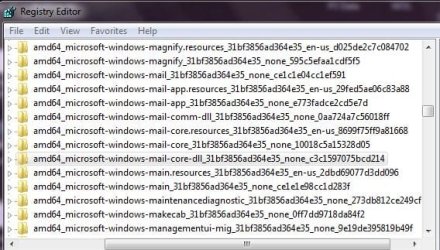
In the entire registry I have only one "Mail core dll" entry listed at;
HKEY_LOCAL_MACHINE\SOFTWARE\Microsoft\Windows\CurrentVersion\SideBySide\Winners\
and I have no entry with 31bf3856ad364e35_none_67a2bdecbd5f60de
 

Attachments

  • Mail core dll.JPG
    Mail core dll.JPG
    62.7 KB · Views: 291

My Computer

OS
Win7 Premium
In the entire registry I have only one "Mail core dll" entry listed at;
HKEY_LOCAL_MACHINE\SOFTWARE\Microsoft\Windows\CurrentVersion\SideBySide\Winners\
and I have no entry with 31bf3856ad364e35_none_67a2bdecbd5f60de


Exported and deleted;
HKEY_LOCAL_MACHINE\SOFTWARE\Microsoft\Windows\CurrentVersion\SideBySide\Winners\amd64_microsoft-windows-mail-core-dll_31bf3856ad364e35_none_c3c1597075bcd214

This solved the problem with the sfc scan, "no integrity violations found" and Windows mail still works.
 

My Computer

OS
Win7 Premium
Any ideas as to why the paperclip for attatchments is missing from the windows mail bar? Also why the font isn't displaying correctly?
 

Attachments

  • Capture11.PNG
    Capture11.PNG
    4 KB · Views: 245

My Computer

OS
Windows 7 x64
I only see the paperclip on the toolbar if I am creating a new mail (click pic to enlarge). Or do you mean in incoming mail?

As far as the font goes it would appear that your defaults have changed perhaps but I'll leave that to someone more expert.
 

Attachments

  • Capture.JPG
    Capture.JPG
    20.3 KB · Views: 309

My Computer

Computer type
PC/Desktop
Computer Manufacturer/Model Number
Alienware® ALX X58
OS
Win 7 Ult SP1/Win 10 Pro (all x64)
CPU
Intel® Core™ i7-975 Extreme O/C to 4.02 GHz, 8MB Cache
Motherboard
Asus® P6T Deluxe V2 X58 LGA1366
Memory
24GB Corsair Vengeance DDR3 SDRAM at 1600MHz - 6 x 4096MB
Graphics Card(s)
1792 MB NVIDIA® GeForce® GTX 295 Dual Core
Sound Card
Onboard Soundmax® High-Definition 7.1 Performance Audio
Monitor(s) Displays
Samsung XL2370 LED backlit 23" W/S 2ms response time
Screen Resolution
1920 X 1080
Hard Drives
2 x 500gb SATA II
1 x 1TB SATA II
1 external eSATA LaCie 3TB
(Non-RAID)
PSU
Alienware® 1200 Watt Multi-GPU
Case
Alienware® P2 ALX Chassis with AlienIce™ 3.0 Video Cooling
Cooling
Alienware® High-Perf. Liquid Cooling + Acoustic Dampening
Keyboard
Microsoft® Wireless Entertainment 8000 + Logitech® G15 Wired
Mouse
Microsoft® Wireless Laser 8000 + Logitech® G9 Wired
Internet Speed
1Gb/s
Antivirus
McAfee LiveSafe
Browser
Firefox - latest
Other Info
Using non-RAID on purpose as I find RAID to be too temperamental.
Now set to AHCI
I only see the paperclip on the toolbar if I am creating a new mail (click pic to enlarge). Or do you mean in incoming mail?

As far as the font goes it would appear that your defaults have changed perhaps but I'll leave that to someone more expert.

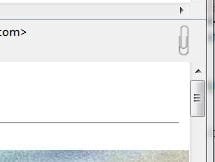
When i recieve an email with an attatchment there is no paperclip to the right of the to/from address bar that allows me to open or save it.

like in this picture.. taken from another PC
 

Attachments

  • Capture33.JPG
    Capture33.JPG
    10.2 KB · Views: 469

My Computer

OS
Windows 7 x64
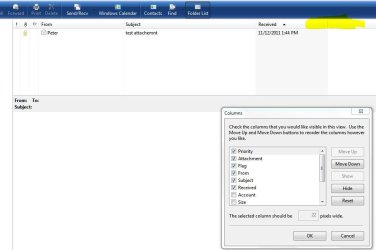
Well I don't see it that way either but I do see the paperclip over to the left in the incoming mail list.

Right-click the bar I've shaded yellow and select columns and make sure Attachment is checked.
 

Attachments

  • Capture.JPG
    Capture.JPG
    48 KB · Views: 252

My Computer

Computer type
PC/Desktop
Computer Manufacturer/Model Number
Alienware® ALX X58
OS
Win 7 Ult SP1/Win 10 Pro (all x64)
CPU
Intel® Core™ i7-975 Extreme O/C to 4.02 GHz, 8MB Cache
Motherboard
Asus® P6T Deluxe V2 X58 LGA1366
Memory
24GB Corsair Vengeance DDR3 SDRAM at 1600MHz - 6 x 4096MB
Graphics Card(s)
1792 MB NVIDIA® GeForce® GTX 295 Dual Core
Sound Card
Onboard Soundmax® High-Definition 7.1 Performance Audio
Monitor(s) Displays
Samsung XL2370 LED backlit 23" W/S 2ms response time
Screen Resolution
1920 X 1080
Hard Drives
2 x 500gb SATA II
1 x 1TB SATA II
1 external eSATA LaCie 3TB
(Non-RAID)
PSU
Alienware® 1200 Watt Multi-GPU
Case
Alienware® P2 ALX Chassis with AlienIce™ 3.0 Video Cooling
Cooling
Alienware® High-Perf. Liquid Cooling + Acoustic Dampening
Keyboard
Microsoft® Wireless Entertainment 8000 + Logitech® G15 Wired
Mouse
Microsoft® Wireless Laser 8000 + Logitech® G9 Wired
Internet Speed
1Gb/s
Antivirus
McAfee LiveSafe
Browser
Firefox - latest
Other Info
Using non-RAID on purpose as I find RAID to be too temperamental.
Now set to AHCI
Problem solved... Internet explorer 9 was the problem. Uninstalling it has cured all the problems.

15. Internet Explorer 9 breaks Windows Mail functionality FIXED!
Windows Mail relies on functions provided by Internet Explorer for many of its features. Internet Explorer 9, which is installed automatically in Windows Vista via Windows Update, changes some of those functions so that Windows Mail features are adversely impacted and no longer work properly. Users see the following impairments: a. The default message viewing font is no longer what is specified in Windows Mail via Tools | Options | Read | Fonts (for instance, the user may have Arial selected but with IE 9 installed sees Times New Roman instead). b. Messages which include attachments no longer indicate they have attachments and the attachments cannot be saved (no paperclip indicator is present and File | Save Attachments is disabled).
c. Messages which have linked images embedded in them no longer display the yellow information bar to enable showing the images.

Uninstalling IE 9 rectifies these problems. Workarounds also exist to overcome some of these bugs: a. For the font specification issue, one can go to Tools | Internet Options | Fonts in IE 9 and then change the default font there and then the default font in Windows Mail will be that font. One can also use MS-MVP Grzegorz Niemirowski's OE Power Tool (Centrum Outlook Express - OE PowerTool) to create a custom css file and dictate the proper font that way. b. For the attachments issue, if the user goes to Tools | Options | Read and checks the option to read messages in plain text only, then after reopening the message one can again see the paperclip and save the attachments. Or one can open the message in a separate message window, rather than reading via the preview pane window, and then one is able to save the attachments from the attachment toolbar (but not from File | Save Attachments).
c. For the infobar issue, if one opens the message in a separate window, then the info bar will appear again. One could also go to Tools | Options | Security and uncheck the option to block linked images, but that would then reopen the user up to spam, so it is not advised.

Microsoft has been largely unresponsive to MVP requests for fixes to these bugs, so the user is stuck with either employing the workarounds or just uninstalling IE 9.To uninstall IE 9 go to Control Panel | Programs and Features and click on View Installed Updates on the left. Then find Windows Internet Explorer 9 and uninstall it, and it will then revert to IE 8 and the issue will be resolved (see also How do I install or uninstall Internet Explorer 9?). However, the computer will continue to try and install IE 9, since Windows Update forces it, so go to Start | Programs | Windows Update and manually check for updates. When it says there are updates, click on the Custom and not Express configuration choice and then right click on the IE 9 option and choose to Hide the update. Then see if it will prevent IE 9 installation the next time Windows does its updating.
UPDATE: The IE 9 security patch from October 11, 2011 seems to fix these issues. See MS11-081: Cumulative Security Update for Internet Explorer: October 11, 2011.
 

My Computer

OS
Windows 7 x64

My Computer

Computer type
PC/Desktop
Computer Manufacturer/Model Number
Alienware® ALX X58
OS
Win 7 Ult SP1/Win 10 Pro (all x64)
CPU
Intel® Core™ i7-975 Extreme O/C to 4.02 GHz, 8MB Cache
Motherboard
Asus® P6T Deluxe V2 X58 LGA1366
Memory
24GB Corsair Vengeance DDR3 SDRAM at 1600MHz - 6 x 4096MB
Graphics Card(s)
1792 MB NVIDIA® GeForce® GTX 295 Dual Core
Sound Card
Onboard Soundmax® High-Definition 7.1 Performance Audio
Monitor(s) Displays
Samsung XL2370 LED backlit 23" W/S 2ms response time
Screen Resolution
1920 X 1080
Hard Drives
2 x 500gb SATA II
1 x 1TB SATA II
1 external eSATA LaCie 3TB
(Non-RAID)
PSU
Alienware® 1200 Watt Multi-GPU
Case
Alienware® P2 ALX Chassis with AlienIce™ 3.0 Video Cooling
Cooling
Alienware® High-Perf. Liquid Cooling + Acoustic Dampening
Keyboard
Microsoft® Wireless Entertainment 8000 + Logitech® G15 Wired
Mouse
Microsoft® Wireless Laser 8000 + Logitech® G9 Wired
Internet Speed
1Gb/s
Antivirus
McAfee LiveSafe
Browser
Firefox - latest
Other Info
Using non-RAID on purpose as I find RAID to be too temperamental.
Now set to AHCI
Back
Top