Windows Mail

How to Reinstate Windows Mail in Windows 7

   Warning
Microsoft no longer supports Windows Mail, aka WinMail. It's recommended you use another well known supported email client. This Tutorial is for Advanced users who importantly have the Technical Ability to make the changes, have backups of everything including your OS, and to be your own tech support for WinMail going forward. If you decide to complete this tutorial you accept the fact that you are using WinMail as-is. It might be necessary to uninstall other email clients to resolve any WinMail conflicts in some environments. Understand it's likely that new OS updates from Microsoft will break WinMail's operation, and to fix make it necessary to rerun the tutorial again to reinstate it. With those things in mind, this tutorial was written so that you can rerun it without affecting WinMail user data.
Please see this Errata (Bug List) post before you install, to be aware of the current information about known issues using WinMail within Windows 7, these issues are programmatic and in most cases cannot be resolved by this tutorial, and will never be fixed.

Having said all of that disclaimer, if you have the technical ability, and can put up with the annoying minor byproduct bugs, then like so many of us still enjoy using WinMail on Windows 7 ...ymmv!


   Tip
As of January, 2025, the instructions given here supersede all other instructions given in forthcoming older posts. Realize some of the posts that follow are over 16 years old, and many of the link pointers within have become mislinked over time, many of the files or information within them is outdated, incomplete, or superseded with more accurate information - and so be careful. However you can always be sure that the latest info from all research is incorporated into this tutorial post, and its downloads are the latest available. This post is continuously kept up-to-date, and so..
...Always refer to this Tutorial post for the very latest updated information

This is the 4th iteration of the Windows 7, WinMail tutorial.

The process of this tutorial Will Not work to reinstate WinMail on Windows 8/10 !
Windows 8/10 users please go Here


Start here
  1. Download tutorial package TutReWinMail.zip

    Download

  2. Extract the TutReWinMail.zip into your user Downloads folder
    • Note: Be sure once extracted this is the address of the ''TutReWinMail'' folder:
    • C:\Users\username\Downloads\TutReWinMail... ... (if it's not there please put it there)
  3. Navigate to your user Downloads\TutReWinMail folder to be sure the above is correct.
    • (..if you need more verbose install instructions to follow, download this WinMail Local Tutorial.zip)
    • Advanced Users can proceed below:
      (..log in for Full Access, being able to get support, remove ads, like, and even to post, etc..)
Advanced Users: ..use this easy excellent overview of the steps in the local tutorial:
  • Open an Administrator Command Prompt. (screenshot showing in Administrator mode)
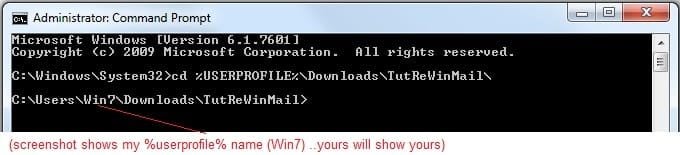
  • copy/paste this line into the command prompt: cd %USERPROFILE%\Downloads\TutReWinMail\
  • Your command prompt must now be showing you are at That Same Folder Address ..which contains the tutorial files that the batch file in the next step executes programs and copies files specifically from that folder address - if it's not there the batch file will fail since it cannot find what it needs!
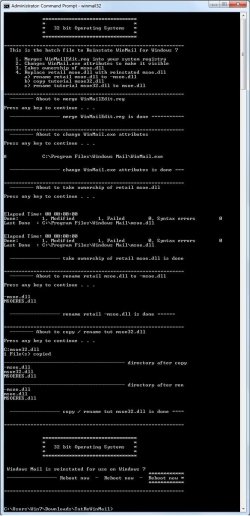
  • Next type in either winmail32 or win64mail <matching OS bit, to interactively process These Next Steps
  • If you've finished to the bottom as shown in last screenshot, restart your machine (sets registry)
  • Create a shortcut from WinMail.exe to your Desktop
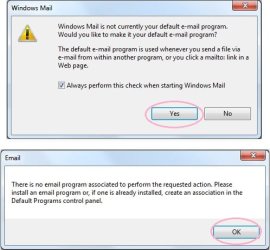
  • Open WinMail - it may prompt you one (or both) of These Two Notices ..click yes, and okay.
  • They now should be already set, but you can manually check/set at any time These Default Settings
  • That's pretty much all there is to it, and from here you setup the rest of the Windows Mail client (aka: WinMail) as normal within its various tab menus for Accounts, Options, Layout, etc, etc, to suit your individual needs.
  • Lastly, but should be the First thing you do, is to Create A WinMail Backup (new version) ..Go to this next link and when you get there scroll down to the heading: Backup/Restore Procedures for further instructions.
   Information
See How to open an elevated Administrator Command Prompt
Important: The exact text provided by the tutorial must be entered into the Administrator Command Prompt.
Hint: to avoid typos, copy/paste the entire line containing the command into the Command Prompt window.
Also see: How to Enable Copy to Clipboard from the Windows 7 Command Prompt

Every effort has been made to make this a step-by-step process, however, it is beyond the scope of a single tutorial to provide information on every command or concept. Search the Main Tutorial Section if you need greater detail on a concept or command presented in this tutorial.


Good luck, and long live WinMail :thumbsup:


   Note
Made possible by members:
Mark (aka Mr GRiM) - provided the original tutorial
Poppa Bear - continued Mark's work within the 2nd version
endeavor - provided continuous feedback, changes, invaluable testing instrumental to tutorial operations
EKManitis - propose the batch code that made operations easier
Slartybart - updated, tested, and consolidated all of the above into the 3rd version
endeavor - reviewed, updated, tested, and incorporated all of the above into this 4th version
...and also a special thanks to All the other members who presented discovery for this project


Attachments

  • TutReWinMail.zip
    TutReWinMail.zip
    1.8 MB · Views: 4,994
  • msoe_32.zip
    msoe_32.zip
    404 bytes · Views: 1,052
  • msoe_64.zip
    msoe_64.zip
    404 bytes · Views: 1,531
  • WinMailEdit.zip
    WinMailEdit.zip
    404 bytes · Views: 6
  • Win74umsZip.zip
    Win74umsZip.zip
    404 bytes · Views: 106
  • ACP.jpg
    ACP.jpg
    11.5 KB · Views: 1,083
  • DefaultClickYes-OkayAssociation.jpg
    DefaultClickYes-OkayAssociation.jpg
    31.1 KB · Views: 899
  • ProcessingBatch.jpg
    ProcessingBatch.jpg
    109 KB · Views: 1,147
  • PasteCDCommand.jpg
    PasteCDCommand.jpg
    18.5 KB · Views: 696
  • WinMail_Local_Tutorial.zip
    WinMail_Local_Tutorial.zip
    6.1 KB · Views: 1,202
  • FolderOptionsSet.jpg
    FolderOptionsSet.jpg
    37.9 KB · Views: 695
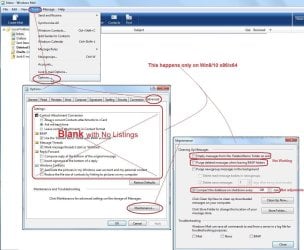
  • WinMailAdvanceOptionsBlank.jpg
    WinMailAdvanceOptionsBlank.jpg
    138.1 KB · Views: 93
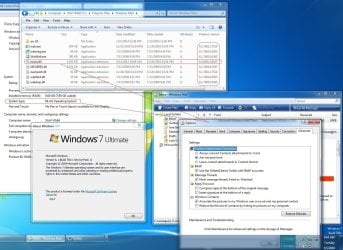
  • Win7x64AdvancedTab+FileVersions.jpg
    Win7x64AdvancedTab+FileVersions.jpg
    184.7 KB · Views: 112
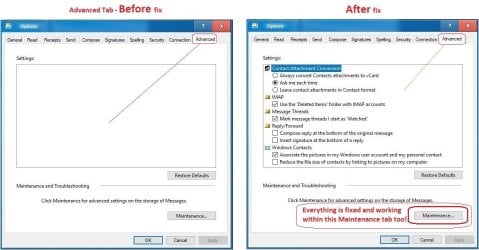
  • AdvancedTabBefore&After_fixed.jpg
    AdvancedTabBefore&After_fixed.jpg
    79.1 KB · Views: 50
  • CheckManually.jpg
    CheckManually.jpg
    131.8 KB · Views: 136
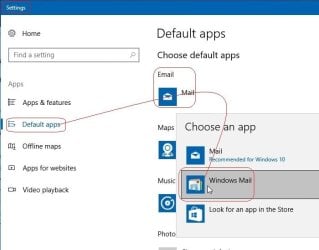
  • Win10_SetDefault.jpg
    Win10_SetDefault.jpg
    31.8 KB · Views: 33
Last edited by a moderator:
Sorry, I understood perhaps wrongly from what has just been said here that the xsmile reg fixes from my old default mail client thread (note: I used 2 not 1) were supposed to be part of the single fix in post #1. Sorry now I'm lost..
Yes Peter, Both! of those attachments registry information was/is already included into the WinMailEdit.reg in Post 1, and that was done back in 2009.
What I'm also saying as already noted is that the WinMailEdit.reg in post 1 is now incomplete since it is missing New pertinent registry information that's included in post #1230, but is Not in post 1

I don't see the point of a tutorial if one has to read thousands of posts...why hasn't #1230 been incorporated into post #1? Or perhaps a large font proviso included in post #1 to read also post #1230?

I totally agree! ..it should be put into Post #1. (Edit - it now is on page 1)

I have not asked Mark to do it, has anyone else?
Many of us, many times, have asked/hinted to Brink if he would do so, but he has not answered that question directly iirc I don't think, but indirectly he has said to others posting in this thread that they should move on from WinMail, of which I can only assume is for all the good reasons that Slartybart so eloquently outlined so well at the beginning of his Tutorial on Post #1.
I see it as a good disclaimer too, but for those who get it, and who are 'capable' then can Easily have WinMail (the updated Outlook Express) on Windows 7 if they want to, and I personally will have it on 7 for many years to come!

Maybe I'm misunderstanding you as I'm reading things at extreme speed. If so I apologize.

I hope I've cleared up any wonderings.

For Post 1 we do need ''Someone'' if Mark has moved on from the subject, and if he gives permission, who will edit Post 1 and possibly combine the Manual way that's there already (updating it's old reg file of course with the new one) ..and also give users another choice of a faster more accurate way of doing it by putting in Slartybarts combined automation process; or if not, at least put a link pointing to it.

Any ideas for who?
It's complicated, many of the original contributors have moved from WinMail?
Ideally though and realistically I would think? ..it would best be someone who has WinMail installed already. No I'm not volunteering myself, but I will contribute and work behind the scenes in the ways of my expertise as I've been doing right along.
 
Last edited:

My Computer

Computer type
PC/Desktop
Computer Manufacturer/Model Number
..all towers built from scratch
OS
Vista/Win7/8/10/11 (x86/x64)
CPU
i7
Thanks for clarifying it. That takes us back to to whether or not someone wants to take ownership of the thread if Mark has left or is otherwise busy and that would be either the forum owner, Shawn or any of the Moderators I would imagine.

Sorry but I can't for reasons previously given.
 

My Computer

Computer type
PC/Desktop
Computer Manufacturer/Model Number
Alienware® ALX X58
OS
Win 7 Ult SP1/Win 10 Pro (all x64)
CPU
Intel® Core™ i7-975 Extreme O/C to 4.02 GHz, 8MB Cache
Motherboard
Asus® P6T Deluxe V2 X58 LGA1366
Memory
24GB Corsair Vengeance DDR3 SDRAM at 1600MHz - 6 x 4096MB
Graphics Card(s)
1792 MB NVIDIA® GeForce® GTX 295 Dual Core
Sound Card
Onboard Soundmax® High-Definition 7.1 Performance Audio
Monitor(s) Displays
Samsung XL2370 LED backlit 23" W/S 2ms response time
Screen Resolution
1920 X 1080
Hard Drives
2 x 500gb SATA II
1 x 1TB SATA II
1 external eSATA LaCie 3TB
(Non-RAID)
PSU
Alienware® 1200 Watt Multi-GPU
Case
Alienware® P2 ALX Chassis with AlienIce™ 3.0 Video Cooling
Cooling
Alienware® High-Perf. Liquid Cooling + Acoustic Dampening
Keyboard
Microsoft® Wireless Entertainment 8000 + Logitech® G15 Wired
Mouse
Microsoft® Wireless Laser 8000 + Logitech® G9 Wired
Internet Speed
1Gb/s
Antivirus
McAfee LiveSafe
Browser
Firefox - latest
Other Info
Using non-RAID on purpose as I find RAID to be too temperamental.
Now set to AHCI
I just PM'd a couple of people and copied you in on it.
 

My Computer

Computer type
PC/Desktop
Computer Manufacturer/Model Number
Alienware® ALX X58
OS
Win 7 Ult SP1/Win 10 Pro (all x64)
CPU
Intel® Core™ i7-975 Extreme O/C to 4.02 GHz, 8MB Cache
Motherboard
Asus® P6T Deluxe V2 X58 LGA1366
Memory
24GB Corsair Vengeance DDR3 SDRAM at 1600MHz - 6 x 4096MB
Graphics Card(s)
1792 MB NVIDIA® GeForce® GTX 295 Dual Core
Sound Card
Onboard Soundmax® High-Definition 7.1 Performance Audio
Monitor(s) Displays
Samsung XL2370 LED backlit 23" W/S 2ms response time
Screen Resolution
1920 X 1080
Hard Drives
2 x 500gb SATA II
1 x 1TB SATA II
1 external eSATA LaCie 3TB
(Non-RAID)
PSU
Alienware® 1200 Watt Multi-GPU
Case
Alienware® P2 ALX Chassis with AlienIce™ 3.0 Video Cooling
Cooling
Alienware® High-Perf. Liquid Cooling + Acoustic Dampening
Keyboard
Microsoft® Wireless Entertainment 8000 + Logitech® G15 Wired
Mouse
Microsoft® Wireless Laser 8000 + Logitech® G9 Wired
Internet Speed
1Gb/s
Antivirus
McAfee LiveSafe
Browser
Firefox - latest
Other Info
Using non-RAID on purpose as I find RAID to be too temperamental.
Now set to AHCI
Shawn Brink has done it I believe. Check it out please.
 

My Computer

Computer type
PC/Desktop
Computer Manufacturer/Model Number
Alienware® ALX X58
OS
Win 7 Ult SP1/Win 10 Pro (all x64)
CPU
Intel® Core™ i7-975 Extreme O/C to 4.02 GHz, 8MB Cache
Motherboard
Asus® P6T Deluxe V2 X58 LGA1366
Memory
24GB Corsair Vengeance DDR3 SDRAM at 1600MHz - 6 x 4096MB
Graphics Card(s)
1792 MB NVIDIA® GeForce® GTX 295 Dual Core
Sound Card
Onboard Soundmax® High-Definition 7.1 Performance Audio
Monitor(s) Displays
Samsung XL2370 LED backlit 23" W/S 2ms response time
Screen Resolution
1920 X 1080
Hard Drives
2 x 500gb SATA II
1 x 1TB SATA II
1 external eSATA LaCie 3TB
(Non-RAID)
PSU
Alienware® 1200 Watt Multi-GPU
Case
Alienware® P2 ALX Chassis with AlienIce™ 3.0 Video Cooling
Cooling
Alienware® High-Perf. Liquid Cooling + Acoustic Dampening
Keyboard
Microsoft® Wireless Entertainment 8000 + Logitech® G15 Wired
Mouse
Microsoft® Wireless Laser 8000 + Logitech® G9 Wired
Internet Speed
1Gb/s
Antivirus
McAfee LiveSafe
Browser
Firefox - latest
Other Info
Using non-RAID on purpose as I find RAID to be too temperamental.
Now set to AHCI
Thank you Peter for your help in getting the Page 1 Tutorial updated to be Current, and thank you Shawn for making it happen!

Thanks to Slartybart for taking over the ownership and maintenance of the tutorial.

Thanks to Each and Every person over the years who has contributed to this project.

Long Live WinMail :geek: ...even with its current understood limitations, including being unsupported.
 

My Computer

Computer type
PC/Desktop
Computer Manufacturer/Model Number
..all towers built from scratch
OS
Vista/Win7/8/10/11 (x86/x64)
CPU
i7
I was merely the messenger - but thank you ;-)
 

My Computer

Computer type
PC/Desktop
Computer Manufacturer/Model Number
Alienware® ALX X58
OS
Win 7 Ult SP1/Win 10 Pro (all x64)
CPU
Intel® Core™ i7-975 Extreme O/C to 4.02 GHz, 8MB Cache
Motherboard
Asus® P6T Deluxe V2 X58 LGA1366
Memory
24GB Corsair Vengeance DDR3 SDRAM at 1600MHz - 6 x 4096MB
Graphics Card(s)
1792 MB NVIDIA® GeForce® GTX 295 Dual Core
Sound Card
Onboard Soundmax® High-Definition 7.1 Performance Audio
Monitor(s) Displays
Samsung XL2370 LED backlit 23" W/S 2ms response time
Screen Resolution
1920 X 1080
Hard Drives
2 x 500gb SATA II
1 x 1TB SATA II
1 external eSATA LaCie 3TB
(Non-RAID)
PSU
Alienware® 1200 Watt Multi-GPU
Case
Alienware® P2 ALX Chassis with AlienIce™ 3.0 Video Cooling
Cooling
Alienware® High-Perf. Liquid Cooling + Acoustic Dampening
Keyboard
Microsoft® Wireless Entertainment 8000 + Logitech® G15 Wired
Mouse
Microsoft® Wireless Laser 8000 + Logitech® G9 Wired
Internet Speed
1Gb/s
Antivirus
McAfee LiveSafe
Browser
Firefox - latest
Other Info
Using non-RAID on purpose as I find RAID to be too temperamental.
Now set to AHCI
Thanks everybody -- with the help of you fine folks and a lot of internet research, I finally got everything working perfectly last night (or this morning) around 2:30 a.m. -- even the SendTo problem. Sooooo nice to have WinMail back again -- I am very happy!! :-)

Hi vmcinab, could you please tell me how you solved the 'Send To' problem? I've been using WM now for a couple months & love it except for that glitch.

Thank you,
grits
 

My Computer

Computer type
PC/Desktop
Computer Manufacturer/Model Number
emachines
OS
Microsoft Windows 7 Home Premium 64-bit 7601 Multiprocessor Free Service Pack 1
CPU
AMD Athlon(tm) II X2 220 Processor
Motherboard
eMachines EL1358G
Memory
3.00 GB
Graphics Card(s)
NVIDIA GeForce 6150SE nForce 430
Sound Card
Realtek High Definition Audio
Screen Resolution
1280 x 1024 x 32 bits (4294967296 colors) @ 60 Hz
Hard Drives
(1) WDC WD10 EADX-22TDHB0 SCSI Disk Device (2) Generic- Multi-Card USB Device
Keyboard
came with PC
Mouse
came with PC
Antivirus
Avast
Browser
IE 9
Other Info
don't know how to get info for the other 5 areas
Try this if you have used the method described at the front of this thread to enable Windows Mail in Win 7 and now can't install SP1:

1. Go to C:\Program Files\Windows Mail\ and move the file msoe.dll to another location. If it won't move you will need to 'take control' of the file as described in the first page of this thread. (This is the file you downloaded to make the modification).

2. Open Control Panel - System and Security - Windows Update - View update history. Look for KB978542 and uninstall it. This update addresses a security threat to Windows Mail and makes numerous changes to the registry.!
Thanks for posting this.Had trouble with installing SP1 on 7 gave up trying again and found this. But i do not have the update KB978542. However something stopped win mail working and i just got thunderbird. I deleted the msoe.dll If win mail is that special to MS they can keep it. Running scannow and will try SP1 again

EDIT: Scannow found/fixed corrupt files but sp1 is still giving error 80004005
Edit: Chkdsk found no problems
 
Last edited:

My Computer

OS
Win 7 Home Premium 64 bit Version 6.1 Build 7600
Happy Dance!


For those that follow, what worked for me was mostly the "Gobbledegeek solution" at post 958. Note that my CBS.log file specifically points to msoe.dll as the trigger of the error. Others suggestions (and frustrations) in this thread are associated with several other triggers of the 80004005 other than msoe.dll.

My variation of His solution follows:


1) If it was renamed per other suggestions, restore the Windows\SoftwareDistribution folder so you have access to the installed update history (disable the Windows Update Service to make the change, then re-enable it.)


2) Go to Windows Update, Installed Updates and remove the update KB978542. I suspect this Vista-related update is triggered to be applied to Win 7 by the Vista version of msoe.dll, which is why I think the Win 7 SP1 gets confused by file versions it doesn't expect to find.


3) Delete the Windows Mail folders in c:\Program Files and c:\Program File (x86)

4) Run sfc /scannow in an elevated command prompt to rebuild the folders, files and matching registry entries to the pre-KB978542 state. This restores the correct version of both the files and the registry entries relating to msoe.dll that SP1 is trying to uninstall.


5) Per the suggestion in comment 968 and others in that thread, I used the RTM ISO version of the SP1 update (link in that comment.) Apparently it is coded a bit differently than both the Windows Update and downloadable .exe versions. This was not tested and isolated as essential, it was one suggestion I used within my final recipe for success.

Hope this helps others. Just look in the CBS.log to be sure the 80004005 error is first triggered by the msoe.dll file (scroll up a ways from the bottom) to know whether this recipe applies to you.
 

My Computer

Computer Manufacturer/Model Number
HP 8710w Mobile Workstation
OS
Windows 7 Pro x64
Memory
4Gb
Graphics Card(s)
NVidia
Is the search feature in WM dependent on indexing being enabled? Recently, I can no longer search within the main tree folder of Local Folders. I can search within the folders individually below this bu that's about it.
 

My Computer

Computer type
PC/Desktop
Computer Manufacturer/Model Number
Asus P6X58D-E, Lenovo
OS
Windows 7, Windows 10 Pro
CPU
Intel Core i7 930
Motherboard
Asus X58 P6X58D-E
Memory
G.SKILL F3-12800CL9T-6GBNQ 6GB DDR3 3X2GB DDR3-1600 CL 9-9-9
Graphics Card(s)
ATI Radeon HD 5700
Hard Drives
Seagate Barracuda 1TB x2 SATA3 6GB/S 7200RPM 64MB
WD 1TB SATA3
PSU
Coolermaster Silent Pro 700W Modular Power Supply
Is the search feature in WM dependent on indexing being enabled? Recently, I can no longer search within the main tree folder of Local Folders. I can search within the folders individually below this bu that's about it.

My indexing is turned off too Sammy, but my search always has always worked and seems to be fully functional, I mean I never notice any problems with it not working in any way.

I'm trying to understand exactly what you mean though as I'm looking at mine and I right-click on any folder in the tree, or on the parent folder called Local Folder, any which way I do it works okay. When I right click and select Find, the Message box comes up, here in this gui it gives you the option on the top right with the Browse button (make sure box next to it to 'include subfolders' is checked) ...but when you click that Browse button I can select any parent folder or expand them and select just an individual folder within, and search.

Now, that other single 'Search' box located on the top right of the main WM gui, this search box works differently than using the Find ones, in that no gui boxes come up with options to choose what folder, it's an automatic search on whatever single subfolder you have opened at that moment, but no it will not do the Parent folder - is this what you are talking about?

Maybe you can explain your issue in more detail !

If you want to search the parent folder, such as Local or any others you have created, even newsgroups, etc, then just use the Find from either the top tab in WM from Edit> Find> Message ..and here the actual Find Message gui box comes up and you have available all of the options you want; also alternatively if you right click directly on any folder in the Tree itself here too you have that same Find with it's full options available. Using that other Search box as mentioned on the top right of WM, that one is just a quick search feature limited to subfolders.
 

My Computer

Computer type
PC/Desktop
Computer Manufacturer/Model Number
..all towers built from scratch
OS
Vista/Win7/8/10/11 (x86/x64)
CPU
i7
Posts that precede this post can be safely ignored

I think most posts that precede Post #1273 are related to the Poppa Bear version of the Reinstate WinMail on Windows 7 and can safely be ignored. There are a few Off topic posts regarding Windows 8 that also can be ignored.

There are two posts that concern me - both relate to Windows 7 SP1. I can't tell if the posters followed the previous tutorial (Poppa Bear) or the current tutorial (Slartybart) or tried a combination of the two. I do know that one member was in the process when I was writting the new version and they had a very difficult time reconciling the two. All is well with that member now, with a few minor annoyances that might still be related to trying both tutorials.

ReWinMail on Windows 7 without a service pack has not been tested to see if the current tutorial causes any Windows Update (WU) problems going to SP1. I have not seen any general WU problems after following the tutorial, but my machine was already on Win7 SP1.

Anyway, I'm going to use this post as my starting reference point for the tutorial I wrote. All preceding posts (with a few recent exceptions) seems to be backlevel and unrelated to the current tutorial.

Thanks to everyone who did the original work and to those who helped make the current version the current version.

Please keep posts on topic: How to reinstate Windows Mail on Windows 7
There are more than enough (1229) posts on this tutorial that probably confuse everyone.
 

My Computer

Computer type
Laptop
Computer Manufacturer/Model Number
HP Pavilion dv6-6c10us
OS
x64 (6.3.9600) Win8.1 Pro & soon dual boot x64 (6.1.7601) Win7_SP1 HomePrem
CPU
AMD A6-3420M APU with Radeon(tm) HD Graphics
Motherboard
Hewlett-Packard 1805
Memory
6.00 GB
Graphics Card(s)
AMD Radeon(TM) HD 6520G
Sound Card
(1) AMD High Definition Audio Device (2) IDT High Definiti
Monitor(s) Displays
HP W2072a 20" LCD (1600 x 900) @ 60 Hz
Screen Resolution
1366 x 768 x 32 bits (4294967296 colors) @ 60 Hz
Hard Drives
ST640LM0 00 HM641JI SATA Disk Device
Keyboard
Logitech k520 wireless KB
Mouse
Logitech m320 wireless mouse (bundled with KB)
Internet Speed
15/5 | 54 MB Wireless 'n'
Antivirus
Realtime: Defender or Avast | On-demand: Malwarebytes, ESET
Browser
IE 11 on Win8, IE 10 on win 7
Other Info
Media: [Gimp, Audacity, VLC] || Comm: [WEmail 2012, Skype] || Productivity: [OpenOffice,| Textpad] || Utils: [Sysinternals, cCleaner, Speccy, Defraggler]
Now, that other single 'Search' box located on the top right of the main WM gui, this search box works differently than using the Find ones, in that no gui boxes come up with options to choose what folder, it's an automatic search on whatever single subfolder you have opened at that moment, but no it will not do the Parent folder - is this what you are talking about?

Maybe you can explain your issue in more detail !

Sorry for the lack of clarity. That's what I meant. This "Search" feature on the top right. I could've sworn it worked in searching all Folders before I decided to turn off. What I mean by search is that I was able to enter search term in the "Search" field when I was in the "Local Folders". I thought it searched all the folders and the results populated. The "Search" works if I individually select a folder but it only searches within that folder not outside of it. The other search or find features work as they always have.

Just an FYI. What I did was import all my mail from WM to Outlook and then I performed the broad search to find the emails I was looking for. I have so much email, over 5 gigs in size, I then deleted that .pst file after I was done. Ideally, I dont want to have to do that each time I want to find old mail.
 

My Computer

Computer type
PC/Desktop
Computer Manufacturer/Model Number
Asus P6X58D-E, Lenovo
OS
Windows 7, Windows 10 Pro
CPU
Intel Core i7 930
Motherboard
Asus X58 P6X58D-E
Memory
G.SKILL F3-12800CL9T-6GBNQ 6GB DDR3 3X2GB DDR3-1600 CL 9-9-9
Graphics Card(s)
ATI Radeon HD 5700
Hard Drives
Seagate Barracuda 1TB x2 SATA3 6GB/S 7200RPM 64MB
WD 1TB SATA3
PSU
Coolermaster Silent Pro 700W Modular Power Supply
@Sammy888:

I think endeavor explained the differences between the search and find features in WinMail very well. Find is the more powerful feature.
endeavor said:
.....I right-click on any folder in the tree, or on the parent folder called Local Folder, any which way I do it works okay. When I right click and select Find, the Message box comes up, here in this gui it gives you the option on the top right with the Browse button (make sure box next to it to 'include subfolders' is checked) ...but when you click that Browse button I can select any parent folder or expand them and select just an individual folder within, and search.
There is another way to search eMail - use explorer.
See Microsoft Tips for finding files
Specify a search filter of kind:=email in the explorer search box (you could also use filter with type:eml). To get a good result, you'll have to add some columns
From, From Addresses, To, To Addresses, Subject.

And to save you from having to remember - save the search, which I'm fairly certain, but not positive, will also save the columns in your results.

I don't have index on either, so search doesn't search contents, unless I change my search options (always search contents) or wait until a search "fails to find" and then click on search contents.

I start my Windows Explorer search in my user folder, although you could start a search from the Windows Mail folder (C:\Users\YourName\AppData\Local\Microsoft\Windows Mail\Local Folders) which would make it a bit faster. It depends on if you changed the location of the message store.

As a quick check, you might try turning index back on and see if you can replicate your previous experience. I don't think that will change anything though, other than indexing contents of files, unless of course your eMail folder is indexed.
 
Last edited:

My Computer

Computer type
Laptop
Computer Manufacturer/Model Number
HP Pavilion dv6-6c10us
OS
x64 (6.3.9600) Win8.1 Pro & soon dual boot x64 (6.1.7601) Win7_SP1 HomePrem
CPU
AMD A6-3420M APU with Radeon(tm) HD Graphics
Motherboard
Hewlett-Packard 1805
Memory
6.00 GB
Graphics Card(s)
AMD Radeon(TM) HD 6520G
Sound Card
(1) AMD High Definition Audio Device (2) IDT High Definiti
Monitor(s) Displays
HP W2072a 20" LCD (1600 x 900) @ 60 Hz
Screen Resolution
1366 x 768 x 32 bits (4294967296 colors) @ 60 Hz
Hard Drives
ST640LM0 00 HM641JI SATA Disk Device
Keyboard
Logitech k520 wireless KB
Mouse
Logitech m320 wireless mouse (bundled with KB)
Internet Speed
15/5 | 54 MB Wireless 'n'
Antivirus
Realtime: Defender or Avast | On-demand: Malwarebytes, ESET
Browser
IE 11 on Win8, IE 10 on win 7
Other Info
Media: [Gimp, Audacity, VLC] || Comm: [WEmail 2012, Skype] || Productivity: [OpenOffice,| Textpad] || Utils: [Sysinternals, cCleaner, Speccy, Defraggler]
Issue after following tutorial instrux

Hi endeavor. First, thank you!

After carefully following the tutorial instructions I'm having an issue I'm hoping you can help diagnose and fix. I go to run winmail.exe and it spawns seeminly infinite processes (viewing in task manager). The Windows Mail app never launches.

thanks, in advance...​
 

My Computer

OS
Windows 7 Home Premium
Hi bnblabrecque, welcome to SevenForums.

We really need a little more information though.

For instance are you using 32 bit or 64 bit. My first thought is wondering if you are shortcutting the right WinMail.exe since for 64 bit you have two program listings. Originally there use to be a screenshot detail pointing this out on page 1 showing which one to use, but a 64 bit has two folders showing "C:\Program Files" and "C:\Program Files (x86)", and so be sure you are running the right winmail.exe. It won't hurt anything if you start the wrong one but it just won't work.

Thinking about it for a minute though after I typed that, I don't think this is the problem because if ? ? ? you created your WinMail.exe shortcut exactly like it says on the current Tutorial # 6. ..its location address direction will always have you shortcut the right WinMail.exe irregardless, and so if you did it per # 6 ? ..then I'm out of ideas then without more information from you.

Explain better these other processes you say that start. On mine I only see the one WinMail.exe process only.


Hi endeavor. First, thank you!​


After carefully following the tutorial instructions I'm having an issue I'm hoping you can help diagnose and fix. I go to run winmail.exe and it spawns seeminly infinite processes (viewing in task manager). The Windows Mail app never launches.​


thanks, in advance...​
 

My Computer

Computer type
PC/Desktop
Computer Manufacturer/Model Number
..all towers built from scratch
OS
Vista/Win7/8/10/11 (x86/x64)
CPU
i7
Hi endeavor. Thank you for the very quick response! I've found the problem.

Your questions (and a day off from messing around with this) got me thinking. I moved the .exe file from my old computer when I was attempting to do this on my own at first (before finding your excellent tutorial). That old winmail.exe was the problem. Launching it was spawning about 80 winmail processes per second and not launching the program. When I moved that old .exe out and copied my backup version of the .exe file that came installed it worked like a charm! Awesome.

Thank you thank you thank you!
 

My Computer

OS
Windows 7 Home Premium
You're welcome, and glad you got WM going.
 

My Computer

Computer type
PC/Desktop
Computer Manufacturer/Model Number
..all towers built from scratch
OS
Vista/Win7/8/10/11 (x86/x64)
CPU
i7
Hi vmcinab, could you please tell me how you solved the 'Send To' problem? I've been using WM now for a couple months & love it except for that glitch.

Thank you,
grits

Hi grits,

I've wanted to get back to you for a quite a while now about your Send To question but I've been quite busy elsewhere at work, but I know that I can solve this little pesky problem for you when the time permits; not that you use this function that often though.

What I need to know first if you would remind me please what other email program(s) and their version numbers that you also had and/or still have installed along with WinMail please. Also, Naturally I assume you have made sure that with whatever these other email programs you have installed that you have/had ''already gone into their Options somewhere and selected to make sure they were/are 'Not Set' to be the default email client'' ?
 

My Computer

Computer type
PC/Desktop
Computer Manufacturer/Model Number
..all towers built from scratch
OS
Vista/Win7/8/10/11 (x86/x64)
CPU
i7
After a fresh windows 7 install I took ownership of the windows mail folder in program files, deleted the folder and replaced it with a backup folder of windows mail that i have.

After this windows mail worked fine until I did an update of Windows 7.

I've forgotten which updates cause Windows Mail to stop working.

Rather than go over this new installation method you've listed in this tutorial, could someone advise the MS updates I need to install to get Windows Mail working again.

Please advise further, thanks..
 

My Computer

OS
Windows 7
Back
Top