Windows Mail

How to Reinstate Windows Mail in Windows 7

   Warning
Microsoft no longer supports Windows Mail, aka WinMail. It's recommended you use another well known supported email client. This Tutorial is for Advanced users who importantly have the Technical Ability to make the changes, have backups of everything including your OS, and to be your own tech support for WinMail going forward. If you decide to complete this tutorial you accept the fact that you are using WinMail as-is. It might be necessary to uninstall other email clients to resolve any WinMail conflicts in some environments. Understand it's likely that new OS updates from Microsoft will break WinMail's operation, and to fix make it necessary to rerun the tutorial again to reinstate it. With those things in mind, this tutorial was written so that you can rerun it without affecting WinMail user data.
Please see this Errata (Bug List) post before you install, to be aware of the current information about known issues using WinMail within Windows 7, these issues are programmatic and in most cases cannot be resolved by this tutorial, and will never be fixed.

Having said all of that disclaimer, if you have the technical ability, and can put up with the annoying minor byproduct bugs, then like so many of us still enjoy using WinMail on Windows 7 ...ymmv!


   Tip
As of January, 2025, the instructions given here supersede all other instructions given in forthcoming older posts. Realize some of the posts that follow are over 16 years old, and many of the link pointers within have become mislinked over time, many of the files or information within them is outdated, incomplete, or superseded with more accurate information - and so be careful. However you can always be sure that the latest info from all research is incorporated into this tutorial post, and its downloads are the latest available. This post is continuously kept up-to-date, and so..
...Always refer to this Tutorial post for the very latest updated information

This is the 4th iteration of the Windows 7, WinMail tutorial.

The process of this tutorial Will Not work to reinstate WinMail on Windows 8/10 !
Windows 8/10 users please go Here


Start here
  1. Download tutorial package TutReWinMail.zip

    Download

  2. Extract the TutReWinMail.zip into your user Downloads folder
    • Note: Be sure once extracted this is the address of the ''TutReWinMail'' folder:
    • C:\Users\username\Downloads\TutReWinMail... ... (if it's not there please put it there)
  3. Navigate to your user Downloads\TutReWinMail folder to be sure the above is correct.
    • (..if you need more verbose install instructions to follow, download this WinMail Local Tutorial.zip)
    • Advanced Users can proceed below:
      (..log in for Full Access, being able to get support, remove ads, like, and even to post, etc..)
Advanced Users: ..use this easy excellent overview of the steps in the local tutorial:
  • Open an Administrator Command Prompt. (screenshot showing in Administrator mode)
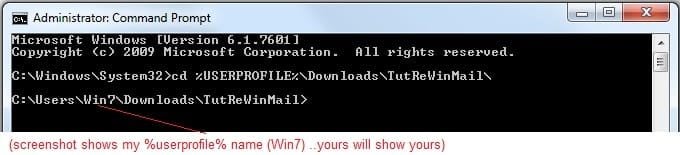
  • copy/paste this line into the command prompt: cd %USERPROFILE%\Downloads\TutReWinMail\
  • Your command prompt must now be showing you are at That Same Folder Address ..which contains the tutorial files that the batch file in the next step executes programs and copies files specifically from that folder address - if it's not there the batch file will fail since it cannot find what it needs!
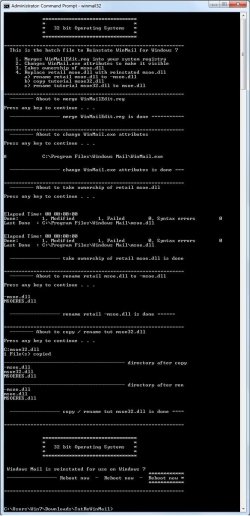
  • Next type in either winmail32 or win64mail <matching OS bit, to interactively process These Next Steps
  • If you've finished to the bottom as shown in last screenshot, restart your machine (sets registry)
  • Create a shortcut from WinMail.exe to your Desktop
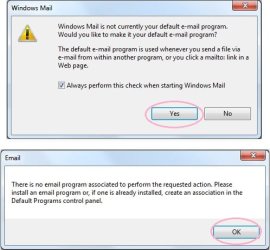
  • Open WinMail - it may prompt you one (or both) of These Two Notices ..click yes, and okay.
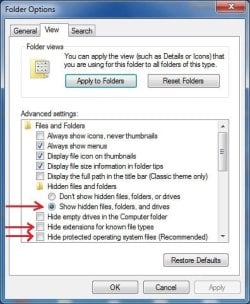
  • They now should be already set, but you can manually check/set at any time These Default Settings
  • That's pretty much all there is to it, and from here you setup the rest of the Windows Mail client (aka: WinMail) as normal within its various tab menus for Accounts, Options, Layout, etc, etc, to suit your individual needs.
  • Lastly, but should be the First thing you do, is to Create A WinMail Backup (new version) ..Go to this next link and when you get there scroll down to the heading: Backup/Restore Procedures for further instructions.
   Information
See How to open an elevated Administrator Command Prompt
Important: The exact text provided by the tutorial must be entered into the Administrator Command Prompt.
Hint: to avoid typos, copy/paste the entire line containing the command into the Command Prompt window.
Also see: How to Enable Copy to Clipboard from the Windows 7 Command Prompt

Every effort has been made to make this a step-by-step process, however, it is beyond the scope of a single tutorial to provide information on every command or concept. Search the Main Tutorial Section if you need greater detail on a concept or command presented in this tutorial.


Good luck, and long live WinMail :thumbsup:


   Note
Made possible by members:
Mark (aka Mr GRiM) - provided the original tutorial
Poppa Bear - continued Mark's work within the 2nd version
endeavor - provided continuous feedback, changes, invaluable testing instrumental to tutorial operations
EKManitis - propose the batch code that made operations easier
Slartybart - updated, tested, and consolidated all of the above into the 3rd version
endeavor - reviewed, updated, tested, and incorporated all of the above into this 4th version
...and also a special thanks to All the other members who presented discovery for this project


Attachments

  • TutReWinMail.zip
    TutReWinMail.zip
    1.8 MB · Views: 4,994
  • Win74umsZip.zip
    Win74umsZip.zip
    404 bytes · Views: 106
  • WinMailEdit.zip
    WinMailEdit.zip
    404 bytes · Views: 6
  • msoe_32.zip
    msoe_32.zip
    404 bytes · Views: 1,052
  • msoe_64.zip
    msoe_64.zip
    404 bytes · Views: 1,531
  • ACP.jpg
    ACP.jpg
    11.5 KB · Views: 1,083
  • DefaultClickYes-OkayAssociation.jpg
    DefaultClickYes-OkayAssociation.jpg
    31.1 KB · Views: 899
  • ProcessingBatch.jpg
    ProcessingBatch.jpg
    109 KB · Views: 1,147
  • PasteCDCommand.jpg
    PasteCDCommand.jpg
    18.5 KB · Views: 696
  • WinMail_Local_Tutorial.zip
    WinMail_Local_Tutorial.zip
    6.1 KB · Views: 1,202
  • FolderOptionsSet.jpg
    FolderOptionsSet.jpg
    37.9 KB · Views: 695
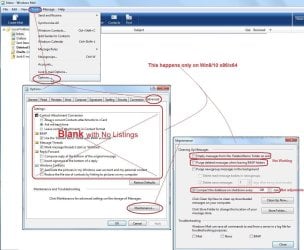
  • WinMailAdvanceOptionsBlank.jpg
    WinMailAdvanceOptionsBlank.jpg
    138.1 KB · Views: 93
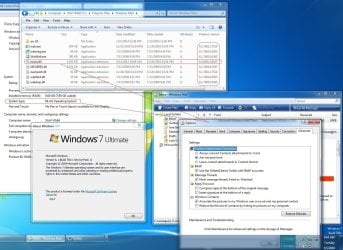
  • Win7x64AdvancedTab+FileVersions.jpg
    Win7x64AdvancedTab+FileVersions.jpg
    184.7 KB · Views: 112
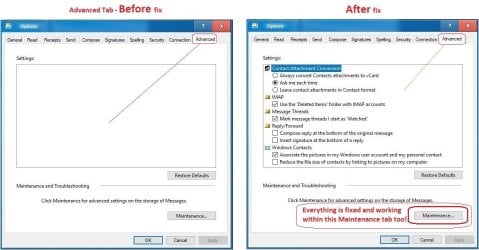
  • AdvancedTabBefore&After_fixed.jpg
    AdvancedTabBefore&After_fixed.jpg
    79.1 KB · Views: 50
  • CheckManually.jpg
    CheckManually.jpg
    131.8 KB · Views: 136
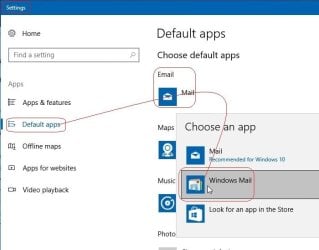
  • Win10_SetDefault.jpg
    Win10_SetDefault.jpg
    31.8 KB · Views: 33
Last edited by a moderator:
Ok fixed the problem. Just took ownership of the windows mail folder in both program files and program files (x86), deleted the two folders, and readded the windows mail folder to program files. all working now.
 

My Computer

OS
Windows 7
Ok fixed the problem. Just took ownership of the windows mail folder in both program files and program files (x86), deleted the two folders, and readded the windows mail folder to program files. all working now.

Glad you got it going again krohm,

I was not aware of any updates since the known installing of SP1 breaks it but for that you simply need to just put the original msoe32/64.dll back is all, but other than that there was nothing else I was aware of.

To check to see if there is anything else at Windows Update new to break WM, I just went to WU just now and see I have about 30 important updates to do (I haven't done any updating since SP1 so these updates are naturally post SP1) ...I just now updated what they had, rebooted, and tracking all the changes I can see that no changes were made to WinMail, and starting WM up it works as good as it ever did... ...and so unless you just installed SP1 as mentioned above, then there are no new updates that breaks WM again; and btw, when the time comes that SP2 or whatever comes out and if it breaks it again, we will simply figure out a way to solve it.

Next time you do a fresh install I would suggest using the new automated tutorial on Page 1 since not only is it automated making it much faster to re-activate WM - it also has more fixes in it than the original one did, and surly you will want those installed.
 

My Computer

Computer type
PC/Desktop
Computer Manufacturer/Model Number
..all towers built from scratch
OS
Vista/Win7/8/10/11 (x86/x64)
CPU
i7
Hi vmcinab, could you please tell me how you solved the 'Send To' problem? I've been using WM now for a couple months & love it except for that glitch.

Thank you,
grits

Hi grits,

I've wanted to get back to you for a quite a while now about your Send To question but I've been quite busy elsewhere at work, but I know that I can solve this little pesky problem for you when the time permits; not that you use this function that often though.

What I need to know first if you would remind me please what other email program(s) and their version numbers that you also had and/or still have installed along with WinMail please. Also, Naturally I assume you have made sure that with whatever these other email programs you have installed that you have/had ''already gone into their Options somewhere and selected to make sure they were/are 'Not Set' to be the default email client'' ?

Hi endeavor,

I have Eudora 7.1 & have set it to 'Not be default'

Thank you.
 

My Computer

Computer type
PC/Desktop
Computer Manufacturer/Model Number
emachines
OS
Microsoft Windows 7 Home Premium 64-bit 7601 Multiprocessor Free Service Pack 1
CPU
AMD Athlon(tm) II X2 220 Processor
Motherboard
eMachines EL1358G
Memory
3.00 GB
Graphics Card(s)
NVIDIA GeForce 6150SE nForce 430
Sound Card
Realtek High Definition Audio
Screen Resolution
1280 x 1024 x 32 bits (4294967296 colors) @ 60 Hz
Hard Drives
(1) WDC WD10 EADX-22TDHB0 SCSI Disk Device (2) Generic- Multi-Card USB Device
Keyboard
came with PC
Mouse
came with PC
Antivirus
Avast
Browser
IE 9
Other Info
don't know how to get info for the other 5 areas
Hi endeavor,

I have Eudora 7.1 & have set it to 'Not be default'

Thank you.

Good Morning grits, before I install Eudora on my test bench setup, could you give me some more details, like what do you see when you open WM and look in the tab of: Tools> Options> General ...iow, do you see the 'Make it Default' 'Button' greyed out, or is it Bolded and accessible, ect...

...the more little details you give me the more it helps.

Could you show me which webpage and link to download the exact v7.1 one you downloaded, is it the Sponsored version or which Other version? I need to install the exact same one would be good.

Also, did you install Eudora After you had activated WM, or was it before? ..or both?!

Do you still use Eudora and/or why do you still have it still installed?
 
Last edited:

My Computer

Computer type
PC/Desktop
Computer Manufacturer/Model Number
..all towers built from scratch
OS
Vista/Win7/8/10/11 (x86/x64)
CPU
i7
Well grits instead of waiting for your answers and using the time I have at this moment, I quickly installed Eudora 7.1.0.9 and I guess it was in sponsor mode. I quickly setup an account via it's first run prompts -okay it's running...

...however back to WinMail, when I right click on a file and click "Send To> Mail Recipient - WinMail starts right up opening a new email with that file attached - which is what I assumed you wanted to do right? ..and so my WinMail still works fine even with Eudora installed.

..and so this is where if you would answer these other questions would be helpful for me to try and re-create what you have done in the past that made it so that your Send To> Mail Recipient is not working? ..actually please explain to me how and in which way it does not work - what happens when you right click any file and click the Send To> Mail Recipient?

When you installed Eudora and opened it for the first time, and it prompted did you create a brand new email account or import settings from an existing email account.... I'm just trying to get an idea of which way you installed it is all.

Importantly, have you ever installed/uninstalled 'any' other email client on your setup?
 

My Computer

Computer type
PC/Desktop
Computer Manufacturer/Model Number
..all towers built from scratch
OS
Vista/Win7/8/10/11 (x86/x64)
CPU
i7
endeavor, sorry about delay, summer yard work & either packing for a road trip or getting company.

Yes, my Eudora is the same one that you installed. 'IF' I remember right, it was created as a new acct, but then again my rememberer is broke so possibly I used settings from Thunderbird which I was using at that time. I had earlier, but uninstalled DreamMail.
Yes, my WM is set as default & grayed out.
Am in the process of sorting emails out of Eudora so I can uninstall it.
When I right click & Send To>Mail Recipient, Eudora opens, same as when I click File at top of screen, scroll down to Send>Page by or Link by email.

Hope I answered all for you, have had 2 interruptions while trying to type this.
Thanks for trying to help me,
grits
 

My Computer

Computer type
PC/Desktop
Computer Manufacturer/Model Number
emachines
OS
Microsoft Windows 7 Home Premium 64-bit 7601 Multiprocessor Free Service Pack 1
CPU
AMD Athlon(tm) II X2 220 Processor
Motherboard
eMachines EL1358G
Memory
3.00 GB
Graphics Card(s)
NVIDIA GeForce 6150SE nForce 430
Sound Card
Realtek High Definition Audio
Screen Resolution
1280 x 1024 x 32 bits (4294967296 colors) @ 60 Hz
Hard Drives
(1) WDC WD10 EADX-22TDHB0 SCSI Disk Device (2) Generic- Multi-Card USB Device
Keyboard
came with PC
Mouse
came with PC
Antivirus
Avast
Browser
IE 9
Other Info
don't know how to get info for the other 5 areas
Hi grits,

It looks like the answer may be pretty simple for you grits, after testing and applying these settings I can switch back and forth making either Windows Mail or Eudora set as default for 'SendTo' as well as 'Mail To' and the '.eml' extension, and either client while set as default works with these functions.

I know you like things explained in detail simplicity for you so I'll do my best. This is what you do, go to your Start button (you know the round 'ms icon ball' at the very left hand bottom of you desktop screen, and click it...)

actually just follow this sequence:

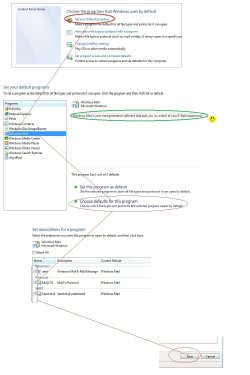
click Start> click All Programs> click ''Default Programs'' to open it (or it's also found in the Control Panel, etc)

..when that opens up then click the listing 'Set your Default Programs'

...when that opens, highlight 'Windows Mail' from the list

...then click the bottom listing: 'Choose defaults for this program'

...when that screen opens put check-marks in all three boxes: Mail To + Send Mail + .eml as shown in screenshot

...then Be Sure to click the Save button

That should fix it for you and set WinMail back to being default for everything to do with your mail program.

If you ever want Eudora to be your default, then do the same procedure but of course highlight Eudora in the list instead of WinMail. If you ever uninstall Eudora make sure you have WinMail set up as the default for those three items before you do it.

To be of help, here's an edited screenshot to show what to do, starting with
the 'Set your default program' sequence: (click it once, twice, to open it up full)
 

Attachments

  • WinMailSetDefault.jpg
    WinMailSetDefault.jpg
    101.1 KB · Views: 456
Last edited:

My Computer

Computer type
PC/Desktop
Computer Manufacturer/Model Number
..all towers built from scratch
OS
Vista/Win7/8/10/11 (x86/x64)
CPU
i7
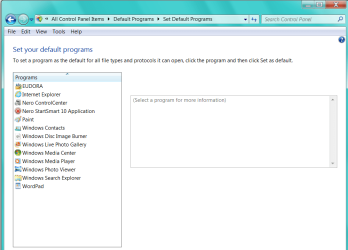
Ran into a snag right off the bat. Will include screenshot. My list doesn't include WM.
 

Attachments

  • 2012-08-09_080641 _ no WM in mine.png
    2012-08-09_080641 _ no WM in mine.png
    33 KB · Views: 262

My Computer

Computer type
PC/Desktop
Computer Manufacturer/Model Number
emachines
OS
Microsoft Windows 7 Home Premium 64-bit 7601 Multiprocessor Free Service Pack 1
CPU
AMD Athlon(tm) II X2 220 Processor
Motherboard
eMachines EL1358G
Memory
3.00 GB
Graphics Card(s)
NVIDIA GeForce 6150SE nForce 430
Sound Card
Realtek High Definition Audio
Screen Resolution
1280 x 1024 x 32 bits (4294967296 colors) @ 60 Hz
Hard Drives
(1) WDC WD10 EADX-22TDHB0 SCSI Disk Device (2) Generic- Multi-Card USB Device
Keyboard
came with PC
Mouse
came with PC
Antivirus
Avast
Browser
IE 9
Other Info
don't know how to get info for the other 5 areas
Ran into a snag right off the bat. Will include screenshot. My list doesn't include WM.

Hmmm, I wonder if when you uninstalled DreamMail that its uninstaller also removed WM from the list; the WM register program entries are included in the WinMail.reg which you first ran to get WM going, and so something probably from the other email uninstalls you did, removed WM along with it.

I made a quick little reg file for you to merge to see if we can get it back the easiest way, of which I also added an important line that's in the latest WimMail.reg but not in the first ones he made, and I can't remember which revision you started with and so this will make sure.

The attached registry file contents when merged will register WM letting it show up in the 'Default Programs' list if it's missing (and also associate WM Extensions, Protocols, and MAPI functions), and as well if your 'Make Default' button is unreactive and greyed out because of interference from other email client install/uninstalls, this will reactivate/bold it so that you can click it to once again to make default. (fyi, when First activating WM this is all done automatically, however for those who install/uninstall other clients after WM, sometimes these problems may occur, and so this abbreviated registry fix will restore the WM defaults without having to re-run the entire WM install process.)

Download the attached reg file below to your computer and then right click on it and click Merge (or double click). Upon a 'successful' merge, please reboot before continuing

~After you merge and reboot, please open WinMail and go to Tools> Options> General ..and if the Make Default buttons are bolded (not greyed out) ..if they are bolded then click them to 'Make Default'

~Also follow my previous message and screenshot instructions to see if Windows Mail is listed in your Default Programs again, if it is, then go ahead and do those instructions. ..good luck!

.

(Note! The few registry entires in this attachment are already included in the Page 1 tutorial download)

.
 

Attachments

Last edited:

My Computer

Computer type
PC/Desktop
Computer Manufacturer/Model Number
..all towers built from scratch
OS
Vista/Win7/8/10/11 (x86/x64)
CPU
i7
endeavor, I was long past DreamMail before I went with WM so doubt that it's the problem. Should I go ahead with your instructions anyway? Sorry to be such a pest. :(

Thanks,
grits
 

My Computer

Computer type
PC/Desktop
Computer Manufacturer/Model Number
emachines
OS
Microsoft Windows 7 Home Premium 64-bit 7601 Multiprocessor Free Service Pack 1
CPU
AMD Athlon(tm) II X2 220 Processor
Motherboard
eMachines EL1358G
Memory
3.00 GB
Graphics Card(s)
NVIDIA GeForce 6150SE nForce 430
Sound Card
Realtek High Definition Audio
Screen Resolution
1280 x 1024 x 32 bits (4294967296 colors) @ 60 Hz
Hard Drives
(1) WDC WD10 EADX-22TDHB0 SCSI Disk Device (2) Generic- Multi-Card USB Device
Keyboard
came with PC
Mouse
came with PC
Antivirus
Avast
Browser
IE 9
Other Info
don't know how to get info for the other 5 areas
Absolutely continue! ...that part it not important of what/who caused it, I had thought you tried a few different email clients and uninstalled them is all, something removed it though, and you were doing a lot of testings and fix its especially in your other threads, but irregardless of what did it lets move on, the resolve is the same and so yes please Continue on to fix it.

You don't have it done already :)
 

My Computer

Computer type
PC/Desktop
Computer Manufacturer/Model Number
..all towers built from scratch
OS
Vista/Win7/8/10/11 (x86/x64)
CPU
i7
:D , that did it, "Thank you, thank you"!
 

My Computer

Computer type
PC/Desktop
Computer Manufacturer/Model Number
emachines
OS
Microsoft Windows 7 Home Premium 64-bit 7601 Multiprocessor Free Service Pack 1
CPU
AMD Athlon(tm) II X2 220 Processor
Motherboard
eMachines EL1358G
Memory
3.00 GB
Graphics Card(s)
NVIDIA GeForce 6150SE nForce 430
Sound Card
Realtek High Definition Audio
Screen Resolution
1280 x 1024 x 32 bits (4294967296 colors) @ 60 Hz
Hard Drives
(1) WDC WD10 EADX-22TDHB0 SCSI Disk Device (2) Generic- Multi-Card USB Device
Keyboard
came with PC
Mouse
came with PC
Antivirus
Avast
Browser
IE 9
Other Info
don't know how to get info for the other 5 areas
:D , that did it, "Thank you, thank you"!

That's great grits and what we like to hear that it's fixed, and you're welcome!

...have a nice weekend.
 

My Computer

Computer type
PC/Desktop
Computer Manufacturer/Model Number
..all towers built from scratch
OS
Vista/Win7/8/10/11 (x86/x64)
CPU
i7
Endeavor,

As you said...I was not aware of any updates since the known installing of SP1 breaks it but for that you simply need to just put the original msoe32/64.dll back is all, but other than that there was nothing else I was aware of.


Rumor has it that we are already overdue for SP-2.

As I remember with SP-1, WM still worked but SP-1 failed to load.

How confident are you that we will find some sort of fix if SP-2 won't load.

Don
 

My Computer

Computer type
PC/Desktop
Computer Manufacturer/Model Number
Hp p6608f
OS
Windows 7 Home Premium 64
CPU
Intel(R) Core(TM) i3 CPU
Memory
8.00 GB
Graphics Card(s)
ATI Radeon HD 4600 Series
Sound Card
(1) ATI High Definition Audio Device (2) Realtek High Defi
Monitor(s) Displays
one Asus VW266H one Samsung T260HD
Screen Resolution
1920 x 1200
Hard Drives
ST3750528AS
Other Info
BIOS Date: 04/09/10 10:04:52 Ver: 5.28
Endeavor,

As you said...I was not aware of any updates since the known installing of SP1 breaks it but for that you simply need to just put the original msoe32/64.dll back is all, but other than that there was nothing else I was aware of.


Rumor has it that we are already overdue for SP-2.

As I remember with SP-1, WM still worked but SP-1 failed to load.

How confident are you that we will find some sort of fix if SP-2 won't load.

Don


Very Confident...


.
 
Last edited:

My Computer

Computer type
PC/Desktop
Computer Manufacturer/Model Number
..all towers built from scratch
OS
Vista/Win7/8/10/11 (x86/x64)
CPU
i7
For what it's worth, I just put a new HD in my laptop. I did a clean install of Win 7 SP1 this time so I have an awful lot of re-installing to do. Last time was not SP1. Of course one of the most important things is Windows Mail. I noticed that there were new instructions for the mail now. Maybe it's just me but it seemed more complicated than the special instructions for doing so. For example I could not cut and past into the command prompt even after following the instructions for that. Also typing in the line 3 times in a couple of days did not work either. I'm no DOS whizz. So finally I just Googled the old instructions with the take ownership thing and no problems at all. It was very fast and I just drag and dropped the files from the old program. I don't know what I would do without my Mail program. I hope that one way or another I can keep it forever. I may have a computer full of all the latest Office programs, Adobe etc etc but I also still use Lotus Organizer since my first laptop in 1993. I updated the program until they stopped updates many tears ago.
 

My Computer

Computer type
PC/Desktop
Computer Manufacturer/Model Number
Blackbird 002 (rebuilt-upgraded)
OS
Win 7 Ultimate SP1 64 bit
CPU
Core i7 950 3.06 GHz
Motherboard
GigaByte
Memory
24 gigs Corsair XMS3
Graphics Card(s)
NVIDIA GeForce GTX 460
Monitor(s) Displays
2 X Dell flat screen E228 WFP
Screen Resolution
1680 x 1050
Hard Drives
Raptor RAID 0 array & 3 other internal and several external drives. Just added 1TB Samsung SSD
Case
Blackbird 002
Cooling
liquid
Keyboard
Logitech wireless
Mouse
Logitech wireless
Internet Speed
14.63 / 2.11 Mbps
Antivirus
Fsecure
Browser
Firefox
I don't know why kewl1 that you had a problem with copy/paste.

When you go to and click on to open the local "TutReWinMail\ReWinMail_tutorial.html" instructions.. ...like right now when I open it, I can right click and select copy and paste on any of the lines it wants you to:

cd %USERPROFILE%\Downloads\TutReWinMail\

or

C:\Program Files\Windows Mail\Winmail.exe

or

winmail32

...you can even use Ctrl C and Ctrl V

The old way works still yes, but the new procedure from #3 to #7 is written that way for a reason, it's more accurate and will activate more people than it did before, and its new registry content being more streamlined, accurate, and most importantly up to date with the latest information.
 

My Computer

Computer type
PC/Desktop
Computer Manufacturer/Model Number
..all towers built from scratch
OS
Vista/Win7/8/10/11 (x86/x64)
CPU
i7
@kewl1: The Windows shortcut for paste "Ctrl-V" does NOT work in a Command Prompt unless you've tweaked your system. Once you've copied text from a Windows application, you can either
1) use the built in command prompt editor by right clicking the title bar and selecting paste from the "edit" menu
2) Enable specific edit shortcuts for Command Prompt and use the right mouse button to paste.

Thanks for pointing this out kelw1 - I checked the online tutorial and it is not exactly clear. I changed the text reference in Post#1 to link to the "How to Enable Copy to Clipboard from the Windows 7 Command Prompt". I checked the offline tut and it has a link, but probably needs some amplification.

Just keep in mind Command Prompt has it's own editor. I'll work on the offline tut as soon as I get a chance.
 

My Computer

Computer type
Laptop
Computer Manufacturer/Model Number
HP Pavilion dv6-6c10us
OS
x64 (6.3.9600) Win8.1 Pro & soon dual boot x64 (6.1.7601) Win7_SP1 HomePrem
CPU
AMD A6-3420M APU with Radeon(tm) HD Graphics
Motherboard
Hewlett-Packard 1805
Memory
6.00 GB
Graphics Card(s)
AMD Radeon(TM) HD 6520G
Sound Card
(1) AMD High Definition Audio Device (2) IDT High Definiti
Monitor(s) Displays
HP W2072a 20" LCD (1600 x 900) @ 60 Hz
Screen Resolution
1366 x 768 x 32 bits (4294967296 colors) @ 60 Hz
Hard Drives
ST640LM0 00 HM641JI SATA Disk Device
Keyboard
Logitech k520 wireless KB
Mouse
Logitech m320 wireless mouse (bundled with KB)
Internet Speed
15/5 | 54 MB Wireless 'n'
Antivirus
Realtime: Defender or Avast | On-demand: Malwarebytes, ESET
Browser
IE 11 on Win8, IE 10 on win 7
Other Info
Media: [Gimp, Audacity, VLC] || Comm: [WEmail 2012, Skype] || Productivity: [OpenOffice,| Textpad] || Utils: [Sysinternals, cCleaner, Speccy, Defraggler]
Thank you both Endeavor and Slartybart. I guess for now it is working just fine so I will leave it alone. But next time I will trey the new instructions again for sure.
 

My Computer

Computer type
PC/Desktop
Computer Manufacturer/Model Number
Blackbird 002 (rebuilt-upgraded)
OS
Win 7 Ultimate SP1 64 bit
CPU
Core i7 950 3.06 GHz
Motherboard
GigaByte
Memory
24 gigs Corsair XMS3
Graphics Card(s)
NVIDIA GeForce GTX 460
Monitor(s) Displays
2 X Dell flat screen E228 WFP
Screen Resolution
1680 x 1050
Hard Drives
Raptor RAID 0 array & 3 other internal and several external drives. Just added 1TB Samsung SSD
Case
Blackbird 002
Cooling
liquid
Keyboard
Logitech wireless
Mouse
Logitech wireless
Internet Speed
14.63 / 2.11 Mbps
Antivirus
Fsecure
Browser
Firefox
Thank you both Endeavor and Slartybart. I guess for now it is working just fine so I will leave it alone. But next time I will trey the new instructions again for sure.

OK now I have noticed a strange new problem. On the old HD and using Windows 7 and the old instructions to set up Windows Mail I had the choice of having Windows Mail as the default Mail client. Now that I have used Win 7.1 on the new drive but again the old instructions that use Take Ownership etc. I can no longer find any place in windows or my working Windows Mail to assign it as default mail client.

Is this because of some change in the Windows SP1? Can I get this option back if I try again to use the new instructions (that I had trouble with)? Maybe that is why there are new instructions. I do not want my Outlook which I only use for work to be my default email.

Also just a tip I learned yesterday while doing some maintenance on my new Windows and HD installation. Don’t use the System File Checker tool which is used to troubleshoot missing or corrupted system files Windows 7. It made my Windows Mail stop working so I did a system restore to get it back.
 

My Computer

Computer type
PC/Desktop
Computer Manufacturer/Model Number
Blackbird 002 (rebuilt-upgraded)
OS
Win 7 Ultimate SP1 64 bit
CPU
Core i7 950 3.06 GHz
Motherboard
GigaByte
Memory
24 gigs Corsair XMS3
Graphics Card(s)
NVIDIA GeForce GTX 460
Monitor(s) Displays
2 X Dell flat screen E228 WFP
Screen Resolution
1680 x 1050
Hard Drives
Raptor RAID 0 array & 3 other internal and several external drives. Just added 1TB Samsung SSD
Case
Blackbird 002
Cooling
liquid
Keyboard
Logitech wireless
Mouse
Logitech wireless
Internet Speed
14.63 / 2.11 Mbps
Antivirus
Fsecure
Browser
Firefox
Back
Top