Windows Mail

How to Reinstate Windows Mail in Windows 7

   Warning
Microsoft no longer supports Windows Mail, aka WinMail. It's recommended you use another well known supported email client. This Tutorial is for Advanced users who importantly have the Technical Ability to make the changes, have backups of everything including your OS, and to be your own tech support for WinMail going forward. If you decide to complete this tutorial you accept the fact that you are using WinMail as-is. It might be necessary to uninstall other email clients to resolve any WinMail conflicts in some environments. Understand it's likely that new OS updates from Microsoft will break WinMail's operation, and to fix make it necessary to rerun the tutorial again to reinstate it. With those things in mind, this tutorial was written so that you can rerun it without affecting WinMail user data.
Please see this Errata (Bug List) post before you install, to be aware of the current information about known issues using WinMail within Windows 7, these issues are programmatic and in most cases cannot be resolved by this tutorial, and will never be fixed.

Having said all of that disclaimer, if you have the technical ability, and can put up with the annoying minor byproduct bugs, then like so many of us still enjoy using WinMail on Windows 7 ...ymmv!


   Tip
As of January, 2025, the instructions given here supersede all other instructions given in forthcoming older posts. Realize some of the posts that follow are over 16 years old, and many of the link pointers within have become mislinked over time, many of the files or information within them is outdated, incomplete, or superseded with more accurate information - and so be careful. However you can always be sure that the latest info from all research is incorporated into this tutorial post, and its downloads are the latest available. This post is continuously kept up-to-date, and so..
...Always refer to this Tutorial post for the very latest updated information

This is the 4th iteration of the Windows 7, WinMail tutorial.

The process of this tutorial Will Not work to reinstate WinMail on Windows 8/10 !
Windows 8/10 users please go Here


Start here
  1. Download tutorial package TutReWinMail.zip

    Download

  2. Extract the TutReWinMail.zip into your user Downloads folder
    • Note: Be sure once extracted this is the address of the ''TutReWinMail'' folder:
    • C:\Users\username\Downloads\TutReWinMail... ... (if it's not there please put it there)
  3. Navigate to your user Downloads\TutReWinMail folder to be sure the above is correct.
    • (..if you need more verbose install instructions to follow, download this WinMail Local Tutorial.zip)
    • Advanced Users can proceed below:
      (..log in for Full Access, being able to get support, remove ads, like, and even to post, etc..)
Advanced Users: ..use this easy excellent overview of the steps in the local tutorial:
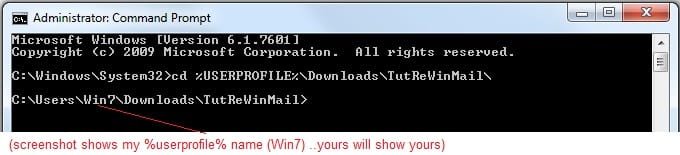
  • Open an Administrator Command Prompt. (screenshot showing in Administrator mode)
  • copy/paste this line into the command prompt: cd %USERPROFILE%\Downloads\TutReWinMail\
  • Your command prompt must now be showing you are at That Same Folder Address ..which contains the tutorial files that the batch file in the next step executes programs and copies files specifically from that folder address - if it's not there the batch file will fail since it cannot find what it needs!
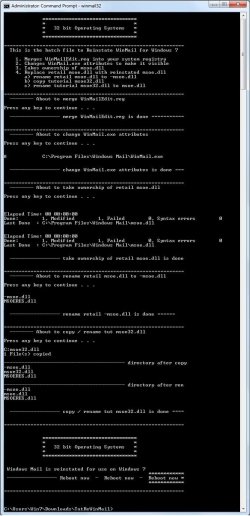
  • Next type in either winmail32 or win64mail <matching OS bit, to interactively process These Next Steps
  • If you've finished to the bottom as shown in last screenshot, restart your machine (sets registry)
  • Create a shortcut from WinMail.exe to your Desktop
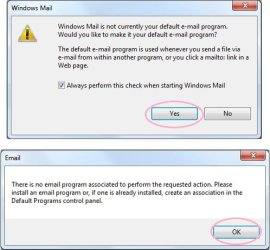
  • Open WinMail - it may prompt you one (or both) of These Two Notices ..click yes, and okay.
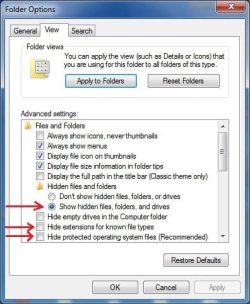
  • They now should be already set, but you can manually check/set at any time These Default Settings
  • That's pretty much all there is to it, and from here you setup the rest of the Windows Mail client (aka: WinMail) as normal within its various tab menus for Accounts, Options, Layout, etc, etc, to suit your individual needs.
  • Lastly, but should be the First thing you do, is to Create A WinMail Backup (new version) ..Go to this next link and when you get there scroll down to the heading: Backup/Restore Procedures for further instructions.
   Information
See How to open an elevated Administrator Command Prompt
Important: The exact text provided by the tutorial must be entered into the Administrator Command Prompt.
Hint: to avoid typos, copy/paste the entire line containing the command into the Command Prompt window.
Also see: How to Enable Copy to Clipboard from the Windows 7 Command Prompt

Every effort has been made to make this a step-by-step process, however, it is beyond the scope of a single tutorial to provide information on every command or concept. Search the Main Tutorial Section if you need greater detail on a concept or command presented in this tutorial.


Good luck, and long live WinMail :thumbsup:


   Note
Made possible by members:
Mark (aka Mr GRiM) - provided the original tutorial
Poppa Bear - continued Mark's work within the 2nd version
endeavor - provided continuous feedback, changes, invaluable testing instrumental to tutorial operations
EKManitis - propose the batch code that made operations easier
Slartybart - updated, tested, and consolidated all of the above into the 3rd version
endeavor - reviewed, updated, tested, and incorporated all of the above into this 4th version
...and also a special thanks to All the other members who presented discovery for this project


Attachments

  • TutReWinMail.zip
    TutReWinMail.zip
    1.8 MB · Views: 4,994
  • msoe_32.zip
    msoe_32.zip
    404 bytes · Views: 1,052
  • msoe_64.zip
    msoe_64.zip
    404 bytes · Views: 1,531
  • WinMailEdit.zip
    WinMailEdit.zip
    404 bytes · Views: 6
  • Win74umsZip.zip
    Win74umsZip.zip
    404 bytes · Views: 106
  • ACP.jpg
    ACP.jpg
    19.6 KB · Views: 1,083
  • DefaultClickYes-OkayAssociation.jpg
    DefaultClickYes-OkayAssociation.jpg
    52.8 KB · Views: 899
  • ProcessingBatch.jpg
    ProcessingBatch.jpg
    194.2 KB · Views: 1,147
  • PasteCDCommand.jpg
    PasteCDCommand.jpg
    33.1 KB · Views: 696
  • WinMail_Local_Tutorial.zip
    WinMail_Local_Tutorial.zip
    6.1 KB · Views: 1,202
  • FolderOptionsSet.jpg
    FolderOptionsSet.jpg
    61.5 KB · Views: 695
  • WinMailAdvanceOptionsBlank.jpg
    WinMailAdvanceOptionsBlank.jpg
    276.4 KB · Views: 93
  • Win7x64AdvancedTab+FileVersions.jpg
    Win7x64AdvancedTab+FileVersions.jpg
    298.9 KB · Views: 112
  • AdvancedTabBefore&After_fixed.jpg
    AdvancedTabBefore&After_fixed.jpg
    106.9 KB · Views: 50
  • CheckManually.jpg
    CheckManually.jpg
    209.5 KB · Views: 136
  • Win10_SetDefault.jpg
    Win10_SetDefault.jpg
    66.2 KB · Views: 33
Last edited by a moderator:
Hi Bill,

I think it could be pared down even more, all we need for both x86 & 64 entries (one entry for each folder key) in there is this:

[-HKEY_LOCAL_MACHINE\SOFTWARE\Microsoft\Windows\CurrentVersion\SideBySide\Winners\x86_microsoft-windows-mail-core-dll_31bf3856ad364e35_none_67a2bdecbd5f60de]

[-HKEY_LOCAL_MACHINE\SOFTWARE\Microsoft\Windows\CurrentVersion\SideBySide\Winners\amd64_microsoft-windows-mail-core-dll_31bf3856ad364e35_none_c3c1597075bcd214]

..because everything else extraneous under each of those x86 & x64 folder keys is removed with it when the top folder key is deleted. This will take care of any visual esthetic confusion of some people having different version'd updates that I have seen already, which in this case will not matter since when the top folder keys goes - all else within it does too. I've tested it too :)

~~~~~~~~~~

Yes I remember well our conversation about SFC, and since you had x64 this is why you didn't see it happen for you. Now you will/would :)

Just headed off to work,
TTYL
 

My Computer

Computer type
PC/Desktop
Computer Manufacturer/Model Number
..all towers built from scratch
OS
Vista/Win7/8/10/11 (x86/x64)
CPU
i7
Because it was brought and talked about here, I just wanted to briefly touch on this after some bench testing.
For Windows 8 & Windows 10 (x86/x64) running sfc /scannow doesn't just change one WinMail program file like it does on Windows 7, but it changes almost all of them, depending, which of course breaks it.
Also it does not seem to be just one SideBySide registry entry that I could remove to stop it like on Windows 7, and I tried a few of them with no results, but in the end I just decided for simplicity sake and the fact that for Win8/10 I don't want to change what SFC does anyway!
And so since the only thing SFC does to break WinMail is replace various files in its program folder, then it's So Much Quicker & Easier and more appropriate (for Win8/10 users) just to re-take ownership of the Windows 8 or Windows 10 folder, delete it, and copy in its place a saved copy of your working one. That got WinMail working every time on Win8/10 - tested

I posted this similar information over in the Eight Forums Here, and importantly I've edited my Win8/10 install instructions on its first post:


...
 
Last edited:

My Computer

Computer type
PC/Desktop
Computer Manufacturer/Model Number
..all towers built from scratch
OS
Vista/Win7/8/10/11 (x86/x64)
CPU
i7
Anyone know how to get this mail work in Windows 10 ? I checked Windows ten forums but cant finsd anything:confused:
 

My Computer

Computer type
PC/Desktop
OS
Windows 7 x64
Anyone know how to get this mail work in Windows 10 ? I checked Windows ten forums but cant finsd anything:confused:
According to the post above yours, The Windows 10 instructions would be the same as Windows 8. Note the phrase "For Windows 8 & Windows 10 (x86/x64)"
 

My Computer

Computer type
PC/Desktop
Computer Manufacturer/Model Number
OQO 2+
OS
Windows 8 Pro w/MC 32-bit
CPU
Intel Atom 1.86 GHz
Motherboard
OQO 2+
Memory
2 GB
Graphics Card(s)
Intel GMA 500
Sound Card
IDT
Monitor(s) Displays
LCD
Screen Resolution
800 x 480 (portable) 1280 x 1024 (docked)
Hard Drives
64 GB SSD
PSU
9 Ah Battery (portable) or OQO Brick (docked)
Case
Shirt Pocket Sized
Cooling
Tiny Fan
Keyboard
Slide out (portable) DiNovo Edge (docked)
Mouse
Eraser head (portable) Logitech Bluetooth (docked)
Internet Speed
WWAN or 802.11G (portable) T1 (docked)
Browser
IE 10
Other Info
DVD-RW OQO Docking Station
Anyone know how to get this mail work in Windows 10 ? I checked Windows ten forums but cant finsd anything:confused:

It might not ever be posted to the Ten Forums about it, because it's really not supported and old... ...not that it's supported here in Seven Forums or on the Eight Forums either, but maybe moreso not on the Ten Forums yet.

However, you can find all the information on how to do it, on the Windows 8 Forum: Here
 

My Computer

Computer type
PC/Desktop
Computer Manufacturer/Model Number
..all towers built from scratch
OS
Vista/Win7/8/10/11 (x86/x64)
CPU
i7
Of course it did... :)

..and it also shows you can follow directions well too, so nice job, and welcome aboard.
 

My Computer

Computer type
PC/Desktop
Computer Manufacturer/Model Number
..all towers built from scratch
OS
Vista/Win7/8/10/11 (x86/x64)
CPU
i7
i did exactly what the instructions said to do with win 10 and i got dsoe.dll error?
 

My Computer

OS
Windows 7 Ultimate
CPU
AMD Athlon II X4 630 (95W) Quad Core Socket AM3
Motherboard
GIGABYTE MA785GMT-UD2H
Memory
Patriot Viper Series DDR3 PC3-10666 1333MHz 4GB CL 7-7-7-20
Graphics Card(s)
Geforce GTX550 TI
Sound Card
built in realtech hd
i did exactly what the instructions said to do with win 10 and i got dsoe.dll error?

Dear andjayik,
If it was done exactly you would not have that error, however please in order to keep this thread only for WinMail for Win7 because WinMail for Windows 8 installation is surly different, so...

...Let's keep all Windows 8 (or 10) WinMail related messages over in the Eight Forum please, and thank you. :)

Also, no one should attempt using WinMail on Windows 8/10 unless they are self-sufficient and very computer savvy, thank you! :)

Also remember, doing so is Not Supported, thank you! :)
 

My Computer

Computer type
PC/Desktop
Computer Manufacturer/Model Number
..all towers built from scratch
OS
Vista/Win7/8/10/11 (x86/x64)
CPU
i7
it worked now just used my original win 7 mail folder.
 

My Computer

OS
Windows 7 Ultimate
CPU
AMD Athlon II X4 630 (95W) Quad Core Socket AM3
Motherboard
GIGABYTE MA785GMT-UD2H
Memory
Patriot Viper Series DDR3 PC3-10666 1333MHz 4GB CL 7-7-7-20
Graphics Card(s)
Geforce GTX550 TI
Sound Card
built in realtech hd
it worked now just used my original win 7 mail folder.

..and that's what the instructions said to do, right ;)

Good Job andjayik!
 

My Computer

Computer type
PC/Desktop
Computer Manufacturer/Model Number
..all towers built from scratch
OS
Vista/Win7/8/10/11 (x86/x64)
CPU
i7
Fix for offline crash

I've identified the problem with offline mode causing windows mail to crash in windows 7. Perhaps for many it isn't an issue but it means that you cannot use windows mail without an internet connection when you have IMAP accounts set up. No internet connection and you're stuck with a modal dialogue box prompting to connect or go offline (and crash). The crash is caused when the Vista msoe.dll tries to call the function SetShellOfflineState in shdocvw.dll. There are a few solutions to this:

1. Copying the shdocvw.dll into your windows mail directory from vista.

2. Patch the vista msoe.dll to not call SetShellOfflineStat. To do this, open it with a hex editor and...
x64:
Change the five bytes at hex address 4E159 as follows:
E8 4D 21 17 00 -> 90 90 90 90 90
x86:
Change the five bytes at hex address 41525 as follows:
E8 1A 8B 0E 00 -> 90 90 90 90 90

In each case, what we're doing is replacing the five bytes making the call to SetShellOfflineStat with five no operation instructions (do nothing).

3. A third possible solution would be to patch the msoe.dll that comes with windows 7. I've done a bit of work on this, using the vista one for comparison, and it seems that there are loads of places where the binary has been modified to exit and do nothing - probably why windows mail doesn't start. It's probably more trouble than it's worth, but this is a newer version of the dll, without any call to SetShellOfflineStat. Would be very interesting to see how it runs if anyone was to fully patch it to work. Might fix the annoying problem with both of the other fixes whereby selecting a new IMAP folder prompts you to connect or go offline (again).
 
Last edited:

My Computer

Computer type
PC/Desktop
OS
Windows 7 Pro x64
I've identified the problem with offline mode causing windows mail to crash in windows 7. Perhaps for many it isn't an issue but it means that you cannot use windows mail without an internet connection when you have IMAP accounts set up. No internet connection and you're stuck with a modal dialogue box prompting to connect or go offline (and crash). The crash is caused when the Vista msoe.dll tries to call the function SetShellOfflineState in shdocvw.dll. There are a few solutions to this:

1. Copying the shdocvw.dll into your windows mail directory from vista.

Good stuff ansionnach, and I've just proved that out too by copying the shdocvw.dll from my Vista System32 folder and placing it in my Win7 WinMail programs folder, and it does Not crash now when clicking 'working offline' where it does crash otherwise - you are correct.
I think #1 is by far is the no-fuss quickest/easiest method of the three mentioned for the public at large.
Nice job on #2 though! ..and for #3 unless you can think of a reason for yourself to do that one, I think #1 fits the overall model for here.

You're right not many people using WinMail have IMAP accounts setup and so this won't affect very many users, but going forward I myself will always now have shdocvw placed even though I've never needed to work offline so just never use/used that function, but I like if I did accidentally or on purpose click it - that it would not crash...
...and so credits to you for this. Did you come by this on your own, or was there other influences that helped you?

I do not know 'yet' if placing the dll will cause any other side-effects of my so-called normal operation of WM, but I doubt it, but we still have to leave it on the table for reference.

In a few days when I get a chance to test this on Windows 8 and Windows 10 WinMail operations, then I will edit my WinMail BugList post to write-in this Working Offline fix you have come up with.

edit: ..added line-out, because later testings shows this workaround is not functional on Win8 & Win10
 
Last edited:

My Computer

Computer type
PC/Desktop
Computer Manufacturer/Model Number
..all towers built from scratch
OS
Vista/Win7/8/10/11 (x86/x64)
CPU
i7
Thanks, you're very welcome. I analysed the dll as I had a feeling that this was exactly what was happening. Guessed that the crash may have been something to do with some difference in how vista and 7 handle putting the shell into offline mode. Not sure windows 7 even has such a mode - selecting offline in mail seems to behave exactly the same when you've got the call switched off completely.

I agree that the first solution is simpler - that way people can source their own file and be confident it hasn't been tampered with. The second option might suit anyone who can't source a vista shdocvw.dll. After making many changes to the original windows 7 dll (without success), I'd suspect that if it ever did work, so much would have changed that there'd be massive scope for bugs. Even if we could get it back to the exact state MS had it in before they disabled it, we don't know if they even had it fully tested and working.

You're probably aware that the 32-bit shdocvw.dll is in system32 of 32-bit vista and syswow64 of 64-bit vista. The 64-bit dll is in system32 of 64-bit vista.
 

My Computer

Computer type
PC/Desktop
OS
Windows 7 Pro x64
I agree with what you've said.

Also fwiw on shdocvw, next week after I have a chance to test this on Win8 & Win10, I will supply (attach) the Vista 32 & 64 bit versions of the shdocvw.dll onto that WinMail BugList post for people to download.

I now do full program attachments of WinMail files over on the Eight forums, but just like here on Seven with this particular shdocvw I'm just going to always point to the WinMail BugList post for reference.

Also to note I realize MS keeps changing different WinMail file versions around (not so much on 7 it's just that one msoe....dll) but mostly I see them do it in Windows 8 and more extensively Windows 10 too (and some of them even work...) however most of those changes are for other OS function interactions, and so in order to keep all WinMail operations on Windows 7 original to Vista where it was finalized and known - newer is not better. So whether one is using them in WinMail for Win7, Win8, or Win10 - I always keep the program files in the last Vista (intermingled 7) known sets as originally intended - and when I see a later OS's change any of them - I simply revert them them back to being an original set and this has proven to be effective across the board.

edit: ..added line-out, because later testings shows this workaround is not functional on Win8 & Win10
 
Last edited:

My Computer

Computer type
PC/Desktop
Computer Manufacturer/Model Number
..all towers built from scratch
OS
Vista/Win7/8/10/11 (x86/x64)
CPU
i7
I've identified the problem with offline mode causing windows mail to crash in windows 7. Perhaps for many it isn't an issue but it means that you cannot use windows mail without an internet connection when you have IMAP accounts set up. No internet connection and you're stuck with a modal dialogue box prompting to connect or go offline (and crash). The crash is caused when the Vista msoe.dll tries to call the function SetShellOfflineState in shdocvw.dll. There are a few solutions to this:

1. Copying the shdocvw.dll into your windows mail directory from vista.

2...

3...
Hello, ansionnach!
Thanks for Your very interesting post, just a couple of notes for solution No.1 I tested on Win7 x64:

1. I could fall into "working offline" mode but I couldn't switch back to "working online". The only way to revert back to online mode is restart program. And checkmark on "working offline" doesn't set up in "File" menu too. Have You any idea how to improve that?
2. Please keep in mind, shdocvw.dll is localized file, so I believe, it isn't enough to copy this one only, but You need also copy shdocvw.dll.mui from appropriate Vista System32 local folder.

Actually I haven't access to my Vista VMs until the end of month, so I can't test how shdocvw.dll.mui impacts if any for WinMail behaviour, so maybe You'll can investigate it
 

My Computer

Computer type
Laptop
OS
Windows 7 Professional
1. I could fall into "working offline" mode but I couldn't switch back to "working online". The only way to revert back to online mode is restart program. And checkmark on "working offline" doesn't set up in "File" menu too. Have You any idea how to improve that?

Yes same here, tested on both Windows 7 x86 AND x64 OS's ...it does the same thing mentioned; at least it's better than it was though.

2. Please keep in mind, shdocvw.dll is localized file, so I believe, it isn't enough to copy this one only, but You need also copy shdocvw.dll.mui from appropriate Vista System32 local folder.
Just tested copying shdocvw.dll.mui too, but it does not change or affect offline/online operation one way or the other. Nice try though.

~~~~~

Testing it now, I see when I'm on Windows Vista I can click Offline/Online from both the bottom of the WinMail GUI or from the File menu, and it works properly - meaning I can toggle it going back and forth from Online > Offline as many times as I want and it works.
 

My Computer

Computer type
PC/Desktop
Computer Manufacturer/Model Number
..all towers built from scratch
OS
Vista/Win7/8/10/11 (x86/x64)
CPU
i7
I'm afraid, everything isn't so bright. After shdocvw.dll replace self-unpacking rar-archives stopped working for me. They won't open. After original shdocvw.dll restore they backed to business. I don't know why it happens: because of wrong shdocvw.dll.mui file or because of Vista shdocvw.dll won't be supported by Win 7. It will be great if You'll test it: I haven't acces to right mui file until October as I said before
 

My Computer

Computer type
Laptop
OS
Windows 7 Professional

@ ansionnach, upon further testing this morning this workaround unfortunately does not work for WinMail on OS's Win8 or Win10 users - it still crashes there, but as mentioned partially works in Win7 WinMail and so it's better than it was for sure, especially for those that really need it like yourself or other IMAP accounts users.

I was going to outline and attach the x86 & x64 shdocvw.dll files for download on my WM Bug List post, but now is not advisable since it only would help a few Win7 users.

@nomatterwho
Mine works fine on WinMail Win7 x86 & x64, and all variations of rar files work fine too, besides I don't see how adding an unrelated dll to the WinMail "Programs" folder would affect that anyway (I trust you did not change out the System32 folder shdocvw.dll because that was not the instructions)
 

My Computer

Computer type
PC/Desktop
Computer Manufacturer/Model Number
..all towers built from scratch
OS
Vista/Win7/8/10/11 (x86/x64)
CPU
i7
Oh, quiet stupid mistake: I did exactly what You trust I didn't. That bleeping localization completely confused me, so I skipped into System32 folder and stayed there:o
 

My Computer

Computer type
Laptop
OS
Windows 7 Professional
Back
Top