Windows Mail

How to Reinstate Windows Mail in Windows 7

   Warning
Microsoft no longer supports Windows Mail, aka WinMail. It's recommended you use another well known supported email client. This Tutorial is for Advanced users who importantly have the Technical Ability to make the changes, have backups of everything including your OS, and to be your own tech support for WinMail going forward. If you decide to complete this tutorial you accept the fact that you are using WinMail as-is. It might be necessary to uninstall other email clients to resolve any WinMail conflicts in some environments. Understand it's likely that new OS updates from Microsoft will break WinMail's operation, and to fix make it necessary to rerun the tutorial again to reinstate it. With those things in mind, this tutorial was written so that you can rerun it without affecting WinMail user data.
Please see this Errata (Bug List) post before you install, to be aware of the current information about known issues using WinMail within Windows 7, these issues are programmatic and in most cases cannot be resolved by this tutorial, and will never be fixed.

Having said all of that disclaimer, if you have the technical ability, and can put up with the annoying minor byproduct bugs, then like so many of us still enjoy using WinMail on Windows 7 ...ymmv!


   Tip
As of January, 2025, the instructions given here supersede all other instructions given in forthcoming older posts. Realize some of the posts that follow are over 16 years old, and many of the link pointers within have become mislinked over time, many of the files or information within them is outdated, incomplete, or superseded with more accurate information - and so be careful. However you can always be sure that the latest info from all research is incorporated into this tutorial post, and its downloads are the latest available. This post is continuously kept up-to-date, and so..
...Always refer to this Tutorial post for the very latest updated information

This is the 4th iteration of the Windows 7, WinMail tutorial.

The process of this tutorial Will Not work to reinstate WinMail on Windows 8/10 !
Windows 8/10 users please go Here


Start here
  1. Download tutorial package TutReWinMail.zip

    Download

  2. Extract the TutReWinMail.zip into your user Downloads folder
    • Note: Be sure once extracted this is the address of the ''TutReWinMail'' folder:
    • C:\Users\username\Downloads\TutReWinMail... ... (if it's not there please put it there)
  3. Navigate to your user Downloads\TutReWinMail folder to be sure the above is correct.
    • (..if you need more verbose install instructions to follow, download this WinMail Local Tutorial.zip)
    • Advanced Users can proceed below:
      (..log in for Full Access, being able to get support, remove ads, like, and even to post, etc..)
Advanced Users: ..use this easy excellent overview of the steps in the local tutorial:
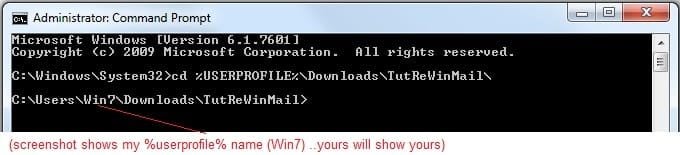
  • Open an Administrator Command Prompt. (screenshot showing in Administrator mode)
  • copy/paste this line into the command prompt: cd %USERPROFILE%\Downloads\TutReWinMail\
  • Your command prompt must now be showing you are at That Same Folder Address ..which contains the tutorial files that the batch file in the next step executes programs and copies files specifically from that folder address - if it's not there the batch file will fail since it cannot find what it needs!
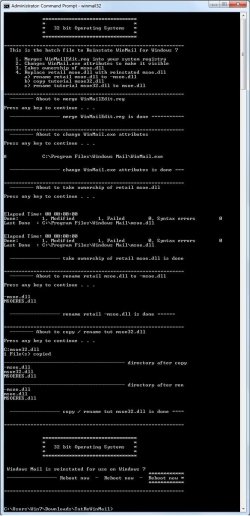
  • Next type in either winmail32 or win64mail <matching OS bit, to interactively process These Next Steps
  • If you've finished to the bottom as shown in last screenshot, restart your machine (sets registry)
  • Create a shortcut from WinMail.exe to your Desktop
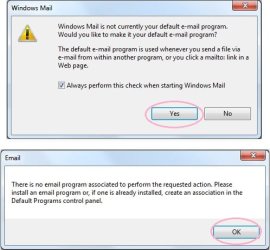
  • Open WinMail - it may prompt you one (or both) of These Two Notices ..click yes, and okay.
  • They now should be already set, but you can manually check/set at any time These Default Settings
  • That's pretty much all there is to it, and from here you setup the rest of the Windows Mail client (aka: WinMail) as normal within its various tab menus for Accounts, Options, Layout, etc, etc, to suit your individual needs.
  • Lastly, but should be the First thing you do, is to Create A WinMail Backup (new version) ..Go to this next link and when you get there scroll down to the heading: Backup/Restore Procedures for further instructions.
   Information
See How to open an elevated Administrator Command Prompt
Important: The exact text provided by the tutorial must be entered into the Administrator Command Prompt.
Hint: to avoid typos, copy/paste the entire line containing the command into the Command Prompt window.
Also see: How to Enable Copy to Clipboard from the Windows 7 Command Prompt

Every effort has been made to make this a step-by-step process, however, it is beyond the scope of a single tutorial to provide information on every command or concept. Search the Main Tutorial Section if you need greater detail on a concept or command presented in this tutorial.


Good luck, and long live WinMail :thumbsup:


   Note
Made possible by members:
Mark (aka Mr GRiM) - provided the original tutorial
Poppa Bear - continued Mark's work within the 2nd version
endeavor - provided continuous feedback, changes, invaluable testing instrumental to tutorial operations
EKManitis - propose the batch code that made operations easier
Slartybart - updated, tested, and consolidated all of the above into the 3rd version
endeavor - reviewed, updated, tested, and incorporated all of the above into this 4th version
...and also a special thanks to All the other members who presented discovery for this project


Attachments

  • TutReWinMail.zip
    TutReWinMail.zip
    1.8 MB · Views: 4,994
  • msoe_32.zip
    msoe_32.zip
    404 bytes · Views: 1,052
  • msoe_64.zip
    msoe_64.zip
    404 bytes · Views: 1,531
  • WinMailEdit.zip
    WinMailEdit.zip
    404 bytes · Views: 6
  • Win74umsZip.zip
    Win74umsZip.zip
    404 bytes · Views: 106
  • ProcessingBatch.jpg
    ProcessingBatch.jpg
    194.2 KB · Views: 1,147
  • DefaultClickYes-OkayAssociation.jpg
    DefaultClickYes-OkayAssociation.jpg
    52.8 KB · Views: 899
  • ACP.jpg
    ACP.jpg
    19.6 KB · Views: 1,083
  • PasteCDCommand.jpg
    PasteCDCommand.jpg
    33.1 KB · Views: 696
  • WinMail_Local_Tutorial.zip
    WinMail_Local_Tutorial.zip
    6.1 KB · Views: 1,202
  • FolderOptionsSet.jpg
    FolderOptionsSet.jpg
    61.5 KB · Views: 695
  • WinMailAdvanceOptionsBlank.jpg
    WinMailAdvanceOptionsBlank.jpg
    276.4 KB · Views: 93
  • Win7x64AdvancedTab+FileVersions.jpg
    Win7x64AdvancedTab+FileVersions.jpg
    298.9 KB · Views: 112
  • AdvancedTabBefore&After_fixed.jpg
    AdvancedTabBefore&After_fixed.jpg
    106.9 KB · Views: 50
  • CheckManually.jpg
    CheckManually.jpg
    209.5 KB · Views: 136
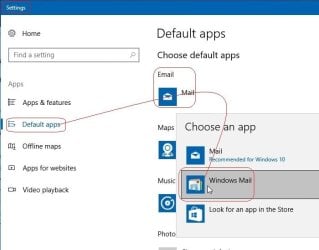
  • Win10_SetDefault.jpg
    Win10_SetDefault.jpg
    66.2 KB · Views: 33
Last edited by a moderator:
Not sure if in right place for this question on final part of WinMail backup/restore procedure outlined in beginning...
I have done the whole process, and now to the point of:" If your backup was made from a time that WinMail was working! ..and you are deleting/replacing your message store folder that is default located @
%USERPROFILE%\AppData\Local\Microsoft\Windows Mail\
You then DELETE the current broken 'Windows Mail' whole folder at that same location, and you copy your backup 'working one' to the Exact same path place you just deleted your broken one.
Then if you had separately made a (backup) export of the registry folder key mentioned in my write up:
"HKEY_CURRENT_USER\Software\Microsoft\Windows Mail"
..from the same working OS source, and you merge that in - You Will Succeed"
Question is, having found the message store on my new, never opened yet, Win Mail, and ready to import my copy of the working message store from old computer, I see the delete option there for message store, and understand that I must import my message store from my back up, but exactly how do I do that? Once I hit 'delete' of old message store, how do I get the zipped copy there? I apologize in advance for being so dense!
Also, help on process of 'merging my saved registry export of HKCU' please.
I feel as if I got thru the 'hard' parts, and stuck on what must be simple...
 

My Computer

Computer type
PC/Desktop
Computer Manufacturer/Model Number
HP pavillion 7-1054
OS
windows 7 home premium 64 bit
CPU
6gb
Hello terri13,

I see you are quoting an old post of mine here in this the Seven Forums in which I was replying to another member whosit42 about portions of the Win8/10 tutorial ..hmmm, which I see they have deleted their posts a while ago and so I just removed my replies to him since it's out of context now; besides all questions for Win8/10 WinMail belong over there please, at the link given below.

If your question is about moving your Win7 WinMail setup over to Win8/10, which btw, the quoted partial instructions within your post is only a small piece of the WinMail Backup & Restore Procedure - The Full instructions on how to do that, is all Completely Explained in great detail within that WinMail tutorial there, so please go over and re-read it all in its proper context, at this link below:

How to reinstate WinMail onto Windows 8 or Windows 10


I'm unsure of your other questions wording, but all instructions are already given in that tutorial; but for these Q&A:

...how do I get the zipped copy there?
..the answer as it says there, is Copy/Paste, and then Extract Here.. being careful not to nest folders, etc, x10


Also, help on process of 'merging my saved registry export of HKCU' please.
double-click the reg file and click Yes to merge, or, right-click on the reg file, and select Merge.


I say this with Total and Complete Respect and I mean that, the Tutorial over at the Eight Forums for WinMail on Win8/10 should only be attempted by those who have a fairly good understanding with computer software, and already understand the basics of your questions about zip files extract, copy/paste, or merge registry files, etc...
The process for those to maintain WinMail on Win10 is more complex compared to Win7 here which is pretty easy since it mostly always stays working. However WinMail on Win10 requires much more attention, and good computer skills is a must. Also it's to know with using WinMail on Win10 that every time you update/upgrade it, WinMail gets depreciated, which then requires the procedures to be done again each time to fix it - now for experienced computer users it's very easy to do and is only a few minute process to reinstate WinMail each time; otherwise for less tech savvy users may find it too much effort; if so, then they should move on to a more supported email client please.

PM me if you need more clarification.
If I was your neighbor, truly, I would visit and do it for you.
Sincerely,


.
 
Last edited:

My Computer

Computer type
PC/Desktop
Computer Manufacturer/Model Number
..all towers built from scratch
OS
Vista/Win7/8/10/11 (x86/x64)
CPU
i7
Hi All,
It has been a very long time since I have been here.
A friend of mine is having a problem with not being able to delete or move messages from his Inbox. Sometimes it works other times he gets an error message.

1. Is there another way to delete all from Inbox?

2. Can I run the tutorial batch file again right over the existing installation?

Thanks

Don
 

My Computer

Computer type
PC/Desktop
Computer Manufacturer/Model Number
Hp p6608f
OS
Windows 7 Home Premium 64
CPU
Intel(R) Core(TM) i3 CPU
Memory
8.00 GB
Graphics Card(s)
ATI Radeon HD 4600 Series
Sound Card
(1) ATI High Definition Audio Device (2) Realtek High Defi
Monitor(s) Displays
one Asus VW266H one Samsung T260HD
Screen Resolution
1920 x 1200
Hard Drives
ST3750528AS
Other Info
BIOS Date: 04/09/10 10:04:52 Ver: 5.28
Hello Donz,

2. Can I run the tutorial batch file again right over the existing installation?
Yes, if you are using the same file attachments (WinMailEdit.reg +..dll) given here and instructions in this threads post 1 tutorial, you can run the bat file and the whole process as many times as you'd like without it affecting any of your settings since appropriately they do not contain any HKCU settings, nor should they; the only time we save/restore those are during a Backup/Restore procedure that I've posted about.


However, in the case of your friend, re-running the tutorial again will most likely not solve his stuck messages problem.


Better if you would show a screenshot of that error though.


1. Is there another way to delete all from Inbox?
By far, the best way to resolve any of these stuck message problems though, is to do a Restore of the Backup/Restore procedures with your latest saved backup. You can find those instructions as pointed out in the page 1 tutorial at the end of the bullet points it says and I copy/paste quote it:

  • Lastly, but should be the First thing you do, is to Create A WinMail Backup (new version) ..Go to this next link and when you get there scroll down to the heading: Backup/Restore Procedures for further instructions.


If you do not have a backup as explained :(
..then another possible way, is on that same Errata page of explanations, scroll down to where it says:
*Note: 3-2018

You will see a program called WMUtil (by Steve Cochran) mentioned, and it's attached at the bottom of that page. Download it, and in it you will find his program, familiarize yourself with it, read the screenshot I give of his website and utility explanations, and just maybe, using it (Repair Database button) will solve the problem of your stuck messages.

..good luck
 
Last edited:

My Computer

Computer type
PC/Desktop
Computer Manufacturer/Model Number
..all towers built from scratch
OS
Vista/Win7/8/10/11 (x86/x64)
CPU
i7
endeavor,

Thanks for the quick reply.

Don
 

My Computer

Computer type
PC/Desktop
Computer Manufacturer/Model Number
Hp p6608f
OS
Windows 7 Home Premium 64
CPU
Intel(R) Core(TM) i3 CPU
Memory
8.00 GB
Graphics Card(s)
ATI Radeon HD 4600 Series
Sound Card
(1) ATI High Definition Audio Device (2) Realtek High Defi
Monitor(s) Displays
one Asus VW266H one Samsung T260HD
Screen Resolution
1920 x 1200
Hard Drives
ST3750528AS
Other Info
BIOS Date: 04/09/10 10:04:52 Ver: 5.28
I noticed you had also sent me a PM while I was actually typing my above reply and had not seen it yet, and in it you give me a little more information. You also said:

His Inbox has about 17,000 messages
WinMail is known to have a problem on many levels with too many emails, opening more slowly, etc, and having that very problem, but also most importantly making it unstable and ripe for message store corruption possibly losing it all. I talk about this limit issue somewhere in these threads here in more detail, or is it on the EightForums WinMail tutorial, I've forgotten now.

He needs to clean out what he does not need, keeping a more realistic amount of emails, before proceeding.
He can even create a Backup of the old, and save it, making new ones, and reinstating others when necessary if/when needed.
I keep numerous versions of message store backups myself for this very (and other) reasons)
 

My Computer

Computer type
PC/Desktop
Computer Manufacturer/Model Number
..all towers built from scratch
OS
Vista/Win7/8/10/11 (x86/x64)
CPU
i7
I don't know if I'm in the right place, either. I have Winmail working in Windows 7 and got Vista's Calendar working. However, when I ran the caledit file to execute the reg file so it would cause winmail to be able to execute the Calendar from the icon in Winmail's tool bar, nothing happens. I can execute the Calendar from its own program file, but somehow the Caledit file doesn't seem to have entered the right file in the right place in the registration file to let Calendar work from WinMail. Anyone have any ideas how to fix Winmail so that will happen?
I don't know if anyone will even find this but thought I'd give it a go.
 

My Computer

OS
Windows 7
I don't know if I'm in the right place


Actually please it would be best to post this question in the actual Calendar thread there.

I think the answer for you though will be the same as I replied to krutzy at the end of that Calendar thread under his post: Here

If you need to reply to this, or have any more questions about 'Calendar' please post it there, thank you!
 

My Computer

Computer type
PC/Desktop
Computer Manufacturer/Model Number
..all towers built from scratch
OS
Vista/Win7/8/10/11 (x86/x64)
CPU
i7
Font Color Glitch For Recipient in Windows Mail

I began this in Browsers & Mail because I felt my problem could be more universal than just in Windows Mail, but have not gotten any replies yet. Maybe there is no solution, but I'll give it another go.

I love that I've been able to keep Windows Mail on my Windows 7 Home 64 for many years. I have no use for programs like Outlook. I don't need all the bells and whistles. Programs like Thunderbird made me crazy. I just need the simple old Outlook Express that I started with years ago and the ability to have my two email accounts go into a single Inbox. I have no need to save "conversations", etc.

A strange problem has developed between myself and an email friend in the UK. She has a Gmail account that she uses through Microsoft Office Outlook 12. I'm using Windows Mail (from SevenForums) and my web mail server is through my internet cable company. (Time Warner/Charter). I do have Office 2003 Word and Excel on my computer. In the last few years, she will tell me that sometimes my emails reach her with red text in some of my email. I have read that changes in the font colors have happened, but nobody has figured out definitely why. Some of the posts I've read attribute the fault to Gmail. Others just don't know.

Through trial and error, I have made a few observations which I will note here. My friend is even less computer savvy than I am, so basically anything I've found is all on my end and getting her to confirm that the same or something different is happening on her end is impossible. I'm pretty sure I am making her eyes glaze over when I ask her to check on something on her end. So....

In no particular order:

On my end in Windows Mail, I am not seeing any other font color except black, but she's seeing parts of my text in red. I pasted her replies to me in Word when she'd reply back with my original message that she was seeing in red. Colors did change for me in Word. But on my end, I'm not seeing red, I'm seeing a yellow font. Which coincidentally is the color selected by default in Word for highlighting text.

When I looked at the font settings in Windows Mail, sometimes the example of the font would show yellow even though I had selected black. Sometimes I could get it changed to back to black but it would only work for awhile. She'd tell me she was seeing red again; so I'd check the settings and they would be reverted back to yellow in spite of it being set on black.

I think that there might be a connection between pasting web content into the email if Word is also installed. (Again only guessing because of the yellow highlight color in my Word 2003.) I was able to determine that some of the latest text she was complaining about was text I'd pasted from web articles into my email drafts. Occasionally the yellow would drift into my real time typing which probably happened as I was editing around the copied newspaper text and strayed into the yellow range of the format.

I did figure out a way to make a new Word document with no formatting other than black text and I changed the yellow highlight color to none. I thought that if I could make it the default Word Document Template that would fix the problem with her emails. But it didn't.

I also tried replacing Microsoft Office 2003 with newer versions and/or no Office program of any kind or brand. That didn't work either.

I'll stop now. I'm sure I've messed around with this more than you care to listen to. But these are the major points, I think. I'm hoping this might strike a cord with somebody and they'd know exactly what I'm talking about and would know where to point me for a fix.

Thanks in advance for taking the time to read through my sad story. :D

P.S.
In the meantime I've been using OE Classic and there have been no problems. OE Classic will be okay as an alternative, but I'd still rather use Windows Mail if it's possible.
 

My Computer

Computer type
Laptop
Computer Manufacturer/Model Number
HP
OS
Windows 7 Home Premium 64bit
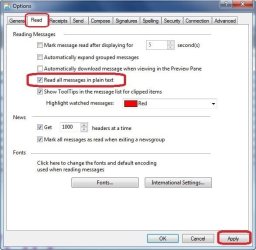
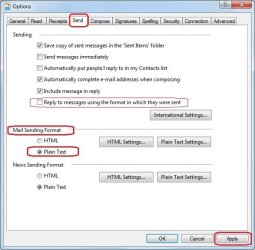
The first thing I would say to stop all these discrepancies, is to go into Options and set your WinMail client to Send, and then Read, all emails in Plain Text - done! ...you won't have anymore of those problems!
Also be sure to select Not to reply to messages in the format it was received in, IF, it's appropriate for your use.
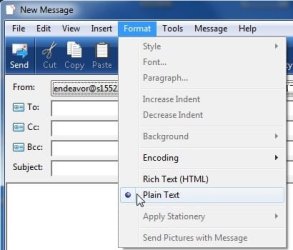
Also, you can change the email you're composing in to Plain text on the fly after you type it - see last screenshot

I've attached three screenshots for you to see how to make those settings changes.

If one insists on using HTML however, then you have to understand all the variances about it, especially when you copy/paste information or wording out of other webpages, etc, into WinMail, because when set on HTML and you paste into it, it will pick up all the various formats, and when mixing that with regular typing can be a mess for those that are not familiar.
Also when sending via gmail, yahoo, etc.. they are adopting new standards that might affect those using WinMail, especially Attachments! ..that's a whole other story in itself.

If you and your friend were both using the same email client with the same settings, you would be fine.
..
 

Attachments

  • ReadPlainText.jpg
    ReadPlainText.jpg
    68.7 KB · Views: 63
  • SendPlainText.jpg
    SendPlainText.jpg
    67.3 KB · Views: 56
  • PlainTextOnFly.jpg
    PlainTextOnFly.jpg
    32.5 KB · Views: 58
Last edited:

My Computer

Computer type
PC/Desktop
Computer Manufacturer/Model Number
..all towers built from scratch
OS
Vista/Win7/8/10/11 (x86/x64)
CPU
i7
@endeavor

If you and your friend were both using the same email client with the same settings, you would be fine.


Thank you for your reply. I've considered making those changes on my end, but I have to be honest. My friend is older than I am, and I am older than dirt. I'm not sure I could get her to do the same. One of her sons actually takes care of any computer problems and/or upgrades and patches that need to be done. I'm certain he would not be interested in using this "special" version of Windows Mail; and I'm not interested in using Outlook or Windows 10.


I have felt pretty sure that any "fix" of the problem between our emails would be on me, but I thought I'd give it one more chance. OE Classic is okay and it will serve my purposes. But I truly will miss the beauty of Windows Mail.
 

My Computer

Computer type
Laptop
Computer Manufacturer/Model Number
HP
OS
Windows 7 Home Premium 64bit
Honestly it does not matter if she uses the same client as you, I should not have said that.
Even if she does not make any changes, but as long as YOU do and Send to her in Plain Text, then her Outlook client is set to automatically reply to any sender (you) in the same format as it is received in, and so then, in your case then the problem is solved = just send to her in Plain Text.
You asked a question, I gave you the answer, proceed to make the 2 sec option change. You can put it back any time you want. Or if you want to leave yours default HTML for all else, then just for her after your create your email, do what it shows in screenshot #3 and change that message format, to Plain Text.


.
 
Last edited:

My Computer

Computer type
PC/Desktop
Computer Manufacturer/Model Number
..all towers built from scratch
OS
Vista/Win7/8/10/11 (x86/x64)
CPU
i7
Honestly it does not matter if she uses the same client as you, I should not have said that.
Even if she does not make any changes, but as long as YOU do and Send to her in Plain Text, then her Outlook client is set to automatically reply to any sender (you) in the same format as it is received in, and so then, in your case then the problem is solved = just send to her in Plain Text.
You asked a question, I gave you the answer, proceed to make the 2 sec option change. You can put it back any time you want. Or if you want to leave yours default HTML for all else, then just for her after your create your email, do what it shows in screenshot #3 and change that message format, to Plain Text.


Thank you! I may just try it on my end now that you've explained that this should fix the problem on "her" end even if she does nothing to her settings.
 

My Computer

Computer type
Laptop
Computer Manufacturer/Model Number
HP
OS
Windows 7 Home Premium 64bit
Reload Win Mail

Hello to All,
I ran the latest batch file on an old Windows 7 computer. It looked to
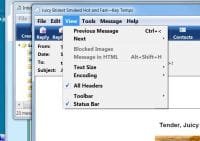
work fine, but I am having problems with encoding, blocked images, Message in HTML, and Text Size.
From the main window if I click on VIEW/ Encoding, the program will shut down.
Also some emails will not display images. I have spent considerable time checking settings.
I ran the latest batch file again and no help.
Is there any way to do a fresh reload? Or any suggestions.
Thanks,
Don
 

My Computer

Computer type
PC/Desktop
Computer Manufacturer/Model Number
Hp p6608f
OS
Windows 7 Home Premium 64
CPU
Intel(R) Core(TM) i3 CPU
Memory
8.00 GB
Graphics Card(s)
ATI Radeon HD 4600 Series
Sound Card
(1) ATI High Definition Audio Device (2) Realtek High Defi
Monitor(s) Displays
one Asus VW266H one Samsung T260HD
Screen Resolution
1920 x 1200
Hard Drives
ST3750528AS
Other Info
BIOS Date: 04/09/10 10:04:52 Ver: 5.28
I am having problems with encoding, blocked images, Message in HTML
Also some emails will not display images

Hi Donz,

Remember you should save your original settings after your WinMail is all setup the way you want, and you can export that from regedit @
HKEY_CURRENT_USER\Software\Microsoft\Windows Mail
..and then you can use (merge) that reg on each successive new install for convenience.
It contains All Settings for the WinMail GUI Layout ..all Tools> Options Settings, Columns, Rules, etc.
Heck I barley remember all those GUI settings myself, don't want to, and so when installing on a new WinMail installation I just merge my backup reg and it's done.

But if doing for the first time without a backup, then individually of course as far as your Images and HTML, that would be most likely from this setting: screenshot:
SecuritySettings.jpg


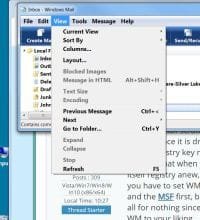
As far as text size there a a few places, like from the top tab View> Text Size ...small to large
Otherwise you can set others in Tools> Options> Send ...and you see you have text settings in there too.
When you have WinMail fully setup the way you want to, always always make a backup of all your GUI settings, and of course of your message store folder too as outlined in WinMail Backup/Restore Procedures (scroll down to see the heading) ..which are on the Errata page for Win7 Here
 

My Computer

Computer type
PC/Desktop
Computer Manufacturer/Model Number
..all towers built from scratch
OS
Vista/Win7/8/10/11 (x86/x64)
CPU
i7
endeavor,

Thanks for the reply.
The check mark in the photo above was one of the first places I looked.

Is there any way to do a fresh reload?
Or any suggestions, as I don't have a backup of the Windows Mail .reg file. (mine may have problems)
I do have copies of original Windows Mail folders from ....Program Files..., and X86.. Before the batch file was run.
Thanks,

Don
 

My Computer

Computer type
PC/Desktop
Computer Manufacturer/Model Number
Hp p6608f
OS
Windows 7 Home Premium 64
CPU
Intel(R) Core(TM) i3 CPU
Memory
8.00 GB
Graphics Card(s)
ATI Radeon HD 4600 Series
Sound Card
(1) ATI High Definition Audio Device (2) Realtek High Defi
Monitor(s) Displays
one Asus VW266H one Samsung T260HD
Screen Resolution
1920 x 1200
Hard Drives
ST3750528AS
Other Info
BIOS Date: 04/09/10 10:04:52 Ver: 5.28
Is there any way to do a fresh reload?
Do you mean everything in WinMail totally back to day one as if the the OS was just fresh installed, starting from WinMail scratch? ...Yes there is a way and depending on your skill level, but I'm not going to tell you to do that since it is drastic and I don't want to be responsible if you don't get it, that by deleting that entire folder registry key mentioned, and the entire MSF (neither touches any program/system files) ...so that when you start WM up it's like the first time on a fresh install of the OS and WM recreates itself registry anew, and with having no accounts, no settings, emails, nothing and just a stock MSF ..and you have to set WM up totally from scratch again. Do you really need to do that? Backup that registry key and the MSF first, because if your issue is with something else: other program, malware, whatever, then it'll be all for nothing since it won't fix it - and it takes a long p.i.t.a while to set everything all up in WM again to your liking.
Why not just do a System Restore to the day before it broke, but speaking of what broke Donz, you really are not giving enough information as to what's wrong, so show screenshots of each of your problems and explain in better detail please. Besides it's so easy to do a System Restore, or better yet restore a backup partition image to the last time you created one from when it was working fine

I do have copies of original Windows Mail folders from ....Program Files..., and X86..
x86 folder? ...well you know that x64 users never touch or use that other folder there called: ''Programs Folder (x86)'' Work is only done in the "Program Files\Windows Mail" folder only, besides there is nothing in there before or after running the batch, that is going to cause your problem with html or images since as you know running the batch with typing the line (yours is x64 bit right) ..win64mail... then file-wise it only swaps out the 64bit version of the msoe.dll in the correct folder. Did you do something else? Did you change files out in that ''Programs Folder (x86)'' by mistake, or the standard folder, or did something else? Explain all of what you did Donz

From the main window if I click on VIEW/ Encoding, the program will shut down
That's a first, and I don't get that at all without knowing what was done on this computer you are talking about... seems there is more to this?
Is this Your computer Donz? Please explain more details
Again, show screenshots of each of your problems and explain with full better details for good communication please.
 

My Computer

Computer type
PC/Desktop
Computer Manufacturer/Model Number
..all towers built from scratch
OS
Vista/Win7/8/10/11 (x86/x64)
CPU
i7
endeavor,

First of all I would like to thank you for sharing your knowledge with us. It is appreciated beyond words.

Regarding my issue, the check mark above was the first thing that I looked at along with many other settings.
Strange thing, when I check and uncheck that box It doesn't trigger an Apply?

The two attached photos show what's grayed out. Main window and message window.
Main.jpg

Message.jpg
Another strange thing is that I started up an old Vista laptop to verify my so-called problem, and what I found was that the issue existed on it as well. (the original WM) Same stuff grayed out. Same thing when I click on grayed out Encoding, An error message/shutdown of WM, or a restart.
This stuff may have existed forever and it's just that I never paid attention to it. The only reason that I did now was I couldn't view some email images within the message. Just a placeholder. (Both Thunderbird and Gmail show images normally)
Could this be a Windows Update thing? Or something unknown.
Yes, I was considering a total reload of WM, and/or a total reload of Win 7.
Now, I'll just leave things alone and probably keep looking for some setting that is preventing images in some email messages.
It would be interesting to know if there are any other users of WM that would encounter a shutdown and/or a restart of WM when Encoding is clicked on the main WM window.

Thank You AGAIN for your help.
Don
 

My Computer

Computer type
PC/Desktop
Computer Manufacturer/Model Number
Hp p6608f
OS
Windows 7 Home Premium 64
CPU
Intel(R) Core(TM) i3 CPU
Memory
8.00 GB
Graphics Card(s)
ATI Radeon HD 4600 Series
Sound Card
(1) ATI High Definition Audio Device (2) Realtek High Defi
Monitor(s) Displays
one Asus VW266H one Samsung T260HD
Screen Resolution
1920 x 1200
Hard Drives
ST3750528AS
Other Info
BIOS Date: 04/09/10 10:04:52 Ver: 5.28
Your welcome Donz, and thank you,


Strange thing, when I check and uncheck that box It doesn't trigger an Apply?
That Apply button will only work if your setting in that Security tab with the first two check boxes ...it must be set to the Restricted Zone, Not Internet Zone, or it wont work and the apply button is grayed out. Okay.


The two attached photos show what's grayed out. Main window and message window.
That's all normal though and is suppose to be like that, and those items only come bold and clickable when you change your setting to accommodate. In other words, for instance, Messages in HTML is only grayed out because you do not have in Tools> Options> Read (set to) In Plain Text, then, if you have a HTML message highlighted, then that option "Messages in HTML" will be now clickable, and will allow you to override that setting and view that particular HTML message showing in plain text, it will auto toggle it to HTML.

This will be the answer for most things you are asking here, you just need to familiarize yourself with how to use them in the context of their point of purpose.

Another strange thing is that I started up an old Vista laptop to verify my so-called problem, and what I found was that the issue existed on it as well. (the original WM) Same stuff grayed out.
And so it's not a problem as explained above.


Same thing when I click on grayed out Encoding, An error message/shutdown of WM, or a restart.

Now this is a problem, Okay, so I just booted Win7/Win8/Win10/Win11 all in x64 bit, and the encoding button on all of them is clickable, without error!

The fact that you have Thunderbird installed and its settings is a question mark for me, as I said in the Errata Bug List other clients could change/conflict with how WinMail operates; however having said that, and the fact that your Vista x64 is doing the same thing, and I assume you mean without Thunderbird being installed on Vista? Yes? No?....well if it's not then that gets me to ask you: "If you transferred your Windows Mail Programs folder from your Vista x64 directly to your Windows 7 x64?
If you say yes? ...then I may have a suggestion for you, since I use a different version of WinMail x64 than you do and mine works, so I would have you swap out that programs folder with the one I have for Windows 8 x64, Here
You would download the "(x64)WM_ProgramsFolder.zip" attachment to replace your whole "Program Files\Windows Mail" folder. ..but you'll have to Take Ownership of the 'whole folder' first in order to delete and replace it, and so you will follow only Steps 3, 4, 5, 6 on that Post #1 there. Yes some things are 100% compatible from that tutorial there with here, and some are not. fwiw, the Backup & Restore Procedure 1, 2, 3 there is also very important to all WinMail users to understand.
There was an issue with HTML back in 2014, Here ...but I would think because your encoding click is crashing on your Vista you say too? I'm not sure if this would apply, and also if IE11 and beyond is the better browser installed, even if you do not have it set default, since you see this browser update is really integrated throughout. Not sure what you have.
Also make sure you never touched anything in your Windows Mail "Programs Folder (x86)'' folder! ..if you did put it back original Stock from virgin install.
___________________________

Now, as far as some emails showing up with that X placeholder, and WinMail being older, with some of later mail formats which some businesses use to send email, for instance in TNEF formatting will cause that, although for me and my use so far it's rare; however as a matter of fact just last week the wife got an email notice for some online purchase she made, and the confirmation email had some parts of the mail having x's in it. I immediately forwarded that email to her expendable yahoo email account, and sure enough the email x images showed properly. I did not investigate further since I've seen this a few times before like with other WinMail users contacting me with acknowledgments, that when they've received emails from businesses with MS Exchange users who sometime inadvertently send in MS's proprietary TNEF formatting, and any attachments (even images) sent with the original message that neither Windows Mail nor the old Windows Live Mail can decode all by itself. There are no provisions within it them to do it. Yes, some webmail services like Outlook, Yahoo, and Gmail can decode them, but not WinMail. Yes third party software add-ons can but I'm not getting into that here. I have no plans on investigating further at this point because this is a known, but as always I'll keep my thoughts open to note the commonalities of those specific instances.
 
Last edited:

My Computer

Computer type
PC/Desktop
Computer Manufacturer/Model Number
..all towers built from scratch
OS
Vista/Win7/8/10/11 (x86/x64)
CPU
i7
Finished

endeavor,

" "If you transferred your Windows Mail Programs folder from your Vista x64 directly to your Windows 7 x64?"
NO, I did not.
I never touched anything in my Windows Mail "Programs Folder (x86)'' folder!"

....her expendable yahoo email account, and sure enough the email x images showed properly." Same for me.. Fwd to Gmail and works fine.

Endeavor, I think we did all that we can. I'm running a bit better regarding those placeholders for some unknown reason. Maybe clicking and re-clicking?I think we can call this Finished.

Thank You for all your help.

I have another question regarding a friend's Win 7/64 WM issue, but I will post separately.

Don
 
Last edited:

My Computer

Computer type
PC/Desktop
Computer Manufacturer/Model Number
Hp p6608f
OS
Windows 7 Home Premium 64
CPU
Intel(R) Core(TM) i3 CPU
Memory
8.00 GB
Graphics Card(s)
ATI Radeon HD 4600 Series
Sound Card
(1) ATI High Definition Audio Device (2) Realtek High Defi
Monitor(s) Displays
one Asus VW266H one Samsung T260HD
Screen Resolution
1920 x 1200
Hard Drives
ST3750528AS
Other Info
BIOS Date: 04/09/10 10:04:52 Ver: 5.28
Back
Top