Windows Mail

How to Reinstate Windows Mail in Windows 7

   Warning
Microsoft no longer supports Windows Mail, aka WinMail. It's recommended you use another well known supported email client. This Tutorial is for Advanced users who importantly have the Technical Ability to make the changes, have backups of everything including your OS, and to be your own tech support for WinMail going forward. If you decide to complete this tutorial you accept the fact that you are using WinMail as-is. It might be necessary to uninstall other email clients to resolve any WinMail conflicts in some environments. Understand it's likely that new OS updates from Microsoft will break WinMail's operation, and to fix make it necessary to rerun the tutorial again to reinstate it. With those things in mind, this tutorial was written so that you can rerun it without affecting WinMail user data.
Please see this Errata (Bug List) post before you install, to be aware of the current information about known issues using WinMail within Windows 7, these issues are programmatic and in most cases cannot be resolved by this tutorial, and will never be fixed.

Having said all of that disclaimer, if you have the technical ability, and can put up with the annoying minor byproduct bugs, then like so many of us still enjoy using WinMail on Windows 7 ...ymmv!


   Tip
As of January, 2025, the instructions given here supersede all other instructions given in forthcoming older posts. Realize some of the posts that follow are over 16 years old, and many of the link pointers within have become mislinked over time, many of the files or information within them is outdated, incomplete, or superseded with more accurate information - and so be careful. However you can always be sure that the latest info from all research is incorporated into this tutorial post, and its downloads are the latest available. This post is continuously kept up-to-date, and so..
...Always refer to this Tutorial post for the very latest updated information

This is the 4th iteration of the Windows 7, WinMail tutorial.

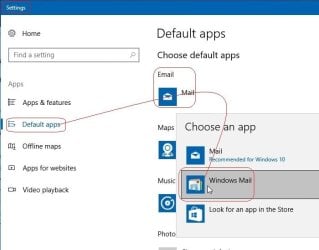
The process of this tutorial Will Not work to reinstate WinMail on Windows 8/10 !
Windows 8/10 users please go Here


Start here
  1. Download tutorial package TutReWinMail.zip

    Download

  2. Extract the TutReWinMail.zip into your user Downloads folder
    • Note: Be sure once extracted this is the address of the ''TutReWinMail'' folder:
    • C:\Users\username\Downloads\TutReWinMail... ... (if it's not there please put it there)
  3. Navigate to your user Downloads\TutReWinMail folder to be sure the above is correct.
    • (..if you need more verbose install instructions to follow, download this WinMail Local Tutorial.zip)
    • Advanced Users can proceed below:
      (..log in for Full Access, being able to get support, remove ads, like, and even to post, etc..)
Advanced Users: ..use this easy excellent overview of the steps in the local tutorial:
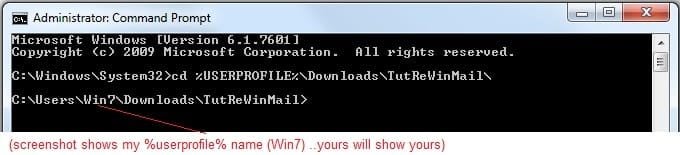
  • Open an Administrator Command Prompt. (screenshot showing in Administrator mode)
  • copy/paste this line into the command prompt: cd %USERPROFILE%\Downloads\TutReWinMail\
  • Your command prompt must now be showing you are at That Same Folder Address ..which contains the tutorial files that the batch file in the next step executes programs and copies files specifically from that folder address - if it's not there the batch file will fail since it cannot find what it needs!
  • Next type in either winmail32 or win64mail <matching OS bit, to interactively process These Next Steps
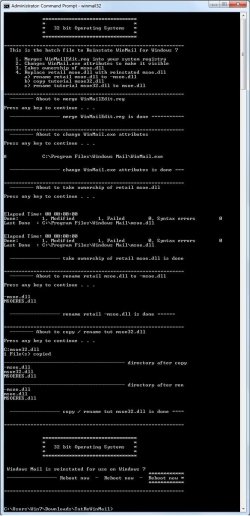
  • If you've finished to the bottom as shown in last screenshot, restart your machine (sets registry)
  • Create a shortcut from WinMail.exe to your Desktop
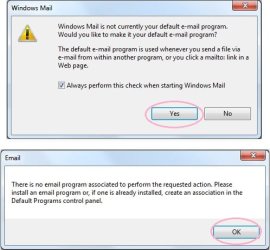
  • Open WinMail - it may prompt you one (or both) of These Two Notices ..click yes, and okay.
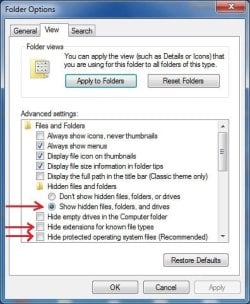
  • They now should be already set, but you can manually check/set at any time These Default Settings
  • That's pretty much all there is to it, and from here you setup the rest of the Windows Mail client (aka: WinMail) as normal within its various tab menus for Accounts, Options, Layout, etc, etc, to suit your individual needs.
  • Lastly, but should be the First thing you do, is to Create A WinMail Backup (new version) ..Go to this next link and when you get there scroll down to the heading: Backup/Restore Procedures for further instructions.
   Information
See How to open an elevated Administrator Command Prompt
Important: The exact text provided by the tutorial must be entered into the Administrator Command Prompt.
Hint: to avoid typos, copy/paste the entire line containing the command into the Command Prompt window.
Also see: How to Enable Copy to Clipboard from the Windows 7 Command Prompt

Every effort has been made to make this a step-by-step process, however, it is beyond the scope of a single tutorial to provide information on every command or concept. Search the Main Tutorial Section if you need greater detail on a concept or command presented in this tutorial.


Good luck, and long live WinMail :thumbsup:


   Note
Made possible by members:
Mark (aka Mr GRiM) - provided the original tutorial
Poppa Bear - continued Mark's work within the 2nd version
endeavor - provided continuous feedback, changes, invaluable testing instrumental to tutorial operations
EKManitis - propose the batch code that made operations easier
Slartybart - updated, tested, and consolidated all of the above into the 3rd version
endeavor - reviewed, updated, tested, and incorporated all of the above into this 4th version
...and also a special thanks to All the other members who presented discovery for this project


Attachments

  • TutReWinMail.zip
    TutReWinMail.zip
    1.8 MB · Views: 4,994
  • WinMailEdit.zip
    WinMailEdit.zip
    404 bytes · Views: 6
  • Win74umsZip.zip
    Win74umsZip.zip
    404 bytes · Views: 106
  • msoe_64.zip
    msoe_64.zip
    404 bytes · Views: 1,531
  • msoe_32.zip
    msoe_32.zip
    404 bytes · Views: 1,052
  • ACP.jpg
    ACP.jpg
    19.6 KB · Views: 1,083
  • DefaultClickYes-OkayAssociation.jpg
    DefaultClickYes-OkayAssociation.jpg
    52.8 KB · Views: 899
  • ProcessingBatch.jpg
    ProcessingBatch.jpg
    194.2 KB · Views: 1,147
  • PasteCDCommand.jpg
    PasteCDCommand.jpg
    33.1 KB · Views: 696
  • WinMail_Local_Tutorial.zip
    WinMail_Local_Tutorial.zip
    6.1 KB · Views: 1,202
  • FolderOptionsSet.jpg
    FolderOptionsSet.jpg
    61.5 KB · Views: 695
  • WinMailAdvanceOptionsBlank.jpg
    WinMailAdvanceOptionsBlank.jpg
    276.4 KB · Views: 93
  • Win7x64AdvancedTab+FileVersions.jpg
    Win7x64AdvancedTab+FileVersions.jpg
    298.9 KB · Views: 112
  • AdvancedTabBefore&After_fixed.jpg
    AdvancedTabBefore&After_fixed.jpg
    106.9 KB · Views: 50
  • CheckManually.jpg
    CheckManually.jpg
    209.5 KB · Views: 136
  • Win10_SetDefault.jpg
    Win10_SetDefault.jpg
    66.2 KB · Views: 33
Last edited by a moderator:
Recovered folder

This is where the problem is....I have already moved the APP folder with no problem...and then when WINMAIL comes up in Windows 7...the recovered folders are created....again..no problem....but once I have moved all the emails etc...and then I delete the recovered folders....... THEN...when Winmail starts again...it creates the recovered folders again........each time windows7 starts, it makes the recovered folders....this is what I am looking to stop before I delete everything and start over again... Don


How to import Windows Mail Contacts, Accounts, Folders & Emails from Vista to Windows 7.


1. Easy Method.
Emails, Folders & Accounts:

  • In Vista open: Start orb --> User Name --> AppData --> Local --> Microsoft --> Windows Mail --> Local Folders
  • Copy the entire contents of Local Folders
  • In Windows 7 open: Start orb --> User Name --> AppData --> Local --> Microsoft --> Windows Mail --> Local Folders
  • Paste the copied contents of Local Folders from Vista into the Windows 7 Local Folders, replacing files as detected
  • When prompted, enter your User Name/Password for your ISP.
You now have all your emails, folders and accounts set up.

Contacts:

  • Open Start Orb --> User Name --> Contacts.
  • Drag & drop the contents of this folder onto a data USB stick
  • Drag & drop from the USB stick into the equivalent folder in Windows 7.
2. Manual Method:
  • Open WinMail application on the Vista desktop.
  • In Local Folders: Drag and drop contents of each sub-folder onto a USB data stick. That is: Inbox, Outbox, Sent Items & Drafts.
  • Open WinMail on desktop of Windows 7.
  • Drag and drop contents of Inbox, Outbox, etc, from the USB stick into the corresponding folders of Local Folders in WinMail.
  • Set up email accounts manually.
Whole process takes about 12 - 15 minutes.

Note:

If the whole Windows Mail folder is imported from AppData, and pasted into the existing equivalent Windows Mail folder in Windows 7, it will create a new folder called "Recovered Folders" with sub-folders of Inbox, Outbox, etc. It will then be necessary to manually drag/drop the contents of each sub-folder into the sub-folders of Local Folders. And finally, delete the "Recovered Folders" folder.

It also causes a corruption which will usually auto-fix, but better not to have at all.

Using the easy method avoids both these problems.

Cheers PB
 

My Computer

Computer Manufacturer/Model Number
Toshiba
OS
windows 7 ultimate 64 bit
CPU
T5550 @ 1.83 ghz
Memory
4GB
Hard Drives
250
Case
laptop
To Don DeBaer re:
This is where the problem is....I have already moved the APP folder with no problem...and then when WINMAIL comes up in Windows 7...the recovered folders are created....again..no problem....but once I have moved all the emails etc...and then I delete the recovered folders....... THEN...when Winmail starts again...it creates the recovered folders again........each time windows7 starts, it makes the recovered folders....this is what I am looking to stop before I delete everything and start over again... Don
Yes, I understand what you're saying now, but I don't have an answer off-hand as to why this is happening.

When you transferred your data from your old PC I'm assuming you transferred the whole Windows Mail folder from AppData? And pasted that into the existing Windows Mail folder in AppData in Windows 7??? I'm assuming this, because if you had used the method in post No 374 you wouldn't get any Recovered Folders in the first place. Also you will have replaced some Windows 7 system files with Vista system files. This would have caused you to get an error message that a corruption had occurred but been fixed.

That would seem to be the obvious answer to what's causing your problem. However, it could also be a memory issue.

Also, if you used the Export/Import method of transferring you would get "Recovered Folders" sub-folder in Local Folders.

1. As a first step to fix it, go to: Start orb --> User Name --> AppData --> Local --> Microsoft --> Windows Mail --> Local Folders.

In Local Folders, is there a folder called: "Recovered M 2a8"? If there is, after you've moved all your files you want saved to local folders, delete this folder. Also if there are any other "Recovered" files or folders, delete them also, and see if that fixes the problem.

2. If the problem still persists. Do you have a copy of the Windows7 original Windows Mail folder from: Start orb --> User Name --> AppData --> Local --> Microsoft --> Windows Mail?

If you do, I'd suggest completely deleting all the existing files in the Windows Mail folder, and re-installing the original Windows 7 files. Then import only the Local Folders files from Windows Mail in Vista AppData, as per the preceding post No 374. If this doesn't fix the problem proceed to the next step.

3. When you imported Windows Mail, did you import the whole Vista Windows Mail folder, or just the "msoe.dll" file as per post No 317? If you imported the whole folder that could also cause conflicts, as once again, you will have replaced some Windows 7 sytem files with Vista files.

In this case I'd suggest deleting the entire contents of Windows Mail in program files and re-install the original Windows 7 Windows Mail files. Then import only the "msoe.dll" file from Vista as per post No 317 found here.

Some other member may have a simpler solution to your problem but without more information that's the best I can offer at this point.

Hope it helps. PB
 
Last edited:

My Computer

Computer Manufacturer/Model Number
Self-assembled
OS
Win7 Ultimate 64bit Retail
CPU
Intel i7 960 quad core
Motherboard
Intel DX58SO2 Extreme
Memory
12 GB Kingston DDR 3 1300
Graphics Card(s)
PCI Express Gigabyte GTX 550 Ti
Sound Card
Gigabyte GTX 550 Ti Graphics/5 Sound card
Monitor(s) Displays
Samsung WS Syncmaster S23A350H
Screen Resolution
1920 x 1080
Hard Drives
OS on 128 GB Corsair SSD SATA 3 + Storage on 1 TB Western Digital Black SATA 2
Case
Cooler Master CM690 II Advanced Mid Tower
Cooling
CPU, top, front and rear extractor fans
Keyboard
Microsoft Intellitype Wireless Multimedia
Mouse
Microsoft Intellipoint2 Wireless
Internet Speed
100 MB/sec Theoretical max. Actual average 0.5MB/sec
Other Info
Back-up PC with Vista Ultimate OEM 32bit. Intel i5 2400 Quad Core CPU, DH67CL mobo, 8 GB Kingston DDR3 1300 RAM,
Hi!

After several days of scouring the Web for good information on the Windows Mail issue (Moving from Vista to Windows 7) I found this site and have been heavily using serveral of the tutorials here. However I'm still stumped and not sure what to do. Sorry for the lengthly e-mail, but I want to provide as much detail as possible.

In a nutshell, after getting WinMail to work in Win 7 I'm having to manually move a lot of my messages. I do this by opening up WinMail, creating the appropriate mail folders under the inbox folder and then closing WinMail. Using Explorer I'm copying all of the *.eml files (and a folder file) from my backup to the new folder(s) and when I restart WinMail the message are available to read.

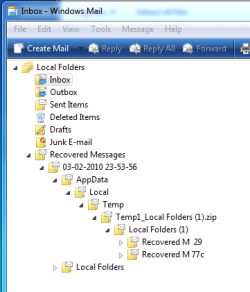
However, along the way something screwy is happening, WinMail will create a recovered Messages folder and start reading everything from my Users\David\Local Folders directory and create a whole set of folders and sub-folders as shown in an example below.

I feel that part of the problem may be the path that defines where the messages are stored, because depending on how I structure the path, I end up with different "results" So I think I need some help understanding what the correct path stucture should look like, and... how (or does) the User\AppData\Microsoft\Windows Mail\ folders have any bearing on the operation of WinMail in this case?

Once I can figure out how to stop all of these recovered folders being created I'll be good to go with all of my e-mails having been recovered!

Also, I might have missed the tutorial on how to manually import account settings, if someone can point me to that I'd appreciate it, but it's not a big concern to me...

Thanks for any assistance!

Edit: Hmmm... maybe the answer is in the couple pages preceeding this message. I honestly didn't go through all 39 pages of this thread, only about 20 :-)
 

Attachments

  • WinMail Entrys.PNG
    WinMail Entrys.PNG
    36.3 KB · Views: 232
Last edited:

My Computer

OS
Windows 7
To DavidJ re:
In a nutshell, after getting WinMail to work in Win 7 I'm having to manually move a lot of my messages. I do this by opening up WinMail, creating the appropriate mail folders under the inbox folder and then closing WinMail. Using Explorer I'm copying all of the *.eml files (and a folder file) from my backup to the new folder(s) and when I restart WinMail the message are available to read.

However, along the way something screwy is happening, WinMail will create a recovered Messages folder and start reading everything from my Users\David\Local Folders directory and create a whole set of folders and sub-folders as shown in an example below.
The key to the whole thing really lies in the method used to import the folders, emails, accounts. You mention you have copied folder files as well as emails, by copying them from Explorer, and I suspect that's where the problem lies. You can't just copy a sub-file from Local Folders in Vista WinMail.exe desktop application. It has to come from Local Folders here: Start orb --> User Name --> AppData --> Local --> Microsoft --> Windows Mail --> Local Folders. In this location, it is linked to the Local Folders in WinMail.exe interface on the desktop. And the link is retained when it is copied/pasted into the equivalent Local Folders in Windows 7.

I'm assuming you're importing from Vista. If you're importing from Outlook Express it's a whole different ball game. This is a link here to a tutorial showing how to import from Outlook Express to WinMail in Vista or Windows 7.

The simplest trouble-free method from Vista to Windows 7 is the one shown in my post here. In this method, the entire contents of the WinMail sub-folder in AppsData in Windows 7 is deleted; and replaced with the entire contents of the equivalent folder from Vista. This way there are no recovered folders, and all custom folders you have in WinMail Vista will be set up automatically, unless they are empty, in which case they will not be carried across. It also sets up your accounts at the same time, except for putting in your user name/password for your ISP for which you will be prompted the first time you run the application.

Don DeBaer had a similar problem in post post No 385 two back. If you read my reply in post No 386 it might throw some light on the problem. If you have used the export emails option from WinMail in Vista, and the import option in WinMail Windows 7, you will get Recovered Folders set up in WinMail in Windows 7.

First off I'd suggest backing up all your emails to storage folders on your desktop or USB stick, by dragging & dropping them from Local Folders in Vista WinMail interface on desktop. Do the same in WinMail in Windows 7. Then follow the steps in the linked post shown above. Any saved emails from WinMail in Windows 7 will then have to be drag/dropped into the appropriate folders once they're set up.

Hope this helps.
 

My Computer

Computer Manufacturer/Model Number
Self-assembled
OS
Win7 Ultimate 64bit Retail
CPU
Intel i7 960 quad core
Motherboard
Intel DX58SO2 Extreme
Memory
12 GB Kingston DDR 3 1300
Graphics Card(s)
PCI Express Gigabyte GTX 550 Ti
Sound Card
Gigabyte GTX 550 Ti Graphics/5 Sound card
Monitor(s) Displays
Samsung WS Syncmaster S23A350H
Screen Resolution
1920 x 1080
Hard Drives
OS on 128 GB Corsair SSD SATA 3 + Storage on 1 TB Western Digital Black SATA 2
Case
Cooler Master CM690 II Advanced Mid Tower
Cooling
CPU, top, front and rear extractor fans
Keyboard
Microsoft Intellitype Wireless Multimedia
Mouse
Microsoft Intellipoint2 Wireless
Internet Speed
100 MB/sec Theoretical max. Actual average 0.5MB/sec
Other Info
Back-up PC with Vista Ultimate OEM 32bit. Intel i5 2400 Quad Core CPU, DH67CL mobo, 8 GB Kingston DDR3 1300 RAM,
Thanks Poppa Bear,

UPDATE on 03/04 9:15PM CST:

Problems Solved! Thanks for pointing me to the proper post!

The one issue I didn't discuss above, is that after partioning & installing Win7 for a dual boot, I ended up with some strange issues where when I boot into Vista, I end up at a black screen after the welcome screen is displayed. I can ctrl-alt-del and ultimately pull up the task manager, but that's about it.

So all I can do is boot into Windows 7 and work with what I have, such as backed up folders.

I can see the contents of the partition where Vista is installed, but with all that I've been trying this past week to recover, things seem kinda "screwy" for example, I can't see theD:\Users\David\AppData\Local\Microsoft\Windows Mail\Local Folders\Inbox folder in the Explorer tree, but I can find it when searching for the appdata folder is the search window of Explorer. I checked/un checked the option in Windows Explorer to show hidden & protected files & folders...

I'm perplexed! :sarc:

So first I'll try the following;

The simplest trouble-free method from Vista to Windows 7 is the one shown in my post here. In this method, the entire contents of the WinMail sub-folder in AppsData in Windows 7 is deleted; and replaced with the entire contents of the equivalent folder from Vista. This way there are no recovered folders, and all custom folders you have in WinMail Vista will be set up automatically, unless they are empty, in which case they will not be carried across. It also sets up your accounts at the same time, except for putting in your user name/password for your ISP for which you will be prompted the first time you run the application.


If that doesn't work I'll review all of these other posts you outlined and see if I can't cobble some sort of a solution together where I'm not relying on the Vista install.

Thanks!
 
Last edited:

My Computer

OS
Windows 7
Windows 7, Fonts in Windows Mail?

Hello, I so new to this forum and couldn't find out how create a new post? I apologize if I'm not in the right forum or in the right "thread". Could someone please inform me if I need to be posting somewhere else? I'm a senior lady and seem to be forgetting more than "remembering"...

Here goes my delimma, I'm using WM in [COLOR=#0072bc !important][COLOR=#0072bc !important]Windows [COLOR=#0072bc !important]7[/COLOR][/COLOR][/COLOR]. I tried WLM but didn't like it. I love to use the many stationeries I created using OE. My problem is I cannot change some fonts nor can I change ANY font size in WM and that's using just a plain "compose" email? If I set it for Verdana 10pt it rolls right back to 12pt but either comes out too big or too small for the receiver of the email? :cry: My display settings are 1028 x 768 and in personalization I set it for smaller. I'm still using my old Dell Monitor which I will replace soon for a new, larger one (flat panel). Is this a problem because of my monitor? In OE, I could change the font and size to my hearts content but I'm not able to do that with [COLOR=#0072bc !important][COLOR=#0072bc !important]Windows [COLOR=#0072bc !important]Mail?[/COLOR][/COLOR][/COLOR]

Please, any help or suggestions would be wonderful and if this is the wrong forum to address this question, let me know and I'll repost. Oh, one more thing, this is a brand new [COLOR=#0072bc !important][COLOR=#0072bc !important]computer[/COLOR][/COLOR] that my son built for me with all of the latest and greatest stuff in it (Windows 7 Home Premium, 64-Bit)...Thanks so much!
ikester
 

My Computer

Computer Manufacturer/Model Number
My son built it for me
OS
Windows 7
I installed 7 on my four PCs (check sig) and have nothing left from Vista in them. How can I get Windows Mail to install on 7?

I have one Windows Vista Home Premium original DVD. Can I take WM from it to follow your tutorial? And will I be able to install it on all four PCs, considering their different editions?
 

My Computer

OS
Windows 7
To Paultx re:
I installed 7 on my four PCs (check sig) and have nothing left from Vista in them. How can I get Windows Mail to install on 7?

I have one Windows Vista Home Premium original DVD. Can I take WM from it to follow your tutorial? And will I be able to install it on all four PCs, considering their different editions?
You don't need Windows Mail from Vista to enable the existing Windows Mail to operate in Windows 7. Go to this post here, which has everything you need.

Cheers PB
 

My Computer

Computer Manufacturer/Model Number
Self-assembled
OS
Win7 Ultimate 64bit Retail
CPU
Intel i7 960 quad core
Motherboard
Intel DX58SO2 Extreme
Memory
12 GB Kingston DDR 3 1300
Graphics Card(s)
PCI Express Gigabyte GTX 550 Ti
Sound Card
Gigabyte GTX 550 Ti Graphics/5 Sound card
Monitor(s) Displays
Samsung WS Syncmaster S23A350H
Screen Resolution
1920 x 1080
Hard Drives
OS on 128 GB Corsair SSD SATA 3 + Storage on 1 TB Western Digital Black SATA 2
Case
Cooler Master CM690 II Advanced Mid Tower
Cooling
CPU, top, front and rear extractor fans
Keyboard
Microsoft Intellitype Wireless Multimedia
Mouse
Microsoft Intellipoint2 Wireless
Internet Speed
100 MB/sec Theoretical max. Actual average 0.5MB/sec
Other Info
Back-up PC with Vista Ultimate OEM 32bit. Intel i5 2400 Quad Core CPU, DH67CL mobo, 8 GB Kingston DDR3 1300 RAM,
Hello, I so new to this forum and couldn't find out how create a new post? I apologize if I'm not in the right forum or in the right "thread". Could someone please inform me if I need to be posting somewhere else? I'm a senior lady and seem to be forgetting more than "remembering"...

Here goes my delimma, I'm using WM in Windows 7. I tried WLM but didn't like it. I love to use the many stationeries I created using OE. My problem is I cannot change some fonts nor can I change ANY font size in WM and that's using just a plain "compose" email? If I set it for Verdana 10pt it rolls right back to 12pt but either comes out too big or too small for the receiver of the email? :cry: My display settings are 1028 x 768 and in personalization I set it for smaller. I'm still using my old Dell Monitor which I will replace soon for a new, larger one (flat panel). Is this a problem because of my monitor? In OE, I could change the font and size to my hearts content but I'm not able to do that with Windows Mail.

Please, any help or suggestions would be wonderful and if this is the wrong forum to address this question, let me know and I'll repost. Oh, one more thing, this is a brand new computer that my son built for me with all of the latest and greatest stuff in it (Windows 7 Home Premium, 64-Bit)...Thanks so much!
ikester
I'm sorry I can't give any definite answers on why you're having problems with font and text size. IGNORE THIS NEXT BIT! --> see post No 395 by GregS two down. Might possibly be the keyboard as there are major mis-prints in sections of your text, such as:
"I could change the font and size to my hearts content but I'm not able to do that with [COLOR=#0072bc !important][COLOR=#0072bc !important]Windows [COLOR=#0072bc !important]Mail?[/COLOR][/COLOR][/COLOR].
UPDATE: I don't know what method you or your son used to enable/import Windows Mail in Windows 7. If he used the original method shown in this tutorial, and imported the full Windows Mail folder from Vista, he will have unnecessarily replaced some of the original Windows Mail files with Vista ones and most likely have caused a conflict or corruption.

This is probably the quickest way to fix things. If he backed up the original Windows Mail folder in Windows 7, as suggested in the beginning of this tutorial, then I'd suggest deleting the entire contents of the Windows Mail folder in Windows 7, and replacing it with the original Windows Mail folder contents. Then use the modified method of enabling the original Windows Mail folder in Windows 7, found by clicking here. Before starting, read the whole post thoroughly.

Please note, there are two sets of program files in 64bit Windows 7, and there is a Windows Mail folder in each of them. Be sure to apply the method shown in the post to the normal 64bit Program Files, NOT the Program Files(x86). This is all explained in the post.

Finally, to import accounts, emails, folders or contacts from Windows Mail in Vista to Windows 7, go to this post here. However, if you're importing these from your Outlook Express, it's a whole different ball game. This is a link here which explains how to import emails etc from OE.

I have Windows Mail operating in Windows 7, after using the method shown above, and have no problems changing font or size of text.

Hope this may help. Cheers PB
 
Last edited:

My Computer

Computer Manufacturer/Model Number
Self-assembled
OS
Win7 Ultimate 64bit Retail
CPU
Intel i7 960 quad core
Motherboard
Intel DX58SO2 Extreme
Memory
12 GB Kingston DDR 3 1300
Graphics Card(s)
PCI Express Gigabyte GTX 550 Ti
Sound Card
Gigabyte GTX 550 Ti Graphics/5 Sound card
Monitor(s) Displays
Samsung WS Syncmaster S23A350H
Screen Resolution
1920 x 1080
Hard Drives
OS on 128 GB Corsair SSD SATA 3 + Storage on 1 TB Western Digital Black SATA 2
Case
Cooler Master CM690 II Advanced Mid Tower
Cooling
CPU, top, front and rear extractor fans
Keyboard
Microsoft Intellitype Wireless Multimedia
Mouse
Microsoft Intellipoint2 Wireless
Internet Speed
100 MB/sec Theoretical max. Actual average 0.5MB/sec
Other Info
Back-up PC with Vista Ultimate OEM 32bit. Intel i5 2400 Quad Core CPU, DH67CL mobo, 8 GB Kingston DDR3 1300 RAM,
Pappa Bear,

One last question (I think...)

I followed the instructions in post #317 and all is well (except I haven't pulled in my contacts yet...) I double checked the path of the mail folders and they are in my appdata folder on the Windows 7 partition. Is it safe to assume that when I finally clean off the Vista partition, I'll still have my e-mail?, there's no background stuff going on that is actually pulling the mail from somewhere else such as Vista partition or the my backups on a separate drive?

Thanks!
 

My Computer

OS
Windows 7
Might possibly be the keyboard as there are major mis-prints in sections of your text, such as:
"I could change the font and size to my hearts content but I'm not able to do that with [COLOR=#0072bc !important][COLOR=#0072bc !important]Windows [COLOR=#0072bc !important]Mail?[/COLOR][/COLOR][/COLOR].
He's trying to css(cascading style sheet) code his font/color himself instead of using the forum tools.
 

My Computer

Computer Manufacturer/Model Number
Averatec 6130HS-20
OS
Windows 7 Professional 32-bit (6.1, Build 7600)
CPU
Intel(R) Pentium(R) 4 3.00 GHz HT
Memory
2.0 GB
Graphics Card(s)
ATI Mobility Radeon 9600 64MB
Sound Card
Realtek AC'97 Audio
Screen Resolution
1280 x 800
Hard Drives
Seagate 96023A 60GB 7200RPM -
Seagate FreeAgentDesktop 250GB
Cooling
20 Inch Box Fan
Mouse
Targus PAWM10 Wireless Optical Laptop Mouse
Pappa Bear,

One last question (I think...)

I followed the instructions in post #317 and all is well (except I haven't pulled in my contacts yet...) I double checked the path of the mail folders and they are in my appdata folder on the Windows 7 partition. Is it safe to assume that when I finally clean off the Vista partition, I'll still have my e-mail?, there's no background stuff going on that is actually pulling the mail from somewhere else such as Vista partition or the my backups on a separate drive?

Thanks!
Hi David,

I'm not quite sure exactly what you've done so far, apart from enable Windows Mail to operate. However, this is a post here I've done showing the easy way to import all emails, accounts, and folders, (including any customised folders you've created), from Windows Mail Vista in one fell swoop.

Once you've done that, to be absolutely safe, before deleting anything in Vista, you might want to drag/drop all your emails from Local Folders in WinMail to desktop, USB or storage partition. For example, highlight the entire contents of "Sent Mail" sub-folder of Local Folders. Then just left click/hold and drag to where you want.

You can also directly copy your accounts from Local Folders in Vista by opening: Start orb --> User Name --> AppData --> Local --> Microsoft --> Windows Mail --> Local Folders. Then paste them straight into the equivalent folder in Windows 7. When you next start WinMail.exe on desktop, it will prompt you to enter your user name/password for your ISP.

Off Topic: In your earlier post you said:
The one issue I didn't discuss above, is that after partioning & installing Windows 7 for a dual boot, I ended up with some strange issues where when I boot into Vista, I end up at a black screen after the welcome screen is displayed. I can ctrl-alt-del and ultimately pull up the task manager, but that's about it.
I have WinXP Pro, Vista Ult, Win7 Ult & a storage partiton all on the one HD. Not always, but often when I boot into Vista I get exactly what you're describing. However, if I reboot to Vista again, it usually loads the 2nd time. Then if I continue to open Vista on start-up it's usually OK.


You could try booting off your Vista installation disk. Once it comes up with the screen to Install Windows, choose --> Next --> Repair your computer. It then searches for installations. Once finsished searching --> Highlight Vista, not Win7 --> Next --> Click: Startup Repair --> Restart when it finishes repairing, and remove installation CD.

I also often get a similar problem booting XP, if I haven't run it for awhile. On boot up it will show the desktop background but no icons. As in Vista, Task Manager still operates, but no applications. Then after about 2 -3 minutes it comes good. And like Vista, if I now continue to use it, it opens normally.

Hope this helps. Cheers PB
 

My Computer

Computer Manufacturer/Model Number
Self-assembled
OS
Win7 Ultimate 64bit Retail
CPU
Intel i7 960 quad core
Motherboard
Intel DX58SO2 Extreme
Memory
12 GB Kingston DDR 3 1300
Graphics Card(s)
PCI Express Gigabyte GTX 550 Ti
Sound Card
Gigabyte GTX 550 Ti Graphics/5 Sound card
Monitor(s) Displays
Samsung WS Syncmaster S23A350H
Screen Resolution
1920 x 1080
Hard Drives
OS on 128 GB Corsair SSD SATA 3 + Storage on 1 TB Western Digital Black SATA 2
Case
Cooler Master CM690 II Advanced Mid Tower
Cooling
CPU, top, front and rear extractor fans
Keyboard
Microsoft Intellitype Wireless Multimedia
Mouse
Microsoft Intellipoint2 Wireless
Internet Speed
100 MB/sec Theoretical max. Actual average 0.5MB/sec
Other Info
Back-up PC with Vista Ultimate OEM 32bit. Intel i5 2400 Quad Core CPU, DH67CL mobo, 8 GB Kingston DDR3 1300 RAM,
I have installed Windows Mail into Win 7 as above. But I cannot open any .eml files saved in my windows explorer. Each time I click on the .eml file, the inbox opened up instead.
I have already set windows mail as my default program. Only by selecting windows live mail at the "open with" options, could I read the email. How can I open my .eml file without using windows live mail?
 

My Computer

OS
windows 7
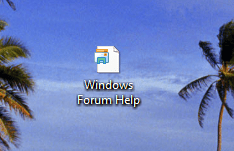
Can someone copy an .eml file to the desktop, take and post a screenshot of how it appears here? I think that I have something fishy going on with my default icons, not just .eml but others as well. For some reason, I don't remember icons having a white sheet of paper as a background to the default icon on the desktop or in explorer. Also it's now showing up in the bottom status preview in Explorer for folders as well. It may have always been like this but I don't remember it. I have a notion as to what it is and just for the record it is unrelated to WinMail hackery.
Thanks
 

My Computer

Computer Manufacturer/Model Number
Averatec 6130HS-20
OS
Windows 7 Professional 32-bit (6.1, Build 7600)
CPU
Intel(R) Pentium(R) 4 3.00 GHz HT
Memory
2.0 GB
Graphics Card(s)
ATI Mobility Radeon 9600 64MB
Sound Card
Realtek AC'97 Audio
Screen Resolution
1280 x 800
Hard Drives
Seagate 96023A 60GB 7200RPM -
Seagate FreeAgentDesktop 250GB
Cooling
20 Inch Box Fan
Mouse
Targus PAWM10 Wireless Optical Laptop Mouse
I have windows 7 64 version 6.1 build 7600 on a new pc and win vista 32 bit on a laptop. I tried to follow the tutorial and take ownership worked fine. I copied my winmail from my 32 bit laptop to the win 7 machine. I got a bit confused about what folder to paste the 32 bit win mail into so I tried both

But when I click on the shortcut on the desktop it does not open.

What happens is that I get multi copies of winmail.exe*32 in task manager. I have to log off to get rid of them. When I click on the mailto link in IE8 I get a message "could not perform this operation because the default mail client is not properly installed."

I was not able to download the 64 files referred to as they had been removed. Found them now I think. I put the 64 bit msoe.dll in the ordinary program files but still it will not open. Just get multi copies of winmail.exe*32 in task manager


Thanks

I found post 317 at http://www.sevenforums.com/tutorials/5481-windows-mail-32.html#post533107 which says

1. Download and run the attachment: WinMailEdit.zip.

*Warning: It is critical to do this before carrying out steps (4) & (5). This auto exe file edits the registry to allow .eml files to be opened on the desktop; removes the WinMail splash screen at start-up; and resolves various conflicts.

But I have already done 4 and 5?
 
Last edited:

My Computer

OS
Win 7 Home Premium 64 bit Version 6.1 Build 7600
I have installed Windows Mail into Win 7 as above. But I cannot open any .eml files saved in my windows explorer. Each time I click on the .eml file, the inbox opened up instead.
I have already set windows mail as my default program. Only by selecting windows live mail at the "open with" options, could I read the email. How can I open my .eml file without using windows live mail?
Windows Live Mail can cause conflicts with Windows Mail. I would suggest saving all your email files from WinLive then uninstall it using the Control Panel/Programs & Features option.

Then open the post found here. Save and run the attachment in step one named WinMailEdit. This regedit file will allow emails to open on desktop, remove the WinMail splash screen and resolve various conflicts. Also do step two re removing WinMail attributes.

If this doesn't fix it, I'd suggest deleting all files in Windows Mail and restoring the original Windows 7 Windows Mail files. Then enable Windows Mail applying all the steps in the post mentioned above in the order as shown. Read the post fully before starting.

Hope this helps. Cheers PB
 

My Computer

Computer Manufacturer/Model Number
Self-assembled
OS
Win7 Ultimate 64bit Retail
CPU
Intel i7 960 quad core
Motherboard
Intel DX58SO2 Extreme
Memory
12 GB Kingston DDR 3 1300
Graphics Card(s)
PCI Express Gigabyte GTX 550 Ti
Sound Card
Gigabyte GTX 550 Ti Graphics/5 Sound card
Monitor(s) Displays
Samsung WS Syncmaster S23A350H
Screen Resolution
1920 x 1080
Hard Drives
OS on 128 GB Corsair SSD SATA 3 + Storage on 1 TB Western Digital Black SATA 2
Case
Cooler Master CM690 II Advanced Mid Tower
Cooling
CPU, top, front and rear extractor fans
Keyboard
Microsoft Intellitype Wireless Multimedia
Mouse
Microsoft Intellipoint2 Wireless
Internet Speed
100 MB/sec Theoretical max. Actual average 0.5MB/sec
Other Info
Back-up PC with Vista Ultimate OEM 32bit. Intel i5 2400 Quad Core CPU, DH67CL mobo, 8 GB Kingston DDR3 1300 RAM,
Can someone copy an .eml file to the desktop, take and post a screenshot of how it appears here? I think that I have something fishy going on with my default icons, not just .eml but others as well. For some reason, I don't remember icons having a white sheet of paper as a background to the default icon on the desktop or in explorer. Also it's now showing up in the bottom status preview in Explorer for folders as well. It may have always been like this but I don't remember it. I have a notion as to what it is and just for the record it is unrelated to WinMail hackery.
Thanks
Hi Greg,

Seems like old times again. Here's an attachment showing a Winodws Mail .eml email file saved to Desktop.

.eml File on Desktop.PNG

For some reason I've also suddenly had a few files showing up as a white sheet with top left corner turned down. In particular, saved pages of Web sites, which normally present as a picture icon. The web site still opened when the icon was clicked. Another one was the address book from XP which I saved to desktop to import contacts as a test. It also saved as a white sheet, but wouldn't open to import the contacts as it normally does.​

If you find out what's going on, can you let me know. I also wondered if maybe the original method for importing WinMail in this tutorial should be omitted or at least modified to the post version No 317 that you researched and developed? The same problems keep recurring when the original tutorial method is used, such as .eml files not opening, or original Windows 7 files being corrupted/replaced and causing conflicts. Would appreciate your thoughts in a PM.​

Cheers buddy, Bernie.​
 

My Computer

Computer Manufacturer/Model Number
Self-assembled
OS
Win7 Ultimate 64bit Retail
CPU
Intel i7 960 quad core
Motherboard
Intel DX58SO2 Extreme
Memory
12 GB Kingston DDR 3 1300
Graphics Card(s)
PCI Express Gigabyte GTX 550 Ti
Sound Card
Gigabyte GTX 550 Ti Graphics/5 Sound card
Monitor(s) Displays
Samsung WS Syncmaster S23A350H
Screen Resolution
1920 x 1080
Hard Drives
OS on 128 GB Corsair SSD SATA 3 + Storage on 1 TB Western Digital Black SATA 2
Case
Cooler Master CM690 II Advanced Mid Tower
Cooling
CPU, top, front and rear extractor fans
Keyboard
Microsoft Intellitype Wireless Multimedia
Mouse
Microsoft Intellipoint2 Wireless
Internet Speed
100 MB/sec Theoretical max. Actual average 0.5MB/sec
Other Info
Back-up PC with Vista Ultimate OEM 32bit. Intel i5 2400 Quad Core CPU, DH67CL mobo, 8 GB Kingston DDR3 1300 RAM,
I have windows 7 64 version 6.1 build 7600 on a new pc and win vista 32 bit on a laptop. I tried to follow the tutorial and take ownership worked fine. I copied my winmail from my 32 bit laptop to the win 7 machine. I got a bit confused about what folder to paste the 32 bit win mail into so I tried both

But when I click on the shortcut on the desktop it does not open.

What happens is that I get multi copies of winmail.exe*32 in task manager. I have to log off to get rid of them. When I click on the mailto link in IE8 I get a message "could not perform this operation because the default mail client is not properly installed."

I was not able to download the 64 files referred to as they had been removed. Found them now I think. I put the 64 bit msoe.dll in the ordinary program files but still it will not open. Just get multi copies of winmail.exe*32 in task manager


Thanks

I found post 317 at http://www.sevenforums.com/tutorials/5481-windows-mail-32.html#post533107 which says

1. Download and run the attachment: WinMailEdit.zip.

*Warning: It is critical to do this before carrying out steps (4) & (5). This auto exe file edits the registry to allow .eml files to be opened on the desktop; removes the WinMail splash screen at start-up; and resolves various conflicts.

But I have already done 4 and 5?
Unfortunately since you have imported a 32bit Vista copy of Windows Mail into the normal 64bit Windows Mail folder of Windows 7, WinMail.exe will not work, and essential 64bit Windows Mail files will have been deleted/corrupted.

As you discovered, there are two Windows Mail folders in Windows 7. What you will need to do is completely delete the contents of both and restore the original Windows 7 files into these folders. Then carefully read and carry out the steps in Post No 317 found here.

It said at the beginning of this tutorial to backup your existing files in Windows Mail folder, so I hope you have done this, as they must be restored. The Vista 32bit Windows Mail files are not used at all, as all the changes are made in 64bit Windows Mail in the normal Windows 7 64bit program files... See Step 4 and Footnote 3 of the post.

Hope this helps. PB
 

My Computer

Computer Manufacturer/Model Number
Self-assembled
OS
Win7 Ultimate 64bit Retail
CPU
Intel i7 960 quad core
Motherboard
Intel DX58SO2 Extreme
Memory
12 GB Kingston DDR 3 1300
Graphics Card(s)
PCI Express Gigabyte GTX 550 Ti
Sound Card
Gigabyte GTX 550 Ti Graphics/5 Sound card
Monitor(s) Displays
Samsung WS Syncmaster S23A350H
Screen Resolution
1920 x 1080
Hard Drives
OS on 128 GB Corsair SSD SATA 3 + Storage on 1 TB Western Digital Black SATA 2
Case
Cooler Master CM690 II Advanced Mid Tower
Cooling
CPU, top, front and rear extractor fans
Keyboard
Microsoft Intellitype Wireless Multimedia
Mouse
Microsoft Intellipoint2 Wireless
Internet Speed
100 MB/sec Theoretical max. Actual average 0.5MB/sec
Other Info
Back-up PC with Vista Ultimate OEM 32bit. Intel i5 2400 Quad Core CPU, DH67CL mobo, 8 GB Kingston DDR3 1300 RAM,
I have windows 7 64 version 6.1 build 7600 on a new pc and win vista 32 bit on a laptop. I tried to follow the tutorial and take ownership worked fine. I copied my winmail from my 32 bit laptop to the win 7 machine. I got a bit confused about what folder to paste the 32 bit win mail into so I tried both

But when I click on the shortcut on the desktop it does not open.

What happens is that I get multi copies of winmail.exe*32 in task manager. I have to log off to get rid of them. When I click on the mailto link in IE8 I get a message "could not perform this operation because the default mail client is not properly installed."

I was not able to download the 64 files referred to as they had been removed. Found them now I think. I put the 64 bit msoe.dll in the ordinary program files but still it will not open. Just get multi copies of winmail.exe*32 in task manager


Thanks

I found post 317 at http://www.sevenforums.com/tutorials/5481-windows-mail-32.html#post533107 which says

1. Download and run the attachment: WinMailEdit.zip.

*Warning: It is critical to do this before carrying out steps (4) & (5). This auto exe file edits the registry to allow .eml files to be opened on the desktop; removes the WinMail splash screen at start-up; and resolves various conflicts.

But I have already done 4 and 5?
Unfortunately since you have imported a 32bit Vista copy of Windows Mail into the normal 64bit Windows Mail folder of Windows 7, WinMail.exe will not work, and essential 64bit Windows Mail files will have been deleted/corrupted.

As you discovered, there are two Windows Mail folders in Windows 7. What you will need to do is completely delete the contents of both and restore the original Windows 7 files into these folders. Then carefully read and carry out the steps in Post No 317 found here.

It said at the beginning of this tutorial to backup your existing files in Windows Mail folder, so I hope you have done this, as they must be restored. The Vista 32bit Windows Mail files are not used at all, as all the changes are made in 64bit Windows Mail in the normal Windows 7 64bit program files... See Step 4 and Footnote 3 of the post.

Hope this helps. PB

I did not copy my 64 bit win mail folder. Does anyone have the files for this?
There were links in this thread but they have been removed when i clicked them
Does anyone have 64 bit winmail exe
 
Last edited:

My Computer

OS
Win 7 Home Premium 64 bit Version 6.1 Build 7600
Unfortunately, the above didn't work for me, even though I printed out the instructions, but with 'Take Ownership' and a copy of a Vista64 'Windows Mail' folder on a flash drive, everything worked fine.
I've now burnt the two items to CD.
I wonder if Microsoft will listen to those who want OE, and reinstate it in a service patch.

I made the same mistake as the last contributor, trying to load a 32bit version of 'Windows Mail' on to 64bit W7 Pro, and I got the same result when trying to initialise the mail programme. :o
As soon as I copied a 64bit 'Windows Mail' folder, everything worked as it should. :D
Many thanks to the OP.
 
Last edited:

My Computer

OS
W7
Back
Top