Windows Mail

How to Reinstate Windows Mail in Windows 7

   Warning
Microsoft no longer supports Windows Mail, aka WinMail. It's recommended you use another well known supported email client. This Tutorial is for Advanced users who importantly have the Technical Ability to make the changes, have backups of everything including your OS, and to be your own tech support for WinMail going forward. If you decide to complete this tutorial you accept the fact that you are using WinMail as-is. It might be necessary to uninstall other email clients to resolve any WinMail conflicts in some environments. Understand it's likely that new OS updates from Microsoft will break WinMail's operation, and to fix make it necessary to rerun the tutorial again to reinstate it. With those things in mind, this tutorial was written so that you can rerun it without affecting WinMail user data.
Please see this Errata (Bug List) post before you install, to be aware of the current information about known issues using WinMail within Windows 7, these issues are programmatic and in most cases cannot be resolved by this tutorial, and will never be fixed.

Having said all of that disclaimer, if you have the technical ability, and can put up with the annoying minor byproduct bugs, then like so many of us still enjoy using WinMail on Windows 7 ...ymmv!


   Tip
As of January, 2025, the instructions given here supersede all other instructions given in forthcoming older posts. Realize some of the posts that follow are over 16 years old, and many of the link pointers within have become mislinked over time, many of the files or information within them is outdated, incomplete, or superseded with more accurate information - and so be careful. However you can always be sure that the latest info from all research is incorporated into this tutorial post, and its downloads are the latest available. This post is continuously kept up-to-date, and so..
...Always refer to this Tutorial post for the very latest updated information

This is the 4th iteration of the Windows 7, WinMail tutorial.

The process of this tutorial Will Not work to reinstate WinMail on Windows 8/10 !
Windows 8/10 users please go Here


Start here
  1. Download tutorial package TutReWinMail.zip

    Download

  2. Extract the TutReWinMail.zip into your user Downloads folder
    • Note: Be sure once extracted this is the address of the ''TutReWinMail'' folder:
    • C:\Users\username\Downloads\TutReWinMail... ... (if it's not there please put it there)
  3. Navigate to your user Downloads\TutReWinMail folder to be sure the above is correct.
    • (..if you need more verbose install instructions to follow, download this WinMail Local Tutorial.zip)
    • Advanced Users can proceed below:
      (..log in for Full Access, being able to get support, remove ads, like, and even to post, etc..)
Advanced Users: ..use this easy excellent overview of the steps in the local tutorial:
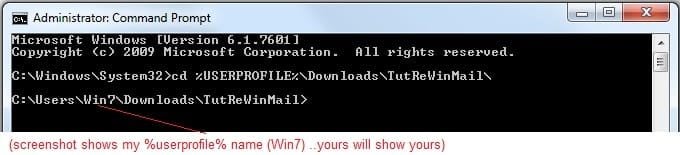
  • Open an Administrator Command Prompt. (screenshot showing in Administrator mode)
  • copy/paste this line into the command prompt: cd %USERPROFILE%\Downloads\TutReWinMail\
  • Your command prompt must now be showing you are at That Same Folder Address ..which contains the tutorial files that the batch file in the next step executes programs and copies files specifically from that folder address - if it's not there the batch file will fail since it cannot find what it needs!
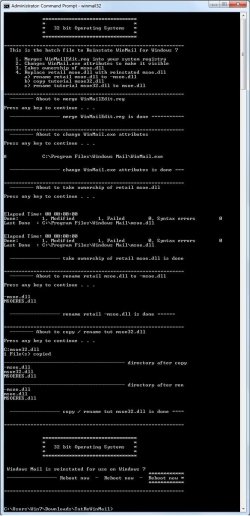
  • Next type in either winmail32 or win64mail <matching OS bit, to interactively process These Next Steps
  • If you've finished to the bottom as shown in last screenshot, restart your machine (sets registry)
  • Create a shortcut from WinMail.exe to your Desktop
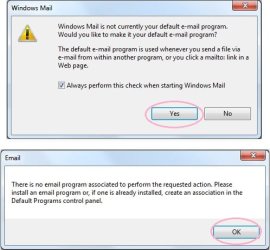
  • Open WinMail - it may prompt you one (or both) of These Two Notices ..click yes, and okay.
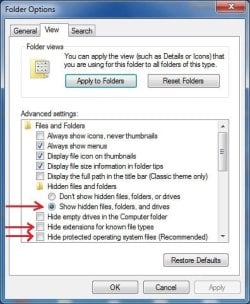
  • They now should be already set, but you can manually check/set at any time These Default Settings
  • That's pretty much all there is to it, and from here you setup the rest of the Windows Mail client (aka: WinMail) as normal within its various tab menus for Accounts, Options, Layout, etc, etc, to suit your individual needs.
  • Lastly, but should be the First thing you do, is to Create A WinMail Backup (new version) ..Go to this next link and when you get there scroll down to the heading: Backup/Restore Procedures for further instructions.
   Information
See How to open an elevated Administrator Command Prompt
Important: The exact text provided by the tutorial must be entered into the Administrator Command Prompt.
Hint: to avoid typos, copy/paste the entire line containing the command into the Command Prompt window.
Also see: How to Enable Copy to Clipboard from the Windows 7 Command Prompt

Every effort has been made to make this a step-by-step process, however, it is beyond the scope of a single tutorial to provide information on every command or concept. Search the Main Tutorial Section if you need greater detail on a concept or command presented in this tutorial.


Good luck, and long live WinMail :thumbsup:


   Note
Made possible by members:
Mark (aka Mr GRiM) - provided the original tutorial
Poppa Bear - continued Mark's work within the 2nd version
endeavor - provided continuous feedback, changes, invaluable testing instrumental to tutorial operations
EKManitis - propose the batch code that made operations easier
Slartybart - updated, tested, and consolidated all of the above into the 3rd version
endeavor - reviewed, updated, tested, and incorporated all of the above into this 4th version
...and also a special thanks to All the other members who presented discovery for this project


Attachments

  • TutReWinMail.zip
    TutReWinMail.zip
    1.8 MB · Views: 4,994
  • msoe_64.zip
    msoe_64.zip
    404 bytes · Views: 1,531
  • Win74umsZip.zip
    Win74umsZip.zip
    404 bytes · Views: 106
  • WinMailEdit.zip
    WinMailEdit.zip
    404 bytes · Views: 6
  • msoe_32.zip
    msoe_32.zip
    404 bytes · Views: 1,052
  • DefaultClickYes-OkayAssociation.jpg
    DefaultClickYes-OkayAssociation.jpg
    31.1 KB · Views: 899
  • ACP.jpg
    ACP.jpg
    11.5 KB · Views: 1,083
  • ProcessingBatch.jpg
    ProcessingBatch.jpg
    109 KB · Views: 1,147
  • PasteCDCommand.jpg
    PasteCDCommand.jpg
    18.5 KB · Views: 696
  • WinMail_Local_Tutorial.zip
    WinMail_Local_Tutorial.zip
    6.1 KB · Views: 1,202
  • FolderOptionsSet.jpg
    FolderOptionsSet.jpg
    37.9 KB · Views: 695
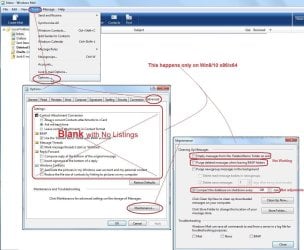
  • WinMailAdvanceOptionsBlank.jpg
    WinMailAdvanceOptionsBlank.jpg
    138.1 KB · Views: 93
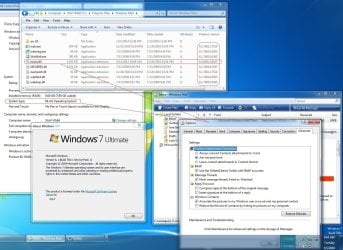
  • Win7x64AdvancedTab+FileVersions.jpg
    Win7x64AdvancedTab+FileVersions.jpg
    184.7 KB · Views: 112
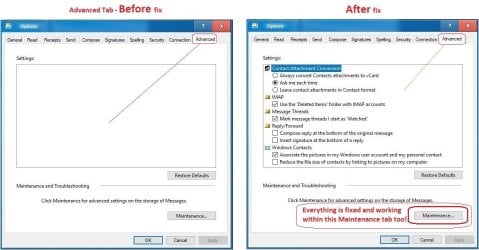
  • AdvancedTabBefore&After_fixed.jpg
    AdvancedTabBefore&After_fixed.jpg
    79.1 KB · Views: 50
  • CheckManually.jpg
    CheckManually.jpg
    131.8 KB · Views: 136
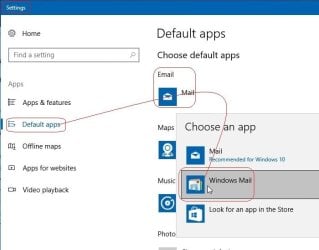
  • Win10_SetDefault.jpg
    Win10_SetDefault.jpg
    31.8 KB · Views: 33
Last edited by a moderator:
I really think that as this thread is entitled: How to Reinstate Windows Mail on Windows 7, shouldn't we be sticking to that rather than discussing the merits and foibles of another mail client. Maybe they should be split off into a new thread for that purpose?
Yeah, well said and have to agree it's time to get back On-Topic, and am willing to admit I'm probably the main offender for the side-tracks. :zip:

Also a good idea if someone could start a new thread on Windows Live Mail?

Cheers pB
 

My Computer

Computer Manufacturer/Model Number
Self-assembled
OS
Win7 Ultimate 64bit Retail
CPU
Intel i7 960 quad core
Motherboard
Intel DX58SO2 Extreme
Memory
12 GB Kingston DDR 3 1300
Graphics Card(s)
PCI Express Gigabyte GTX 550 Ti
Sound Card
Gigabyte GTX 550 Ti Graphics/5 Sound card
Monitor(s) Displays
Samsung WS Syncmaster S23A350H
Screen Resolution
1920 x 1080
Hard Drives
OS on 128 GB Corsair SSD SATA 3 + Storage on 1 TB Western Digital Black SATA 2
Case
Cooler Master CM690 II Advanced Mid Tower
Cooling
CPU, top, front and rear extractor fans
Keyboard
Microsoft Intellitype Wireless Multimedia
Mouse
Microsoft Intellipoint2 Wireless
Internet Speed
100 MB/sec Theoretical max. Actual average 0.5MB/sec
Other Info
Back-up PC with Vista Ultimate OEM 32bit. Intel i5 2400 Quad Core CPU, DH67CL mobo, 8 GB Kingston DDR3 1300 RAM,
If you want to know what Microsoft means by "Photo Email" use the help link in WLM. Apparently it involves storing the full sized photo(s) on their server and attaching a "thumbnail link" to the email. If the recipient wants to have the full sized version they save it by going to Microsoft's servers using the thumbnail link and downloading it.
Thanks for that info roncerr. It's not the kind of service I would ever be involved in. As I said in an earlier post, I disabled any interactive elements in WinLiveMail. If I want to offer that kind of info I'd just use an upload web base like TinyPic.com or Uploading.com. However, I will have a look in order to increase my knowldge base.

Update: Checked out Photo Email and now understand what you're saying. Basically the photos in an email are stored on a Microsoft web site, and upgraded. The recipient of the email only sees thumbnails of the photos, and must go to the web site to see the full size photos and download them.

I can't really see the point of that service. My photos are upgraded and edited before I send them out, and I don't like the idea my personal photos being held on their web site. What's more, why upload them to MS and then download them at the other end, when you can upload them direct to the recipient?

Cheers PB :)
 
Last edited:

My Computer

Computer Manufacturer/Model Number
Self-assembled
OS
Win7 Ultimate 64bit Retail
CPU
Intel i7 960 quad core
Motherboard
Intel DX58SO2 Extreme
Memory
12 GB Kingston DDR 3 1300
Graphics Card(s)
PCI Express Gigabyte GTX 550 Ti
Sound Card
Gigabyte GTX 550 Ti Graphics/5 Sound card
Monitor(s) Displays
Samsung WS Syncmaster S23A350H
Screen Resolution
1920 x 1080
Hard Drives
OS on 128 GB Corsair SSD SATA 3 + Storage on 1 TB Western Digital Black SATA 2
Case
Cooler Master CM690 II Advanced Mid Tower
Cooling
CPU, top, front and rear extractor fans
Keyboard
Microsoft Intellitype Wireless Multimedia
Mouse
Microsoft Intellipoint2 Wireless
Internet Speed
100 MB/sec Theoretical max. Actual average 0.5MB/sec
Other Info
Back-up PC with Vista Ultimate OEM 32bit. Intel i5 2400 Quad Core CPU, DH67CL mobo, 8 GB Kingston DDR3 1300 RAM,
If you want to send all your friends all the pictures of your vacation in full res, their email client will be slowed down or the file size would not be allowed by either yours or their ISP. With Photo Mail they all get to see the thumbnails and can selectively download the hi-res photos. I also agree we're getting off-topic and if anyone asks a question about why the tutorial exists, either point them to earlier posts or to a new "comparison" topic.
 
Last edited:

My Computer

Computer type
PC/Desktop
Computer Manufacturer/Model Number
OQO 2+
OS
Windows 8 Pro w/MC 32-bit
CPU
Intel Atom 1.86 GHz
Motherboard
OQO 2+
Memory
2 GB
Graphics Card(s)
Intel GMA 500
Sound Card
IDT
Monitor(s) Displays
LCD
Screen Resolution
800 x 480 (portable) 1280 x 1024 (docked)
Hard Drives
64 GB SSD
PSU
9 Ah Battery (portable) or OQO Brick (docked)
Case
Shirt Pocket Sized
Cooling
Tiny Fan
Keyboard
Slide out (portable) DiNovo Edge (docked)
Mouse
Eraser head (portable) Logitech Bluetooth (docked)
Internet Speed
WWAN or 802.11G (portable) T1 (docked)
Browser
IE 10
Other Info
DVD-RW OQO Docking Station
If you want to send all your friends all the pictures of your vacation in full res, their email client will be slowed down or the file size would not be allowed be either yours or their ISP. With Photo Mail they all get to see the thumbnails and can selectively download the hi-res photos. I also agree we're getting off-topic and if anyone asks a question about why the tutorial exists, either point them to earlier posts or to a new "comparison" topic.
That's a fair point, and must admit that in past situations where the file size was excessive I've used TinyPic.com or Uploading.com to upload pics to their site, and just sent the link to my friends. Most times I just send them in standard def and have sent batches of up to 40 pics zipped without problems.

Anyhows, better finish this discussion here as agreed it's off-topic. Good feed-back though.

Cheers PB
 

My Computer

Computer Manufacturer/Model Number
Self-assembled
OS
Win7 Ultimate 64bit Retail
CPU
Intel i7 960 quad core
Motherboard
Intel DX58SO2 Extreme
Memory
12 GB Kingston DDR 3 1300
Graphics Card(s)
PCI Express Gigabyte GTX 550 Ti
Sound Card
Gigabyte GTX 550 Ti Graphics/5 Sound card
Monitor(s) Displays
Samsung WS Syncmaster S23A350H
Screen Resolution
1920 x 1080
Hard Drives
OS on 128 GB Corsair SSD SATA 3 + Storage on 1 TB Western Digital Black SATA 2
Case
Cooler Master CM690 II Advanced Mid Tower
Cooling
CPU, top, front and rear extractor fans
Keyboard
Microsoft Intellitype Wireless Multimedia
Mouse
Microsoft Intellipoint2 Wireless
Internet Speed
100 MB/sec Theoretical max. Actual average 0.5MB/sec
Other Info
Back-up PC with Vista Ultimate OEM 32bit. Intel i5 2400 Quad Core CPU, DH67CL mobo, 8 GB Kingston DDR3 1300 RAM,
Wait - Dosen't WLM *CLIENT* store ON local PC?

Someone (Ronccer?) wrote --
"...I also use it only for email but I do one more thing with it. I save certain emails and of course my contacts on my computer so that I will always have them even when there is no [COLOR=#0072bc! important][COLOR=#0072bc! important]internet [COLOR=#0072bc! important]access[/COLOR][/COLOR][/COLOR]. I've been saving emails since 2001. My brother, for his law practice, left all his emails on yahoo.com email. One day they were all gone and replaced with spam. Yahoo told him "sorry you must have been hijacked by somone who guessed your password...use a better password". That can't happen to me if I keep my emails and contacts on my computer and make backups. It doesn't matter if Microsoft looses them or I loose internet connectivity since I have them. So I send, receive, and SAVE with my email client..."

Are we all talking about the same software here? I'm a bit confused.
(Pls understand I've only spent about 5 minutes inside WLM-client, but trying to decide if it will meet my needs {which were and are well met by Outlook Express and Windows Mail} -- and are basically to (a) not have to access or depend on a website {webmail} to access or store my old email or addresses} and (b) send and receive email with and without attachments, search old stored email, etc.).

So when Ronccer(?) (or maybe it was elsewhere on this thread) talks about having having to jump through extra hoops to force WLM to store his mail on his local PC, I HOPE he's talking about WLM-webmail, not WLM-client. Right?
Doesn't the optional downloadable WLM-client, like any POP email client automatically keep received emails and of course the address book on the local machine? Or is it some weird client that's a hybrid of webmail and local client?
Or is my confusion because I always use POP and someone was talking about using IMAP in the mail client to talk to their email account (and IIRR IMAP basically leaves mail out on the server)?

Can anyone unconfuse me so I know if the WLM-client is a real local client -- or whether (to bring this back to on-topic) I'd need to get the Vista Windows Mail, or some non-microsoft mail client) running under Win7 to have that?

Alex
 

My Computer

Computer Manufacturer/Model Number
various - two home built from MB up. One ancient Toshiba laptop
OS
Win 7 Premium, Vista Ultimate, XP Pro
CPU
Two AMDs. Don't have access to specs at the moment
Motherboard
MSI
Memory
2GB on all systems
Someone (Ronccer?) wrote --
"...I also use it only for email but I do one more thing with it. I save certain emails and of course my contacts on my computer so that I will always have them even when there is no [COLOR=#0072bc! important][COLOR=#0072bc! important]internet [COLOR=#0072bc! important]access[/COLOR][/COLOR][/COLOR]. I've been saving emails since 2001. My brother, for his law practice, left all his emails on yahoo.com email. One day they were all gone and replaced with spam. Yahoo told him "sorry you must have been hijacked by somone who guessed your password...use a better password". That can't happen to me if I keep my emails and contacts on my computer and make backups. It doesn't matter if Microsoft looses them or I loose internet connectivity since I have them. So I send, receive, and SAVE with my email client..."

Are we all talking about the same software here? I'm a bit confused.
(Pls understand I've only spent about 5 minutes inside WLM-client, but trying to decide if it will meet my needs {which were and are well met by Outlook Express and Windows Mail} -- and are basically to (a) not have to access or depend on a website {webmail} to access or store my old email or addresses} and (b) send and receive email with and without attachments, search old stored email, etc.).

So when Ronccer(?) (or maybe it was elsewhere on this thread) talks about having having to jump through extra hoops to force WLM to store his mail on his local PC, I HOPE he's talking about WLM-webmail, not WLM-client. Right?
Doesn't the optional downloadable WLM-client, like any POP email client automatically keep received emails and of course the address book on the local machine? Or is it some weird client that's a hybrid of webmail and local client?
Or is my confusion because I always use POP and someone was talking about using IMAP in the mail client to talk to their email account (and IIRR IMAP basically leaves mail out on the server)?

Can anyone unconfuse me so I know if the WLM-client is a real local client -- or whether (to bring this back to on-topic) I'd need to get the Vista Windows Mail, or some non-microsoft mail client) running under Win7 to have that?

Alex
Hi Alex,

I have been using Windows Live Mail now for over three weeks as my default mail client, and do not use it as a web based client such as HotMail, etc. My emails are received either at the web mail site of Yahoo or my ISP, and auto transferred from there to WinLiveMail.

In addition I never log into Windows Live so the web based functions are irrelevant.

1. Contacts are retained on the hard drive via the following pathway, (you need to allow hidden folders to be seen to follow the path shown):

Start Orb --> User Name --> AppData --> Local --> Microsoft --> Windows Live Contacts.

2. Received and sent emails are auto downloaded and stored on your hard drive under AppData, the same location used by WinMail. The only differnece is WinLiveMail stores them in the individual Accounts folders, whereas WinMail stores them in one folder named Local Folders. This pathway shows where they are stored:

Start Orb --> User Name --> AppData --> Local --> Microsoft --> Windows Live Mail --> Account Name (eg "Alex", or whatever name you give you account)

3. Emails can be viewed, edited, and moved around in or from sub-folders of the Accounts folders in the left panel of the main window of WinLiveMail. In other words, you can do all the same functions with them that you can in WinMail or Outlook.

Sub-folders include the normal Inbox, Sent Items, etc.

4. You do not need to log in to Windows Live in any form.

5. When emails are exported from WinMail and imported into WLM they are stored in sub-folders of Storage Folders in the left panel of WLM main window.

6. If you export your accounts from Outlook and save them to a folder on your desktop, when you import them to Accounts in WLM, they are set up ready to use with you user name and password already in them. See post here.

Apart from changes in the view format, and location of command buttons, as far as I'm concerned there is absolutely no difference to using Windows Mail. In fact now that I'm used to it, I prefer it to Windows Mail. It has more options than WinMail, and is much easier to set up accounts. All you need put in is your ISP user name and password and it fills in the POP3 & SMTP protocol. And will direct you to links for accounts that use IMAP such as GMail to show how to set it up. It also has a lot more colors for text, plus emoticons, etc.

If you want any help in using it, private message me and I'll walk you through it. PMs can be sent by clicking on the user name at the top left of this post; in my case, "Poppa Bear".

Update: Re roncerr's statement in the post below
Yes. But it also logs in to Live website where your normal online contacts are stored. We should start a new thread about WLM annoyances, but there are 3 contact lists: online (default), working offline, and Explorer Contacts. I'd suggest experimenting with the WLM client and contact lists before using it.
His statement is true that the contacts are stored in a web base, and there could be discrepancies between the web list and the list on your hard drive. However, from a practical point of view it makes no difference if you're using WinLiveMail purely as a mail client, because it doesn't log into those contacts unless you log onto Windows Live, or send a specific "Photo e-mail"; which is different to simply sending photos as normal attachments.

At start up of WLM you can choose an option to turn on/off a prompt to log onto Windows Live. This option is found here:

Open: WinLiveMail --> Tools --> Options (Menu Bar) --> Connection tab --> Click either: Sign in/Stop signing in --> Apply --> OK

You can demonstrate that your contacts are stored on the hard drive by turning off your modem and opening WinLiveMail. The contacts are accessible via the Contact button, in the bottom left panel of the main window of WLM.

I keep all my contacts copied to a normal folder and stored on the hard drive as well as in Contacts. To do this, all you do is go to the Contacts folder:

Start Orb --> User Name --> Contacts --> Highlight all your contacts and copy/paste to a normal folder.

To import your contacts from the Contacts folder to WinLiveMail is simple:

Open WinLiveMail --> Contacts --> File --> Import --> Address book for current windows user. You're done.

Hope this helps. Cheers PB
 
Last edited:

My Computer

Computer Manufacturer/Model Number
Self-assembled
OS
Win7 Ultimate 64bit Retail
CPU
Intel i7 960 quad core
Motherboard
Intel DX58SO2 Extreme
Memory
12 GB Kingston DDR 3 1300
Graphics Card(s)
PCI Express Gigabyte GTX 550 Ti
Sound Card
Gigabyte GTX 550 Ti Graphics/5 Sound card
Monitor(s) Displays
Samsung WS Syncmaster S23A350H
Screen Resolution
1920 x 1080
Hard Drives
OS on 128 GB Corsair SSD SATA 3 + Storage on 1 TB Western Digital Black SATA 2
Case
Cooler Master CM690 II Advanced Mid Tower
Cooling
CPU, top, front and rear extractor fans
Keyboard
Microsoft Intellitype Wireless Multimedia
Mouse
Microsoft Intellipoint2 Wireless
Internet Speed
100 MB/sec Theoretical max. Actual average 0.5MB/sec
Other Info
Back-up PC with Vista Ultimate OEM 32bit. Intel i5 2400 Quad Core CPU, DH67CL mobo, 8 GB Kingston DDR3 1300 RAM,
Wait - Dosen't WLM *CLIENT* store ON local PC?

Yes. But it also logs in to Live website where your normal online contacts are stored. We should start a new thread about WLM annoyances, but there are 3 contact lists: signed-in, not-signed-in, and Explorer Contacts. I'd suggest experimenting with the WLM client and contact lists before using it.

To add to the confusion, you also have the ability to "work offline". It appears that the signed-in and not-signed-in contact lists remain unaffected except that the lack of internet access will prevent the web-based version of signed-in from syncing with the local version of signed-in.
 
Last edited:

My Computer

Computer type
PC/Desktop
Computer Manufacturer/Model Number
OQO 2+
OS
Windows 8 Pro w/MC 32-bit
CPU
Intel Atom 1.86 GHz
Motherboard
OQO 2+
Memory
2 GB
Graphics Card(s)
Intel GMA 500
Sound Card
IDT
Monitor(s) Displays
LCD
Screen Resolution
800 x 480 (portable) 1280 x 1024 (docked)
Hard Drives
64 GB SSD
PSU
9 Ah Battery (portable) or OQO Brick (docked)
Case
Shirt Pocket Sized
Cooling
Tiny Fan
Keyboard
Slide out (portable) DiNovo Edge (docked)
Mouse
Eraser head (portable) Logitech Bluetooth (docked)
Internet Speed
WWAN or 802.11G (portable) T1 (docked)
Browser
IE 10
Other Info
DVD-RW OQO Docking Station
...Re roncerr's statement in the post below...It is true the contacts are stored in a web base, but from a practical point of view it makes no difference unless a contact is lost from the web base, in which case you simply reinstall it from your off line contacts under start Orb --> User Name --> Contacts.

I keep all my contacts copied to a normal folder and stored on the hard drive as well as in Contacts. To do this, all you do is highlight all your contacts in Contact folder and copy/paste to a normal folder.

To import your contacts from the Contact folder it's simple:

Open WinLiveMail --> Contacts (bottom left panel) --> File --> Import --> Address book for current windows user. You're done.

The problem is WLM doesn't use "Explorer Contacts" by default. Any additions or deletions made to the default (web based) list are NOT automatically reflected in either the "not-singned-in-work-offline" contact list or the "Contacts" list in Windows Explorer. It looks like you have to keep importing/exporting things around to keep them the same. Without extra effort the 3 lists will easily diverge from one another. So to bring things back to the topic of "Windows Vista Mail on Windows 7", that may be the only way to use only one contact list which resides only in one place on your PC, if that is what you want. (At least until MS figures out how to keep the 3 lists synced.)

From 13 months ago: http://forums.cnet.com/5208-19169_102-0.html?threadID=343001

Update: Poppa Bear's posts indicate that you can use WLM without using web based contacts: Don't "sign-in". (Use the connection option for that.) However they are not those in the "Explorer Contacts" folder used by WM but are built in to the WLM client and are only visible when not "signed in" (which BTW is different from not having internet access or working offline).
 
Last edited:

My Computer

Computer type
PC/Desktop
Computer Manufacturer/Model Number
OQO 2+
OS
Windows 8 Pro w/MC 32-bit
CPU
Intel Atom 1.86 GHz
Motherboard
OQO 2+
Memory
2 GB
Graphics Card(s)
Intel GMA 500
Sound Card
IDT
Monitor(s) Displays
LCD
Screen Resolution
800 x 480 (portable) 1280 x 1024 (docked)
Hard Drives
64 GB SSD
PSU
9 Ah Battery (portable) or OQO Brick (docked)
Case
Shirt Pocket Sized
Cooling
Tiny Fan
Keyboard
Slide out (portable) DiNovo Edge (docked)
Mouse
Eraser head (portable) Logitech Bluetooth (docked)
Internet Speed
WWAN or 802.11G (portable) T1 (docked)
Browser
IE 10
Other Info
DVD-RW OQO Docking Station
Replying to Poppabear

Hi,
Your detailed post in reply to my "" post is exactly what I wanted to know -- plus surely future useful info on where WLM-client stores it's stuff.

Much thanks!

You wrote "6. If you export your accounts from Outlook and save them to a folder on your desktop, when you import them to Accounts in WLM, they are set up ready to use with you user name and password already in them. See post here."

I'll be surely trying to export contacts and massive amounts of old email from Windows Mail on a Vista computer, and then probably trying to inport it into WLM-client on a clean install of Win7 (rather than doing an upgrade of Win-7 onto my Vista machine.)

I'm sure there are many tutorials on that particular export then import route, but if you can point me to one and tell me any glaring caveats, I'd appreciate it.

Alex
 

My Computer

Computer Manufacturer/Model Number
various - two home built from MB up. One ancient Toshiba laptop
OS
Win 7 Premium, Vista Ultimate, XP Pro
CPU
Two AMDs. Don't have access to specs at the moment
Motherboard
MSI
Memory
2GB on all systems
Import emails from WinMail to WinLiveMail Beta when both programs are active in Windows 7.

Revised method. The method originally shown in this post did work, but created duplicate folders on the HD in WinLiveMail under AppData.

After each step there is a screen shot of what you should see.

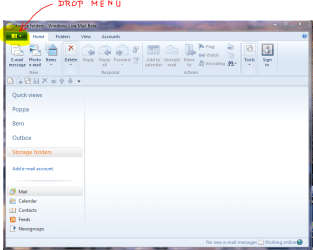
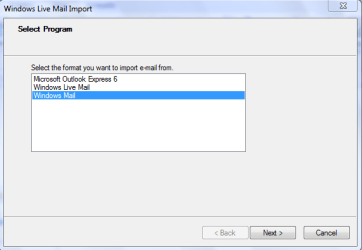
1. Open: WinLiveMail --> Click: Top left tab (in earlier versions it will be Menu Bar --> File) --> Drop down menu --> Import Messages --> Highlight: Windows Mail.


Drop Menu.PNG ==> Import 1.PNG


2. Click: Next. It should auto select Windows Mail as the source folder.​


Import 2.PNG


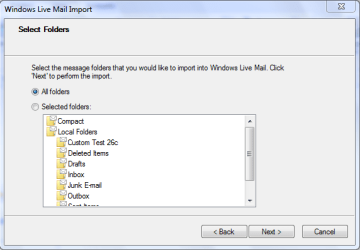
3. Click: Next.​


Import 3.PNG


4. Leave exactly as is with "All Folders" dotted. Click: Next.​


Import 4.PNG


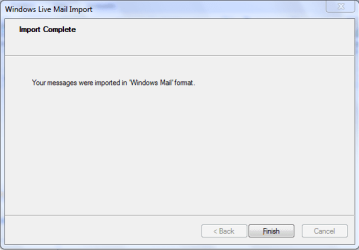
5. Click: Finish.​

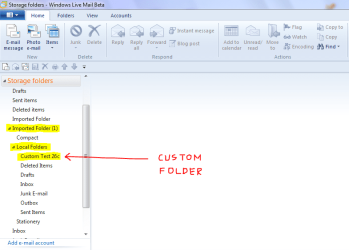
All your emails and folders will be saved in Storage Folders in the sub-foder named Local Folders.

Notice it has saved the custom created folder from WinMail named Custom Test, and re-named it to Custom Test 26c.​


Import 5.PNG


6. Manually move all your emails from the sub-folders of Local Folders, to the appropriate sub-folders of the account of your choice. In this example, they are moved to the account Bern.​

To do this, highlight all the emails in Inbox, for example --> Right click --> Move to folder --> Select: Inbox in Bern account --> OK​


Import 6.PNG


After all the emails are shifted, delete the folder named Imported Folders (1) from Storage Folders.​

For a thorough clean-up. Open: Start Orb --> User name --> AppData --> Local --> Microsoft --> Windows Live Mail --> Storage Folders --> Delete the duplicate folders: Recovered Items (1) & Imported Folder (1).

Hope this helps.​

Cheers PB​
 
Last edited:

My Computer

Computer Manufacturer/Model Number
Self-assembled
OS
Win7 Ultimate 64bit Retail
CPU
Intel i7 960 quad core
Motherboard
Intel DX58SO2 Extreme
Memory
12 GB Kingston DDR 3 1300
Graphics Card(s)
PCI Express Gigabyte GTX 550 Ti
Sound Card
Gigabyte GTX 550 Ti Graphics/5 Sound card
Monitor(s) Displays
Samsung WS Syncmaster S23A350H
Screen Resolution
1920 x 1080
Hard Drives
OS on 128 GB Corsair SSD SATA 3 + Storage on 1 TB Western Digital Black SATA 2
Case
Cooler Master CM690 II Advanced Mid Tower
Cooling
CPU, top, front and rear extractor fans
Keyboard
Microsoft Intellitype Wireless Multimedia
Mouse
Microsoft Intellipoint2 Wireless
Internet Speed
100 MB/sec Theoretical max. Actual average 0.5MB/sec
Other Info
Back-up PC with Vista Ultimate OEM 32bit. Intel i5 2400 Quad Core CPU, DH67CL mobo, 8 GB Kingston DDR3 1300 RAM,
WinLiveMail Contacts

How Contacts/Sync function works in Windows Live Mail .

Off Topic

This is not the correct forum for this post, but since a number of posts have been made in this thread re the topic of how the Sync function works with contacts, I'm posting this as a one off to clarify this function.

In Windows Live Mail there is an option to Sign In/Stop signing in on start up of WLM, (Windows Live Mail). under the following pathway:

Open: WLM --> Menu Bar --> Tools --> Options --> Connections Tab --> Sub-heading: Connecting to Windows Live services --> Sign in or Stop signing in.

In the current version of WLM, (not Wave 4), the default option is with Sign in switched off. When it is switched on, a screen displays asking for your email address and password. It also has a box that can be ticked to: Remember my password.

Once it's turned on, if you then choose Stop signing in, a warning comes up saying: "If you stop signing in, you will stop synchronizing contacts and calendar events for.... (then it shows your email log in address)".


A) With the "Sign in" function switched on and:

1. Remember my password --> Ticked

At start up a splash screen briefly displays showing that WLM is signing in, and the main window opens with all contacts available.

2. Remember my password --> Unticked.

At start up a static splash screen displays, showing the option to sign in by filling in your email address and password. It also has a Cancel option.

If the Cancel option is clicked:

- WLM opens without signing in.

- All Contacts are shown synchronized to the same contacts list as if signed in.


B) With the "Stop signing in" option switched on.

- The splash screen at start up has no options and displays briefly until WLM is open.

- WinLiveMail will be permanently logged-off, and will function like a normal email client such as Windows Mail, with only one contacts list.

- The Contacts list will be empty but can be filled by importing your current contacts from the Contacts folder on your hard drive

- The Contacts list will not be synchronized with the contacts list shown when Sign in is activated. This means if you switch back to Sign in option you will have to update your contact list shown when signed in. It also means you can have your web based contacts list empty so your personal contacts aren't out there floating in cyber-space, while still using your hard drive contacts list!

- None of the signed in functions will work, such as sending a Photo e-mail.

Having Sign in switched on, and Remember my password switched off, gives you the best of both worlds with the option to log in or not at every start up. However, if you don't use the web based functions very often, it's a pain in the butt having to click Cancel every time you open WLM.

Notes: It's interesting that the folder Windows Live Contacts under AppData has only one sub-folder entry if Sign in has never been used. This is obviously the hard drive contacts.

After signing in for the first time as per option (A) above, it creates two additional folders for the synchronized contacts. Contacts cannot be added to the contacts list while you're not signed in.

If the first of these new folders is removed, no contacts can be seen whether signed in or not. And even though it re-creates this folder there are no contacts.

If the second synchronized folder is removed and the first one left, after signing in, it recreates the other missing folder and contacts can be seen whether signed in or not. Obviously the first folder connects to the web based contacts.

All WinLiveMail really needs now is an option to display only one set of Local Folders, and it would be a brilliant email program with many options for either client or web based functions.

Hope this clears things up. Cheers PB
 
Last edited:

My Computer

Computer Manufacturer/Model Number
Self-assembled
OS
Win7 Ultimate 64bit Retail
CPU
Intel i7 960 quad core
Motherboard
Intel DX58SO2 Extreme
Memory
12 GB Kingston DDR 3 1300
Graphics Card(s)
PCI Express Gigabyte GTX 550 Ti
Sound Card
Gigabyte GTX 550 Ti Graphics/5 Sound card
Monitor(s) Displays
Samsung WS Syncmaster S23A350H
Screen Resolution
1920 x 1080
Hard Drives
OS on 128 GB Corsair SSD SATA 3 + Storage on 1 TB Western Digital Black SATA 2
Case
Cooler Master CM690 II Advanced Mid Tower
Cooling
CPU, top, front and rear extractor fans
Keyboard
Microsoft Intellitype Wireless Multimedia
Mouse
Microsoft Intellipoint2 Wireless
Internet Speed
100 MB/sec Theoretical max. Actual average 0.5MB/sec
Other Info
Back-up PC with Vista Ultimate OEM 32bit. Intel i5 2400 Quad Core CPU, DH67CL mobo, 8 GB Kingston DDR3 1300 RAM,
Holy Cow!!!!!!!!!!

This is ABSOLUTELY incredible and I can not thank you enough. I switched to Win 7 as soon as it came out and was tremendously disappointed that there was no longer a Windows mail or Outlook Express type app. I HATED Live Mail and saw it as a way for MS to take more control of my personal life. I Googled for months to find a fix like this. Sometimes I would find a supposed link to one and then find out that what they described no longer worked i.e. it had been blocked or disabled by MS I assume. I don't care for Outlook because of the bloat factor. I still use Lotus Organizer and have used versions 2 through 6.1 (final one) since my first computer in 1994.

I don't want my emails stored out in the cloud. I want them on my computer. And I feel that what MS did was just so unfair and control Freakish. I have been using Thunderbird as a last resort and compared to Windows Mail it really is a Piece-O-crap. Sometimes I'll use Gmail when traveling and I can not send my business mail from the hotel.

This sounds silly I'm sure but for me these instructions are life changing. I am using email all day. This is absolutely fantastic!! Thanks again. I'm now going to go and import all the various Thunderbird and Live Mail etc into this sorely missed program.
biggrin.gif
 

My Computer

Computer type
PC/Desktop
Computer Manufacturer/Model Number
Blackbird 002 (rebuilt-upgraded)
OS
Win 7 Ultimate SP1 64 bit
CPU
Core i7 950 3.06 GHz
Motherboard
GigaByte
Memory
24 gigs Corsair XMS3
Graphics Card(s)
NVIDIA GeForce GTX 460
Monitor(s) Displays
2 X Dell flat screen E228 WFP
Screen Resolution
1680 x 1050
Hard Drives
Raptor RAID 0 array & 3 other internal and several external drives. Just added 1TB Samsung SSD
Case
Blackbird 002
Cooling
liquid
Keyboard
Logitech wireless
Mouse
Logitech wireless
Internet Speed
14.63 / 2.11 Mbps
Antivirus
Fsecure
Browser
Firefox
This is ABSOLUTELY incredible and I can not thank you enough. I switched to Win 7 as soon as it came out and was tremendously disappointed that there was no longer a Windows mail or Outlook Express type app. I HATED Live Mail and saw it as a way for MS to take more control of my personal life. I Googled for months to find a fix like this. Sometimes I would find a supposed link to one and then find out that what they described no longer worked i.e. it had been blocked or disabled by MS I assume. I don't care for Outlook because of the bloat factor. I still use Lotus Organizer and have used versions 2 through 6.1 (final one) since my first computer in 1994.

I don't want my emails stored out in the cloud. I want them on my computer. And I feel that what MS did was just so unfair and control Freakish. I have been using Thunderbird as a last resort and compared to Windows Mail it really is a Piece-O-crap. Sometimes I'll use Gmail when traveling and I can not send my business mail from the hotel.

This sounds silly I'm sure but for me these instructions are life changing. I am using email all day. This is absolutely fantastic!! Thanks again. I'm now going to go and import all the various Thunderbird and Live Mail etc into this sorely missed program.
biggrin.gif
Hi kewl1 and thanks for the kind words. It's made my day that this post has helped you. However, a lot of the thanks must go to roncerr.

He brought this issue to my attention with numerous posts and PMs. If he hadn't persisted in raising the problem, I would never have known it existed because when I first installed WinLiveMail it was a later version to his, and by default, was switched to "Stop signing in". So I just used the contacts list like a normal email client oblivious to the other meaning of the Sync function, aside from acting like a "Send/receive mail" button.

Cheers PB
 

My Computer

Computer Manufacturer/Model Number
Self-assembled
OS
Win7 Ultimate 64bit Retail
CPU
Intel i7 960 quad core
Motherboard
Intel DX58SO2 Extreme
Memory
12 GB Kingston DDR 3 1300
Graphics Card(s)
PCI Express Gigabyte GTX 550 Ti
Sound Card
Gigabyte GTX 550 Ti Graphics/5 Sound card
Monitor(s) Displays
Samsung WS Syncmaster S23A350H
Screen Resolution
1920 x 1080
Hard Drives
OS on 128 GB Corsair SSD SATA 3 + Storage on 1 TB Western Digital Black SATA 2
Case
Cooler Master CM690 II Advanced Mid Tower
Cooling
CPU, top, front and rear extractor fans
Keyboard
Microsoft Intellitype Wireless Multimedia
Mouse
Microsoft Intellipoint2 Wireless
Internet Speed
100 MB/sec Theoretical max. Actual average 0.5MB/sec
Other Info
Back-up PC with Vista Ultimate OEM 32bit. Intel i5 2400 Quad Core CPU, DH67CL mobo, 8 GB Kingston DDR3 1300 RAM,
Well many thanks to RONCERR as well. This is great and I must start spending mre time in this forum.


Thanks again
biggrin.gif
 

My Computer

Computer type
PC/Desktop
Computer Manufacturer/Model Number
Blackbird 002 (rebuilt-upgraded)
OS
Win 7 Ultimate SP1 64 bit
CPU
Core i7 950 3.06 GHz
Motherboard
GigaByte
Memory
24 gigs Corsair XMS3
Graphics Card(s)
NVIDIA GeForce GTX 460
Monitor(s) Displays
2 X Dell flat screen E228 WFP
Screen Resolution
1680 x 1050
Hard Drives
Raptor RAID 0 array & 3 other internal and several external drives. Just added 1TB Samsung SSD
Case
Blackbird 002
Cooling
liquid
Keyboard
Logitech wireless
Mouse
Logitech wireless
Internet Speed
14.63 / 2.11 Mbps
Antivirus
Fsecure
Browser
Firefox
Mark, Thank you!
I´followed all your instructions and I got it!
Even when you posted this explanations on2009, it was now when I got a new computer with windows 7 Pro and I was missing my Windows Mail. I hate Windows Live Mail.
Again, thanks a lot
 

My Computer

OS
Windows 7 Professional
Well many thanks to RONCERR as well. This is great and I must start spending mre time in this forum.


Thanks again
biggrin.gif
There are two other posts that might be helpful in setting up Windows Live Mail. The first one deals with the folders view of accounts in the left panel found here.

The second one is a general review of WinLiveMail that I did in response to a request from Microsoft, after I had contacted them expressing the ground swell of opposition to WinLiveMail. It is found here.

Update: Apologies. Think I may have mis-read your original post. Thought you were referring to setting up WinLiveMail. Realise you probably were referring to enabling Windows Mail in Windows 7. Guess that's what comes from making posts off-topic.

Hope this helps. Cheers PB
 
Last edited:

My Computer

Computer Manufacturer/Model Number
Self-assembled
OS
Win7 Ultimate 64bit Retail
CPU
Intel i7 960 quad core
Motherboard
Intel DX58SO2 Extreme
Memory
12 GB Kingston DDR 3 1300
Graphics Card(s)
PCI Express Gigabyte GTX 550 Ti
Sound Card
Gigabyte GTX 550 Ti Graphics/5 Sound card
Monitor(s) Displays
Samsung WS Syncmaster S23A350H
Screen Resolution
1920 x 1080
Hard Drives
OS on 128 GB Corsair SSD SATA 3 + Storage on 1 TB Western Digital Black SATA 2
Case
Cooler Master CM690 II Advanced Mid Tower
Cooling
CPU, top, front and rear extractor fans
Keyboard
Microsoft Intellitype Wireless Multimedia
Mouse
Microsoft Intellipoint2 Wireless
Internet Speed
100 MB/sec Theoretical max. Actual average 0.5MB/sec
Other Info
Back-up PC with Vista Ultimate OEM 32bit. Intel i5 2400 Quad Core CPU, DH67CL mobo, 8 GB Kingston DDR3 1300 RAM,
No apologies necessary and yes you are right i.e. I am one of the ones who absolutely hated the new Live Mail. I'm so excited to be back with Windows Mail. I've spent hours converting and importing Thunderbird, Outlook and Live Mail files into Windows Mail on two computers.
Thanks again
 

My Computer

Computer type
PC/Desktop
Computer Manufacturer/Model Number
Blackbird 002 (rebuilt-upgraded)
OS
Win 7 Ultimate SP1 64 bit
CPU
Core i7 950 3.06 GHz
Motherboard
GigaByte
Memory
24 gigs Corsair XMS3
Graphics Card(s)
NVIDIA GeForce GTX 460
Monitor(s) Displays
2 X Dell flat screen E228 WFP
Screen Resolution
1680 x 1050
Hard Drives
Raptor RAID 0 array & 3 other internal and several external drives. Just added 1TB Samsung SSD
Case
Blackbird 002
Cooling
liquid
Keyboard
Logitech wireless
Mouse
Logitech wireless
Internet Speed
14.63 / 2.11 Mbps
Antivirus
Fsecure
Browser
Firefox
No apologies necessary and yes you are right i.e. I am one of the ones who absolutely hated the new Live Mail. I'm so excited to be back with Windows Mail. I've spent hours converting and importing Thunderbird, Outlook and Live Mail files into Windows Mail on two computers.
Thanks again
Thank you. Just to cover all bases in case you haven't seen it in the posts a few pages back, Microsoft brought out a security update KB978542. It is best to have this update, but once it's installed, it will stop WinMail from working.

If you had it installed before you did the steps in the tutorial, you don't need to do anything.

If you haven't got it, it's best to download and install it to protect your security. However, after it's installed you will then need to re-install the msoe.dll file from Step 4 of the tutorial on the opening page of this thread.

Cheers PB :)
 

My Computer

Computer Manufacturer/Model Number
Self-assembled
OS
Win7 Ultimate 64bit Retail
CPU
Intel i7 960 quad core
Motherboard
Intel DX58SO2 Extreme
Memory
12 GB Kingston DDR 3 1300
Graphics Card(s)
PCI Express Gigabyte GTX 550 Ti
Sound Card
Gigabyte GTX 550 Ti Graphics/5 Sound card
Monitor(s) Displays
Samsung WS Syncmaster S23A350H
Screen Resolution
1920 x 1080
Hard Drives
OS on 128 GB Corsair SSD SATA 3 + Storage on 1 TB Western Digital Black SATA 2
Case
Cooler Master CM690 II Advanced Mid Tower
Cooling
CPU, top, front and rear extractor fans
Keyboard
Microsoft Intellitype Wireless Multimedia
Mouse
Microsoft Intellipoint2 Wireless
Internet Speed
100 MB/sec Theoretical max. Actual average 0.5MB/sec
Other Info
Back-up PC with Vista Ultimate OEM 32bit. Intel i5 2400 Quad Core CPU, DH67CL mobo, 8 GB Kingston DDR3 1300 RAM,
Thanks Poppa Bear. Indeed I found it already installed. That sure is good to know though. It really irratates me how they want to have such control over what we can and can't to with our computers. We have a program that we love but now that it no longer suits their needs they do all they can to kill it
 

My Computer

Computer type
PC/Desktop
Computer Manufacturer/Model Number
Blackbird 002 (rebuilt-upgraded)
OS
Win 7 Ultimate SP1 64 bit
CPU
Core i7 950 3.06 GHz
Motherboard
GigaByte
Memory
24 gigs Corsair XMS3
Graphics Card(s)
NVIDIA GeForce GTX 460
Monitor(s) Displays
2 X Dell flat screen E228 WFP
Screen Resolution
1680 x 1050
Hard Drives
Raptor RAID 0 array & 3 other internal and several external drives. Just added 1TB Samsung SSD
Case
Blackbird 002
Cooling
liquid
Keyboard
Logitech wireless
Mouse
Logitech wireless
Internet Speed
14.63 / 2.11 Mbps
Antivirus
Fsecure
Browser
Firefox
Well now this is weird

I just found that on my desktop Windows Mail is no longer working. It was fine last night. I can open it and write an email and put it in the outbox but when I go to send it will tell me I am working "off line" and ask if I want to go online. When I choose to go on line the program grays out and needs to restart.

If I click on file, "work off line" is always checked. When I try to remove the check mark, the same thing happens ie the program grays out and restarts. It always asks if I want to notify MS and of course I just close that box. I hope I haven't done something to ruin the whole thing.:cry:
 

My Computer

Computer type
PC/Desktop
Computer Manufacturer/Model Number
Blackbird 002 (rebuilt-upgraded)
OS
Win 7 Ultimate SP1 64 bit
CPU
Core i7 950 3.06 GHz
Motherboard
GigaByte
Memory
24 gigs Corsair XMS3
Graphics Card(s)
NVIDIA GeForce GTX 460
Monitor(s) Displays
2 X Dell flat screen E228 WFP
Screen Resolution
1680 x 1050
Hard Drives
Raptor RAID 0 array & 3 other internal and several external drives. Just added 1TB Samsung SSD
Case
Blackbird 002
Cooling
liquid
Keyboard
Logitech wireless
Mouse
Logitech wireless
Internet Speed
14.63 / 2.11 Mbps
Antivirus
Fsecure
Browser
Firefox
Back
Top