
How to Read RSS Feeds with Windows Media Center
Information
If you have a media extender or use your TV as a PC display, why not do your news reading and Seven Forums surfing sitting on couch, controlling RSS reader and IE with Windows Media Center remote control.
This tutorial will show how to use your Windows Media Center as an RSS feed reader.
This tutorial will show how to use your Windows Media Center as an RSS feed reader.
Note
The N and KN editions of Windows 7 have all the features that normally come with each individual Windows 7 edition, except for Windows Media Player 12 and related programs, such as Windows Media Center or Windows DVD Maker.
The N editions of Windows 7 allow you to choose your own media player and software required to manage and play CDs, DVDs, and other digital media files. If you choose to use Windows Media Player 12, downloading it, along with related software, is free. Download Media Feature Pack for Windows 7 N with Service Pack 1 and Windows 7 KN with Service Pack 1 (KB968211) from Official Microsoft Download Center
The N editions of Windows 7 allow you to choose your own media player and software required to manage and play CDs, DVDs, and other digital media files. If you choose to use Windows Media Player 12, downloading it, along with related software, is free. Download Media Feature Pack for Windows 7 N with Service Pack 1 and Windows 7 KN with Service Pack 1 (KB968211) from Official Microsoft Download Center
Before starting you need to download and activate the Media Center RSS Reader plugin from OABsoftware. Plugin is freeware, free to use although creator accepts donations.
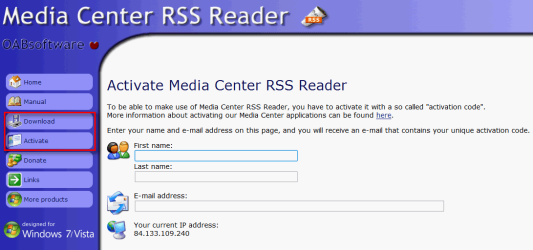
Click download button on the left to download. While downloading, click activate button to order an activation code. Please notice that plugin is completely safe and does not install any so called crapware on your computer. I have used WMC RSS Reader over three years now and have never had any issues with it.
PART ONE
Subscribe the Seven Forums RSS feed
WMC RSS Reader can only show news feeds subscribed using Internet Explorer version 8 or later. Here's how to subscribe the Seven Forums RSS feed in Internet Explorer:
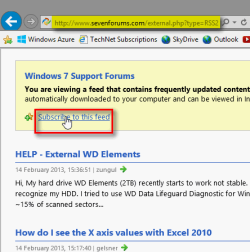
- Open IE, go to http://www.sevenforums.com/external.php?type=RSS2
- Click Subscribe to this feed:
- Click Subscribe to confirm your subscription:
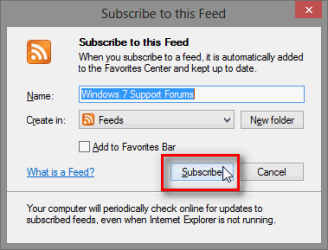
- When subscription is confirmed, continue to Part 2:

PART TWO
Setup and use WMC RSS Reader plugin
- When you have downloaded and installed plugin on your computer, launch WMC, click Extras on main menu:
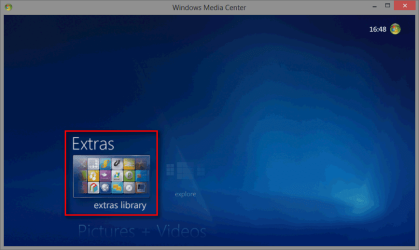
- Click Media Center Reader icon:
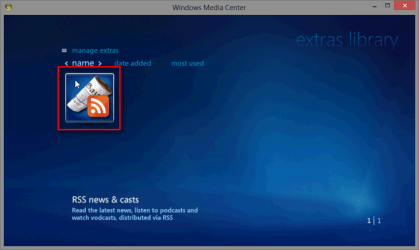
- Fill in your email you used to activate plugin and activation code, click Activate:
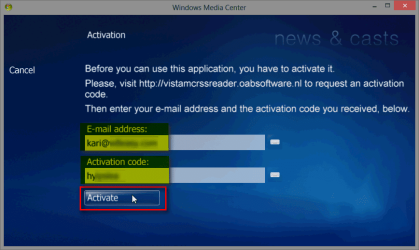
- Your activation will be confirmed. Click OK:

- Click again WMC RSS Reader icon in WMC Extras:
- You will now see the earlier subscribed Seven Forums RSS feed. Click it:
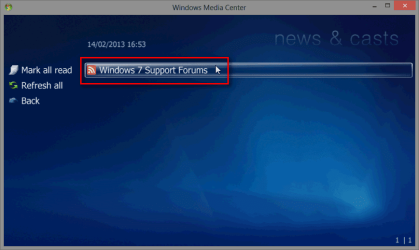
- Click any post to view it in WMC:
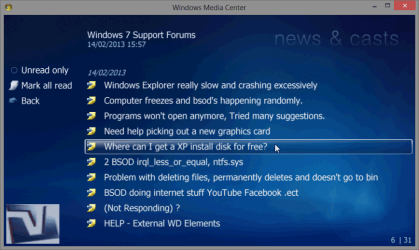
- Click Show Page to view it in browser in WMC:
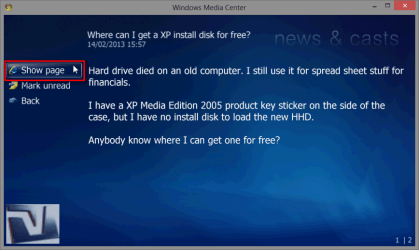
- You get a warning which can be dismissed. Select Don't ask me this again, click View Now:

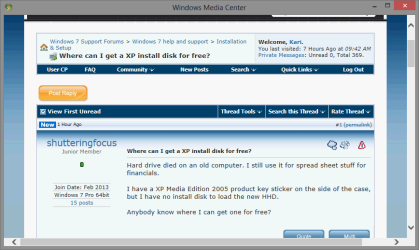
- Now you can surf the Seven Forums normally using Media Center:
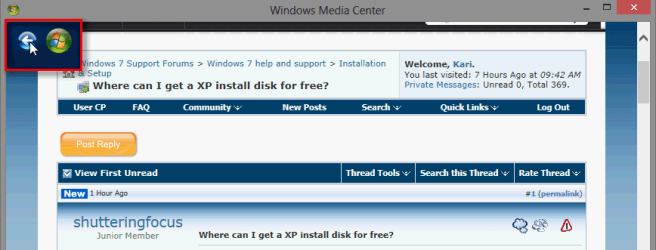
- When you are finished, click WMC controls to return to RSS Reader or Main Menu:
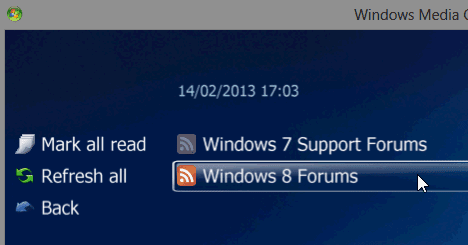
- You should also subscribe the Eight Forums RSS feed at Windows 8 Forums

Kari
Last edited by a moderator:


