
How to Create a Shortcut that Opens Directly to the "Settings Menu" in Windows Media Center
Information
This will show you how to download or create a shortcut that will open directly to the Settings Menu in Windows Media Center in Windows.
Note
Windows Media Center is not available in Windows 7 Starter and Windows 7 Home Basic editions.
The N and KN editions of Windows 7 have all the features that normally come with each individual Windows 7 edition, except for Windows Media Player 12 and related programs, such as Windows Media Center or Windows DVD Maker.
The N editions of Windows 7 allow you to choose your own media player and software required to manage and play CDs, DVDs, and other digital media files. If you choose to use Windows Media Player 12, downloading it, along with related software, is free.
Download Media Feature Pack for Windows 7 N with Service Pack 1 and Windows 7 KN with Service Pack 1 (KB968211) from Official Microsoft Download Center
Windows 8/8.1 Enterprise will not have Add features to Windows 8/8.1 available since there are not any features available to add in that edition.
Windows Media Center is available as an economical “media pack” add-on to your installed and activated Windows 8/8.1 Pro.
If you have Windows 8 Pro installed, then you can add Windows Media Center by buying the Windows 8 Media Center Pack.
If you have Windows 8.1 Pro installed, then you can add Windows Media Center by buying the Windows 8.1 Media Center Pack.
If you have Windows 8 installed, then you will need to buy the Windows 8 Pro Pack to have Media Center added and all the features of Windows 8 Pro.
If you have Windows 8.1 installed, then you will need to buy the Windows 8.1 Pro Pack to have Media Center added and all the features of Windows 8.1 Pro.
See: How to Add "Windows Media Center" to Windows 8 and 8.1
The N and KN editions of Windows 7 have all the features that normally come with each individual Windows 7 edition, except for Windows Media Player 12 and related programs, such as Windows Media Center or Windows DVD Maker.
The N editions of Windows 7 allow you to choose your own media player and software required to manage and play CDs, DVDs, and other digital media files. If you choose to use Windows Media Player 12, downloading it, along with related software, is free.
Download Media Feature Pack for Windows 7 N with Service Pack 1 and Windows 7 KN with Service Pack 1 (KB968211) from Official Microsoft Download Center
Windows 8/8.1 Enterprise will not have Add features to Windows 8/8.1 available since there are not any features available to add in that edition.
Windows Media Center is available as an economical “media pack” add-on to your installed and activated Windows 8/8.1 Pro.
If you have Windows 8 Pro installed, then you can add Windows Media Center by buying the Windows 8 Media Center Pack.
If you have Windows 8.1 Pro installed, then you can add Windows Media Center by buying the Windows 8.1 Media Center Pack.
If you have Windows 8 installed, then you will need to buy the Windows 8 Pro Pack to have Media Center added and all the features of Windows 8 Pro.
If you have Windows 8.1 installed, then you will need to buy the Windows 8.1 Pro Pack to have Media Center added and all the features of Windows 8.1 Pro.
See: How to Add "Windows Media Center" to Windows 8 and 8.1
EXAMPLE: Settings Menu in Windows Media Center

OPTION ONE
To Download the "Media Center - Settings Menu" Shortcut
1. Click on the Download button below to download the file below.
Media_Center-Settings_Menu.zip
Download
2. Save the .zip file to the desktop.
3. Open the .zip file and extract the Media Center - Settings Menu shortcut to the desktop.
4. Right click on the Media Center - Settings Menu shortcut, and click on Properties, General tab, and on the Unblock button.
NOTE: If you do not have a Unblock button under the General tab, then the shortcut is already unblocked and you can continue on to step 5.
5. In Vista and Windows 7, you can now Pin to Taskbar (Windows 7 only) or Pin to Start Menu, add to Quick Launch, assign a keyboard shortcut to it, or move this shortcut to where you like for easy use.
6. In Windows 8 and 8.1, you can Pin to Taskbar on desktop, Pin to Start screen, add to Quick Launch, assign a keyboard shortcut to it, or move this shortcut to where you like for easy use.
7. When done, you can delete the downloaded .zip file on the desktop if you like, or save it to use again.
OPTION TWO
To Manually Create the "Media Center - Settings Menu" Shortcut
1. Right click on a empty area on desktop, and click on New and Shortcut.
2. Copy and paste the location below into the location area, and click on the Next button. (see screenshot below)
Code:
%SystemRoot%\ehome\ehshell.exe /nostartupanimation /homepage:Options.Home.xml /PushStartPage:True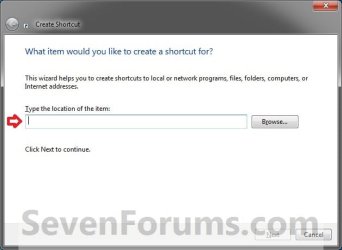
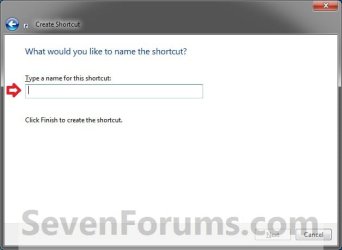
3. Type Media Center - Settings Menu for the name, and click on the Finish button. (see screenshot below)
NOTE: You can name this anything you would like though.
4. In Vista and Windows 7, you can now Pin to Taskbar (Windows 7 only) or Pin to Start Menu, add to Quick Launch, assign a keyboard shortcut to it, or move this shortcut to where you like for easy use.
5. In Windows 8 and 8.1, you can Pin to Taskbar on desktop, Pin to Start screen, add to Quick Launch, assign a keyboard shortcut to it, or move this shortcut to where you like for easy use.
That's it,
Shawn
Related Tutorials
- How to Add "Windows Media Center" to Windows 8 and 8.1
- How to Customize How Windows Media Center Will Start Up
- How to Add a "Windows Media Center" Cascading Desktop Context Menu in Windows 7
- How to Create a Shortcut that Opens Directly to "Recorded TV" in Windows Media Center
- How to Create a Shortcut that Opens Directly to the "Picture Library" in Windows Media Center
- How to Create a Shortcut that Opens Directly to the "Video Library" in Windows Media Center
- How to Create a Shortcut that Opens Directly to the "Music Library" in Windows Media Center
- How to Create a Shortcut that Opens Directly to " FM Radio" in Windows Media Center
- How to Create a Shortcut that Opens Directly to "Radio" in Windows Media Center
- How to Create a Shortcut that Opens Directly to "TV Guide" in Windows Media Center
- How to Create a Shortcut that Opens Directly to "Scheduled Recordings" in Windows Media Center
- How to Create a Shortcut that Opens Directly to "Live TV" in Windows Media Center
- How to Create a Shortcut that Opens Directly to "Disc Playback" in Windows Media Center
- How to Create Shortcut that Opens Directly to "Favorite Pictures Slide Show Settings" in Media Center
- How to Create a Shortcut to Play All Music in Window Media Center
- How to Create a Shortcut to Start the Windows Media Center Screen Saver
- How to Create a Shortcut to Open Windows Media Center with No Startup Animation
- How to Create a Shortcut to Play the Windows Media Center Slide Show
Attachments
Last edited:


