
How to Add Windows Media Player Taskbar Toolbar in Windows 7 and Windows 8
Information
This tutorial will show you how to add back the old taskbar toolbar from Windows Media Player 11 (WMP 11) to use with Windows Media Player 12 (WMP 12) in Windows 7 and Windows 8.
:warn: This will not work in Windows 8.1.
You must be logged in as an administrator to be able to do the steps in this tutorial.
:warn: This will not work in Windows 8.1.
You must be logged in as an administrator to be able to do the steps in this tutorial.
Note
The N and KN editions of Windows 7 and Windows 8 have all the features that normally come with each individual Windows edition, except for Windows Media Player 12 and related programs, such as Windows Media Center or Windows DVD Maker.
The N editions of Windows allow you to choose your own media player and software required to manage and play CDs, DVDs, and other digital media files. If you choose to use Windows Media Player 12, downloading it, along with related software, is free.
(Windows 7 N/KN)
Download Media Feature Pack for Windows 7 N with Service Pack 1 and Windows 7 KN with Service Pack 1 (KB968211) from Official Microsoft Download Center
(Windows 8 N/KN)
Download Media Feature Pack for N and KN versions of Windows 8 from Official Microsoft Download Center
The N editions of Windows allow you to choose your own media player and software required to manage and play CDs, DVDs, and other digital media files. If you choose to use Windows Media Player 12, downloading it, along with related software, is free.
(Windows 7 N/KN)
Download Media Feature Pack for Windows 7 N with Service Pack 1 and Windows 7 KN with Service Pack 1 (KB968211) from Official Microsoft Download Center
(Windows 8 N/KN)
Download Media Feature Pack for N and KN versions of Windows 8 from Official Microsoft Download Center
Here's How:
1. Click on the Download button below to download the same 32-bit (x86) or 64-bit (x64) version of the zipped wmpband.dll file as your 32-bit (x86) or 64-bit (x64) version of Windows that you have installed, and save it to your desktop.
32-bit (x86) wmpband.dll
Download
64-bit (x64) wmpband.dll
Download
2. Open the downloaded ZIP, extract (drag and drop) the wmpband.dll file to the desktop, and unblock the wmpband.dll file.
3. Copy the extracted and unblocked wmpband.dll file into the folder below. If prompted, click on Continue and Yes to approve the copy.
C:\Program Files\Windows Media Player
4. Open an elevated command prompt (run as administrator).
5. In the elevated command prompt, copy and paste the commands below one at a time and press Enter after each one. (see screenshot below)
- net stop WMPNetworkSvc
- regsvr32 "%ProgramFiles%\Windows Media Player\wmpband.dll"
- net start WMPNetworkSvc
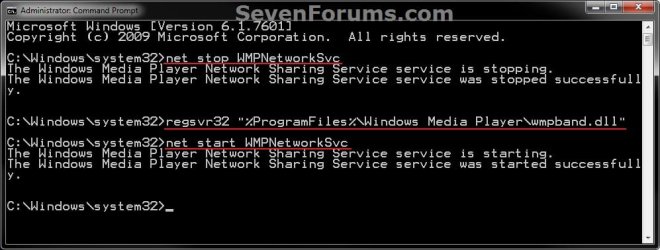
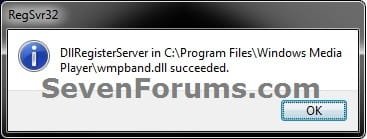
6. When finished, click/tap on OK, and close the elevated command prompt. (see screenshot below and above)
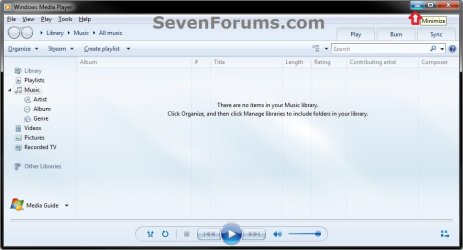
7. Open Windows Media Player 12 (wmplayer.exe) and minimize it. (see screenshot below)
8. Right click on the taskbar, select Toolbars, and click/tap on Windows Media Player to check it. (see screenshot below)

9. If you like, you could unlock the taskbar, drag the Windows Media Player toolbar to where you like on the taskbar, and lock the taskbar.
Tip
If the Windows Media Player toolbar disappears on you, say on reboot, then right click on the taskbar, select Toolbars, and click on Windows Media Player to uncheck it. Next repeat steps 7 and 8 to have it back.
That's it,
Shawn
Attachments
Last edited:


 Thanks Shawn!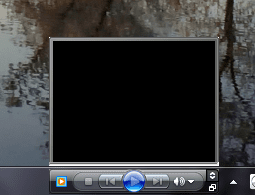


 )Anyway I checked in services and the WMPNetworkSvc is set to manual and wasn't running so I missed that part out and just registered the .dll in the program files (x86).Then set the WMPNetworkSvc to automatic delayed start.




