
How to Get Windows Media Player Taskbar Toolbar Back in Windows 7
Information
Windows 7 comes with Windows Media Player 12 version which contains lots of new features and also the interface is a bit different from previous versions.
But i like WMP12 but i like WMP 11 more due to its mini tool bar on the task bar..
If you also don't like WMP12 and want to get the good ol' mini toolbar back in Windows 7, then this tutorial will help you.
This will show you how to downgrade to Windows Media Player 11 to be able to have the WMP taskbar toolbar back in Windows 7.
But i like WMP12 but i like WMP 11 more due to its mini tool bar on the task bar..
If you also don't like WMP12 and want to get the good ol' mini toolbar back in Windows 7, then this tutorial will help you.
This will show you how to downgrade to Windows Media Player 11 to be able to have the WMP taskbar toolbar back in Windows 7.
Warning
It is recommended to backup all the files and listed bellow:
- "Windows Media Player" folder in "Program Files" folder
- All files starting with wmp in "%Win 7 file%\Windows\System32" folder
- wmploc.dll.mui file in "%Win 7 file%\Windows\System32\en-US" folder.
Note
We are downgrading, so you cannot use WMP 12 after all the steps are completed.
The N and KN editions of Windows 7 have all the features that normally come with each individual Windows 7 edition, except for Windows Media Player 12 and related programs, such as Windows Media Center or Windows DVD Maker.
The N editions of Windows 7 allow you to choose your own media player and software required to manage and play CDs, DVDs, and other digital media files. If you choose to use Windows Media Player 12, downloading it, along with related software, is free. Download Media Feature Pack for Windows 7 N with Service Pack 1 and Windows 7 KN with Service Pack 1 (KB968211) from Official Microsoft Download Center
The N and KN editions of Windows 7 have all the features that normally come with each individual Windows 7 edition, except for Windows Media Player 12 and related programs, such as Windows Media Center or Windows DVD Maker.
The N editions of Windows 7 allow you to choose your own media player and software required to manage and play CDs, DVDs, and other digital media files. If you choose to use Windows Media Player 12, downloading it, along with related software, is free. Download Media Feature Pack for Windows 7 N with Service Pack 1 and Windows 7 KN with Service Pack 1 (KB968211) from Official Microsoft Download Center
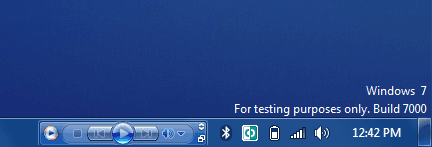
EXAMPLE: WMP 11 Taskbar Toolbar in Windows 7
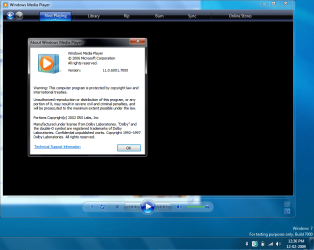
So let gets started: 1. Open Services.
NOTE: You can also open the same from Administrative Tools -> Computer Management, or you can directly open "Services" list by providing services.msc command in RUN or Start Menu search box.
2. Now right-click on Windows Media Player Network Sharing service and select Stop. It'll stop the service.
3. Now you'll need to take ownership and give yourself full control of the following files/folders:
- "Windows Media Player" folder in "Program Files" folder
- All files starting with wmp in "%Win 7 drive%\Windows\System32" folder
- wmploc.dll.mui file in "%win 7 drive%\Windows\System32\en-US" folder
NOTE: Windows Media Player will not run unless you replace all the given files in Windows 7 with those of Vista. A) Go to "%vista drive%\program files" dir and copy the Windows Media player directory and paste it in %Win 7 drive%\program files.
B) Now Copy the wmploc.dll.mui file from
"%vista drive%\Windows\System32\en-US" and paste it in "%Win 7 drive %\Windows\System32\en-US"
C) Then go to "%vista drive%\Windows\System32" and copy all files with there name starting with wmp to "%win 7 drive%\Windows\System32".
5. Now open regedit and delete Installed Versions key under following key:
HKEY_LOCAL_MACHINE\SOFTWARE\Microsoft\MediaPlayer\Setup
Tip
For your convenience I ma including the REG file.. View attachment Delete_Installed_Versions_Key.reg
Last edited by a moderator:


