
Windows Update - Enable or Disable "Who can install updates" Setting
If disabled, this will gray out the Allow all users to install updates on this computer Windows Update setting, and will be the same as having it's box always unchecked. Only administrative users will receive update notifications.
If not configured, the Allow all users to install updates on this computer Windows Update setting will not be grayed out anymore allowing you to check or uncheck it at will.
If enabled, this will gray out the Allow all users to install updates on this computer Windows Update setting, and will be the same as having it's box always checked. Windows Automatic Update and Microsoft Update will include non-administrators when determining which logged-on user should receive update notifications. Non-administrative users will be able to install all optional, recommended, and important content for which they received a notification. Users will not see a User Account Control (UAC) window and do not need elevated permissions to install these updates, except in the case of updates that contain User Interface , End User License Agreement , or Windows Update setting changes.
EXAMPLE: Windows Update Settings

1. To Set "Allow all users to install updates on this computer" as Not Configured
NOTE: This is the default setting.
A) Click on the Download button below to download the file below.
Not_Configured_NonAdmins_Install_Windows_Updates.reg
Download
B) Go to step 4.
2. To Enable "Allow all users to install updates on this computer"
A) Click on the Download button below to download the file below.
Enable_NonAdmins_Install_Windows_Updates.reg
Download
B) Go to step 4.
3. To Disable "Allow all users to install updates on this computer"
A) Click on the Download button below to download the file below.
Disable_NonAdmins_Install_Windows_Updates.reg
Download
4. Save the .reg file to the desktop.
5. Right click on the downloaded .reg file, and click on Merge.
6. Click on Run, Yes (UAC), Yes, and OK when prompted.
7. If open, close and reopen the Windows Update change settings window to see the change.
8. When done, you can delete the downloaded .reg files if you like.
1. Open the Local Group Policy Editor.
2. In the left pane, click on to expand Computer Configuration, Administrative Templates, Windows Components, and Windows Update. (see screenshot below)
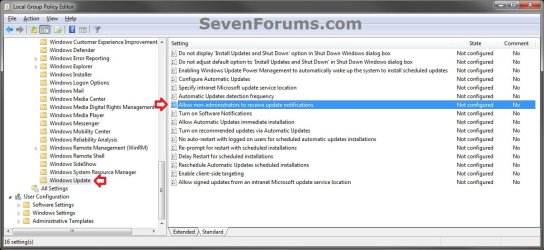
3. In the right pane, right click on Allow non-administrators to recieve update notifications and click on Edit. (see screenshot above)
4. To Set "Allow all users to install updates on this computer" as Not Configured
A) Select (dot) Not Configured. (see screenshot below step 7)
NOTE: This is the default setting.
B) Go to step 7.
5. To Enable "Allow all users to install updates on this computer"
A) Select (dot) Enabled. (see screenshot below step 7)
B) If not already, make sure that you have Windows Gadget Platform checked in Windows Features.
C) Go to step 7.
6. To Disable "Allow all users to install updates on this computer"
A) Select (dot) Disabled. (see screenshot below step 7)
7. Click on OK. (see screenshot below)
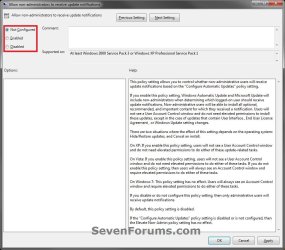
8. Close the Local Group Policy Editor window.
9. If open, close and reopen the Windows Update change settings window to see the change.
That's it,
Shawn
How to Enable or Disable the Windows Update "Who can install updates" Setting
Information
This will show you how to enable or disable the Allow all users to install updates on this computer in the Who can install updates Windows Update settings.
You will need to be logged in as an administrator to be able to do this tutorial.
You will need to be logged in as an administrator to be able to do this tutorial.
Note
If disabled, this will gray out the Allow all users to install updates on this computer Windows Update setting, and will be the same as having it's box always unchecked. Only administrative users will receive update notifications.
If not configured, the Allow all users to install updates on this computer Windows Update setting will not be grayed out anymore allowing you to check or uncheck it at will.
If enabled, this will gray out the Allow all users to install updates on this computer Windows Update setting, and will be the same as having it's box always checked. Windows Automatic Update and Microsoft Update will include non-administrators when determining which logged-on user should receive update notifications. Non-administrative users will be able to install all optional, recommended, and important content for which they received a notification. Users will not see a User Account Control (UAC) window and do not need elevated permissions to install these updates, except in the case of updates that contain User Interface , End User License Agreement , or Windows Update setting changes.
EXAMPLE: Windows Update Settings
OPTION ONE
Using a REG File Download
1. To Set "Allow all users to install updates on this computer" as Not Configured
NOTE: This is the default setting.
A) Click on the Download button below to download the file below.
Not_Configured_NonAdmins_Install_Windows_Updates.reg
Download
B) Go to step 4.
2. To Enable "Allow all users to install updates on this computer"
A) Click on the Download button below to download the file below.
Enable_NonAdmins_Install_Windows_Updates.reg
Download
B) Go to step 4.
3. To Disable "Allow all users to install updates on this computer"
A) Click on the Download button below to download the file below.
Disable_NonAdmins_Install_Windows_Updates.reg
Download
4. Save the .reg file to the desktop.
5. Right click on the downloaded .reg file, and click on Merge.
6. Click on Run, Yes (UAC), Yes, and OK when prompted.
7. If open, close and reopen the Windows Update change settings window to see the change.
8. When done, you can delete the downloaded .reg files if you like.
OPTION TWO
Through the Local Group Policy Editor
1. Open the Local Group Policy Editor.
2. In the left pane, click on to expand Computer Configuration, Administrative Templates, Windows Components, and Windows Update. (see screenshot below)
3. In the right pane, right click on Allow non-administrators to recieve update notifications and click on Edit. (see screenshot above)
4. To Set "Allow all users to install updates on this computer" as Not Configured
A) Select (dot) Not Configured. (see screenshot below step 7)
NOTE: This is the default setting.
B) Go to step 7.
5. To Enable "Allow all users to install updates on this computer"
A) Select (dot) Enabled. (see screenshot below step 7)
B) If not already, make sure that you have Windows Gadget Platform checked in Windows Features.
C) Go to step 7.
6. To Disable "Allow all users to install updates on this computer"
A) Select (dot) Disabled. (see screenshot below step 7)
7. Click on OK. (see screenshot below)
8. Close the Local Group Policy Editor window.
9. If open, close and reopen the Windows Update change settings window to see the change.
That's it,
Shawn
Related Tutorials
- How to Enable or Disable Access to Windows Updates in Windows 7
- How to Uninstall a Windows Update in Windows 7
- How to Create a Installed Windows Updates Shortcut in Windows 7
- How to View Windows Update History Details in Windows 7 and Windows 8
- How to Hide or Restore Hidden Windows Updates in Windows 7 and Windows 8
- How to Enable or Disable Uninstalling Windows Updates in Windows 7
- How to Create a Windows Update Troubleshoot Shortcut in Windows 7
- How to Create a "Windows Update" Shortcut in Windows 7
- How to Change the Windows Update Settings in Windows 7
- How to Enable or Disable Windows Updates from Automatically Restarting the Computer
- How to Reset Windows Update in Vista, Windows 7, and Windows 8
- How to Download the Standalone MSU Installer File of a Windows Update
- How to Enable or Disable "Install Updates and Shut Down" Option in Windows 7
- How to Change "Install Updates and Shut Down" as Default Choice in Shut Down Windows Dialog
Attachments
Last edited:


