Solved Windows update never stops checking for updates

I've registered for a couple of reasons:

1. To say a very big thank-you to aoetalks for his most excellent fix! I've been struggling with this for days and finally found your solution. Thank-you!

2. To say what a complete and utter, unmitigated pile of steaming horseshit Windows - in all its forms - has become.

This utter manure of an OS has become completely unusable. Microsoft should delete the source code, delete the binaries and format their servers, burn the backups, bomb their DR sites. AND START AGAIN from scratch.

No more of this utter utter utter dross, PLEASE.

my sentiments exactly...
 

My Computer

Computer type
PC/Desktop
Computer Manufacturer/Model Number
custom build
OS
Windows 7 Ultimate 64bit & Windows XP Pro (Dual Boot)
CPU
AMD Phenom II x4 965 3.40GHz
Motherboard
ECS A885GM-A2
Memory
8.00 GB
Graphics Card(s)
AMD Radeon HD 6670
Monitor(s) Displays
HP L2445w
Screen Resolution
1920 x 1200
Hard Drives
Samsung SSD 840 series SATA 120GB-Win 7 &
WD 1Tb Caviar Black 7200 rpm-XP Pro
PSU
Cooler Master Elite Power 460 Watt ATX Power Supply
Case
Thermaltake V3 Black Edition ATX Mid Tower
Cooling
Cooler Master Hyper 212 EVO Universal CPU Cooler
Keyboard
Logitech
Internet Speed
30 Mg download-10 Mg upload
Antivirus
Bitdefender & Malwarebytes Pro
Browser
IE 11-because I like a SLOW browser!
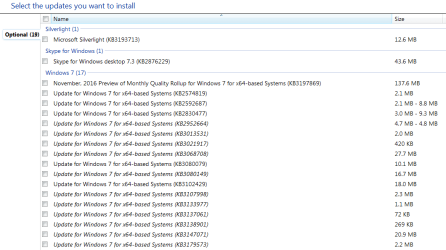
OK, after a lot of testing, I can confirm that installing KB3020369 & KB3172605 will resolve the issue of the "forever updates" on my VMs. Once those KBs are installed, and I re-enable Windows Updates, I would see the list of needed updates in less than 15 minutes.

The inclusion of KB3125574 was a new one for me. I tested with and without it. Installing KB3125574 cuts the number of updates in half (from 78 important and 20 optional updates, to 36 important and 10 optional updates). The downloaded KB3125574 is some 476 MB in size, so I'm keeping it handy for the next old VM that I need to power up.

Thanks for the info you posted, ThrashZone. Much appreciated!

-Jim :)

Jim you are spot on there thank you so much. After dropping my laptop and destroying the harddrive I have had it replaced and spent 3 days re installing and setting it back up. I have been unable to get windows update to work at all. I have used WSUS and google over and over, installing the 470mb windows patch also but it just kept hanging and hanging.
After confirming I had one of the top two listed and then finally installing KB3172605 it found the updates in 5 minutes.

Im currently awaiting a call back tomorrow from Microsoft tech support, wont need that call now!

Thank you all

Liam

:cool:

This thread really helped me. I had a laptop with Win7pro SP1, that I had not updated since 2014. I had tried Windows update and ran it for about an hour before giving up and finding this thread. This is what I had done to resolve it.

Install KB3102810, it just showed the checking windows message for 30min before I gave up on it. I didn't want to do the 24 hour test!
Rebooted, tried again, but still didn't work.
Set Windows Update to "Never Check for updates".
Disconnected from the network.
Rebooted.
Install KB3185278 Sept 2016 update rollup, since it was a realitively new rollup, thought I could just skip ahead.
Rebooted
Reconnected to the network and manually ran windows update and it still didn't work.


Then with Windows update still set to "never" and disconnected from the network, I did the following:
Install KB3020369 April 2015 servicing stack.
Rebooted
Install KB3135574 May 2016 Convenience rollup update.
Rebooted
Install KB3172605 July 2016 update rollup.
Rebooted
Manually ran Windows update and voila! 6 minutes later I had the update list! 37 important, 24 optional.

Thank you Liam548!
 

My Computer

Computer type
Laptop
Computer Manufacturer/Model Number
Lenovo T520
OS
Win7 pro 64bit
CPU
i5
HOWEVER, the update that fixed the seemingly endless 'Checking for Updates' was:

KB3172605

I hope you find one from these lists that works for you!!!

I had the same problem and this did the trick for me too (Windows 7 Home 64-bit)
Issue occurred and was solved in November 2016 with the above update ... thanks for sharing!
 

My Computer

Computer type
PC/Desktop
Computer Manufacturer/Model Number
Gateway DX4840
OS
Windows 7 Home Premium 64bit
CPU
Intel Core i3 540
Motherboard
Gateway DX4840
Memory
8GB
Graphics Card(s)
512MB ATI AMD Radeon HD 5450
Hard Drives
Crucial CT240BX200
Antivirus
Avast Free
Browser
Firefox
https://support.microsoft.com/en-us/kb/3102810 should speed things up. After installing this it took only a few minutes to scan for updates on a fresh Win7 SP1 install.

Thank you, AOETalks!:cool:

I couldn't believe a clean install of Windows 7 with SP1 64 bit would take so long to do initial updates. Ran all night and nothing. :cry: I redid the install thinking I screwed something up, and got the same result. :(

Then, as you instructed :sarc:, I pulled KB 3102810 64 bit and ran it manually. It prompted a reboot and after rebooting, was able to go in through normal Windows Updates from the control panel and get an update list in, just as you said, a few minutes. :geek:

This was from a fresh ISO I pulled from MSDN, so best I can figure, Microsoft doesn't give this issue any slip stream love because it helps drive their upgrade program. :eek:

:D
 

My Computer

Computer type
PC/Desktop
OS
Windows 7
https://support.microsoft.com/en-us/kb/3102810 should speed things up. After installing this it took only a few minutes to scan for updates on a fresh Win7 SP1 install.

It's been said a number of times in this thread already and I'll say it again!! I registered just to say thank you!!!!

It took a mere 2 minutes to apply a fix that has caused me days of frustration! And that pretty much epitomizes the love/hate relationship so many of us have with technology! :cry:
 

My Computer

Computer type
PC/Desktop
OS
Windows 7 Ultimate x64
:):) perfect worked like piece of cake

Thanks buddy

OK, after a lot of testing, I can confirm that installing KB3020369 & KB3172605 will resolve the issue of the "forever updates" on my VMs. Once those KBs are installed, and I re-enable Windows Updates, I would see the list of needed updates in less than 15 minutes.

The inclusion of KB3125574 was a new one for me. I tested with and without it. Installing KB3125574 cuts the number of updates in half (from 78 important and 20 optional updates, to 36 important and 10 optional updates). The downloaded KB3125574 is some 476 MB in size, so I'm keeping it handy for the next old VM that I need to power up.

Thanks for the info you posted, ThrashZone. Much appreciated!

-Jim :)

Jim you are spot on there thank you so much. After dropping my laptop and destroying the harddrive I have had it replaced and spent 3 days re installing and setting it back up. I have been unable to get windows update to work at all. I have used WSUS and google over and over, installing the 470mb windows patch also but it just kept hanging and hanging.
After confirming I had one of the top two listed and then finally installing KB3172605 it found the updates in 5 minutes.

Im currently awaiting a call back tomorrow from Microsoft tech support, wont need that call now!

Thank you all

Liam

:cool:

This thread really helped me. I had a laptop with Win7pro SP1, that I had not updated since 2014. I had tried Windows update and ran it for about an hour before giving up and finding this thread. This is what I had done to resolve it.

Install KB3102810, it just showed the checking windows message for 30min before I gave up on it. I didn't want to do the 24 hour test!
Rebooted, tried again, but still didn't work.
Set Windows Update to "Never Check for updates".
Disconnected from the network.
Rebooted.
Install KB3185278 Sept 2016 update rollup, since it was a realitively new rollup, thought I could just skip ahead.
Rebooted
Reconnected to the network and manually ran windows update and it still didn't work.


Then with Windows update still set to "never" and disconnected from the network, I did the following:
Install KB3020369 April 2015 servicing stack.
Rebooted
Install KB3135574 May 2016 Convenience rollup update.
Rebooted
Install KB3172605 July 2016 update rollup.
Rebooted
Manually ran Windows update and voila! 6 minutes later I had the update list! 37 important, 24 optional.

Thank you Liam548!
 

My Computer

Computer type
PC/Desktop
OS
Windows 7 Enterprise 64Bit
This has worked for me every time:

The solution:

Stop the Windows Update Service (wuauserv).
Download and install KB3050265
reboot
Download and install KB3102810
Reboot and check for updates again. All of our machines found their required updates in less than 5 minutes.

Haven't used this forum for ages but ran into this issue recently....this solution worked for me too after stumbling around on Microsoft fixes pages Thank God for this forum!!:)
 

My Computer

Computer type
PC/Desktop
OS
windows 7 ultimate x 64
CPU
AMD FX 8350
I haven't been to this forum for a while because I upgraded my own computer to Windows 10.

However, my wife's PC, which I just built for her in 2015, is presenting this "searching for updates forever" problem. It started with "downloading forever," but the fixes I found here and elsewhere turned it into searching forever.

Unfortunately, none of these fixes I've found anywhere has worked yet. After the most recent go-round, the PC has been searching for updates for about four hours so far. We're going to leave it on overnight, but I'm not optimistic.

This is Windows 7 Pro 64-bit, and I've been careful to download only x64 updates. The PC is running a 4th gen Core i5 CPU with 8gb of RAM, and it's connected to the router via an Ethernet cable. The OS is on an SSD.

This is making me crazy, and I hope I can resolve the problem eventually. This PC hasn't received any updates since around June or July, and that's Not Good.
 

My Computer

Computer type
PC/Desktop
Computer Manufacturer/Model Number
Generic (BIY)
OS
Windows 7 Pro 64-bit
CPU
Intel Core i5-3570K
Motherboard
Gigabyte GA-Z77-DS3H
Memory
Corsair 2x4gb
Graphics Card(s)
Intel HD Graphics 4000, on motherboard, 1gb
Sound Card
Realtek Audio on motherboard
Monitor(s) Displays
HP Pavillion 22bw
Screen Resolution
1920x1080
Hard Drives
Crucial MX200, Toshiba 3tb spinning (data) drive
Case
Corsair something-or-other
Cooling
CPU fan, 2 x case fans
Keyboard
Microsoft wired keyboard
Mouse
Logitech wireless
Antivirus
Avast free
Browser
IE11, Chrome
I got an email with a reply to my last post above, but it's no longer here on this thread. I'm not sure what happened, but the reply is in my email, and to summarize, it advised flushing the DNS and then turning off Windows Update via a command prompt, and then installing KB3102810.

I followed the instructions carefully and found that my wife's computer already had KB3102810 installed. I suppose I could have uninstalled and reinstalled it, but I'm not sure what that would have accomplished.

At any rate, the PC is still searching for updates. We'll leave it on overnight and see how it shakes out.
 

My Computer

Computer type
PC/Desktop
Computer Manufacturer/Model Number
Generic (BIY)
OS
Windows 7 Pro 64-bit
CPU
Intel Core i5-3570K
Motherboard
Gigabyte GA-Z77-DS3H
Memory
Corsair 2x4gb
Graphics Card(s)
Intel HD Graphics 4000, on motherboard, 1gb
Sound Card
Realtek Audio on motherboard
Monitor(s) Displays
HP Pavillion 22bw
Screen Resolution
1920x1080
Hard Drives
Crucial MX200, Toshiba 3tb spinning (data) drive
Case
Corsair something-or-other
Cooling
CPU fan, 2 x case fans
Keyboard
Microsoft wired keyboard
Mouse
Logitech wireless
Antivirus
Avast free
Browser
IE11, Chrome
Hi,
Nothing KB3102810 was just one of many horrible update clients
Stick with these 2-KB3020369 & KB3172605
 

My Computer

Computer type
PC/Desktop
Computer Manufacturer/Model Number
Custom assembled by me :}
OS
Win-7-Pro64bit 7-H-Prem-64bit
CPU
i7-5930K 2nd i9-9940x both water blocked VRM's too
Motherboard
ASUS SABERTOOTH X99 2nd ASUS x299 Apex
Memory
Trident-z 3200C14 2nd Trident-z 3600C16
Graphics Card(s)
EVGA 1080ti ftw3 2nd Titan Xp both water blocked
Sound Card
Built-in Realtek
Monitor(s) Displays
1-AOC G2460PG 24"G-Sync 144Hz/ 2nd 1-ASUS VG248QE 24" 144Hz
Screen Resolution
1920 x 1080 144Hz
Hard Drives
2-Samsung M.2 Evo & Evo Plus
2-Samsung 850 EVO 500GB SSD's/ 3-2.5 W.D. Black 1tb-&3-1tb/3-3.5 WD Black 1tb hdd's
PSU
EVGA SuperNOVA 1000-P2 2nd 1200-P2
Case
2-Corsair Obsidian Series 450D Black ATX Mid Tower
Cooling
Custom water loops
Keyboard
Logitech G710+/ 2nd Logitech G910
Mouse
2-RedDragon M901 Perdition 16400 dpi Gaming mouse = wired
Internet Speed
Comcast Ping 19ms 89.31mbps download speed 6.12mbps upload
Antivirus
Malwarebytes Pro/ Superantispyware Pro
Browser
FireFox & Pale moon
Other Info
2nd ASUS X299 Apex/Intel i9-9940x with Custom water loop/7H-Prem-x64/Corsair 450D case/Ram Trident-z 3600C16 4x8gb / Samsung970Evo plus 500gb SSD/Dual ssd EZ swap evo/PSU EVGA SuperNova 1200w-P2 80+Platinum/GPU Titan Xp /8-ML-140 on push-pull on 2-280GTX rads
Ah -- thanks for the update. I've already done the other two, so it's down to waiting for now.
 

My Computer

Computer type
PC/Desktop
Computer Manufacturer/Model Number
Generic (BIY)
OS
Windows 7 Pro 64-bit
CPU
Intel Core i5-3570K
Motherboard
Gigabyte GA-Z77-DS3H
Memory
Corsair 2x4gb
Graphics Card(s)
Intel HD Graphics 4000, on motherboard, 1gb
Sound Card
Realtek Audio on motherboard
Monitor(s) Displays
HP Pavillion 22bw
Screen Resolution
1920x1080
Hard Drives
Crucial MX200, Toshiba 3tb spinning (data) drive
Case
Corsair something-or-other
Cooling
CPU fan, 2 x case fans
Keyboard
Microsoft wired keyboard
Mouse
Logitech wireless
Antivirus
Avast free
Browser
IE11, Chrome
Hi,
Nothing KB3102810 was just one of many horrible update clients
Stick with these 2-KB3020369 & KB3172605

How can KB3102810 be one of the many horrible update clients when I have, in the last 6 months, done a clean install of Windows 7 Pro 64Bit (twice, mind you) on a 3 year old Dell laptop and both times found updates within minutes of starting the "searching for updates" after following the instructions below???

I followed the instructions at this Web site: 100% Solved:Checking for updates stuck - Windows 10,8,7 and followed these steps:
Flushed the DNS, turned off the Microsoft Update Agent, downloaded the update-KB3102810 (see step #2.2 in that previous link) and installed it and re-started my computer. Don't worry about turning back on the Windows Update Agent, it will do that when you re-start the computer.

Now before I did the above mentioned steps, the first time I did the clean install (on the Dell supplied standard 2.5" hard drive that came with the laptop), I had watched the "searching for updates" scroll...... and scroll......and scroll.......and scroll, for hours with no luck.
After doing what I mentioned above from the link I posted, B-A-M... I had over 200 updates within minutes of starting the "check for updates".

The second time I did a clean install, on the same laptop but this time it was installed on a 500GB SSD, I let the windows Update check for updates for about 1.5 hours..........with no results.
I did the exact same thing this second time around, from the above posted link, and from following the steps I mentioned earlier, had over 200 updates within minutes again.

So...........Thrashzone, before you go bashing what is "one of many horrible update clients" in the world of Microsoft Updates and all the solutions posted on the Web on how to fix the "searching for updates" problem Windows 7 users are facing, maybe you should just stay quite on what works and doesn't work as far as getting these updates downloaded onto peoples computers.
Now....maybe your solution works, and it seems like there are many solutions posted out there, but what I did above worked twice for me and if I need to do a clean install of Windows 7 again, I will do the exact same steps as I posted above to remedy the problem.

cpmusic - I was the one who originally made a post about your wife's computer. It was after I made the post when I re-read your message and realized you weren't doing a clean install of Windows, so I removed the post with an explanation as to why I did.
 

My Computer

Computer type
PC/Desktop
Computer Manufacturer/Model Number
Custom Build
OS
Windows 7 Professional 64Bit
CPU
I5-4690K
Motherboard
Asus Z97-A USB 3.1 ATX LGA 1150
Memory
G.Skill Ares Series 16GB (2x8GB) DDR3-1866
Graphics Card(s)
Gigabyte GeForce GTX 750 Ti 2GB Windforce
Hard Drives
Samsung 850 EVO-Series 250GB 2.5" SSD

Western Digital Black Series 1TB 3.5" 7200RPM Internal Hard Drive
Antivirus
Malwarebytes / AVG / Microsoft Essentials Security
Browser
Seamonkey
I appreciate all the feedback, but I have tried everything found on this forum and elsewhere all around the web -- I've lost count of how many strategies I've tried, including the useless Microsoft Troubleshooter -- and nothing has made the slightest bit of difference. The only thing I haven't tried is reloading 7, and aside of being a major pain in the neck, I don't have any faith that it will make the slightest bit of difference.

I'm not blaming anyone here, I'm just blowing off steam. There are several separate threads just here on this forum, many marked solved, and none of them is providing any help. I'm thinking an upgrade to 10 might be in order, but that's an extra expense now.

This is absolutely ridiculous, and it makes me wonder if, when the problem cropped up, Microsoft stopped doing anything about it with the hope that people would take the 10 offer.
 

My Computer

Computer type
PC/Desktop
Computer Manufacturer/Model Number
Generic (BIY)
OS
Windows 7 Pro 64-bit
CPU
Intel Core i5-3570K
Motherboard
Gigabyte GA-Z77-DS3H
Memory
Corsair 2x4gb
Graphics Card(s)
Intel HD Graphics 4000, on motherboard, 1gb
Sound Card
Realtek Audio on motherboard
Monitor(s) Displays
HP Pavillion 22bw
Screen Resolution
1920x1080
Hard Drives
Crucial MX200, Toshiba 3tb spinning (data) drive
Case
Corsair something-or-other
Cooling
CPU fan, 2 x case fans
Keyboard
Microsoft wired keyboard
Mouse
Logitech wireless
Antivirus
Avast free
Browser
IE11, Chrome
BTW, I should note that the last time I checked (I'm on my own PC right now) the CPU usage was around 28% and RAM usage was a little under 2 gb, so it does not appear that the update process is overloading the CPU or RAM. Something else is getting in the way, but I'll be darned if I can figure out what.
 

My Computer

Computer type
PC/Desktop
Computer Manufacturer/Model Number
Generic (BIY)
OS
Windows 7 Pro 64-bit
CPU
Intel Core i5-3570K
Motherboard
Gigabyte GA-Z77-DS3H
Memory
Corsair 2x4gb
Graphics Card(s)
Intel HD Graphics 4000, on motherboard, 1gb
Sound Card
Realtek Audio on motherboard
Monitor(s) Displays
HP Pavillion 22bw
Screen Resolution
1920x1080
Hard Drives
Crucial MX200, Toshiba 3tb spinning (data) drive
Case
Corsair something-or-other
Cooling
CPU fan, 2 x case fans
Keyboard
Microsoft wired keyboard
Mouse
Logitech wireless
Antivirus
Avast free
Browser
IE11, Chrome
Well cpmusic, if it makes you feel any better, when I had Windows XP Pro (a couple of years ago!!) I hadn't had an update on that OS for a few years before the hard drive died.

I intentionally turned off the Windows updates and ran Windows XP Pro for 3-4 years without ANY updates and it ran just fine.

If you get it solved, post back here for others to see and maybe you can help someone else in your situation.
 

My Computer

Computer type
PC/Desktop
Computer Manufacturer/Model Number
Custom Build
OS
Windows 7 Professional 64Bit
CPU
I5-4690K
Motherboard
Asus Z97-A USB 3.1 ATX LGA 1150
Memory
G.Skill Ares Series 16GB (2x8GB) DDR3-1866
Graphics Card(s)
Gigabyte GeForce GTX 750 Ti 2GB Windforce
Hard Drives
Samsung 850 EVO-Series 250GB 2.5" SSD

Western Digital Black Series 1TB 3.5" 7200RPM Internal Hard Drive
Antivirus
Malwarebytes / AVG / Microsoft Essentials Security
Browser
Seamonkey
Thanks, Blackink. That's actually more encouraging than anything else I've come across so far.

So far, updates are still not found, and one or more of the measures I took reset Update, so the history was deleted. However, as of this morning it is turning up a little history. One update, KB3050265, was successful on 1/7/17.

There were 6 listed that failed (attempted on 1/7/17) so with Update turned off (i.e., "don't look for updates") I tried downloading and installing the ones that failed, and they failed again. One gave me a notice after reboot but just before the sign-in screen that read "update failed, reverted" followed by 7 rebooting without the update. I suspect that was the case with all, except one that read "not applicable" today.

For what it's worth, these are the updates that failed:

KB3125574 (this is the one with which I saw the "reverted" message)
KB3172605 (I think this one read “not applicable” when I tried it today)
KB3161664
KB3156417
KB3175973
KB3185278

I know there are many more that failed over the past several months, but I can't call them up anymore.

Something else that occurred to me is the dreaded KB3035583 "free 10 upgrade." I just found it on this 7 PC even though 10 is no longer offered for free or being forced. When I tried to uninstall it, Windows returned a the message "An error occurred. Not all of the updates were successfully uninstalled." Could this be the wrench in the works?
 

My Computer

Computer type
PC/Desktop
Computer Manufacturer/Model Number
Generic (BIY)
OS
Windows 7 Pro 64-bit
CPU
Intel Core i5-3570K
Motherboard
Gigabyte GA-Z77-DS3H
Memory
Corsair 2x4gb
Graphics Card(s)
Intel HD Graphics 4000, on motherboard, 1gb
Sound Card
Realtek Audio on motherboard
Monitor(s) Displays
HP Pavillion 22bw
Screen Resolution
1920x1080
Hard Drives
Crucial MX200, Toshiba 3tb spinning (data) drive
Case
Corsair something-or-other
Cooling
CPU fan, 2 x case fans
Keyboard
Microsoft wired keyboard
Mouse
Logitech wireless
Antivirus
Avast free
Browser
IE11, Chrome
Here’s another thought, also for what it's worth. I apologize if it sounds like a tangent, but I believe it's relevant.

I tried the 10-over-7 upgrade on my PC and it didn’t take, followed by the Update message "Windows 10 was not installed" and a "try again" button. Clicking on “check for updates” blanked that message and looked for 7 updates, but it took hours just to find anything. I finally gave up and installed 10 on a new drive, keeping the drive with 7. Recently, after several months with 10, I needed something from the 7 drive so I plugged it in, got sidetracked with the Update problem, and went looking again for a solution. This time I found one, which was going into the registry at:

HKEY_LOCAL_MACHINE\SOFTWARE\Microsoft\Windows\CurrentVersion\WindowsUpdate\OSUpgrade\Rollback

...and deleting the Rollback key. When I did that and rebooted, 7's Update no longer displayed the “not installed” message and found a slew of updates within a minute, followed by installation that took no more than 10-15 minutes.

Long story short: That Rollback key doesn’t exist on my wife’s PC because I never tried to upgrade it to 10, but the OSUpgrade folder is there, with several keys and a sub-folder called State.

Could OSUpgrade be getting in the way? Since 10 is no longer free (or forced), I can’t see why it would be needed, but I don't want to delete it without more information.

Thanks!
 

My Computer

Computer type
PC/Desktop
Computer Manufacturer/Model Number
Generic (BIY)
OS
Windows 7 Pro 64-bit
CPU
Intel Core i5-3570K
Motherboard
Gigabyte GA-Z77-DS3H
Memory
Corsair 2x4gb
Graphics Card(s)
Intel HD Graphics 4000, on motherboard, 1gb
Sound Card
Realtek Audio on motherboard
Monitor(s) Displays
HP Pavillion 22bw
Screen Resolution
1920x1080
Hard Drives
Crucial MX200, Toshiba 3tb spinning (data) drive
Case
Corsair something-or-other
Cooling
CPU fan, 2 x case fans
Keyboard
Microsoft wired keyboard
Mouse
Logitech wireless
Antivirus
Avast free
Browser
IE11, Chrome

My Computer

Computer type
PC/Desktop
Computer Manufacturer/Model Number
Custom assembled by me :}
OS
Win-7-Pro64bit 7-H-Prem-64bit
CPU
i7-5930K 2nd i9-9940x both water blocked VRM's too
Motherboard
ASUS SABERTOOTH X99 2nd ASUS x299 Apex
Memory
Trident-z 3200C14 2nd Trident-z 3600C16
Graphics Card(s)
EVGA 1080ti ftw3 2nd Titan Xp both water blocked
Sound Card
Built-in Realtek
Monitor(s) Displays
1-AOC G2460PG 24"G-Sync 144Hz/ 2nd 1-ASUS VG248QE 24" 144Hz
Screen Resolution
1920 x 1080 144Hz
Hard Drives
2-Samsung M.2 Evo & Evo Plus
2-Samsung 850 EVO 500GB SSD's/ 3-2.5 W.D. Black 1tb-&3-1tb/3-3.5 WD Black 1tb hdd's
PSU
EVGA SuperNOVA 1000-P2 2nd 1200-P2
Case
2-Corsair Obsidian Series 450D Black ATX Mid Tower
Cooling
Custom water loops
Keyboard
Logitech G710+/ 2nd Logitech G910
Mouse
2-RedDragon M901 Perdition 16400 dpi Gaming mouse = wired
Internet Speed
Comcast Ping 19ms 89.31mbps download speed 6.12mbps upload
Antivirus
Malwarebytes Pro/ Superantispyware Pro
Browser
FireFox & Pale moon
Other Info
2nd ASUS X299 Apex/Intel i9-9940x with Custom water loop/7H-Prem-x64/Corsair 450D case/Ram Trident-z 3600C16 4x8gb / Samsung970Evo plus 500gb SSD/Dual ssd EZ swap evo/PSU EVGA SuperNova 1200w-P2 80+Platinum/GPU Titan Xp /8-ML-140 on push-pull on 2-280GTX rads
cpmusic....I'd have to agree with ThrashZone about the Windows 10 crap being on your computer.

For what it's worth, and I don't think this will make a bit of a difference in regards to getting the updates, but your info on stopping the Windows updates, so with Update turned off (i.e., "don't look for updates", isn't what the instructions say to do on the link I provided in an earlier email, 100% solved.....

I've seen these steps taken on several websites to shut down the windows update agent, so the "checking for updates" don't happen at all, even if you stop them in the Windows Update window:
[FONT=&quot]In Windows 7[/FONT][FONT=&quot]
[/FONT][FONT=&quot]1. Click on start[/FONT][FONT=&quot]
[/FONT][FONT=&quot]2. Type CMD[/FONT][FONT=&quot]
[/FONT][FONT=&quot]3. Right click it and select run as admin[/FONT][FONT=&quot]
[/FONT][FONT=&quot]4. Click on yes if the UAC pops up[/FONT]
[FONT=&quot]
In the command prompt type: net stop wuauserv[/FONT][FONT=&quot][/FONT]
[FONT=&quot][/FONT]
[FONT=&quot] Hit Enter.
You should see in the command prompt text that Windows Update agent is OFF.
Now type: exit
Hit Enter.

Don't worry about turning the Windows Update Agent back on, when you re-start your computer, it'll turn back on.

Like I said earlier, it may not help you now in your situation but it may be good to know how to do this later on if needed.

[/FONT]
 

My Computer

Computer type
PC/Desktop
Computer Manufacturer/Model Number
Custom Build
OS
Windows 7 Professional 64Bit
CPU
I5-4690K
Motherboard
Asus Z97-A USB 3.1 ATX LGA 1150
Memory
G.Skill Ares Series 16GB (2x8GB) DDR3-1866
Graphics Card(s)
Gigabyte GeForce GTX 750 Ti 2GB Windforce
Hard Drives
Samsung 850 EVO-Series 250GB 2.5" SSD

Western Digital Black Series 1TB 3.5" 7200RPM Internal Hard Drive
Antivirus
Malwarebytes / AVG / Microsoft Essentials Security
Browser
Seamonkey
Blackink, thanks for the clarification. When I was following your directions previously I followed them to the letter, but they didn't help. That's not criticism, just my experience. Eventually I switched Update to "never check" because it made life things simpler when I was trying other fixes.

I think part of the problem here is that Windows just won't install some updates and/or may have some corrupted files. I ran sfc /scannow but it returned a message that the requested operation couldn't be performed, or words to that effect. I ran chkdsk /f but it didn't turn up any problems. I still think there are some internal problems down in there somewhere, but I suspect that a clean installation will be the only thing that helps -- assuming, of course, that 7 doesn't go back into the update loop. I trust nothing like this where Windows is concerned.
 

My Computer

Computer type
PC/Desktop
Computer Manufacturer/Model Number
Generic (BIY)
OS
Windows 7 Pro 64-bit
CPU
Intel Core i5-3570K
Motherboard
Gigabyte GA-Z77-DS3H
Memory
Corsair 2x4gb
Graphics Card(s)
Intel HD Graphics 4000, on motherboard, 1gb
Sound Card
Realtek Audio on motherboard
Monitor(s) Displays
HP Pavillion 22bw
Screen Resolution
1920x1080
Hard Drives
Crucial MX200, Toshiba 3tb spinning (data) drive
Case
Corsair something-or-other
Cooling
CPU fan, 2 x case fans
Keyboard
Microsoft wired keyboard
Mouse
Logitech wireless
Antivirus
Avast free
Browser
IE11, Chrome
Back
Top