Windows Virtual PC - Create Virtual Machine

How to Create a Virtual Machine in Windows Virtual PC

   Information
This will show you how to create a new virtual machine in Windows Virtual PC, and install the 32-bit guest operating system that you want to run in the virtual machine on your 32-bit or 64-bit Windows 7 as the host.


   Note
Windows Virtual PC is the latest Microsoft virtualization technology for Windows 7. It is the runtime engine for Windows XP Mode to provide a virtual Windows environment for Windows 7. With Windows Virtual PC, Windows XP mode applications can be seen and accessed from a Windows 7-based PC.

You will need to download and install the 32-bit (x86) or 64-bit (x64) version of Windows Virtual PC for your 32-bit or 64-bit Windows 7.


   Warning
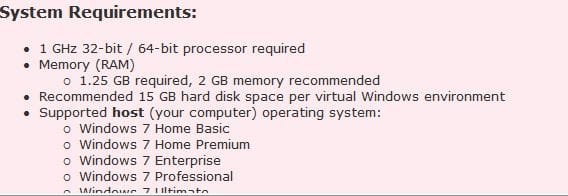
Windows Virtual PC: Minimum Requirements
  • 1 GHz 32-bit / 64-bit processor that supports Intel® Virtualization Technology or AMD Virtualization.
  • Memory (RAM)
    • 1.25 GB required, 2 GB memory recommended
  • Recommended 15 GB hard disk space per virtual Windows environment
  • Supported host (your computer) operating systems:
    • Windows 7 Home Premium (32-bit or 64-bit)
    • Windows 7 Professional (32-bit or 64-bit)
    • Windows 7 Ultimate (32-bit or 64-bit)
    • Windows 7 Enterprise (32-bit or 64-bit)
      NOTE: Windows XP Mode can only be installed on Windows 7 Professional, Windows 7 Ultimate, and Windows 7 Enterprise.
  • Supported "guest" (virtual machine) 32-bit only operating systems:
    • Windows XP 32-bit only
      • Virtual Applications feature is supported only on Windows XP Service Pack 3 (SP3) Professional
    • Windows Vista 32-bit only
      • Virtual Applications feature is supported only on Windows Vista Enterprise and Windows Vista Ultimate
    • Windows 7 32-bit only
      • Virtual Applications feature is supported only on Windows 7 Enterprise and Windows 7 Ultimate


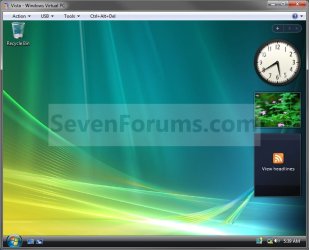
EXAMPLE: Create Virtual Machine
NOTE: For example, create a Vista virtual machine.Example.jpg
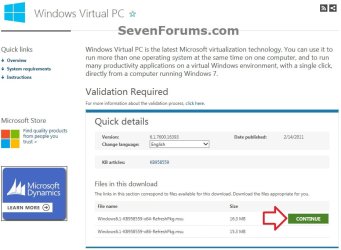
Here's How:1. If you have not already, then you will need to first download and install Windows Virtual PC. If you did, then go to step 2 below.A) At the Windows Virtual PC webpage, select your language, and click on the Continue button. (see screenshot below)Windows_Virtual-PC-1.jpg
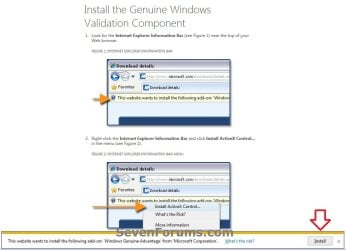
B) If you have not already, you will need to validate your Windows 7 first. Click on Install to install the Genuine Windows Validation Component, or follow on screen instructions. (see screenshot below)
NOTE: You will need to have Windows 7 activated and cookies enabled to be able to do this.Validate-1.jpg
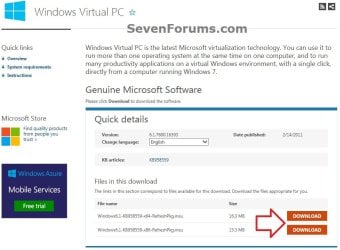
C) Select your language, and click on the Download button for either the Windows6.1-KB958559-x86-RefreshPkg.msu (32-bit) or Windows6.1-KB958559-x64-RefreshPkg.msu (64-bit) file for your same 32-bit or 64-bit Windows 7 version you have installed.Windows_Virtual-PC-2.jpg
D) Save the Windows6.1-KB958559-x86-RefreshPkg.msu or Windows6.1-KB958559-x64-RefreshPkg.msu file to your desktop.

E) Double click on the downloaded Windows6.1-KB958559-x86-RefreshPkg.msu or Windows6.1-KB958559-x64-RefreshPkg.msu file to start installing it.

F) If prompted by UAC, click on Yes.

G) Click on Yes.

H) Click on the I Accept button.

I) When it is finished, click on the Restart Now button.
WARNING: This will restart your computer immediately. Be sure to save and close anything that you have open first.

J) When the computer is finished restarting, continue on to step 2 below.
2. Do step 3 or 4 below for what you would like to do.

3. Open the Start Menu, type vpcwizard.exe in the search box, press Enter, and go to step 5 below.
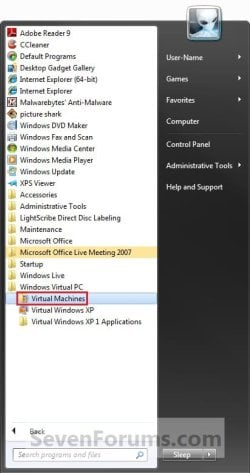
4. Open the Start Menu. Click on All Programs, expand Windows Virtual PC folder, double click on the Virtual Machines shortcut, and go to step 5 below. (See screenshot below)
NOTE: You can also open the Virtual Machines folder at C:\Users\(User Name)\Virtual Machines.Step1.jpg
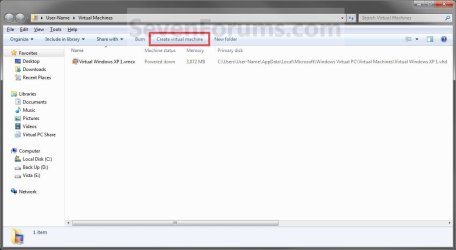
5. Click on the Create Virtual Machine button on the toolbar. (See screenshot below)Step2.jpg
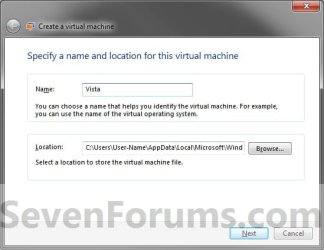
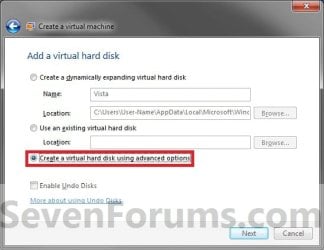
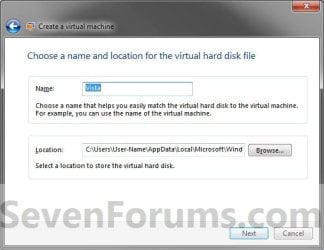
6. Type in a name (ex: Vista) you want for the new virtual machine, then select a location where you want the .vmcx and .vhd files saved at. Click on the Next button. (See screenshot below)
NOTE: You can save them anywhere you like, but the default location is the hidden
C:\Users\(user name)\AppData\Local\Microsoft\Windows Virtual PC\Virtual Machines
folder or the C:\Users\(user name)\Virtual Machines folder
.Step3.jpg
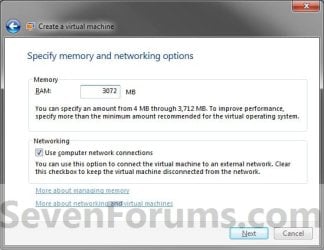
7. Enter how much of your RAM (1 GB = 1024 MB) you want to be used by the virtual machine. (See screenshot below)Step4.jpg
8. Check the Use computer on network connections box if you would like the virtual machine to have network or internet access, then click on the Next button. (See screenshot above)
9. To Create a Dynamically Expanding VHD
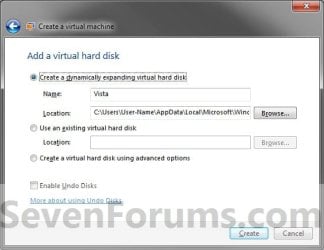
NOTE: This is the usual default option.A) Select (dot) Create a dynamically expanding virtual hard disk. (See screenshot below)Step5.jpg
B) Verify that the name and location is correct (from step 5), then click on the Create button. (See screenshot above)

C) Go to step 12.
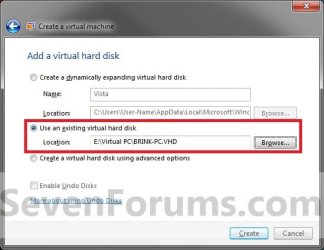
10. To Use an Existing VHD FileA) Select (dot) Use an existing virtual hard disk. (See screenshot below)VHD.jpg
B) Click on the Browse button and navigate to and select the VHD file that you want to use to create a virtual machine (VM) with, then click on the Create button. (See screenshot above)
WARNING: Windows Virtual PC only supports using a VHD up to 127 GB (130,048 MB) for a dynamic VHD, and up to 41 GB (42,023) for a fixed VHD. Any larger and you will not be able access the VM from within Windows Virtual PC.

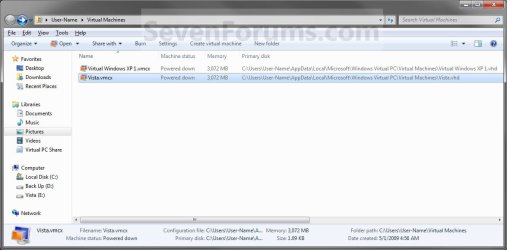
C) Right click on this new virtual machine (Ex: Vista.vmcx file), and click on Open. (See screenshot below)Step7.jpg
D) Go to step 17.
11. To Create a VHD with Advanced OptionsA) Select (dot) Create a virtual hard disk using advanced options, then click on the Next button. (See screenshot below)Step5A.jpg
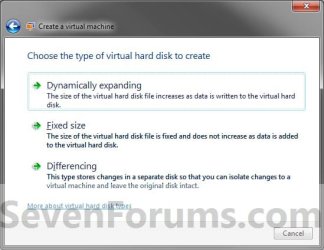
B) Select the type of VHD to create. (See screenshot below)Step6.jpg
C) Verify that the name and location is correct (from step 5), then click on the Next button. (See screenshot above)Step6A.jpg
12. Right click on this new virtual machine (Ex: Vista.vmcx file), and click on Settings.Step7.jpg
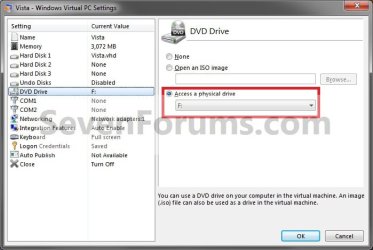
13. To Use a ISO File to Create the Virtual Machine FromA) In the left pane select DVD Drive, then select (dot) Open an ISO image in the right pane. (See screenshot below)Step8.jpg
B) Click on the Browse button and navigate to the location of the .ISO file of the operating system (ex: Vista) that you want to install in the VM, then select the ISO file and double click on it. Click on OK. (See screenshot above)
NOTE: If you do not have a ISO file of the operating system, then you can use a free program like ImgBurn to create a ISO file from the operating system's installation DVD.

C) Go to step 15.
14. To Use a DVD or Bootable USB to Create the Virtual Machine FromA) In the left pane select DVD Drive, select (dot) Access a physical drive in the right pane, then select the drive letter of the installation DVD or bootable USB. (See screenshot below step 13A)
15. Right click on this new virtual machine (Ex: Vista.vmcx file), and click on Open.Step7.jpg
16. Install the OS (Ex: Vista) in the virtual machine.
WARNING: Be sure to give the user account a password. Blank passwords are not supported, and can cause you to have problems with logging on to the VM. If you did leave the password field blank, then you should get a option after trying to log on without a password to continue to login without the password for now. You can then create a password for the user account in the VM.

17. To Install Integration ComponentsA) For how, see: http://www.sevenforums.com/tutorial...egration-features-install-enable-disable.html
18. Close or shutdown the new virtual machine.
NOTE: See yellow TIP box below for how to close the virtual machine.

19. Open the Windows 7 Start Menu in your computer (host).

20. Click on All Programs, expand Windows Virtual PC folder, then right click on this new virtual machine (Ex: Vista.vmcx file), and click on Settings.Step7.jpg
21. In the left pane select DVD Drive, then select (dot) Access a physical drive in the right pane. Select the DVD drive letter from the drop down menu that you would like to use in the virtual machine, and click on OK. (See screenshot below)
NOTE: If you do not want to use a DVD drive in the virtual machine, then select (dot) None instead.Drive.jpg
22. You now have a newly created virtual machine.


   Tip

  • You can close the virtual machine by shutting down the virtual machine from the Start menu inside the virtual machine, or by clicking on the close X at the top right corner of the virtual machine window. Afterwards, select the Turn Off option and click on OK. (See screenshot beow)
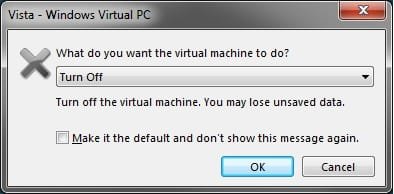
Close.jpg

  • You can open the virtual maching by opening the Start Menu, click on All Programs, expand Windows Virtual PC folder, and double click on the virtual maching shortcut.

That's it,
Shawn


Last edited:
Hello Metalsteel, and welcome to Seven Forums.

If you have a XP installation disc, then you can use the free program ImgBurn to create a ISO from the DVD to use to create the virtual PC with.

Hope this helps,
Shawn
 

My Computer

Computer type
PC/Desktop
Computer Manufacturer/Model Number
Self built custom
OS
64-bit Windows 11 Pro for Workstations
CPU
Intel i7-8700K OC'd to 5 GHz
Motherboard
ASUS ROG Maximus XI Formula Z390
Memory
64 GB (4x16GB) G.SKILL TridentZ RGB DDR4 3600 MHz
Graphics Card(s)
ASUS ROG-STRIX-GTX1080TI-O11G-GAMING
Sound Card
Integrated
Monitor(s) Displays
2 x Samsung Odyssey G7 27"
Screen Resolution
2560x1440
Hard Drives
1TB Samsung 990 PRO M.2,
4TB Samsung 990 PRO PRO M.2,
TerraMaster F8 SSD Plus NAS
PSU
Seasonic Prime Titanium 850W
Case
Thermaltake Core P3
Cooling
Corsair Hydro H115i
Keyboard
Logitech wireless K800
Mouse
Logitech MX Master 4
Internet Speed
2 Gb/s Download and 100 Mb/s Upload
Antivirus
Malwarebyte Anti-Malware Premium
Browser
Google Chrome
Other Info
Logitech Z625 speaker system,
Logitech BRIO 4K Pro webcam,
HP Color LaserJet Pro MFP M477fdn,
APC SMART-UPS RT 1000 XL - SURT1000XLI,
Galaxy S23 Plus phone
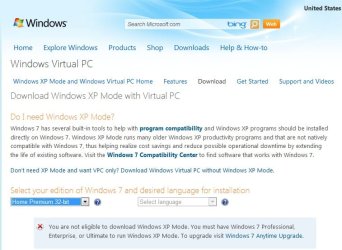
I thought this was aval for download as it says for home premium 64 bit but when I click on the choice for home premium I get this. I click on not to download xp mode.

Thanks
 

Attachments

  • virtual.JPG
    virtual.JPG
    15.7 KB · Views: 334

My Computer

Computer Manufacturer/Model Number
HP G60 120US Laptop
OS
7 home premium 64 bit
CPU
AMD Turion X2 64 bit 2 ghz
Motherboard
Whatever HP puts inside
Memory
3 gig
Graphics Card(s)
NVIDIA GeForce 8200M G
Sound Card
Conexent High Definition SmartAudio 221
Monitor(s) Displays
One attached to the laptop
Screen Resolution
1366X768
Hard Drives
Hitachi HTS543225L9A300 ATA 232 gb
Keyboard
attached
Mouse
touch pad attached
Hello KBz1960,

Sorry, but no. Windows XP Mode is only available in Windows 7 Enterprise, Windows 7 Professional, and Windows 7 Ultimate.

You would have to install another virtual machine program (ex: Virtual PC 2007 w/SP1, VMware, VirtualBox, etc....), then create a XP VM with it instead. :(
 

My Computer

Computer type
PC/Desktop
Computer Manufacturer/Model Number
Self built custom
OS
64-bit Windows 11 Pro for Workstations
CPU
Intel i7-8700K OC'd to 5 GHz
Motherboard
ASUS ROG Maximus XI Formula Z390
Memory
64 GB (4x16GB) G.SKILL TridentZ RGB DDR4 3600 MHz
Graphics Card(s)
ASUS ROG-STRIX-GTX1080TI-O11G-GAMING
Sound Card
Integrated
Monitor(s) Displays
2 x Samsung Odyssey G7 27"
Screen Resolution
2560x1440
Hard Drives
1TB Samsung 990 PRO M.2,
4TB Samsung 990 PRO PRO M.2,
TerraMaster F8 SSD Plus NAS
PSU
Seasonic Prime Titanium 850W
Case
Thermaltake Core P3
Cooling
Corsair Hydro H115i
Keyboard
Logitech wireless K800
Mouse
Logitech MX Master 4
Internet Speed
2 Gb/s Download and 100 Mb/s Upload
Antivirus
Malwarebyte Anti-Malware Premium
Browser
Google Chrome
Other Info
Logitech Z625 speaker system,
Logitech BRIO 4K Pro webcam,
HP Color LaserJet Pro MFP M477fdn,
APC SMART-UPS RT 1000 XL - SURT1000XLI,
Galaxy S23 Plus phone
Hummm well I really didn't want it for xp but linux. I suggest that you change the supported host OS as I take this as home premium is suported. I did search some more and found the Virtualbox that I'm attempting now.

Thanks
 

Attachments

  • os.JPG
    os.JPG
    25.2 KB · Views: 311

My Computer

Computer Manufacturer/Model Number
HP G60 120US Laptop
OS
7 home premium 64 bit
CPU
AMD Turion X2 64 bit 2 ghz
Motherboard
Whatever HP puts inside
Memory
3 gig
Graphics Card(s)
NVIDIA GeForce 8200M G
Sound Card
Conexent High Definition SmartAudio 221
Monitor(s) Displays
One attached to the laptop
Screen Resolution
1366X768
Hard Drives
Hitachi HTS543225L9A300 ATA 232 gb
Keyboard
attached
Mouse
touch pad attached
Will do. I'm not sure why MS listed them as supported host editions when you can't download it using them.
 

My Computer

Computer type
PC/Desktop
Computer Manufacturer/Model Number
Self built custom
OS
64-bit Windows 11 Pro for Workstations
CPU
Intel i7-8700K OC'd to 5 GHz
Motherboard
ASUS ROG Maximus XI Formula Z390
Memory
64 GB (4x16GB) G.SKILL TridentZ RGB DDR4 3600 MHz
Graphics Card(s)
ASUS ROG-STRIX-GTX1080TI-O11G-GAMING
Sound Card
Integrated
Monitor(s) Displays
2 x Samsung Odyssey G7 27"
Screen Resolution
2560x1440
Hard Drives
1TB Samsung 990 PRO M.2,
4TB Samsung 990 PRO PRO M.2,
TerraMaster F8 SSD Plus NAS
PSU
Seasonic Prime Titanium 850W
Case
Thermaltake Core P3
Cooling
Corsair Hydro H115i
Keyboard
Logitech wireless K800
Mouse
Logitech MX Master 4
Internet Speed
2 Gb/s Download and 100 Mb/s Upload
Antivirus
Malwarebyte Anti-Malware Premium
Browser
Google Chrome
Other Info
Logitech Z625 speaker system,
Logitech BRIO 4K Pro webcam,
HP Color LaserJet Pro MFP M477fdn,
APC SMART-UPS RT 1000 XL - SURT1000XLI,
Galaxy S23 Plus phone
it shows some hardware assisted error? How can be solved is it something with processor ? :cry:

 
Last edited by a moderator:

My Computer

Computer Manufacturer/Model Number
David's Imperator
OS
Windows 7 Ultimate x64
CPU
Intel Core i5-2500 3.3 GHz
Motherboard
Foxconn P67A-S
Memory
6 GB DDR3 RAM Silicon Power
Graphics Card(s)
Nvidia GeForce GTS 450 2GB DDR3
Sound Card
Realtek HD Audio
Monitor(s) Displays
Philips 226VLA
Screen Resolution
1920x1080
Hard Drives
WD Green 1TB (1000GB)
PSU
250W
Hello David,

You got this error message because your Intel Celeron D CPU does not support Intel® Virtualization Technology. Because of this, you will not be able to install Windows Virtual PC. Instead you will need to use another virtual machine progam like Microsoft Virtual PC 2007 SP1, VirtualBox, VMware Player, etc..... to create a virtual machine with instead.

Hope this helps,
Shawn
 

My Computer

Computer type
PC/Desktop
Computer Manufacturer/Model Number
Self built custom
OS
64-bit Windows 11 Pro for Workstations
CPU
Intel i7-8700K OC'd to 5 GHz
Motherboard
ASUS ROG Maximus XI Formula Z390
Memory
64 GB (4x16GB) G.SKILL TridentZ RGB DDR4 3600 MHz
Graphics Card(s)
ASUS ROG-STRIX-GTX1080TI-O11G-GAMING
Sound Card
Integrated
Monitor(s) Displays
2 x Samsung Odyssey G7 27"
Screen Resolution
2560x1440
Hard Drives
1TB Samsung 990 PRO M.2,
4TB Samsung 990 PRO PRO M.2,
TerraMaster F8 SSD Plus NAS
PSU
Seasonic Prime Titanium 850W
Case
Thermaltake Core P3
Cooling
Corsair Hydro H115i
Keyboard
Logitech wireless K800
Mouse
Logitech MX Master 4
Internet Speed
2 Gb/s Download and 100 Mb/s Upload
Antivirus
Malwarebyte Anti-Malware Premium
Browser
Google Chrome
Other Info
Logitech Z625 speaker system,
Logitech BRIO 4K Pro webcam,
HP Color LaserJet Pro MFP M477fdn,
APC SMART-UPS RT 1000 XL - SURT1000XLI,
Galaxy S23 Plus phone
Thank you Shawn now it works ;) and yeah can you give me some good processor for this...Does Dual Core or Core 2 Duo support this technology ?
 

My Computer

Computer Manufacturer/Model Number
David's Imperator
OS
Windows 7 Ultimate x64
CPU
Intel Core i5-2500 3.3 GHz
Motherboard
Foxconn P67A-S
Memory
6 GB DDR3 RAM Silicon Power
Graphics Card(s)
Nvidia GeForce GTS 450 2GB DDR3
Sound Card
Realtek HD Audio
Monitor(s) Displays
Philips 226VLA
Screen Resolution
1920x1080
Hard Drives
WD Green 1TB (1000GB)
PSU
250W

My Computer

Computer type
PC/Desktop
Computer Manufacturer/Model Number
Self built custom
OS
64-bit Windows 11 Pro for Workstations
CPU
Intel i7-8700K OC'd to 5 GHz
Motherboard
ASUS ROG Maximus XI Formula Z390
Memory
64 GB (4x16GB) G.SKILL TridentZ RGB DDR4 3600 MHz
Graphics Card(s)
ASUS ROG-STRIX-GTX1080TI-O11G-GAMING
Sound Card
Integrated
Monitor(s) Displays
2 x Samsung Odyssey G7 27"
Screen Resolution
2560x1440
Hard Drives
1TB Samsung 990 PRO M.2,
4TB Samsung 990 PRO PRO M.2,
TerraMaster F8 SSD Plus NAS
PSU
Seasonic Prime Titanium 850W
Case
Thermaltake Core P3
Cooling
Corsair Hydro H115i
Keyboard
Logitech wireless K800
Mouse
Logitech MX Master 4
Internet Speed
2 Gb/s Download and 100 Mb/s Upload
Antivirus
Malwarebyte Anti-Malware Premium
Browser
Google Chrome
Other Info
Logitech Z625 speaker system,
Logitech BRIO 4K Pro webcam,
HP Color LaserJet Pro MFP M477fdn,
APC SMART-UPS RT 1000 XL - SURT1000XLI,
Galaxy S23 Plus phone
Hello, I've been loving all the tutorials here. I seem to have run into a snag with this one though.

The virtual machine starts up fine and runs in its window. It tries load my slipstreamed .iso, it says "Windows is loading files" with the loading bar like normal. But then, it stops and I get an error:
Windows failed to start. A recent hardware or software change might be the cause...
...
File: \windows\system32\boot\winload.exe
Status: 0xc000035a
Info: Attempting to load a 64-bit application, however this CPU is not compatible with 64-bit mode.

I just tried it with an iso of my actual installation disc again, to the same exact result. Now, I assure you, my CPU is AMD Phenom II x6 1090T, I am running 64-bit Win7Pro SP1 right now, the slipstreamed iso was x64, and the disc I used was the x64 one. Am I missing something or is there another problem somewhere else I should be looking into? :huh:
 

My Computer

Computer type
PC/Desktop
OS
Windows 7 Pro x64 SP1
CPU
AMD Phenom II x6 1090T Black Edition 3.2GHz
Motherboard
ASUS M4A88TD-V EVO/USB3
Memory
Patriot G ‘Sector 5’ Edition 8GB (2 x 4GB) 1600MHz
Sound Card
(onboard) Realtek® ALC 892 8-Channel High Definition Audio
Monitor(s) Displays
ViewSonic VX2253 22"
Screen Resolution
1920x1080
Hard Drives
Transcend SSD720 2.5" SATAIII 64GB SSD; Western Digital Caviar Green WD20EARS 2TB 64MB 3.5" HDD
LG WH10LS30 10X Blu-ray Burner with LightScribe
PSU
CORSAIR TX Series 950W ATX12V 80 Plus Bronze
Case
Cooler Master HAF X NVidia Edition; 5 Green LED Fans!
Cooling
CORSAIR A70 120mm Dual-Fan
Keyboard
Verbatim 97472 Mini Wireless Slim
Mouse
bundled Verbatim 97472 Wireless
Antivirus
Avast
Browser
Chrome
Other Info
Ultraportable/Desktop Replacement Laptop:
circa Oct 2006,
Dell XPS M1210,
Windows 7 Professional 32-bit,
Intel Core 2 Duo T7200 2.0GHz,
3.25 (4) GB of RAM,
NVidia GeForce Go 7400,
500GB Seagate Momentus 7200RPM HDD
Hello, I've been loving all the tutorials here. I seem to have run into a snag with this one though.

The virtual machine starts up fine and runs in its window. It tries load my slipstreamed .iso, it says "Windows is loading files" with the loading bar like normal. But then, it stops and I get an error:
Windows failed to start. A recent hardware or software change might be the cause...
...
File: \windows\system32\boot\winload.exe
Status: 0xc000035a
Info: Attempting to load a 64-bit application, however this CPU is not compatible with 64-bit mode.

I just tried it with an iso of my actual installation disc again, to the same exact result. Now, I assure you, my CPU is AMD Phenom II x6 1090T, I am running 64-bit Win7Pro SP1 right now, the slipstreamed iso was x64, and the disc I used was the x64 one. Am I missing something or is there another problem somewhere else I should be looking into? :huh:


Hello Miranova,

Unfortunately, Windows Virtual PC does not support running a 64-bit OS as a virtual machine. :(

However, you can use the free program VMWare Player to run a 64-bit virtual machine though.

Hope this helps,
Shawn
 
Last edited:

My Computer

Computer type
PC/Desktop
Computer Manufacturer/Model Number
Self built custom
OS
64-bit Windows 11 Pro for Workstations
CPU
Intel i7-8700K OC'd to 5 GHz
Motherboard
ASUS ROG Maximus XI Formula Z390
Memory
64 GB (4x16GB) G.SKILL TridentZ RGB DDR4 3600 MHz
Graphics Card(s)
ASUS ROG-STRIX-GTX1080TI-O11G-GAMING
Sound Card
Integrated
Monitor(s) Displays
2 x Samsung Odyssey G7 27"
Screen Resolution
2560x1440
Hard Drives
1TB Samsung 990 PRO M.2,
4TB Samsung 990 PRO PRO M.2,
TerraMaster F8 SSD Plus NAS
PSU
Seasonic Prime Titanium 850W
Case
Thermaltake Core P3
Cooling
Corsair Hydro H115i
Keyboard
Logitech wireless K800
Mouse
Logitech MX Master 4
Internet Speed
2 Gb/s Download and 100 Mb/s Upload
Antivirus
Malwarebyte Anti-Malware Premium
Browser
Google Chrome
Other Info
Logitech Z625 speaker system,
Logitech BRIO 4K Pro webcam,
HP Color LaserJet Pro MFP M477fdn,
APC SMART-UPS RT 1000 XL - SURT1000XLI,
Galaxy S23 Plus phone
Sweet =) I was really hoping I didn't screw anything up ^^"
I figured since the download said it was for a 64-bit os, that it could in turn run a virtual os. Oh well. I guess maybe cuz 1 of them does need to be capped at 4gb...

& thank you so much for the quick reply! =D
 

My Computer

Computer type
PC/Desktop
OS
Windows 7 Pro x64 SP1
CPU
AMD Phenom II x6 1090T Black Edition 3.2GHz
Motherboard
ASUS M4A88TD-V EVO/USB3
Memory
Patriot G ‘Sector 5’ Edition 8GB (2 x 4GB) 1600MHz
Sound Card
(onboard) Realtek® ALC 892 8-Channel High Definition Audio
Monitor(s) Displays
ViewSonic VX2253 22"
Screen Resolution
1920x1080
Hard Drives
Transcend SSD720 2.5" SATAIII 64GB SSD; Western Digital Caviar Green WD20EARS 2TB 64MB 3.5" HDD
LG WH10LS30 10X Blu-ray Burner with LightScribe
PSU
CORSAIR TX Series 950W ATX12V 80 Plus Bronze
Case
Cooler Master HAF X NVidia Edition; 5 Green LED Fans!
Cooling
CORSAIR A70 120mm Dual-Fan
Keyboard
Verbatim 97472 Mini Wireless Slim
Mouse
bundled Verbatim 97472 Wireless
Antivirus
Avast
Browser
Chrome
Other Info
Ultraportable/Desktop Replacement Laptop:
circa Oct 2006,
Dell XPS M1210,
Windows 7 Professional 32-bit,
Intel Core 2 Duo T7200 2.0GHz,
3.25 (4) GB of RAM,
NVidia GeForce Go 7400,
500GB Seagate Momentus 7200RPM HDD
You're most welcome Miranova. :)

You could create a 32-bit Windows 7 virtual machine in your 64-bit Windows 7, but just not a 64-bit virtual machine.
 

My Computer

Computer type
PC/Desktop
Computer Manufacturer/Model Number
Self built custom
OS
64-bit Windows 11 Pro for Workstations
CPU
Intel i7-8700K OC'd to 5 GHz
Motherboard
ASUS ROG Maximus XI Formula Z390
Memory
64 GB (4x16GB) G.SKILL TridentZ RGB DDR4 3600 MHz
Graphics Card(s)
ASUS ROG-STRIX-GTX1080TI-O11G-GAMING
Sound Card
Integrated
Monitor(s) Displays
2 x Samsung Odyssey G7 27"
Screen Resolution
2560x1440
Hard Drives
1TB Samsung 990 PRO M.2,
4TB Samsung 990 PRO PRO M.2,
TerraMaster F8 SSD Plus NAS
PSU
Seasonic Prime Titanium 850W
Case
Thermaltake Core P3
Cooling
Corsair Hydro H115i
Keyboard
Logitech wireless K800
Mouse
Logitech MX Master 4
Internet Speed
2 Gb/s Download and 100 Mb/s Upload
Antivirus
Malwarebyte Anti-Malware Premium
Browser
Google Chrome
Other Info
Logitech Z625 speaker system,
Logitech BRIO 4K Pro webcam,
HP Color LaserJet Pro MFP M477fdn,
APC SMART-UPS RT 1000 XL - SURT1000XLI,
Galaxy S23 Plus phone
That VM Ware site is very confusing. Dowload manager, Binaries, VM players galore. Sounds spammy to me. :confused:
 

My Computer

Computer type
PC/Desktop
Computer Manufacturer/Model Number
Home Built Desktop By DataTech
OS
Windows 7 Ultimate X64 SP1
CPU
Intel i5-2550K, Differing ~4.4-4.8GHz No built in GPU
Motherboard
ASUS P8Z68-V PRO/GEN3
Memory
16GB G.Skill Sniper 1866MHz @ 2133MHz 2x8GB
Graphics Card(s)
ASUS GTX650TIB-DC2OC-2GD5, (650TI Boost)
Sound Card
Onboard Realtek 5-1
Monitor(s) Displays
Samsung P2570HD
Screen Resolution
1920x1080
Hard Drives
Samsung 840 Pro 256GB SSD for OS, 500GB Seagate Constellation (Enterprise drive) for Data
PSU
Corsair HX650W
Case
Inwin Dragon Rider
Cooling
Hyper 212 EVO w/two Noctua fans, push-pull, @1300 RPM
Keyboard
E-Z Eyes, bright yellow keys with large characters
Mouse
steelseries SENSEI Laser Pro Gaming
Internet Speed
48-51Mbs Mbs down, 11 Mbs up Xfinity Cable
Antivirus
Norton Internet Security 2013
Browser
IE 10, Opera, Pale Moon if needed
Other Info
4 case fans, LG BluRay-RE, ASUS DVD-RW, Mr. Fusion power supply, 1.21 gigawatts.
Hi Brink,

I want to add some info;

1- You say:

"Supported host (your computer) operating system:
Windows 7 Professional (32-bit or 64-bit)
Windows 7 Ultimate (32-bit or 64-bit)
Windows 7 Enterprise (32-bit or 64-bit)"


But I thing, Windows 7 HP also support Windows Virtual PC because I allready use it.

2- You say:

"NOTE: Windows XP Mode can only be installed on Windows 7 Enterprise, Windows 7 Professional, and Windows 7 Ultimate."

Yes it's true but if tou copy XP Mode as .vhd file from any supported and installed O.C. (Windows 7 Enterprise, Windows 7 Professional, and Windows 7 Ultimate) to Windows 7 Home Premium you can use it for 27 days as trial:

4e43e54f4e12e.png


Maybe I missing something if so sory for inconvenience :)
 

My Computer

Computer Manufacturer/Model Number
asus f3sv240dr
OS
vista
CPU
t7700
Memory
2 gb
Graphics Card(s)
8600M
Hard Drives
250 GB
Hello Nonpasaran,

Yeah Windows Virtual PC by itself can be installed on Windows Home Premium, but XP Mode is not eligible to install it normally. Sure you could use that workaround to use the XP Mode VHD, but it's not supported.

eligible.jpg
 

My Computer

Computer type
PC/Desktop
Computer Manufacturer/Model Number
Self built custom
OS
64-bit Windows 11 Pro for Workstations
CPU
Intel i7-8700K OC'd to 5 GHz
Motherboard
ASUS ROG Maximus XI Formula Z390
Memory
64 GB (4x16GB) G.SKILL TridentZ RGB DDR4 3600 MHz
Graphics Card(s)
ASUS ROG-STRIX-GTX1080TI-O11G-GAMING
Sound Card
Integrated
Monitor(s) Displays
2 x Samsung Odyssey G7 27"
Screen Resolution
2560x1440
Hard Drives
1TB Samsung 990 PRO M.2,
4TB Samsung 990 PRO PRO M.2,
TerraMaster F8 SSD Plus NAS
PSU
Seasonic Prime Titanium 850W
Case
Thermaltake Core P3
Cooling
Corsair Hydro H115i
Keyboard
Logitech wireless K800
Mouse
Logitech MX Master 4
Internet Speed
2 Gb/s Download and 100 Mb/s Upload
Antivirus
Malwarebyte Anti-Malware Premium
Browser
Google Chrome
Other Info
Logitech Z625 speaker system,
Logitech BRIO 4K Pro webcam,
HP Color LaserJet Pro MFP M477fdn,
APC SMART-UPS RT 1000 XL - SURT1000XLI,
Galaxy S23 Plus phone
Thanks for quick response
Yes you are right about it.

But still I thing "Supported host (your computer) operating system" part of article must be edit as;

Supported host operating system:

Windows 7 Home Basic
Windows 7 Home Premium
Windows 7 Enterprise
Windows 7 Professional
Windows 7 Ultimate

source

Thanks for patience :)
 

My Computer

Computer Manufacturer/Model Number
asus f3sv240dr
OS
vista
CPU
t7700
Memory
2 gb
Graphics Card(s)
8600M
Hard Drives
250 GB
Strange, Home Basic is not listed here though where you download it at. I'll add it though later after testing and verifying.
 

My Computer

Computer type
PC/Desktop
Computer Manufacturer/Model Number
Self built custom
OS
64-bit Windows 11 Pro for Workstations
CPU
Intel i7-8700K OC'd to 5 GHz
Motherboard
ASUS ROG Maximus XI Formula Z390
Memory
64 GB (4x16GB) G.SKILL TridentZ RGB DDR4 3600 MHz
Graphics Card(s)
ASUS ROG-STRIX-GTX1080TI-O11G-GAMING
Sound Card
Integrated
Monitor(s) Displays
2 x Samsung Odyssey G7 27"
Screen Resolution
2560x1440
Hard Drives
1TB Samsung 990 PRO M.2,
4TB Samsung 990 PRO PRO M.2,
TerraMaster F8 SSD Plus NAS
PSU
Seasonic Prime Titanium 850W
Case
Thermaltake Core P3
Cooling
Corsair Hydro H115i
Keyboard
Logitech wireless K800
Mouse
Logitech MX Master 4
Internet Speed
2 Gb/s Download and 100 Mb/s Upload
Antivirus
Malwarebyte Anti-Malware Premium
Browser
Google Chrome
Other Info
Logitech Z625 speaker system,
Logitech BRIO 4K Pro webcam,
HP Color LaserJet Pro MFP M477fdn,
APC SMART-UPS RT 1000 XL - SURT1000XLI,
Galaxy S23 Plus phone
Windows Genuine Advantage validation tool is no longer supported

In Step 1B "...Click on Install to install the Genuine Windows Validation Component..." is no longer valid. Error message from 2011 version:
Windows Genuine Advantage error This version of the Windows Genuine Advantage validation tool is no longer supported. Please download the newest version and ensure that your system clock is accurate
My install of Windows 7 Professional (x64) Service Pack 1 is valid, using the Genuine Advantage replacement. Have not found a work-around or later .exe file from Microsoft that updated the validity check in Virtual Box.
 

My Computer

Computer type
Laptop
Computer Manufacturer/Model Number
Hewlett-Packard HP Pavilion dv7 Notebook PC
OS
Windows 7 Professional (x64) Service Pack 1 (build 7601)
CPU
Intel Core i7-2670QM
Motherboard
Hewlett-Packard 1800 10.5A
Memory
8140 Megabytes
Graphics Card(s)
Intel(R) HD Graphics Family RadeonHD 7470M
Hard Drives
TOSHIBA MK1059GSMP [Hard drive] (1000.20 GB)
Antivirus
Kaspersky Pure 3
Browser
FF 22.01, Chrome, IE 9
Hello Louis, and welcome to Seven Forums.

Here are a couple of items to check. :)

Are you doing this in Internet Explorer?

Are you logged in an administrator account on that PC and not through Virtual Box or domain?
 

My Computer

Computer type
PC/Desktop
Computer Manufacturer/Model Number
Self built custom
OS
64-bit Windows 11 Pro for Workstations
CPU
Intel i7-8700K OC'd to 5 GHz
Motherboard
ASUS ROG Maximus XI Formula Z390
Memory
64 GB (4x16GB) G.SKILL TridentZ RGB DDR4 3600 MHz
Graphics Card(s)
ASUS ROG-STRIX-GTX1080TI-O11G-GAMING
Sound Card
Integrated
Monitor(s) Displays
2 x Samsung Odyssey G7 27"
Screen Resolution
2560x1440
Hard Drives
1TB Samsung 990 PRO M.2,
4TB Samsung 990 PRO PRO M.2,
TerraMaster F8 SSD Plus NAS
PSU
Seasonic Prime Titanium 850W
Case
Thermaltake Core P3
Cooling
Corsair Hydro H115i
Keyboard
Logitech wireless K800
Mouse
Logitech MX Master 4
Internet Speed
2 Gb/s Download and 100 Mb/s Upload
Antivirus
Malwarebyte Anti-Malware Premium
Browser
Google Chrome
Other Info
Logitech Z625 speaker system,
Logitech BRIO 4K Pro webcam,
HP Color LaserJet Pro MFP M477fdn,
APC SMART-UPS RT 1000 XL - SURT1000XLI,
Galaxy S23 Plus phone
Back
Top