Windows Virtual PC - Create Virtual Machine

How to Create a Virtual Machine in Windows Virtual PC

   Information
This will show you how to create a new virtual machine in Windows Virtual PC, and install the 32-bit guest operating system that you want to run in the virtual machine on your 32-bit or 64-bit Windows 7 as the host.


   Note
Windows Virtual PC is the latest Microsoft virtualization technology for Windows 7. It is the runtime engine for Windows XP Mode to provide a virtual Windows environment for Windows 7. With Windows Virtual PC, Windows XP mode applications can be seen and accessed from a Windows 7-based PC.

You will need to download and install the 32-bit (x86) or 64-bit (x64) version of Windows Virtual PC for your 32-bit or 64-bit Windows 7.


   Warning
Windows Virtual PC: Minimum Requirements
  • 1 GHz 32-bit / 64-bit processor that supports Intel® Virtualization Technology or AMD Virtualization.
  • Memory (RAM)
    • 1.25 GB required, 2 GB memory recommended
  • Recommended 15 GB hard disk space per virtual Windows environment
  • Supported host (your computer) operating systems:
    • Windows 7 Home Premium (32-bit or 64-bit)
    • Windows 7 Professional (32-bit or 64-bit)
    • Windows 7 Ultimate (32-bit or 64-bit)
    • Windows 7 Enterprise (32-bit or 64-bit)
      NOTE: Windows XP Mode can only be installed on Windows 7 Professional, Windows 7 Ultimate, and Windows 7 Enterprise.
  • Supported "guest" (virtual machine) 32-bit only operating systems:
    • Windows XP 32-bit only
      • Virtual Applications feature is supported only on Windows XP Service Pack 3 (SP3) Professional
    • Windows Vista 32-bit only
      • Virtual Applications feature is supported only on Windows Vista Enterprise and Windows Vista Ultimate
    • Windows 7 32-bit only
      • Virtual Applications feature is supported only on Windows 7 Enterprise and Windows 7 Ultimate


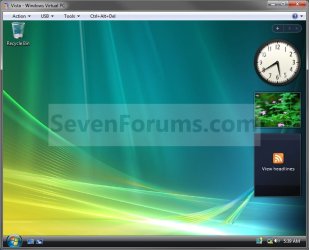
EXAMPLE: Create Virtual Machine
NOTE: For example, create a Vista virtual machine.Example.jpg
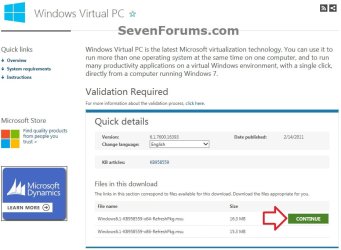
Here's How:1. If you have not already, then you will need to first download and install Windows Virtual PC. If you did, then go to step 2 below.A) At the Windows Virtual PC webpage, select your language, and click on the Continue button. (see screenshot below)Windows_Virtual-PC-1.jpg
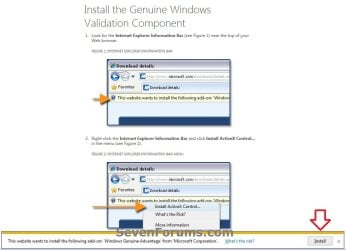
B) If you have not already, you will need to validate your Windows 7 first. Click on Install to install the Genuine Windows Validation Component, or follow on screen instructions. (see screenshot below)
NOTE: You will need to have Windows 7 activated and cookies enabled to be able to do this.Validate-1.jpg
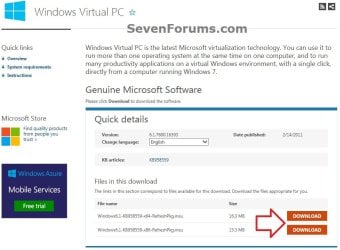
C) Select your language, and click on the Download button for either the Windows6.1-KB958559-x86-RefreshPkg.msu (32-bit) or Windows6.1-KB958559-x64-RefreshPkg.msu (64-bit) file for your same 32-bit or 64-bit Windows 7 version you have installed.Windows_Virtual-PC-2.jpg
D) Save the Windows6.1-KB958559-x86-RefreshPkg.msu or Windows6.1-KB958559-x64-RefreshPkg.msu file to your desktop.

E) Double click on the downloaded Windows6.1-KB958559-x86-RefreshPkg.msu or Windows6.1-KB958559-x64-RefreshPkg.msu file to start installing it.

F) If prompted by UAC, click on Yes.

G) Click on Yes.

H) Click on the I Accept button.

I) When it is finished, click on the Restart Now button.
WARNING: This will restart your computer immediately. Be sure to save and close anything that you have open first.

J) When the computer is finished restarting, continue on to step 2 below.
2. Do step 3 or 4 below for what you would like to do.

3. Open the Start Menu, type vpcwizard.exe in the search box, press Enter, and go to step 5 below.
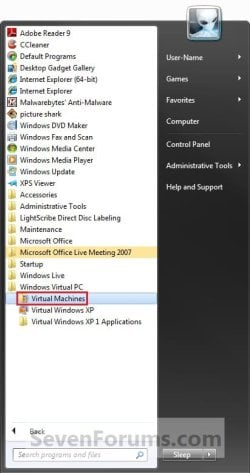
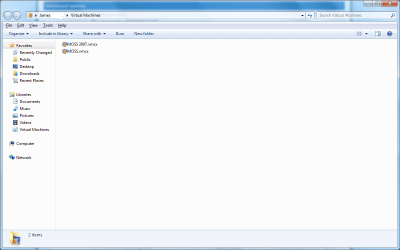
4. Open the Start Menu. Click on All Programs, expand Windows Virtual PC folder, double click on the Virtual Machines shortcut, and go to step 5 below. (See screenshot below)
NOTE: You can also open the Virtual Machines folder at C:\Users\(User Name)\Virtual Machines.Step1.jpg
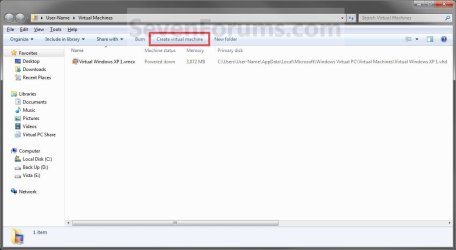
5. Click on the Create Virtual Machine button on the toolbar. (See screenshot below)Step2.jpg
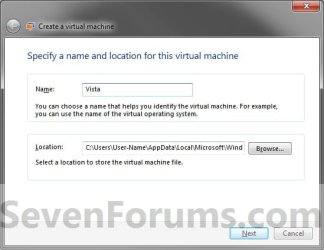
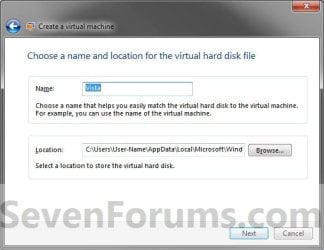
6. Type in a name (ex: Vista) you want for the new virtual machine, then select a location where you want the .vmcx and .vhd files saved at. Click on the Next button. (See screenshot below)
NOTE: You can save them anywhere you like, but the default location is the hidden
C:\Users\(user name)\AppData\Local\Microsoft\Windows Virtual PC\Virtual Machines
folder or the C:\Users\(user name)\Virtual Machines folder
.Step3.jpg
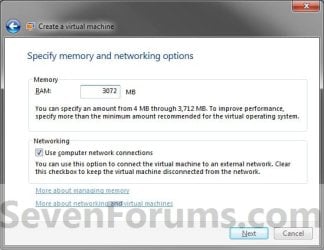
7. Enter how much of your RAM (1 GB = 1024 MB) you want to be used by the virtual machine. (See screenshot below)Step4.jpg
8. Check the Use computer on network connections box if you would like the virtual machine to have network or internet access, then click on the Next button. (See screenshot above)
9. To Create a Dynamically Expanding VHD
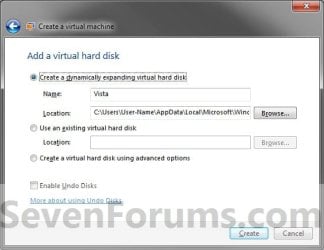
NOTE: This is the usual default option.A) Select (dot) Create a dynamically expanding virtual hard disk. (See screenshot below)Step5.jpg
B) Verify that the name and location is correct (from step 5), then click on the Create button. (See screenshot above)

C) Go to step 12.
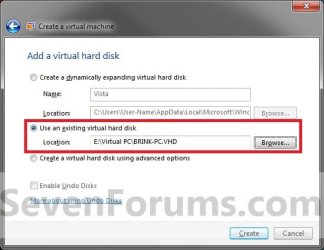
10. To Use an Existing VHD FileA) Select (dot) Use an existing virtual hard disk. (See screenshot below)VHD.jpg
B) Click on the Browse button and navigate to and select the VHD file that you want to use to create a virtual machine (VM) with, then click on the Create button. (See screenshot above)
WARNING: Windows Virtual PC only supports using a VHD up to 127 GB (130,048 MB) for a dynamic VHD, and up to 41 GB (42,023) for a fixed VHD. Any larger and you will not be able access the VM from within Windows Virtual PC.

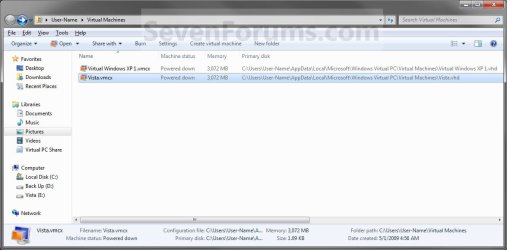
C) Right click on this new virtual machine (Ex: Vista.vmcx file), and click on Open. (See screenshot below)Step7.jpg
D) Go to step 17.
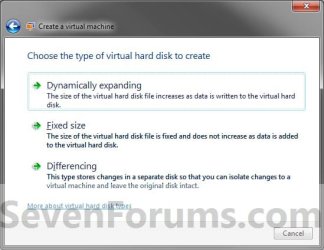
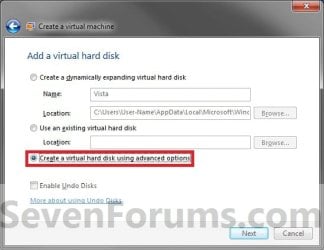
11. To Create a VHD with Advanced OptionsA) Select (dot) Create a virtual hard disk using advanced options, then click on the Next button. (See screenshot below)Step5A.jpg
B) Select the type of VHD to create. (See screenshot below)Step6.jpg
C) Verify that the name and location is correct (from step 5), then click on the Next button. (See screenshot above)Step6A.jpg
12. Right click on this new virtual machine (Ex: Vista.vmcx file), and click on Settings.Step7.jpg
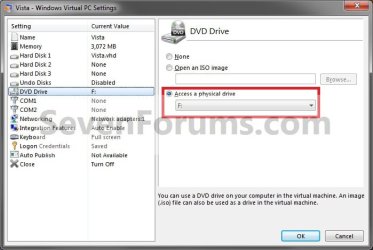
13. To Use a ISO File to Create the Virtual Machine FromA) In the left pane select DVD Drive, then select (dot) Open an ISO image in the right pane. (See screenshot below)Step8.jpg
B) Click on the Browse button and navigate to the location of the .ISO file of the operating system (ex: Vista) that you want to install in the VM, then select the ISO file and double click on it. Click on OK. (See screenshot above)
NOTE: If you do not have a ISO file of the operating system, then you can use a free program like ImgBurn to create a ISO file from the operating system's installation DVD.

C) Go to step 15.
14. To Use a DVD or Bootable USB to Create the Virtual Machine FromA) In the left pane select DVD Drive, select (dot) Access a physical drive in the right pane, then select the drive letter of the installation DVD or bootable USB. (See screenshot below step 13A)
15. Right click on this new virtual machine (Ex: Vista.vmcx file), and click on Open.Step7.jpg
16. Install the OS (Ex: Vista) in the virtual machine.
WARNING: Be sure to give the user account a password. Blank passwords are not supported, and can cause you to have problems with logging on to the VM. If you did leave the password field blank, then you should get a option after trying to log on without a password to continue to login without the password for now. You can then create a password for the user account in the VM.

17. To Install Integration ComponentsA) For how, see: http://www.sevenforums.com/tutorial...egration-features-install-enable-disable.html
18. Close or shutdown the new virtual machine.
NOTE: See yellow TIP box below for how to close the virtual machine.

19. Open the Windows 7 Start Menu in your computer (host).

20. Click on All Programs, expand Windows Virtual PC folder, then right click on this new virtual machine (Ex: Vista.vmcx file), and click on Settings.Step7.jpg
21. In the left pane select DVD Drive, then select (dot) Access a physical drive in the right pane. Select the DVD drive letter from the drop down menu that you would like to use in the virtual machine, and click on OK. (See screenshot below)
NOTE: If you do not want to use a DVD drive in the virtual machine, then select (dot) None instead.Drive.jpg
22. You now have a newly created virtual machine.


   Tip

  • You can close the virtual machine by shutting down the virtual machine from the Start menu inside the virtual machine, or by clicking on the close X at the top right corner of the virtual machine window. Afterwards, select the Turn Off option and click on OK. (See screenshot beow)
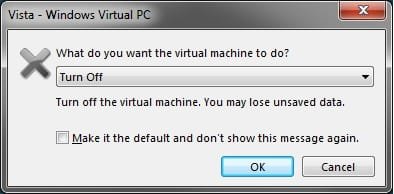
Close.jpg

  • You can open the virtual maching by opening the Start Menu, click on All Programs, expand Windows Virtual PC folder, and double click on the virtual maching shortcut.

That's it,
Shawn


Last edited:
Getting ahead of yourself Brink :p Nice tut though.
 

My Computer

Computer Manufacturer/Model Number
self built
OS
Windows 7 Professional 64-bit
CPU
Intel E8400 3GHz
Motherboard
Intel DX48BT2
Memory
Kingston PC3-10700H 4Gb
Graphics Card(s)
XFX Radeon HD 5850 BlackEd.
Sound Card
Asus Xonar DG
Monitor(s) Displays
2x Samsung SM-T220HD 22"
Screen Resolution
1680x1050 on two monitors
Hard Drives
OCZ Vertex 2 120gb 3.5" (OS)
Seagate Momentus XT 500gb
Samsung F3 1Tb (games)
2x Samsung F1 1Tb
PSU
Thermaltake ToughPower 850w
Case
Thermaltake Armor
Cooling
Scythe Mugen II
Keyboard
Microsoft Comfort Curve USB
Mouse
Razer Diamondback 3G
Internet Speed
8128/443
LOL, yeah I thought it would be nice to have some more information out there to help folks get familiar with this more before it is released to the public on the 5th. ;)
 

My Computer

Computer type
PC/Desktop
Computer Manufacturer/Model Number
Self built custom
OS
64-bit Windows 11 Pro for Workstations
CPU
Intel i7-8700K OC'd to 5 GHz
Motherboard
ASUS ROG Maximus XI Formula Z390
Memory
64 GB (4x16GB) G.SKILL TridentZ RGB DDR4 3600 MHz
Graphics Card(s)
ASUS ROG-STRIX-GTX1080TI-O11G-GAMING
Sound Card
Integrated
Monitor(s) Displays
2 x Samsung Odyssey G7 27"
Screen Resolution
2560x1440
Hard Drives
1TB Samsung 990 PRO M.2,
4TB Samsung 990 PRO PRO M.2,
TerraMaster F8 SSD Plus NAS
PSU
Seasonic Prime Titanium 850W
Case
Thermaltake Core P3
Cooling
Corsair Hydro H115i
Keyboard
Logitech wireless K800
Mouse
Logitech MX Master 4
Internet Speed
2 Gb/s Download and 100 Mb/s Upload
Antivirus
Malwarebyte Anti-Malware Premium
Browser
Google Chrome
Other Info
Logitech Z625 speaker system,
Logitech BRIO 4K Pro webcam,
HP Color LaserJet Pro MFP M477fdn,
APC SMART-UPS RT 1000 XL - SURT1000XLI,
Galaxy S23 Plus phone
VM can also do Ubuntu

Just installed Jaunty Jackalope so the VM does handle more than the Microsoft OS's listed above.
 

My Computer

Computer Manufacturer/Model Number
ASUS p5w-dh deluxe & IBM Thinkpad T43
OS
Windows 7 x86 and x64 - RTM
CPU
E6700 (core 2 duo ^3.25GHz) & Pentium M 750 (1.86GHz)
Motherboard
P5W-DH Deluxe & Thinkpad T43
Memory
4GB and 1.5GB
Graphics Card(s)
ATI 4850 & ATI X300

My Computer

Computer type
PC/Desktop
Computer Manufacturer/Model Number
Dwarf Dwf/11/2012 r09/2013
OS
Windows 8.1 Pro RTM x64
CPU
Intel Core-i5-3570K 4-core @ 3.4GHz (Ivy Bridge) (OC 4.4GHz)
Motherboard
ASRock Z77 Extreme4-M
Memory
4 x 4GB DDR3-1600 Corsair Vengeance CMZ8GX3M2A1600C9B (16GB)
Graphics Card(s)
MSI GeForce GTX770 Gaming OC 2GB
Sound Card
Realtek High Definition on board solution (ALC 898)
Monitor(s) Displays
ViewSonic VA1912w Widescreen (VGA)
Screen Resolution
1440x900
Hard Drives
OCZ Agility 3 SSD 120GB SATA III x2 (RAID 0)
Samsung HD501LJ 500GB SATA II x2
Hitachi HDS721010CLA332 1TB SATA II
Iomega 1.5TB Ext USB 2.0
WD 2.0TB Ext USB 3.0
PSU
XFX Pro Series 850W Semi-Modular
Case
Gigabyte IF233
Cooling
1 x 120mm Front Inlet 1 x 120mm Rear Exhaust
Keyboard
Microsoft Comfort Curve Keyboard 3000 (USB)
Mouse
Microsoft Comfort Mouse 3000 for Business (USB)
Internet Speed
NetGear DG834Gv3 ADSL Modem/Router (Ethernet) ~4.0 Mb/s (O2)
Antivirus
Avast! 8.0.1497
Browser
IE 11
Other Info
Optical Drive: HL-DT-ST BD-RE BH10LS30 SATA Bluray
Lexmark S305 Printer/Scanner/Copier (USB)
WEI Score: 8.1/8.1/8.5/8.5/8.25
Asus Eee PC 1011PX Netbook (Windows 7 x86 Starter)
Hi there guys, just installed a virtual machine, and everything has installed fine. The only thing is that I can't seem to get aero enabled on the virtual machine, as well as connect to the internet. I followed Brinks instruction to the T. So I hope someone can help me with these 2 settings please!! O, and I can't see the rest of my system in the Virtual Machines 'Computer' also!
 

My Computer

Computer type
PC/Desktop
Computer Manufacturer/Model Number
Self built.
OS
Windows 7 RTM 64bit, Windows 8 Pro 64bit
CPU
Intel i5-2500K @ 3.3Ghz
Motherboard
Asus Maximus IV GENE-Z/GEN3
Memory
16GB G.Skill RaptorX 1600MHz DDR3
Graphics Card(s)
N570GTX Twin Frozr III Power Edition
Sound Card
SupremeFX X-Fi 2
Monitor(s) Displays
BenQ XL2420T 120Hz 24 inch gaming monitor, Acer V233H 23 inc
Screen Resolution
1920x1080
Hard Drives
320GB Seagate Barracuda
WD 1TB Black Caviar
2TB WD Green Caviar
Samsung SSD 840 PRO Series
PSU
CoolerMaster Silent Pro Gold 1200WATT 80 Plus Gold
Case
CoolerMaster HAF X RC-942
Cooling
CoolerMaster V6GT Multi-Platform CPU Cooler
Keyboard
Logitech G510 Gaming Keyboard
Mouse
Logitech G700 Gaming Mouse
Antivirus
Norton Internet Security
Browser
Firefox 21
Other Info
Logitech Extreme 3D Pro Gaming Joystick, Logitech G930 Wireless Gaming Headset
Last edited:

My Computer

Computer type
PC/Desktop
Computer Manufacturer/Model Number
Self built custom
OS
64-bit Windows 11 Pro for Workstations
CPU
Intel i7-8700K OC'd to 5 GHz
Motherboard
ASUS ROG Maximus XI Formula Z390
Memory
64 GB (4x16GB) G.SKILL TridentZ RGB DDR4 3600 MHz
Graphics Card(s)
ASUS ROG-STRIX-GTX1080TI-O11G-GAMING
Sound Card
Integrated
Monitor(s) Displays
2 x Samsung Odyssey G7 27"
Screen Resolution
2560x1440
Hard Drives
1TB Samsung 990 PRO M.2,
4TB Samsung 990 PRO PRO M.2,
TerraMaster F8 SSD Plus NAS
PSU
Seasonic Prime Titanium 850W
Case
Thermaltake Core P3
Cooling
Corsair Hydro H115i
Keyboard
Logitech wireless K800
Mouse
Logitech MX Master 4
Internet Speed
2 Gb/s Download and 100 Mb/s Upload
Antivirus
Malwarebyte Anti-Malware Premium
Browser
Google Chrome
Other Info
Logitech Z625 speaker system,
Logitech BRIO 4K Pro webcam,
HP Color LaserJet Pro MFP M477fdn,
APC SMART-UPS RT 1000 XL - SURT1000XLI,
Galaxy S23 Plus phone
This is exactly what i wanted. Thanks Shawn.
 

My Computer

Computer Manufacturer/Model Number
Samsung NP530U4B-S02IN
OS
Windows® 8 Pro (64-bit)
CPU
Intel® Core™ i5 Processor 2467M (1.60GHz, 3MB L3 Cache)
Motherboard
Samsung Electronics
Memory
6GB DDR3 System Memory at 1,333MHz (on BD 4GB + 2GB x 1)
Graphics Card(s)
AMD Radeon™ HD7550M 1GB DDR3 (Ext. Graphic)
Sound Card
Realtek High Definition Audio
Monitor(s) Displays
35.56cm (14.0) SuperBright 300nit HD LED Display
Screen Resolution
1366x768
Hard Drives
1TB S-ATA II Hard Drive (5400RPM) with ExpressCache 16GB SSD
Internet Speed
sucks
Antivirus
Microsoft Security Essentials
Browser
Google Chrome (Sync enabled)
Great post

Does anyone have any idea why I would not see the "Create Virtual Machine" button on my bar. Running RC (upgrade from Vista Ultimate) and I can connect to my old virtual machines just fine.

thx
 

My Computer

OS
Win 7 RC1
Hello James, and welcome to Seven Forums. :)

I have just a few questions that may help get a solution quicker for you.

Do you have the C:\Users\(user name)\Virtual Machines folder open, and not another location by mistake? Could you post back a screenshot of this window to see if it may help find what may be wrong with it.

Do you have any other virtual program still installed with Windows Virtual PC? If so, uninstall it as a test to see if that helps.

It may be possible that since you had upgraded from Vista, that some remnant of Vista may be causing a issue with this.

Shawn
 

My Computer

Computer type
PC/Desktop
Computer Manufacturer/Model Number
Self built custom
OS
64-bit Windows 11 Pro for Workstations
CPU
Intel i7-8700K OC'd to 5 GHz
Motherboard
ASUS ROG Maximus XI Formula Z390
Memory
64 GB (4x16GB) G.SKILL TridentZ RGB DDR4 3600 MHz
Graphics Card(s)
ASUS ROG-STRIX-GTX1080TI-O11G-GAMING
Sound Card
Integrated
Monitor(s) Displays
2 x Samsung Odyssey G7 27"
Screen Resolution
2560x1440
Hard Drives
1TB Samsung 990 PRO M.2,
4TB Samsung 990 PRO PRO M.2,
TerraMaster F8 SSD Plus NAS
PSU
Seasonic Prime Titanium 850W
Case
Thermaltake Core P3
Cooling
Corsair Hydro H115i
Keyboard
Logitech wireless K800
Mouse
Logitech MX Master 4
Internet Speed
2 Gb/s Download and 100 Mb/s Upload
Antivirus
Malwarebyte Anti-Malware Premium
Browser
Google Chrome
Other Info
Logitech Z625 speaker system,
Logitech BRIO 4K Pro webcam,
HP Color LaserJet Pro MFP M477fdn,
APC SMART-UPS RT 1000 XL - SURT1000XLI,
Galaxy S23 Plus phone
Brink

Thanks for the reply. I did unistall VPC 2007 SP1 from my machine earlier today. Here's an asttached screenshot.

Thanks,
James
 

Attachments

  • screenshot.png
    screenshot.png
    119.7 KB · Views: 657

My Computer

OS
Win 7 RC1
Hi James,

I could not reproduce what you are seeing at that location, or a option to change it. You might see if reinstalling Windows Virtual PC and restarting the computer may be able to sort it out in case it was just a bad install.
 
Last edited by a moderator:

My Computer

Computer type
PC/Desktop
Computer Manufacturer/Model Number
Self built custom
OS
64-bit Windows 11 Pro for Workstations
CPU
Intel i7-8700K OC'd to 5 GHz
Motherboard
ASUS ROG Maximus XI Formula Z390
Memory
64 GB (4x16GB) G.SKILL TridentZ RGB DDR4 3600 MHz
Graphics Card(s)
ASUS ROG-STRIX-GTX1080TI-O11G-GAMING
Sound Card
Integrated
Monitor(s) Displays
2 x Samsung Odyssey G7 27"
Screen Resolution
2560x1440
Hard Drives
1TB Samsung 990 PRO M.2,
4TB Samsung 990 PRO PRO M.2,
TerraMaster F8 SSD Plus NAS
PSU
Seasonic Prime Titanium 850W
Case
Thermaltake Core P3
Cooling
Corsair Hydro H115i
Keyboard
Logitech wireless K800
Mouse
Logitech MX Master 4
Internet Speed
2 Gb/s Download and 100 Mb/s Upload
Antivirus
Malwarebyte Anti-Malware Premium
Browser
Google Chrome
Other Info
Logitech Z625 speaker system,
Logitech BRIO 4K Pro webcam,
HP Color LaserJet Pro MFP M477fdn,
APC SMART-UPS RT 1000 XL - SURT1000XLI,
Galaxy S23 Plus phone
Shawn, thanks for your great tut here, and your help thus far. Can you please help me to be able to see the rest of my system from within the VM. Like another folders, etc. Thanks!!

Shawn, I see that you state that these should be installed, "32-bit (x86) windows_virtual_pc_beta_x86_343649.msu
or
64-bit (x64) windows_virtual_pc_beta_x64_343649.msu"
should it not be these?,
Windows6.1-KB958559-x64
or
Windows6.1-KB958559-x86
Just asking!
 

My Computer

Computer type
PC/Desktop
Computer Manufacturer/Model Number
Self built.
OS
Windows 7 RTM 64bit, Windows 8 Pro 64bit
CPU
Intel i5-2500K @ 3.3Ghz
Motherboard
Asus Maximus IV GENE-Z/GEN3
Memory
16GB G.Skill RaptorX 1600MHz DDR3
Graphics Card(s)
N570GTX Twin Frozr III Power Edition
Sound Card
SupremeFX X-Fi 2
Monitor(s) Displays
BenQ XL2420T 120Hz 24 inch gaming monitor, Acer V233H 23 inc
Screen Resolution
1920x1080
Hard Drives
320GB Seagate Barracuda
WD 1TB Black Caviar
2TB WD Green Caviar
Samsung SSD 840 PRO Series
PSU
CoolerMaster Silent Pro Gold 1200WATT 80 Plus Gold
Case
CoolerMaster HAF X RC-942
Cooling
CoolerMaster V6GT Multi-Platform CPU Cooler
Keyboard
Logitech G510 Gaming Keyboard
Mouse
Logitech G700 Gaming Mouse
Antivirus
Norton Internet Security
Browser
Firefox 21
Other Info
Logitech Extreme 3D Pro Gaming Joystick, Logitech G930 Wireless Gaming Headset
Does anyone have any idea why I would not see the "Create Virtual Machine" button on my bar. Running RC (upgrade from Vista Ultimate) and I can connect to my old virtual machines just fine.

thx

I have the same problem.
I had VPC 2007 installed, but had to uninstall it to upgrade to 7100 from 7077.
I don't have the Create Virtual Machine button. When I went to \users\mylogin\Documents\My Virtual Machines\New Virtual Machine and double-clicked on an existing .vmc, it opened and works just fine.

I haven't tried my 64 bit install yet, perhaps it's an upgrade bug.
 

My Computer

Computer Manufacturer/Model Number
Gateway FX-510X
OS
Windows 7 Ultimate x64 RTM
CPU
Intel(R) Pentium(R) D CPU 3.00GHz
Motherboard
Intel OEMD975XW2G1
Memory
6 GB dual channel DDR2 333 MHz
Graphics Card(s)
NVIDIA GeForce 7800 GTX 256 MB
Sound Card
Creative X-Fi Fatal1ty Extreme Gamer
Monitor(s) Displays
15" Planar PL170 LCD, 17" Gateway FPD1965 LCD
Screen Resolution
1280 x 1024
Hard Drives
64 GB SSD Crucial
2000 GB internal WDC
500 GB internal WDC
Shawn, thanks for your great tut here, and your help thus far. Can you please help me to be able to see the rest of my system from within the VM. Like another folders, etc. Thanks!!

Shawn, I see that you state that these should be installed, "32-bit (x86) windows_virtual_pc_beta_x86_343649.msu
or
64-bit (x64) windows_virtual_pc_beta_x64_343649.msu"
should it not be these?,
Windows6.1-KB958559-x64
or
Windows6.1-KB958559-x86
Just asking!


Those were the only names I have seen for the files at MSDN and TechNet to download, but KB958559 is the update that it installs. Were the ones you had from an official MS site? If not, they may have just been renamed by whoever posted them.

Double check all of the items listed in the WARNING box at the top of the tutorial to make sure that you are meeting all of the requirements. You might also double check the virtual machine's settings to make sure that the drive that the files on is not set as disabled.
 

My Computer

Computer type
PC/Desktop
Computer Manufacturer/Model Number
Self built custom
OS
64-bit Windows 11 Pro for Workstations
CPU
Intel i7-8700K OC'd to 5 GHz
Motherboard
ASUS ROG Maximus XI Formula Z390
Memory
64 GB (4x16GB) G.SKILL TridentZ RGB DDR4 3600 MHz
Graphics Card(s)
ASUS ROG-STRIX-GTX1080TI-O11G-GAMING
Sound Card
Integrated
Monitor(s) Displays
2 x Samsung Odyssey G7 27"
Screen Resolution
2560x1440
Hard Drives
1TB Samsung 990 PRO M.2,
4TB Samsung 990 PRO PRO M.2,
TerraMaster F8 SSD Plus NAS
PSU
Seasonic Prime Titanium 850W
Case
Thermaltake Core P3
Cooling
Corsair Hydro H115i
Keyboard
Logitech wireless K800
Mouse
Logitech MX Master 4
Internet Speed
2 Gb/s Download and 100 Mb/s Upload
Antivirus
Malwarebyte Anti-Malware Premium
Browser
Google Chrome
Other Info
Logitech Z625 speaker system,
Logitech BRIO 4K Pro webcam,
HP Color LaserJet Pro MFP M477fdn,
APC SMART-UPS RT 1000 XL - SURT1000XLI,
Galaxy S23 Plus phone
Hi Shawn, this from within the original pdf file from Microsoft, I quote,
"Windows Virtual PC Evaluation Guide
Microsoft Corporation Published: April 2009"

"Install Windows Virtual PC
This section explains how to install Windows Virtual PC.
To install Windows Virtual PC 1. Install the update package:
a. Double-click the file, Windows6.1-KB958559-plaftform.msu, where platform is either x86 or x64."

And this is what I downloaded,

VM.JPG

I installed this, and it is worth the mention that it definately works. But would not have been able to do it without your tutorial though!
 

My Computer

Computer type
PC/Desktop
Computer Manufacturer/Model Number
Self built.
OS
Windows 7 RTM 64bit, Windows 8 Pro 64bit
CPU
Intel i5-2500K @ 3.3Ghz
Motherboard
Asus Maximus IV GENE-Z/GEN3
Memory
16GB G.Skill RaptorX 1600MHz DDR3
Graphics Card(s)
N570GTX Twin Frozr III Power Edition
Sound Card
SupremeFX X-Fi 2
Monitor(s) Displays
BenQ XL2420T 120Hz 24 inch gaming monitor, Acer V233H 23 inc
Screen Resolution
1920x1080
Hard Drives
320GB Seagate Barracuda
WD 1TB Black Caviar
2TB WD Green Caviar
Samsung SSD 840 PRO Series
PSU
CoolerMaster Silent Pro Gold 1200WATT 80 Plus Gold
Case
CoolerMaster HAF X RC-942
Cooling
CoolerMaster V6GT Multi-Platform CPU Cooler
Keyboard
Logitech G510 Gaming Keyboard
Mouse
Logitech G700 Gaming Mouse
Antivirus
Norton Internet Security
Browser
Firefox 21
Other Info
Logitech Extreme 3D Pro Gaming Joystick, Logitech G930 Wireless Gaming Headset
Yeah, I have the same .doc file, but did not see anywhere to download them with that name. That may eventually be the official name of them come the 5th. I'll verify on the 5th to make sure and make any changes to the tutorial as needed though.
 

My Computer

Computer type
PC/Desktop
Computer Manufacturer/Model Number
Self built custom
OS
64-bit Windows 11 Pro for Workstations
CPU
Intel i7-8700K OC'd to 5 GHz
Motherboard
ASUS ROG Maximus XI Formula Z390
Memory
64 GB (4x16GB) G.SKILL TridentZ RGB DDR4 3600 MHz
Graphics Card(s)
ASUS ROG-STRIX-GTX1080TI-O11G-GAMING
Sound Card
Integrated
Monitor(s) Displays
2 x Samsung Odyssey G7 27"
Screen Resolution
2560x1440
Hard Drives
1TB Samsung 990 PRO M.2,
4TB Samsung 990 PRO PRO M.2,
TerraMaster F8 SSD Plus NAS
PSU
Seasonic Prime Titanium 850W
Case
Thermaltake Core P3
Cooling
Corsair Hydro H115i
Keyboard
Logitech wireless K800
Mouse
Logitech MX Master 4
Internet Speed
2 Gb/s Download and 100 Mb/s Upload
Antivirus
Malwarebyte Anti-Malware Premium
Browser
Google Chrome
Other Info
Logitech Z625 speaker system,
Logitech BRIO 4K Pro webcam,
HP Color LaserJet Pro MFP M477fdn,
APC SMART-UPS RT 1000 XL - SURT1000XLI,
Galaxy S23 Plus phone
brink you can also bring up the create the virtual machine by
typing in the start menu

%windir%\system32\vpcwizard.exe
 

My Computer

Computer Manufacturer/Model Number
Tx2500z Tablet Pc/Homemade Server
OS
Windows 7 Ult x64(x2), HomePrem x32(x4), Server 08 (+VM), 08 R2 (VM) , SuSe 11.2 (VM), XP 32 (VM)
CPU
Turion X2 ultra (oh well came with laptop)/P4 @3.2 (yes P4)
Motherboard
IDK HP Motherboard / Intel DG965SS
Memory
OCZ Dual Channel 4GB kit/ 1gb Dual Channel
Graphics Card(s)
HD 3200 graphics /GMA x3100 (yay for intergrated!!)
Sound Card
Realtek HD Audio(mic working, well sort of)/Siig IC-70012
Monitor(s) Displays
built-in Hp 12" laptop screen/ Acer 19"
Screen Resolution
1280x800 /1440x900
Cooling
All Air Cooled
Mouse
Logi MX Rev. /MS Wheel Optical 1.1A /Logitech Optical Mouse
Internet Speed
College baby but its still routed through vpn to 1536k...
Other Info
love my wacom pen and pressure sensitivity...
wished it worked in 7, SUSE for that matter though
Will the RTM version support 64-bit guests? Or does Windows Virtual PC not support this? (Like VPC 2007)
 

My Computer

OS
Windows 7 - 7100 - x64
brink you can also bring up the create the virtual machine by
typing in the start menu

%windir%\system32\vpcwizard.exe

Thank you Mike. It has been added. :)
 

My Computer

Computer type
PC/Desktop
Computer Manufacturer/Model Number
Self built custom
OS
64-bit Windows 11 Pro for Workstations
CPU
Intel i7-8700K OC'd to 5 GHz
Motherboard
ASUS ROG Maximus XI Formula Z390
Memory
64 GB (4x16GB) G.SKILL TridentZ RGB DDR4 3600 MHz
Graphics Card(s)
ASUS ROG-STRIX-GTX1080TI-O11G-GAMING
Sound Card
Integrated
Monitor(s) Displays
2 x Samsung Odyssey G7 27"
Screen Resolution
2560x1440
Hard Drives
1TB Samsung 990 PRO M.2,
4TB Samsung 990 PRO PRO M.2,
TerraMaster F8 SSD Plus NAS
PSU
Seasonic Prime Titanium 850W
Case
Thermaltake Core P3
Cooling
Corsair Hydro H115i
Keyboard
Logitech wireless K800
Mouse
Logitech MX Master 4
Internet Speed
2 Gb/s Download and 100 Mb/s Upload
Antivirus
Malwarebyte Anti-Malware Premium
Browser
Google Chrome
Other Info
Logitech Z625 speaker system,
Logitech BRIO 4K Pro webcam,
HP Color LaserJet Pro MFP M477fdn,
APC SMART-UPS RT 1000 XL - SURT1000XLI,
Galaxy S23 Plus phone
Back
Top