
How to Delete a Virtual Machine Created with Windows Virtual PC
Information
This will show how to delete or uninstall a Virtual Machine created with Windows Virtual PC.
Note
This will delete the .vmcx (Virtual Machine settings) and .vhd (Virtual Hard Drive) files to completely remove the virtual machine and regain the hard drive space used by it.
Warning
Be sure to back up anything that you do not want to lose in the virtual machine first. When you delete the virtual machine, it will be gone for good.
Here's How:
1. If you have the virtual machine that you want to delete running, then you must close or shut down the virtual machine first.
2. Open the Windows 7 Start Menu, and click on All Programs, expand Windows Virtual PC folder, and double click on the Virtual Machines shortcut. (See screenshot below)
NOTE: You can also open the Virtual Machines folder at C:\Users\(User Name)\Virtual Machines.

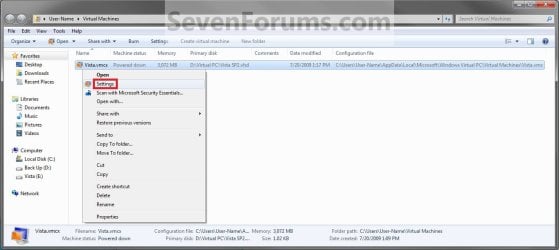
3. Right click on the virtual machine that you want to delete, then click on Settings. (See screenshot below)
4. In the left pane, click on the Hard Disk (ex: Hard Disk 1) that has a .VHD file (ex: Vista SP2.vhd) listed under "Current Value" to select it. (See screenshot below)
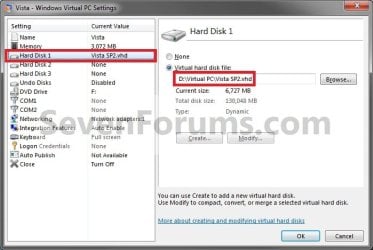
5. In the right pane, click on the Browse button. (See screenshot above)
NOTE: You could also just navigate to that location for the .vhd file in Windows Explorer.
6. Right click on the .vhd file (ex: Vista SP2.vhd) for the virtual machine that you want to delete, and click on Delete. (See screenshot below)
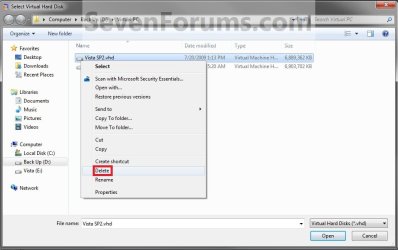
7. Click on Yes to approve. (See screenshot below)

8. Close the window under step 6 and under step 5.
9. Right click on the .vmcx file for the virtual machine that you want to delete, then click on Delete. (See screenshot below)
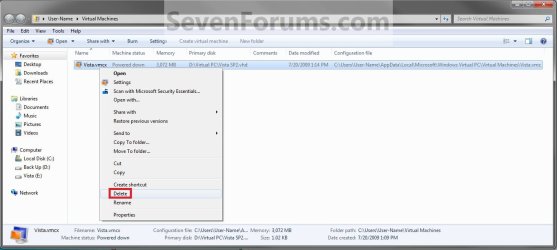
10. Click on Yes to approve. (See screenshot below)
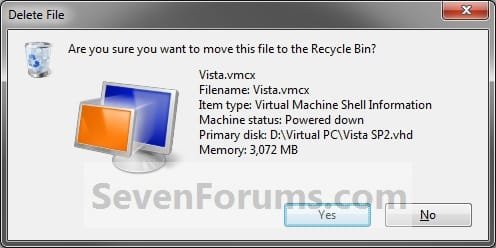
11. Close the window under step 9.
12. Empty the Recycle Bin.
That's it,
Shawn
Related Tutorials
- How to Create a Virtual Machine in Windows Virtual PC
- How to Install and Setup Virtual Windows XP Mode in Windows 7
- How to Enable the Built-in Administrator Account in Windows XP Mode
- How to Change Virtual Machine Settings in Windows Virtual PC
- How to Create Differencing Disks in Windows Virtual PC
- How to Copy a Virtual XP Machine in Windows 7
- How to Add Limited User Accounts to Windows Virtual PC XP Mode
- How to Boot from a CD or DVD in a Windows Virtual PC
- How to Install, Enable, and Disable Windows Virtual PC Integration Features
- How to Select Host Devices to Share with Virtual Machines in Windows Virtual PC
Last edited:


 Probably i am getting old. In my defence i was confused because when i run Windows XP mode i was presented with the logon screen so i assumed everything was installed... Thank you very much, i will proceed!


