Windows XP Mode - Install and Setup

How to Install and Setup Windows XP Mode in Windows 7


   Information
Windows XP Mode is 32-bit XP Pro SP3 virtual machine.

Windows XP Mode for Windows 7 makes it easy to install and run your applications for 32-bit Windows XP directly from your Windows 7 32-bit or 64-bit based PC. It utilizes virtualization technology such as Windows Virtual PC to provide a Virtual Windows XP environment for Windows 7. Windows XP Mode provides only Windows 7 Professional, Ultimate, or Enterprise users the flexibility to run many older productivity applications in a virtual Windows XP environment on a Windows 7-based PC.

UPDATE: Windows XP Mode now accessible to more PCs | Blogging Windows

   Note
Windows Virtual PC (step 1 below) is the latest Microsoft virtualization technology for Windows 7. It is the runtime engine for Windows XP Mode to provide a virtual Windows environment for Windows 7. With Windows Virtual PC, Windows XP mode applications can be seen and accessed from a Windows 7-based PC. For more detailed information about Windows Virtual PC, see Windows Virtual PC: Documentation

To find out whether your computer's CPU is capable of hardware-assisted virtualization. To check, download and run the Hardware-Assisted Virtualization Detection Tool.
  • If you receive the message “This computer is configured with hardware-assisted virtualization,” you can run Windows Virtual PC and Windows XP Mode. See the instructions below.
  • If you receive the error message "There is no hardware-assisted virtualization support in the system," your computer's CPU doesn't support hardware-assisted virtualization. You can still use Windows XP Mode by installing an update to Windows 7. See Why am I receiving errors about hardware-assisted virtualization (HAV) when I try to use Windows XP Mode and Windows Virtual PC?. Be aware that XP Mode will run much better if hardware-assisted virtualization can be enabled.
   Tip


   Warning
Windows Virtual PC Requirements:
  • 1 GHz 32-bit / 64-bit processor required
  • Memory (RAM)
    • 1.25 GB required, 2 GB memory recommended
  • Recommended 15 GB hard disk space per virtual Windows environment
  • Supported host (your computer) operating system:
    NOTE: Windows XP Mode can only be installed on Windows 7 Professional, Windows 7 Ultimate, and Windows 7 Enterprise.
    • Windows 7 Home Premium (32-bit or 64-bit)
    • Windows 7 Professional (32-bit and 64-bit)
    • Windows 7 Ultimate (32-bit and 64-bit)
    • Windows 7 Enterprise (32-bit and 64-bit)
  • Supported guest (virtual machine) 32-bit only operating system:
    • Windows XP
      • Virtual Applications feature is supported only on Windows XP Service Pack 3 (SP3) Professional
    • Windows Vista
      • Virtual Applications feature is supported only on Windows Vista Enterprise and Windows Vista Ultimate
    • Windows 7
      • Virtual Applications feature is supported only on Windows 7 Enterprise and Windows 7 Ultimate
EXAMPLE: Windows XP Mode
Example.jpg
Here's How:
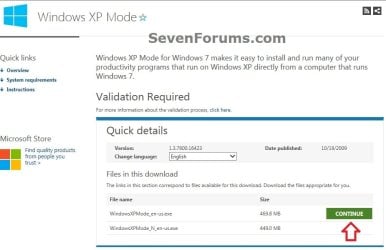
1. Go to the Windows XP Mode webpage, select your language, and click on the Continue button. (see screenshot below)
XP-Mode-1.jpg
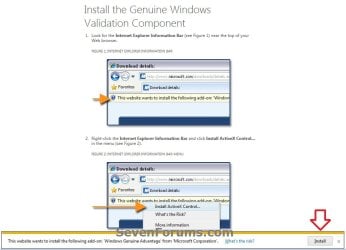
2. If you have not already, you will need to validate your Windows 7 first. Click on Install to install the Genuine Windows Validation Component, or follow on screen instructions. (see screenshot below)
NOTE: You will need to have Windows 7 activated and cookies enabled to be able to do this.
Validate-1.jpg
3. Download and Install Windows XP Mode
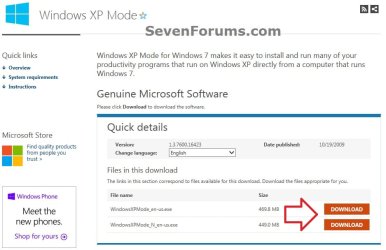
A) Select your language, and click on the Download button for the version (ex: WindowsXPMode_en-us.exe) you want to download. (see screenshot below)
NOTE: The "N" version of Windows XP is for the European version of Windows.
XP-Mode-2.jpg
B) Save the WindowsXPMode_en-us.exe file to your desktop.
C) Double click on the downloaded WindowsXPMode_en-us.exe installation file to start installing it.
NOTE: The part of the name in red will vary for you depending on what language you selected (step 1).

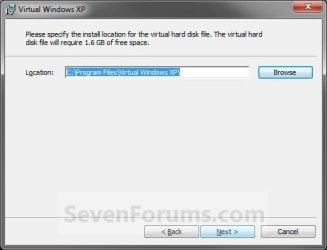
D) Click on the Next button. (see screenshot below)
NOTE: If you like, you could click on Browse and select another location to save the VHD file for XP Mode to instead of the default location in the screenshot below.
Install_VXP-1.jpg
E) Click on the Next button. (see screenshot below)
Install_VXP-UAC-2.jpg
F) If prompted by UAC, click on Yes.

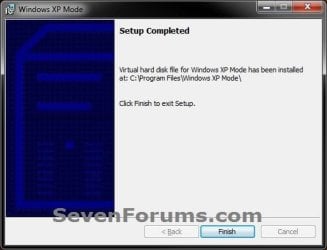
G) When Windows XP Mode is finished installing, click on the Finish button. (See screenshot below)
Install_VXP-3.jpg
4. Download and Install Windows Virtual PC
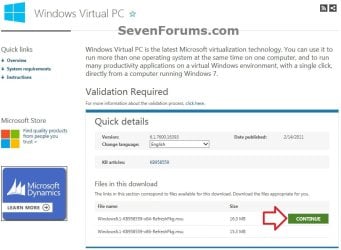
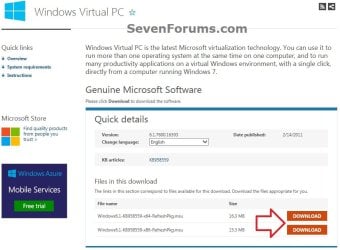
A) At the Windows Virtual PC webpage, select your language, and click on the Continue button. (see screenshot below)
Windows_Virtual-PC-1.jpg
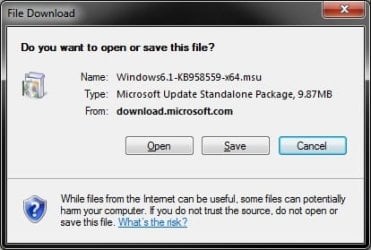
B) Select your language, and click on the Download button for either the Windows6.1-KB958559-x86-RefreshPkg.msu (32-bit) or Windows6.1-KB958559-x64-RefreshPkg.msu (64-bit) file for your same 32-bit or 64-bit Windows 7 version you have installed.

C) Save the Windows6.1-KB958559-x86-RefreshPkg.msu or Windows6.1-KB958559-x64-RefreshPkg.msu file to your desktop. (see screenshot below)
Windows_Virtual-PC-2.jpg
D) Double click on the downloaded Windows6.1-KB958559-x86-RefreshPkg.msu or Windows6.1-KB958559-x64-RefreshPkg.msu file to start installing it.

E) If prompted by UAC, click on Yes.
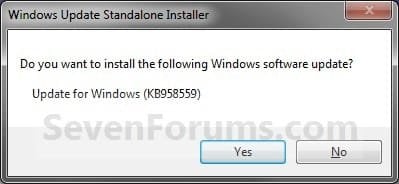
F) Click on Yes. (see screenshot below)
Install-1.jpg
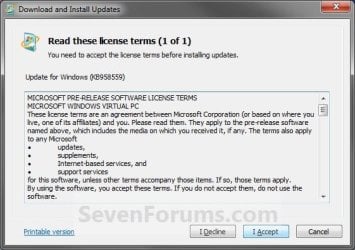
G) Click on the I Accept button. (see screenshot below)
Install-2.jpg
H) When it is finished, click on the Restart Now button. (see screenshot below)
WARNING: This will restart your computer immediately. Be sure to save and close anything that you have open first.
Install-3.jpg
I) When the computer is finished restarting, continue on to step 6 below.
5. To Open and Run Windows XP Mode
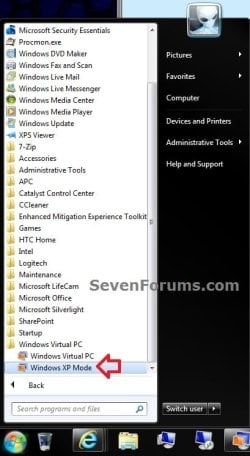
A) Open the Start Menu, then click on All Programs, expand the Windows Virtual PC folder, and double click on the Windows XP Mode shortcut. (see screenshot below)
XP-1.jpg
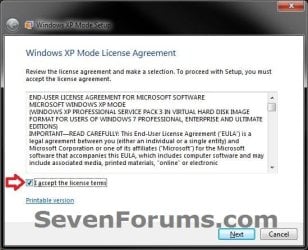
6. Check the I accept box, then click on the Next button. (see screenshot below)
Step1B.jpg
7. Type in a password and type it in again to confirm it, then click on the Next button. (see screenshot below)
NOTE: If you would like to be logged on automatically whenever you open Windows XP Mode (step 5), then check the Remember credentials box.
XP-2.jpg
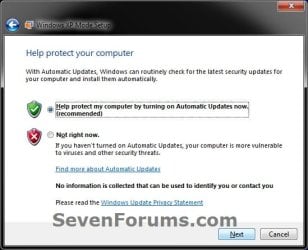
8. Select (dot) the Help protect my computer by turning on Automatic Updates now box, then click on the Next button. (see screenshot below)
XP-3.jpg
9. Click on the Start Setup button. (see screenshot below)
XP-4.jpg
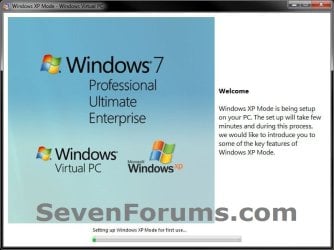
10. You will now see this for a few moments while Windows XP Mode is being setup. (see screeshot below)
Step4B.jpg
11. When setup is finished and you did not check the Remember credentials box in step 7 above, then you will need to enter your password entered and click on OK. If you did, then skip this and continue on to step 12. (see screenshot below)
XP-5.jpg
12. The Windows XP Mode - Windows Virtual PC window will now open. You are now in Windows XP Mode. (see screenshot below)
Example.jpg
13. Next, be sure to install Integration Components and enable Integration Features.
NOTE: Sometimes this will be enabled for you automatically during installation.

14. Set Windows XP Mode Settings
A) In the Windows XP Mode window, click on Tools (menu bar) and Settings. (see screenshot above)

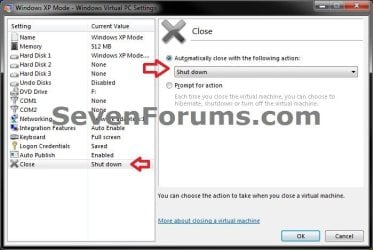
B) In the left pane, select Close/Shut Down. (see screenshot below)
Shut-Down.jpg
C) In the right pane, select (dot) Automatically close with the following action, then select Shut Down and click on OK. (see screenshot above)
15. To Close Windows XP Mode
A) Click on the X in the upper right corner of the Windows XP Mode window like you would any other window in Windows 7. (see screenshot below step 19)

OR

B) In the Windows XP Mode window, click on Action (menu bar) and Close. (see screenshot below step 16)
16. Installing a Program in Windows XP Mode
NOTE: You would install a program in Virtual Windows XP just like you would in Windows 7 with the same access to everything in Windows 7. For example, hard drives, DVD drives, USB drives, Windows 7 folders and files, etc.....
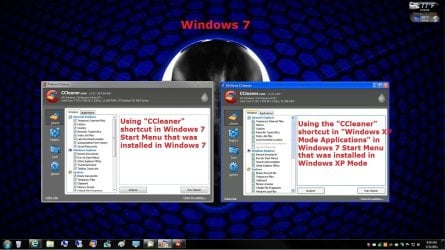
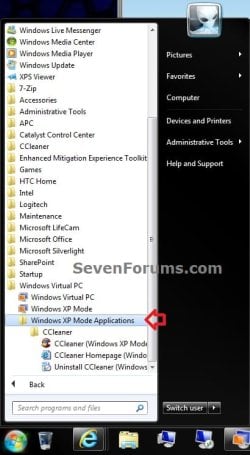
A) After you have installed any program (ex: CCleaner) in Windows XP Mode, you will notice that there will now also be a shortcut to it in the Windows 7 Start Menu in the Windows XP Mode Applications folder under Windows Virtual PC and Windows XP Mode. (see screenshot below)
NOTE: Double clicking on the program's shortcut (ex: CCleaner) in the Windows 7 Start Menu when Windows XP Mode is closed will open and run the program in Windows 7 but as if it you were running it in Windows XP Mode. You could also move or copy this Windows XP Mode Applications shortcut where you like in Windows 7 for easy use.
XP-6.jpg

Program_Example.jpg

That's it,
Shawn


Attachments

  • Virtual-PC_Save.jpg
    Virtual-PC_Save.jpg
    40 KB · Views: 2,157
Last edited:
OK thanks i will have to figure out some thing else....
 

My Computer

Computer Manufacturer/Model Number
Clone
OS
Win. 7 Pro 64
CPU
Duo Core
Motherboard
Asus P5B-VM
Memory
3 g
Graphics Card(s)
Sapphire HD5670 1G
Sound Card
use Video Card HDMI pass through
Monitor(s) Displays
Panasonic 3D TC-P65VT25 / 10 inch touch screen
Hard Drives
3 x 1T / 2 x 500 g
Case
Thermatake
Shawn,

Thank you for the excellent step by step directions.

I just completed the installation and the windows-virtual-pc-integration-features were installed in the process without me having to do it manually. Maybe they have updated the install files.
 

My Computer

Computer Manufacturer/Model Number
dell 6500
OS
Windows 7 Ultimate x64
CPU
i7
Motherboard
?
Memory
8 gb
Graphics Card(s)
nvidia
Sound Card
?
Monitor(s) Displays
rgb
Hard Drives
solid state
You're most welcome Ronnie, and welcome to Seven Forums.

Thank you for posting back with your results. I have added a note in the tutorial to indicate this. :)
 

My Computer

Computer type
PC/Desktop
Computer Manufacturer/Model Number
Self built custom
OS
64-bit Windows 11 Pro for Workstations
CPU
Intel i7-8700K OC'd to 5 GHz
Motherboard
ASUS ROG Maximus XI Formula Z390
Memory
64 GB (4x16GB) G.SKILL TridentZ RGB DDR4 3600 MHz
Graphics Card(s)
ASUS ROG-STRIX-GTX1080TI-O11G-GAMING
Sound Card
Integrated
Monitor(s) Displays
2 x Samsung Odyssey G7 27"
Screen Resolution
2560x1440
Hard Drives
1TB Samsung 990 PRO M.2,
4TB Samsung 990 PRO PRO M.2,
TerraMaster F8 SSD Plus NAS
PSU
Seasonic Prime Titanium 850W
Case
Thermaltake Core P3
Cooling
Corsair Hydro H115i
Keyboard
Logitech wireless K800
Mouse
Logitech MX Master 4
Internet Speed
2 Gb/s Download and 100 Mb/s Upload
Antivirus
Malwarebyte Anti-Malware Premium
Browser
Google Chrome
Other Info
Logitech Z625 speaker system,
Logitech BRIO 4K Pro webcam,
HP Color LaserJet Pro MFP M477fdn,
APC SMART-UPS RT 1000 XL - SURT1000XLI,
Galaxy S23 Plus phone
I've upgraded my Win 7 Home Premium to Pro with the Anytime Instant Upgrade. I did it specifically to get the use of Virtual PC and XP Compatibility.

I went to the MS download site and downloaded both and installed them. No icons show indicating the programs are installed. If I run the installation again, it tells me they are already installed.

I followed the instructions you provided here to uninstall them so I could re-install both. Neither program shows in the program list so I can uninstall them.

Can't use them and can't get them out. Now what?

To help you know who you're talking to, I'm fairly literate about XP but a total newbie to 7. Any assistance here would be very greatly appreciated.
 

My Computer

OS
Windows 7 Professional 64bit
Hello Robert, and welcome to Seven Forums.

Did you install all 3 items (steps 4, 5, & 6)?
 

My Computer

Computer type
PC/Desktop
Computer Manufacturer/Model Number
Self built custom
OS
64-bit Windows 11 Pro for Workstations
CPU
Intel i7-8700K OC'd to 5 GHz
Motherboard
ASUS ROG Maximus XI Formula Z390
Memory
64 GB (4x16GB) G.SKILL TridentZ RGB DDR4 3600 MHz
Graphics Card(s)
ASUS ROG-STRIX-GTX1080TI-O11G-GAMING
Sound Card
Integrated
Monitor(s) Displays
2 x Samsung Odyssey G7 27"
Screen Resolution
2560x1440
Hard Drives
1TB Samsung 990 PRO M.2,
4TB Samsung 990 PRO PRO M.2,
TerraMaster F8 SSD Plus NAS
PSU
Seasonic Prime Titanium 850W
Case
Thermaltake Core P3
Cooling
Corsair Hydro H115i
Keyboard
Logitech wireless K800
Mouse
Logitech MX Master 4
Internet Speed
2 Gb/s Download and 100 Mb/s Upload
Antivirus
Malwarebyte Anti-Malware Premium
Browser
Google Chrome
Other Info
Logitech Z625 speaker system,
Logitech BRIO 4K Pro webcam,
HP Color LaserJet Pro MFP M477fdn,
APC SMART-UPS RT 1000 XL - SURT1000XLI,
Galaxy S23 Plus phone
Thanks for the reply, Brink. Thanks for the welcome.

I downloaded and installed XP Mode, Virtual PC and the XP Mode update.

I think that's what you're saying to do in steps 1-6. If not, I missed something. It wouldn't have mattered anyway since I did all the installing prior to finding the forum here.

Where is the program file? I might be able to get it to work by simply making links. That seems to work for things that are installed correctly.
 

My Computer

OS
Windows 7 Professional 64bit
I talked to MS Tech Supp today. Even though I had installed all the Windows 7 upgrades and security updates, there were evidently a couple of updates needed to make it install. The tech fiddled with my comp behind the scenes where I couldn't see what he did for a while. Then he downloaded and installed WGA (I thought that was hidden in W7 these days) and a couple of upgrades. After that he installed XP Mode and Virtual PC. Everything went in fine. Anyway, it works now. Thanks for the help on this.
 

My Computer

OS
Windows 7 Professional 64bit
That's great news Robert. I happy to hear that you have it working now. Thank you for posting back with your results. :)
 

My Computer

Computer type
PC/Desktop
Computer Manufacturer/Model Number
Self built custom
OS
64-bit Windows 11 Pro for Workstations
CPU
Intel i7-8700K OC'd to 5 GHz
Motherboard
ASUS ROG Maximus XI Formula Z390
Memory
64 GB (4x16GB) G.SKILL TridentZ RGB DDR4 3600 MHz
Graphics Card(s)
ASUS ROG-STRIX-GTX1080TI-O11G-GAMING
Sound Card
Integrated
Monitor(s) Displays
2 x Samsung Odyssey G7 27"
Screen Resolution
2560x1440
Hard Drives
1TB Samsung 990 PRO M.2,
4TB Samsung 990 PRO PRO M.2,
TerraMaster F8 SSD Plus NAS
PSU
Seasonic Prime Titanium 850W
Case
Thermaltake Core P3
Cooling
Corsair Hydro H115i
Keyboard
Logitech wireless K800
Mouse
Logitech MX Master 4
Internet Speed
2 Gb/s Download and 100 Mb/s Upload
Antivirus
Malwarebyte Anti-Malware Premium
Browser
Google Chrome
Other Info
Logitech Z625 speaker system,
Logitech BRIO 4K Pro webcam,
HP Color LaserJet Pro MFP M477fdn,
APC SMART-UPS RT 1000 XL - SURT1000XLI,
Galaxy S23 Plus phone
That's great news Robert. I happy to hear that you have it working now. Thank you for posting back with your results. :)

Nice tutorial Brink!
You always do excellent work.
Wishing you and your family and loved ones a VERY MERRY CHRISTMAS!
 

My Computer

Computer Manufacturer/Model Number
HP M9077c
OS
Windows 7 Home Premium 64bit
CPU
Intel(R)Core(TM)2 quad [email protected] 2.39GHz
Motherboard
ASUSeK
Memory
6GB DDR2 6400
Graphics Card(s)
GeForce 8500/512MB
Sound Card
Realtek High Def Audio
Monitor(s) Displays
HP w2408 LCD 24" widescreen
Screen Resolution
1920x1200
Cooling
6 pack of Bud
Keyboard
MS wireless Inteli
Mouse
MS wireless Inteli
Thank you Dennis.

I hope that you and your family have a great and safe Christmas as well. :)
 

My Computer

Computer type
PC/Desktop
Computer Manufacturer/Model Number
Self built custom
OS
64-bit Windows 11 Pro for Workstations
CPU
Intel i7-8700K OC'd to 5 GHz
Motherboard
ASUS ROG Maximus XI Formula Z390
Memory
64 GB (4x16GB) G.SKILL TridentZ RGB DDR4 3600 MHz
Graphics Card(s)
ASUS ROG-STRIX-GTX1080TI-O11G-GAMING
Sound Card
Integrated
Monitor(s) Displays
2 x Samsung Odyssey G7 27"
Screen Resolution
2560x1440
Hard Drives
1TB Samsung 990 PRO M.2,
4TB Samsung 990 PRO PRO M.2,
TerraMaster F8 SSD Plus NAS
PSU
Seasonic Prime Titanium 850W
Case
Thermaltake Core P3
Cooling
Corsair Hydro H115i
Keyboard
Logitech wireless K800
Mouse
Logitech MX Master 4
Internet Speed
2 Gb/s Download and 100 Mb/s Upload
Antivirus
Malwarebyte Anti-Malware Premium
Browser
Google Chrome
Other Info
Logitech Z625 speaker system,
Logitech BRIO 4K Pro webcam,
HP Color LaserJet Pro MFP M477fdn,
APC SMART-UPS RT 1000 XL - SURT1000XLI,
Galaxy S23 Plus phone
I would like to install XP Mode 4x (1x in English, 1x in Chinese, 1x in Japanese, and 1x in Korean), and preferably have them be able to all run simultaneously.

Unfortunately, when you try install a second copy it says there's already a copy installed, so it won't install.

Any suggestions on how I might go about accomplishing this?
 

My Computer

OS
Windows 7

My Computer

Computer type
PC/Desktop
Computer Manufacturer/Model Number
Self built custom
OS
64-bit Windows 11 Pro for Workstations
CPU
Intel i7-8700K OC'd to 5 GHz
Motherboard
ASUS ROG Maximus XI Formula Z390
Memory
64 GB (4x16GB) G.SKILL TridentZ RGB DDR4 3600 MHz
Graphics Card(s)
ASUS ROG-STRIX-GTX1080TI-O11G-GAMING
Sound Card
Integrated
Monitor(s) Displays
2 x Samsung Odyssey G7 27"
Screen Resolution
2560x1440
Hard Drives
1TB Samsung 990 PRO M.2,
4TB Samsung 990 PRO PRO M.2,
TerraMaster F8 SSD Plus NAS
PSU
Seasonic Prime Titanium 850W
Case
Thermaltake Core P3
Cooling
Corsair Hydro H115i
Keyboard
Logitech wireless K800
Mouse
Logitech MX Master 4
Internet Speed
2 Gb/s Download and 100 Mb/s Upload
Antivirus
Malwarebyte Anti-Malware Premium
Browser
Google Chrome
Other Info
Logitech Z625 speaker system,
Logitech BRIO 4K Pro webcam,
HP Color LaserJet Pro MFP M477fdn,
APC SMART-UPS RT 1000 XL - SURT1000XLI,
Galaxy S23 Plus phone
Great post Shawn. Many thanks. I should have looked into this way back. Now I can get rid of my XP installation from the first partition and just have Win7 Ult 64bit running. This is important to me because my SATA3 SSD hard drive is only 128GB, and I've got a third storage partition of 40GB; so space is important.

I need XP to be able to run the installation CD for my old Hewlett Packard printer so I can access the tool box to configure new ink cartridges. Neither Vista nor Win7 will allow this and install their own drivers which do not include the HP tool box.

Thanks to your detailed step by step instructions, it was a snip loading it and getting it to run. The only problem I'm having is with it detecting my two Pioneer SATA2 Burners. In My Computer it shows only one CD drive, as drive D. But when I click on it, it says insert disk but neither burner tray ejects. Even when I right click the CD drive and click eject, it still doesn't eject.

Any help with this issue would be appreciated.
 

My Computer

Computer Manufacturer/Model Number
Self-assembled
OS
Win7 Ultimate 64bit Retail
CPU
Intel i7 960 quad core
Motherboard
Intel DX58SO2 Extreme
Memory
12 GB Kingston DDR 3 1300
Graphics Card(s)
PCI Express Gigabyte GTX 550 Ti
Sound Card
Gigabyte GTX 550 Ti Graphics/5 Sound card
Monitor(s) Displays
Samsung WS Syncmaster S23A350H
Screen Resolution
1920 x 1080
Hard Drives
OS on 128 GB Corsair SSD SATA 3 + Storage on 1 TB Western Digital Black SATA 2
Case
Cooler Master CM690 II Advanced Mid Tower
Cooling
CPU, top, front and rear extractor fans
Keyboard
Microsoft Intellitype Wireless Multimedia
Mouse
Microsoft Intellipoint2 Wireless
Internet Speed
100 MB/sec Theoretical max. Actual average 0.5MB/sec
Other Info
Back-up PC with Vista Ultimate OEM 32bit. Intel i5 2400 Quad Core CPU, DH67CL mobo, 8 GB Kingston DDR3 1300 RAM,
Hello Bernie,

Yeah, mine is the same way. I have to manually open the DVD drive as well. It recognizes the inserted DVD afterwards in XP Mode though.
 

My Computer

Computer type
PC/Desktop
Computer Manufacturer/Model Number
Self built custom
OS
64-bit Windows 11 Pro for Workstations
CPU
Intel i7-8700K OC'd to 5 GHz
Motherboard
ASUS ROG Maximus XI Formula Z390
Memory
64 GB (4x16GB) G.SKILL TridentZ RGB DDR4 3600 MHz
Graphics Card(s)
ASUS ROG-STRIX-GTX1080TI-O11G-GAMING
Sound Card
Integrated
Monitor(s) Displays
2 x Samsung Odyssey G7 27"
Screen Resolution
2560x1440
Hard Drives
1TB Samsung 990 PRO M.2,
4TB Samsung 990 PRO PRO M.2,
TerraMaster F8 SSD Plus NAS
PSU
Seasonic Prime Titanium 850W
Case
Thermaltake Core P3
Cooling
Corsair Hydro H115i
Keyboard
Logitech wireless K800
Mouse
Logitech MX Master 4
Internet Speed
2 Gb/s Download and 100 Mb/s Upload
Antivirus
Malwarebyte Anti-Malware Premium
Browser
Google Chrome
Other Info
Logitech Z625 speaker system,
Logitech BRIO 4K Pro webcam,
HP Color LaserJet Pro MFP M477fdn,
APC SMART-UPS RT 1000 XL - SURT1000XLI,
Galaxy S23 Plus phone
Hello Bernie,

Yeah, mine is the same way. I have to manually open the DVD drive as well. It recognizes the inserted DVD afterwards in XP Mode though.
Hi Shawn. Many thanks for that input which has fixed the problem. The only other problem was with Zone Alarm blocking Internet Explorer 8, even though I allowed it in program control in ZA. So just uninstalled ZA and am running Windows firewall which passed the Gibson Research Corp firewall test with flying colors. It was totally stealthed and did not respond to probes.

Regards, Bernie :)
 

My Computer

Computer Manufacturer/Model Number
Self-assembled
OS
Win7 Ultimate 64bit Retail
CPU
Intel i7 960 quad core
Motherboard
Intel DX58SO2 Extreme
Memory
12 GB Kingston DDR 3 1300
Graphics Card(s)
PCI Express Gigabyte GTX 550 Ti
Sound Card
Gigabyte GTX 550 Ti Graphics/5 Sound card
Monitor(s) Displays
Samsung WS Syncmaster S23A350H
Screen Resolution
1920 x 1080
Hard Drives
OS on 128 GB Corsair SSD SATA 3 + Storage on 1 TB Western Digital Black SATA 2
Case
Cooler Master CM690 II Advanced Mid Tower
Cooling
CPU, top, front and rear extractor fans
Keyboard
Microsoft Intellitype Wireless Multimedia
Mouse
Microsoft Intellipoint2 Wireless
Internet Speed
100 MB/sec Theoretical max. Actual average 0.5MB/sec
Other Info
Back-up PC with Vista Ultimate OEM 32bit. Intel i5 2400 Quad Core CPU, DH67CL mobo, 8 GB Kingston DDR3 1300 RAM,
You're welcome. :)
 

My Computer

Computer type
PC/Desktop
Computer Manufacturer/Model Number
Self built custom
OS
64-bit Windows 11 Pro for Workstations
CPU
Intel i7-8700K OC'd to 5 GHz
Motherboard
ASUS ROG Maximus XI Formula Z390
Memory
64 GB (4x16GB) G.SKILL TridentZ RGB DDR4 3600 MHz
Graphics Card(s)
ASUS ROG-STRIX-GTX1080TI-O11G-GAMING
Sound Card
Integrated
Monitor(s) Displays
2 x Samsung Odyssey G7 27"
Screen Resolution
2560x1440
Hard Drives
1TB Samsung 990 PRO M.2,
4TB Samsung 990 PRO PRO M.2,
TerraMaster F8 SSD Plus NAS
PSU
Seasonic Prime Titanium 850W
Case
Thermaltake Core P3
Cooling
Corsair Hydro H115i
Keyboard
Logitech wireless K800
Mouse
Logitech MX Master 4
Internet Speed
2 Gb/s Download and 100 Mb/s Upload
Antivirus
Malwarebyte Anti-Malware Premium
Browser
Google Chrome
Other Info
Logitech Z625 speaker system,
Logitech BRIO 4K Pro webcam,
HP Color LaserJet Pro MFP M477fdn,
APC SMART-UPS RT 1000 XL - SURT1000XLI,
Galaxy S23 Plus phone
Hi, sir can I install windows xp mode on my laptop? My processor doesn't provide virtualization technology. Can I still install it. My OS is Windows 7 Ultimate 64 bit.
 

My Computer

Computer Manufacturer/Model Number
Lenovo Ideapad Y550 (4186)
OS
Windows 7 Ultimate x64 SP1 / Ubuntu 12.04.3 x64
CPU
Intel Core 2 Duo 2.20 Ghz
Motherboard
LENOVO KIWB1 (U2E1)
Memory
4.0GB Dual-Channel DDR3 @ 398MHz
Graphics Card(s)
NVIDIA GeForce GT 240M 1GB
Sound Card
Realtek High Definition Audio
Monitor(s) Displays
15 inch (1366x768@60Hz)
Screen Resolution
1366*768
Hard Drives
320GB Hitachi HITACHI HTS545032B9A300 (SATA)
Keyboard
Build In
Mouse
Touchpad
Internet Speed
30 KBps (Dial up)
Hello Ravi, and welcome to Seven Forums.

Yes, you should still be able to install Windows XP Mode. :)
 

My Computer

Computer type
PC/Desktop
Computer Manufacturer/Model Number
Self built custom
OS
64-bit Windows 11 Pro for Workstations
CPU
Intel i7-8700K OC'd to 5 GHz
Motherboard
ASUS ROG Maximus XI Formula Z390
Memory
64 GB (4x16GB) G.SKILL TridentZ RGB DDR4 3600 MHz
Graphics Card(s)
ASUS ROG-STRIX-GTX1080TI-O11G-GAMING
Sound Card
Integrated
Monitor(s) Displays
2 x Samsung Odyssey G7 27"
Screen Resolution
2560x1440
Hard Drives
1TB Samsung 990 PRO M.2,
4TB Samsung 990 PRO PRO M.2,
TerraMaster F8 SSD Plus NAS
PSU
Seasonic Prime Titanium 850W
Case
Thermaltake Core P3
Cooling
Corsair Hydro H115i
Keyboard
Logitech wireless K800
Mouse
Logitech MX Master 4
Internet Speed
2 Gb/s Download and 100 Mb/s Upload
Antivirus
Malwarebyte Anti-Malware Premium
Browser
Google Chrome
Other Info
Logitech Z625 speaker system,
Logitech BRIO 4K Pro webcam,
HP Color LaserJet Pro MFP M477fdn,
APC SMART-UPS RT 1000 XL - SURT1000XLI,
Galaxy S23 Plus phone
Thanks sir. Will install it tomorrow:).
 

My Computer

Computer Manufacturer/Model Number
Lenovo Ideapad Y550 (4186)
OS
Windows 7 Ultimate x64 SP1 / Ubuntu 12.04.3 x64
CPU
Intel Core 2 Duo 2.20 Ghz
Motherboard
LENOVO KIWB1 (U2E1)
Memory
4.0GB Dual-Channel DDR3 @ 398MHz
Graphics Card(s)
NVIDIA GeForce GT 240M 1GB
Sound Card
Realtek High Definition Audio
Monitor(s) Displays
15 inch (1366x768@60Hz)
Screen Resolution
1366*768
Hard Drives
320GB Hitachi HITACHI HTS545032B9A300 (SATA)
Keyboard
Build In
Mouse
Touchpad
Internet Speed
30 KBps (Dial up)
You're welcome. Please let us know how it went. :)
 

My Computer

Computer type
PC/Desktop
Computer Manufacturer/Model Number
Self built custom
OS
64-bit Windows 11 Pro for Workstations
CPU
Intel i7-8700K OC'd to 5 GHz
Motherboard
ASUS ROG Maximus XI Formula Z390
Memory
64 GB (4x16GB) G.SKILL TridentZ RGB DDR4 3600 MHz
Graphics Card(s)
ASUS ROG-STRIX-GTX1080TI-O11G-GAMING
Sound Card
Integrated
Monitor(s) Displays
2 x Samsung Odyssey G7 27"
Screen Resolution
2560x1440
Hard Drives
1TB Samsung 990 PRO M.2,
4TB Samsung 990 PRO PRO M.2,
TerraMaster F8 SSD Plus NAS
PSU
Seasonic Prime Titanium 850W
Case
Thermaltake Core P3
Cooling
Corsair Hydro H115i
Keyboard
Logitech wireless K800
Mouse
Logitech MX Master 4
Internet Speed
2 Gb/s Download and 100 Mb/s Upload
Antivirus
Malwarebyte Anti-Malware Premium
Browser
Google Chrome
Other Info
Logitech Z625 speaker system,
Logitech BRIO 4K Pro webcam,
HP Color LaserJet Pro MFP M477fdn,
APC SMART-UPS RT 1000 XL - SURT1000XLI,
Galaxy S23 Plus phone
Back
Top