Windows XP Mode - Install and Setup

How to Install and Setup Windows XP Mode in Windows 7


   Information
Windows XP Mode is 32-bit XP Pro SP3 virtual machine.

Windows XP Mode for Windows 7 makes it easy to install and run your applications for 32-bit Windows XP directly from your Windows 7 32-bit or 64-bit based PC. It utilizes virtualization technology such as Windows Virtual PC to provide a Virtual Windows XP environment for Windows 7. Windows XP Mode provides only Windows 7 Professional, Ultimate, or Enterprise users the flexibility to run many older productivity applications in a virtual Windows XP environment on a Windows 7-based PC.

UPDATE: Windows XP Mode now accessible to more PCs | Blogging Windows

   Note
Windows Virtual PC (step 1 below) is the latest Microsoft virtualization technology for Windows 7. It is the runtime engine for Windows XP Mode to provide a virtual Windows environment for Windows 7. With Windows Virtual PC, Windows XP mode applications can be seen and accessed from a Windows 7-based PC. For more detailed information about Windows Virtual PC, see Windows Virtual PC: Documentation

To find out whether your computer's CPU is capable of hardware-assisted virtualization. To check, download and run the Hardware-Assisted Virtualization Detection Tool.
  • If you receive the message “This computer is configured with hardware-assisted virtualization,” you can run Windows Virtual PC and Windows XP Mode. See the instructions below.
  • If you receive the error message "There is no hardware-assisted virtualization support in the system," your computer's CPU doesn't support hardware-assisted virtualization. You can still use Windows XP Mode by installing an update to Windows 7. See Why am I receiving errors about hardware-assisted virtualization (HAV) when I try to use Windows XP Mode and Windows Virtual PC?. Be aware that XP Mode will run much better if hardware-assisted virtualization can be enabled.
   Tip


   Warning
Windows Virtual PC Requirements:
  • 1 GHz 32-bit / 64-bit processor required
  • Memory (RAM)
    • 1.25 GB required, 2 GB memory recommended
  • Recommended 15 GB hard disk space per virtual Windows environment
  • Supported host (your computer) operating system:
    NOTE: Windows XP Mode can only be installed on Windows 7 Professional, Windows 7 Ultimate, and Windows 7 Enterprise.
    • Windows 7 Home Premium (32-bit or 64-bit)
    • Windows 7 Professional (32-bit and 64-bit)
    • Windows 7 Ultimate (32-bit and 64-bit)
    • Windows 7 Enterprise (32-bit and 64-bit)
  • Supported guest (virtual machine) 32-bit only operating system:
    • Windows XP
      • Virtual Applications feature is supported only on Windows XP Service Pack 3 (SP3) Professional
    • Windows Vista
      • Virtual Applications feature is supported only on Windows Vista Enterprise and Windows Vista Ultimate
    • Windows 7
      • Virtual Applications feature is supported only on Windows 7 Enterprise and Windows 7 Ultimate
EXAMPLE: Windows XP Mode
Example.jpg
Here's How:
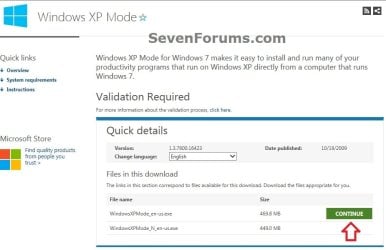
1. Go to the Windows XP Mode webpage, select your language, and click on the Continue button. (see screenshot below)
XP-Mode-1.jpg
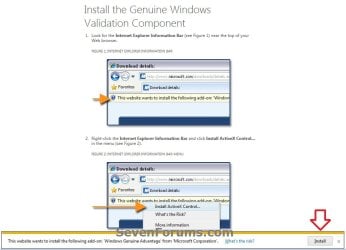
2. If you have not already, you will need to validate your Windows 7 first. Click on Install to install the Genuine Windows Validation Component, or follow on screen instructions. (see screenshot below)
NOTE: You will need to have Windows 7 activated and cookies enabled to be able to do this.
Validate-1.jpg
3. Download and Install Windows XP Mode
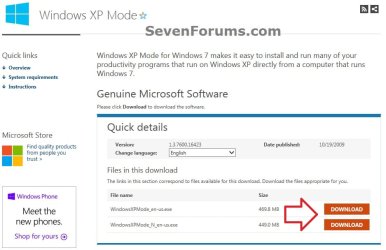
A) Select your language, and click on the Download button for the version (ex: WindowsXPMode_en-us.exe) you want to download. (see screenshot below)
NOTE: The "N" version of Windows XP is for the European version of Windows.
XP-Mode-2.jpg
B) Save the WindowsXPMode_en-us.exe file to your desktop.
C) Double click on the downloaded WindowsXPMode_en-us.exe installation file to start installing it.
NOTE: The part of the name in red will vary for you depending on what language you selected (step 1).

D) Click on the Next button. (see screenshot below)
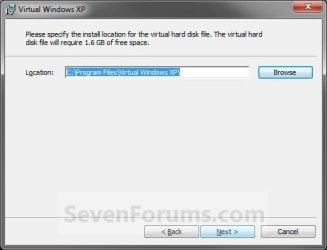
NOTE: If you like, you could click on Browse and select another location to save the VHD file for XP Mode to instead of the default location in the screenshot below.
Install_VXP-1.jpg
E) Click on the Next button. (see screenshot below)
Install_VXP-UAC-2.jpg
F) If prompted by UAC, click on Yes.

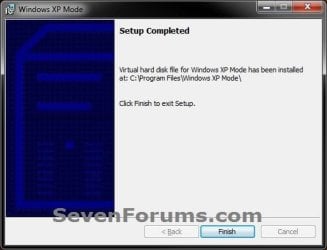
G) When Windows XP Mode is finished installing, click on the Finish button. (See screenshot below)
Install_VXP-3.jpg
4. Download and Install Windows Virtual PC
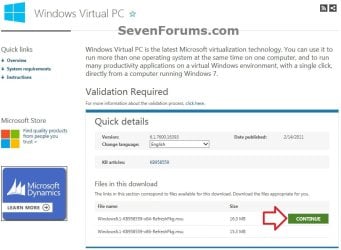
A) At the Windows Virtual PC webpage, select your language, and click on the Continue button. (see screenshot below)
Windows_Virtual-PC-1.jpg
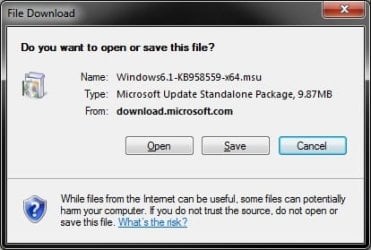
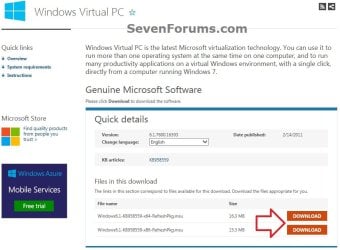
B) Select your language, and click on the Download button for either the Windows6.1-KB958559-x86-RefreshPkg.msu (32-bit) or Windows6.1-KB958559-x64-RefreshPkg.msu (64-bit) file for your same 32-bit or 64-bit Windows 7 version you have installed.

C) Save the Windows6.1-KB958559-x86-RefreshPkg.msu or Windows6.1-KB958559-x64-RefreshPkg.msu file to your desktop. (see screenshot below)
Windows_Virtual-PC-2.jpg
D) Double click on the downloaded Windows6.1-KB958559-x86-RefreshPkg.msu or Windows6.1-KB958559-x64-RefreshPkg.msu file to start installing it.

E) If prompted by UAC, click on Yes.
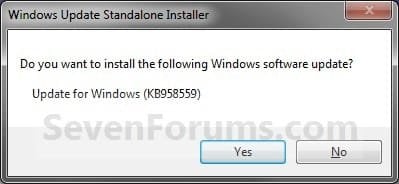
F) Click on Yes. (see screenshot below)
Install-1.jpg
G) Click on the I Accept button. (see screenshot below)
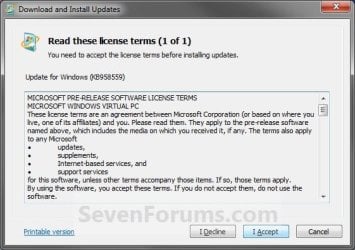
Install-2.jpg
H) When it is finished, click on the Restart Now button. (see screenshot below)
WARNING: This will restart your computer immediately. Be sure to save and close anything that you have open first.
Install-3.jpg
I) When the computer is finished restarting, continue on to step 6 below.
5. To Open and Run Windows XP Mode
A) Open the Start Menu, then click on All Programs, expand the Windows Virtual PC folder, and double click on the Windows XP Mode shortcut. (see screenshot below)
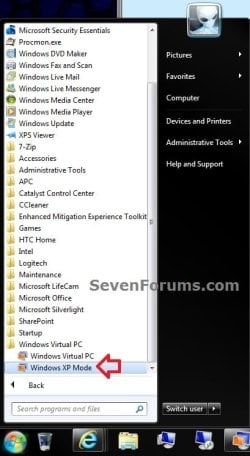
XP-1.jpg
6. Check the I accept box, then click on the Next button. (see screenshot below)
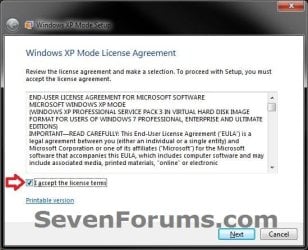
Step1B.jpg
7. Type in a password and type it in again to confirm it, then click on the Next button. (see screenshot below)
NOTE: If you would like to be logged on automatically whenever you open Windows XP Mode (step 5), then check the Remember credentials box.
XP-2.jpg
8. Select (dot) the Help protect my computer by turning on Automatic Updates now box, then click on the Next button. (see screenshot below)
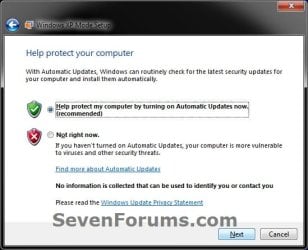
XP-3.jpg
9. Click on the Start Setup button. (see screenshot below)
XP-4.jpg
10. You will now see this for a few moments while Windows XP Mode is being setup. (see screeshot below)
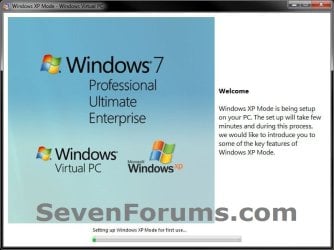
Step4B.jpg
11. When setup is finished and you did not check the Remember credentials box in step 7 above, then you will need to enter your password entered and click on OK. If you did, then skip this and continue on to step 12. (see screenshot below)
XP-5.jpg
12. The Windows XP Mode - Windows Virtual PC window will now open. You are now in Windows XP Mode. (see screenshot below)
Example.jpg
13. Next, be sure to install Integration Components and enable Integration Features.
NOTE: Sometimes this will be enabled for you automatically during installation.

14. Set Windows XP Mode Settings
A) In the Windows XP Mode window, click on Tools (menu bar) and Settings. (see screenshot above)

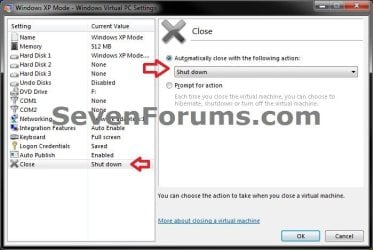
B) In the left pane, select Close/Shut Down. (see screenshot below)
Shut-Down.jpg
C) In the right pane, select (dot) Automatically close with the following action, then select Shut Down and click on OK. (see screenshot above)
15. To Close Windows XP Mode
A) Click on the X in the upper right corner of the Windows XP Mode window like you would any other window in Windows 7. (see screenshot below step 19)

OR

B) In the Windows XP Mode window, click on Action (menu bar) and Close. (see screenshot below step 16)
16. Installing a Program in Windows XP Mode
NOTE: You would install a program in Virtual Windows XP just like you would in Windows 7 with the same access to everything in Windows 7. For example, hard drives, DVD drives, USB drives, Windows 7 folders and files, etc.....
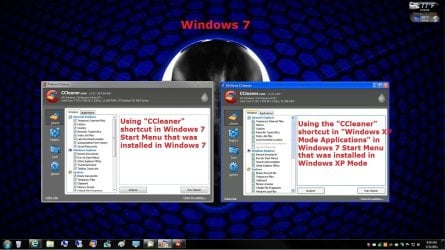
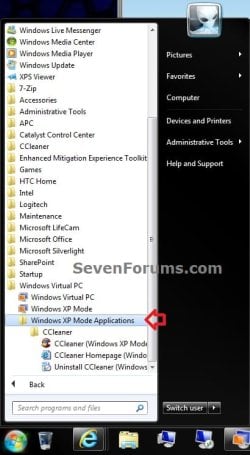
A) After you have installed any program (ex: CCleaner) in Windows XP Mode, you will notice that there will now also be a shortcut to it in the Windows 7 Start Menu in the Windows XP Mode Applications folder under Windows Virtual PC and Windows XP Mode. (see screenshot below)
NOTE: Double clicking on the program's shortcut (ex: CCleaner) in the Windows 7 Start Menu when Windows XP Mode is closed will open and run the program in Windows 7 but as if it you were running it in Windows XP Mode. You could also move or copy this Windows XP Mode Applications shortcut where you like in Windows 7 for easy use.
XP-6.jpg

Program_Example.jpg

That's it,
Shawn


Attachments

  • Virtual-PC_Save.jpg
    Virtual-PC_Save.jpg
    40 KB · Views: 2,157
Last edited:
Am I Getting This Right?

So, am I getting this right? According to the system requirements posted here, I will not be able to run XP mode on my Windows 7 Home Premium machine? :huh:

Im running an Acer Aspire 5334-2598. When I purchased the Notebook Windows 7 Home Premium was installed.
 

My Computer

Computer Manufacturer/Model Number
Dell Optiplex GX620
OS
Windows 7 Professional 32 bit
CPU
Intel Pentium D CPU 3.20GHz, 3200 Mhz, 2 Cores
Memory
4 GB
Graphics Card(s)
GeForce GT 520 (ASUS)
Sound Card
ON-Board
Monitor(s) Displays
Samsung B2030
Screen Resolution
1600 x 900
Hard Drives
128GB SSD - Win7 PE System Drive
128GB SSD - DATA/Application Drive
Mouse
Logitech Wireless Laser
Internet Speed
DSL
Antivirus
MSSE (of course) and IOBit Malware Fighter
Browser
Chrome (primary), Firefox, and IE
Hello Itmcmullen, and welcome to Seven Forums.

Yes, that would be correct. You will need to have Windows 7 Professional, Enterprise, or Ultimate installed to be able to install XP Mode.

However, if you have a XP ISO file (or create a ISO from a XP installation disc), you could use it to create a virtual machine with using the free program VMWare Player.

Hope this helps,
Shawn
 

My Computer

Computer type
PC/Desktop
Computer Manufacturer/Model Number
Self built custom
OS
64-bit Windows 11 Pro for Workstations
CPU
Intel i7-8700K OC'd to 5 GHz
Motherboard
ASUS ROG Maximus XI Formula Z390
Memory
64 GB (4x16GB) G.SKILL TridentZ RGB DDR4 3600 MHz
Graphics Card(s)
ASUS ROG-STRIX-GTX1080TI-O11G-GAMING
Sound Card
Integrated
Monitor(s) Displays
2 x Samsung Odyssey G7 27"
Screen Resolution
2560x1440
Hard Drives
1TB Samsung 990 PRO M.2,
4TB Samsung 990 PRO PRO M.2,
TerraMaster F8 SSD Plus NAS
PSU
Seasonic Prime Titanium 850W
Case
Thermaltake Core P3
Cooling
Corsair Hydro H115i
Keyboard
Logitech wireless K800
Mouse
Logitech MX Master 4
Internet Speed
2 Gb/s Download and 100 Mb/s Upload
Antivirus
Malwarebyte Anti-Malware Premium
Browser
Google Chrome
Other Info
Logitech Z625 speaker system,
Logitech BRIO 4K Pro webcam,
HP Color LaserJet Pro MFP M477fdn,
APC SMART-UPS RT 1000 XL - SURT1000XLI,
Galaxy S23 Plus phone
So, to create the ISO I need to have the installation CD? Well, I have an old desktop (or paper weight if you wanna call it that) that has XP on it. Unfortunately, I no longer have the install discs. Is there a way I can lift it (the ISO) from that PC and put it on my notebook (i.e. flash drive, e-mail, or network)?
 

My Computer

Computer Manufacturer/Model Number
Dell Optiplex GX620
OS
Windows 7 Professional 32 bit
CPU
Intel Pentium D CPU 3.20GHz, 3200 Mhz, 2 Cores
Memory
4 GB
Graphics Card(s)
GeForce GT 520 (ASUS)
Sound Card
ON-Board
Monitor(s) Displays
Samsung B2030
Screen Resolution
1600 x 900
Hard Drives
128GB SSD - Win7 PE System Drive
128GB SSD - DATA/Application Drive
Mouse
Logitech Wireless Laser
Internet Speed
DSL
Antivirus
MSSE (of course) and IOBit Malware Fighter
Browser
Chrome (primary), Firefox, and IE
Itmcmullen,

Normally you would need to have the installation disc to use with a free program like ImgBurn or ISODisk to create a ISO file of it.

I'm afraid that I'm not sure how to do so from an installed XP though. Do you have a friend that has a XP installation disc that is the same edition for your product key number that you could borrow to create a ISO file from?
 

My Computer

Computer type
PC/Desktop
Computer Manufacturer/Model Number
Self built custom
OS
64-bit Windows 11 Pro for Workstations
CPU
Intel i7-8700K OC'd to 5 GHz
Motherboard
ASUS ROG Maximus XI Formula Z390
Memory
64 GB (4x16GB) G.SKILL TridentZ RGB DDR4 3600 MHz
Graphics Card(s)
ASUS ROG-STRIX-GTX1080TI-O11G-GAMING
Sound Card
Integrated
Monitor(s) Displays
2 x Samsung Odyssey G7 27"
Screen Resolution
2560x1440
Hard Drives
1TB Samsung 990 PRO M.2,
4TB Samsung 990 PRO PRO M.2,
TerraMaster F8 SSD Plus NAS
PSU
Seasonic Prime Titanium 850W
Case
Thermaltake Core P3
Cooling
Corsair Hydro H115i
Keyboard
Logitech wireless K800
Mouse
Logitech MX Master 4
Internet Speed
2 Gb/s Download and 100 Mb/s Upload
Antivirus
Malwarebyte Anti-Malware Premium
Browser
Google Chrome
Other Info
Logitech Z625 speaker system,
Logitech BRIO 4K Pro webcam,
HP Color LaserJet Pro MFP M477fdn,
APC SMART-UPS RT 1000 XL - SURT1000XLI,
Galaxy S23 Plus phone
Hi Shawn,

Not sure how familiar you are with Acronis application, but I wanted to be able to make a back-up Acronis image of the Virtual XP disc. However, Acronis does not list the Virtual XP disc as a separate entity in the disc back-up options.

I already have an Acronis image of the active partition containing Windows 7 with all programs loaded, and it is possible to make a new image of the Windows 7 active partition which contains Virtual XP. However, it becomes quite large and unwieldly in terms of storage space and reload time.

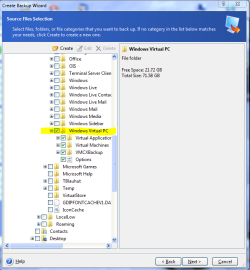
One option in Acronis is to make an image of My Data, in which Virtual XP only is saved. The Acronis selection window pic shown below is from the pathway: C:\Users\Bernard\AppData\Local\Microsoft\Windows Virtual PC and includes all the sub-folders.


Acronis Window.PNG


Acronis will restore those folders exactly as shown but I don't know if it also saves the necessary registry entries, etc, that are needed to make Virtual XP run.

As I said earlier, I don't know how familiar you are with Acronis, but my question is: If I reload a fully operational installation of Windows 7 from an Acronis image, and then restore the Windows Virtual PC folder to it's original location from a 2nd Acronis, would that enable Virtual XP to run?

Alternatively, after reloading Windows 7 from the Acronis image, should I first run the Virtual XP installation file, and KB update; and then restore the Virtual XP Acronis image, which will overwrite the existing one.

I realize this is a fairly big ask to expect you to be that familiar with Acronis, but if you can help it would be appreciated. Otherwise I'll just do it by trial and error.

Thanks in anticipation. Bernie :D
 

My Computer

Computer Manufacturer/Model Number
Self-assembled
OS
Win7 Ultimate 64bit Retail
CPU
Intel i7 960 quad core
Motherboard
Intel DX58SO2 Extreme
Memory
12 GB Kingston DDR 3 1300
Graphics Card(s)
PCI Express Gigabyte GTX 550 Ti
Sound Card
Gigabyte GTX 550 Ti Graphics/5 Sound card
Monitor(s) Displays
Samsung WS Syncmaster S23A350H
Screen Resolution
1920 x 1080
Hard Drives
OS on 128 GB Corsair SSD SATA 3 + Storage on 1 TB Western Digital Black SATA 2
Case
Cooler Master CM690 II Advanced Mid Tower
Cooling
CPU, top, front and rear extractor fans
Keyboard
Microsoft Intellitype Wireless Multimedia
Mouse
Microsoft Intellipoint2 Wireless
Internet Speed
100 MB/sec Theoretical max. Actual average 0.5MB/sec
Other Info
Back-up PC with Vista Ultimate OEM 32bit. Intel i5 2400 Quad Core CPU, DH67CL mobo, 8 GB Kingston DDR3 1300 RAM,
Hello Bernie,

I'm afraid that it's been a long time since I used Acronis. I usually just copy these virtual machines files below into a folder on a separate drive as a backup. I just copy them back to the exact same locations to restore them with Windows Virtual PC already installed first.

VMs.jpgshortcut.jpg
 

My Computer

Computer type
PC/Desktop
Computer Manufacturer/Model Number
Self built custom
OS
64-bit Windows 11 Pro for Workstations
CPU
Intel i7-8700K OC'd to 5 GHz
Motherboard
ASUS ROG Maximus XI Formula Z390
Memory
64 GB (4x16GB) G.SKILL TridentZ RGB DDR4 3600 MHz
Graphics Card(s)
ASUS ROG-STRIX-GTX1080TI-O11G-GAMING
Sound Card
Integrated
Monitor(s) Displays
2 x Samsung Odyssey G7 27"
Screen Resolution
2560x1440
Hard Drives
1TB Samsung 990 PRO M.2,
4TB Samsung 990 PRO PRO M.2,
TerraMaster F8 SSD Plus NAS
PSU
Seasonic Prime Titanium 850W
Case
Thermaltake Core P3
Cooling
Corsair Hydro H115i
Keyboard
Logitech wireless K800
Mouse
Logitech MX Master 4
Internet Speed
2 Gb/s Download and 100 Mb/s Upload
Antivirus
Malwarebyte Anti-Malware Premium
Browser
Google Chrome
Other Info
Logitech Z625 speaker system,
Logitech BRIO 4K Pro webcam,
HP Color LaserJet Pro MFP M477fdn,
APC SMART-UPS RT 1000 XL - SURT1000XLI,
Galaxy S23 Plus phone
Hello Bernie,

I'm afraid that it's been a long time since I used Acronis. I usually just copy these virtual machines files below into a folder on a separate drive as a backup. I just copy them back to the exact same locations to restore them with Windows Virtual PC already installed first.
Thank you Shawn for that input. That seems like a much simpler and more efficient way to go.

The main reason I want a back up is not so much for the Virtual XP Program itself, but to avoid having to re-load all the 3rd party applications installed in Virtual XP, such as Avast Anti-Virus, Glary Utlities, etc? Would those files you have selected include the 3rd party applications?

Also, if I uninstall an application on Virtual XP which is also loaded in Windows 7, using Revo Uninstaller, which cleans the registry, would this affect the registry for the Windows 7 application of the same program?
 

My Computer

Computer Manufacturer/Model Number
Self-assembled
OS
Win7 Ultimate 64bit Retail
CPU
Intel i7 960 quad core
Motherboard
Intel DX58SO2 Extreme
Memory
12 GB Kingston DDR 3 1300
Graphics Card(s)
PCI Express Gigabyte GTX 550 Ti
Sound Card
Gigabyte GTX 550 Ti Graphics/5 Sound card
Monitor(s) Displays
Samsung WS Syncmaster S23A350H
Screen Resolution
1920 x 1080
Hard Drives
OS on 128 GB Corsair SSD SATA 3 + Storage on 1 TB Western Digital Black SATA 2
Case
Cooler Master CM690 II Advanced Mid Tower
Cooling
CPU, top, front and rear extractor fans
Keyboard
Microsoft Intellitype Wireless Multimedia
Mouse
Microsoft Intellipoint2 Wireless
Internet Speed
100 MB/sec Theoretical max. Actual average 0.5MB/sec
Other Info
Back-up PC with Vista Ultimate OEM 32bit. Intel i5 2400 Quad Core CPU, DH67CL mobo, 8 GB Kingston DDR3 1300 RAM,
Those files will include everything in the XP virtual machine. You would also want to backup this hidden folder below from the Start Menu to keep all of the shortcuts from programs installed in the XP virtual machine.

C:\Users\User-Name\AppData\Roaming\Microsoft\Windows\Start Menu\Programs\Windows Virtual PC\Windows XP Mode Applications

The Revo Uninstaller should only affect the virtual XP's registry. However, uninstalling a program in XP mode should also remove it's shortcut in the Windows XP Mode Applications folder in the Windows 7 Start Menu as well.
 
Last edited:

My Computer

Computer type
PC/Desktop
Computer Manufacturer/Model Number
Self built custom
OS
64-bit Windows 11 Pro for Workstations
CPU
Intel i7-8700K OC'd to 5 GHz
Motherboard
ASUS ROG Maximus XI Formula Z390
Memory
64 GB (4x16GB) G.SKILL TridentZ RGB DDR4 3600 MHz
Graphics Card(s)
ASUS ROG-STRIX-GTX1080TI-O11G-GAMING
Sound Card
Integrated
Monitor(s) Displays
2 x Samsung Odyssey G7 27"
Screen Resolution
2560x1440
Hard Drives
1TB Samsung 990 PRO M.2,
4TB Samsung 990 PRO PRO M.2,
TerraMaster F8 SSD Plus NAS
PSU
Seasonic Prime Titanium 850W
Case
Thermaltake Core P3
Cooling
Corsair Hydro H115i
Keyboard
Logitech wireless K800
Mouse
Logitech MX Master 4
Internet Speed
2 Gb/s Download and 100 Mb/s Upload
Antivirus
Malwarebyte Anti-Malware Premium
Browser
Google Chrome
Other Info
Logitech Z625 speaker system,
Logitech BRIO 4K Pro webcam,
HP Color LaserJet Pro MFP M477fdn,
APC SMART-UPS RT 1000 XL - SURT1000XLI,
Galaxy S23 Plus phone
Many thanks Shawn for that information, and the RAPID REPLY! Wow! I'm blown away!:thumbsup: I honestly don't know how you keep up with all the posts, and would like to take this opportunity to pay tribute to all your hard work in making this such a great forum ... a view which I'm sure would be shared by the multitude of grateful members and visitors. Cheers Bernie :D
 
Last edited by a moderator:

My Computer

Computer Manufacturer/Model Number
Self-assembled
OS
Win7 Ultimate 64bit Retail
CPU
Intel i7 960 quad core
Motherboard
Intel DX58SO2 Extreme
Memory
12 GB Kingston DDR 3 1300
Graphics Card(s)
PCI Express Gigabyte GTX 550 Ti
Sound Card
Gigabyte GTX 550 Ti Graphics/5 Sound card
Monitor(s) Displays
Samsung WS Syncmaster S23A350H
Screen Resolution
1920 x 1080
Hard Drives
OS on 128 GB Corsair SSD SATA 3 + Storage on 1 TB Western Digital Black SATA 2
Case
Cooler Master CM690 II Advanced Mid Tower
Cooling
CPU, top, front and rear extractor fans
Keyboard
Microsoft Intellitype Wireless Multimedia
Mouse
Microsoft Intellipoint2 Wireless
Internet Speed
100 MB/sec Theoretical max. Actual average 0.5MB/sec
Other Info
Back-up PC with Vista Ultimate OEM 32bit. Intel i5 2400 Quad Core CPU, DH67CL mobo, 8 GB Kingston DDR3 1300 RAM,
You're most welcome Bernie. Thank you. :)
 

My Computer

Computer type
PC/Desktop
Computer Manufacturer/Model Number
Self built custom
OS
64-bit Windows 11 Pro for Workstations
CPU
Intel i7-8700K OC'd to 5 GHz
Motherboard
ASUS ROG Maximus XI Formula Z390
Memory
64 GB (4x16GB) G.SKILL TridentZ RGB DDR4 3600 MHz
Graphics Card(s)
ASUS ROG-STRIX-GTX1080TI-O11G-GAMING
Sound Card
Integrated
Monitor(s) Displays
2 x Samsung Odyssey G7 27"
Screen Resolution
2560x1440
Hard Drives
1TB Samsung 990 PRO M.2,
4TB Samsung 990 PRO PRO M.2,
TerraMaster F8 SSD Plus NAS
PSU
Seasonic Prime Titanium 850W
Case
Thermaltake Core P3
Cooling
Corsair Hydro H115i
Keyboard
Logitech wireless K800
Mouse
Logitech MX Master 4
Internet Speed
2 Gb/s Download and 100 Mb/s Upload
Antivirus
Malwarebyte Anti-Malware Premium
Browser
Google Chrome
Other Info
Logitech Z625 speaker system,
Logitech BRIO 4K Pro webcam,
HP Color LaserJet Pro MFP M477fdn,
APC SMART-UPS RT 1000 XL - SURT1000XLI,
Galaxy S23 Plus phone
Steps 7,9, and 10 have the wrong snips associated with them Shawn. I didn't check all of them.
 

My Computer

Computer type
PC/Desktop
Computer Manufacturer/Model Number
Home Built Desktop By DataTech
OS
Windows 7 Ultimate X64 SP1
CPU
Intel i5-2550K, Differing ~4.4-4.8GHz No built in GPU
Motherboard
ASUS P8Z68-V PRO/GEN3
Memory
16GB G.Skill Sniper 1866MHz @ 2133MHz 2x8GB
Graphics Card(s)
ASUS GTX650TIB-DC2OC-2GD5, (650TI Boost)
Sound Card
Onboard Realtek 5-1
Monitor(s) Displays
Samsung P2570HD
Screen Resolution
1920x1080
Hard Drives
Samsung 840 Pro 256GB SSD for OS, 500GB Seagate Constellation (Enterprise drive) for Data
PSU
Corsair HX650W
Case
Inwin Dragon Rider
Cooling
Hyper 212 EVO w/two Noctua fans, push-pull, @1300 RPM
Keyboard
E-Z Eyes, bright yellow keys with large characters
Mouse
steelseries SENSEI Laser Pro Gaming
Internet Speed
48-51Mbs Mbs down, 11 Mbs up Xfinity Cable
Antivirus
Norton Internet Security 2013
Browser
IE 10, Opera, Pale Moon if needed
Other Info
4 case fans, LG BluRay-RE, ASUS DVD-RW, Mr. Fusion power supply, 1.21 gigawatts.
Hello Gary,

Hmm, not sure how that happened, but it is now fixed. Thank you. :)
 

My Computer

Computer type
PC/Desktop
Computer Manufacturer/Model Number
Self built custom
OS
64-bit Windows 11 Pro for Workstations
CPU
Intel i7-8700K OC'd to 5 GHz
Motherboard
ASUS ROG Maximus XI Formula Z390
Memory
64 GB (4x16GB) G.SKILL TridentZ RGB DDR4 3600 MHz
Graphics Card(s)
ASUS ROG-STRIX-GTX1080TI-O11G-GAMING
Sound Card
Integrated
Monitor(s) Displays
2 x Samsung Odyssey G7 27"
Screen Resolution
2560x1440
Hard Drives
1TB Samsung 990 PRO M.2,
4TB Samsung 990 PRO PRO M.2,
TerraMaster F8 SSD Plus NAS
PSU
Seasonic Prime Titanium 850W
Case
Thermaltake Core P3
Cooling
Corsair Hydro H115i
Keyboard
Logitech wireless K800
Mouse
Logitech MX Master 4
Internet Speed
2 Gb/s Download and 100 Mb/s Upload
Antivirus
Malwarebyte Anti-Malware Premium
Browser
Google Chrome
Other Info
Logitech Z625 speaker system,
Logitech BRIO 4K Pro webcam,
HP Color LaserJet Pro MFP M477fdn,
APC SMART-UPS RT 1000 XL - SURT1000XLI,
Galaxy S23 Plus phone
Quite welcome Shawn.
It's due to old age distraction and a heavy workload. You are a real asset to the SF crew.:D
 

My Computer

Computer type
PC/Desktop
Computer Manufacturer/Model Number
Home Built Desktop By DataTech
OS
Windows 7 Ultimate X64 SP1
CPU
Intel i5-2550K, Differing ~4.4-4.8GHz No built in GPU
Motherboard
ASUS P8Z68-V PRO/GEN3
Memory
16GB G.Skill Sniper 1866MHz @ 2133MHz 2x8GB
Graphics Card(s)
ASUS GTX650TIB-DC2OC-2GD5, (650TI Boost)
Sound Card
Onboard Realtek 5-1
Monitor(s) Displays
Samsung P2570HD
Screen Resolution
1920x1080
Hard Drives
Samsung 840 Pro 256GB SSD for OS, 500GB Seagate Constellation (Enterprise drive) for Data
PSU
Corsair HX650W
Case
Inwin Dragon Rider
Cooling
Hyper 212 EVO w/two Noctua fans, push-pull, @1300 RPM
Keyboard
E-Z Eyes, bright yellow keys with large characters
Mouse
steelseries SENSEI Laser Pro Gaming
Internet Speed
48-51Mbs Mbs down, 11 Mbs up Xfinity Cable
Antivirus
Norton Internet Security 2013
Browser
IE 10, Opera, Pale Moon if needed
Other Info
4 case fans, LG BluRay-RE, ASUS DVD-RW, Mr. Fusion power supply, 1.21 gigawatts.
hi,

why I still can't install in windowXp mode (Virtual drive)???

untitled.JPG
 
Last edited by a moderator:

My Computer

Computer Manufacturer/Model Number
Presario CQ20
OS
Window 7 32 bit and window XP via virtual drive
CPU
COMPAQ
Motherboard
COMPAQ
Memory
2GB
Graphics Card(s)
COMPAQ
Sound Card
COMPAQ
Monitor(s) Displays
Inter (r) Graphic
Hard Drives
Seagate
PSU
BenQ
Case
BenQ
Cooling
BenQ
Hello Kuda Laut, and welcome to Seven Forums.

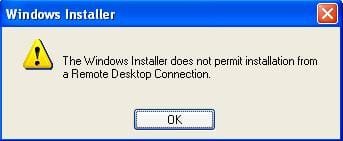
I believe that error message pretty much says why you are not able to. You will need to install XP Mode physically at that computer, and not via a RDC. Sorry. :(
 

My Computer

Computer type
PC/Desktop
Computer Manufacturer/Model Number
Self built custom
OS
64-bit Windows 11 Pro for Workstations
CPU
Intel i7-8700K OC'd to 5 GHz
Motherboard
ASUS ROG Maximus XI Formula Z390
Memory
64 GB (4x16GB) G.SKILL TridentZ RGB DDR4 3600 MHz
Graphics Card(s)
ASUS ROG-STRIX-GTX1080TI-O11G-GAMING
Sound Card
Integrated
Monitor(s) Displays
2 x Samsung Odyssey G7 27"
Screen Resolution
2560x1440
Hard Drives
1TB Samsung 990 PRO M.2,
4TB Samsung 990 PRO PRO M.2,
TerraMaster F8 SSD Plus NAS
PSU
Seasonic Prime Titanium 850W
Case
Thermaltake Core P3
Cooling
Corsair Hydro H115i
Keyboard
Logitech wireless K800
Mouse
Logitech MX Master 4
Internet Speed
2 Gb/s Download and 100 Mb/s Upload
Antivirus
Malwarebyte Anti-Malware Premium
Browser
Google Chrome
Other Info
Logitech Z625 speaker system,
Logitech BRIO 4K Pro webcam,
HP Color LaserJet Pro MFP M477fdn,
APC SMART-UPS RT 1000 XL - SURT1000XLI,
Galaxy S23 Plus phone
Question on applications talking to one another

Hi Brink,

Thanks for this tutorial. I was really worried about how difficult this setup would be but the tutorial made me really stress-free. Awesome!

I plan on using the XP Mode for development applications, like DB2 and RSA. If some of these tools use XP Mode and some work off Windows 7, and these need to talk to each other, could there be any issues?

I dont really understand how XP Mode works (or virtualization for that matter), so hope you can answer my question and perhaps through some insight my way.

Thanks!
Shailesh
 

My Computer

OS
Vista Home Premium
Hello Shailesh,

You may just not have updated your specs yet, but XP Mode will only install in Windows 7 Professional, Enterprise, or Ultimate.

The apps in XP Mode will be able to save to and open files from within Windows 7, but Windows 7 will not be able to save to and open files from within XP Mode. If you want them to share files, it would be best to use a location to save them to a location that both XP Mode and Windows 7 can access.

Hope this helps,
Shawn
 

My Computer

Computer type
PC/Desktop
Computer Manufacturer/Model Number
Self built custom
OS
64-bit Windows 11 Pro for Workstations
CPU
Intel i7-8700K OC'd to 5 GHz
Motherboard
ASUS ROG Maximus XI Formula Z390
Memory
64 GB (4x16GB) G.SKILL TridentZ RGB DDR4 3600 MHz
Graphics Card(s)
ASUS ROG-STRIX-GTX1080TI-O11G-GAMING
Sound Card
Integrated
Monitor(s) Displays
2 x Samsung Odyssey G7 27"
Screen Resolution
2560x1440
Hard Drives
1TB Samsung 990 PRO M.2,
4TB Samsung 990 PRO PRO M.2,
TerraMaster F8 SSD Plus NAS
PSU
Seasonic Prime Titanium 850W
Case
Thermaltake Core P3
Cooling
Corsair Hydro H115i
Keyboard
Logitech wireless K800
Mouse
Logitech MX Master 4
Internet Speed
2 Gb/s Download and 100 Mb/s Upload
Antivirus
Malwarebyte Anti-Malware Premium
Browser
Google Chrome
Other Info
Logitech Z625 speaker system,
Logitech BRIO 4K Pro webcam,
HP Color LaserJet Pro MFP M477fdn,
APC SMART-UPS RT 1000 XL - SURT1000XLI,
Galaxy S23 Plus phone
Last edited by a moderator:

My Computer

Computer type
PC/Desktop
Computer Manufacturer/Model Number
Home Built Desktop By DataTech
OS
Windows 7 Ultimate X64 SP1
CPU
Intel i5-2550K, Differing ~4.4-4.8GHz No built in GPU
Motherboard
ASUS P8Z68-V PRO/GEN3
Memory
16GB G.Skill Sniper 1866MHz @ 2133MHz 2x8GB
Graphics Card(s)
ASUS GTX650TIB-DC2OC-2GD5, (650TI Boost)
Sound Card
Onboard Realtek 5-1
Monitor(s) Displays
Samsung P2570HD
Screen Resolution
1920x1080
Hard Drives
Samsung 840 Pro 256GB SSD for OS, 500GB Seagate Constellation (Enterprise drive) for Data
PSU
Corsair HX650W
Case
Inwin Dragon Rider
Cooling
Hyper 212 EVO w/two Noctua fans, push-pull, @1300 RPM
Keyboard
E-Z Eyes, bright yellow keys with large characters
Mouse
steelseries SENSEI Laser Pro Gaming
Internet Speed
48-51Mbs Mbs down, 11 Mbs up Xfinity Cable
Antivirus
Norton Internet Security 2013
Browser
IE 10, Opera, Pale Moon if needed
Other Info
4 case fans, LG BluRay-RE, ASUS DVD-RW, Mr. Fusion power supply, 1.21 gigawatts.
Improving performance

Thanks Brink and Britton! That info was really helpful.

So far so good, my applications seem to be integrating well. However, applications running in Windows XP Mode seem to be really slow. I will be doing development work on XP Mode, and their wont be many applications running on Windows 7. Is there some way I can increase speed of XP Mode? (Perhaps assign more CPU cycles or more RAM?)

If yes, how can I go about doing this?
 

My Computer

OS
Vista Home Premium
Yes XP mode is slower than the host. You can add more RAM with the same Settings window as my post below. The RAM you dedicate to the VM will not be available to the host.
No CPU cycles can be added to the VM. The CPU is shared.
 

My Computer

Computer type
PC/Desktop
Computer Manufacturer/Model Number
Home Built Desktop By DataTech
OS
Windows 7 Ultimate X64 SP1
CPU
Intel i5-2550K, Differing ~4.4-4.8GHz No built in GPU
Motherboard
ASUS P8Z68-V PRO/GEN3
Memory
16GB G.Skill Sniper 1866MHz @ 2133MHz 2x8GB
Graphics Card(s)
ASUS GTX650TIB-DC2OC-2GD5, (650TI Boost)
Sound Card
Onboard Realtek 5-1
Monitor(s) Displays
Samsung P2570HD
Screen Resolution
1920x1080
Hard Drives
Samsung 840 Pro 256GB SSD for OS, 500GB Seagate Constellation (Enterprise drive) for Data
PSU
Corsair HX650W
Case
Inwin Dragon Rider
Cooling
Hyper 212 EVO w/two Noctua fans, push-pull, @1300 RPM
Keyboard
E-Z Eyes, bright yellow keys with large characters
Mouse
steelseries SENSEI Laser Pro Gaming
Internet Speed
48-51Mbs Mbs down, 11 Mbs up Xfinity Cable
Antivirus
Norton Internet Security 2013
Browser
IE 10, Opera, Pale Moon if needed
Other Info
4 case fans, LG BluRay-RE, ASUS DVD-RW, Mr. Fusion power supply, 1.21 gigawatts.
Back
Top