Solved Wireless connectivity issue

There were a few different "fixes" in that 3 page HP thread - but the problem seemed to come back for some people.

I saw your edit with the link to the emachine. I cannot get that file to download so that I can check which files/drivers are newer: those or the ones in the Dell site below. I see that the Gateway site has April 2011 0 those might be newer.

Based on this Broadcom BCM94313HMG2L info
& adding Dell to the search term
...lead me to this ebay listing.

That ebay listing seems to say that Dell calls this card a DW 1501.
The Dell drivers can be found here. Running that 80MB file shows this:
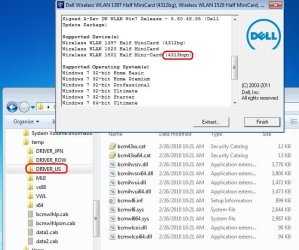
dell.JPG

I changed (shortened) the path where the files where extracted to.

I would suggest that you NOT install the junk in that 80MB file - you only need the drivers that are in the DRIVER_US folder. After you click on the button named "Extract" (shown in the screen shot above) you can just close that window. I do not think that you will like what you get if you click on the button named "Install". I could be wrong, but I think that the "Install" gives you Dells program to control the wireless card. You are probably better off letting W7 manage the card.

You can use the Device Manager to try and update the drivers:

Here is the way that I would start - I'm sure that others would do it differently:

Right click on Computer on the start menu
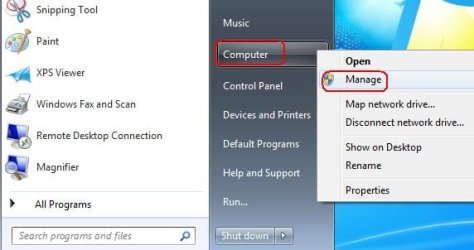
1manage.JPG

Select Device Manager,
expand Network Adapters
right click on the device in question
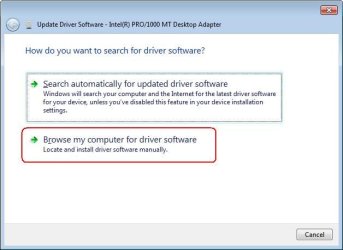
select Update Driver Software
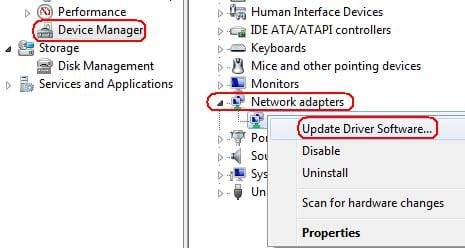
2update driver.JPG


3browse.JPG


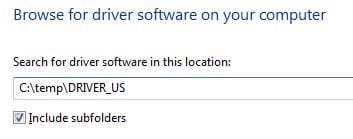
4browse.JPG

You can click next in the screen above - that is as far as the process would let me go since I don't have that hardware.
 

My Computer

Computer type
Laptop
Computer Manufacturer/Model Number
Employer provided Dell Latitude
OS
W7 Pro SP1 64bit
CPU
i7
Memory
8GB
Graphics Card(s)
Intel HD Graphics
Hard Drives
crappy SSD
Antivirus
Employer mandated Symantec Endpoint Protection
Browser
Pale Moon 64bit, IE11 64bit & Chrome 64bit
I did the above, but it says that Windows has determined the driver software for the device is up to date.
 

My Computer

OS
Windows 7 Ultimate 32bit
I did the above, but it says that Windows has determined the driver software for the device is up to date.
You downloaded the file from Dell and pointed the "Update Driver Software" process to it?

Or did you just ask the update process to search automatically...
 

My Computer

Computer type
Laptop
Computer Manufacturer/Model Number
Employer provided Dell Latitude
OS
W7 Pro SP1 64bit
CPU
i7
Memory
8GB
Graphics Card(s)
Intel HD Graphics
Hard Drives
crappy SSD
Antivirus
Employer mandated Symantec Endpoint Protection
Browser
Pale Moon 64bit, IE11 64bit & Chrome 64bit
I did the above, but it says that Windows has determined the driver software for the device is up to date.
You downloaded the file from Dell and pointed the "Update Driver Software" process to it?

Or did you just ask the update process to search automatically...
I downloaded the file. :)

My PC has a very fast internet connection so the download was very fast.
I then put the file on a USB stick and transfer it to the Laptop.
I extracted the EXE file as you suggested, dirrected the update driver feature to the folder, but it gave me this message:

Windows has determined the driver software for your device is up to date.

I just put the laptop to sleep, resumed the session and the wireless works...for how long I have no idea (since it goes on/off).
Could there be a link between them? (sleep/restart and Wi-Fi)

Edit: Here are 2 ipconfig /all reports when Wi-Fi was off and when Wi-Fi was on (after sleep); maybe it helps.

No Wi-Fi:

Windows IP Configuration

Host Name . . . . . . . . . . . . : Iulian-PC
Primary Dns Suffix . . . . . . . :
Node Type . . . . . . . . . . . . : Hybrid
IP Routing Enabled. . . . . . . . : No
WINS Proxy Enabled. . . . . . . . : No

Wireless LAN adapter Wireless Network Connection:

Media State . . . . . . . . . . . : Media disconnected
Connection-specific DNS Suffix . :
Description . . . . . . . . . . . : Broadcom 802.11n Network Adapter
Physical Address. . . . . . . . . : 38-59-F9-0E-E2-55
DHCP Enabled. . . . . . . . . . . : Yes
Autoconfiguration Enabled . . . . : Yes

Ethernet adapter Local Area Connection:

Media State . . . . . . . . . . . : Media disconnected
Connection-specific DNS Suffix . :
Description . . . . . . . . . . . : Atheros AR8152 PCI-E Fast Ethernet Controller
Physical Address. . . . . . . . . : B8-70-F4-A5-40-6E
DHCP Enabled. . . . . . . . . . . : Yes
Autoconfiguration Enabled . . . . : Yes

Tunnel adapter isatap.{08FC56F4-E7DD-4D2B-A0F1-2F60C4A6EABB}:

Media State . . . . . . . . . . . : Media disconnected
Connection-specific DNS Suffix . :
Description . . . . . . . . . . . : Microsoft ISATAP Adapter
Physical Address. . . . . . . . . : 00-00-00-00-00-00-00-E0
DHCP Enabled. . . . . . . . . . . : No
Autoconfiguration Enabled . . . . : Yes

Tunnel adapter isatap.{8A9EF1F3-A831-42F5-871B-7800C50CA220}:

Media State . . . . . . . . . . . : Media disconnected
Connection-specific DNS Suffix . :
Description . . . . . . . . . . . : Microsoft ISATAP Adapter #2
Physical Address. . . . . . . . . : 00-00-00-00-00-00-00-E0
DHCP Enabled. . . . . . . . . . . : No
Autoconfiguration Enabled . . . . : Yes

Tunnel adapter Teredo Tunneling Pseudo-Interface:

Media State . . . . . . . . . . . : Media disconnected
Connection-specific DNS Suffix . :
Description . . . . . . . . . . . : Teredo Tunneling Pseudo-Interface
Physical Address. . . . . . . . . : 00-00-00-00-00-00-00-E0
DHCP Enabled. . . . . . . . . . . : No
Autoconfiguration Enabled . . . . : Yes

Wi-Fi on:

Windows IP Configuration

Host Name . . . . . . . . . . . . : Iulian-PC
Primary Dns Suffix . . . . . . . :
Node Type . . . . . . . . . . . . : Hybrid
IP Routing Enabled. . . . . . . . : No
WINS Proxy Enabled. . . . . . . . : No

Wireless LAN adapter Wireless Network Connection:

Connection-specific DNS Suffix . :
Description . . . . . . . . . . . : Broadcom 802.11n Network Adapter
Physical Address. . . . . . . . . : 38-59-F9-0E-E2-55
DHCP Enabled. . . . . . . . . . . : Yes
Autoconfiguration Enabled . . . . : Yes
Link-local IPv6 Address . . . . . : fe80::1d89:c235:f12e:e07b%19(Preferred)
IPv4 Address. . . . . . . . . . . : 192.168.43.241(Preferred)
Subnet Mask . . . . . . . . . . . : 255.255.255.0
Lease Obtained. . . . . . . . . . : Monday, March 12, 2012 12:49:47 PM
Lease Expires . . . . . . . . . . : Monday, March 12, 2012 1:49:47 PM
Default Gateway . . . . . . . . . : 192.168.43.1
DHCP Server . . . . . . . . . . . : 192.168.43.1
DHCPv6 IAID . . . . . . . . . . . : 439900665
DHCPv6 Client DUID. . . . . . . . : 00-01-00-01-16-ED-16-6D-B8-70-F4-A5-40-6E
DNS Servers . . . . . . . . . . . : 192.168.43.1
NetBIOS over Tcpip. . . . . . . . : Enabled

Ethernet adapter Local Area Connection:

Media State . . . . . . . . . . . : Media disconnected
Connection-specific DNS Suffix . :
Description . . . . . . . . . . . : Atheros AR8152 PCI-E Fast Ethernet Controller
Physical Address. . . . . . . . . : B8-70-F4-A5-40-6E
DHCP Enabled. . . . . . . . . . . : Yes
Autoconfiguration Enabled . . . . : Yes

Tunnel adapter isatap.{08FC56F4-E7DD-4D2B-A0F1-2F60C4A6EABB}:

Media State . . . . . . . . . . . : Media disconnected
Connection-specific DNS Suffix . :
Description . . . . . . . . . . . : Microsoft ISATAP Adapter
Physical Address. . . . . . . . . : 00-00-00-00-00-00-00-E0
DHCP Enabled. . . . . . . . . . . : No
Autoconfiguration Enabled . . . . : Yes

Tunnel adapter isatap.{8A9EF1F3-A831-42F5-871B-7800C50CA220}:

Media State . . . . . . . . . . . : Media disconnected
Connection-specific DNS Suffix . :
Description . . . . . . . . . . . : Microsoft ISATAP Adapter #2
Physical Address. . . . . . . . . : 00-00-00-00-00-00-00-E0
DHCP Enabled. . . . . . . . . . . : No
Autoconfiguration Enabled . . . . : Yes

Tunnel adapter Teredo Tunneling Pseudo-Interface:

Connection-specific DNS Suffix . :
Description . . . . . . . . . . . : Teredo Tunneling Pseudo-Interface
Physical Address. . . . . . . . . : 00-00-00-00-00-00-00-E0
DHCP Enabled. . . . . . . . . . . : No
Autoconfiguration Enabled . . . . : Yes
IPv6 Address. . . . . . . . . . . : 2001:0:5ef5:79fb:1850:3a0b:3f57:d40e(Preferred)
Link-local IPv6 Address . . . . . : fe80::1850:3a0b:3f57:d40e%14(Preferred)
Default Gateway . . . . . . . . . : ::
NetBIOS over Tcpip. . . . . . . . : Disabled
 

My Computer

OS
Windows 7 Ultimate 32bit
Thx for the extra details...
I was afraid that the drivers on the Dell site would be the same or older.

One of the people that posted in that HP thread said that he
did a fresh W7 install - wireless worked
installed a bunch of OS updates all at once - the wireless broke
uninstalled all OS updates - wireless worked
re-installed each OS update one at a time - wireless worked

If you want to try and avoid re-installing the OS, you might try backing out each OS update and test the WiFi between each re-installed update... you might be able to finish that test on a month or two :-(
 

My Computer

Computer type
Laptop
Computer Manufacturer/Model Number
Employer provided Dell Latitude
OS
W7 Pro SP1 64bit
CPU
i7
Memory
8GB
Graphics Card(s)
Intel HD Graphics
Hard Drives
crappy SSD
Antivirus
Employer mandated Symantec Endpoint Protection
Browser
Pale Moon 64bit, IE11 64bit & Chrome 64bit
I haven't installed any updates on the laptop yet, and I did make a Check for Updates thing but it didn't find any new drivers.

I reinstalled the Windows about 2-3 times yesterday, before starting this thread, and I got the same issue.
I don't know what can be the problem since it worked fine on the preinstalled Windows. :(
 

My Computer

OS
Windows 7 Ultimate 32bit
Does your W7 install include SP1? Just wondering if that might be a difference between the original W7 install.

Have you changed the power/sleep settings on the wireless card?

power.JPG
 

My Computer

Computer type
Laptop
Computer Manufacturer/Model Number
Employer provided Dell Latitude
OS
W7 Pro SP1 64bit
CPU
i7
Memory
8GB
Graphics Card(s)
Intel HD Graphics
Hard Drives
crappy SSD
Antivirus
Employer mandated Symantec Endpoint Protection
Browser
Pale Moon 64bit, IE11 64bit & Chrome 64bit
No Service Pack installed.

Yes, I have. Power Management isn't allowed to turn off the device to save power.
Even in the Advanced tab the Power Output is set to 100%.
 

My Computer

OS
Windows 7 Ultimate 32bit
Maybe you need older drivers. See if you can tell if the Dell file had older files in it.

I've been watching this thread...
 

My Computer

Computer type
Laptop
Computer Manufacturer/Model Number
Employer provided Dell Latitude
OS
W7 Pro SP1 64bit
CPU
i7
Memory
8GB
Graphics Card(s)
Intel HD Graphics
Hard Drives
crappy SSD
Antivirus
Employer mandated Symantec Endpoint Protection
Browser
Pale Moon 64bit, IE11 64bit & Chrome 64bit
..........I just put the laptop to sleep, resumed the session and the wireless works...for how long I have no idea (since it goes on/off).
Could there be a link between them? (sleep/restart and Wi-Fi)........
Sure - there is a link between the sleep/WiFi thing. That is what the HP thread is all about. It could be that the current driver puts the WiFi card into a state where it overheats and/or locks up. Putting it to sleep resets that condition. The older/original drivers might not do that.

You might try setting the power level to 75%.
 

My Computer

Computer type
Laptop
Computer Manufacturer/Model Number
Employer provided Dell Latitude
OS
W7 Pro SP1 64bit
CPU
i7
Memory
8GB
Graphics Card(s)
Intel HD Graphics
Hard Drives
crappy SSD
Antivirus
Employer mandated Symantec Endpoint Protection
Browser
Pale Moon 64bit, IE11 64bit & Chrome 64bit
Maybe you need older drivers. See if you can tell if the Dell file had older files in it.

I've been watching this thread...
Tried to install the package, but couldn't do it.
Said it couldn't find any compatible hardware, so I guess I can't find the driver version.
..........I just put the laptop to sleep, resumed the session and the wireless works...for how long I have no idea (since it goes on/off).
Could there be a link between them? (sleep/restart and Wi-Fi)........
Sure - there is a link between the sleep/WiFi thing. That is what the HP thread is all about. It could be that the current driver puts the WiFi card into a state where it overheats and/or locks up. Putting it to sleep resets that condition. The older/original drivers might not do that.

You might try setting the power level to 75%.
Interesting...

I did set the power level to 75% but no change.
 

My Computer

OS
Windows 7 Ultimate 32bit
...or it could be just the opposite: e.g. the current drivers might ignore power settings thus allowing the wireless card to sleep after so many seconds of being idle.

Edit: that would explain why going thru the wake up process makes the card work.

You could try running a constant ping. See the attached file.
 

Attachments

My Computer

Computer type
Laptop
Computer Manufacturer/Model Number
Employer provided Dell Latitude
OS
W7 Pro SP1 64bit
CPU
i7
Memory
8GB
Graphics Card(s)
Intel HD Graphics
Hard Drives
crappy SSD
Antivirus
Employer mandated Symantec Endpoint Protection
Browser
Pale Moon 64bit, IE11 64bit & Chrome 64bit
That is possible, I guess.

By the way, I'm running the attached file for about 1 minute now and it keeps on going and going. :p
The wireless is on since I've put the laptop to sleep, resumed the session then downloaded the file to the laptop, via the wireless signal.

Must I wait more, or I'm looking to find something?
It keeps saying "Reply from 209.85.148.102: bytes=32 time=71ms (some have more, some less) TTL=50 (same as time, some have a different value;50,51)" and the list goes further.

Edit: It went through "Request timed out" once, then the list continued.

Edit 2: Wireless connectivity went off and I keep on getting "Destination host unreachable".
I stopped the batch file.
 

My Computer

OS
Windows 7 Ultimate 32bit
You can minimize that window and just let it run all of the time that you use the laptop. If the wireless never disconnects like it was doing before, then we know a bit more about why it fails. Your work around might be to always run that ping window... but I have my doubts that this will be the "fix".
 

My Computer

Computer type
Laptop
Computer Manufacturer/Model Number
Employer provided Dell Latitude
OS
W7 Pro SP1 64bit
CPU
i7
Memory
8GB
Graphics Card(s)
Intel HD Graphics
Hard Drives
crappy SSD
Antivirus
Employer mandated Symantec Endpoint Protection
Browser
Pale Moon 64bit, IE11 64bit & Chrome 64bit
I also noticed that if I put the laptop to sleep and immediately wake it up, wireless won't turn on.
I must let the laptop "sleep" a few seconds and then resume the session.
Guess that happens so the card can cool down...

Wireless still dropped, unfortunately.
 

My Computer

OS
Windows 7 Ultimate 32bit
Bummer.
Is the time from wake up to dropping out about the same each time? Does it get shorter if the wireless card it working hard - like transferring a large file to another computer on your network?
 

My Computer

Computer type
Laptop
Computer Manufacturer/Model Number
Employer provided Dell Latitude
OS
W7 Pro SP1 64bit
CPU
i7
Memory
8GB
Graphics Card(s)
Intel HD Graphics
Hard Drives
crappy SSD
Antivirus
Employer mandated Symantec Endpoint Protection
Browser
Pale Moon 64bit, IE11 64bit & Chrome 64bit
It's about the same, from what I can tell.
Will try to download a file and see how much it stays on.
 

My Computer

OS
Windows 7 Ultimate 32bit
You might want to buy a different brand of wireless card... not sure what else to try.
 

My Computer

Computer type
Laptop
Computer Manufacturer/Model Number
Employer provided Dell Latitude
OS
W7 Pro SP1 64bit
CPU
i7
Memory
8GB
Graphics Card(s)
Intel HD Graphics
Hard Drives
crappy SSD
Antivirus
Employer mandated Symantec Endpoint Protection
Browser
Pale Moon 64bit, IE11 64bit & Chrome 64bit
Did the "test" and it stays about the same time on, 2-3 mins.

Not quite the solution I was expecting. :p
 

My Computer

OS
Windows 7 Ultimate 32bit
Sorry for double posting, but...bumpity bump.

No other ideas?
I mean, wireless worked fine with the preinstalled Windows. :(
 

My Computer

OS
Windows 7 Ultimate 32bit
Back
Top