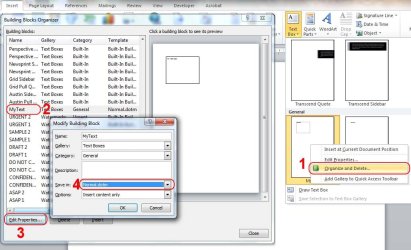
Recording the Macro
1. On the Ribbon click the View tab > Macros > Record Macro
2. Type Macro Name (No Spaces) and description (optional)
3. Store in Normal Template to make it available to all documents
4. Create Keyboard Shortcut and/or Button if desired (Read below about button creation)
EDIT: You can only create one of these when recording a macro. If you wish to create both then you can create one here then the other after. Creating the button after is the same as described later except opening the Customize Ribbon/Quick Access. This can be opened from File > Options > Customize Ribbon or Quick Access Toolbar.
This
post should explain how to create a Keyboard shortcut after.
5. Click ok to start recording the Macro
6. On the Ribbon click the Insert tab
7. Click text box then scroll down and select your custom text box. Now you should have your text box inserted on the page.
8. Click the stop button on the status bar
9. On the Ribbon click the View tab > Macros > View Macros
10. Select the Macro you just recorded and click edit
11. You should be presented with the Visual Basic editor and the following code. Bold text will be different depending on the name of the macro, text box name and your User name.
Code:
Sub [B]MyTextBoxMacro[/B]()
'
' [B]MyTextBoxMacro[/B] Macro
' My Description
'
    [COLOR=Red]ActiveDocument.Shapes.Range(Array("Text Box 3")).Select[/COLOR]
    Application.Templates( _
        "C:\Users\[B]USERNAME[/B]\AppData\Roaming\Microsoft\Templates\Normal.dotm"). _
        BuildingBlockEntries("[B]MyTextBox[/B]").Insert Where:=Selection.Range, RichText _
        :=True
End Sub
12. Delete the line marked in red ("ActiveDocument.Shapes.Range(Array("Text Box 3")).Select")
13. Switch back to the document and run the macro to test
You will notice in the code it references your USERNAME AppData folder. Now it's not necessary but you can change the code to the following
Code:
[B]Dim strAppData As String
    strAppData = Environ("AppData")

    Application.Templates( _
        strAppData & "[/B]\Microsoft\Templates\Normal.dotm"). _
        BuildingBlockEntries("MyTextBox").Insert Where:=Selection.Range, RichText _
        :=True
If you have any problems with any of the steps just let me know.
Creating the Button - Quick Access Toolbar
Under the Record Macro window where you give it a name, description etc... click the Button option under "Assign Macro to". Follow these steps to add to the Quick Access Toolbar

1. Check your macro is selected
2. Click Add to add it to the Quick Access Toolbar
3. Click Modify
4. Select an icon and give it a display name
Now if all went well it should show under Quick Access Toolbar like this

The display name will show when you hover over it.
Creating the Button - Ribbon
Under the Record Macro window where you give it a name, description etc... click the Button option under "Assign Macro to". Your presented with the "Customize the Quick Access Toolbar" window.
Now you have two options, create a whole new tab or a new group to place your button in. All steps are the same except the first where you choose tab or group.
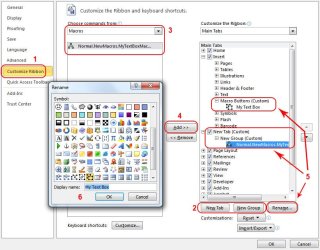
1. First click "Customize Ribbon" on the left.
2. Click new tab or group. New tabs or groups will be created under the currently selected one although you can move them by dragging them up or down or using the arrows to the right of the scroll bar.
3. Select Macros in the Commands drop down list and select your macro below.
4. Make sure you new group or tab is selected on the right and click Add.
5. Select your tab, group or macro then click rename
6. Give your item a display name and select an icon. Group or tab icons I have found not to show so you only really have to worry about the Macro icon.
When your finished click ok and you will start recording the Macro, step 6 under Recording the Macro at the start of this post.
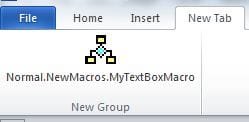
When finished recording the Macro you should have something like this
Group

Or Tab
I hope I've made it as easy as 1,2,3 and havn't missed anything but if you need more help don't be afraid to ask, although I'm going to be busy this weekend so it may take a day or two before I respond.