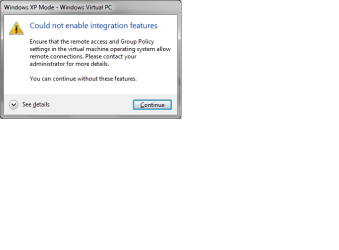
XP Mode Integration Features not enabled.

Bit64z

New member
Local time
12:42 PM
Messages
17
I get this when I start my XP Mode... Before it asks me to login:

When I check the settings for the VM the Integration Features are set to enable at startup, and all are turned on.

Any ideas?

I searched the forums for this topic and didn't find much. Feel free to point me to where it has already been covered,.
 

Attachments

  • WVMpopup.png
    WVMpopup.png
    27.5 KB · Views: 155

My Computer

Computer Manufacturer/Model Number
Homebuilt
OS
Win 7 64
CPU
Intel Quad 2.4
Motherboard
MSI 875X Platinum
Memory
6 Gb
Graphics Card(s)
GE Force 7600 GS
Sound Card
OnBoard
Monitor(s) Displays
Gateway FPD218SW DCDi
Hard Drives
SATA & eSATA
PSU
250 W
Case
MidTower
Cooling
Sealed Liquid Copper Coil
Ok, well looks like this is going nowhere.

One more thing; Once the XP Mode starts, I login, then get a window with no interface, no start menu, nothing.

Does any of this sound familiar to anyone?
 

My Computer

Computer Manufacturer/Model Number
Homebuilt
OS
Win 7 64
CPU
Intel Quad 2.4
Motherboard
MSI 875X Platinum
Memory
6 Gb
Graphics Card(s)
GE Force 7600 GS
Sound Card
OnBoard
Monitor(s) Displays
Gateway FPD218SW DCDi
Hard Drives
SATA & eSATA
PSU
250 W
Case
MidTower
Cooling
Sealed Liquid Copper Coil
The issue in your first post is normally solved by uninstalling and reinstalling integration features, which is impossible because of the issue you told in your second post...

Have you tried restoring the host system to a point before this issue first occurred? If that's not fixing the issues, then I recommend reinstalling XP Mode.

Kari
 

My Computer

Computer type
Laptop
Computer Manufacturer/Model Number
HP ENVY 17-1150eg
OS
Windows 10 Pro x64 EN-GB
CPU
1.6 GHz Intel Core i7-720QM Processor
Memory
6 GB
Graphics Card(s)
ATI Mobility Radeon HD 5850 Graphics
Sound Card
Beats sound system with integrated subwoofer
Monitor(s) Displays
17" laptop display, 22" LED and 32" Full HD TV through HDMI
Screen Resolution
1600*900 (1), 1920*1080 (2&3)
Hard Drives
Internal: 2 x 500 GB SATA Hard Disk Drive 7200 rpm
External: 2TB for backups, 3TB USB3 network drive for media
Cooling
As Envy runs a bit warm, I have it on a Cooler Master pad
Keyboard
Logitech diNovo Media Desktop Laser (bluetooth)
Mouse
Logitech Performance Mouse MX
Internet Speed
50/10 Mbps VDSL
Antivirus
Windows Defender 4.3.9431.0
Browser
Maxthon 3.5.2., IE11
I tried to restore from an earlier restore point, and it starts the "bad" instance instead of the earlier instance. I can tell because the earlier instance was using 512 Mb RAM, and the "bad" one is using 1024.

Ok, this will be the third time I've installed XP Mode since getting 7 a few days ago. Do you meant to delete the old instances and setup another instance, or do you mean to actually uninstall XPMode and reinstall?

Don't want to sound negative, but so far this does not seem to be worth the effort involved. Unless I am doing something totally un-intuitive with the installation.

Here is a little more background:

I installed XPMode and set up one instance.
I then installed a number of apps on that instance:
Firefox - Java and plugins for the same
Installed Open Office, Adobe Photoshop Elements, and
Kaspersky Internet Security.

I also have two external eSata drives that seem to lose connectivity when there is no access for a while. I installed some of the software from these drives where I have it cached, but nothing runs from the external drives.

However, I did install a couple of the apps on a drive belonging to the Windows 7 host, a drive that I shared with any user on the home network. The XP VM appears on the home network, and was using the share Ok.

I kept this system with XPMode up and running, with starts and restarts while adding XP updates etc for about 2 days.

I shut it down last night, and this AM it would not restart the Integration Features, and you know the rest.

Any of the steps I took, any of the items I installed sound any alarm bells, let me know. Otherwise I will start investigating some of the other tools mentioned by others in other threads. VMWare etc.

I really need to setup more than one virtual hosts, or I should say, I really would find it extremely useful to do so.

But I will post about that in another thread, with circumstances dictating.

Thank you for your reply, it is appreciated.

 

My Computer

Computer Manufacturer/Model Number
Homebuilt
OS
Win 7 64
CPU
Intel Quad 2.4
Motherboard
MSI 875X Platinum
Memory
6 Gb
Graphics Card(s)
GE Force 7600 GS
Sound Card
OnBoard
Monitor(s) Displays
Gateway FPD218SW DCDi
Hard Drives
SATA & eSATA
PSU
250 W
Case
MidTower
Cooling
Sealed Liquid Copper Coil
I meant completely uninstall Virtual PC and XP Mode from your host system, this post tells you how. Before uninstalling, copy the XP Mode vhd file to a safe place. It's located in C:\Users\Your_Username\AppData\Local\Microsoft\Windows Virtual PC\Virtual Machines

After uninstalling, reboot and reinstall Virtual PC and XP Mode. Run XP Mode one time, shut it down. Rename the new XP Mode vhd (or move it to another location) and replace it with the one you backed up before uninstall.

IF everything works, backup XP Mode files as told in this thread.

Kari
 

My Computer

Computer type
Laptop
Computer Manufacturer/Model Number
HP ENVY 17-1150eg
OS
Windows 10 Pro x64 EN-GB
CPU
1.6 GHz Intel Core i7-720QM Processor
Memory
6 GB
Graphics Card(s)
ATI Mobility Radeon HD 5850 Graphics
Sound Card
Beats sound system with integrated subwoofer
Monitor(s) Displays
17" laptop display, 22" LED and 32" Full HD TV through HDMI
Screen Resolution
1600*900 (1), 1920*1080 (2&3)
Hard Drives
Internal: 2 x 500 GB SATA Hard Disk Drive 7200 rpm
External: 2TB for backups, 3TB USB3 network drive for media
Cooling
As Envy runs a bit warm, I have it on a Cooler Master pad
Keyboard
Logitech diNovo Media Desktop Laser (bluetooth)
Mouse
Logitech Performance Mouse MX
Internet Speed
50/10 Mbps VDSL
Antivirus
Windows Defender 4.3.9431.0
Browser
Maxthon 3.5.2., IE11
On man PCs there's a setting in BIOS that should be configured to permit your PC to use Windows XP Virtual mode.
 

My Computer

Computer Manufacturer/Model Number
HP dc5850
OS
Windows 7 Ultimate 64-bit
Memory
8GB
Graphics Card(s)
ATI
Monitor(s) Displays
I-Inc, Acer, ViewSonic
Screen Resolution
1920x1200, 1920x1200, and 1920x1080
Keyboard
HP KB-0316
Mouse
Logitec Trackball
My bios can do virtualization, and it is enabled.

Thank you for the reply.

I guess what I want to know before going through the uninstall/reinstall action is, what caused XPMode to stop using the integration features? Any information about that would also be appreciated. I would hate to have it happen again.
 

My Computer

Computer Manufacturer/Model Number
Homebuilt
OS
Win 7 64
CPU
Intel Quad 2.4
Motherboard
MSI 875X Platinum
Memory
6 Gb
Graphics Card(s)
GE Force 7600 GS
Sound Card
OnBoard
Monitor(s) Displays
Gateway FPD218SW DCDi
Hard Drives
SATA & eSATA
PSU
250 W
Case
MidTower
Cooling
Sealed Liquid Copper Coil
On man PCs there's a setting in BIOS that should be configured to permit your PC to use Windows XP Virtual mode.
Great thought, but that does not relate to the issue the OP is having.

It sounds like your VM got a bad update, I've seen it happen. The best way to fix it is the above method of uninstalling and then reinstalling xp mode.
 

My Computer

Computer Manufacturer/Model Number
Black_Box (homebuilt)
OS
windows 7 RTM x64
CPU
Phenom II 965 Quad Core 3.4Ghz
Motherboard
Asus M4A79T Deluxe
Memory
Mushkin Blackline 8GB (4x2gb)
Graphics Card(s)
XFX Radeon 5970 Black Edition
Sound Card
onboard
Monitor(s) Displays
Dell 2408WPF-main Dell E248WFP-secondary
Screen Resolution
1920x1200-main 1920x1200-secondary
Hard Drives
OCZ Vertex Limited Edition 100GB (OS)
x1 WD Black Edition 500GB drive (Storage)
PSU
XFX 850w Black Edition (Modular)
Case
Mountian Mods H2go
Cooling
CoolITSystems ECO A.L.C.
Keyboard
Logitech MX 5500 wireless keyboard
Mouse
Razor Copperhead
Internet Speed
16Mb down/2Mb up Wowway Cable Internet
On man PCs there's a setting in BIOS that should be configured to permit your PC to use Windows XP Virtual mode.

It sounds like your VM got a bad update, I've seen it happen. The best way to fix it is the above method of uninstalling and then reinstalling xp mode.

Ok, still leaves me wondering what I did or failed to do that could have resulted in a bad update. Appreciate the advice from everyone so far.

I will reinstall. Am going to print and follow Kari's advice and links about duplicating XPModes, VMs etc.

1. Basically I want to have a couple of XPModes. XPMode1 will be for all my old XP apps etc. for the time being. XPMode 2 will be for lets say my Database development Apps (Oracle, MySQL). So I will need to make 2 XPModes in 2 locations on my C drive.

2. I want to create at least one (for now) Virtual Machine (run Virtual PC setup) with Linux as the OS.

It sounds like I might have stepped on something in my first attempt to do #1.

Going to put some coffee on and get to work on this.
 

My Computer

Computer Manufacturer/Model Number
Homebuilt
OS
Win 7 64
CPU
Intel Quad 2.4
Motherboard
MSI 875X Platinum
Memory
6 Gb
Graphics Card(s)
GE Force 7600 GS
Sound Card
OnBoard
Monitor(s) Displays
Gateway FPD218SW DCDi
Hard Drives
SATA & eSATA
PSU
250 W
Case
MidTower
Cooling
Sealed Liquid Copper Coil
Ok, following Kari's instructions I now have two working XPModes that I ran simultaneously... YooHoo.
 

My Computer

Computer Manufacturer/Model Number
Homebuilt
OS
Win 7 64
CPU
Intel Quad 2.4
Motherboard
MSI 875X Platinum
Memory
6 Gb
Graphics Card(s)
GE Force 7600 GS
Sound Card
OnBoard
Monitor(s) Displays
Gateway FPD218SW DCDi
Hard Drives
SATA & eSATA
PSU
250 W
Case
MidTower
Cooling
Sealed Liquid Copper Coil
That's good to hear!
 

My Computer

Computer type
Laptop
Computer Manufacturer/Model Number
HP ENVY 17-1150eg
OS
Windows 10 Pro x64 EN-GB
CPU
1.6 GHz Intel Core i7-720QM Processor
Memory
6 GB
Graphics Card(s)
ATI Mobility Radeon HD 5850 Graphics
Sound Card
Beats sound system with integrated subwoofer
Monitor(s) Displays
17" laptop display, 22" LED and 32" Full HD TV through HDMI
Screen Resolution
1600*900 (1), 1920*1080 (2&3)
Hard Drives
Internal: 2 x 500 GB SATA Hard Disk Drive 7200 rpm
External: 2TB for backups, 3TB USB3 network drive for media
Cooling
As Envy runs a bit warm, I have it on a Cooler Master pad
Keyboard
Logitech diNovo Media Desktop Laser (bluetooth)
Mouse
Logitech Performance Mouse MX
Internet Speed
50/10 Mbps VDSL
Antivirus
Windows Defender 4.3.9431.0
Browser
Maxthon 3.5.2., IE11
Unfortunately, after all this, I restarted both VMs, and cannot log on to either. Won't take the user-id and password under which they were created.

I shutdown the VMs, disabled Integration Features at startup and was able to login as XPMUser.

So now I am looking for the thread on how to re-enable Integ Feat.s
 
Last edited:

My Computer

Computer Manufacturer/Model Number
Homebuilt
OS
Win 7 64
CPU
Intel Quad 2.4
Motherboard
MSI 875X Platinum
Memory
6 Gb
Graphics Card(s)
GE Force 7600 GS
Sound Card
OnBoard
Monitor(s) Displays
Gateway FPD218SW DCDi
Hard Drives
SATA & eSATA
PSU
250 W
Case
MidTower
Cooling
Sealed Liquid Copper Coil
Did you ever manage to log in to XP Mode? or did this happen the first time you booted it?
 

My Computer

Computer type
Laptop
Computer Manufacturer/Model Number
HP ENVY 17-1150eg
OS
Windows 10 Pro x64 EN-GB
CPU
1.6 GHz Intel Core i7-720QM Processor
Memory
6 GB
Graphics Card(s)
ATI Mobility Radeon HD 5850 Graphics
Sound Card
Beats sound system with integrated subwoofer
Monitor(s) Displays
17" laptop display, 22" LED and 32" Full HD TV through HDMI
Screen Resolution
1600*900 (1), 1920*1080 (2&3)
Hard Drives
Internal: 2 x 500 GB SATA Hard Disk Drive 7200 rpm
External: 2TB for backups, 3TB USB3 network drive for media
Cooling
As Envy runs a bit warm, I have it on a Cooler Master pad
Keyboard
Logitech diNovo Media Desktop Laser (bluetooth)
Mouse
Logitech Performance Mouse MX
Internet Speed
50/10 Mbps VDSL
Antivirus
Windows Defender 4.3.9431.0
Browser
Maxthon 3.5.2., IE11
I started up both XPModes at the same time, and did not need to login. I shut both down, and left them overnight. This AM when I started both, I was asked to login with my Windows 7 credentials, and that of course did not work. I shut them down after several tries (they went into hibernation for some reason.) I logged off windows 7 and restarted.

I turned off Integration Features and when I started both, the credentials to login were set to XPMUser, which let me login.

Now I've logged onto each with XPMUser and enabled Int Features. Updated and logged off. Both were visible on the Windows network while running.

This is enough for right now. I am going to backup everything before proceeding any further.

Thanks again.

Thanks
 
Last edited:

My Computer

Computer Manufacturer/Model Number
Homebuilt
OS
Win 7 64
CPU
Intel Quad 2.4
Motherboard
MSI 875X Platinum
Memory
6 Gb
Graphics Card(s)
GE Force 7600 GS
Sound Card
OnBoard
Monitor(s) Displays
Gateway FPD218SW DCDi
Hard Drives
SATA & eSATA
PSU
250 W
Case
MidTower
Cooling
Sealed Liquid Copper Coil
Top left of the XP Mode window you have Action, USB, and Tools menus. Integration features ON / OFF is first item in Tools menu. Notice that Tools menu is not visible in full screen mode.
 

My Computer

Computer type
Laptop
Computer Manufacturer/Model Number
HP ENVY 17-1150eg
OS
Windows 10 Pro x64 EN-GB
CPU
1.6 GHz Intel Core i7-720QM Processor
Memory
6 GB
Graphics Card(s)
ATI Mobility Radeon HD 5850 Graphics
Sound Card
Beats sound system with integrated subwoofer
Monitor(s) Displays
17" laptop display, 22" LED and 32" Full HD TV through HDMI
Screen Resolution
1600*900 (1), 1920*1080 (2&3)
Hard Drives
Internal: 2 x 500 GB SATA Hard Disk Drive 7200 rpm
External: 2TB for backups, 3TB USB3 network drive for media
Cooling
As Envy runs a bit warm, I have it on a Cooler Master pad
Keyboard
Logitech diNovo Media Desktop Laser (bluetooth)
Mouse
Logitech Performance Mouse MX
Internet Speed
50/10 Mbps VDSL
Antivirus
Windows Defender 4.3.9431.0
Browser
Maxthon 3.5.2., IE11
Unfortunately, after all this, I restarted both VMs, and cannot log on to either. Won't take the user-id and password under which they were created.

I shutdown the VMs, disabled Integration Features at startup and was able to login as XPMUser.

So now I am looking for the thread on how to re-enable Integ Feat.s

I started up both XPModes at the same time, and did not need to login. I shut both down, and left them overnight. This AM when I started both, I was asked to login with my Windows 7 credentials, and that of course did not work. I shut them down after several tries (they went into hibernation for some reason.) I logged off windows 7 and restarted.

I turned off Integration Features and when I started both, the credentials to login were set to XPMUser, which let me login.

Now I've logged onto each with XPMUser and enabled Int Features. Updated and logged off. Both were visible on the Windows network while running.

This is enough for right now. I am going to backup everything before proceeding any further.

Thanks again.

Thanks
I just reread your posts and found possible explanations to your login problems.

If you add standard, non-administrator user accounts to XP Mode, by default they are not allowed to log in. Read this tutorial to add standard user accounts to XP Mode: http://www.sevenforums.com/tutorials/21905-virtual-pc-xp-mode-add-limited-user-accounts.html

The second thing I noticed (or did I misunderstand you?) is that you told you tried to login to XP Mode using Win7 credentials. This of course does not work. As in any Windows computer, you can only login using user accounts and credentials of that particular computer.

I hope you can solve your issues.

Kari
 

My Computer

Computer type
Laptop
Computer Manufacturer/Model Number
HP ENVY 17-1150eg
OS
Windows 10 Pro x64 EN-GB
CPU
1.6 GHz Intel Core i7-720QM Processor
Memory
6 GB
Graphics Card(s)
ATI Mobility Radeon HD 5850 Graphics
Sound Card
Beats sound system with integrated subwoofer
Monitor(s) Displays
17" laptop display, 22" LED and 32" Full HD TV through HDMI
Screen Resolution
1600*900 (1), 1920*1080 (2&3)
Hard Drives
Internal: 2 x 500 GB SATA Hard Disk Drive 7200 rpm
External: 2TB for backups, 3TB USB3 network drive for media
Cooling
As Envy runs a bit warm, I have it on a Cooler Master pad
Keyboard
Logitech diNovo Media Desktop Laser (bluetooth)
Mouse
Logitech Performance Mouse MX
Internet Speed
50/10 Mbps VDSL
Antivirus
Windows Defender 4.3.9431.0
Browser
Maxthon 3.5.2., IE11
If you add standard, non-administrator user accounts to XP Mode, by default they are not allowed to log in. Read this tutorial to add standard user accounts to XP Mode: http://www.sevenforums.com/tutorials/21905-virtual-pc-xp-mode-add-limited-user-accounts.html

The second thing I noticed (or did I misunderstand you?) is that you told you tried to login to XP Mode using Win7 credentials. This of course does not work. As in any Windows computer, you can only login using user accounts and credentials of that particular computer.

I hope you can solve your issues.

Kari

Like I said, I was able to start both XPModes without credentials a couple of times. But when I started up the AM I was faced with login credentials.

I did not add any credentials, during the install and the first couple of working sessions. WXP installed some updates to both boxes, and I shut them down.

Then I tried starting them up in the AM. WXP presented me with my regular Username (lets call it Win7) as a prompt when WXPM started, which was very odd. Even though I entered the legitmate password for Win7, I would get an error message. I tried XPMUser and same thing.

I then shut both VMs down, then changed settings to disable Integration Features, then I was presented with XPMUser to login with and the password worked. Logged in and have enabled Int Feat manually.

Odd stuff.
 

My Computer

Computer Manufacturer/Model Number
Homebuilt
OS
Win 7 64
CPU
Intel Quad 2.4
Motherboard
MSI 875X Platinum
Memory
6 Gb
Graphics Card(s)
GE Force 7600 GS
Sound Card
OnBoard
Monitor(s) Displays
Gateway FPD218SW DCDi
Hard Drives
SATA & eSATA
PSU
250 W
Case
MidTower
Cooling
Sealed Liquid Copper Coil
It is indeed odd stuff.

It's simply not possible to use host's (Win7) credentials to log in to the XPM, as it is not possible to use computer1 credentials to log in to computer2. Only exception to the rule is the situation where user creates an user account in XPM with same username and password he uses on host.

It's a complete mystery to me how in earth XPM by itself asks other than XPMUser credentials, when no user accounts are yet created. I really hope you can sort this out.

Keep us posted, this is an interesting issue and at least I am very keen to learn the outcome.

Kari
 

My Computer

Computer type
Laptop
Computer Manufacturer/Model Number
HP ENVY 17-1150eg
OS
Windows 10 Pro x64 EN-GB
CPU
1.6 GHz Intel Core i7-720QM Processor
Memory
6 GB
Graphics Card(s)
ATI Mobility Radeon HD 5850 Graphics
Sound Card
Beats sound system with integrated subwoofer
Monitor(s) Displays
17" laptop display, 22" LED and 32" Full HD TV through HDMI
Screen Resolution
1600*900 (1), 1920*1080 (2&3)
Hard Drives
Internal: 2 x 500 GB SATA Hard Disk Drive 7200 rpm
External: 2TB for backups, 3TB USB3 network drive for media
Cooling
As Envy runs a bit warm, I have it on a Cooler Master pad
Keyboard
Logitech diNovo Media Desktop Laser (bluetooth)
Mouse
Logitech Performance Mouse MX
Internet Speed
50/10 Mbps VDSL
Antivirus
Windows Defender 4.3.9431.0
Browser
Maxthon 3.5.2., IE11
Been using one of the XPMs for almost a week with no other issues.

Keeping fingers crossed.

Still psyched about trying some of the other products from VMWare.

Also, have a Linux distro CD I was wanting to try.

But those are for other threads! ;)

Cheers you'all...

Bitz
 

My Computer

Computer Manufacturer/Model Number
Homebuilt
OS
Win 7 64
CPU
Intel Quad 2.4
Motherboard
MSI 875X Platinum
Memory
6 Gb
Graphics Card(s)
GE Force 7600 GS
Sound Card
OnBoard
Monitor(s) Displays
Gateway FPD218SW DCDi
Hard Drives
SATA & eSATA
PSU
250 W
Case
MidTower
Cooling
Sealed Liquid Copper Coil
Had the same proble and found a simple solution

If you're saying the XP Mode screen is just black and wont run, try
deleting the file "Windows XP Mode.vsv" file in the folder
C:\users\[your user name]\appdata\local\microsoft\Windows Virtual PC\Virtual
Machines.

It worked perfectly for me.

Hope it does for you too.
 

My Computer

Computer Manufacturer/Model Number
Dell Xps
OS
window 7 ultimate 64 bit
CPU
Intel I 7
Motherboard
Dell
Memory
4 GB
Graphics Card(s)
2 GB
Sound Card
Realtek Hi Def
Hard Drives
500 GB internal
500 GB Ext
Back
Top