Solved xp mode on premium version

And what happens when you simply double click that .vcmx file?
flashing cursor in a black box...like a dos prompt
 

My Computer

OS
W7 premium 64
CPU
amd a8-3850
Motherboard
asus f1-a75v pro
Memory
8G g-skill
Graphics Card(s)
asus gt-520 silent
Monitor(s) Displays
LED viewsonic 24"
Hard Drives
seagate sata 120
wd 2T green
PSU
cool master 600W silent pro (80+bronze)
taking a screen shot then I have to go to work soon.
 

My Computer

OS
W7 premium 64
CPU
amd a8-3850
Motherboard
asus f1-a75v pro
Memory
8G g-skill
Graphics Card(s)
asus gt-520 silent
Monitor(s) Displays
LED viewsonic 24"
Hard Drives
seagate sata 120
wd 2T green
PSU
cool master 600W silent pro (80+bronze)
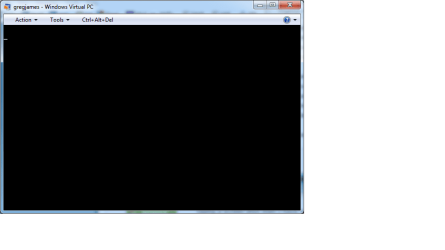
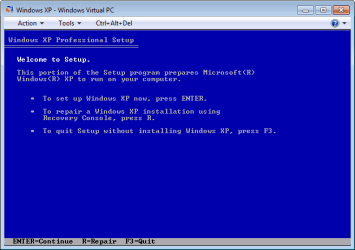
It means your virtual machine has no OS installed and there's no other bootable media available.

I really do not understand what you have done, as per your earlier post (number 25 in this thread) you had it OK.
 

My Computer

Computer type
Laptop
Computer Manufacturer/Model Number
HP ENVY 17-1150eg
OS
Windows 10 Pro x64 EN-GB
CPU
1.6 GHz Intel Core i7-720QM Processor
Memory
6 GB
Graphics Card(s)
ATI Mobility Radeon HD 5850 Graphics
Sound Card
Beats sound system with integrated subwoofer
Monitor(s) Displays
17" laptop display, 22" LED and 32" Full HD TV through HDMI
Screen Resolution
1600*900 (1), 1920*1080 (2&3)
Hard Drives
Internal: 2 x 500 GB SATA Hard Disk Drive 7200 rpm
External: 2TB for backups, 3TB USB3 network drive for media
Cooling
As Envy runs a bit warm, I have it on a Cooler Master pad
Keyboard
Logitech diNovo Media Desktop Laser (bluetooth)
Mouse
Logitech Performance Mouse MX
Internet Speed
50/10 Mbps VDSL
Antivirus
Windows Defender 4.3.9431.0
Browser
Maxthon 3.5.2., IE11
look at my desktop, and you'll see that ini file sitting there. the black box is what I get when clicking like you asked me to do. you'll also see in the 2nd pic, that ini. file is in there with my vm setup. dunno why. i'll read back here when I get to work. thank you kindly
 

Attachments

  • Untitled.png
    Untitled.png
    44.9 KB · Views: 0
  • xp.jpg
    xp.jpg
    186.6 KB · Views: 2

My Computer

OS
W7 premium 64
CPU
amd a8-3850
Motherboard
asus f1-a75v pro
Memory
8G g-skill
Graphics Card(s)
asus gt-520 silent
Monitor(s) Displays
LED viewsonic 24"
Hard Drives
seagate sata 120
wd 2T green
PSU
cool master 600W silent pro (80+bronze)
Desktop.ini files are normal Windows system files, visible if you have selected to unhide system files in Control Panel > Folder Options. It has nothing to do with your issue.

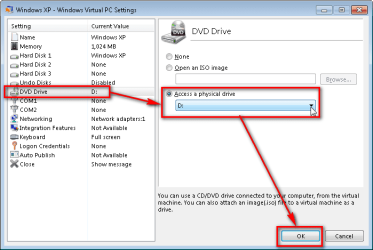
Shut down the virtual machine window, go back to Virtual Machines folder, right click your vmcx file and select Settings from the context menu. Click DVD drive on the left pane and take a screenshot of the Settings window, finally post it here.
 

My Computer

Computer type
Laptop
Computer Manufacturer/Model Number
HP ENVY 17-1150eg
OS
Windows 10 Pro x64 EN-GB
CPU
1.6 GHz Intel Core i7-720QM Processor
Memory
6 GB
Graphics Card(s)
ATI Mobility Radeon HD 5850 Graphics
Sound Card
Beats sound system with integrated subwoofer
Monitor(s) Displays
17" laptop display, 22" LED and 32" Full HD TV through HDMI
Screen Resolution
1600*900 (1), 1920*1080 (2&3)
Hard Drives
Internal: 2 x 500 GB SATA Hard Disk Drive 7200 rpm
External: 2TB for backups, 3TB USB3 network drive for media
Cooling
As Envy runs a bit warm, I have it on a Cooler Master pad
Keyboard
Logitech diNovo Media Desktop Laser (bluetooth)
Mouse
Logitech Performance Mouse MX
Internet Speed
50/10 Mbps VDSL
Antivirus
Windows Defender 4.3.9431.0
Browser
Maxthon 3.5.2., IE11
and I selected to "hide" files and desktop ini went away. thx for that.
 

Attachments

  • xp1.png
    xp1.png
    56 KB · Views: 1

My Computer

OS
W7 premium 64
CPU
amd a8-3850
Motherboard
asus f1-a75v pro
Memory
8G g-skill
Graphics Card(s)
asus gt-520 silent
Monitor(s) Displays
LED viewsonic 24"
Hard Drives
seagate sata 120
wd 2T green
PSU
cool master 600W silent pro (80+bronze)
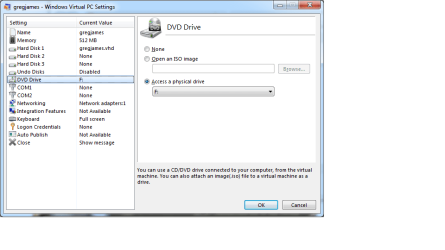
I never had anything in here at all. I am unsure at this point how I got the disk to start to load. I think I did double click the vmcx at one time and it did start to load. Unsure. I have not tried that again, since I shut vm down and started over with you last request of this last pic
 

My Computer

OS
W7 premium 64
CPU
amd a8-3850
Motherboard
asus f1-a75v pro
Memory
8G g-skill
Graphics Card(s)
asus gt-520 silent
Monitor(s) Displays
LED viewsonic 24"
Hard Drives
seagate sata 120
wd 2T green
PSU
cool master 600W silent pro (80+bronze)

My Computer

Computer type
PC/Desktop
Computer Manufacturer/Model Number
Self built custom
OS
64-bit Windows 11 Pro for Workstations
CPU
Intel i7-8700K OC'd to 5 GHz
Motherboard
ASUS ROG Maximus XI Formula Z390
Memory
64 GB (4x16GB) G.SKILL TridentZ RGB DDR4 3600 MHz
Graphics Card(s)
ASUS ROG-STRIX-GTX1080TI-O11G-GAMING
Sound Card
Integrated
Monitor(s) Displays
2 x Samsung Odyssey G7 27"
Screen Resolution
2560x1440
Hard Drives
1TB Samsung 990 PRO M.2,
4TB Samsung 990 PRO PRO M.2,
TerraMaster F8 SSD Plus NAS
PSU
Seasonic Prime Titanium 850W
Case
Thermaltake Core P3
Cooling
Corsair Hydro H115i
Keyboard
Logitech wireless K800
Mouse
Logitech MX Master 4
Internet Speed
2 Gb/s Download and 100 Mb/s Upload
Antivirus
Malwarebyte Anti-Malware Premium
Browser
Google Chrome
Other Info
Logitech Z625 speaker system,
Logitech BRIO 4K Pro webcam,
HP Color LaserJet Pro MFP M477fdn,
APC SMART-UPS RT 1000 XL - SURT1000XLI,
Galaxy S23 Plus phone
OK.

The screenshot shows the vm (virtual machine) accesses the host(*) drive F. Insert your XP Mode CD to drive F:, or select another drive that has the XP CD in it from the drop down menu, and reboot the vm. XP install should now start.

(*) In virtualization, your Windows 7 system is called a host and the virtual machine you have created a guest.

EDIT: Brink was faster :).
 

My Computer

Computer type
Laptop
Computer Manufacturer/Model Number
HP ENVY 17-1150eg
OS
Windows 10 Pro x64 EN-GB
CPU
1.6 GHz Intel Core i7-720QM Processor
Memory
6 GB
Graphics Card(s)
ATI Mobility Radeon HD 5850 Graphics
Sound Card
Beats sound system with integrated subwoofer
Monitor(s) Displays
17" laptop display, 22" LED and 32" Full HD TV through HDMI
Screen Resolution
1600*900 (1), 1920*1080 (2&3)
Hard Drives
Internal: 2 x 500 GB SATA Hard Disk Drive 7200 rpm
External: 2TB for backups, 3TB USB3 network drive for media
Cooling
As Envy runs a bit warm, I have it on a Cooler Master pad
Keyboard
Logitech diNovo Media Desktop Laser (bluetooth)
Mouse
Logitech Performance Mouse MX
Internet Speed
50/10 Mbps VDSL
Antivirus
Windows Defender 4.3.9431.0
Browser
Maxthon 3.5.2., IE11
OK.

The screenshot shows the vm (virtual machine) accesses the host(*) drive F. Insert your XP Mode CD to drive F:, or select another drive that has the XP CD in it from the drop down menu, and reboot the vm. XP install should now start.

(*) In virtualization, your Windows 7 system is called a host and the virtual machine you have created a guest.

EDIT: Brink was faster :).
the only thing I didn't try (and can not until tomorrow) is reboot VM. I can scan back through to look for this, er uh but is there a reboot button or function? Thx a bunch. Again....I never had any wording associated with a drive, showing a cd available. Just a blank drive letter...on either of my drives E or F. It acts just like when you install a CD in a drive and the drive don't detect it and you could stick that CD in another machine, or OS and it would work. I have installed this CD a few times to redo a system and it worked just fine, when installing XP from scratch. I still question whether or not this will work. Fingers crossed. THx, DM
 

My Computer

OS
W7 premium 64
CPU
amd a8-3850
Motherboard
asus f1-a75v pro
Memory
8G g-skill
Graphics Card(s)
asus gt-520 silent
Monitor(s) Displays
LED viewsonic 24"
Hard Drives
seagate sata 120
wd 2T green
PSU
cool master 600W silent pro (80+bronze)
the only thing I didn't try (and can not until tomorrow) is reboot VM. I can scan back through to look for this, er uh but is there a reboot button or function?
By default when you click the shut down button top right, a Virtual PC vm hibernates, it does not shut down.

See the screenshot below to see how to change the behavior of the shut down button, then click it and select either Restart or Shut down.

135281d1296354123-6-months-later-suddenly-wants-name-password-huh-xpm_close_1.png

Again....I never had any wording associated with a drive, showing a cd available. Just a blank drive letter...on either of my drives E or F. It acts just like when you install a CD in a drive and the drive don't detect it and you could stick that CD in another machine, or OS and it would work.
Put the XP CD to a CD drive, check which drive letter it has. Select the same drive letter in vm settings.

It's 3 AM, my alarm goes off in 4 hours. Good night.

Kari
 

My Computer

Computer type
Laptop
Computer Manufacturer/Model Number
HP ENVY 17-1150eg
OS
Windows 10 Pro x64 EN-GB
CPU
1.6 GHz Intel Core i7-720QM Processor
Memory
6 GB
Graphics Card(s)
ATI Mobility Radeon HD 5850 Graphics
Sound Card
Beats sound system with integrated subwoofer
Monitor(s) Displays
17" laptop display, 22" LED and 32" Full HD TV through HDMI
Screen Resolution
1600*900 (1), 1920*1080 (2&3)
Hard Drives
Internal: 2 x 500 GB SATA Hard Disk Drive 7200 rpm
External: 2TB for backups, 3TB USB3 network drive for media
Cooling
As Envy runs a bit warm, I have it on a Cooler Master pad
Keyboard
Logitech diNovo Media Desktop Laser (bluetooth)
Mouse
Logitech Performance Mouse MX
Internet Speed
50/10 Mbps VDSL
Antivirus
Windows Defender 4.3.9431.0
Browser
Maxthon 3.5.2., IE11
no go. what is a good program so I can try to extract the iso from this cd? thx
 

My Computer

OS
W7 premium 64
CPU
amd a8-3850
Motherboard
asus f1-a75v pro
Memory
8G g-skill
Graphics Card(s)
asus gt-520 silent
Monitor(s) Displays
LED viewsonic 24"
Hard Drives
seagate sata 120
wd 2T green
PSU
cool master 600W silent pro (80+bronze)
what I don't understand...even with using the isomaker progy...is that I can use this cd to setup and install windows xp. I open up either cd on my w7 machine, and can get to the setup portion, but the "install xp" is shaded out. However, if I take it to my XP machine, it is not shaded out. Strange.
 

My Computer

OS
W7 premium 64
CPU
amd a8-3850
Motherboard
asus f1-a75v pro
Memory
8G g-skill
Graphics Card(s)
asus gt-520 silent
Monitor(s) Displays
LED viewsonic 24"
Hard Drives
seagate sata 120
wd 2T green
PSU
cool master 600W silent pro (80+bronze)
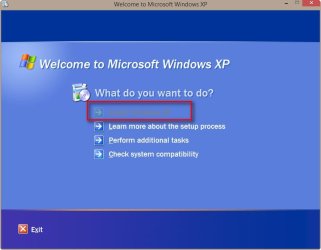
It is totally OK the Install Windows XP being grayed out when you start Windows XP install program on your Windows 7. it should be grayed out. Your Windows 7 can naturally not be "upgraded" to XP, so when you launch XP setup from Windows 7 desktop, the install option is disabled as the XP setup notices that you already have a more recent Windows installed.

This is how it should look if the Windows XP setup program is launched on newer Windows (Vista, Seven or Eight):

2013-11-09_103906.jpg
 

My Computer

Computer type
Laptop
Computer Manufacturer/Model Number
HP ENVY 17-1150eg
OS
Windows 10 Pro x64 EN-GB
CPU
1.6 GHz Intel Core i7-720QM Processor
Memory
6 GB
Graphics Card(s)
ATI Mobility Radeon HD 5850 Graphics
Sound Card
Beats sound system with integrated subwoofer
Monitor(s) Displays
17" laptop display, 22" LED and 32" Full HD TV through HDMI
Screen Resolution
1600*900 (1), 1920*1080 (2&3)
Hard Drives
Internal: 2 x 500 GB SATA Hard Disk Drive 7200 rpm
External: 2TB for backups, 3TB USB3 network drive for media
Cooling
As Envy runs a bit warm, I have it on a Cooler Master pad
Keyboard
Logitech diNovo Media Desktop Laser (bluetooth)
Mouse
Logitech Performance Mouse MX
Internet Speed
50/10 Mbps VDSL
Antivirus
Windows Defender 4.3.9431.0
Browser
Maxthon 3.5.2., IE11
what I don't understand...even with using the isomaker progy...is that I can use this cd to setup and install windows xp. I open up either cd on my w7 machine, and can get to the setup portion, but the "install xp" is shaded out. However, if I take it to my XP machine, it is not shaded out. Strange.
And wut I neglected to say was that when trying to create an ISO it is showing no ISO. I will again take a screen shot of ISO maker with disk installed. I will also take screen shot of folders on disk. I don't like giving up but wish I could afford the upgrade to professional
 

My Computer

OS
W7 premium 64
CPU
amd a8-3850
Motherboard
asus f1-a75v pro
Memory
8G g-skill
Graphics Card(s)
asus gt-520 silent
Monitor(s) Displays
LED viewsonic 24"
Hard Drives
seagate sata 120
wd 2T green
PSU
cool master 600W silent pro (80+bronze)
It is not always necessary to understand how something works and functions in order to use it. However, especially when you do not understand it completely, it is really important, a necessity, to read given instructions carefully and follow them to the letter.

It is quite obvious that you do not know what virtualization is and how it works. It is also equally obvious that you have not read instructions given to you, at least not followed them. In my honest opinion you are trying something that goes beyond your capabilities and you should consider forgetting this, as I predict big problems in the future.

However, if you want to give it one more try, here's a simple illustrated mini tutorial especially for you:
  • After you have installed the Windows Virtual PC, open the Virtual Machines folder at C:\Users\Your_Username\Virtual Machines. Click Create Virtual Machine:
    2013-11-09_111125.png
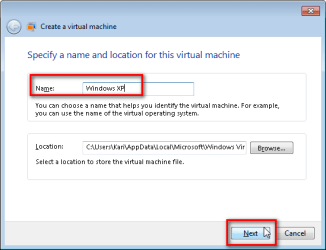
  • Name your virtual machine (vm) as you wish, click Next:
    2013-11-09_111201.png
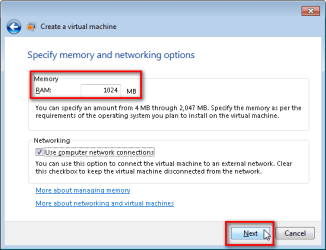
  • Allocate enough RAM to your vm. My recommendation: if you have 2 GB of RAM on your host, give the XP vm 512 MB. If you have more than 2 GB on host, give the vm 1 GB (1024 MB). Click Next:
    2013-11-09_111251.png
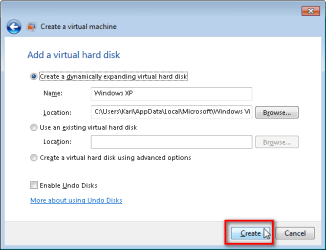
  • System selects by default a dynamically expanding vhd (virtual hard disk). Accept it by clicking Create:
    2013-11-09_111337.png
  • Now right click your newly created vm and select Settings:
    2013-11-09_111426.png
  • Select DVD Drive on the left pane, select Access a physical drive and select the drive that has your windows XP CD in it from the drop down menu, in this example the drive D:. Click OK to save settings:
    2013-11-09_112013.png
  • Double click your vm, in this example Windows XP.vmcx, and the Windows XP vm starts, setup starting automatically. Notice that this can take some time, do not panic if the black window stays there a minute or so. Eventually the setup starts:
    2013-11-09_114209.png
  • Install XP normally as you would do on any PC.
That's it.

Kari
 

My Computer

Computer type
Laptop
Computer Manufacturer/Model Number
HP ENVY 17-1150eg
OS
Windows 10 Pro x64 EN-GB
CPU
1.6 GHz Intel Core i7-720QM Processor
Memory
6 GB
Graphics Card(s)
ATI Mobility Radeon HD 5850 Graphics
Sound Card
Beats sound system with integrated subwoofer
Monitor(s) Displays
17" laptop display, 22" LED and 32" Full HD TV through HDMI
Screen Resolution
1600*900 (1), 1920*1080 (2&3)
Hard Drives
Internal: 2 x 500 GB SATA Hard Disk Drive 7200 rpm
External: 2TB for backups, 3TB USB3 network drive for media
Cooling
As Envy runs a bit warm, I have it on a Cooler Master pad
Keyboard
Logitech diNovo Media Desktop Laser (bluetooth)
Mouse
Logitech Performance Mouse MX
Internet Speed
50/10 Mbps VDSL
Antivirus
Windows Defender 4.3.9431.0
Browser
Maxthon 3.5.2., IE11
I want to uninstall VM and reinstall and go from the beginning. Why is there not an uninstall feature. Yes, I have looked in the programs area. Thank you
 

My Computer

OS
W7 premium 64
CPU
amd a8-3850
Motherboard
asus f1-a75v pro
Memory
8G g-skill
Graphics Card(s)
asus gt-520 silent
Monitor(s) Displays
LED viewsonic 24"
Hard Drives
seagate sata 120
wd 2T green
PSU
cool master 600W silent pro (80+bronze)
standby...something working
 

My Computer

OS
W7 premium 64
CPU
amd a8-3850
Motherboard
asus f1-a75v pro
Memory
8G g-skill
Graphics Card(s)
asus gt-520 silent
Monitor(s) Displays
LED viewsonic 24"
Hard Drives
seagate sata 120
wd 2T green
PSU
cool master 600W silent pro (80+bronze)
ok, have gotten to where xp is formatting the partition on hd, in virtually pc. will report back shortly
 

My Computer

OS
W7 premium 64
CPU
amd a8-3850
Motherboard
asus f1-a75v pro
Memory
8G g-skill
Graphics Card(s)
asus gt-520 silent
Monitor(s) Displays
LED viewsonic 24"
Hard Drives
seagate sata 120
wd 2T green
PSU
cool master 600W silent pro (80+bronze)
ok, I did that and only a black box opens with a flashing cursor.[/QUOTE]What? Please explain as well as you can what you did.[/QUOTE]
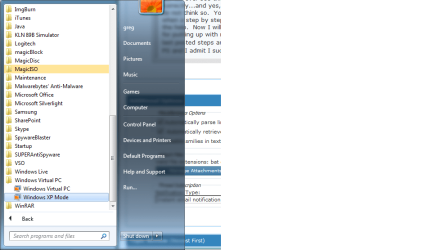
I have re-created my VM and XP. Now, I will use this as my excuse, lame or whatever. Step 4 of the guide did not show "vitual machines" it says...on my machine right now....Windows Virtual PC. Here is the screen shot. When I did not ever see this, it through me off. From that point on, I screwed myself by doing things incorrectly. I am very anal retentive. I am fairly computer savy, even if you may not think so. You were not here when I was doing this and I was thrown off for different reasons. I'm not using step 4 as my total excuse, but it didn't help...compounded with kids running around my feet. Don't get me wrong, it is a good guide and I do/did appreciate all the help. Now I will read a guide on using VM and how to interact with it and XP mode. Thank you guys/gals for putting up with me. Oh and BTW, deleted my 1st created name, created another and went through Kari's last posted steps and it took. TADA :)
PS and I admit I sucked at following these directions. Many brain farts.
 

Attachments

  • xp1.png
    xp1.png
    105.3 KB · Views: 0

My Computer

OS
W7 premium 64
CPU
amd a8-3850
Motherboard
asus f1-a75v pro
Memory
8G g-skill
Graphics Card(s)
asus gt-520 silent
Monitor(s) Displays
LED viewsonic 24"
Hard Drives
seagate sata 120
wd 2T green
PSU
cool master 600W silent pro (80+bronze)
Back
Top