User Profiles - Create and Move During Windows 7 Installation

How to Create User Accounts on another Partition or Disk During Windows 7 Installation

   Information
There are several methods to move user profiles to another disk or partition after you have installed Windows 7. The easiest way is to use Audit Mode and System Preparation Tool, both built-in Windows 7 features, to permanently move the location of the folder Users.

This tutorial shows how to relocate both Users and ProgramData to another disk or partition when doing a new, fresh and clean install of Windows 7. If you have already installed Seven, and you'd like to move those folders away from their default location in C: drive, please read first post number 22 in this thread. Follow the steps told in that post, and continue then from beginning of the page 4 in this tutorial.
When Windows 7 is installed, 5 or 6 system folders are created depending on chosen bit-version:

  • PerfLogs (Performance Logs), where Windows stores performance and reliability logs
  • Program Files, where applications and software are installed. Windows x86 (32-bit) stores all applications here, Windows x64 (64-bit) only native 64-bit applications
  • Program Files (x86), only in Windows x64. All non-x64 applications are stored here
  • Windows, which contains core operating system files and drivers
  • ProgramData, where some applications store application and user specific settings and configuration files
  • Users. This is the "home" of all user folders. When a new user account is created and this new user logs in first time, Windows creates a set of user specific folders Users\New_User
Moving Windows and Program Files folders is not recommend by Microsoft. However, moving both Users and ProgramData folders is safe and can save a lot of space on system disk. Pictures, mp3’s videos, documents and so on, a user folder with its subfolders can be tens, sometimes hundreds of gigabytes.

For instance, using this laptop of mine as an example, the total size of Users folder and subfolders is at the moment about 240 GB. The size of ProgramData folder is at the moment almost 18 GB. I simply could not have these folders stored in my system C: drive, there’s not enough space.

When installing Windows 7, I recommend using Windows System Preparation Tool (Sysprep) in so called Audit Mode to relocate Users and ProgramData, leaving C: drive only for Windows and applications.

   Warning

An upgraded Windows cannot be sysprepped. As this method is based in sysprepping, this tutorial is valid only for Windows setups which have not been upgraded.

This means that if you have for instance in-place upgraded Vista to Seven, you cannot sysprep. The same applies if you have upgraded from a lesser edition to a better edition, for instance from Windows 7 Home Premium to Professional.

Notice that a repair install is also an upgrade install, so if you have ever done a repair install (= in-place upgrade to same edition), you cannot sysprep.

In other words, when sysprepping an existing Windows setup it only works if the Windows was installed clean and has never been upgraded or repaired using repair install, or if it is the original pre-installed Windows.

Using this method causes Windows 7 to lose activation information, and it needs to be reactivated afterwards. If your Windows 7 is an OEM version, you might not be able to reactivate it, at least not without phone activation option.

   Warning
IE10 Users: Please read this article first: Sysprep Fatal Error With IE 10 (FIX) | System Administration


Complete tutorial as PDF: View attachment Relocate User folders during Windows 7 installation.pdf (1.22 MB)

Kari


Last edited:
Yeah, I didn't think that script would have affected it, but the timing was odd. The only disk I marked as Active was the SSD. I read things about marking a disk as inactive, but I didn't see any way to do that in Disk Management.
 

My Computer

OS
Windows 7 64-bit Home Premium
CPU
Intel Core i7 920 D0
Motherboard
EVGA X58 3X SLI E758
Memory
OCZ3X1600R2LV6GK 6GB
Graphics Card(s)
EVGA GTX 260
Hard Drives
OCZ Agility2 120GB; WD Caviar Black 1TB
PSU
Rosewill Bronze 1000W
Case
Antec Nine Hundred
Cooling
Zalman CNPS 9900
But your screenshot here clearly shows both SSD and SATA partitions (disks) as active.
 

My Computer

Computer type
Laptop
Computer Manufacturer/Model Number
HP ENVY 17-1150eg
OS
Windows 10 Pro x64 EN-GB
CPU
1.6 GHz Intel Core i7-720QM Processor
Memory
6 GB
Graphics Card(s)
ATI Mobility Radeon HD 5850 Graphics
Sound Card
Beats sound system with integrated subwoofer
Monitor(s) Displays
17" laptop display, 22" LED and 32" Full HD TV through HDMI
Screen Resolution
1600*900 (1), 1920*1080 (2&3)
Hard Drives
Internal: 2 x 500 GB SATA Hard Disk Drive 7200 rpm
External: 2TB for backups, 3TB USB3 network drive for media
Cooling
As Envy runs a bit warm, I have it on a Cooler Master pad
Keyboard
Logitech diNovo Media Desktop Laser (bluetooth)
Mouse
Logitech Performance Mouse MX
Internet Speed
50/10 Mbps VDSL
Antivirus
Windows Defender 4.3.9431.0
Browser
Maxthon 3.5.2., IE11
Here's what you should do if you for any reason want to move ProgramData and / or Users after Windows is already installed. This method can be used whenever you want to relocate Users to another disk on an existing installation of Seven.

If you want to install Seven on an SSD: Install Seven normally to SSD, disconnecting all other disks. After Windows has booted first time normally after installation, shut the computer down and reconnect other disks. Reboot Windows.

Relocating Users and ProgramData folders when Windows Seven is already installed:

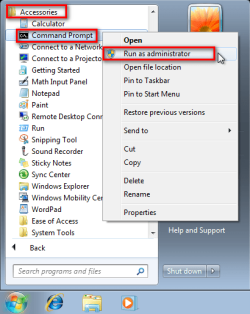
Run Command Prompt as administrator by clicking Start Menu > All Programs > Accessories, then right clicking Command Prompt and selecting Run as Administrator:

Audit_1.png

Type this to command prompt: C:\Windows\System32\Sysprep\Sysprep.exe /audit /reboot, hit Enter.

Audit_2.png

Windows reboots now to Audit Mode, "thinking" it's been started first time as the message on screen shows:

Audit_3.png

Now continue from beginning of page 4 in tutorial, and follow the steps described. Running the script causes Windows to move ProgramData and Users folders from C: to another disk or partition, also moving all content of said folders. The later you do this, the longer it takes because Windows has more to move.

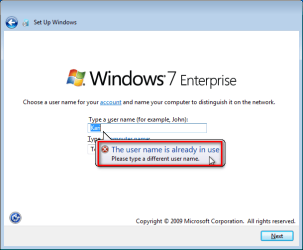
Notice that this really makes Windows think it's first boot, so you have to select country and keyboard layout and again create a user account when first time booted in OOBE (normal) mode after running the script. Because the Users folder already contains your user account folders, you get an error message if trying to input the same name:

Audit_5.png

Use a temporary name, for instance Test to continue first boot routine. When Windows stops for login, choose your old account to login, for instance in my case I chose here Kari and not the account Test which I just created:

Audit_6.png

When finally in Windows desktop, go to User Accounts and remove the unnecessary Test account. That account has yet no folders to remove because Windows does not create user folders when user account is created; the user folders are only created when user logs in first time.

That's it. Works without any problems whatsoever.

Kari
 
Last edited:

My Computer

Computer type
Laptop
Computer Manufacturer/Model Number
HP ENVY 17-1150eg
OS
Windows 10 Pro x64 EN-GB
CPU
1.6 GHz Intel Core i7-720QM Processor
Memory
6 GB
Graphics Card(s)
ATI Mobility Radeon HD 5850 Graphics
Sound Card
Beats sound system with integrated subwoofer
Monitor(s) Displays
17" laptop display, 22" LED and 32" Full HD TV through HDMI
Screen Resolution
1600*900 (1), 1920*1080 (2&3)
Hard Drives
Internal: 2 x 500 GB SATA Hard Disk Drive 7200 rpm
External: 2TB for backups, 3TB USB3 network drive for media
Cooling
As Envy runs a bit warm, I have it on a Cooler Master pad
Keyboard
Logitech diNovo Media Desktop Laser (bluetooth)
Mouse
Logitech Performance Mouse MX
Internet Speed
50/10 Mbps VDSL
Antivirus
Windows Defender 4.3.9431.0
Browser
Maxthon 3.5.2., IE11
This new method worked great, thanks.

Before I did this I had renamed my old Users folder Users.old. When I did this, it created a new Users folder which included my old user profile folders and there was no longer a Users.old. Even though my old user folder is under Users, my account isn't listed under User Accounts. If I create a new user account with the same name already in the Users folder, will it just link to that folder with all of my old data?
 

My Computer

OS
Windows 7 64-bit Home Premium
CPU
Intel Core i7 920 D0
Motherboard
EVGA X58 3X SLI E758
Memory
OCZ3X1600R2LV6GK 6GB
Graphics Card(s)
EVGA GTX 260
Hard Drives
OCZ Agility2 120GB; WD Caviar Black 1TB
PSU
Rosewill Bronze 1000W
Case
Antec Nine Hundred
Cooling
Zalman CNPS 9900
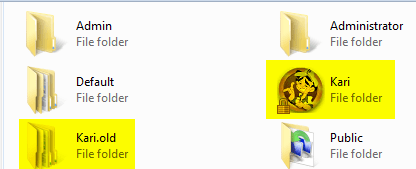
I think you need to be creative here. After doing this last time, I had an old user folder Kari, and the new one with name Kari.Laptop2 (Windows added the name of the computer to username).

I solved this by logging in as Admin, deleting the new Kari-folders (Kari.Laptop2), renaming Kari (the old user folder) to Kari.old, creating a new user Kari, and then logging in to this now new user account Kari. It then created the default user folders for me. Now I took ownership of Kari.old, and copied its content over to (new) Kari folder.

Then it was just to delete Kari.Old.

Users_old_2.png

Users_old.png
 

My Computer

Computer type
Laptop
Computer Manufacturer/Model Number
HP ENVY 17-1150eg
OS
Windows 10 Pro x64 EN-GB
CPU
1.6 GHz Intel Core i7-720QM Processor
Memory
6 GB
Graphics Card(s)
ATI Mobility Radeon HD 5850 Graphics
Sound Card
Beats sound system with integrated subwoofer
Monitor(s) Displays
17" laptop display, 22" LED and 32" Full HD TV through HDMI
Screen Resolution
1600*900 (1), 1920*1080 (2&3)
Hard Drives
Internal: 2 x 500 GB SATA Hard Disk Drive 7200 rpm
External: 2TB for backups, 3TB USB3 network drive for media
Cooling
As Envy runs a bit warm, I have it on a Cooler Master pad
Keyboard
Logitech diNovo Media Desktop Laser (bluetooth)
Mouse
Logitech Performance Mouse MX
Internet Speed
50/10 Mbps VDSL
Antivirus
Windows Defender 4.3.9431.0
Browser
Maxthon 3.5.2., IE11
Alright, good. That's exactly how I ended up doing it. I thought there might have been a more direct way to do so, but that gets the job done.
 

My Computer

OS
Windows 7 64-bit Home Premium
CPU
Intel Core i7 920 D0
Motherboard
EVGA X58 3X SLI E758
Memory
OCZ3X1600R2LV6GK 6GB
Graphics Card(s)
EVGA GTX 260
Hard Drives
OCZ Agility2 120GB; WD Caviar Black 1TB
PSU
Rosewill Bronze 1000W
Case
Antec Nine Hundred
Cooling
Zalman CNPS 9900
I am going to do some serious testing in a next few days. I think moving existing accounts (profiles), you need to first copy the folders of that account to an external drive, then delete the profile, move users using the script told in this tutorial, and then copy the files and folders back.

It seems sysprep is too "clever"; it does not let it to be fooled with renamed user folders but "hijacks" those, causing double user profile name, with the ".ComputerName" extension on the new profile.

Kari
 

My Computer

Computer type
Laptop
Computer Manufacturer/Model Number
HP ENVY 17-1150eg
OS
Windows 10 Pro x64 EN-GB
CPU
1.6 GHz Intel Core i7-720QM Processor
Memory
6 GB
Graphics Card(s)
ATI Mobility Radeon HD 5850 Graphics
Sound Card
Beats sound system with integrated subwoofer
Monitor(s) Displays
17" laptop display, 22" LED and 32" Full HD TV through HDMI
Screen Resolution
1600*900 (1), 1920*1080 (2&3)
Hard Drives
Internal: 2 x 500 GB SATA Hard Disk Drive 7200 rpm
External: 2TB for backups, 3TB USB3 network drive for media
Cooling
As Envy runs a bit warm, I have it on a Cooler Master pad
Keyboard
Logitech diNovo Media Desktop Laser (bluetooth)
Mouse
Logitech Performance Mouse MX
Internet Speed
50/10 Mbps VDSL
Antivirus
Windows Defender 4.3.9431.0
Browser
Maxthon 3.5.2., IE11
I've run into another problem. I noticed that even though I had renamed the user account name and the user account folder, that the system still viewed it with the original name the account was created as. In my case- Test.

I noticed this after entering netplwiz when following this tutorial- http://www.sevenforums.com/tutorials/377-log-automatically-startup.html

The User Name displayed there was the temporary one I had created. So I went into properties there and updated the User name to the same as the Full name which displayed correctly.

Now I'm not able to access the normal user profiles when logging in under a user account. It creates a temporary account for each log in. Under the admin account I looked at the user folder and it showed SYSTEM as the owner. So I made the user account as the owner, but still no luck.

If I go into User Accounts the new user profile I created is there. If I go into Control Panel> User Accounts> Configure advanced user profile properties, there are only two profiles displayed- Admin and default. So any idea how to create the user profile or to re-associate the user folder with the user account?
 

My Computer

OS
Windows 7 64-bit Home Premium
CPU
Intel Core i7 920 D0
Motherboard
EVGA X58 3X SLI E758
Memory
OCZ3X1600R2LV6GK 6GB
Graphics Card(s)
EVGA GTX 260
Hard Drives
OCZ Agility2 120GB; WD Caviar Black 1TB
PSU
Rosewill Bronze 1000W
Case
Antec Nine Hundred
Cooling
Zalman CNPS 9900
I think I got it. I used this for guidance- http://www.sevenforums.com/tutorials/87555-user-profile-change-default-location.html?ltr=U

The profile folders were already where I wanted them, but I figured it wasn't where Windows was looking for them. So looking in regedit I saw that it was still looking for a folder under the temporary account I created- Test. So I changed regedit to reflect the current user and folder names and now when I log into a user account it opens the proper user profile!

The profiles are also now listed correctly under user profile properties as well.
 

My Computer

OS
Windows 7 64-bit Home Premium
CPU
Intel Core i7 920 D0
Motherboard
EVGA X58 3X SLI E758
Memory
OCZ3X1600R2LV6GK 6GB
Graphics Card(s)
EVGA GTX 260
Hard Drives
OCZ Agility2 120GB; WD Caviar Black 1TB
PSU
Rosewill Bronze 1000W
Case
Antec Nine Hundred
Cooling
Zalman CNPS 9900
I found that I still have a ProgramData folder on my C drive. It only contains a Windows folder, so I'm guessing it was created before I ran your script after the first login. Is there any harm moving it to the ProgramData folder on my D drive and deleting it from C? Would I have to make some regedit changes to update paths?
 

My Computer

OS
Windows 7 64-bit Home Premium
CPU
Intel Core i7 920 D0
Motherboard
EVGA X58 3X SLI E758
Memory
OCZ3X1600R2LV6GK 6GB
Graphics Card(s)
EVGA GTX 260
Hard Drives
OCZ Agility2 120GB; WD Caviar Black 1TB
PSU
Rosewill Bronze 1000W
Case
Antec Nine Hundred
Cooling
Zalman CNPS 9900
I have kept those ProgramData folders in C: on every computer. Some badly coded applications don't check variable %ProgramData% to see where information should be stored. In my case, this laptop I'm using now which got a fresh install early October, two applications have stored information on this original ProgramData folder: Skype to its own C:\ProgramData\Skype subfolder, and virtual disk application Gizmo under C:\ProgramData\Microsoft\Windows\Gizmo subfolder.

That Skype surprised me a bit. I had thought Skype would really be coded using variables instead of absolute file locations, but as it seems to be, I was wrong. I remember seeing same kind of bad programming back in XP's time quite often; my last XP was a Finnish one, Program Files folder was named in Finnish Ohjelmatiedostot. Because some coders did not use variables to determine default install locations, using absolute file locations instead and of course assuming I'm using an English XP if installing English application, or German XP if installing German application, I ended up having three Program Files folders: original Finnish Ohjelmatiedostot, English Program Files and German Programmdateien.

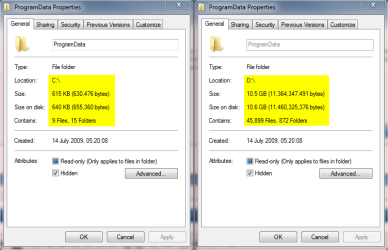
Just hide the folder and let it be there. It does no harm and never grows to be disturbing big. Total size of the "original" ProgramData folder in this laptop's C: drive ATM is 615 KB in 9 files, compared to my "new" and actual ProgramData folder in D:, which has ATM 10.5 GB in 45,899 files. I simply see no harm to let it be there.

Kari
 

Attachments

  • ProgramData_Properties.png
    ProgramData_Properties.png
    18 KB · Views: 979

My Computer

Computer type
Laptop
Computer Manufacturer/Model Number
HP ENVY 17-1150eg
OS
Windows 10 Pro x64 EN-GB
CPU
1.6 GHz Intel Core i7-720QM Processor
Memory
6 GB
Graphics Card(s)
ATI Mobility Radeon HD 5850 Graphics
Sound Card
Beats sound system with integrated subwoofer
Monitor(s) Displays
17" laptop display, 22" LED and 32" Full HD TV through HDMI
Screen Resolution
1600*900 (1), 1920*1080 (2&3)
Hard Drives
Internal: 2 x 500 GB SATA Hard Disk Drive 7200 rpm
External: 2TB for backups, 3TB USB3 network drive for media
Cooling
As Envy runs a bit warm, I have it on a Cooler Master pad
Keyboard
Logitech diNovo Media Desktop Laser (bluetooth)
Mouse
Logitech Performance Mouse MX
Internet Speed
50/10 Mbps VDSL
Antivirus
Windows Defender 4.3.9431.0
Browser
Maxthon 3.5.2., IE11
My C:\ProgramData is 44MB with just the Windows folder in it. But D:\ProgramData is over 1GB and I've confirmed new program data is going to it. I'll live with it! Thanks.
 

My Computer

OS
Windows 7 64-bit Home Premium
CPU
Intel Core i7 920 D0
Motherboard
EVGA X58 3X SLI E758
Memory
OCZ3X1600R2LV6GK 6GB
Graphics Card(s)
EVGA GTX 260
Hard Drives
OCZ Agility2 120GB; WD Caviar Black 1TB
PSU
Rosewill Bronze 1000W
Case
Antec Nine Hundred
Cooling
Zalman CNPS 9900
Im triyng it now and i keep getting this: Unable to deserialize explicitly provided unattend file.

Full error:

2011-01-04 16:35:33, Error [sysprep.exe] UnattendFindAnswerFile: Unable to deserialize explicitly provided unattend file [C:\relocate.xml]; status = 0x80073714, hrResult = 0x0.
2011-01-04 16:35:33, Error [0x0f009e] SYSPRP SysprepSearchForUnattend: Failed while searching for unattend file; hr = 0x80073714
2011-01-04 16:35:33, Error [0x0f00a5] SYSPRP WinMain:Encountered error while searching for unattend file; hr = 0x80073714.

any help with what the above means?

also now as i cant read pdf's could someone please copy n paste the xml code for me?
 

My Computer

Computer Manufacturer/Model Number
Sony Vaio VGC-RM2U
OS
Windows 7 Ultimate X64
CPU
Q6600 Quad Core
...

also now as i cant read pdf's could someone please copy n paste the xml code for me?

ok, here you go:

Code:
<?xml version="1.0" encoding="utf-8"?> 
<unattend xmlns="urn:schemas-microsoft-com:unattend"> 
    <settings pass="oobeSystem"> 
        <component name="Microsoft-Windows-Shell-Setup" processorArchitecture="amd64" 
publicKeyToken="31bf3856ad364e35" language="neutral" versionScope="nonSxS" 
xmlns:wcm="http://schemas.microsoft.com/WMIConfig/2002/State" 
xmlns:xsi="http://www.w3.org/2001/XMLSchema-instance"> 
            <FolderLocations> 
                <ProfilesDirectory>d:\Users</ProfilesDirectory> 
                <ProgramData>d:\ProgramData</ProgramData> 
            </FolderLocations> 
        </component> 
    </settings> 
    <cpi:offlineImage cpi:source="wim:E:/sources/install.wim#Windows 7 ULTIMATE" 
xmlns:cpi="urn:schemas-microsoft-com:cpi" /> 
</unattend>

Please notice: rows 4 to 7 in script above is only one row, wrapped here to 4 rows because of the
limited width of the page. Same with rows 14 and 15. When typed in Notepad, the script should have 12 rows) Change these three things written in red, if needed:

- Row 4: If you are installing Windows x64 (64-bit), value prosessorArchitecture should be amd64

- Row 4: If you are installing Windows x86 (32-bit), value prosessorArchitecture should be x86

- Row 14: Change the drive letter in wim:E to that of your CD/DVD drive where your Windows 7 installation DVD currently is

- Row 14: Change the Windows edition at the end of the line to that you are currently installing
(HOMEBASIC, HOMEPREMIUM, PROFESSIONAL, ULTIMATE, ENTERPRISE)

(If you are installing Windows Ultimate x64 from CD/DVD drive E: and relocating folders to D: you don’t have to change anything, you can use the script as it is.)

Choose Save As from Notepad’s File menu. Choose Save as type All Files. Name it as you want, add .xml extension to the filename. Save the script to the root of any drive...

...

sorry i can't help you on the first bit of your question, but it looks like it can't find your relocate file on c:

can you save it on another safe partition? if you're installing from a usb stick, that would be a good place to have relocate.xml.

you may have to modify the xml script a bit, especially the d: and e: drive letters.

i'm sure Kari will be along soon...
 

My Computer

Computer Manufacturer/Model Number
mickey megabyte 1234
OS
ultimate 64 sp1
CPU
i5 2500K [email protected]
Motherboard
MSI P67A-GD53
Memory
8 gigs GSkill Ripjaws 1600
Graphics Card(s)
amd hd6950
Sound Card
creative x-fi gamer
Monitor(s) Displays
samsung 24"
Screen Resolution
1920x1080
Hard Drives
ocz vertex 2e 60 gig, samsung f3 1tb, buffalo 2tb ext
PSU
antec 550
Case
antec three hundred
Cooling
i'm a cooling fan
Keyboard
saitek eclipse ii
Mouse
logitech g3
Internet Speed
about 4 Mbps
Other Info
i love win7
First the xml code for unattend file is here:
Code:
<?xml version="1.0" encoding="utf-8"?>
<unattend xmlns="urn:schemas-microsoft-com:unattend">
<settings pass="oobeSystem">
<component name="Microsoft-Windows-Shell-Setup" processorArchitecture="amd64" publicKeyToken="31bf3856ad364e35" language="neutral" versionScope="nonSxS" xmlns:wcm="http://schemas.microsoft.com/WMIConfig/2002/State" xmlns:xsi="http://www.w3.org/2001/XMLSchema-instance">
<FolderLocations>
<ProfilesDirectory>d:\Users</ProfilesDirectory>
<ProgramData>d:\ProgramData</ProgramData>
</FolderLocations>
</component>
</settings>
<cpi:offlineImage cpi:source="wim:E:/sources/install.wim#Windows 7 ULTIMATE" xmlns:cpi="urn:schemas-microsoft-com:cpi" />
</unattend>
Change the ProcessorArchitecture value (line 4, in the middle) to "x86" if you have a 32-bit Windows 7. Leave it to "amd64" if you have a 64-bit Windows 7.

Change the ProfilesDirectory and ProgramData values to to show desired locations of Users and ProgramData folders.

Change the drive letter to that of your DVD drive where Seven installation disk is located in second last line, after "wim:" (in the middle of the line) and following that, the correct Windows edition (HOMEBASIC, HOMEPREMIUM, PROFESSIONAL, ULTIMATE or ENTERPRISE).

The error codes you provided show sysprep is looking the script from C:. Move it to some other drive, for instance D:. Check that the file name and extension are correct; it won't work if you save it as Notepad's default .txt file. It must be .xml.

Then simply run sysprep. This example assumes the script's name is Relocate.xmlm and that it is saved on the root of D:-drive:
Code:
sysprep.exe /audit /reboot /unattend:d:\relocate.xml.

By the way, in audit mode before running the script, you can install programs if you need / want to. For instance, just go to Internet in Audit Mode to download and install a PDF-reader.

Kari


EDIT: Mickey was faster...
 

My Computer

Computer type
Laptop
Computer Manufacturer/Model Number
HP ENVY 17-1150eg
OS
Windows 10 Pro x64 EN-GB
CPU
1.6 GHz Intel Core i7-720QM Processor
Memory
6 GB
Graphics Card(s)
ATI Mobility Radeon HD 5850 Graphics
Sound Card
Beats sound system with integrated subwoofer
Monitor(s) Displays
17" laptop display, 22" LED and 32" Full HD TV through HDMI
Screen Resolution
1600*900 (1), 1920*1080 (2&3)
Hard Drives
Internal: 2 x 500 GB SATA Hard Disk Drive 7200 rpm
External: 2TB for backups, 3TB USB3 network drive for media
Cooling
As Envy runs a bit warm, I have it on a Cooler Master pad
Keyboard
Logitech diNovo Media Desktop Laser (bluetooth)
Mouse
Logitech Performance Mouse MX
Internet Speed
50/10 Mbps VDSL
Antivirus
Windows Defender 4.3.9431.0
Browser
Maxthon 3.5.2., IE11
i wasnt too sure on installing adobe reader in audit mode, but thanks for the xml sheet, i am/was running 64 bit ultimate so didnt need to change anything, i swapped out my hand written code for the one above and it worked fine.


Must have been a spelling mistake somewhere.

Thanks again.
 

My Computer

Computer Manufacturer/Model Number
Sony Vaio VGC-RM2U
OS
Windows 7 Ultimate X64
CPU
Q6600 Quad Core
That's good to hear! Thanks for coming back to tell this.

Kari
 

My Computer

Computer type
Laptop
Computer Manufacturer/Model Number
HP ENVY 17-1150eg
OS
Windows 10 Pro x64 EN-GB
CPU
1.6 GHz Intel Core i7-720QM Processor
Memory
6 GB
Graphics Card(s)
ATI Mobility Radeon HD 5850 Graphics
Sound Card
Beats sound system with integrated subwoofer
Monitor(s) Displays
17" laptop display, 22" LED and 32" Full HD TV through HDMI
Screen Resolution
1600*900 (1), 1920*1080 (2&3)
Hard Drives
Internal: 2 x 500 GB SATA Hard Disk Drive 7200 rpm
External: 2TB for backups, 3TB USB3 network drive for media
Cooling
As Envy runs a bit warm, I have it on a Cooler Master pad
Keyboard
Logitech diNovo Media Desktop Laser (bluetooth)
Mouse
Logitech Performance Mouse MX
Internet Speed
50/10 Mbps VDSL
Antivirus
Windows Defender 4.3.9431.0
Browser
Maxthon 3.5.2., IE11
Kari - This install procedure is fantastic & a time saver if ever a reinstall is required. Your instructions are excellent.

I have partitioned my drive into C:\OS & D:\Data. Unfortunately after following this install procedure W7's native imaging program no longer allows choosing C:\ only. It automatically includes both C: & D: together. It's more of an inconvenience though as I also use Macrium Reflect (Thank you WHS). Have you found a way to allow imaging of C: only via W7's imaging program?

I know some here do not like W7's imaging imaging although I've used it for over a year without hiccup. I'd like to have this option if it can be made available.
 

My Computer

Computer Manufacturer/Model Number
Gateway M-6862
OS
W7 x64 Ultimate
CPU
T5750 2.0 Ghz
Motherboard
PM965
Memory
4 GB
Graphics Card(s)
Mobility Radeon HD 2600
Hard Drives
WD2500BEVS 250GB
Cooling
Undervolting Works!
:) Thanks!

Windows native imaging always includes Users and ProgramData in a system image, so no, I do not know how not to include D: or whatever drive where your user profiles are saved.

Using third party imaging, as you told you do, is as far as I know the only option.

Kari
 

My Computer

Computer type
Laptop
Computer Manufacturer/Model Number
HP ENVY 17-1150eg
OS
Windows 10 Pro x64 EN-GB
CPU
1.6 GHz Intel Core i7-720QM Processor
Memory
6 GB
Graphics Card(s)
ATI Mobility Radeon HD 5850 Graphics
Sound Card
Beats sound system with integrated subwoofer
Monitor(s) Displays
17" laptop display, 22" LED and 32" Full HD TV through HDMI
Screen Resolution
1600*900 (1), 1920*1080 (2&3)
Hard Drives
Internal: 2 x 500 GB SATA Hard Disk Drive 7200 rpm
External: 2TB for backups, 3TB USB3 network drive for media
Cooling
As Envy runs a bit warm, I have it on a Cooler Master pad
Keyboard
Logitech diNovo Media Desktop Laser (bluetooth)
Mouse
Logitech Performance Mouse MX
Internet Speed
50/10 Mbps VDSL
Antivirus
Windows Defender 4.3.9431.0
Browser
Maxthon 3.5.2., IE11
I thought as much but it doesn't hurts to inquire of greater minds. :geek: Thanks again!
 

My Computer

Computer Manufacturer/Model Number
Gateway M-6862
OS
W7 x64 Ultimate
CPU
T5750 2.0 Ghz
Motherboard
PM965
Memory
4 GB
Graphics Card(s)
Mobility Radeon HD 2600
Hard Drives
WD2500BEVS 250GB
Cooling
Undervolting Works!
Back
Top